 MyRecover



Top 6 SDXC Card Data Recovery Software for 2026
Looking for powerful SDXC card recovery software or solutions? Our advanced tools and tricks help you restore deleted, lost, or formatted photos, videos, and documents from any SDXC card quickly and safely, ensuring minimal data loss and maximum recovery success.

By Vera / Updated on June 1, 2026


Understanding SDXC Cards
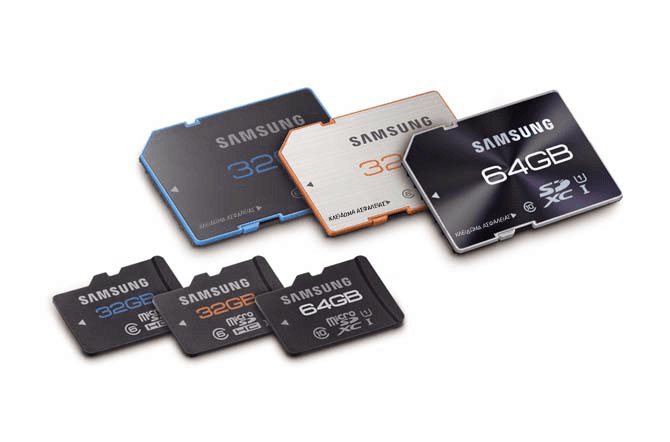
What is an SDXC Card?
SDXC stands for Secure Digital eXtended Capacity, and these cards are designed for modern, high-volume storage. Unlike older SD or SDHC cards, SDXC cards typically range from 64GB up to 2TB. That means they can hold thousands of photos, hours of HD video, or large datasets for professional use. Think of them as the long-term memory stick of your digital life.
Common Uses of SDXC Cards
Photographers, videographers, and gamers all rely on SDXC cards. You’ll find them in digital cameras, drones, action cameras, and even some laptops and smartphones. They’re ideal for capturing high-resolution media, storing massive project files, or simply expanding device storage without needing a full hard drive.
Differences Between SD, SDHC, and SDXC
Understanding the difference can save you headaches.
-
SD: The original standard, supporting up to 2GB of storage.
-
SDHC: Supports 4GB to 32GB, using the FAT32 file system.
-
SDXC: Supports 64GB up to 2TB. Crucially, these cards use the exFAT file system.
- ★Note:
- You may be interested in SDHC card data recovery.
Common Scenarios for SDXC Memory Card Recovery
Data loss rarely happens at a convenient time. Understanding why it happened can help you choose the right SDXC card data recovery software and recovery strategy.
- ⭕Accidental Deletion: The most common scenario. You’re reviewing photos on your camera and accidentally hit "Delete All" instead of "Delete One."
- ⭕Formatting Errors: You might receive a prompt saying, "The disk in drive X: is not formatted. Do you want to format it now?" or you may have intentionally formatted the card, forgetting there were unbacked-up files on it.
- ⭕File System Corruption (RAW): If the file system becomes corrupted, your computer may recognize the card as "RAW." This means the operating system can no longer read the data structure, even though the files are physically still there. >> let's fix raw SD card without formatting now!
- ⭕Improper Ejection: Pulling an SDXC card out of a camera or card reader while it is still "writing" data is a leading cause of logical corruption.
- ⭕Virus or Malware Attacks: While rare on cameras, SDXC cards used in smartphones or shared across multiple computers can become infected, leading to hidden or deleted files.
- ⭕Physical Damage: While software can't fix a snapped card, it can sometimes help with cards that have "bad sectors" or minor electrical issues that prevent standard access.
Signs You Need SDXC Card Recovery
How do you know your SDXC card is in trouble? Watch for these warning signs:
❗Card Not Recognized by Device
If your camera, phone, or computer doesn’t detect your SDXC card, it may be corrupted or damaged.
❗Missing or Corrupted Files
Files may disappear, appear with strange symbols, or become unreadable. This is often caused by file system corruption or accidental deletion.
❗Error Messages While Accessing Data
Messages like "card needs formatting", "read/write error", or "file system not supported" indicate that something is wrong and you should stop using the card immediately.
Why You Need Specialized SDXC Card Recovery Software
Can’t you just use built-in Windows or Mac tools? Generally, no. Standard operating system utilities like Windows File Recovery or Disk Utility are designed to manage healthy file systems. When a card is corrupted or files are deleted, the "map" to that data is gone.
Professional SDXC card recovery software works by bypassing the operating system’s file manager. It performs a "Deep Scan" of the card’s NAND flash memory, looking for "file signatures"—unique headers that identify a file as a JPG, MP4, or DOCX. For SDXC cards, top-tier software is specifically optimized to handle the large volumes of data and the file fragmentation that often occurs with high-bitrate 4K and 8K video files.
Top 6 SDXC Card Data Recovery Software for 2026
Choosing the right tool is the difference between a 100% recovery and a total loss. Here are the most reliable options available in 2026:
1. MyRecover (Best for Ease of Use & High Success Rate)

MyRecover
 Hot
Hot


MyRecover has rapidly become a favorite for both casual users and professionals. It is specifically engineered to handle complex data loss scenarios on Windows-based systems. It excels in SDXC memory card recovery by offering a highly efficient scanning algorithm that can recover over 1000 types of data.
 Windows
 Android
-
👍Pros: Extremely user-friendly interface; supports NTFS, FAT32, and exFAT; maintains original file names and paths; high recovery success rate for formatted cards.
-
👎Cons: Currently focused primarily on Windows environments.
Why it's in the top 6?
Its ability to restore files with their original metadata makes it a massive time-saver for those managing large SDXC libraries. Its user-friendly interface makes it accessible for beginners and advanced users alike.
 100% Secure
Step-by-Step Recovery with MyRecover
1. Download and Install: Install MyRecover on your computer.
2. Connect the SDXC Card: Use a reliable card reader to connect the card to your computer.
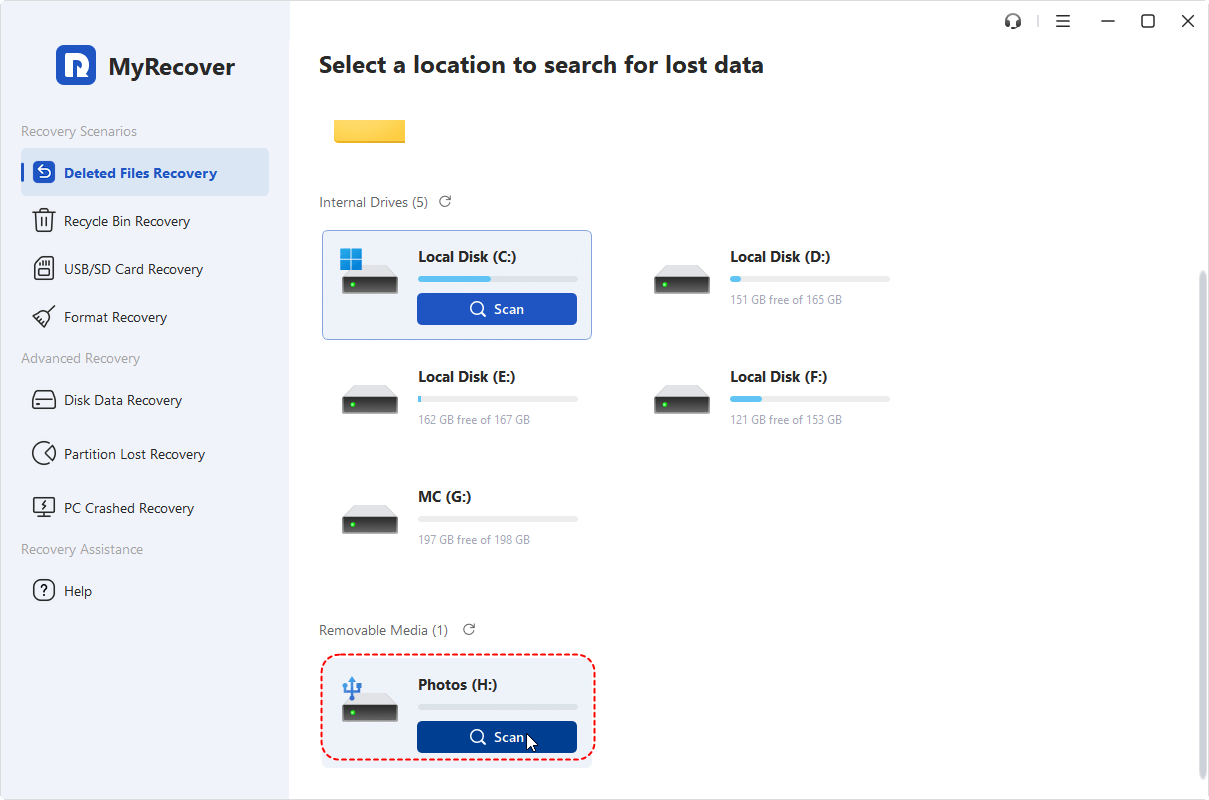
3. Launch MyRecover: Open the software and select your SDXC card from the list of available drives.
4. Scan for Lost Files: Click "Scan". MyRecover will perform a quick scan to find deleted or corrupted files.
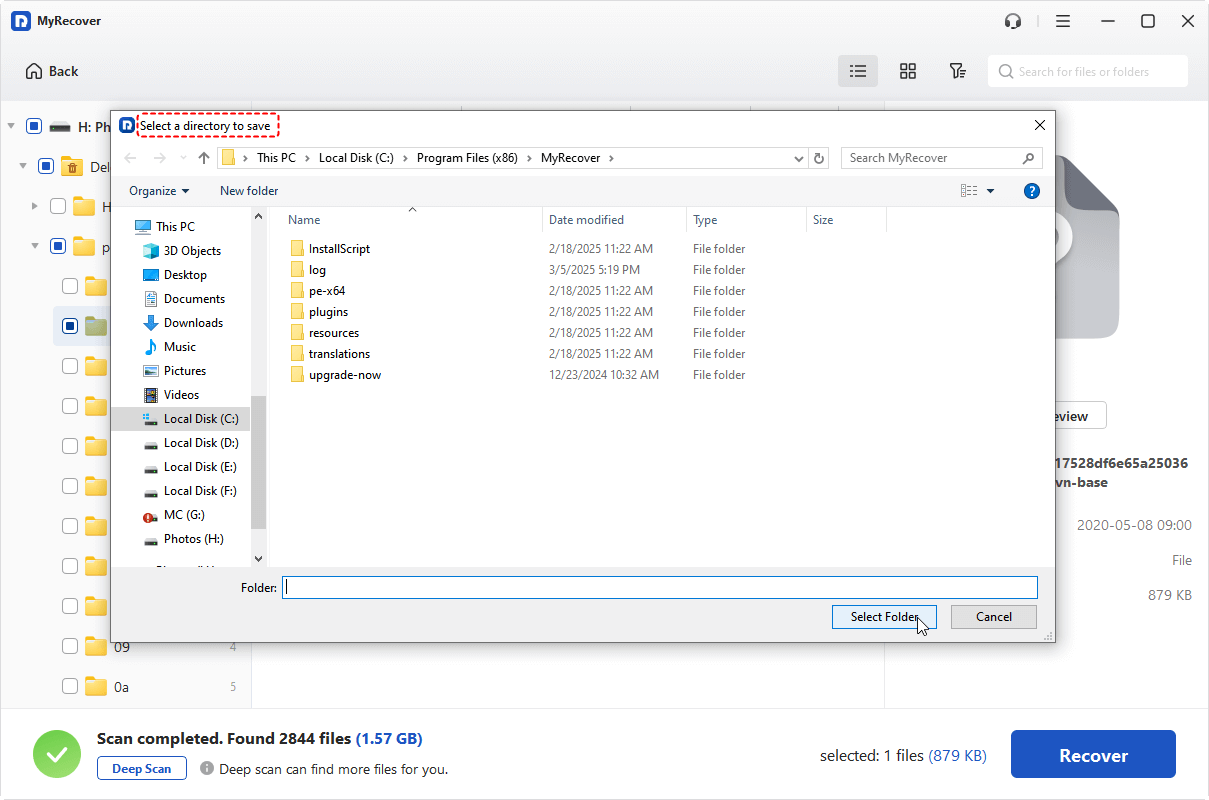
5. Preview and Select Files: Preview the recoverable files and select the ones you need.
6. Recover Files: Click "Recover" and save the files to a different drive (never save them back to the same SDXC card).
This method works for files lost due to accidental deletion, formatting, or even virus attacks.
2. PhotoRec (Best Open-Source/Free Option)

PhotoRec
If you are tech-savvy and don't mind a command-line interface, PhotoRec is a powerful, open-source tool. It ignores the file system entirely and goes straight for the raw data blocks.
- Windows
 Mac
Mac Linux
Linux
-
👍Pros: Completely free; no data limits; works on Windows, Mac, and Linux.
-
👎Cons: No graphical interface (text-only); no file previews before recovery; doesn't always recover original file names.
How to use PhotoRec for SDXC card data recovery?
1. Launch:
- Windows: Right-click photorec_win.exe > Run as Administrator.
- macOS: Open Terminal, drag the photorec file into the window, and press Enter. (You may need to enter your Mac password).
2. Select Disk: Use the arrow keys to highlight your SDXC card and press Enter.
3. Select Partition: Highlight the main partition (usually the one with the largest size) or "No partition." Press Enter.
4. File System Type: Choose [Other] (since SDXC cards use exFAT/FAT32, not Linux ext2/ext3).
5. Scanning Range:
- Choose [Free] for deleted files.
- Choose [Whole] for a deep scan of a corrupted/formatted card.
6. Select Destination: Navigate to a folder on your computer.
- Use the arrow keys to enter folders.
- When you are in the correct folder, press C on your keyboard.
7. Wait: PhotoRec will list the files as it finds them.
3. Disk Drill SD Card Recovery
Disk Drill
Disk Drill is widely considered a top-tier all-rounder. Its "Advanced Video Recovery" module is particularly helpful for SDXC users because it can piece together fragmented video files—a common issue with GoPro, Sony, and DJI cameras.
- Windows
- Mac
-
👍Pros: Intuitive interface; supports RAW formats; excellent preview feature; "Recovery Vault" feature for future protection.
-
👎Cons: The free version has a recovery limit (typically 500MB on Windows).
4. Wondershare Recoverit

Wondershare Recoverit
Recoverit is a powerhouse for high-capacity drives. It boasts a high success rate forSDXC card recoveryacross various scenarios, including system crashes and virus attacks.
- Windows
- Mac
-
👍Pros: Dedicated "Enhanced Recovery" for professional-grade video; supports over 1,000 file formats; offers a bootable media option for crashed systems.
-
👎Cons: Scanning can be slower on very large (512GB+) cards due to the depth of the scan.
5. EaseUS Data Recovery Wizard
EaseUS
EaseUS is a veteran in the data recovery space. It offers a straightforward "Scan -> Preview -> Recover" workflow that is perfect for non-technical users.
- Windows
- Mac
- Linux
- Android
 iOS
iOS
-
👍Pros: Very fast "Quick Scan"; handles RAW drive errors exceptionally well; robust filtering system to find specific files.
-
👎Cons: The subscription-based pricing can be higher than competitors.
6. Recuva
Recuva
For Windows users looking for a simple, lightweight tool for recently deleted files, Recuva remains a solid choice in 2026. It’s best for simple "undo-delete" tasks on SDXC cards used in smartphones or basic point-and-shoot cameras.
- Windows
-
👍Pros: Very easy to use; includes a "Portable" version that doesn't require installation; includes a secure wipe feature.
-
👎Cons: Not as effective for complex corruption or heavily fragmented professional video files.
Manual Fixes: Can You Recover SDXC Cards Without Software?
Sometimes the issue isn't a deleted file, but a communication error between the card and the operating system. If you prefer not to use SDXC card data recovery software, your computer has built-in tools that might help, although they’re less comprehensive.
System tools like CHKDSK (Windows) or First Aid (Mac) are not "undelete" tools. Instead, they are "integrity" tools. They check the card's File Allocation Table for inconsistencies and attempt to repair the structure. Use this method if your card is recognized but gives "Read/Write" errors or says the "File System is Corrupt."
1) Windows CHKDSK (Command Prompt)
1. Connect the card and type cmd in the Windows search bar. Run as Administrator.
2. Type chkdsk E: /f (Replace E: with your SDXC card's actual drive letter).
3. The Logic: The /f parameter tells Windows to fix errors on the disk. This can make "invisible" files visible again if the directory index was the only thing broken.
2) Mac Disk Utility
1. Open Disk Utility and select your SDXC card.
2. Click First Aid > Run to check and repair errors in the file system.
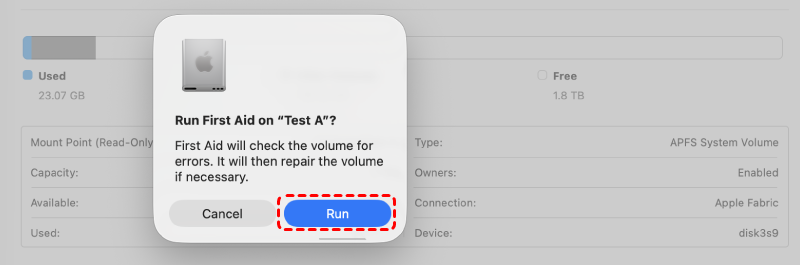
3. If successful, the card should become readable again.
3) Linux Terminal Tools
Linux provides powerful command-line utilities to check and repair SDXC cards. The most common tools are fsck (file system check) and testdisk.
👉Using fsck:
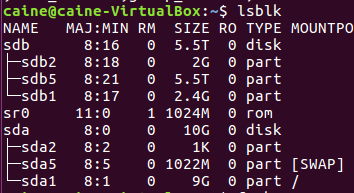
1. Insert your SDXC card and identify its device path. Open a terminal and run: lsblk. Look for your SDXC card, usually listed as something like /dev/sdb1.
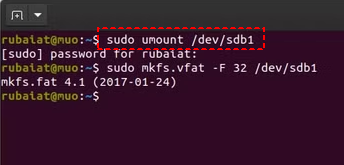
2. Unmount the card (replace /dev/sdb1 with your device path): sudo umount /dev/sdb1.
3. Run fsck to check and repair errors: sudo fsck -y /dev/sdb1. The -y option automatically fixes detected issues.
4. After completion, remount your card and check if your files are accessible.
👉Using TestDisk for deeper recovery:
1. Install testdisk if it’s not already available: sudo apt install testdisk.
2. Launch testdisk: sudo testdisk.
3. Follow the interactive menu to select your SDXC card, scan for lost partitions, and recover files.
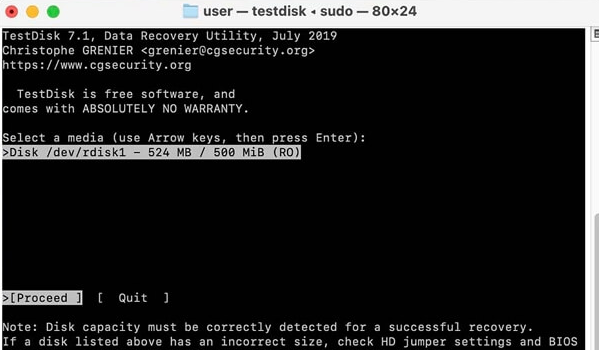
TestDisk is especially useful if your card has been formatted or corrupted heavily. It works on ext4, FAT32, exFAT, and NTFS file systems.
If system tools report "Cannot open volume for direct access" or "The drive is physically damaged," software-based fixes will likely fail, and you must move to hardware-level intervention.
Pro Tips to Prevent Future SDXC Data Loss
The best recovery strategy is never needing one in the first place. Follow these "Best Practices" for SDXC health:
- ✔️Format in the Camera, Not the PC: Always format your card using the menu inside your camera. This ensures the file system structure is perfectly aligned with the camera's specific write requirements.
- ✔️Avoid the "Fill to 100%" Trap: Don't shoot until the card is completely full. Leaving 5-10% of the space empty helps the controller manage "wear leveling" and reduces the risk of file system headers being truncated.
- ✔️Always "Eject" Safely: In Windows, use the "Safely Remove Hardware" icon. On Mac, drag the card to the Trash. This ensures all "cached" data is written to the card before power is cut.
- ✔️Use High-Quality Brands: Stick to reputable manufacturers like SanDisk (Extreme Pro series), Lexar, ProGrade, or Sony (Tough series).
- ✔️The 3-2-1 Backup Rule: Keep 3 copies of your data, on 2 different media types (e.g., SD card and External SSD), with 1 copy stored off-site (cloud storage).
Conclusion
Losing data from a high-capacity SDXC card can be a heart-stopping experience, but in 2026, it is rarely a permanent loss. Thanks to the power of modern SDXC card recovery software, most logical data loss—from accidental deletion to RAW drive errors—can be reversed in a few clicks.
By acting quickly, stopping all new write operations, and using a dedicated SDXC card data recovery software like MyRecover, Disk Drill, or Recoverit, you have a very high probability of getting your photos and videos back. Remember, the key to successful SDXC memory card recovery is patience and following the correct workflow. Protect your digital life today by implementing a solid backup routine, but keep this guide bookmarked just in case disaster strikes.
Frequently Asked Questions (FAQ)
1. My SDXC card says it's "Write Protected" even when the switch is in the correct position. Why?
This is a safety feature built into the card's controller. When the card detects it is nearing the end of its life (NAND wear) or identifies a critical internal error, it locks itself into "Read-Only" mode to protect the existing data. If this happens, do not attempt to format it. Use MyRecover immediately to pull the data off while the card is still readable.
2. Can I recover data from a card that says "Disk must be formatted"?
Yes. This error indicates that the "Boot Sector" or "File System Header" is corrupted. The operating system sees the card but doesn't understand the file structure. MyRecover specializes in this; it ignores the corrupted header and scans the "raw" data beneath it to find your files.
3. Why are my recovered videos from my SDXC card "choppy" or unplayable?
High-capacity SDXC cards often fragment large video files (especially 4K .mp4 or .mov). Standard recovery tools may only find the first fragment. To fix this, you need a tool with advanced video reconstruction logic that can locate and link the disparate fragments of the video file during the scan.
4. Is there a difference between recovering a "Quick Formatted" vs. "Full Formatted" card?
A Quick Format only deletes the directory index; the data is highly recoverable. However, a "Full Format" in Windows 10/11 may perform a "zero-fill," which overwrites every sector. If you performed a Full Format, recovery is unfortunately much less likely.
5. How long does an SDXC recovery scan take?
Because SDXC cards range from 64GB to 2TB, a Deep Scan can take anywhere from 30 minutes to several hours. The speed is limited by your USB port (USB 3.0 vs 2.0) and the read speed of the card itself. Always ensure your computer is plugged into power before starting.
6. Does MyRecover support RAW image formats like .ARW, .CR3, or .NEF?
Yes. Unlike basic undelete tools, MyRecover recognizes professional-grade RAW signatures. This makes it a preferred choice for photographers using high-end Sony, Canon, or Nikon cameras that require SDXC cards for high-speed burst shooting.

Stay Updated With Our
Latest Tips
Add us as a preferred source on Google to never miss helpful guides.
 Add as preferred source >>