 MyRecover



How to Recover Files Deleted by Viruses
Wondering how to recover files deleted by a virus without losing important data? Our complete guide covers safe recovery tools, step-by-step instructions, and tips to restore documents, images, and media files. Protect your system and regain access to your valuable files.

By Vera / Updated on April 16, 2026


Understanding How Viruses Delete Files
Viruses are sneaky. Some are designed to steal information, while others aim to corrupt or erase files altogether.

Common Types of Viruses That Delete Files
- Trojan horses: Disguise themselves as legit programs but wipe or damage files.
- Worms: Spread rapidly, deleting or overwriting data.
- Ransomware: Encrypts files, making them inaccessible until you pay (and sometimes, even then, you don’t get them back).
Why do viruses target your data? Most malware authors want one of three things: money, disruption, or access to your sensitive information. Destroying or locking your files is one way to achieve that. So, what are the signs that a file has been attacked by a virus? Watch out for these red flags:
- ❗Sudden Missing Files: Folders that were full yesterday are now mysteriously empty, such as desktop suddenly empty.
- ❗Unusual Error Messages: Programs may fail to open, claiming files are "missing" or "corrupted".
- ❗Slow System Performance: If your computer lags heavily along with missing files, malware might be hogging resources.
Can Deleted Files Be Recovered After a Virus Attack?
Can you recover the files that a virus/malware delete from the download folder?
Today I noticed that all of the files that I had saved in my download folder are gone, I read online that a malware or virus delete all my files. Will it be possible to recover those files? Also, is it more harmful to keep malware and Trojan quarantine? Than deleting them. I ask since some of those virus and malware are persistent on my computer
- Question from Reddit
Yes, you can recover files after a virus attack! In many cases, deleted files aren’t permanently gone—they’re just marked as “free space” until overwritten. So, quick action is critical. Before rushing to recover files, you should take immediate steps below:
- 1️⃣Stop Using the Infected Device: Continuing to use the device risks overwriting recoverable files.
- 2️⃣Run a Full Antivirus Scan: Clean the malware first, or your recovered files may just get deleted again.
- 3️⃣Disconnect External Devices: If USB drives or external hard disks are attached, disconnect them to prevent the virus from spreading.
6 Methods to Recover Files Deleted by Viruses
Now, let's learn how to recover files infected by a virus attack, from built-in Windows commands to professional recovery tools, to keep your data safe in the future.
Method 1: Check Recycle Bin or Trash
Many times, a virus might just move or "soft delete" your files. Here’s how you can check:
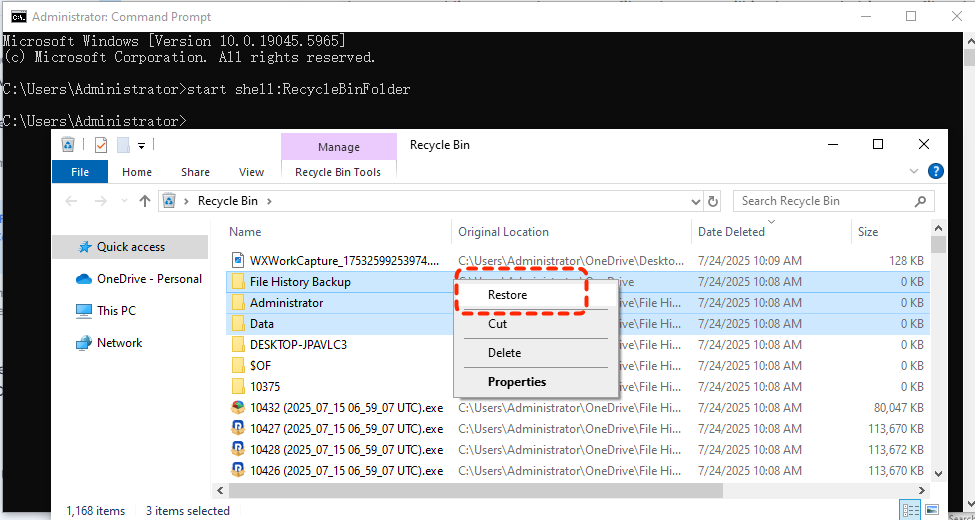
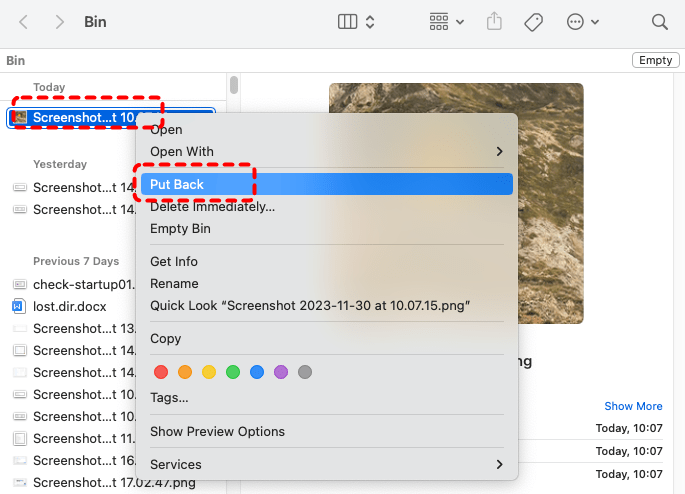
1. Open Recycle Bin/Trash: Double-click the Recycle Bin (Windows) or Trash (Mac) icon.
2. Look for Missing Files: Browse through the list of deleted items.
3. Restore the File:
- On Windows: Right-click the file > Restore. It goes back to its original location.
- On Mac: Right-click > Put Back to return it to where it was.
4. Search by Name: If you remember the filename, use the search bar to quickly locate it.
Method 2: Recover Files Using CMD (The Attrib Command)
If a virus has simply hidden your files (common with USB shortcut viruses), you can bring them back using the Command Prompt. This is the most effective "free" method.
1. Plug in your infected drive (if external).
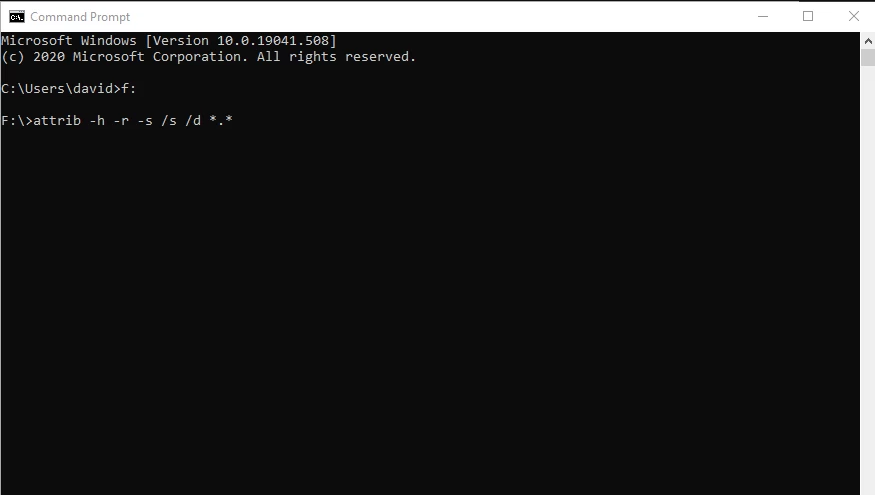
2. Press Windows + S and type cmd. Right-click Command Prompt and select Run as Administrator.

3. Type the drive letter of the affected partition (e.g., F:) and press Enter.
4. Type the following command: attrib -h -r -s /s /d *.*.
5. Press Enter.
What this does:
-
-h: Clears the "Hidden" attribute.
-
-r: Clears the "Read-only" attribute.
-
-s: Clears the "System" attribute.
-
/s and /d: Tells the command to process all files and folders in the current directory.
Method 3: Restore from Backup
If you’ve set up backups, recovering files is straightforward.
Windows Users (Backup and Restore):
1. Go to Control Panel > Backup and Restore (Windows 7).
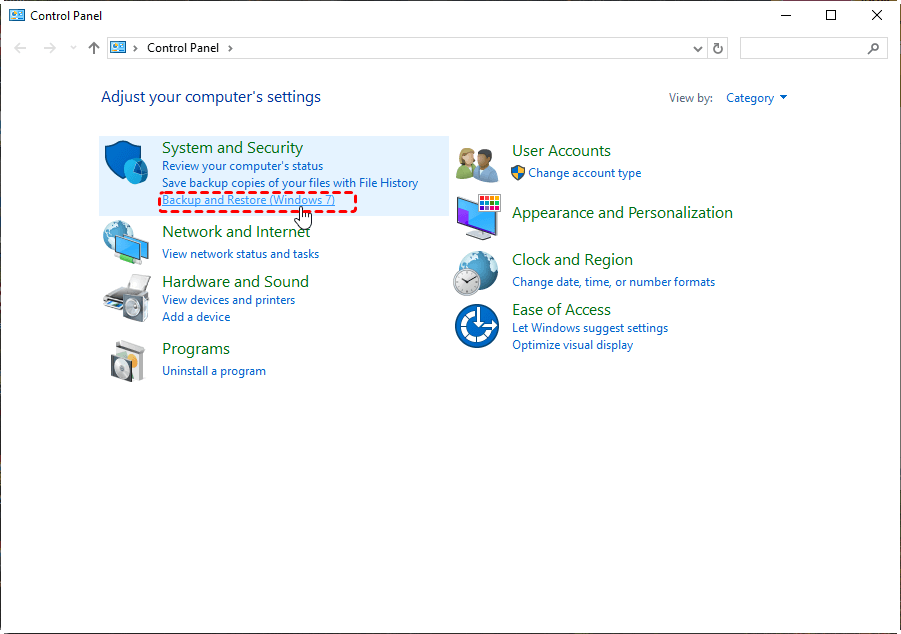
2. Click Restore my files.
3. Follow the on-screen wizard to select and restore your missing files.
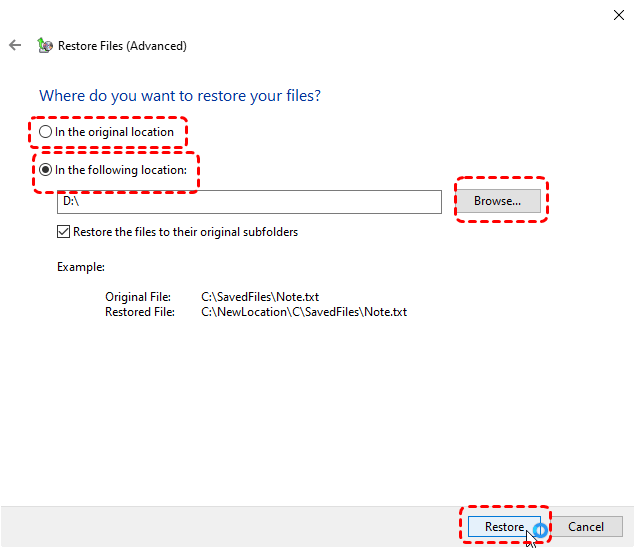
Mac Users (Time Machine):
1. Open Time Machine.
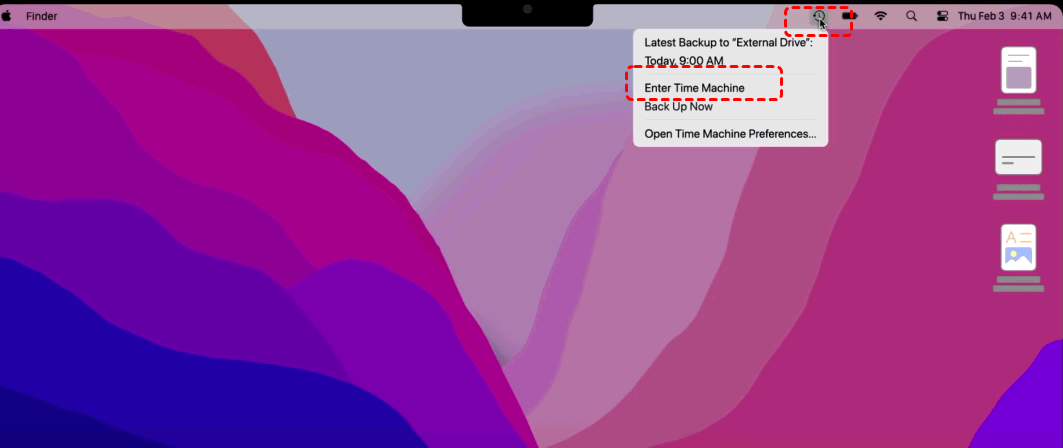
2. Use the timeline to go back to the date before the virus attack.
3. Select the files > Restore.
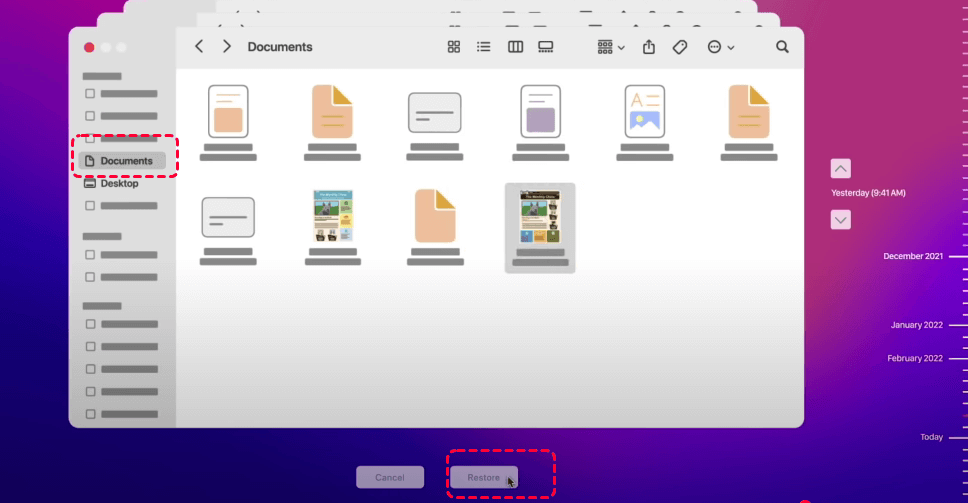
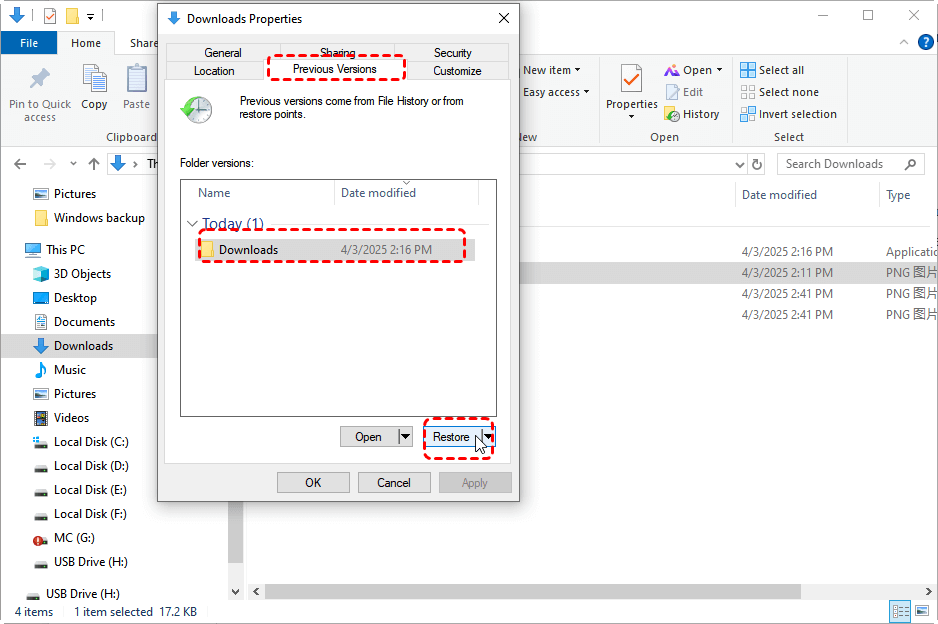
Method 4: Use File History or Previous Versions (Windows)
Windows has built-in recovery features if File History or Restore Points were enabled.
1. Navigate to the folder where the deleted file was stored.
2. Right-click on the folder > Restore previous versions.
3. A list of available versions (snapshots) will appear.
4. Choose the version that predates the virus attack.
5. Click Restore or Open to preview before restoring.
Method 5: Use Data Recovery Software
If built-in methods don’t help, a reliable data recovery tool is your best bet. MyRecover is a professional tool specifically designed to help users recover files deleted by a virus, accidental deletion, or system crashes.
Why choose MyRecover?

 MyRecover
- ⭐User-friendly interface.
- ⭐Supports multiple file types.
- ⭐Works on various storage devices.
- ⭐High success rate.
 100% Secure
Steps to Recover Using MyRecover:
1. Download & Install: Get MyRecover from the official site and install it on a clean device (not the infected one).
2. Launch the Program: Open MyRecover and select the infected drive.
3. Run a Scan:
- Quick Scan: For recently deleted files.
- Deep Scan: For files lost due to virus or corruption.

4. Preview Files: The software lets you preview documents, photos, and videos before recovery.
5. Recover & Save: Select your files and click Recover. Save them to a safe drive (not the infected one).

In addition to recovering drive data, MyRecover also supports USB and SD data recovery. For example, you can easily complete:
Method 6: Windows File Recovery (Microsoft’s Official Tool)
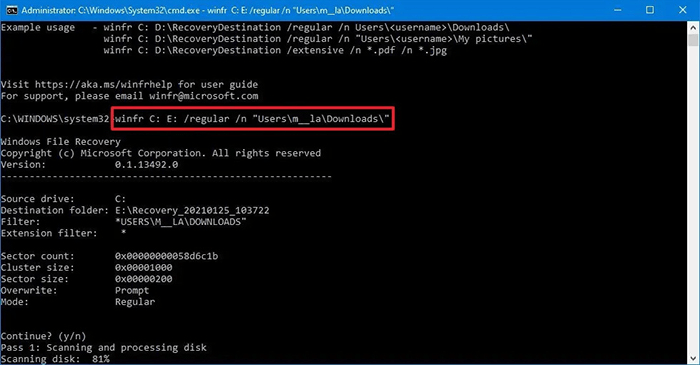
For users comfortable with a command-line interface, Microsoft offers a free app called Windows File Recovery on the Microsoft Store.
1. Download Windows File Recovery from the Store.
2. Launch it and use the following syntax: winfr source-drive: destination-drive: /regular.
3. For example: winfr C: E: /regular /n "users\m__la\Documents\".
Preventing Future Data Loss from Viruses
Prevention is way easier (and cheaper) than recovery.
Keep Your Antivirus Updated
Outdated antivirus software can’t recognize the latest threats. Ensure your software is set to perform daily definition updates and real-time background scanning. This ensures your system can identify and block "Zero-Day" exploits and new malware variants before they have a chance to encrypt or delete your files.
Practice Safe Browsing Habits
Don't want to experience a virus deleting all my files? Avoid sketchy downloads, suspicious emails, and unverified attachments. Use a reputable browser extension to block malicious pop-ups and always verify the sender's actual email address before clicking a link. Be wary of "phishing" attempts that mimic official login pages, as these are common gateways for ransomware.
Regularly Back Up Your Data
Whether it’s cloud storage or an external drive, regular backups ensure you’re never left helpless. Aim for a "3-2-1" strategy: keep three copies of your data, on two different media types, with one version stored offsite. Automating these backups to run nightly ensures that even if a disaster strikes, you only lose a few hours of work rather than years of data.
Conclusion
Losing files to a virus attack is stressful, but it’s not always the end of the road. With quick action and the right tools, you can recover files deleted by viruses effectively. Just remember: once you’ve saved your data, put strong protections in place so it doesn’t happen again.
FAQs
1. Can files deleted by a virus be recovered?
Yes, files deleted by a virus can usually be recovered. Most viruses either hide files by changing their attributes or mark the storage space as "available" without actually erasing the data. As long as you do not save new data to the drive, you can restore these files using the attrib command or data recovery software.
2. Does antivirus software permanently delete infected files?
Not always. Most antivirus programs move suspicious files to a Quarantine folder or Virus Vault rather than deleting them instantly. This prevents the code from executing while allowing the user to restore the file if it was a "false positive." Check your software’s "Protection History" to find and restore these items.
3. How can I recover my files from a shortcut virus?
A shortcut virus often hides your actual folders and replaces them with links (.lnk files). You can recover the originals by:
1. Running a full antivirus scan to remove the script.
2. Using the CMD attrib command (attrib -h -r -s /s /d *.*) to unhide the original data.
3. Manually deleting the shortcut icons once your real folders reappear.
4. Is it possible to recover files after a ransomware attack?
Recovering files from ransomware is difficult because the data is encrypted, not just deleted. You can try these three methods:
- Shadow Copies: Use Windows "Previous Versions" to restore unencrypted backups.
- Decryption Tools: Check sites like No More Ransom for free keys.
- Data Recovery Software: If the ransomware deleted the original files after encrypting them, recovery tools may be able to find the deleted "pre-encryption" fragments.
5. Can I recover files from a USB drive after a virus infection?
Yes. If your USB appears empty despite showing used space, the files are likely hidden. Use the Command Prompt attrib method first. If the files were actually deleted, stop using the USB immediately and run a scan with a tool like MyRecover to pull the data from the drive's raw sectors.

Stay Updated With Our
Latest Tips
Add us as a preferred source on Google to never miss helpful guides.
 Add as preferred source >>