 MyRecover



SFC Scannow Stuck: Complete Causes, Fixes, and Step-by-Step Solutions
If SFC Scannow stuck at 100 and won’t finish, it doesn’t always mean failure. Learn the real causes, expected scan times, and reliable solutions to resume or restart SFC correctly, protect data, and fix Windows integrity issues with confidence today.

By Vera / Updated on January 29, 2026


What Is SFC Scannow and Why It’s Important
Before we panic, let’s get one thing straight.
Understanding System File Checker (SFC)
System File Checker (SFC) is a built-in Windows tool that scans protected system files and replaces corrupted or missing ones with clean copies stored by Windows. Think of it like a built-in repair crew. When Windows starts acting weird, SFC checks behind the scenes to see what’s broken.
When You Should Run SFC Scannow
You should consider running sfc /scannow if:
- Windows crashes randomly.
- Programs fail to launch.
- System errors appear frequently.
- Windows updates won’t install.
- Blue Screen errors show up.
It’s one of the safest and most common first troubleshooting steps.
What Does "SFC Scannow Stuck" Actually Mean
Here’s an important truth:
Common Points Where SFC Appears Stuck
👉 SFC Scannow Stuck at 10%, 20%, or 40%: This usually happens during deep file verification. Some system files take longer to analyze, especially on older PCs or traditional hard drives.
👉 SFC Scannow Stuck at 100%: This stage is misleading. Even though verification looks complete, SFC may still be:
- Writing repair logs.
- Replacing corrupted files.
- Finalizing system checks.
Why SFC Scannow Gets Stuck on Windows
Several underlying issues can cause this behavior.
- Corrupted or Severely Damaged System Files: If system files are badly damaged, SFC may struggle to repair them and appear frozen.
- Disk Errors or Bad Sectors: Hard drive issues force SFC to repeatedly retry file reads, which can slow the scan dramatically.
- Windows Update Conflicts: Incomplete or failed updates often leave behind broken components that interfere with system repairs.
- Limited System Resources: Low memory, high CPU usage, or running heavy programs during the scan can stall the process.
Is It Normal for SFC Scannow to Take a Long Time
Yes—within reason.
Typical SFC Scan Duration
- SSD systems: 10–30 minutes.
- HDD systems: 30–60 minutes or longer.
If it’s still under an hour, patience is usually the best move.
What to Do First When SFC Scannow Is Stuck
Before trying advanced fixes, follow these steps in order.
Step 1: Wait Patiently
If SFC hasn’t progressed for less than 60 minutes:
- Do not close Command Prompt.
- Do not restart your PC.
- Let the scan continue.
Interrupting SFC too early can cause more problems than it solves.
Step 2: Restart Your Computer (If It’s Truly Frozen)
If SFC has shown no progress for over 2 hours and disk activity is completely idle:
1. Close any open applications.
2. Restart your computer normally.
3. Log back into Windows.
Restarting is generally safe if the process is clearly unresponsive.
Step 3: Run SFC Scannow in Safe Mode
Safe Mode loads only essential Windows services, minimizing interference.
Part 1: How to Enter Safe Mode (Step by Step)
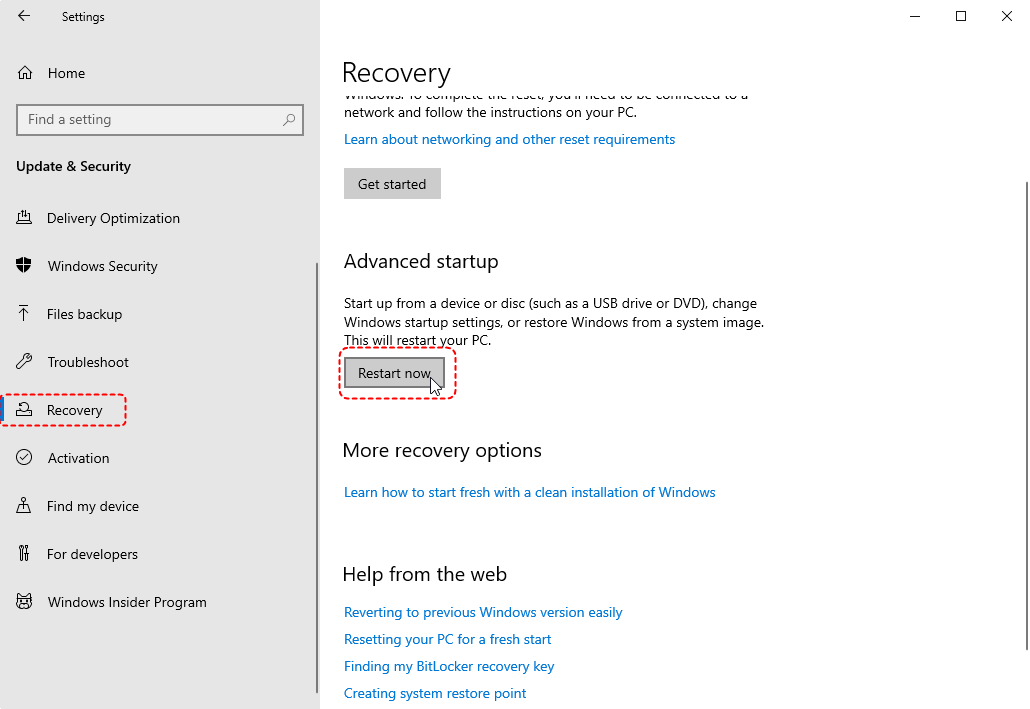
1. Press Windows + I to open Settings. Go to System → Recovery. Click Restart now under Advanced startup.
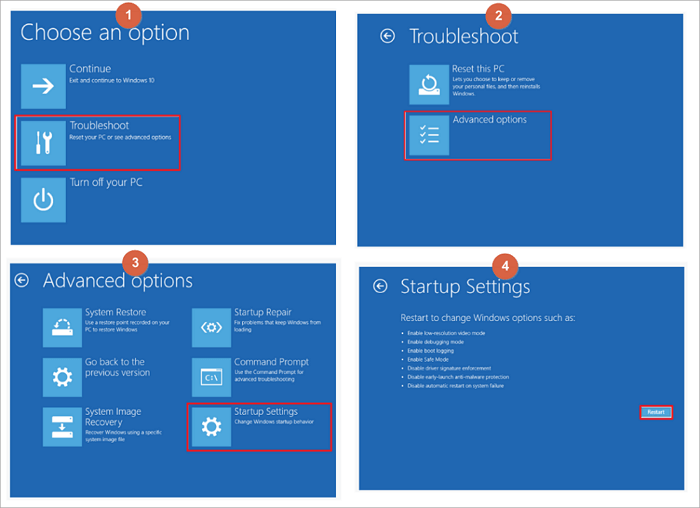
2. Select Troubleshoot → Advanced options → Startup Settings. Click Restart.
3. Press 4 to enter Safe Mode.
Part 2: Run SFC Again
Once in Safe Mode:
1. Open Command Prompt as administrator.
2. Run: sfc /scannow.

This alone fixes many stuck scans.
Advanced Fixes for SFC Scannow Stuck
If basic steps don’t work, it’s time to bring in the big guns.
Fix 1. Run DISM Before SFC (Recommended Best Practice)
If the Windows system image itself is damaged, SFC won’t work properly.
1. Open Command Prompt as administrator.
2. Enter: DISM /Online /Cleanup-Image /RestoreHealth.
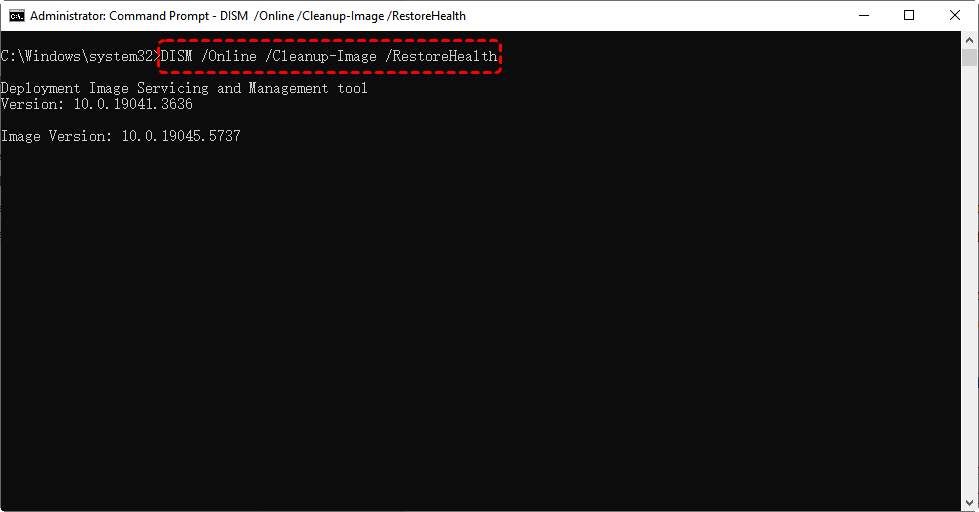
3. Press Enter. Wait for completion (20–40 minutes is normal).
4. Restart your computer.
5. Run sfc /scannow again.
DISM repairs the foundation that SFC relies on.
Fix 2. Check Your Disk for Errors
Disk problems are a common reason SFC appears frozen.
1. Open Command Prompt as administrator
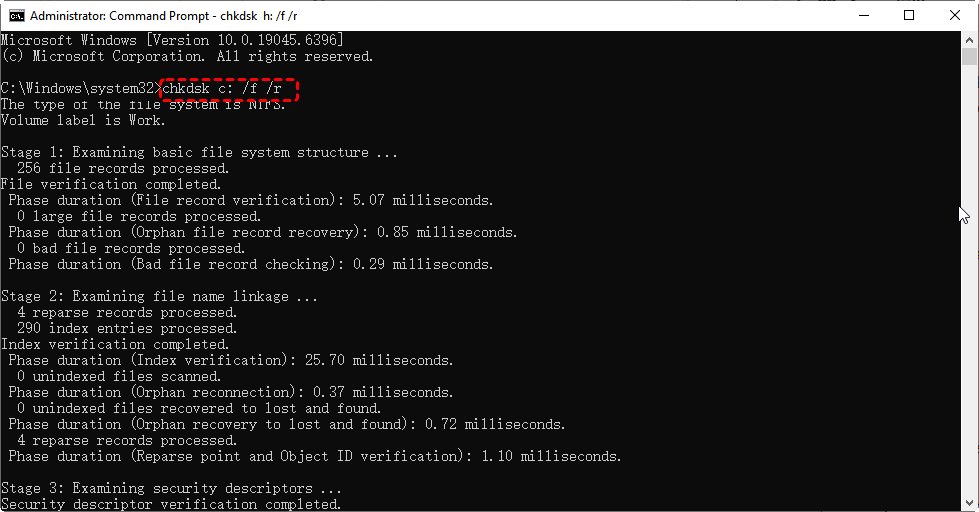
2. Enter: chkdsk C: /f /r. Press Enter.
3. Type Y when prompted.
4. Restart your PC.
Windows will check and repair disk errors during startup.
Fix 3. Run SFC from Windows Recovery Environment
If Windows is unstable, running SFC offline is safer.
1. Restart your computer. Enter Advanced Startup.
2. Go to Troubleshoot → Advanced options → Command Prompt.

3. Run: sfc /scannow /offbootdir=C:\ /offwindir=C:\Windows.
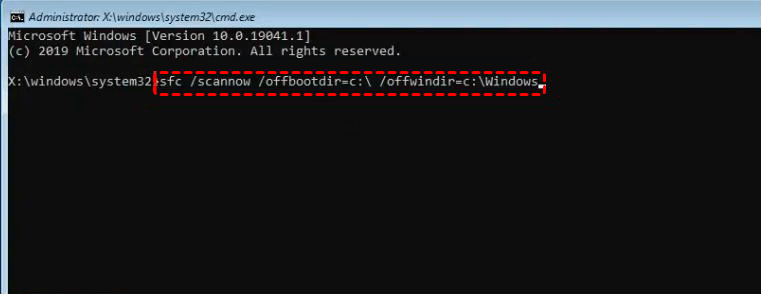
4. Press Enter.
5. Wait for the scan to complete.
This bypasses background Windows processes.
Should You Worry About Data Loss When SFC Scannow Is Stuck
Normally, no—but caution is still smart.
Is SFC Scannow Safe for Personal Files
SFC does not delete:
- Documents.
- Photos and videos.
- Installed programs.
It only repairs protected system files.
When Data Recovery Tools Like MyRecover Make Sense
If your system crashes, becomes unbootable, or you’re forced into risky troubleshooting steps, having a data recovery tool like MyRecover is a smart safety net.
 100% Secure
MyRecover is designed to:
- Recover files from crashed or corrupted Windows systems
- Restore data after disk errors or failed repairs
- Retrieve deleted files caused by system instability
Using a recovery tool before extreme actions like system resets adds an extra layer of protection.
How to Prevent SFC Scannow from Getting Stuck Again
Keep Windows Updated
Regular updates reduce system file conflicts.
Maintain Disk Health
Run disk checks periodically and monitor drive health.
Avoid Forced Shutdowns
Sudden power-offs are a major cause of file corruption.
Final Thoughts: SFC Scannow Stuck Is Frustrating—but Fixable
When SFC scannow gets stuck, it doesn’t mean your system is broken beyond repair. Most of the time, it’s either:
- Still processing in the background, or
- Blocked by disk or system image issues
By following the correct order—wait, Safe Mode, DISM, CHKDSK, and recovery scans—you can fix the issue safely. And if things ever go sideways, tools like MyRecover can help protect what matters most: your data.

Stay Updated With Our
Latest Tips
Add us as a preferred source on Google to never miss helpful guides.
 Add as preferred source >>