 MyRecover



Solved: System Restore Did Not Complete Successfully in Windows 10/11
If you’re searching for how to fix System Restore did not complete successfully, this guide walks you through reliable solutions—from checking system protection to repairing corrupted files—so you can restore your Windows setup smoothly and avoid repeated failures.

By Vera / Updated on April 27, 2026


What Does This Error Actually Mean?
System Restore did not complete successfully [Win 10]
I'm pretty sure I downloaded a virus, my virus protector (norton) has done nothing to fix it. I ran the command "sfc /scannow" in the command prompt and that seemed to clean up some of the corrupted files, however I would love to restore my computer back to when it was healthy a day ago. According to the error message, the source of the problem is in AppxStaging and the error code is (0x80070057).
Any help would be greatly appreciated, thank you.
- Question from Reddit
When this message appears, it means Windows tried to restore your system to an earlier state but encountered a problem. Something blocked, corrupted, or interfered with the process, stopping the system from replacing essential files.
In short: Windows tried to "rewind" your computer, but something pressed stop.
Common Variations of the Error Message
System Restore takes snapshots of system settings, registry entries, drivers, and essential files. During a restore, Windows attempts to replace current system components with older ones. But if any file is locked, corrupted, missing, or actively being used, System Restore halts and fails. Windows may show different error codes depending on the underlying issue.
- Error 0x80070005: Triggered when Windows lacks permission to modify certain files. Often caused by antivirus software.
- Error 0x80070091: Commonly tied to corrupted folders like WindowsApps.
- Error 0x80071a85: Occurs when system transactions conflict internally.
- Error 0x8000ffff: Indicates deep-level system corruption or file damage.
Why System Restore Fails
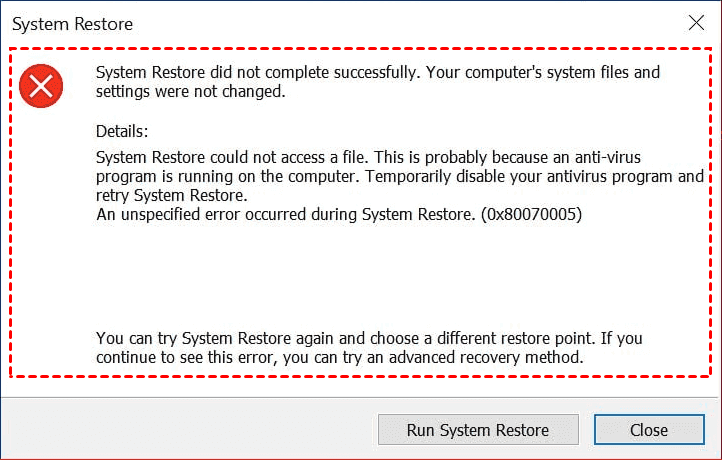
If System Restore failed, it is usually because:
- Antivirus Interference: Antivirus software often locks or blocks system files, which prevents System Restore from modifying them.
- Corrupted or Missing System Files: If the necessary files are damaged, System Restore won’t know how to replace them.
- Disk Issues or Bad Sectors: System Restore requires a healthy disk. Bad sectors can interrupt the process.
- Disabled System Protection: If System Protection is turned off, restore points become unreliable or unusable.
- Damaged Restore Points: A corrupted restore point cannot restore anything.
- Startup Program Conflicts: Programs that load with Windows may block system file changes, causing restore failures.
9 Methods to Fix System Restore Did Not Complete Successfully
Whether you are facing the specific code 0x80070057 or the common System Restore did not complete successfully 0x80070005, this guide will help you identify the "blockade" and fix it. Let’s break down the most effective fixes.
Method 1: Disable Third-Party Antivirus (Fixes Error 0x80070005)
Antivirus programs like Norton or McAfee are designed to block unauthorized changes to system folders. Unfortunately, they often view System Restore as a threat. This is the primary reason users see System Restore did not complete successfully 0x80070005, which is an "Access Denied" error. Use this if you have active third-party security software installed.
1. Right-click the antivirus icon in the taskbar.
2. Select Disable or Pause Protection.
3. Choose a temporary time frame.
4. Try running System Restore again.
If disabling your antivirus doesn't solve the permission issue, the conflict might be coming from background services. In this case, you need a "cleaner" environment.
Method 2: Run System Restore in Safe Mode
Safe Mode boots Windows with only the most essential drivers. If System Restore is not working due to a driver conflict or a stubborn piece of malware, Safe Mode bypasses these obstacles by preventing them from loading in the first place. Try this method when the restore process hangs or crashes in the normal Windows interface.
1. Hold Shift and click Restart from the Power menu.
2. Go to Troubleshoot > Advanced Options > Startup Settings > Restart.

3. Press 4 or F4 to enter Safe Mode.
4. Once logged in, search for "Recovery" and attempt the restore.
If the restore fails even in Safe Mode, it indicates that the problem isn't a conflict with other apps, but that the Windows system files are physically damaged.
Method 3: Run System File Checker (SFC)
For System Restore to function, the underlying Windows architecture must be healthy. The SFC tool scans your system for corrupted or missing core files and replaces them with a cached healthy version. Use this way if you suspect a virus or sudden power loss has damaged your OS files.
1. Press the Windows key + R, type cmd, and press Enter (or click OK).
2. Type sfc /scannow and hit Enter.

3. Restart your computer after the scan finishes to see if the restore utility is fixed.
Sometimes SFC cannot find the healthy files it needs for the repair. That is where DISM comes in to "repair the repairman."
Method 4: Use DISM to Repair the System Image
Deployment Image Servicing and Management (DISM) is a deeper repair tool. It connects to Windows Update servers to download fresh copies of system components. This ensures that the foundation System Restore relies on is 100% intact. Try this when SFC finds errors but cannot fix them. (SFC Scannow vs DISM)
1. In the Admin Command Prompt, run:
DISM /Online /Cleanup-Image /RestoreHealth
2. Wait for the progress bar to finish (it may stay at 20% for a while).
3. Run the SFC scan from Method 3 once more, then try your restore.
If your system files are healthy but System Restore failed due to disk-level issues, we need to check the physical health of your drive.
Method 5: Check Disk Health via CHKDSK
System Restore involves moving large amounts of data across your hard drive. If your drive has "bad sectors" (physical or logical spots that cannot be read), the process will fail as soon as it hits that spot. Use this if the restore process gets stuck at the same percentage every time.
1. Open Command Prompt (Admin) and type:
chkdsk x: /f /r (replace x to any drive)

2. Press Y to schedule the scan, then restart your PC.
3. Windows will scan and repair drive errors during the reboot.
With the disk and files verified, let's ensure the System Protection service itself hasn't been disabled or glitched.
Method 6: Verify System Protection Settings
If System Protection is turned off, Windows stops tracking file changes, making restore points unusable or preventing them from being created entirely. Try this method when you receive errors stating no restore points are available or the drive is "unprotected."
1. Search for "Create a restore point" and open System Properties.
2. Select your C: drive and click Configure.
3. Ensure Turn on system protection is selected and that you have at least 5-10% disk space allocated.
If protection is on but the specific point you are using is "broken," you may need to clear the slate.
Method 7: Delete Corrupted Restore Points
Occasionally, a restore point becomes corrupted during creation (e.g., due to a crash). If you keep trying to use a "bad" point, System Restore will keep failing. Deleting old points clears the cache. Try this way when one specific restore point consistently fails while others (if available) work.
1. In the System Protection menu, click Configure.
2. Click Delete to wipe all existing points.
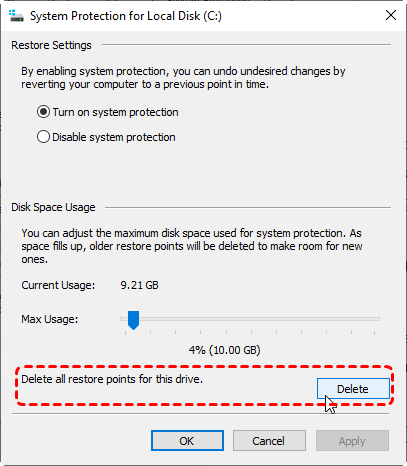
3. Click Create to immediately make a new, healthy restore point for future safety.
If you still have points but they won't trigger, a Clean Boot can help identify if a specific non-essential service is the culprit.
Method 8: Perform a Clean Boot
A Clean Boot starts Windows with standard drivers but disables all non-Microsoft "startup" applications. This is a surgical way to isolate whether a specific app (like a game launcher or a background updater) is causing the System Restore not working error.
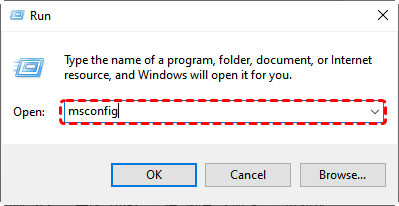
1. Type msconfig in the Run box (Win + R).
2. Under Services, check Hide all Microsoft services and click Disable all.
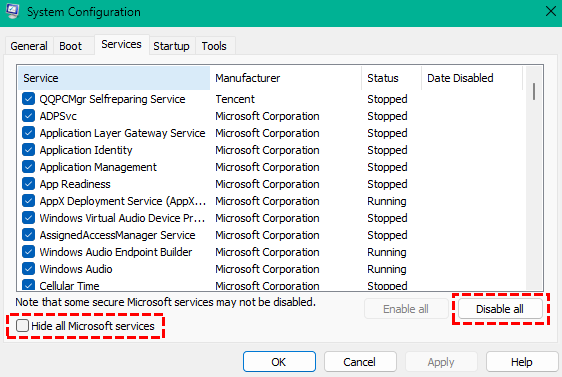
3. In Task Manager, disable all Startup items. Restart and try the restore.
If all else fails, you may simply need to try a different date.
Method 9: Try an Alternative Restore Point
It's rare for every single snapshot to be corrupted. A restore point created during a major Windows Update (e.g., Windows 10 to 11) is more likely to fail than one created during a routine software installation. Try this method when you have multiple dates to choose from.
1. Open System Restore and click Choose a different restore point.
2. Check Show more restore points.
3. Select a date further back in time than the one that failed.
- Keep System Drivers Updated: Outdated drivers can cause conflicts and system instability.
- Maintain Adequate Disk Space: Low storage is a common cause of restore failures.
- Create Restore Points After Major Events: Installing new software? Updating drivers? Create a restore point first.
🌟Lost Data During a Restore? Use MyRecover
System Restore is designed to fix your Windows settings, but it does not back up your personal photos, videos, or documents. If you were using System Restore to fix a virus (like the Reddit user mentioned), there is a high chance the virus already deleted some of your files. Furthermore, if System Restore failed halfway through, it could leave your file system in a messy state.
How MyRecover Helps You:

 MyRecover
-
Post-Virus Recovery: If a virus deleted your files before you could perform a restore, MyRecover can "undelete" them from the disk.
-
Recovery from System Crashes: If your attempt to fix the System Restore not working error led to a system crash or partition loss, MyRecover’s deep scan technology can retrieve data even from unbootable drives.
-
High Success Rate: It supports 1000+ file formats and maintains the original file names and paths, making it far more reliable than standard Windows tools.
 100% Secure
How to Use MyRecover (Step-by-Step)
1. Install and launch MyRecover.
2. Select the drive where you lost data. Click Scan.

3. Preview found files. Choose what to restore.
4. Click Recover and save files to a safe location.

You’ll need MyRecover if:
- Files vanished after a failed system restore.
- System crashed and caused data loss.
- Disk errors caused missing documents.
- You accidentally deleted important files.
In minutes, your lost photos, videos, documents, and more can be restored.
Conclusion
The "System Restore did not complete successfully" error can be frustrating, but you now know exactly what causes it and how to fix it. From antivirus conflicts to corrupted files, most issues can be resolved without advanced technical knowledge. And if the process results in data loss, Windows data recovery tools like MyRecover ensure your important files remain safe.
With these fixes and recovery tips, you can protect your system and ensure smooth performance in the future.
FAQs
Q: Why do I keep getting error 0x80070005 specifically?
A: This is almost always a permissions issue. If disabling your antivirus doesn't work, it may be because your user account is not an Administrator. Ensure you are logged in with full privileges. Alternatively, run System Restore from the Windows Recovery Environment (Advanced Startup), where permissions are managed by the system rather than the user account.
Q: Can System Restore fix a PC that won't boot?
A: Yes. If Windows fails to load, it will eventually trigger "Automatic Repair." From there, go to Advanced Options > Troubleshoot > System Restore. This is often the most successful way to run it because the OS is not "active," meaning no files are locked by programs.
Q: Will System Restore remove the programs I recently installed?
A: Yes. It will uninstall any software and drivers installed after the restore point was created. However, it will not touch your personal documents. If you find that important files are missing after a restore, use a tool like MyRecover to get them back.
Q: What should I do if all methods fail?
A: If all 9 methods fail, your Windows installation may be too damaged for System Restore to handle. Your next steps should be:
-
System Image Recovery: Use this if you created a full drive backup on an external hard drive previously.
-
Reset This PC: Found in Settings > Recovery. Choose "Keep my files" to refresh Windows while preserving your documents.
-
Clean Installation: The "nuclear option." Back up your data first, then wipe the drive and install a fresh copy of Windows from a USB.
Q: Why are my old restore points missing?
A: Windows automatically deletes older restore points to save disk space once the "Max Usage" limit is reached. Additionally, major Windows updates often clear out old restore points to prevent compatibility issues. If you realize a restore point you needed is gone and you've lost data in the process, MyRecover can help you scan your disk for lost files that were present during that time.

Stay Updated With Our
Latest Tips
Add us as a preferred source on Google to never miss helpful guides.
 Add as preferred source >>