 MyRecover



[Fixed] The Specified User Does Not Have a Valid Profile (10 Quick Ways)
Encountering 'The specified user does not have a valid profile' error can prevent you from accessing apps or signing into your system properly. In this guide, we break down the root causes behind the error and provide 10 quick and effective solutions to fix the error and repair damaged profiles.

By Aria / Updated on May 9, 2026


What Does "The Specified User Does not Have a Valid Profile" Mean
I reimaged my machine recently to 1709 and went to the Windows Store to download the Windows Configuration Designer app. Upon launch, I get a message pointing to the installed exe in C:\Program Files\WindowsApps and stating "The specified user does not have a valid profile". I tested this with iTunes, another app from the store as well, and get the same result. A coworker of mine has the same behavior. Has anyone else experienced this?
- Question from Micah
"The specified user does not have a valid profile" is a Windows error indicating that the system cannot properly load or recognize the user profile associated with an account or application. In practical terms, Windows is unable to access the necessary profile data (such as user settings, permissions, or configuration files), so it blocks the action, whether that’s signing in or launching an app like Photos.
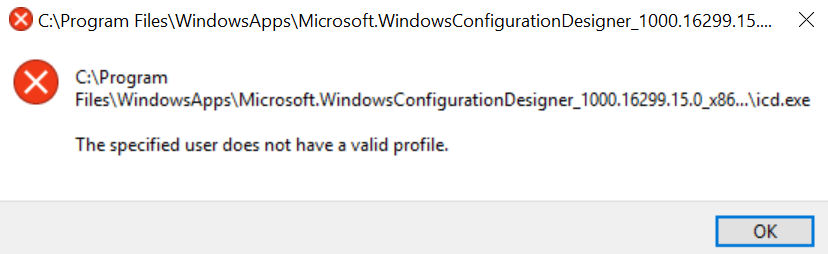
In short, the error means Windows cannot validate or use the current user profile, which disrupts normal system or app operations. If you're facing the same issue, don't panic. This article will walk you through the several proven fixes to help you restore normal functionality.
What Causes the Specified User Does Not Have a Valid Profile Error
In most cases, this issue is triggered by inconsistencies between the user profile, system permissions, and app installation data, especially for Microsoft Store apps. Here are the most common causes:
📂 Corrupted or incomplete user profile
If the user profile was damaged during a system update, reimage, or unexpected shutdown, Windows may fail to load it correctly.
🗂️ Incorrect permissions on the WindowsApps folder
Store apps rely on the C:\Program Files\WindowsApps directory. If access permissions are altered or restricted, apps cannot validate the user profile when launching.
✂️ Broken Microsoft Store app registrations
Improper installation or failed updates of Store apps can lead to profile validation errors when the app attempts to initialize.
📌 Registry inconsistencies
Invalid or mismatched entries related to user profiles in the Windows Registry can prevent the system from associating the correct profile with the current user session.
Using a temporary or partially configured account
If Windows logs you in with a temporary profile or the account setup is incomplete, apps may fail to recognize it as a valid profile.
System image or deployment issues
In enterprise or reimaged environments, default app provisioning or user profile initialization may not complete correctly, leading to widespread app launch failures.
How to Fix "the Specified User Does Not Have a Valid Profile" Error
Once the root causes are clear, resolving this error becomes a process of systematically restoring profile integrity, permissions, and app functionality. The following methods can help you eliminate common triggers first before moving to deeper system-level fixes.
1. Sign Out and Sign in Again
This method refreshes the current user session and forces Windows to reload the user profile from scratch. It is particularly effective when the issue is caused by temporary profile glitches or incomplete session initialization. By this way, Windows can re-establish proper links between your profile and installed apps without modifying system settings.
Step 1. Click the Start menu, select your account, and choose "Sign out".
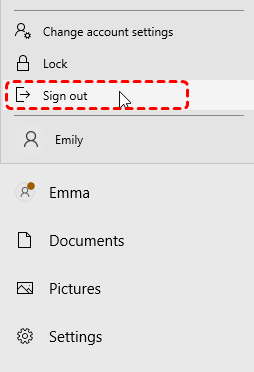
Step 2. Wait a few seconds, then sign back in with the same account.
2. Restart the Computer
A full system restart clears cached processes and resets background services that may interfere with profile validation. This is useful when system services or app dependencies fail to initialize correctly during runtime. Restarting ensures all components reload in a clean state.
Step 1. Save all the open works and click "Start" > "Power" > "Restart".
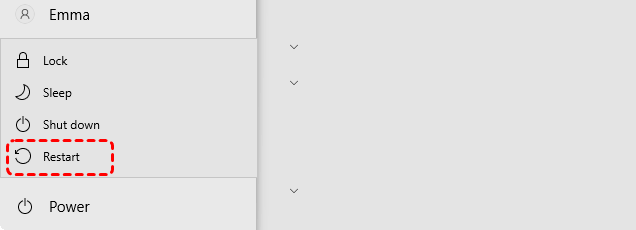
Step 2. After reboot, try launching the affected app again to check if the "specified user does not have a valid profile" error appears.
3. Run System File Checker (SFC)
System File Checker (SFC) scans and repairs corrupted or missing system files that may prevent Windows from properly loading user profiles. If core system components related to user management are damaged, this tool can automatically restore them using cached copies.
Step 1. Locate Command Prompt in the Start menu and run as administrator.

Step 2. Type the command "sfc /scannow" and press "Enter".

Wait for the process is completed, open the affected app to check if the error is fixed.
4. Run DISM Command
DISM repairs the underlying Windows image, which SFC depends on to function correctly. If system-level corruption exists, DISM can restore the health of the OS image, resolving deeper issues that affect profile validation and app execution and the "Specified user does not have a valid profile" error.
Step 1. Run Command Prompt as administrator.
Step 2. Enter the following commands and press "Enter" after each one:
- Run DISM /Online /Cleanup-Image /CheckHealth
- Run DISM /Online /Cleanup-Image /ScanHealth
- Run DISM /Online /Cleanup-Image /RestoreHealth
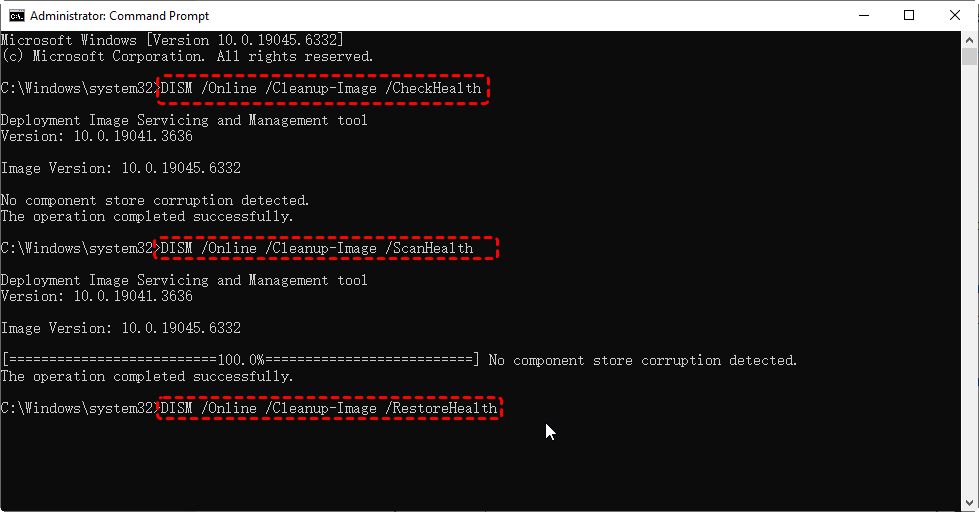
Step 3. After the process is finished, you can check if the app works properly.
5. Take Ownership of the WindowsApps Folder
This approach addresses permission-related issues that prevent apps from accessing user profile data. By taking ownership of the WindowsApps directory, you regain control over restricted files, allowing apps to validate and run under your account.
Step 1. Navigate to C:\Program Files in File Explorer, then locate WindowsApps (enable hidden files if needed).
Open Windows File Explorer and go to the "View" tab, check the "Hidden items".

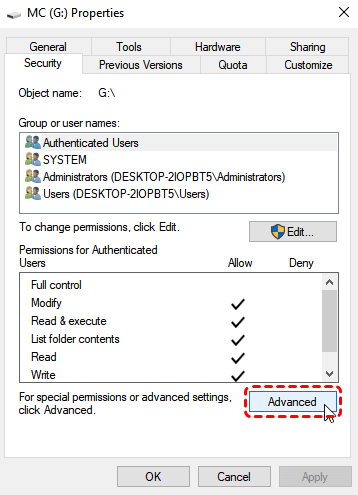
Step 2. Right-click the folder and select "Properties", then go to the "Security" tab and click "Advanced".
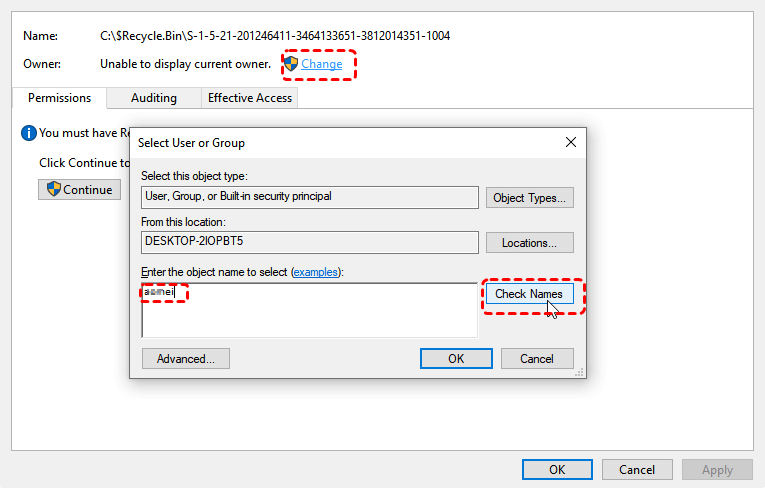
Step 3. Click "Change" to enter your user account, then click "Check Name".
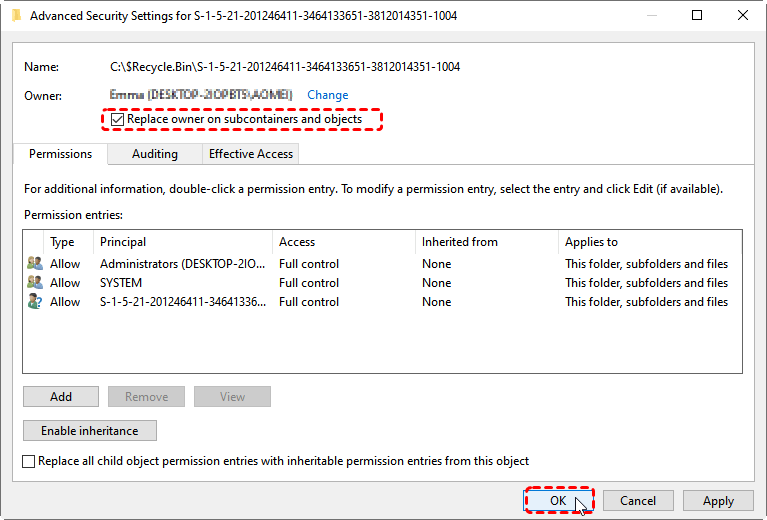
Step 4. Check the box of "Replace owner on subcontainers and objects" and click "OK" to make the change take effect.
6. Change the Location of the Microsoft Store App Folder
If the default app storage location is misconfigured or corrupted, changing it can resolve conflicts between app data and user profiles. This forces Windows to reassign a valid path for app installations and associated profile data.
Step 1. Go to C:\Program Files\WindowsApps folder and locate the app folder specific in "The specified user does not have a valid profile" error message in the list.
Step 2. Select the folder and drag it to your User directory to move it.
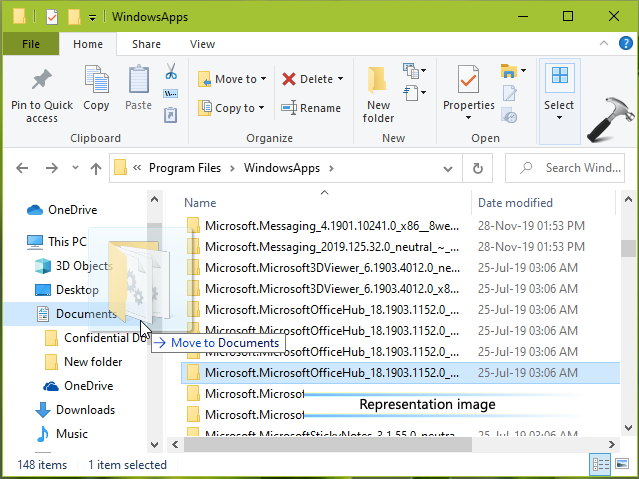
Step 3. Once the folder is located there, you can click on the exe file name mentioned in the error previously and install the app to fix the error.
7. Reinstall Affected Apps
Sometimes, a corrupted or incomplete installation package can also cause "The specified user does not have a valid profile" error. Reinstalling apps resolves issues caused by broken app registrations or incomplete installations. This ensures that the app is correctly linked to the current user profile and system environment.
Step 1. Open Control Panel and click "Uninstall a program".
Step 2. Select the application within the error and right click on it, then choose "Uninstall".
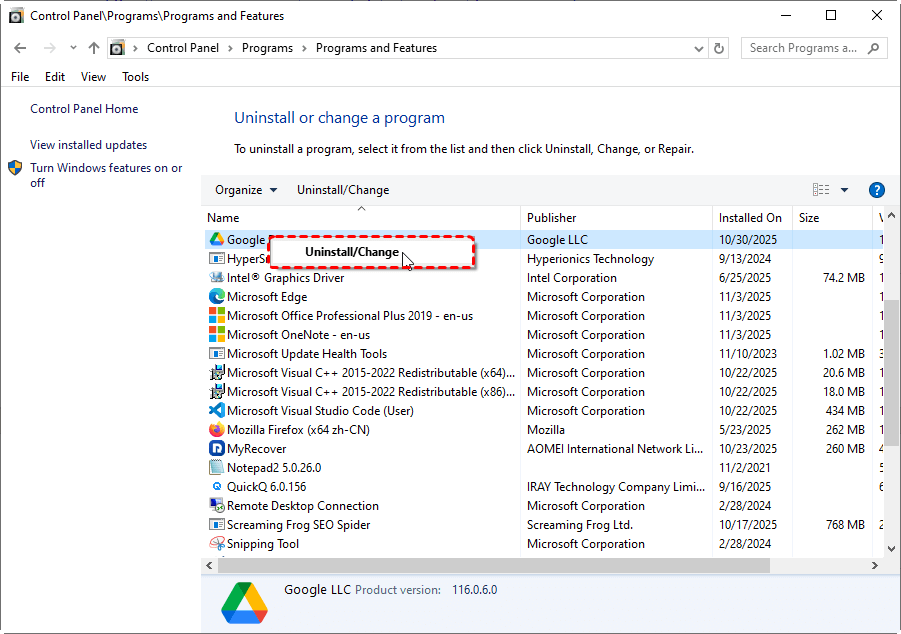
Step 3. Then reinstall the affected app from the Microsoft Store.
8. Update Windows
Keeping Windows updated ensures that known bugs related to user profiles and Store apps are patched. Updates often include fixes for compatibility and system stability issues. This method can fix "The specified user does not have a valid profile" on Windows 11 caused by compatibility issues.
Step 1. Go to "Settings" > "Update & Security" > "Windows Update".
Step 2. Click "Check for updates" and install any available updates.
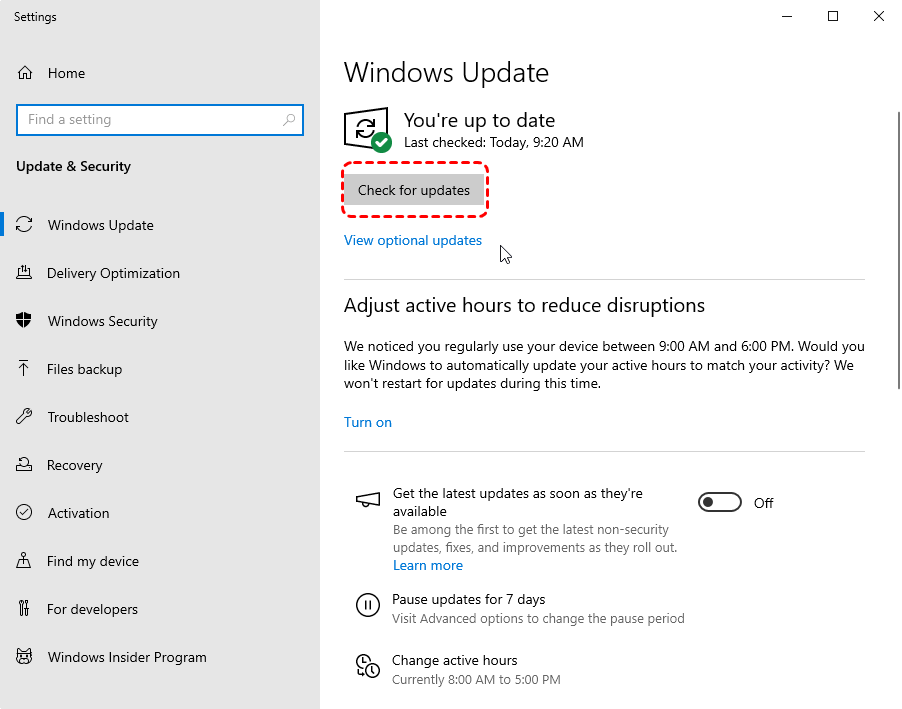
Step 3. After the update is complete, try running the app again to confirm the error has been resolved.
9. Remove Third-Party Apps
Certain third-party tools can interfere with user profiles or system permissions. Temporarily disabling or removing them helps eliminate conflicts that may block profile validation or app execution.
Step 1. Press "Ctrl" + "Shift" + "Esc" to open Task Manager.
Step 2. Select the suspicious application from the list and right click on it, then choose "End Task".
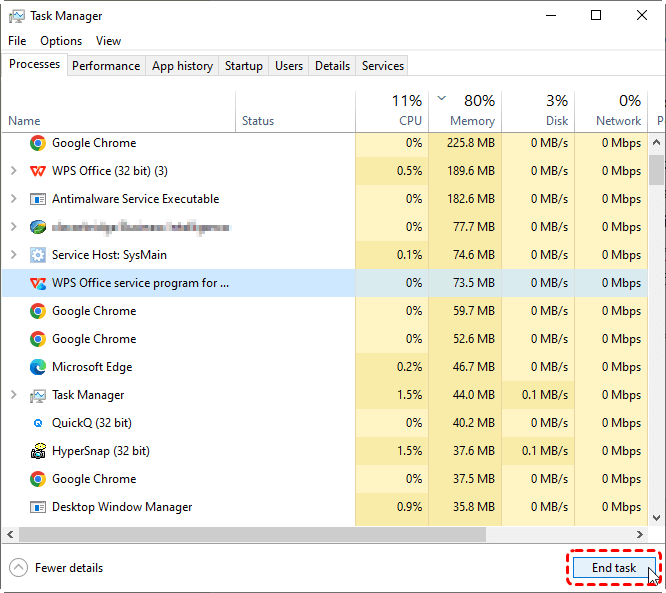
Step 3. Run the affected application again to check if the error is resolved.
10. Create a New User Account
Creating a new account helps determine whether the issue is tied to a corrupted profile. If the new account works normally, it confirms that the original profile is damaged and should be replaced or migrated.
Step 1. Go to "Settings" > "Accounts" > Family & other users".
Step 2. Click "Add someone else to this PC" and follow the setup instructions.
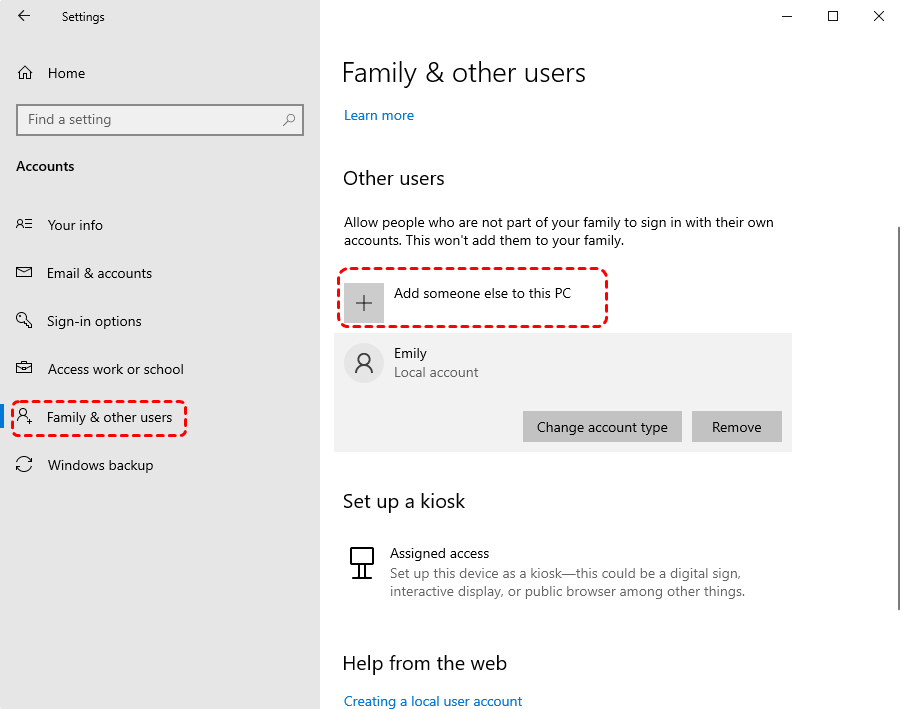
Step 3. Once the account is created, you can log in with the new account and restore the application normal access.
How to Recover Data If You Lost Files After Fixing the Profile Error
While these solutions restore system functionality, they can sometimes lead to unintended data loss, especially if a corrupted profile is replaced or overwritten. Files stored in User directories (such as Desktop, Documents, or app-specific data) may become inaccessible or appear missing after the fix. In such scenarios, the key is to act quickly and avoid writing new data to the affected drive.
A dedicated recovery tool like MyRecover provides a more reliable data recovery approach. MyRecover is designed to handle data loss caused by profile issues, system errors, or accidental deletion. It scans the storage device at a deeper level, identifying recoverable files even if the original user profile is no longer accessible.

 MyRecover
- Recover deleted & lost files from HDD, SSD, USB, SD card, camera as you need.
- Support 1000+ formats of photos, videos, docs, archives, emails, compressed files, etc.
- Reliable rescue for deletion, formatted disk, emptied Recycle Bin, system crashes and more.
 100% Secure
Step 1. Download and install MyRecover on your computer from Microsoft Store or its official website.
Step 2. Launch the programs and select the drive where your profiles stored originally (usually C drive), then click "Scan" to search for lost files.

Step 3. After the scanning is completed, browse through the results and select the target files, then click "Recover".
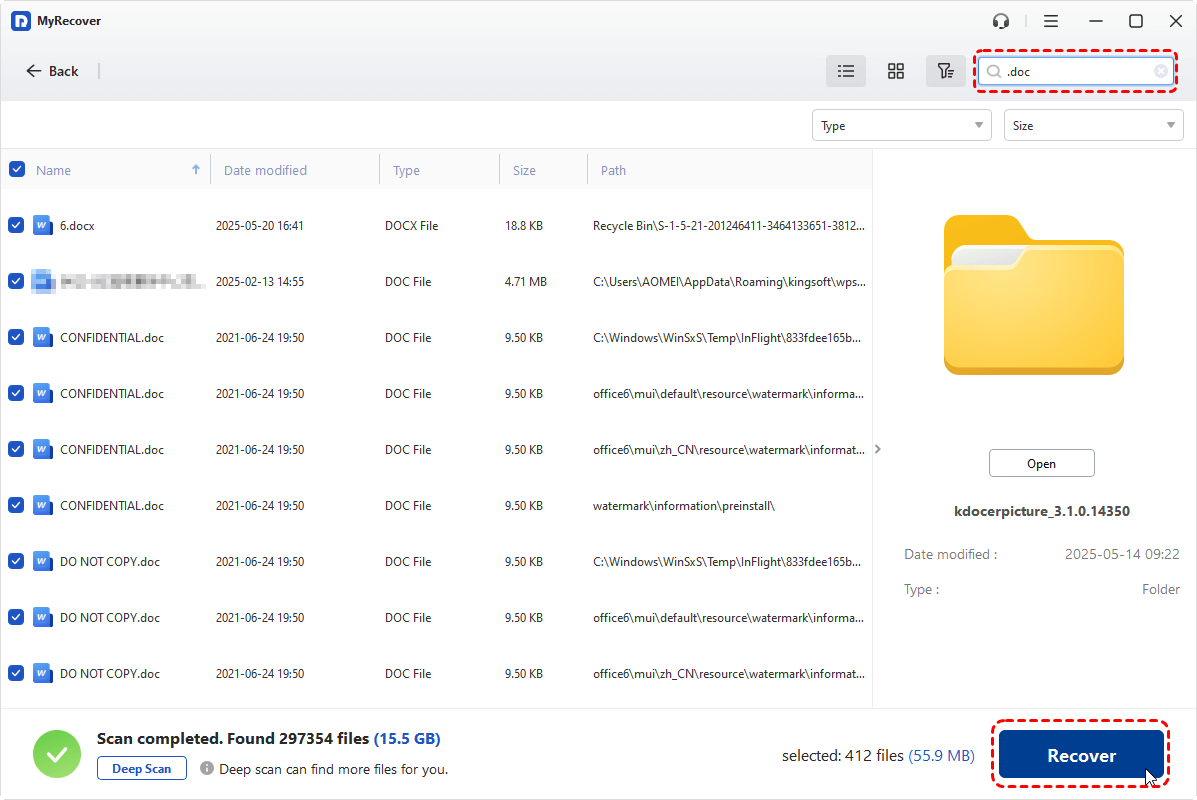
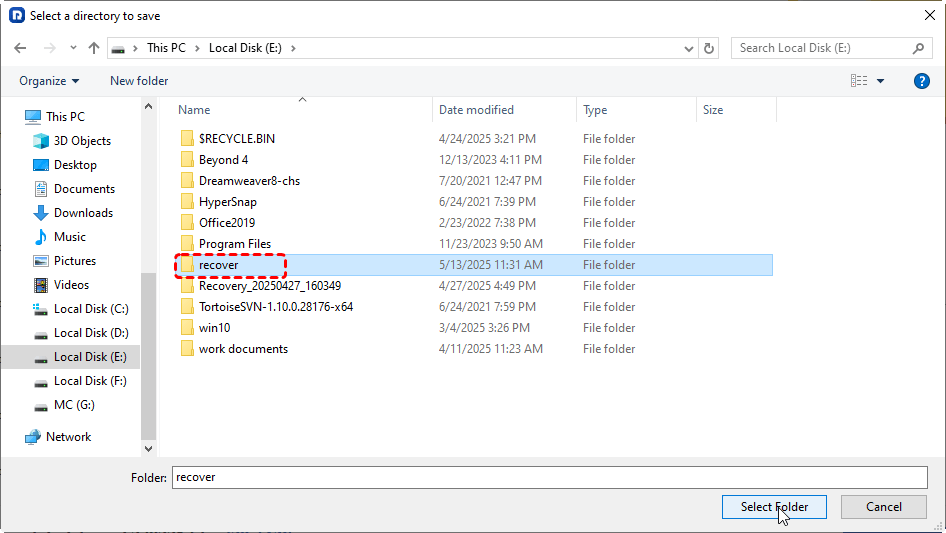
Step 4. Save the recovered files to a safe location to avoid data overwriting.
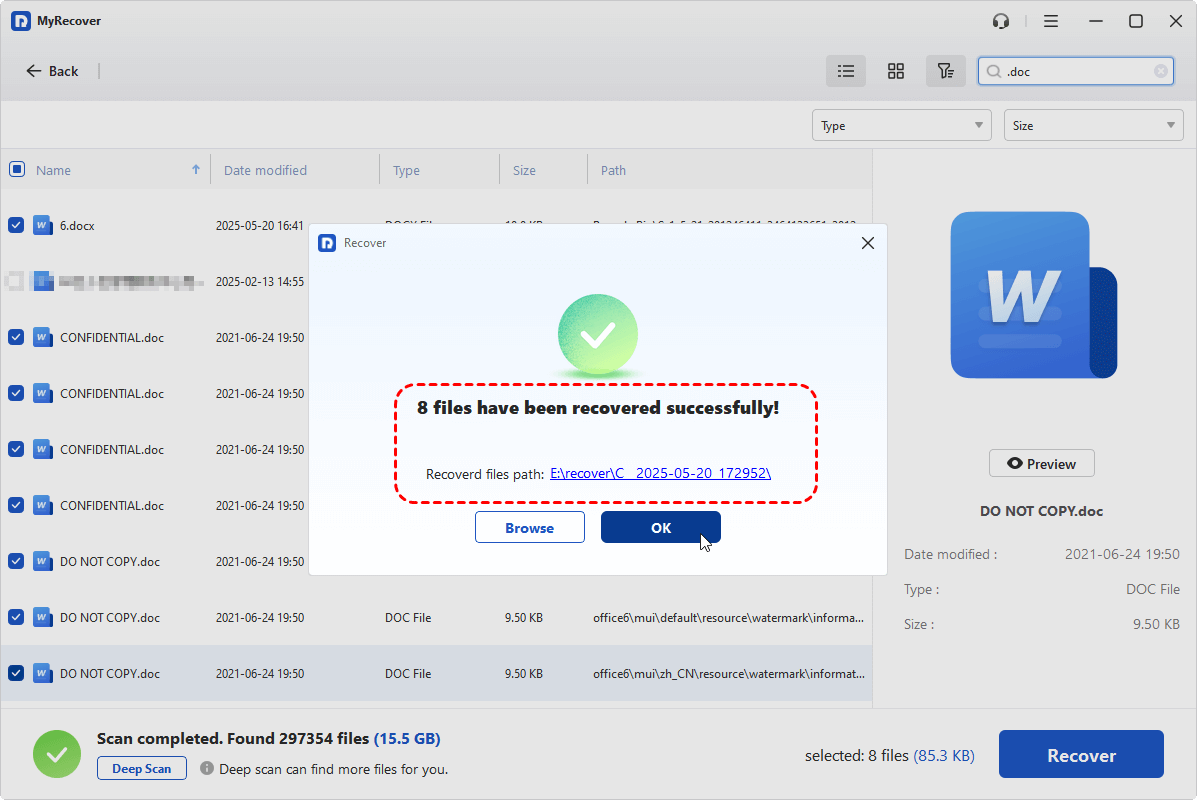
Once the process is done, the message "Files have been recovered successfully" will pop up. Then, you can access the recovered files in the destination folder by clicking "Browse" button.
Summary
The "The specified user does not have a valid profile" error typically points to deeper issues with user profile integrity, system permissions, or Microsoft Store app configurations. While it may initially seem complex, most cases can be resolved by following these proven approaches.
If the error leads to data inaccessibility or loss during the repair process, using a reliable recovery solution like MyRecover can help you safely retrieve important files. For home users and IT admins, the Technician edition of MyRecover enables you to share data security on multiple devices with only one license.
FAQ:
Q1: What does the user profile service failed mean?
This error means Windows cannot load your user profile during sign-in. It usually occurs when the profile is corrupted, missing, or improperly configured. As a result, you may be unable to log in or may be signed into a temporary profile with limited access to your files and settings.
Q2: What causes a user profile to become corrupt?
A user profile can become corrupt due to improper shutdowns, failed Windows updates, disk errors, malware infections, or interrupted profile creation. Registry issues and permission conflicts can also damage profile data, preventing Windows from loading it correctly during login or app usage.
Q3: How to repair Windows 7 User profile corrupted?
To repair a corrupted profile in Windows 7, boot into Safe Mode, open Registry Editor, and fix the profile path under ProfileList. Alternatively, create a new user account and transfer files from the old profile folder. This is often the safest and most effective solution.
Q4: How to fix user profile issue?
Start by restarting your PC and signing in again. If the issue persists, run System File Checker, check disk errors, and update Windows. For severe cases, create a new user account and migrate your data. Fixing permissions and registry entries may also resolve profile-related problems.
Q5: How to fix the specified account already exists?
This error usually appears when creating a user account that already exists in the system. To fix it, check existing accounts in Settings or Control Panel, remove duplicates, or choose a different username. You can also use Command Prompt to delete conflicting accounts.
Q6: How to fix failed to load user profile?
Restart your system and try logging in again. If it fails, boot into Safe Mode and repair the profile via Registry Editor or run SFC to fix system files. Creating a new account and transferring data is often the most reliable solution if the profile is severely corrupted.

Stay Updated With Our
Latest Tips
Add us as a preferred source on Google to never miss helpful guides.
 Add as preferred source >>