 MyRecover



There Are No Previous Versions Available: How to Fix and Prevent It
Wondering “why are there no previous versions available” when trying to restore files? This guide explains the common causes, including disabled protection, missing restore points, and incorrect settings, and shows you effective ways to re-enable file history and recover older versions.

By Vera / Updated on December 4, 2025


Understanding the "No Previous Versions Available" Error
No previous versions available - help appreciated
Hello, I've overwritten a file (powerpoint) on my hard drive. I googled the normal procedure and tried to recover the previous version. But if I click on the file in my Explorer, there are no previous versions. What's also strange is that the date of last change is not today, but 14 days ago, which was the date I created the file. Help would be greatly appreciated.
- Question from Reddit
Before jumping into solutions, it’s important to understand what this message really means. Windows keeps snapshots or restore points of files and folders, known as previous versions. If Windows can’t find one for a specific file or folder, you’ll see this error. Essentially, your computer is saying, “Sorry, I don’t have an older copy of this.”
What Triggers This?
Several factors can trigger this error. Let’s break down the most common reasons.
Deleted Restore Points
Windows automatically creates restore points, but they can be deleted manually or removed during disk cleanup. If no restore point exists, previous versions won’t either. This is one of the most frequent causes of the error.
System Protection Disabled
If system protection is turned off for a drive, Windows won’t create restore points or shadow copies. Without them, previous versions simply don’t exist. This is an easy fix once you know how to turn protection back on.
File History Not Configured
File History is a Windows feature that periodically backs up your files. If it hasn’t been set up, Windows won’t have older versions to restore. Many users overlook this step, which can lead to headaches later.
Common Scenarios Where This Error Occurs
Understanding when this error appears can help you troubleshoot faster.
Accessing Previous Versions in Windows
Typically, you encounter this error when right-clicking a file or folder, selecting Properties, and going to the Previous Versions tab. If there are no snapshots, the tab appears empty, leaving you frustrated.
Recovering Files from Network Drives
Network drives may not support Windows restore points unless shadow copies are configured. Attempting to access previous versions on a network drive without proper configuration can trigger this error.
[Step-by-Step] Fixes for the "No Previous Versions Available" Error
There are several ways to potentially recover previous versions or prevent future issues.
Fix 1. Enable System Protection
1. Open Control Panel → System and Security → System.
2. Click System Protection in the left panel.
3. Select your drive (usually C:) → Configure → Enable Turn on system protection.
4. Click Apply, then OK.
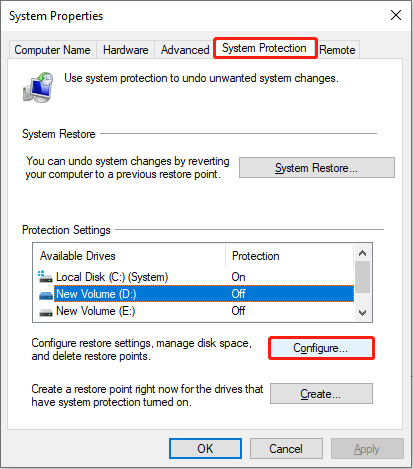
Enabling system protection ensures Windows creates restore points in the future.
Fix 2. Restore Using File History
File History regularly backs up your documents. Here’s how to set it up:
1. Go to Settings → Update & Security → Files backup.
2. Select Add a drive and choose a backup drive.
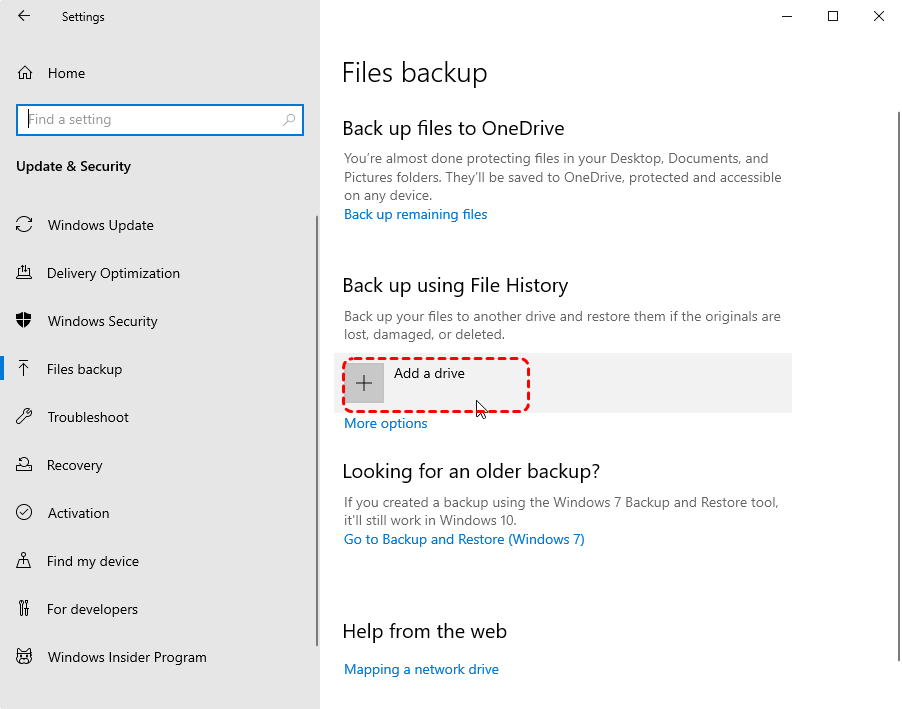
3. Click More options → Back up now.
Once configured, you can right-click a file and select Restore previous versions. This helps recover files that Windows hasn’t automatically versioned yet.
Fix 3. Check Shadow Copies Settings
For network drives, ensure that Shadow Copies are enabled on the server. Without them, previous versions aren’t stored. Contact your system administrator if you don’t have permission to change these settings.
Fix 4. Use MyRecover to Recover Files
If Windows can’t restore your files, MyRecover is an excellent alternative. It’s a specialized recovery tool designed to retrieve deleted or lost files—even when previous versions are unavailable. Here’s why it’s worth considering:
- Recovers various file types: Documents, images, videos, and more.
- Handles multiple scenarios: Accidental deletion, formatting, system crashes, or lost restore points.
- User-friendly interface: Easy for both beginners and advanced users.
- High recovery rate: Scans deeply to maximize the chance of recovery.
 100% Secure
With MyRecover, you can bypass Windows’ limitations and restore your files safely.
1. Install MyRecover – Download and install it on your PC.
2. Open MyRecover – Launch the program.
3. Select Drive – Pick the drive where the files were lost.
4. Scan – Click Scan to search for lost files.

5. Select Files – Choose the files you want to recover.
6. Recover – Click Recover and save them to a safe location.

Best Practices to Prevent This Error
Preventing the error is always better than dealing with lost files. Here’s how to avoid it in the future.
Regular Backups
Make it a habit to back up your data regularly—whether to an external drive or cloud storage. The more often you back up, the less you’ll regret losing files.
Enable File History and System Restore
Keep these features active. Windows automatically saves previous versions for both individual files and system snapshots, which greatly increases your chances of recovery.
Cloud Storage and Versioning
Services like OneDrive, Google Drive, and Dropbox maintain version histories. Even if Windows fails, you can recover previous versions from the cloud.
Understanding Limitations of Previous Versions
Even with proper backups, not every file will have a previous version available. Let’s look at why this happens.
Why Not Every File Has a Previous Version
Temporary files, system files, or files stored on drives without protection may not have versions to restore. Windows only tracks files when protection is enabled.
Differences Between Local and Network Versions
Local drives with system protection have more robust restore options. Network drives rely on server-side snapshots, which may be disabled. Always verify before relying on network restores.
Conclusion
Seeing "There are no previous versions available" can feel like losing your files forever, but understanding why it happens is the first step toward prevention. Enable system protection, set up File History, and use cloud versioning to safeguard your data. With a little preparation, you can ensure that even if mistakes happen, you’ll always have a backup plan.

Stay Updated With Our
Latest Tips
Add us as a preferred source on Google to never miss helpful guides.
 Add as preferred source >>