 MyRecover



Solved: There Was a Problem Resetting Your PC Windows 10
Facing the frustrating "Windows 10 there was a problem resetting your pc" error? This guide explains the causes, practical fixes, and recovery options to help you resolve the reset issue quickly. Your system can be restored smoothly with clear, step-by-step instructions.

By Vera / Updated on April 27, 2026


Understanding the Resetting Error in Windows 10
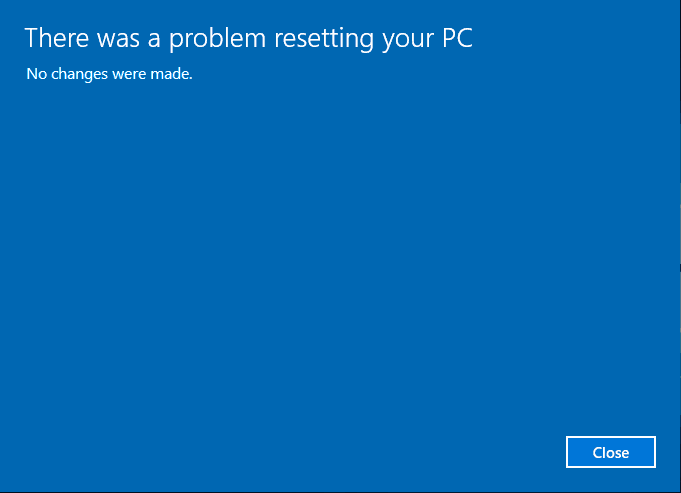
What the Error Message Actually Means
When Windows 10 says "There was a problem resetting your PC", it’s basically telling you:
- "I tried to reset the system… but something broke".
- "Some files needed for resetting aren’t working properly".
- "The reset process can’t continue".
A reset is supposed to reinstall Windows and remove old data. But if Windows can’t access certain files, the process fails.
Common Situations When This Error Appears
You might see this message when:
- Your PC won’t start properly.
- You’re trying to fix slow performance.
- Windows keeps crashing.
- You want a clean reinstall.
- Malware or corrupted files interfere with system tools.
Main Causes of "There Was a Problem Resetting Your PC" Windows 10
Understanding the "Why" helps you choose the right "How." Here are the primary technical triggers:
-
❌Registry Corruption: If the Windows Registry—the database of all system settings—is corrupted, the reset utility cannot map the instructions for reinstallation.
-
❌The "WinRE.wim" is Missing or Corrupt: This is the specific file used to boot the recovery environment. If it is deleted or moved (common after a disk clone or partition resize), the reset fails instantly.
-
❌Failed Windows Updates: Sometimes, an update is partially installed, leaving the system in a "pending" state that locks the files required for a reset.
-
❌Disk Errors or Bad Sectors: Your hard drive might have corrupted sections that prevent Windows from completing the reset process.
-
❌Power Fluctuations: If the PC lost power during a previous update or system operation, the system files might be in an inconsistent state.
-
❌Third-Party Software Conflicts: Security tools, cleaning apps, and even broken drivers sometimes interfere with the Windows reset process.
Quick Checks Before You Try Fixes
Before modifying system files, perform these checks to rule out simple environmental factors:
1. Perform a "Hard" Reboot: Fully shut down the PC, unplug the power cable for 30 seconds, and restart. This clears the volatile memory (RAM) and can resolve temporary hardware lockups.
2. Audit Your Storage: Windows requires at least 10GB to 15GB of free space to decompress the temporary installation files. If your C: drive is red-barred, delete large temporary files first.
3. Remove Non-Essential Hardware: USB flash drives, printers, and SD cards can sometimes be mistaken for bootable partitions by the reset tool, causing it to stall.
7 Fixes: There Was a Problem Resetting Your PC Windows 10
How to fix "Windows 10: There was a problem resetting your PC" directly? Let’s jump into the actual solutions. Start with the easy ones and move down the list until one works.
1. Run the System File Checker (SFC)
The SFC utility is designed to scan the integrity of all protected system files. If it finds that a file has been modified or corrupted, it replaces this file with a cached version located in a compressed folder at %WinDir%\System32\dllcache. This is the best first step because it handles "micro-corruptions" that prevent the reset tool from launching.
1. Type cmd in the Windows search bar, right-click, and select Run as Administrator.

2. Input sfc /scannow and hit Enter.

3. Interpret the Results:
-
“Windows Resource Protection found corrupt files and successfully repaired them.”: Try the reset again now.
-
“Windows Resource Protection could not perform the requested operation.”: You need to run this command in Safe Mode.
While SFC fixes individual files, it cannot fix a damaged "System Image." If the cached version of the files is also corrupted, you must use the DISM tool to fetch a fresh copy from Microsoft’s servers.
2. Use DISM to Repair Windows Image
DISM (Deployment Image Servicing and Management) is a powerful tool that repairs the Windows Component Store. Unlike SFC, DISM can connect to Windows Update to download healthy files to replace corrupted ones in your local image.
1. Open Command Prompt (Admin).
2. Run these three commands sequentially:
-
DISM /Online /Cleanup-Image /CheckHealth (Checks if corruption is detected).
-
DISM /Online /Cleanup-Image /ScanHealth (A deeper scan for hidden errors).
-
DISM /Online /Cleanup-Image /RestoreHealth (The actual repair process).
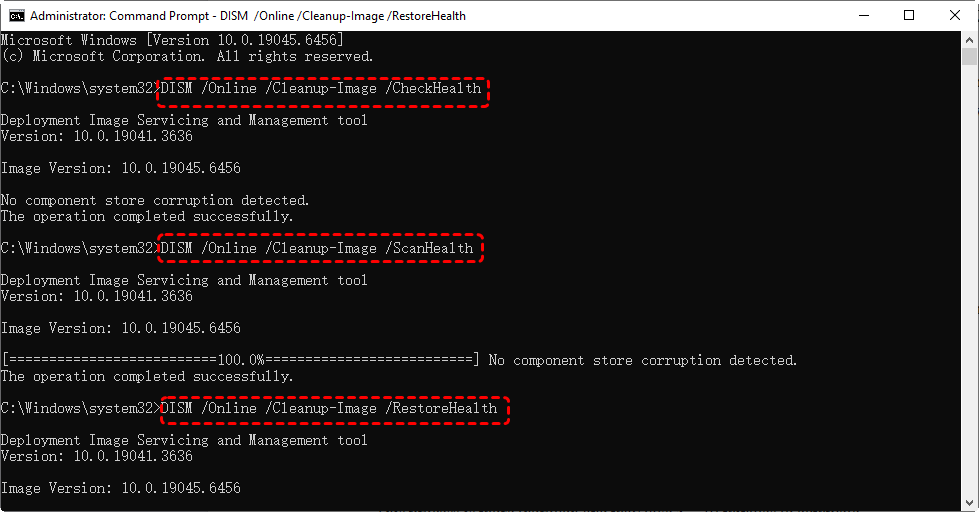
If your system image is healthy but the reset still won't trigger, the problem likely lies in the specific "Recovery Environment" partition rather than the main Windows files.
3. Enable and Repair Windows Recovery Environment
WinRE is a separate bootable partition. If the path to this partition is broken in the Windows Boot Manager, the "Reset" button is essentially clicking a link that leads to nowhere.
1. In Command Prompt (Admin), type reagentc /info.
2. Check the Windows RE status. If it says Disabled, type reagentc /enable.

If the software-level commands fail, we need to move to the "Pre-boot" environment where Windows can fix its own startup sequence without the OS interfering.
4. Use Startup Repair
Startup Repair is an automated diagnostic tool that fixes issues like corrupt boot sectors or incompatible drivers that prevent the "Reset" process from initializing its secondary boot phase.
1. If Windows boots, navigate to Settings > Update & Security > Recovery. Under Advanced startup, click Restart now.
2. Once in the blue menu, go to Troubleshoot > Advanced options > Startup Repair.
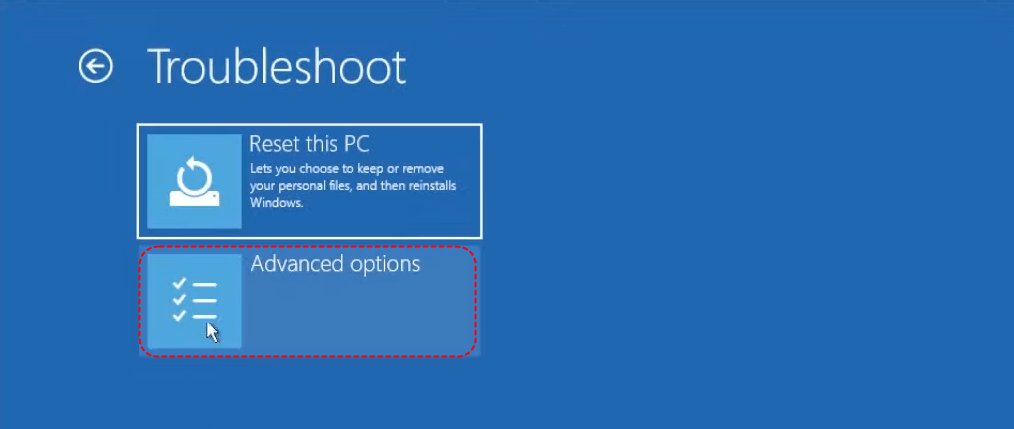
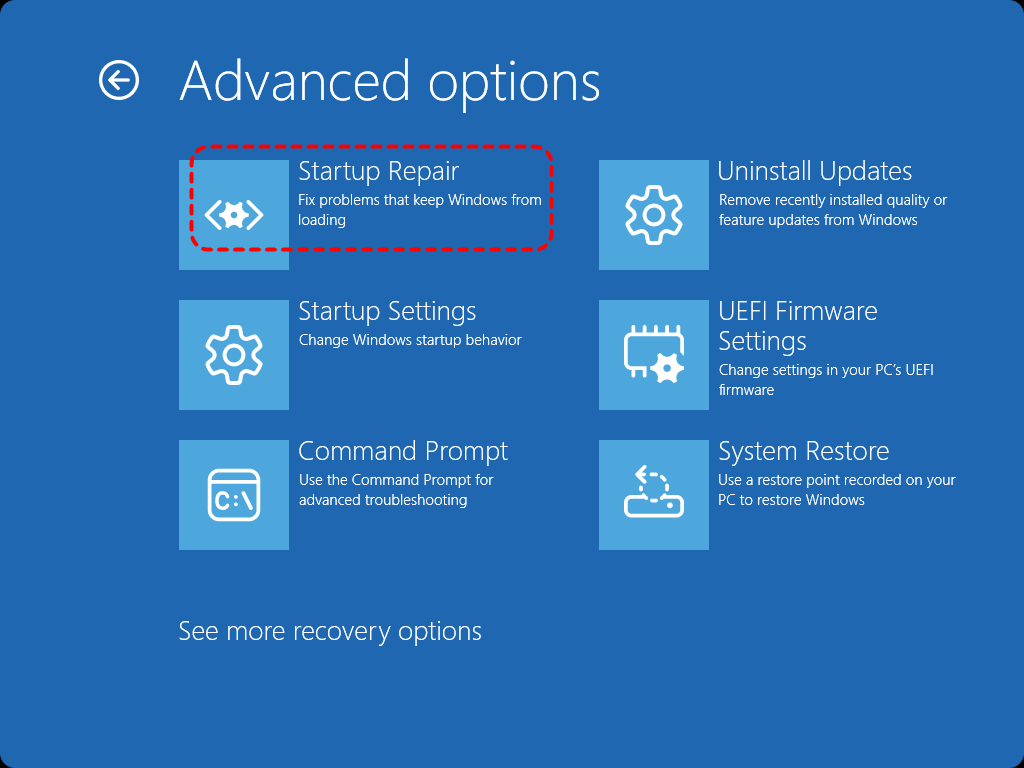
3. Select your account and enter your password. Windows will now perform a "Self-Healing" scan which can take up to 30 minutes.
If Startup Repair doesn't find any errors, but you have a history of your PC working correctly in the past, a System Restore is a faster way to "undo" the corruption.
5. Perform a System Restore
System Restore acts as a "Time Machine." It does not affect your personal files but reverts system files, registry keys, and installed programs to a state where the "Reset" function was still working. If you have previously created a system restore point, please refer to the following steps:
1. Open the Control Panel and search for Recovery.
2. Select Open System Restore.
3. Choose a Restore Point created before you first noticed the reset error.
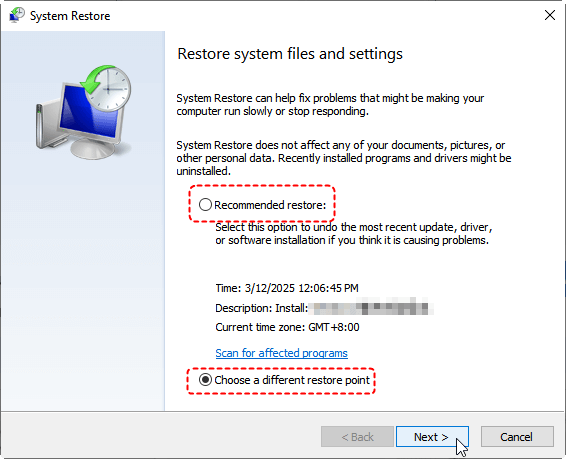
❗Cautions:
- Any programs installed after the restore point date will be uninstalled.
- If Windows won't boot, go to Troubleshoot> Advanced options >System Restore.
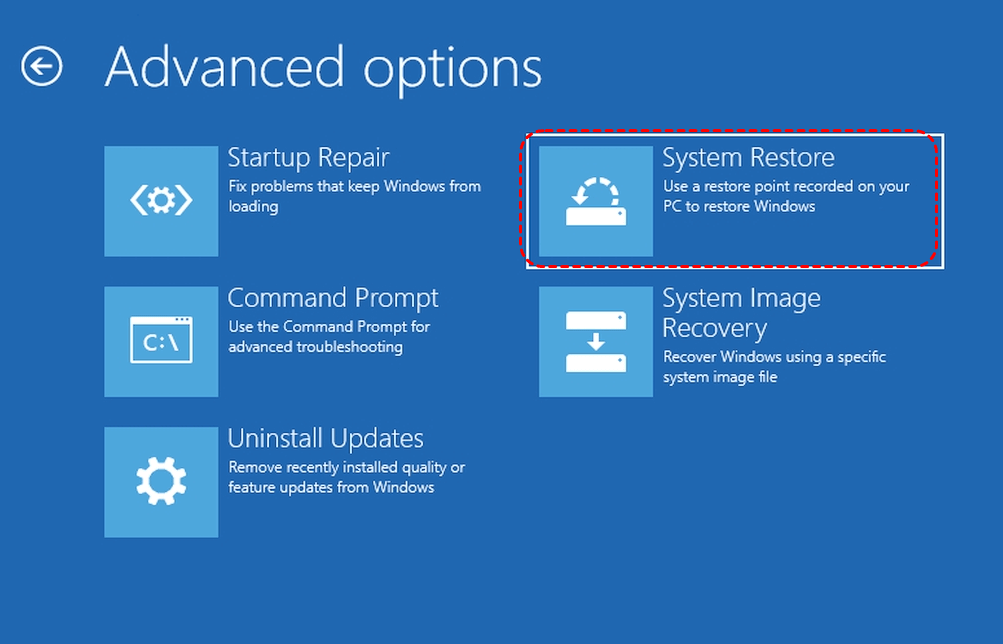
When the standard Windows environment is too unstable to perform a reset, we must strip away all non-essential drivers by entering Safe Mode.
6. Reset Windows from Safe Mode
Safe Mode prevents third-party apps (like Antivirus or specialized gaming drivers) from loading. Often, these programs "lock" system files to protect them, inadvertently preventing the Windows Reset tool from modifying them.
1. Hold the Shift key and click Restart from the Start menu.
2. Go to Troubleshoot > Advanced options > Startup Settings > Restart.
3. Press 4 or F4 to start in Safe Mode.
4. Once logged in, go to Settings → Update & Security → Recovery. Try the Reset this PC feature again.
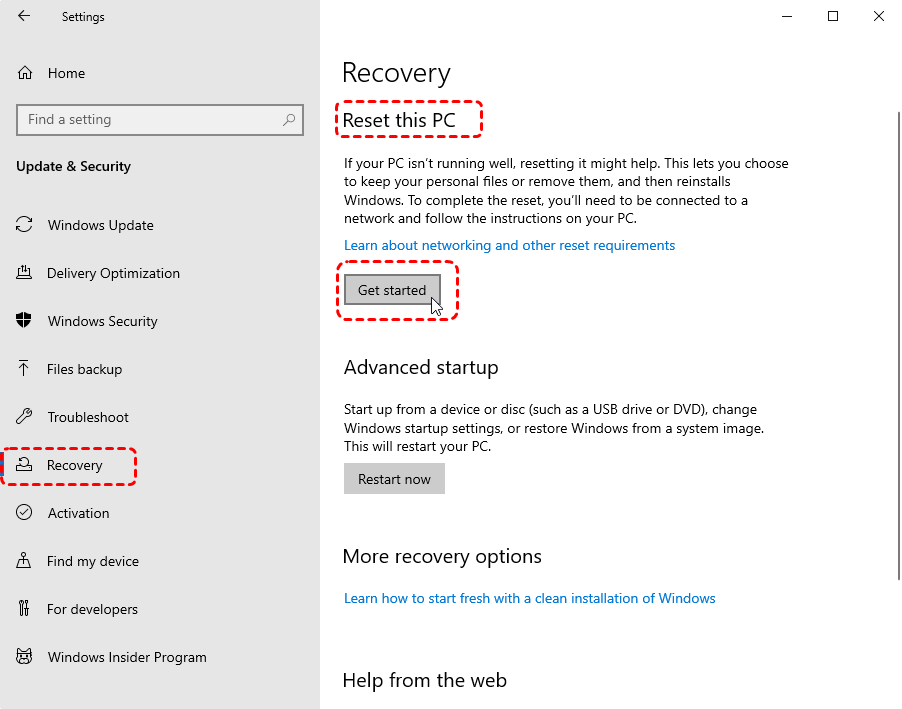
If all internal repairs fail, the local "Source" is too damaged to be saved. The final solution is to bring in a "Clean Copy" of Windows from an external source.
7. Reinstall Windows Using Installation Media (The "Clean" Reset)
This method replaces the corrupted local recovery files with fresh files from Microsoft. By using a USB drive, you bypass every error on your current hard drive.
1. Download the Media Creation Tool from Microsoft’s official website on a working PC.
2. Insert a USB drive (8GB+) and follow the prompts to create "Installation Media."
3. Boot the broken PC from the USB (you may need to change the Boot Order in BIOS/UEFI).
4. Choose Language > Install Now. When prompted, select "Custom: Install Windows only (advanced)".
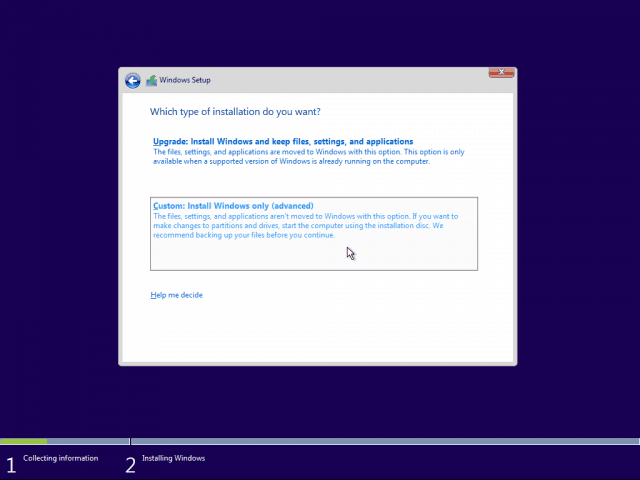
Data Safety: How to Recover Files After a Failed PC Reset or Clean Reinstall
Both resetting Windows in Safe Mode and performing a clean installation using installation media may lead to data loss, especially when system partitions are modified or deleted. It may have already moved your files into a temporary directory or began the deletion process before the error occurred. If you find your photos, documents, or work files missing after these attempts, you need a specialized recovery tool.
MyRecover is specifically engineered for these high-stress Windows system failures. Unlike generic tools, it is optimized to handle the file system shifts that occur during a Windows 10 reset.
Why MyRecover is the Right Tool for This Issue:
- ✔Failed-Reset Specialist: It can reconstruct file paths even if the Windows directory structure was partially overwritten during the reset attempt.
- ✔HDD/SSD Deep Scanning: Whether you have a modern NVMe SSD or an older HDD, MyRecover uses advanced algorithms to find "lost" partitions created during failed installations.
- ✔Support for 1000+ Data Types: From specialized professional software files to standard family photos, it ensures nothing is left behind.
- ✔Risk-Free Operation: It operates in "Read-Only" mode, meaning it won't further damage your drive while searching for files.
 100% Secure
How to Recover Lost Data Using MyRecover (Step-by-Step)
Step 1: Download and install MyRecover
Install the tool on your Windows PC. Make sure not to install it on the same drive where data was lost.
Step 2: Select the drive to scan
MyRecover will show all available drives. Choose the drive where your files were lost (often the C: drive after a reset error).
Step 3: Start scanning
The program will automatically perform a quick scan to locate deleted or lost files. You can preview files during the scan.

Step 4: Recover your data
Select the files you want to restore and click Recover. Choose a different drive to save them to prevent overwriting.

When Should You Use MyRecover?
Use it if:
- The reset attempt deleted important files.
- Windows 10 crashed or became corrupted.
- Your PC malfunctioned during the reset process.
- You formatted the system drive accidentally.
- Malware removed or damaged files.
Conclusion
Seeing the message "There was a problem resetting your PC Windows 10" is frustrating, especially when you just want to start fresh. The good news? This error is extremely common—and absolutely fixable. Whether it’s repairing system files, restoring WinRE, or reinstalling Windows entirely, one of the solutions above will get your PC running smoothly again.
By understanding the cause and applying the right fix, you’ll regain control over your Windows system without the stress.
Frequently Asked Questions (FAQ)
Q1: Will I lose my license key if I reinstall Windows via a USB drive?
A: No. Windows 10 licenses are usually tied to your hardware (Digital Entitlement) or your Microsoft Account. Once you reinstall and connect to the internet, Windows will automatically activate. You can click "I don't have a product key" during the installation process.
Q2: I tried SFC and DISM, but it says "Source files could not be found." What now?
A: This means DISM can't reach the Windows Update servers or the local image is too damaged. You can fix this by mounting a Windows 10 ISO file and pointing DISM to it as a source:
DISM /Online /Cleanup-Image /RestoreHealth /Source:WIM:D:\Sources\Install.wim:1 /LimitAccess (where D: is your ISO drive).
Q3: What should I do if I lose important files after a failed reset attempt?
A: If a reset error causes data loss or if you accidentally formatted the wrong partition, stop using the drive immediately to prevent overwriting data. You can use MyRecover to scan your hard drive and retrieve lost, deleted, or formatted files. It is a professional data recovery tool designed to handle scenarios where Windows system repairs go wrong.
Q4: Can a hardware issue cause "There was a problem resetting your PC"?
A: Absolutely. A failing hard drive with "Bad Sectors" is a common culprit. If the reset fails at the same percentage every time (e.g., 34%), run a disk check command: chkdsk c: /f /r. If it reports unfixable errors, you likely need a new SSD.
Q5: Is it possible to recover data if I had to choose "Remove Everything" to fix the reset error?
A: While "Remove Everything" aims to wipe the drive, the data often remains in a recoverable state until it is overwritten by new system files. By using MyRecover, you can perform a Deep Scan of your disk to find and restore your original documents, photos, and folders even after a factory reset has been performed.
Q6: What is the difference between "Cloud Download" and "Local Reinstall"?
A: "Local Reinstall" uses the files already on your PC to rebuild Windows. "Cloud Download" downloads 4GB+ of fresh files from Microsoft. If you are getting the "Problem Resetting" error, always choose Cloud Download, as it bypasses your potentially corrupted local files. >> Look here if you want to know more details about Cloud Download and Local Reinstall.
Q7: How to Avoid Reset Errors in the Future?
A: There are the top 3 options for helping avoid reset errors.
- Enable System Protection: Ensure System Restore points are being created automatically every week.
- Monitor Drive Health: Use tools to check S.M.A.R.T. status regularly. A healthy drive rarely fails a reset.
- Keep a Bootable USB Ready: Don't wait for an error to happen. Create a Windows 10 Recovery Drive today while your PC is working.

Stay Updated With Our
Latest Tips
Add us as a preferred source on Google to never miss helpful guides.
 Add as preferred source >>