 MyRecover



Recover When Desktop Files Missing After Restart Quickly
Discover actionable steps to resolve the alarming issue of desktop files missing after restart. If you've found "all my desktop files have disappeared after turning PC on", this guide provides clear recovery methods, from checking hidden files to system restore, to retrieve your data.

By Delores / Updated on December 17, 2025


Desktop Files Missing After Restart! Please Help!
All my desktop files have disappeared after turning the PC on
I was doing my 3D work as usual, restarted pc after a while, and all of my desktop files are gone, my desktop is blank, I have default icons, but all my files are gone, help!
- Question from reddit.com
It's frustrating if your desktop files are missing after a restart; it's not just about icons; it's about your work, your memories, and your immediate productivity hitting a wall. Often, it's a temporary hiccup in Windows' logic, and with the right know-how, you can usually get everything back without breaking a sweat. This guide will walk you through why this happens, the immediate fixes you can try, and a powerful, step-by-step solution using a reliable data recovery software to salvage your files.
Why Desktop Files Go Missing After Restart?
So, why does Windows pull this disappearing act? It’s rare because your files have been deleted. In fact, the data is usually still on the hard drive, safe and sound, but the pathway to find it has gotten muddled.
Let’s break down the usual suspects behind this problem:
⭕ Accidental Deletion or Movement. It sounds simple, but in a rush, you might have accidentally dragged the entire desktop contents into another folder or even the Recycle Bin without realizing it.
⭕ Corrupted System Files or Settings. Critical system files that manage user profiles and desktop paths can become corrupted. A sudden power loss during an update or a faulty piece of software can damage these pointers, causing Windows to default to an empty desktop location.
Now, you might need to find your critical files. Don’t worry, here are some proven solutions that can help you out of this trouble.
7 Fast Solutions When Desktop Files Are Missing After Restart
These first-response actions are quick, easy, and surprisingly effective for many cases of desktop files missing after restarting Windows 10 and Windows 11.
Way 1. Check the Hidden Files and Folders Option
Sometimes, the files are technically there but marked as hidden.
1. In File Explorer, click the three-dot icon next to the"View" tab.
2. Choose Show >"Hidden items".
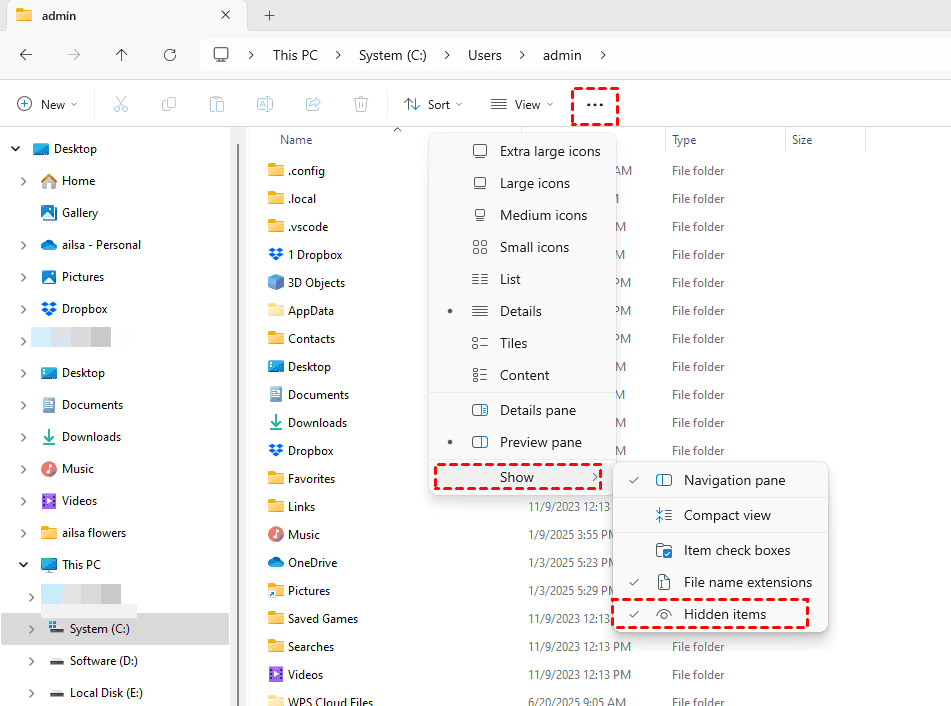
Poof—your files might just reappear, especially if a recent system tweak or cleanup utility altered their attributes.
Way 2. Explore Your Desktop.ini Configuration
The desktop.ini file is a hidden system file that controls how your desktop looks. If it’s corrupted, your desktop might not display your files correctly.
You can navigate to C:\Users[YourUsername]\Desktop in File Explorer, enable hidden items, and see if this file is present and intact. You can also try the Everything app to find it quickly.
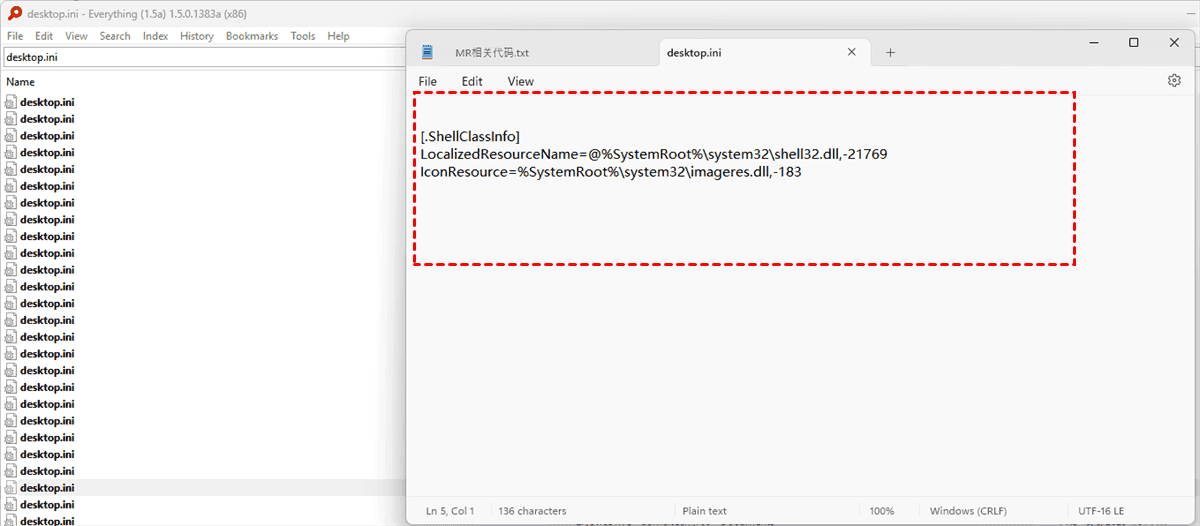
Deleting it (Windows will create a new one) can sometimes reset the desktop view.
Way 3. Sign Out and Sign In
Some users reported that logging out and logging back into your user profile can fix it. You might encounter a temporary profile because the old user profile might be corrupted.
Way 4. Create A New User Profile
If it still uses the temp profile after restarting or re-logging, don't worry, because your files are likely not damaged.
Create a new admin user profile first.
Go to "C:/This PC/Users/CorruptedUsername", and you'll find your files in the folders.
Then copy these files, including the Desktop folder from the old corrupted user profile to the newly created one.
Way 5. Restart Your Computer 3 Times
Restart your PC 3 times, and you will get out of the temporary profile. Then check your desktop files are still there.
Way 5. Check OneDrive
Sometimes, files disappear from the Desktop after OneDrive sync. Probably OneDrive is where it messed up. Check your OneDrive folder or online for missing files. Then do whatever you want to do, like downloading the Desktop folder to your computer. Then restart that app and set it up to not sync Desktop files.
Way 7. Show All Desktop Icons
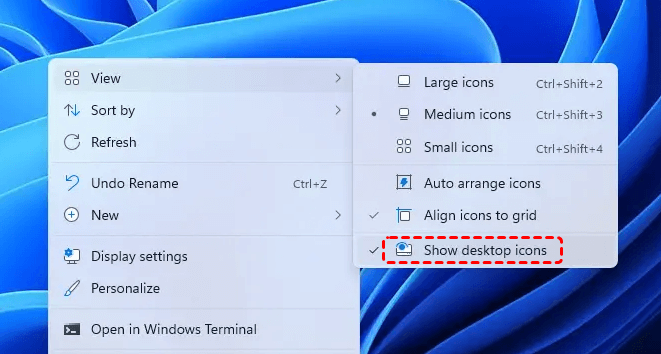
If the desktop icons are hidden somehow, you can’t see your desktop files in Windows 11, 10. So check if your desktop icons option was unchecked.
1. Right-click on the desktop and click on View.
2. Tick the last option 'show desktop icons' if it was not checked.
Recover Desktop Files Now If Nothing Works
There are multiple ways to recover desktop files; check them now.
Way 1. Recover Desktop Files with Windows File Recovery
1. Install: Get "Windows File Recovery" from the Microsoft Store.
2. Open Admin Prompt: Right-click Start, choose "Terminal (Admin)" or "Command Prompt (Admin)".
3. Run the following command and hit Enter:
winfr C: G: /regular /n \Users\[YourName]\Desktop\*.docx
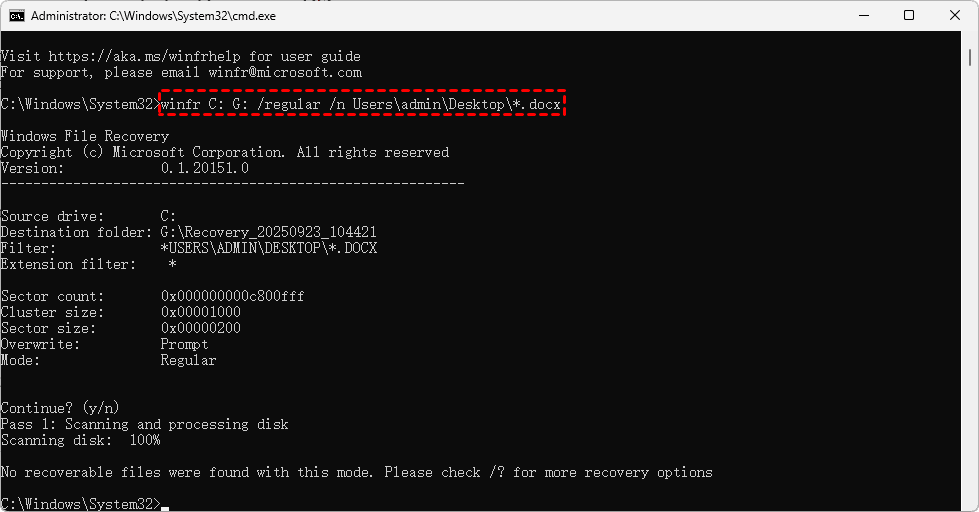
Replace [YourName] with your username.
Check Results: Find recovered files in the Recovery_[Date] folder on drive G:.
Way 2. Recover Desktop Files Using File History
If you have enabled File History or a Restore Point before the files disappeared. You can recover Desktop files via File History or System Restore Point.
Using File History:
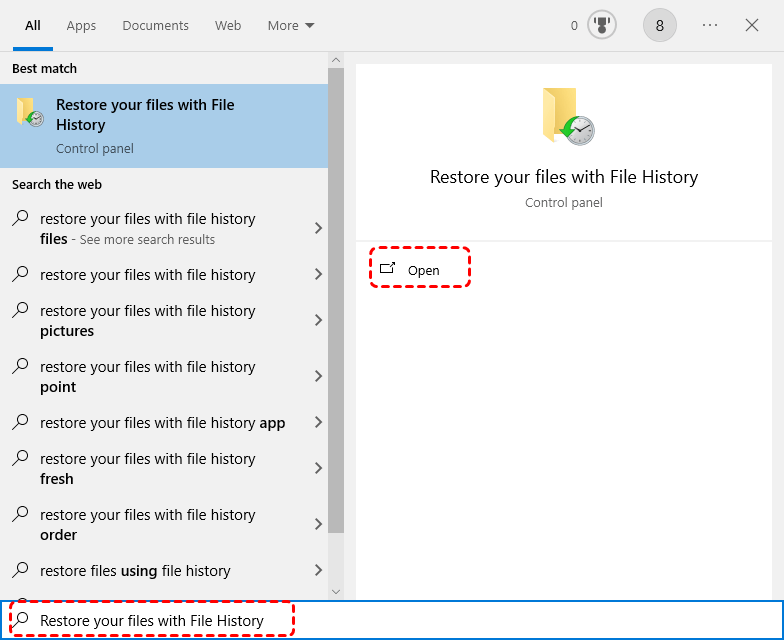
1. Search for and open "Restore your files with File History".
2. Use arrows to browse timeline backups of your Desktop.
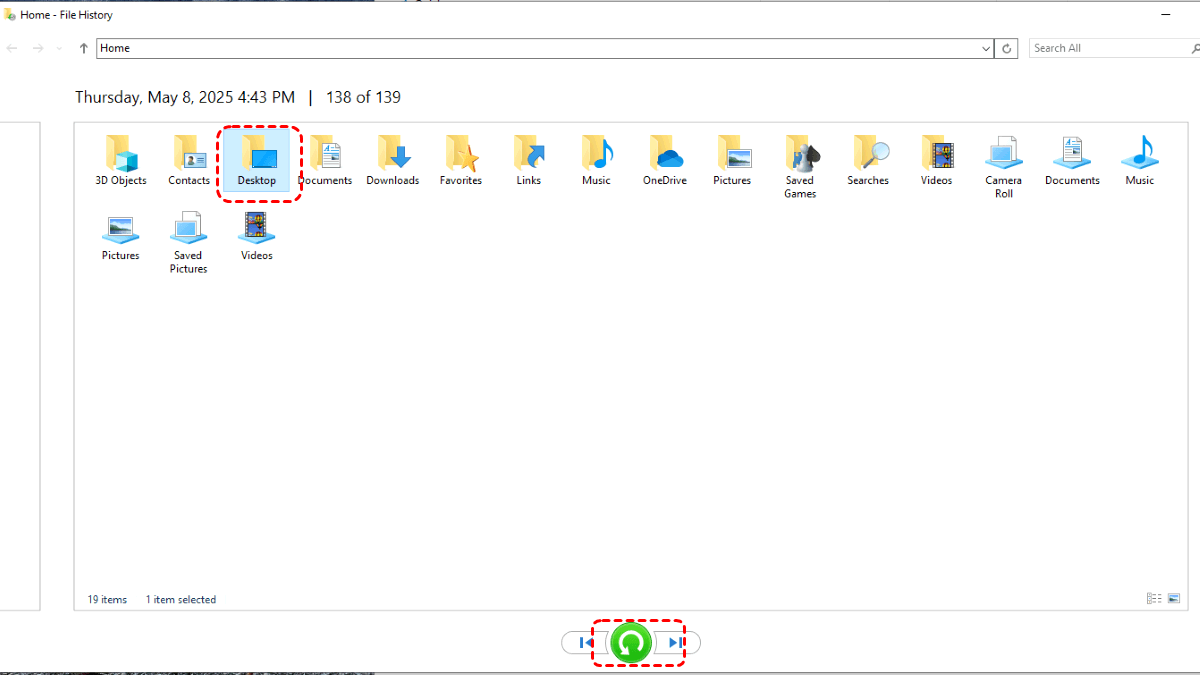
3. Select lost files and click the green "Restore" button.
Using System Restore:
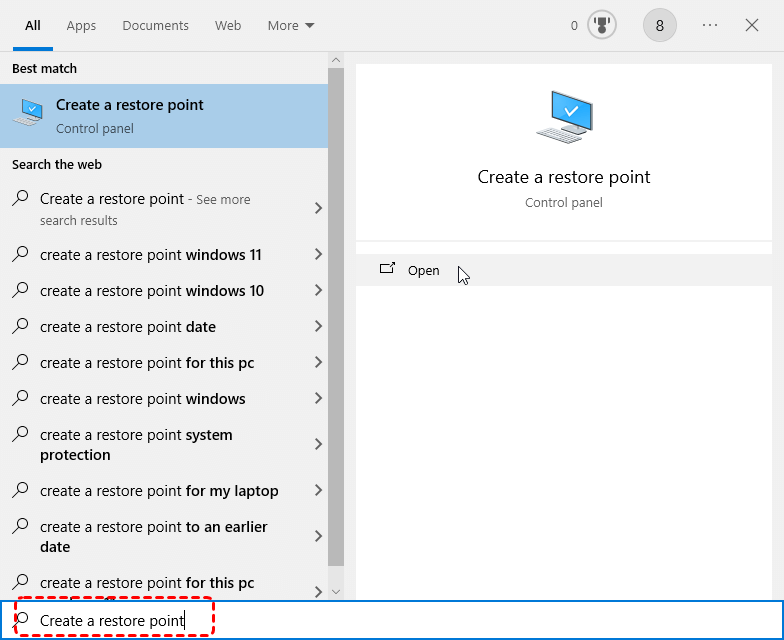
1. Search for and open "Create a restore point".
2. Click "System Restore" and choose a date before the problem.
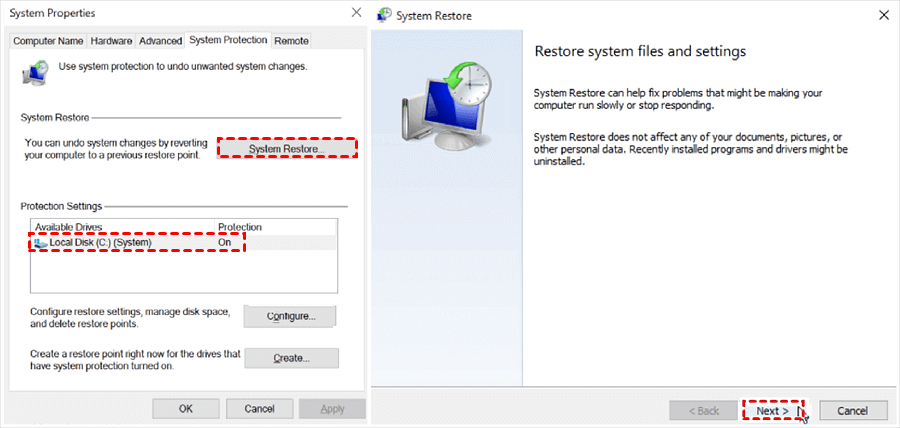
3. Confirm. Your PC will restart and revert system settings, often fixing the desktop.
Way 3. Recover Missing Desktop Files via MyRecover
When you’ve checked the hidden folders, and File History wasn’t set up, and the sinking realization that all my desktop files have disappeared after turning PCon sets in, it’s time for dedicated data recovery software. This is where a tool like MyRecover shines.
Unlike basic Windows utilities, it performs a deep scan of your storage drive’s RAW data, looking for file signatures and structures that the operating system itself has lost track of.
It’s designed to be user-friendly, visual, and incredibly effective for recovering files lost due to deletion, corruption, or the desktop files missing after restarting, etc.
Here is a straightforward, step-by-step guide to using MyRecover to get your desktop files back in order.
1. Download MyRecover and install it. Then run it to recover files.
 100% Secure
2. Tap Deleted Files Recovery, choose the drive you need, usually the C drive, and hit Scan.

3. Wait for the process to complete, and hit OK.
4. Choose the files you need and hit Recover.

5. Opt for a safe location to keep them.


- Notes:✎...
- Once the scan completes, you’ll be presented with a familiar file tree view. You can navigate to C:\Users[YourUsername]\Desktop or use the filter functions at the top. Filter by "Path" to show only desktop files, or by "Type" if you’re looking for specific documents or images.
- MyRecover allows you to double-click many file types (like documents, images, and PDFs) to preview their contents. This is a godsend for verifying the files are intact before recovery.
- Besides, you can also recover files from unlimited computers after upgrading to MyRecover Technician if you’re an administrator of your company when necessary.

 MyRecover
- Recover Deleted Files Easily with Simple Clicks
- 1000+ File Formats Supported
- Support HDD, SSD, External Hard Drive, USB Drive, SD Card, etc.
- Quickly Find Files Using File Types, Name, Size, etc.
- Preview Files Before Recovering
- Recover Unlimited Data
 100% Secure
FAQs about Desktop Files Missing After Restarting
Why did my desktop icons disappear after restarting Windows 11?
A: This is often a temporary profile glitch where Windows loads a blank profile instead of yours. The files likely still exist at C:\Users[YourName]\Desktop. A restart may help, or you can try viewing hidden files to find them.
Can a Windows update delete my desktop files?
A: While updates don't intentionally delete files, they can corrupt your user profile, making your desktop appear empty. Always back up before major updates. The files are usually still on the drive but inaccessible.
How can I find my desktop files if they are hidden?
A: In File Explorer, go to the "View" tab and check "Hidden items." Then navigate to C:\Users[YourUsername]\Desktop. If your files appear, you can right-click them, select "Properties," and uncheck "Hidden."
What's the difference between a missing desktop and a temporary profile?
A: A missing desktop means specific files are gone from their expected folder. A temporary profile is a system error where Windows gives you a completely new, empty user environment upon login. All your personal settings and files are absent but still stored in the original profile folder.
Are desktop files stored on the C drive?
A: Yes. Your desktop is a folder located at C:\Users[YourUserName]\Desktop. All desktop files and shortcuts are physically stored there, which is why recovery efforts focus on the C: drive.
How can I prevent Windows from deleting my desktop icons?
A: Use automatic backups like File History or cloud sync (OneDrive/Google Drive). Also, avoid storing critical files solely on the desktop—move completed projects to more secure, backed-up folders. Keep your system stable with regular maintenance.

Stay Updated With Our
Latest Tips
Add us as a preferred source on Google to never miss helpful guides.
 Add as preferred source >>