 MyRecover



Fixed: USB Device Not Recognized Notification Keeps Popping Up
End the frustration when "USB device not recognized" keeps popping up by following our comprehensive guide. We detail why this error occurs and provide effective fixes. Our various solutions ensure you stop USB device not recognized notification keeps popping up in Windows 10/11.

By Delores / Updated on December 12, 2025


USB Device Not Recognized Keeps Popping Up!
Can't stand the "USB device not recognized" error! How to fix it? However, it keeps coming back, sometimes even when nothing is plugged in.
It’s more than just a minor alert; it’s a disruption that breaks your concentration, hints at deeper system issues, and can even block you from accessing crucial files on your flash drives or external hard drives. This guide is your definitive roadmap to exorcising that ghost for good, explaining the "why" behind the chaos and providing the "how" to restore peace and functionality to your ports.
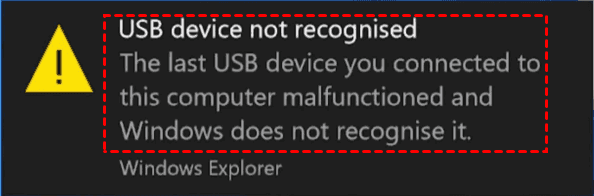
What Does It Mean: USB Device Not Recognized
What does it mean when it shows the "USB device not recognized" error? The error indicates that your computer's USB controller is detecting something—a signal, a request, or a ghost in the machine—but it completely fails to identify what that something is or how to communicate with it.
The plot thickens when the alert is on a loop. A one-time error might be a fluke, but a persistent, unrecognized USB device that keeps popping up indicates a stuck process. Windows has a background routine called "enumeration" where it constantly checks its USB ports. When it encounters a glitch it can't resolve—such as a corrupted driver entry or a malfunctioning port—it gets stuck in a loop: detect error, show notification, fail, repeat.
Why Do You Get The Error “USB Device Not Recognized”?
Various reasons might cause the problem, and we listed the main reasons:
- A failing USB port, frayed inside a laptop hinge, or clogged with dust in a desktop, can send erratic signals.
- A cheap flash drive, a wonky cable, or an external hard drive starting to fail can leave behind a corrupted "fingerprint" in your system's memory.
- Corrupted or outdated device drivers.
- Corrupted system files.
- A misbehaving Windows service (like "Shell Hardware Detection"),
- A botched Windows update can throw a wrench into the works. This is a classic cause for the "USB device not recognized" keeps popping up in Windows 10 after a major system patch.
How to Fix "USB Device Not Recognized" Notification Keeps Popping Up?
Let's get to the fixes you can try right now, starting with the simple stuff. The goal here is to break the loop and give Windows a clean slate.
Way 1. Run the Hardware and Devices Troubleshooter
Windows has a handy, if often overlooked, automated fixer.
1. Search for "Troubleshoot settings" in your Start menu.
2. Then select "Hardware and Devices".
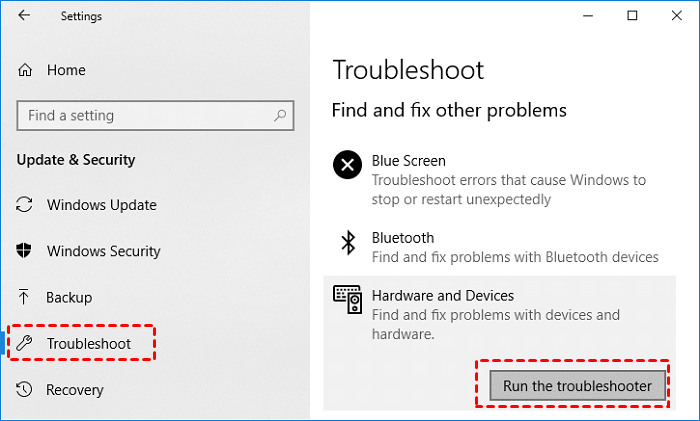
3. Click Run the troubleshooter.
4. Then follow the guide to complete the process.
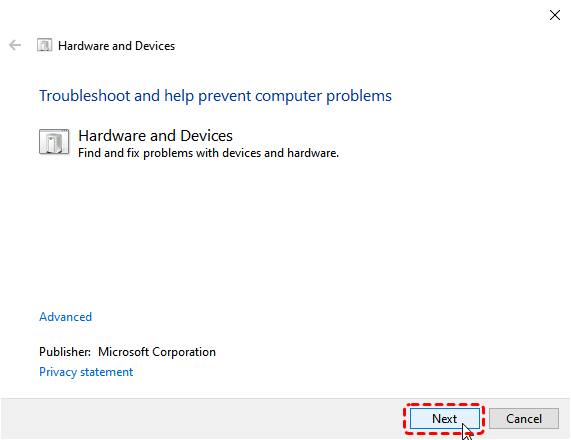
It will automatically scan for problems with connected devices and drivers, attempting to fix common issues such as broken driver states or service disruption.
Way 2. Basic Driver Updates and Port Resets
Next, let's talk to Device Manager—your command center for all things hardware.
1. Right-click the Start button and select it.
2. Look for sections like "Universal Serial Bus controllers".
3. See any devices with a tiny yellow warning triangle? That’s your target.
4. Right-click and select "Update driver".
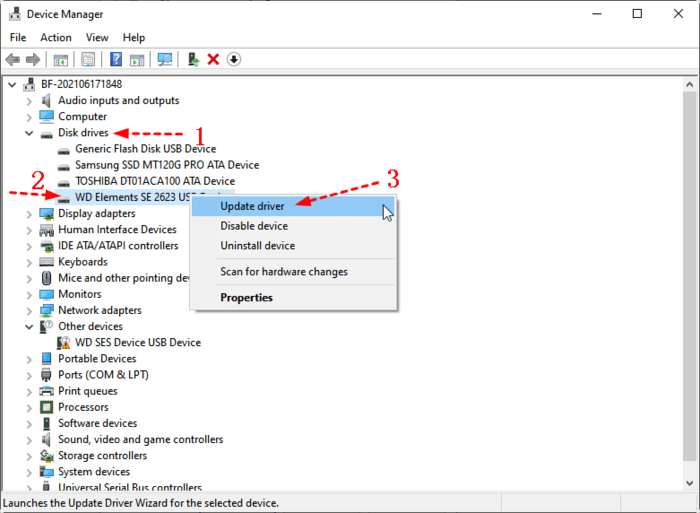
5. Choose "Search automatically for updated driver software".
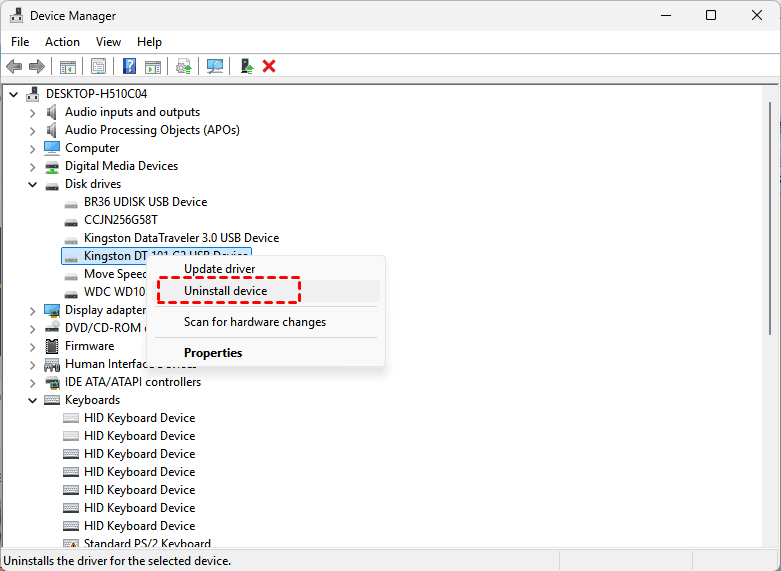
If that doesn't help, try a reset. In Device Manager, under "Universal Serial Bus controllers", find entries labeled "USB Root Hub" or "USB Host Controller".Right-click each one and select "Uninstall device".

Don't worry! Once you restart your computer, Windows will automatically reinstall fresh, default drivers for these fundamental components. This often clears out the corruption, causing the USB device not recognized notification to keep popping up.
Way 3. Clean Corrupted Driver Caches in Device Manager
This is especially true for the truly bizarre case where the "USB device not recognized" keeps popping up, even though nothing is plugged in.
This phantom error is the most telling sign of software corruption. Your computer is seeing a ghost device—a leftover registry entry or driver cache from a past device that Windows thinks is still there.
1. Go to Device Manager.
2. This time, click "View" at the top and select "Show hidden devices". This reveals all the drivers Windows has stored, including those for devices not currently connected.
3. Now, expand the "Universal Serial Bus controllers" section again. You'll likely see a lot of grayed-out entries. These are the ghosts.
4. Carefully right-click and uninstall every grayed-out USB device you see (avoid things like your mouse or keyboard if they're working). This purges the cached, corrupted data.
Way 4. Adjust Power Management Settings for USB Hubs
Windows, in its quest to save battery life, can sometimes be too aggressive. It might attempt to power down a USB port to save energy, but then fail to wake it up properly, resulting in a detection loop.
1. Go back to Device Manager, under "Universal Serial Bus controllers".
2. Right-click on each "USB Root Hub" and choose "Properties".
3. Then the "Power Management" tab.
4. Uncheck the box that says "Allow the computer to turn off this device to save power".
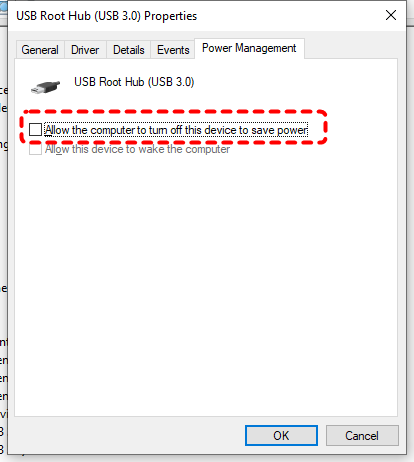
5. Do this for each hub.
This ensures your ports get steady power and won’t go out unexpectedly.
Way 5. Use Registry Editor to Remove Ghost USB Devices
How to end the notification loop? If the above solutions are not working, you can try to change the Windows Registry to fix it.
This method manually hunts down and deletes the phantom device entries that are triggering the Windows Explorer USB device not recognized keeps popping up alert.
Warning: The Registry is the brain of your OS. Tread carefully and consider creating a system restore point before proceeding.
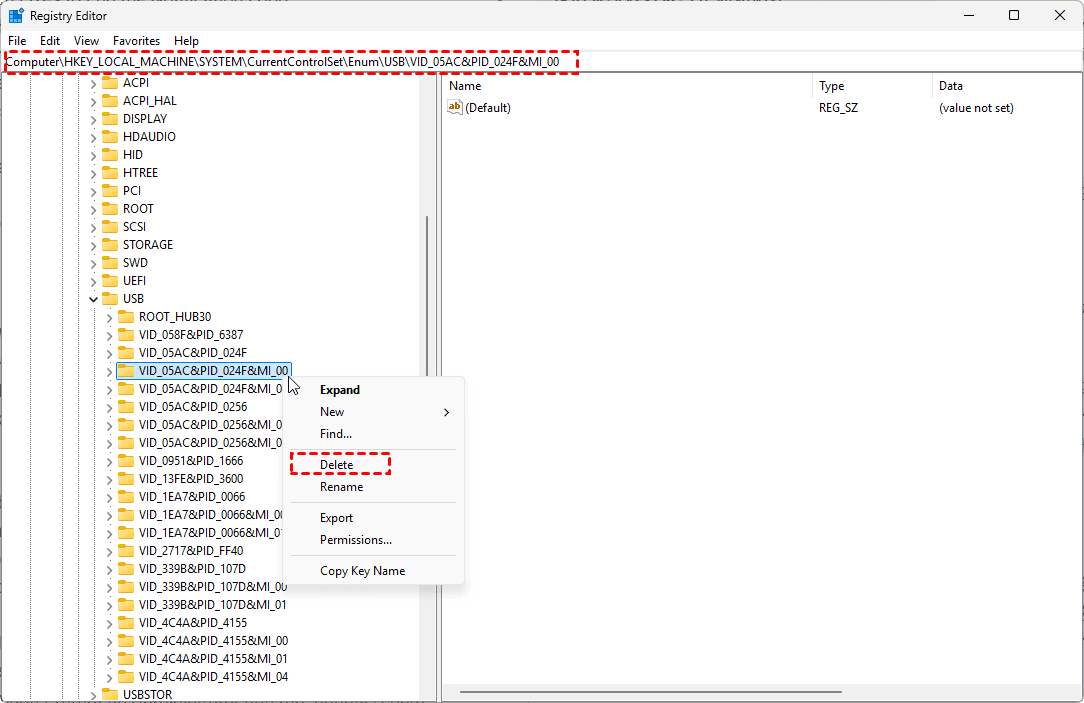
1. Press Win + R, type regedit, and press Enter.
2. Navigate carefully to this key: HKEY_LOCAL_MACHINE\SYSTEM\CurrentControlSet\Enum\USB.
3. The "USB" key contains a list of every USB device your computer has ever known. The trick is identifying the bad one. Look for subfolders with suspicious or generic names, or ones corresponding to a device that caused problems. You can compare the "FriendlyName" data inside. Do not delete the entire USB folder. Only delete specific subfolders (like VID_XXXX&PID_XXXX) that you are confident are problematic. When in doubt, skip it.
Way 6. Fix Shell Hardware Detection Service Issues
1. Press Win + R, type services.msc.
2. Find "Shell Hardware Detection".
3. Right-click it, select "Properties".
4. Ensure its "Startup type" is set to "Automatic".
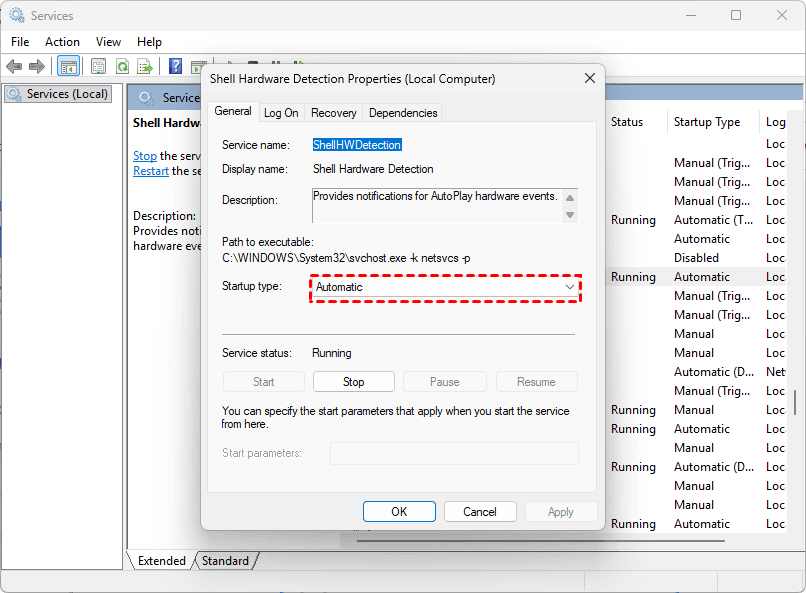
If it's already running, try to "Stop" and hit "Start" to restart it. This service handles auto-play and notification functions for new hardware.
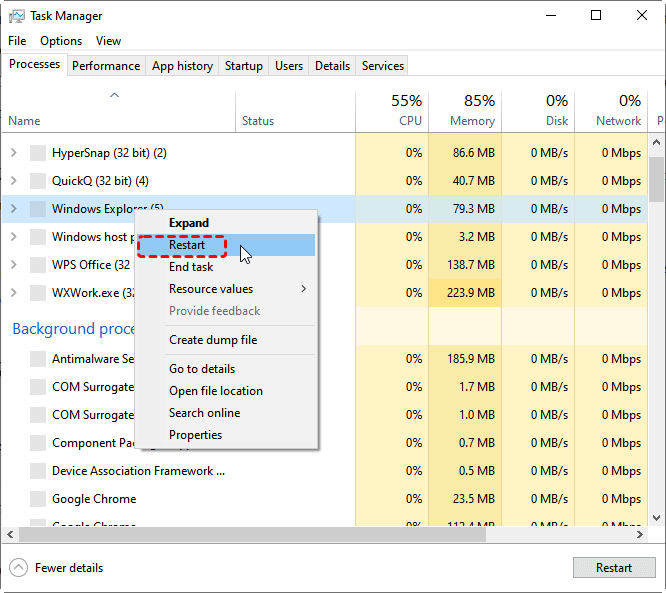
Way 7. Restart Windows File Explorer
Corrupted cache files can cause all sorts of graphical and notification glitches. You can reset these in Task Manager.
1. Open Task Manager (Ctrl + Shift + Esc).
2. Find "Windows Explorer" under Processes, right-click it, and select "Restart".
FAQs About USB Device Not Recognized Keeps Popping Up
Q: Why does my computer show "USB device not recognized" with nothing plugged in?
This is usually a software issue, not hardware. Windows keeps driver profiles for past USB devices. If one is disconnected improperly or corrupted, Windows tries to communicate with the "phantom" device and triggers the error. Fix it by removing corrupted entries from Device Manager (view hidden devices) and the Registry.
Q: Can malware cause this error?
Yes, though less common. Some malware interferes with USB drivers or corrupts system files. If deep cleaning fails and you notice other system issues, run a full scan with updated antivirus software or a bootable USB scanner for deep infections.
Q: I’ve tried all driver fixes on Windows 10. What’s next?
Move to system repairs:
- Run sfc /scannow in an Admin Command Prompt to fix corrupted system files.
- If issues remain, run DISM /Online /Cleanup-Image /RestoreHealth, then sfc /scannow again.
- As a last resort, perform a Clean Boot to identify conflicting background programs.
Q: Can a BIOS/UEFI update fix this?
Yes, if it’s a firmware bug. Check your motherboard manufacturer’s site for updates mentioning “USB compatibility” or “USB detection.” Caution: Updating BIOS carries a risk—follow instructions carefully and ensure stable power.
Q: How do I recover files from a USB drive with this error?
The data is likely still there, but inaccessible.
- Stop using the drive immediately.
- Use data recovery software like MyRecover on a different computer.
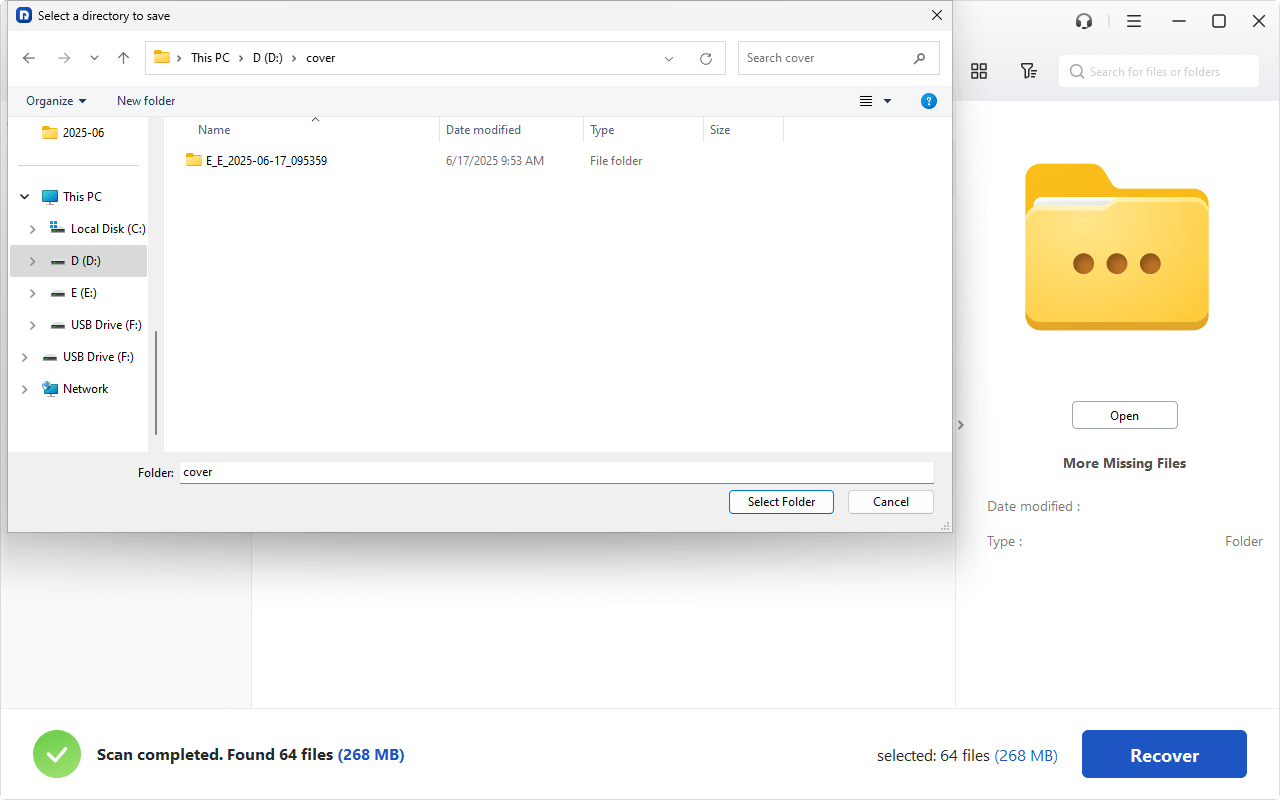
- Scan the USB drive, preview files, and save recovered data to another drive—not back to the corrupted USB.
Q: Could a Windows update cause this? How do I roll back?
- Yes. To uninstall a recent update:
- Go to Settings > Update & Security > View update history > Uninstall updates. Remove recent Quality Updates (KB numbers) from when the issue started.
- Alternatively, use System Restore to revert to a point before the problem.
Recover Files First Before Any Operation
If you connected a USB drive to your computer, and find Windows shows USB device not recognized error, before any operation, please back up or recover files first to keep them safe if possible (You can recover files if your USB drive can be detected in Disk Management). You have to recover files if you can’t back up files on that USB drive. Fortunately, you can try the professional Windows data recovery software, MyRecover, to easily recover all files at once.
With MyRecover, you can enjoy:
- Fast Recovery. It uses a quick and deep scan mode to meet your different demands and recover files with the highest recovery rate.
- Selective Recovery. You can preview and select the files you need to recover, instead of recovering everything that you don’t need.
- 1,000+ file formats. You can recover files from any format, like PNG, JPEG, MP4, MP3, DOCX, Excel, and many more.
- 500+ Devices. MyRecover supports many devices, including USB drives, SD cards, external hard drives, HDDs, SSDs, music players, video players, PS4/5, etc.
So, how to recover files from a USB drive with MyRecover? Check the simple guide here:
1. Please download and install MyRecover on your computer.
 100% Secure
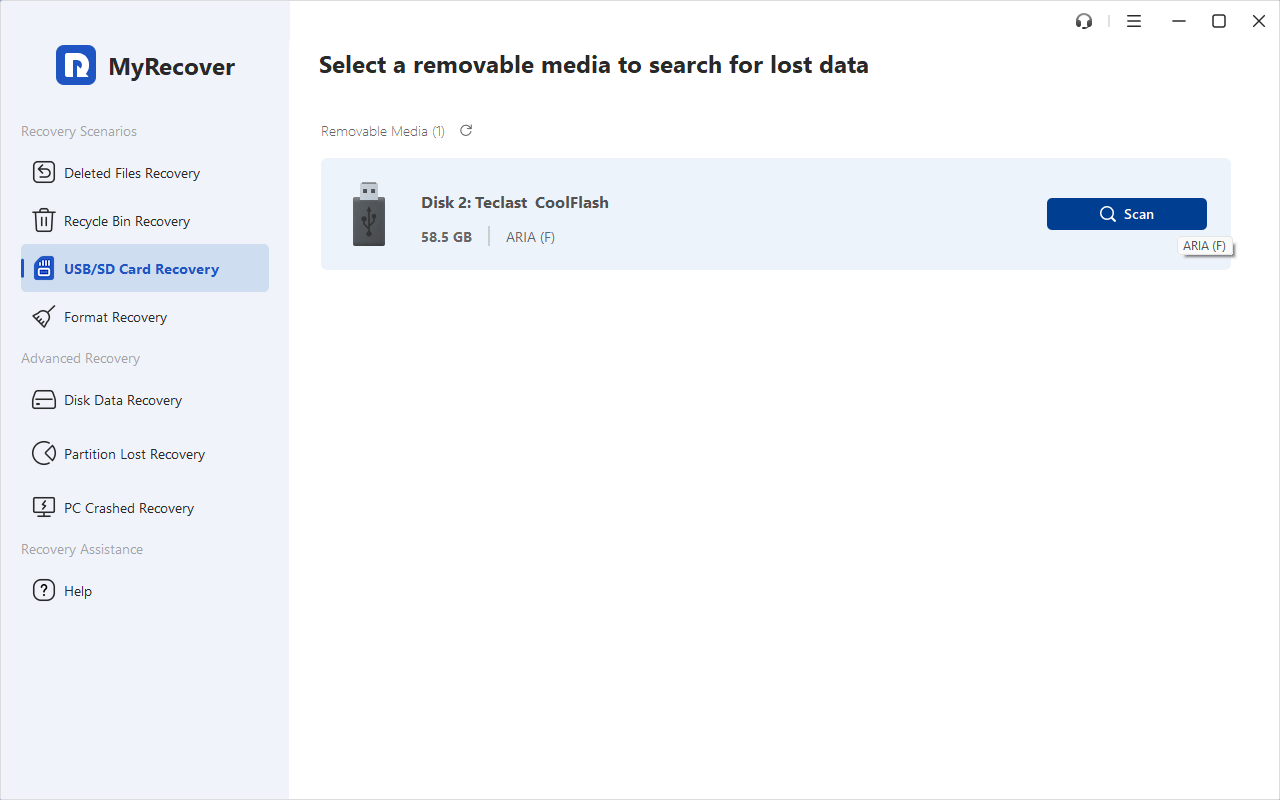
2. Execute MyRecover, then tap USB/SD Card Recovery, choose the USB drive, and hit Scan.
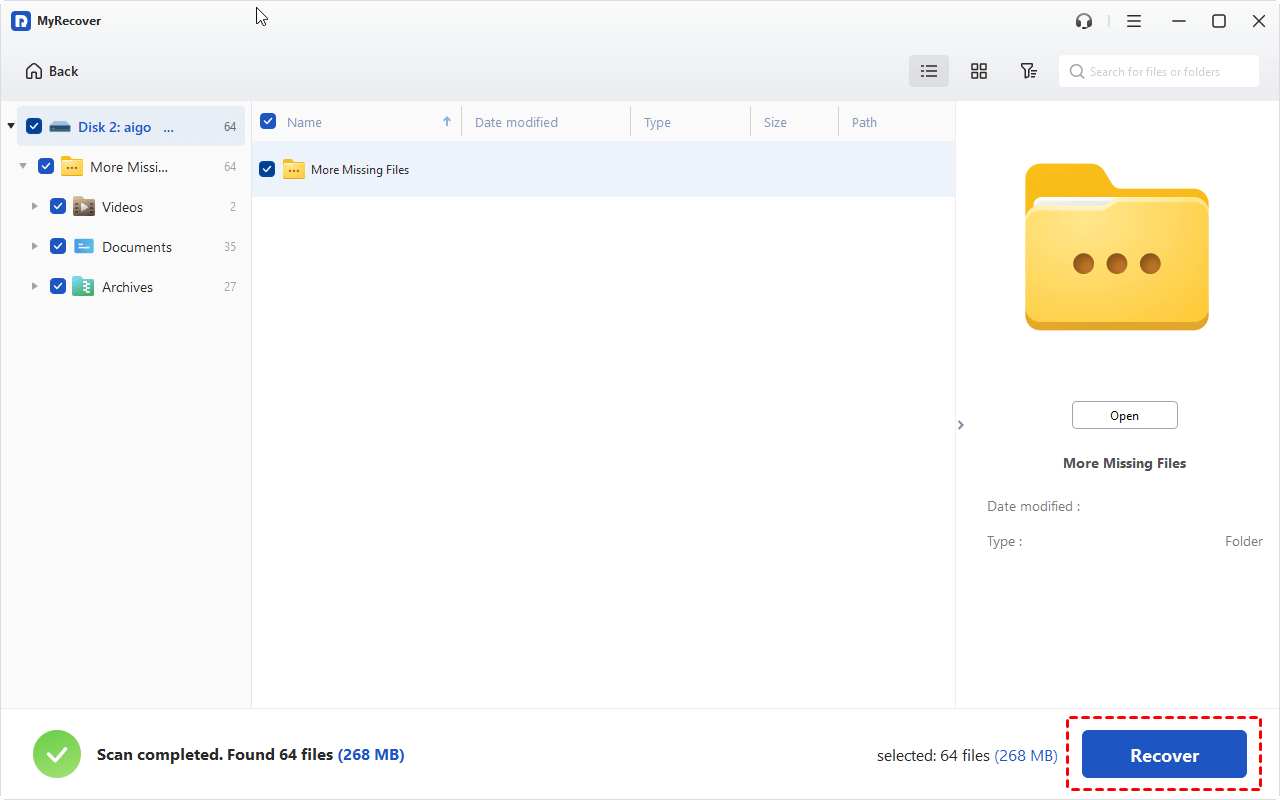
3. Hit OK when it’s finished.
4. Preview these files you need, select them, and hit Recover.
5. Choose a folder to keep them safe.
- Notes:✎...
- Once scanned, you can find files by file type, filename, file path, and file size.
- You can also recover unlimited files at once.
- For administrators, you can try MyRecover Technician to recover files for unlimited computers within your company.

 MyRecover
- Recover Deleted Files Easily with Simple Clicks
- 1000+ File Formats Supported
- Support HDD, SSD, External Hard Drive, USB Drive, SD Card, etc.
- Quickly Find Files Using File Types, Name, Size, etc.
- Preview Files Before Recovering
- Recover Unlimited Data
 100% Secure

Stay Updated With Our
Latest Tips
Add us as a preferred source on Google to never miss helpful guides.
 Add as preferred source >>