 MyRecover



USB Drive Disconnects During File Transfer – What’s Really Going On?
When USB drive disconnecting happens mid-copy, transfers fail and files corrupt. This guide explains common causes, power and port issues, cable quality, driver fixes, and step-by-step solutions to keep large transfers stable and complete every time.

By Vera / Updated on January 8, 2026


Introduction to USB Drive Disconnection Issues
Case 1: USB drive disconnect during large transfer... also affects Win7 32bit - https://learn.microsoft.com/
Case 2: USB Drive Keeps Disconnecting While Copying Large Files - https://www.reddit.com/
USB drives are supposed to be simple. Plug in, copy files, eject, done. But when a USB drive disconnects mid-transfer, it feels like the digital equivalent of dropping a box of fragile items down the stairs.
This problem can happen on Windows, macOS, or Linux and affects flash drives, external hard drives, and even SSDs. The causes range from power issues to file system limitations—and sometimes, it’s a combination of everything.
Common Symptoms of USB Drive Disconnecting
Before fixing the issue, let’s identify it properly.
Error Messages You Might See
You may encounter messages like:
- "USB device not recognized";
- "The disk was ejected improperly";
- "File transfer failed due to unexpected error";
These pop-ups are your system’s way of waving a red flag.
Sudden Transfer Interruptions
Sometimes there’s no warning at all. The transfer just stops. The drive disappears. Then it reconnects like nothing happened. Sneaky, right?
Why USB Drives Disconnect During File Transfer
When a USB drive disconnects in the middle of a file transfer, it’s rarely random. In most cases, it’s your system reacting to limits, power issues, hardware stress, or software interference. Let’s break it down simply.
1. File Size and File System Limits
One of the most common (and overlooked) reasons is file size. Many USB drives still use the FAT32 file system, which cannot handle files larger than 4GB. When you try to copy a large video, backup, or disk image, the transfer may fail—or cause the USB drive to disconnect entirely.
👉 This often looks like a "connection issue", but it’s actually a format limitation.
2. Power Management and Power Supply Problems
USB drives depend entirely on your computer for power. If that power is unstable, the drive disconnects. This usually happens when:
- The USB drive is connected through an unpowered USB hub.
- The system enables USB power-saving features.
- The computer tries to "sleep" the USB port during long transfers.
In short, your system may decide the USB port isn’t important anymore—right in the middle of copying files.
3. Hardware Stress and Physical Issues
USB drives aren’t built for endless heavy transfers. Common hardware-related causes include:
- Loose or worn USB ports.
- Damaged cables.
- Overheating flash drives during large or long transfers.
- Low-quality or counterfeit USB drives that can’t handle real workloads.
When the hardware overheats or loses connection for even a split second, the system disconnects it to prevent damage.
4. Software Conflicts and Background Activity
Sometimes, the problem isn’t the USB drive—it’s what’s running in the background. Software that can interfere includes:
- Antivirus or real-time security scanners.
- Backup or sync tools.
- Disk indexing services.
- System optimization utilities.
These programs may lock files, scan data mid-transfer, or overload system resources, causing the USB connection to drop unexpectedly.
- >> Want to know how to recover files deleted by virus?
How to Fix USB Drive Disconnects During File Transfer
When your USB drive keeps disconnecting, guessing won’t help. Follow these proven methods step by step to stabilize the connection and finish your file transfer safely.
Method 1: Change Power Management Settings (Highly Recommended)
Your operating system may be turning off USB ports to save power—especially during long transfers.
Operation Steps (Windows)
1. Press Windows + X and select Device Manager.

2. Expand Universal Serial Bus controllers.
3. Right-click USB Root Hub → choose Properties.
4. Go to the Power Management tab.
5. Uncheck Allow the computer to turn off this device to save power. Click OK.
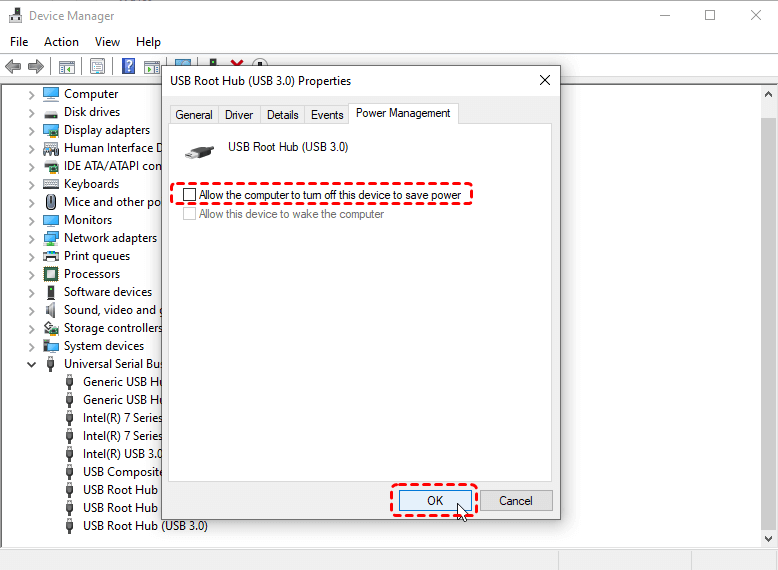
6. Repeat for all USB Root Hub entries. Then restart your computer.
👉 This alone fixes USB disconnection issues for many users.
Method 2: Update or Reinstall USB Drivers
Outdated or corrupted drivers often cause unstable USB connections.
Operation Steps
1. Open Device Manager.
2. Expand Universal Serial Bus controllers.
3. Right-click each USB device and select Update driver.
4. Choose Search automatically for drivers.
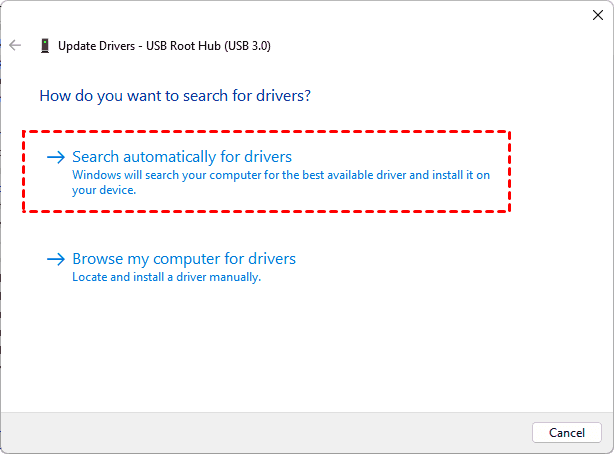
5. If the issue persists:
- Right-click the device again.
- Select Uninstall device.
- Restart your computer (Windows will reinstall drivers automatically).
Think of this as "refreshing the communication line" between your USB drive and system.
Method 3: Check and Repair File System Errors
A file system error can cause your USB drive to disconnect when it hits a bad sector.
Operation Steps
1. Plug in the USB drive. Open This PC.
2. Right-click the USB drive → Properties
3. Go to the Tools tab. Click Check under Error checking.
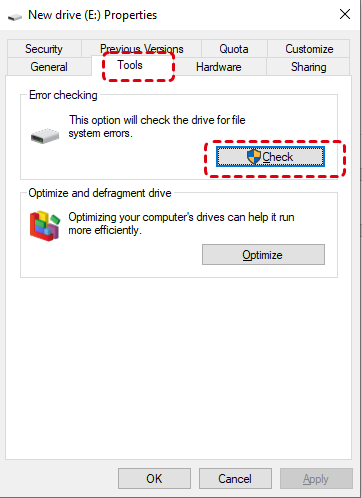
4. Follow on-screen instructions to repair errors.
Method 4: Switch USB Port, Cable, or Connection Type
Sometimes the problem is purely physical.
Operation Steps
1. Unplug the USB drive.
2. Plug it into a different USB port (preferably a rear port on desktops).
3. Avoid using unpowered USB hubs. If available, try a different USB cable.
4. Restart the file transfer.
Simple? Yes. Effective? Absolutely.
Method 5: Reformat the USB Drive (Last Resort)
If your USB drive uses an outdated file system like FAT32, large files can cause disconnections.
Operation Steps
1. Back up all accessible data.
2. Right-click the USB drive → Format.
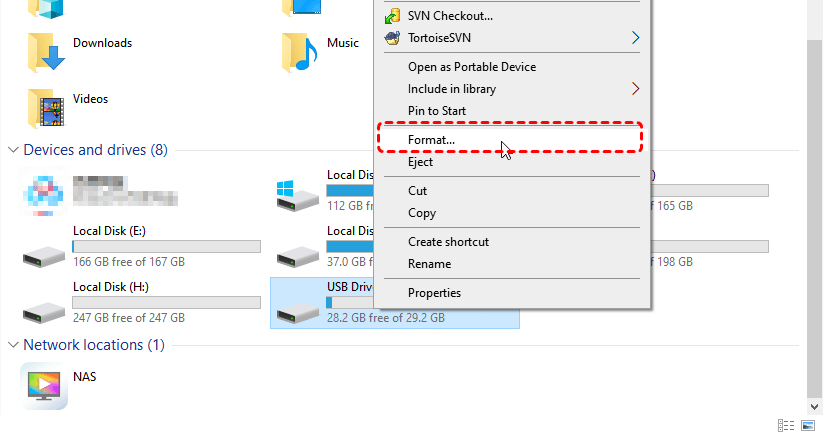
3. Choose exFAT or NTFS.
4. Click Start. Wait for formatting to complete.
How Can I Recover Data If It Is Lost After USB Drive Disconnecting? – MyRecover
Even with all precautions, sudden USB disconnections can still lead to lost, deleted, or corrupted files. That’s where MyRecover becomes a lifesaver.
Why Choose MyRecover?
MyRecover is a professional data recovery tool designed to retrieve files lost due to:
- USB drive disconnecting unexpectedly.
- Interrupted file transfers.
- Accidental deletion.
- Formatting errors.
- File system corruption.
 100% Secure
It supports recovery of documents, photos, videos, audio files, and more—with a user-friendly interface.
How to Recover Lost Files Using MyRecover
1. Download and install MyRecover on your computer (Do NOT install it on the affected USB drive).
2. Insert the disconnected USB drive.
3. Launch MyRecover. Select the USB drive from the device list. Click Scan.

4. Wait while the tool performs a quick scan. Preview recoverable files.
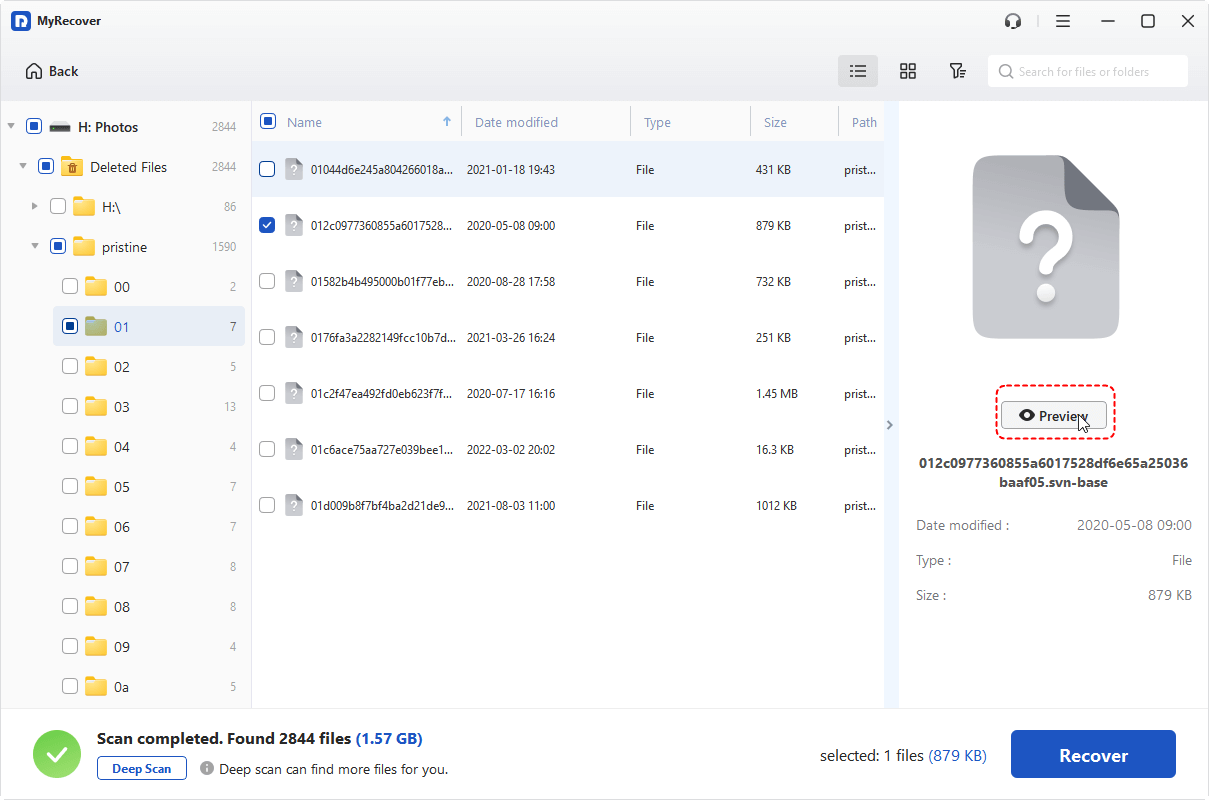
5. Select the files you want to restore. Click Recover and save them to a safe location.

When Should You Use MyRecover?
Use MyRecover if:
- Files disappear after USB disconnection.
- The transfer fails and data goes missing.
- The USB drive asks to be formatted.
- Files show as corrupted or unreadable.
It’s like a safety net for your data—quietly waiting until something goes wrong.
Best Practices to Prevent USB Disconnections
Prevention beats repair every time.
Safe Removal Habits
Always eject your USB drive properly. Pulling it out mid-operation is like yanking a book out of a printer—it never ends well.
Avoid Cheap USB Drives
Stick to reputable brands. Reliable hardware saves you time, stress, and potentially irreplaceable data.
Final Thoughts
When a USB drive disconnects during file transfer, it’s rarely random. There’s almost always a reason—and usually a solution. From power settings and file systems to hardware quality and overheating, every detail matters.
Treat your USB drive well, use the right settings, and invest in quality hardware. Your future self—and your data—will thank you.

Stay Updated With Our
Latest Tips
Add us as a preferred source on Google to never miss helpful guides.
 Add as preferred source >>