 MyRecover



[Quick & Easy Fixes] USB Not Showing Up When Plugged In
If you’re dealing with a USB device not showing up when plugged in, you’re not alone. This detailed walkthrough covers the most common causes behind missing USB drives and provides reliable steps to diagnose, repair, and prevent detection issues on any Windows system.

By Vera / Updated on January 4, 2026


Understanding the "USB Not Showing Up" Problem
A USB not appearing doesn't always mean it's dead. Sometimes the issue is tiny—like a driver glitch—or bigger, like file system corruption. Before replacing anything, it's important to understand what’s really going on.
Common Symptoms You Might Notice
- USB doesn't show in File Explorer.
- USB appears but says "Insert disk" or "Unrecognized device".
- USB is visible in Device Manager but not accessible.
- USB LED light turns on but no drive letter appears.
- USB shows as RAW or no media.
Main Causes of USB Not Being Detected
A missing USB can be caused by a variety of simple or technical issues. Let’s break them down.
Physical Connection Issues
Dust, a loose port, or a faulty connector can stop the USB from being detected. Surprisingly common, yet often overlooked.
Driver Problems
Outdated, corrupted, or missing drivers are a top cause. Windows relies on these drivers to "talk" to your USB device.
File System Errors
If the USB is corrupted or has a RAW file system, Windows won’t recognize it properly.
Power Supply & Hardware Issues
Weak power supply—especially on desktop USB ports—may stop external USB drives from mounting.
USB Port or Cable Damage
Broken ports or cables can block the connection. Testing helps rule this out quickly.
Virus or Malware Infection
Some malware hides your files or stops the USB from being recognized.
How to Fix USB Not Showing Up (Step-by-Step)
Let's dive into the solutions. Start with the simple fixes and move toward the advanced ones.
Method 1: Try Another USB Port or Device
It sounds too easy, but it works more often than you think.
✔ Test USB in another port.
✔ Try on another computer.
✔ Avoid USB hubs—they sometimes fail.
If it works elsewhere, your port or PC configuration is the problem.
Method 2: Check USB in Disk Management
Even if it doesn’t show in File Explorer, Windows might still recognize it.
- ★ How to open Disk Management:
- Press Win + X > Disk Management
Now check if the USB appears there.
1. Assigning a Drive Letter
If you see the USB drive but no letter:
1. Right-click the drive.
2. Select Change Drive Letter and Paths.
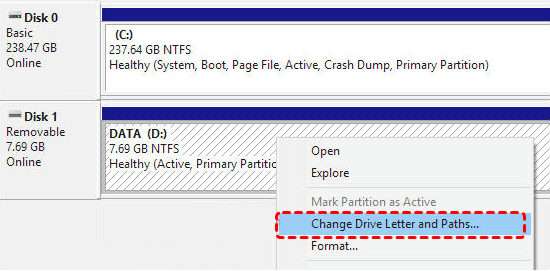
3. Click Add > Assign a Letter > OK.
2. Initializing or Formatting a USB
If the USB shows as "Unallocated" or "Not Initialized":
1. Right-click > Initialize Disk.
2. Choose GPT or MBR.
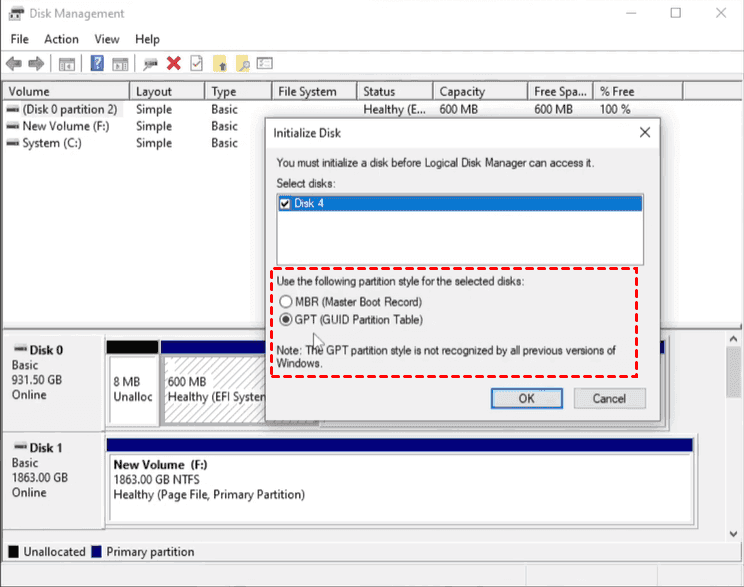
3. Create a new simple volume.
Bonus Tip: Best Way to Recover Lost USB Data – MyRecover
Before you format or give up on your USB, you should try recovering your data first. MyRecover is one of the easiest and fastest tools designed specifically for corrupted, unreadable, or RAW USB drives.
What MyRecover Can Do:
- Restore deleted files from USB.
- Recover data from RAW drives.
- Bring back formatted or corrupted files.
- Support all brands (SanDisk, Kingston, Samsung, etc.).
- One-click deep scan for all file types.
 100% Secure
If your USB is still undetected or inaccessible, MyRecover gives you the best chance to save your data before attempting repairs.
Method 3: Update or Reinstall USB Drivers
1. Open Device Manager.
2. Expand Universal Serial Bus Controllers.
3. Right-click your USB device.
4. Select Update Driver.

If that doesn’t work, try Uninstall device and reconnect the USB.
Method 4: Enable USB Device in Device Manager
Sometimes Windows disables USB devices by mistake.
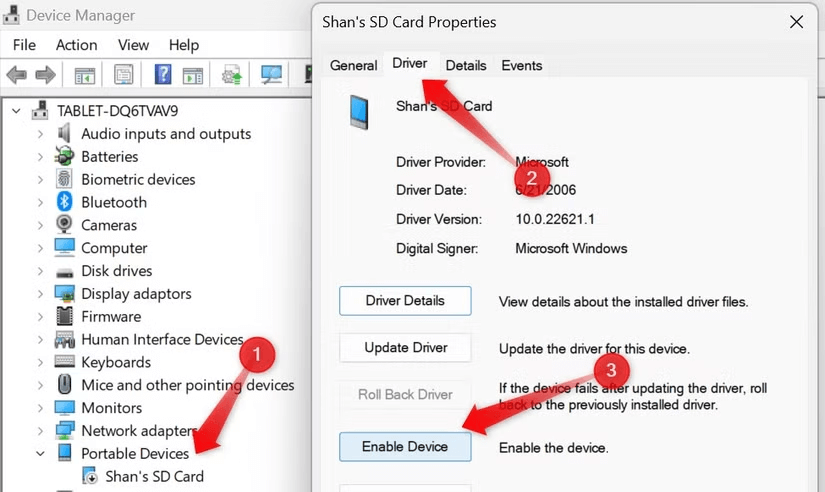
1. Open Device Manager.
2. Find the USB device.
3. Right-click > Enable Device.
Method 5: Use Hardware and Devices Troubleshooter
1. Press Win + R.
2. Type: msdt.exe -id DeviceDiagnostic.
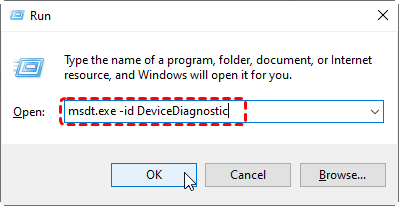
3. Run the troubleshooter
Let Windows automatically detect issues.
Method 6: Disable USB Selective Suspend
This feature sometimes cuts power to the USB.
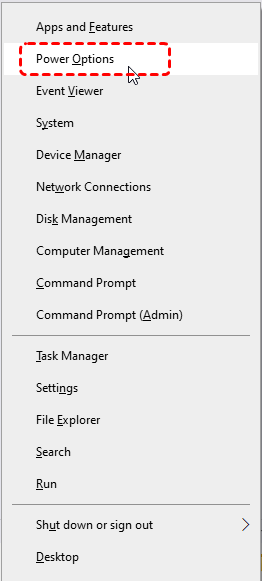
1. Press Windows Key + X and select Power Options.
2. Click Change plan settings.
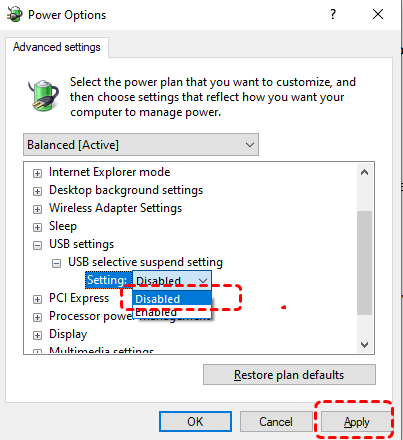
3. Select Change advanced power settings.
4. Disable USB Selective Suspend.
Method 7: Repair File System Errors
Use CHKDSK to fix corrupted drives.
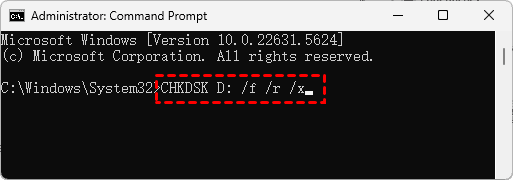
1. Open Command Prompt (Admin).
2. Type: chkdsk D: /f /r /x. Replace D: with your USB drive letter.
Method 8: Scan for Malware or Virus
Use Windows Security or your antivirus to scan your USB. Some viruses hide files or block access.
Advanced Fixes for USB Not Detected
If simpler fixes didn’t help, these advanced methods might solve the issue.
Fixing RAW USB Drives
If the USB shows as RAW, it means the file system is damaged. You’ll need to repair or recover it before formatting.
Repairing Corrupted USB Drives
Try using built-in Windows tools or third-party recovery software to repair corrupted sectors.
Checking USB for Physical Damage
If none of the software fixes work, the USB might be physically damaged. In such cases, only professional recovery can help.
Final Thoughts
A USB not showing up can feel frustrating, but it’s usually fixable with the right steps. Whether it’s a simple port issue or a deeper file system problem, following this guide can help you diagnose and fix the issue quickly. And if you’re worried about data loss, MyRecover offers a safe way to recover your files before making major changes. Try the solutions above, and you'll likely get your USB working again in no time.

Stay Updated With Our
Latest Tips
Add us as a preferred source on Google to never miss helpful guides.
 Add as preferred source >>