 MyRecover



How to Recover Visual Studio Code Accidentally Deleted Files
If you face a Visual Studio Code accidentally deleted file situation, don’t panic. This guide explains reliable methods to recover lost code, including version control and system recovery. Learn how to

By Vera / Updated on March 20, 2026


Introduction
noob here: accidentally deleted all my vscode files for class with my lectures and projects
I was trying to create a repo using the terminal and push it to github when i accidentally staged all my files, I thought i pressed the redo button but it was a delete button. Control z didn't work, nor git reset.
Am i shit out of luck? Lost 2 months of lectures and projects. The only stuff that stayed were my folders/repos from github
- Question from Reddit
Accidentally deleting a file while coding can feel like watching hours of work vanish in seconds. Many developers have experienced the frustration of a Visual Studio Code accidentally deleted file situation. Maybe you removed the wrong file while cleaning up a project folder, or you deleted something unintentionally during refactoring. Regardless of how it happened, the immediate concern is the same: Can the file be recovered?
The good news is that in most cases, deleted files can be restored. Whether the file is sitting in your system’s recycle bin, stored in Git history, or recoverable through backups, there are several practical ways to retrieve it. This guide explains clear and structured methods to recover deleted files and outlines best practices to prevent similar issues in the future.
Understanding File Deletion in Visual Studio Code
Visual Studio Code itself does not permanently erase files immediately. Instead, when you delete a file from the Explorer panel, the action is typically passed to the operating system.
In most environments:
- Windows: Files are moved to the Recycle Bin.
- macOS or Linux: Files are moved to the Trash.
This behavior means that accidental deletions can often be reversed without complex recovery procedures.
Temporary vs Permanent Deletion
A deleted file may fall into one of two categories:
1. Temporary Deletion
- The file is moved to the system trash.
- It can be restored easily.
2. Permanent Deletion
- The file bypasses the trash or is deleted from it.
- Recovery may require backups or specialized tools.
Understanding the type of deletion helps determine the appropriate recovery method.
How to Undo a File Deletion in Visual Studio
When a file is accidentally deleted, it is important to act quickly and systematically.
Method 1: Undo the Deletion Command
If the deletion just occurred, the fastest solution is to reverse the action.
1. Return to Visual Studio Code.
2. Ensure the Explorer panel is active.
3. Press the undo shortcut.
- Windows: Ctrl + Z
- macOS: Cmd + Z

If the deletion was the most recent action, the file should reappear instantly.
Method 2: Restore the File from the Recycle Bin or Trash
This is the most common and reliable recovery method.
1. Open your operating system’s file manager.
2. Navigate to the Recycle Bin (Windows) or Trash (macOS/Linux).
3. Search for the deleted file.
4. Right-click the file.
5. Select Restore or Put Back.
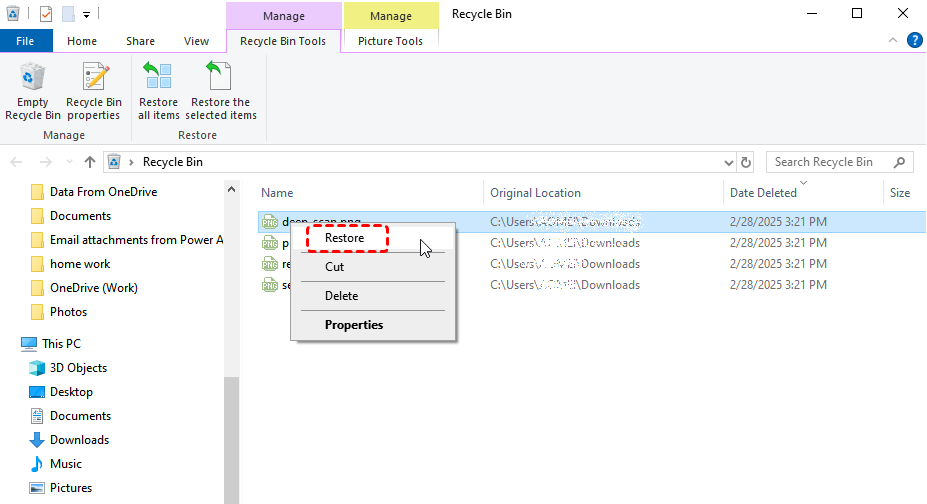
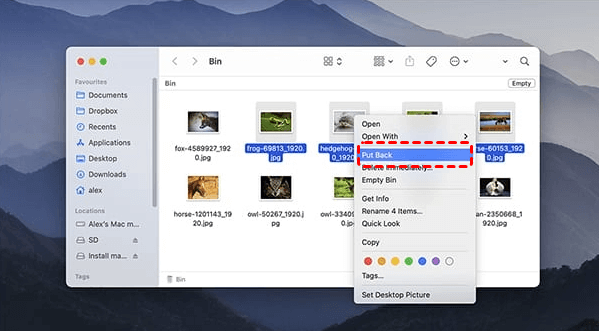
The file will return to its original project directory.
Method 3: Undo a File Deletion in Visual Studio Using Version Control
If your project uses Git, file recovery becomes significantly easier. Git records the history of changes in your project, including deletions.
Step 1: Check Git Status
Open the terminal in Visual Studio Code and run:
git status
If the deleted file was previously tracked by Git, it should appear in the list of changes.
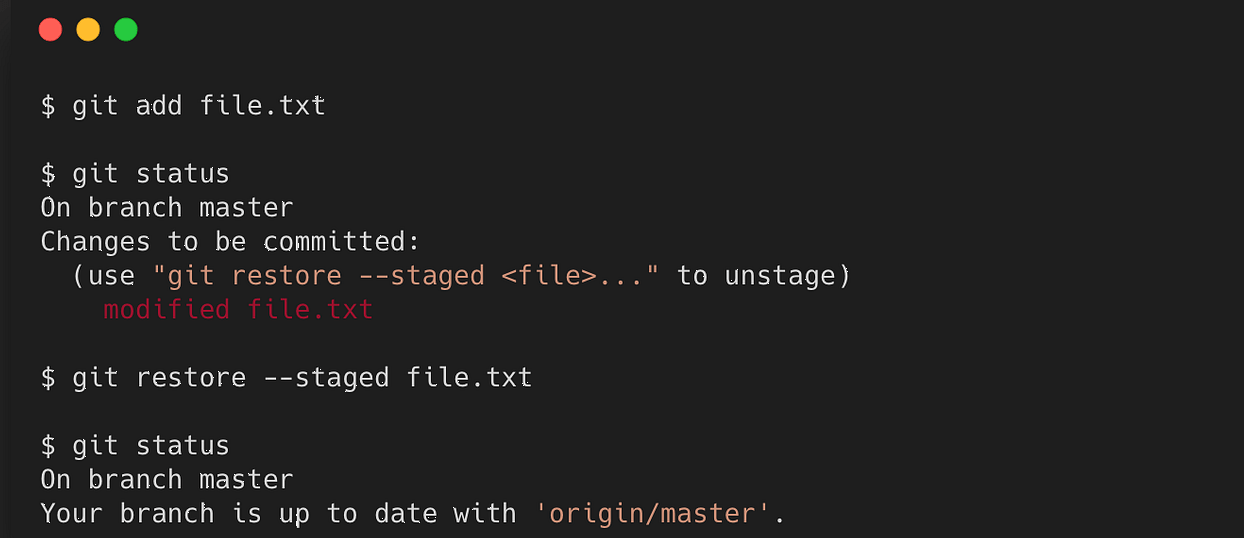
Step 2: Restore the File
Run the following command:
git restore filename
This command restores the deleted file from the most recent commit.
Step 3: Recover from an Older Commit (If Necessary)
If the file was deleted several commits ago:
1. View the commit history.
git log
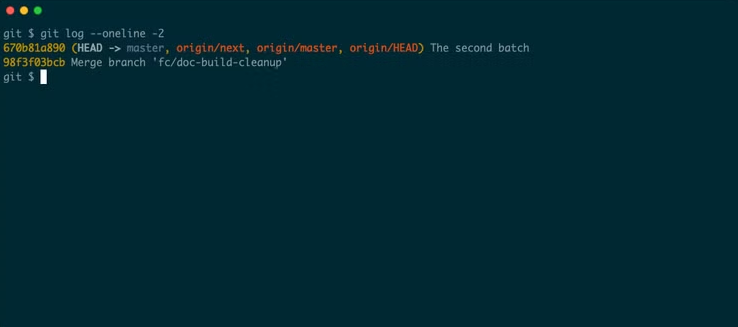
2. Identify the commit containing the file.
3. Restore it using:
git checkout commitID -- filename
This process retrieves the file exactly as it existed at that point in time.
Method 4: Recover Files Using VS Code Local History Extensions
Visual Studio Code does not include built-in local history by default, but extensions can provide this functionality. Local history extensions automatically save snapshots of files whenever they are modified.
1. Open the Command Palette.
2. Search for the Local History extension commands.
3. Locate the previously saved version of the deleted file.
4. Restore the desired version.
This method works well for developers who frequently modify files but may forget to commit changes.
Method 5: Restore the File from System Backups
Many operating systems automatically create backup snapshots of files.
Windows File History
1. Navigate to the folder where the deleted file existed.
2. Right-click inside the folder.
3. Select Restore previous versions.
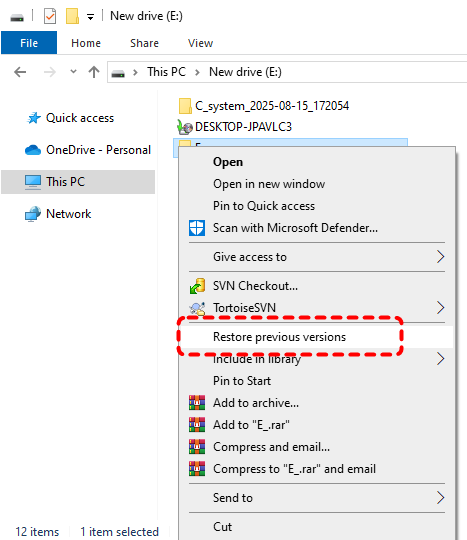
4. Choose the version containing the file.
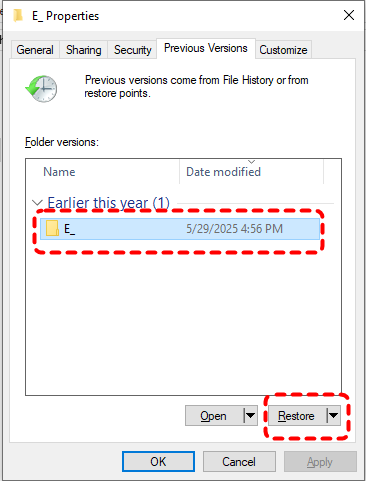
5. Restore the folder or copy the file.
macOS Time Machine
1. Open the project folder.
2. Launch Time Machine.
3. Browse previous backups.
4. Select the missing file.
5. Click Restore.
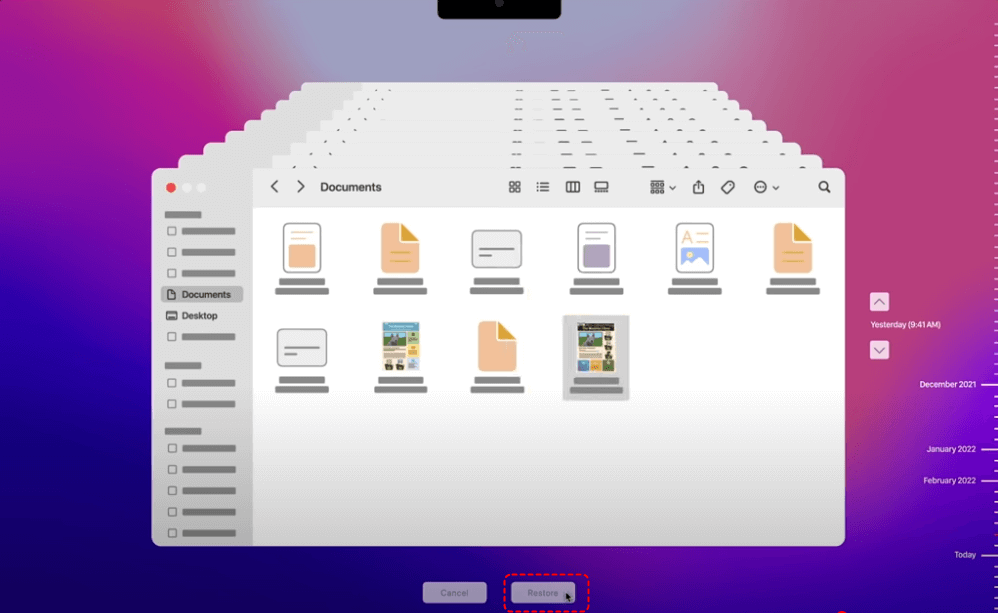
Backup systems are extremely useful for recovering files deleted days or even weeks earlier.
Method 6: Recover Files from Cloud Storage Version History
If your project directory is stored in a cloud service, recovery may be possible through version history. Common services include:
- Google Drive
- Dropbox
- OneDrive
1. Open the cloud storage dashboard.
2. Navigate to the project folder.
3. Check the Deleted Files or Version History section.
4. Restore the deleted file.
Most cloud platforms retain deleted files for at least 30 days.
Method 7: Use Data Recovery Software
If the file has been permanently deleted and cannot be found in the recycle bin, Git history, or backups, data recovery software may help retrieve it. These tools scan storage devices for recoverable data fragments and attempt to reconstruct deleted files.
Using MyRecover for File Recovery
One reliable option is MyRecover, a professional Windows data recovery tool designed to restore deleted or lost files from various storage devices. MyRecover can recover files that were:
- Permanently deleted from the Recycle Bin
- Removed using Shift + Delete
- Lost due to formatting or partition issues
- Deleted from external drives such as USB devices or SD cards
It supports recovery of many file types, including source code files like .js, .py, .html, .css, and other development-related formats.
Steps to Recover a Deleted File with MyRecover
1. Download and install MyRecover on your computer.
2. Launch the application.
3. Select the drive where the deleted VS Code project file was stored.

4. Click Scan to begin searching for deleted files.
5. After the scan completes, locate the deleted file using the search or filter options.
6. Select the file and click Recover. Save the recovered file to a different location to avoid overwriting data.

Preventing Future File Deletion Issues
Recovering files is useful, but preventing accidental deletion is even better.
1. Use Version Control Consistently
Version control systems like Git provide a complete history of your project. Best practices include:
- Commit frequently
- Push changes to remote repositories
- Avoid long periods without commits
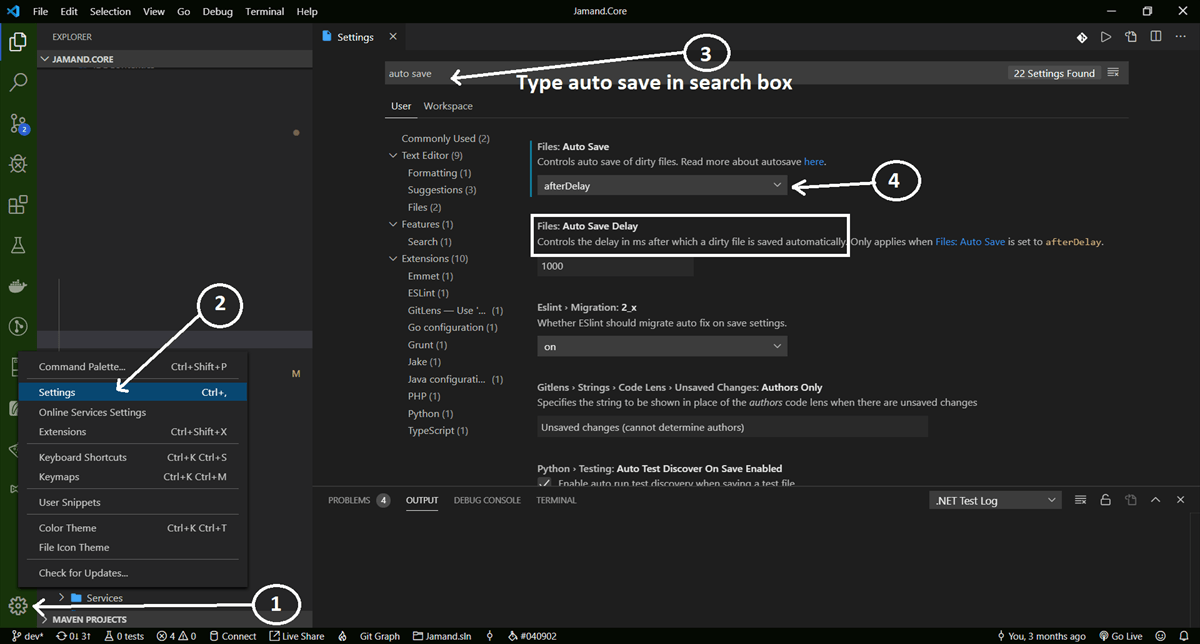
2. Enable Auto Save
Auto Save ensures that code changes are stored continuously. To enable it:
1. Open Settings in Visual Studio Code.
2. Search for Auto Save.
3. Select afterDelay or onFocusChange.
3. Install File History Extensions
Extensions that maintain file history provide an additional safety net by automatically tracking file changes.
4. Maintain Regular Backups
Reliable backup strategies include:
- Cloud synchronization
- External drive backups
- Automated system snapshots
Conclusion
Encountering a visual studio code accidentally deleted file scenario can be stressful, but it is rarely irreversible. In many cases, the file can be restored using the undo command, the recycle bin, Git history, or backup systems. When these options are unavailable, professional data recovery tools like MyRecover can provide an additional recovery solution.
The most effective approach, however, is prevention. By using version control, maintaining backups, and adopting careful file management practices, developers can protect their projects from accidental data loss and maintain a stable development workflow.

Stay Updated With Our
Latest Tips
Add us as a preferred source on Google to never miss helpful guides.
 Add as preferred source >>