 MyRecover



[5 Tools] How to Recover Files That Were Deleted From Recycle Bin for Free
Right here, you will learn how to recover files deleted from the Recycle Bin with proven solutions. This guide explores effective methods for recovering files on Windows 10 and Windows 11, even after the Recycle Bin has been emptied.

By Emma / Updated on March 27, 2026


Are files deleted from the Recycle Bin really gone?
The Windows Recycle Bin is a temporary storage area for files and folders that you delete. When you delete a file, it isn’t immediately removed from your hard drive. Instead, it is moved to the Recycle Bin, allowing you to restore it if needed. The file remains there until you manually empty the Recycle Bin or it exceeds Recycle Bin allocated storage limit, at which point older files are permanently removed.

"Are files deleted from the Recycle Bin really gone?" No, files deleted from the Recycle Bin are not immediately gone. The operating system removes the file’s reference from the file system, marking the space as available for new data. However, the actual data remains on the hard drive until overwritten. With specialized recovery tools, it’s often possible to recover files that were deleted from Recyle Bin.
Can You Recover Deleted Files after Emptying the Recycle Bin?
Yes, it’s possible to recover files even after they’ve been deleted from the Recycle Bin. As mentioned above, when you empty the Recycle Bin, Windows removes the file’s reference but not the actual data, which remains on the hard drive until overwritten. To retrieve these files, you can use the following methods.
How to Recover Files Deleted from Recycle Bin for Free?
Accidentally deleting files from the Recycle Bin can be frustrating. Fortunately, there are several free methods to recover permanently deleted files. Next, we will illustrate easy-to-follow solutions for recovering files deleted from recycle bin after empty in Windows 11, 10 or other versions.
1. Undo Recycle Bin Empty via Shortcut
One of the quickest ways to recover files after accidentally emptying the Recycle Bin is by using the Undo feature. Windows provides an easy shortcut to revert recent actions, which can be helpful if you immediately realize the mistake.

Press "Ctrl+Z" on your keyboard, or right-click anywhere on the desktop or in File Explorer and select "Undo Delete". Either can restore the files that were recently deleted from the Recycle Bin.
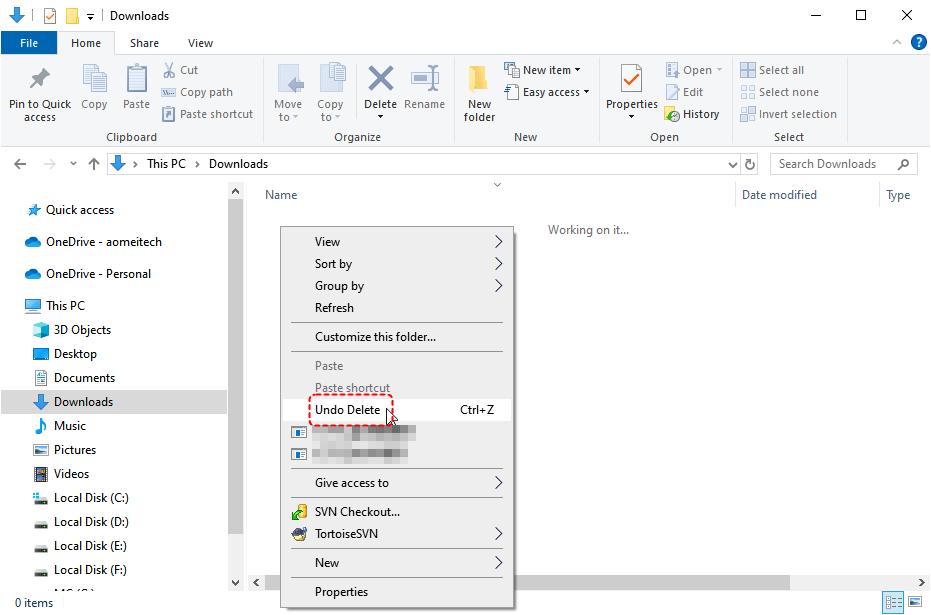
- Note:✎...
- This method only works right after the files are emptied, and it might not work if you have performed other actions on the system after emptying the Bin.
2. Restore from Windows File History Backup
If you have set up a backup beforehand using File History, you can try recovering that were deleted from Recycle Bin from the existing backup. How to do it specifically? Just do as following:
Applies to: Windows 8, 10 and 11
Step 1: Search "Restore your files with file history" in the Windows search box, and click "Open".
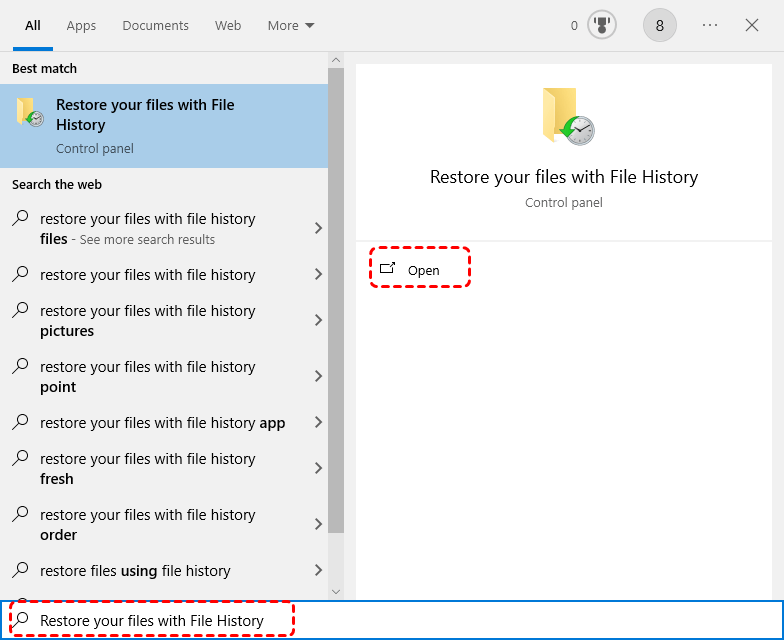
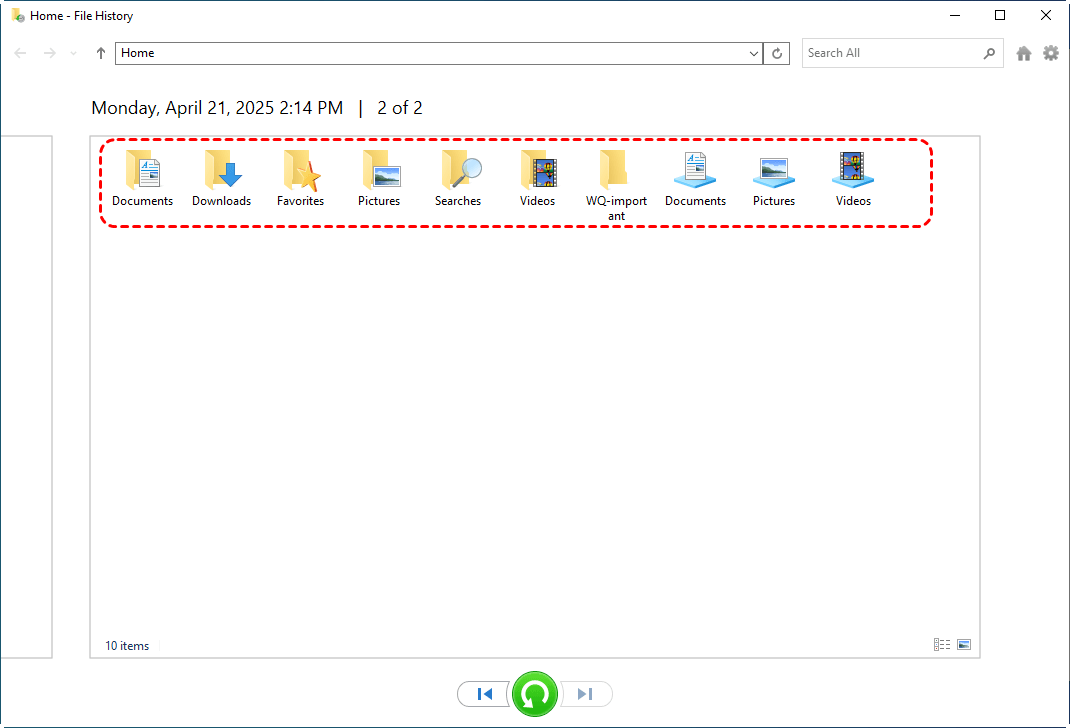
Step 2: Now, you will see the Windows File History control panel. Choose the target folder and specific files that were deleted from Recycle Bin. Click the "green Restore button" to make them back to the original location.
Alternatively, you can Right-click the folder and select "Restore previous versions". Open File Explorer and go to the folder where the deleted file or folder was originally stored.
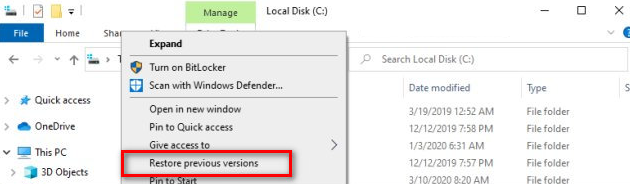
In the Previous Versions tab, you’ll see a list of available backups of the file or folder. Choose a previous version that contains the file or folder you want to recover, then click "Restore" to bring it back.
- Bonus tip: how to back up using File History
- Plug in an external hard drive or USB drive to your computer. Alternatively, you can use a network location as the backup destination.
- From the "Control Panel", under System and Security, select "Save backup copies of your files with File History".
- Select "Turn on" to enable File History.
3. Recover from "Backup and Restore Windows 7"
In addition to File History, Windows also offers another backup tool called "Backup and Restore (Windows 7)". This tool was initially introduced in Windows 7 and is still available in Windows 8, 10, and 11. It allows you to create a complete backup of your files and system image, making it possible to restore files or even the entire system in case of data loss or corruption.
However, same as the File History, you have to enabled the backup before data loss happens. If not (i.e. no any backup exists), this method won't work.
- ★Also check:
- File History vs Backup and Restore, what's the difference?
Step 1: Open the Control Panel by searching for it in the Windows search box.
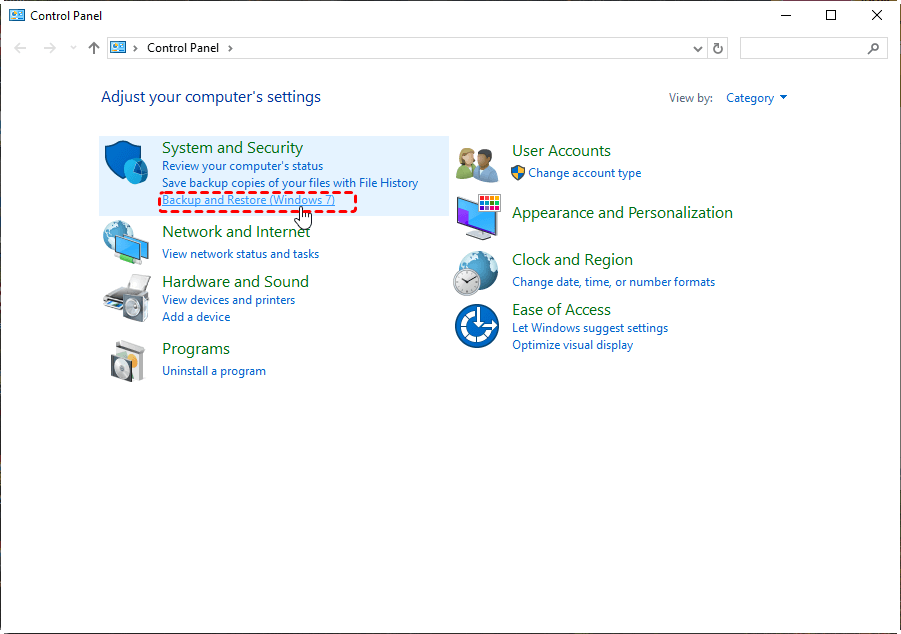
Step 2: Go to "System and Security", then click on "Backup and Restore (Windows 7)".
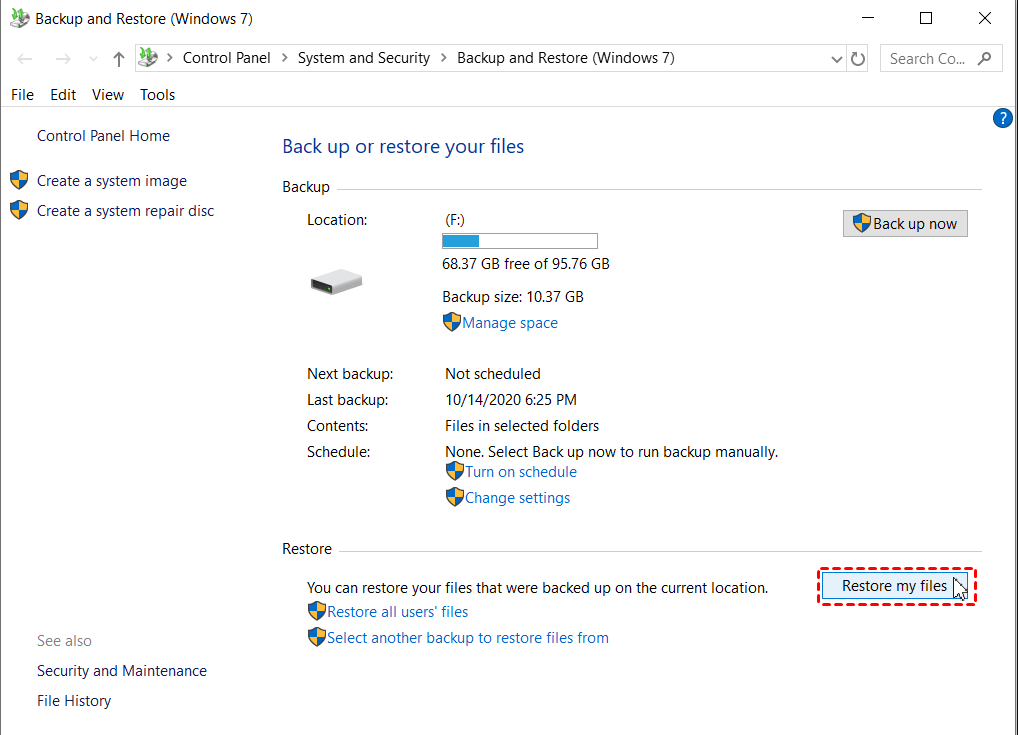
Step 3: In the Backup and Restore window, click "Restore my files" or "Restore all users' files".
Step 4: Select the Search button to find the specific file or folder you want to restore.
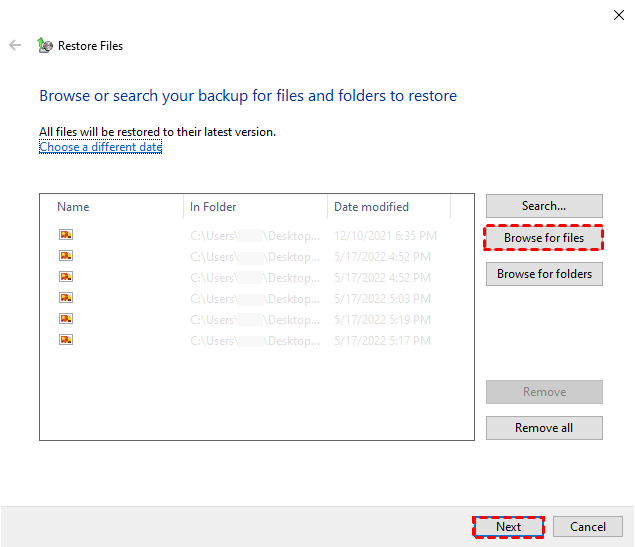
Step 5: Once you find the files, select them and click "Next".
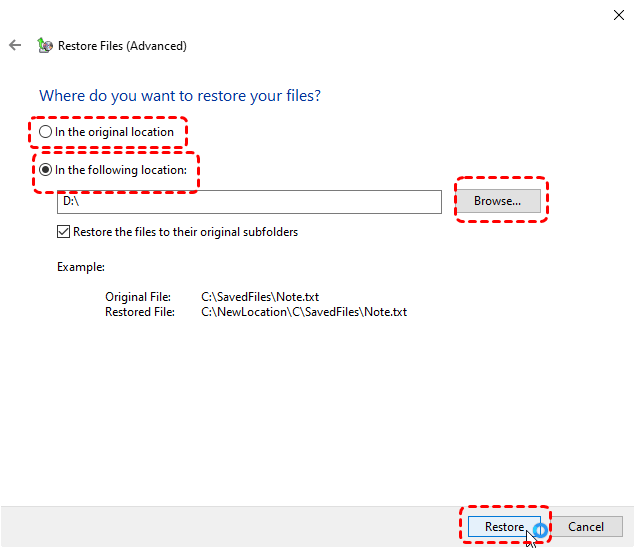
Step 6: Choose a restore location (either the original location or a new one) and click "Restore".
This method allows you to recover files that were included in your backup before they were deleted from the Recycle Bin.
4. Choose Window File Recovery Command [NO Backup Needed. CMD]
If you don’t have a backup but need to recover deleted files, Windows File Recovery is a great option that doesn’t require any previous backups. This method uses Command Prompt (CMD) to scan your drives for deleted files and attempt recovery. While it’s effective, it requires some familiarity with command-line tools.
Step 1: Download and install Windows File Recovery app in Microsoft Store.
Step 2: In the Command Prompt window, enter the command in the following format:
winfr source-drive: destination-drive: [/mode] [/switches]
For example: Recover all JPG and PNG pictures from your H: drive to the recovery folder on an D: drive.
winfr H: D: /regular /n*.jpg /n*.png
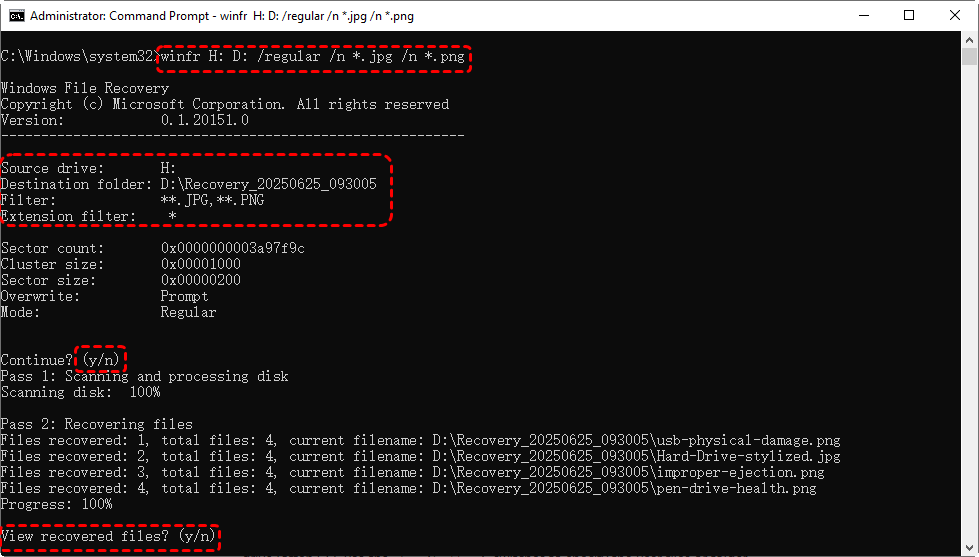
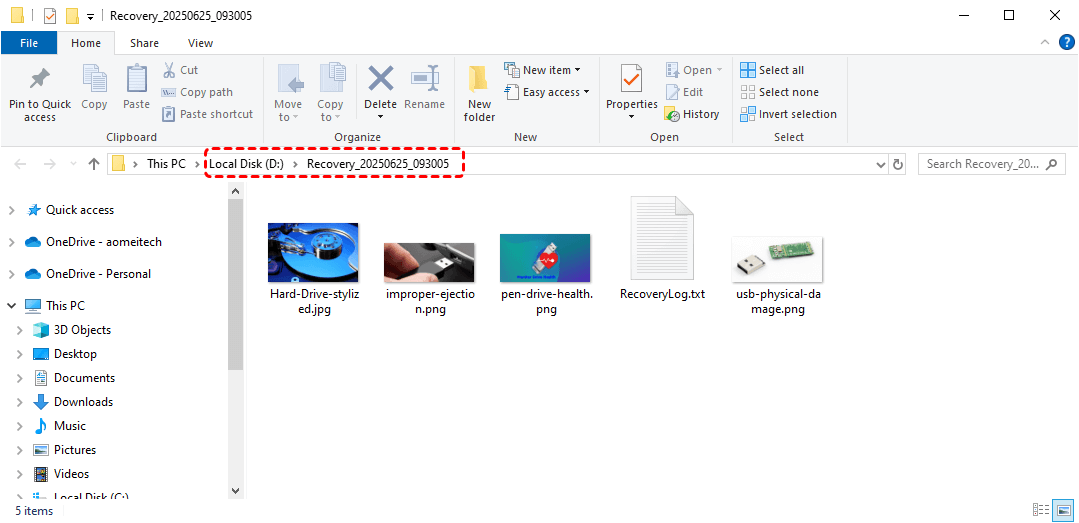
Step 3: When you are prompted for confirmation to continue, enter Y to start the recovery operation. It will automatically create a destination folder [Recovery_datetime] on the target drive you have specified. Once completion, you can navigate to the folder to check and view the recovered files.
5. Use Emptied Recycle Bin Recovery Software [No Backup Required. GUI]
For those who prefer a more user-friendly approach, free data recovery software [MyRecover] offers an easy-to-use Graphical User Interface (GUI) that simplifies the recovery process. Unlike the Command Prompt method, MyRecover doesn’t require any technical knowledge, making it ideal for users who want a straightforward way to recover deleted files without the need for a backup.
MyRecover provides comprehensive and powerful Windows data recovery solutions for kinds of data loss scenarios such as deleted files recovery, Recycle Bin recovery, formatted file recovery, data recovery from system crash, virus attack and more.

 MyRecover
- 🌟Recover Over 1000 File Types: Supports Word, Excel, PowerPoint, images, videos, archives, emails, and more.
- 🌟Versatile Device Compatibility: Restore files from HDDs, SSDs, external hard drives, USB drives, SD cards, and other storage devices.
- 🌟Broad File System Support: Compatible with NTFS, FAT32, exFAT, and ReFS.
- 🌟Wide OS Coverage: Works seamlessly on Windows 11, 10, 8, 7, and Windows Server.
 100% Secure
Easy steps to recover files deleted from recycle bin after empty
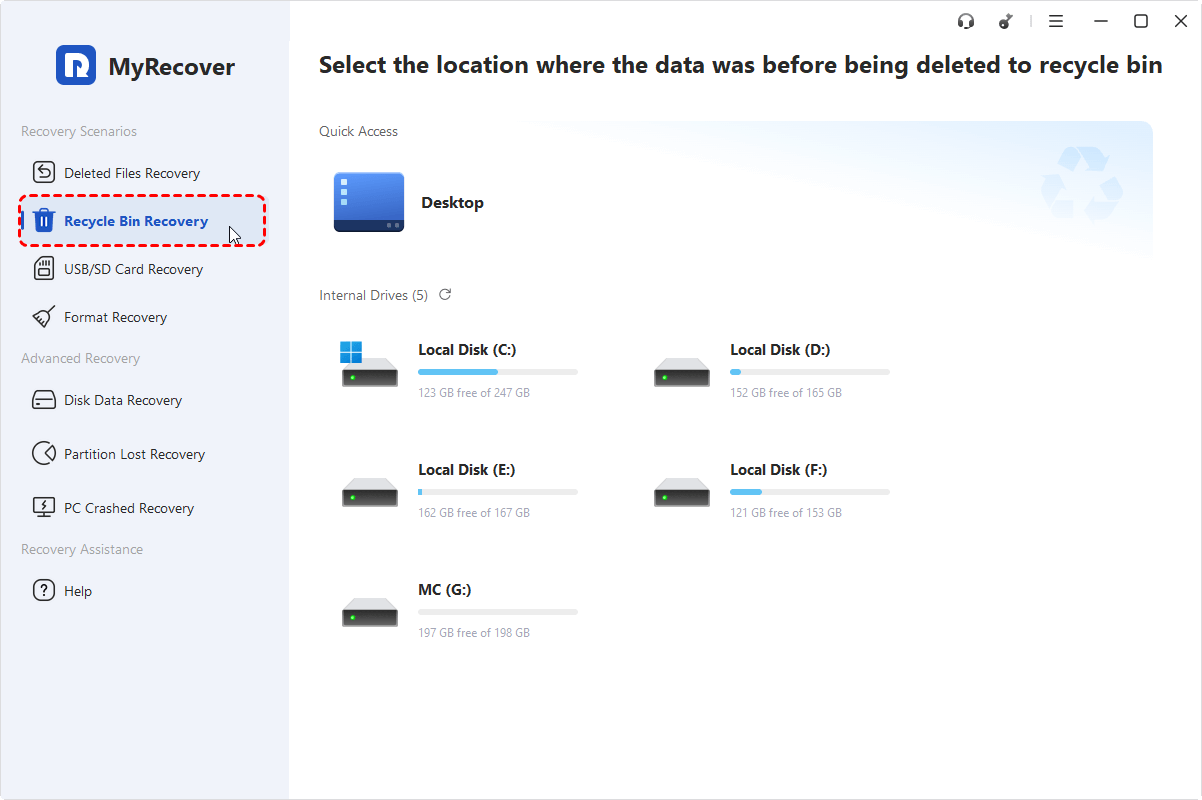
Step 1: Download and install MyRecover software. Open the MyRecover. Click “Recycle Bin Recovery.”
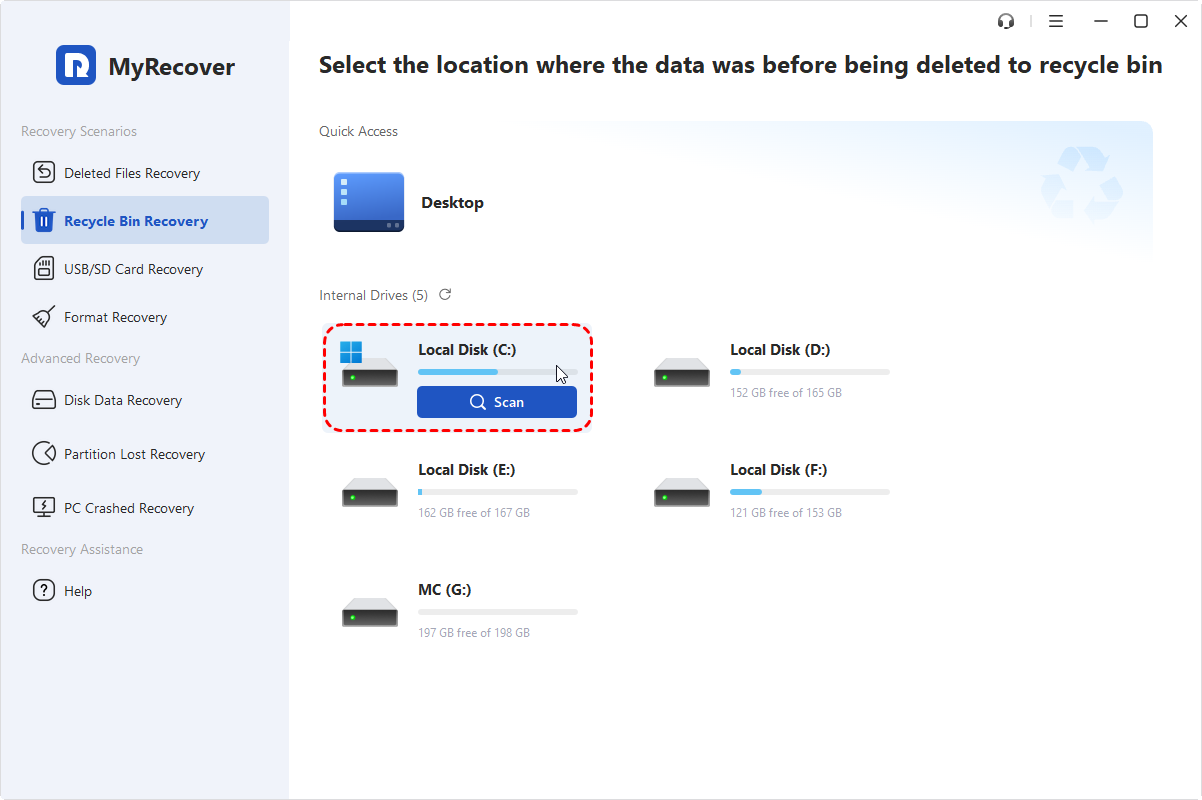
Step 2: Select the location where deleted/lost files stored and click "Scan".
Step 3: Then it will perform a "quick scan" to search for all deleted files on the chosen drive. Once done, you can browse the search result and choose what you need.
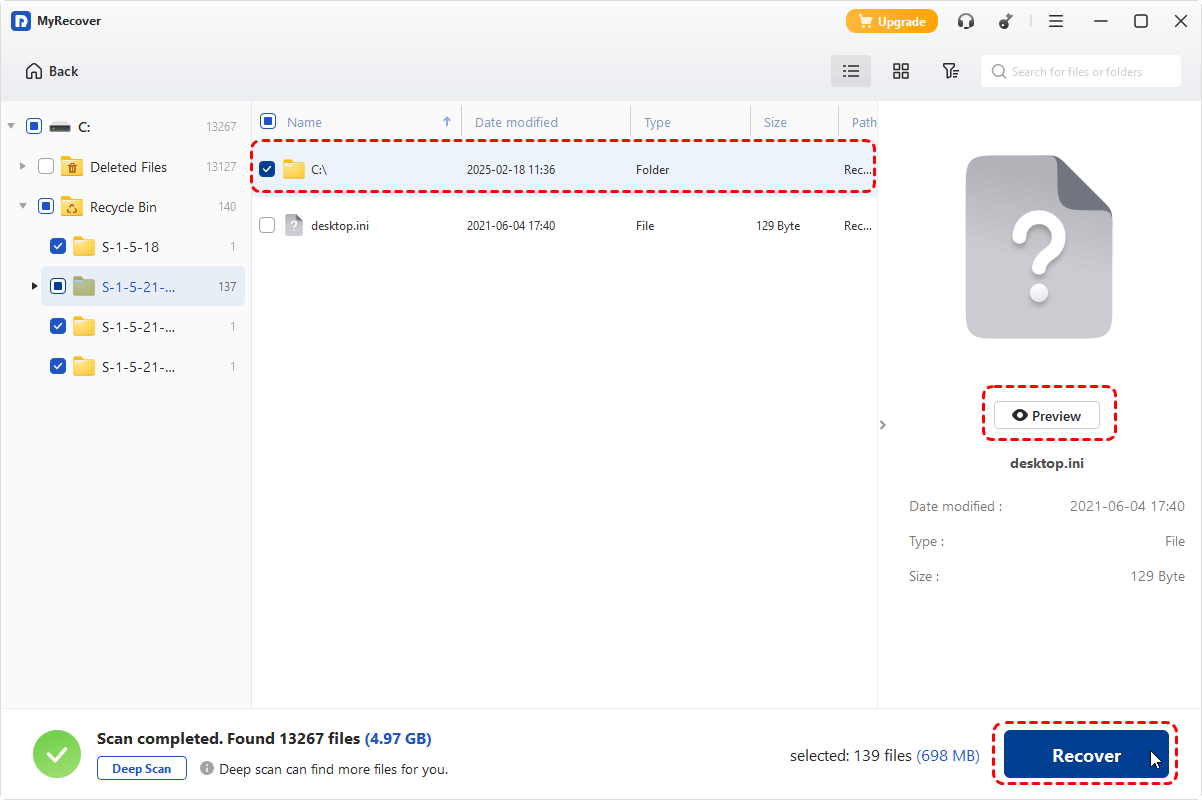
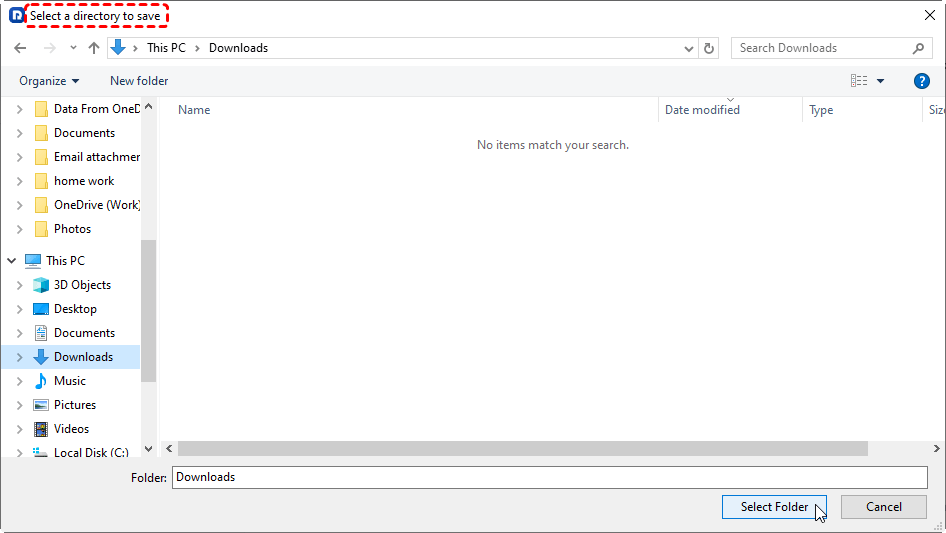
Step 4: Select the target file and click “Recover”. Select a destination location to save the restored files.
Step 5: Then wait the process to be completed.
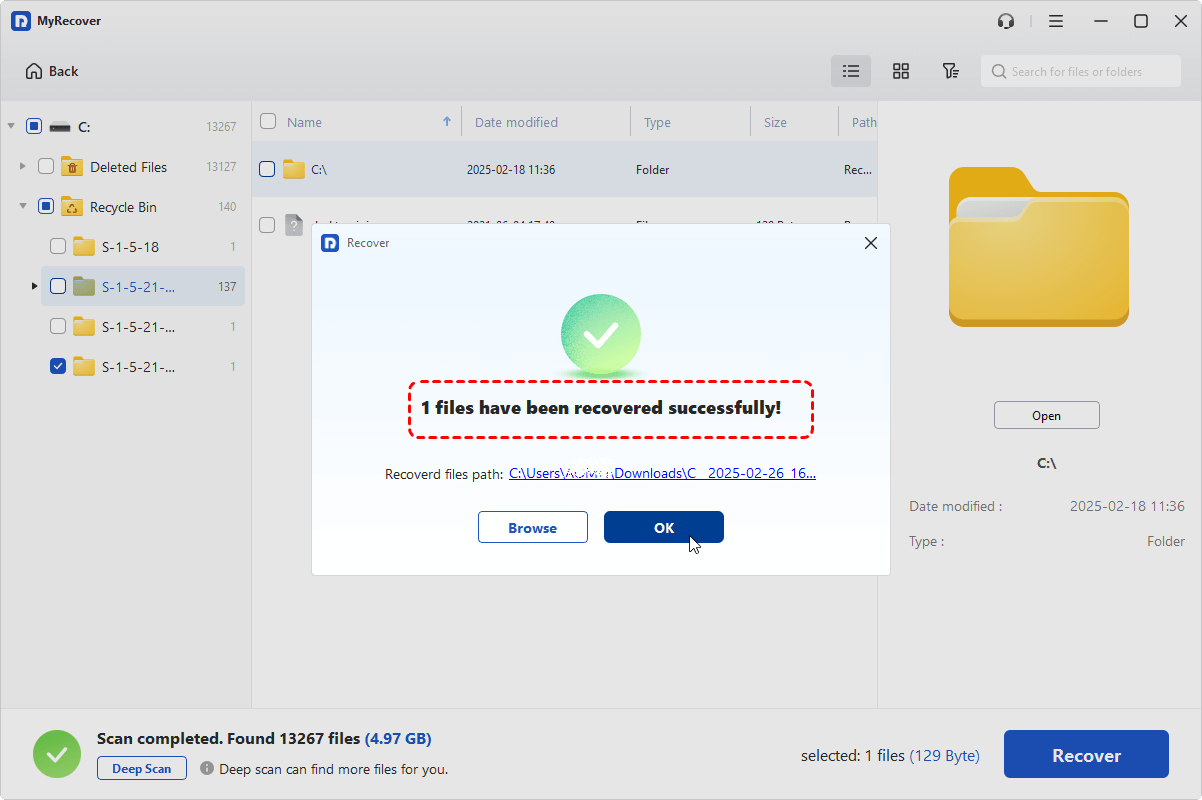
Then you can navigate to the destination location to check the files that were deleted from Recycle Bin. To preview files before final recovery, recover unlimited data or get back lost files from crashed computers, just upgrade to MyRecover Professional or Technician.
Summary
Files deleted from the Recycle Bin are not immediately gone. Fortunately, you can recover these files that were deleted from Recycle Bin using above 5 free methods. If you have a backup in place, "File History" and "Backup and Restore Windows 7" allow you to restore your files from backups easily.
If you don't have a backup, both Windows File Recovery and MyRecover are excellent options to try. For the easiest recovery process, MyRecover is the best choice, as it supports recovering over 1000 file types from various devices and file systems across Windows 7 to 11 and Windows Server. What’s more, it does not require complex commands.
FAQs about Windows Recycle Bin
Q1: Are Deleted Files Permanently Stored in the Recycle Bin?
A1: No, deleted files are not permanently stored in the Recycle Bin. When you delete a file, it is moved to the Recycle Bin, but the file remains there temporarily. Once the Bin is emptied or the file is manually deleted from it, the space it occupied is marked as available for new data. Check how long do deleted items remain in the Recycle Bin.
Q2: When You Empty the Recycle Bin, Is It Gone Forever?
A2: Not necessarily. When you empty the Recycle Bin, the file is no longer visible, but the data itself isn’t immediately erased. The storage space is marked as free, and new data can overwrite it. Until that happens, the file can often be recovered using specialized data recovery tools.
Q3: How Can I Recover Files After Emptying the Recycle Bin?
A3: You can recover files after emptying the Recycle Bin using data recovery software. Tools like Windows File Recovery, MyRecover can scan your drive for deleted files and help restore them, as long as they haven't been overwritten by new data.
Q4: Can I Prevent Files From Being Sent to the Recycle Bin?
A4: Yes, you can bypass the Recycle Bin by holding down the Shift key while deleting a file. This will permanently delete the file without moving it to the Recycle Bin. Be cautious, as it cannot be easily recovered afterward.
Q5: How Do I Check If My Recycle Bin is Full?
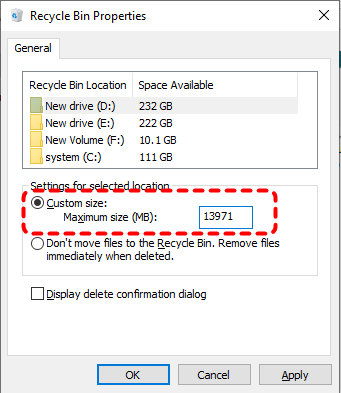
A5: You can check the status of your Recycle Bin by right-clicking the Bin icon and selecting "Properties". There, you'll see the size and the allocated storage for deleted files. If the Bin is full, older files will automatically be deleted to make room for new ones.

Stay Updated With Our
Latest Tips
Add us as a preferred source on Google to never miss helpful guides.
 Add as preferred source >>