 MyRecover



What Happens If I Interrupt System Restore Windows 10? You Must Know
Interrupting System Restore on Windows 10 can lead to unexpected system behavior and potential data issues. This article will explain what happens when System Restore is interrupted, help you understand the consequences and take the right steps to protect your system and data.

By Aria / Updated on December 30, 2025


Can I Interrupt the System Restore on Windows?
I interrupted windows 10 from restoring because it was stuck and now windows wont boot.
Hello, I started a restoring and it got stuck with message that it usually gets stuck and I waited a while and then forced shut down. Now my Windows can't boot in and can't even start automatic repair. It says preparing automatic repair and then just black screen.
- Question from MihaMiha3
System Restore is designed to roll Windows back to a previous, stable state without affecting personal files. However, many users panic when the System Restore process takes too long or seems stuck, and some may even consider stopping it midway. This raises a critical question: what happens if I interrupt System Restore Windows 10 or can I interrupt the System Restore on Windows?

Technically, it's easy to interrupt the System Restore by forcing a shutdown or restarting the computer. However, Microsoft strongly advises against it. Forcibly interrupting the System Restore process may lead to many unforeseen consequences.
What Happens If I Interrupt System Restore Windows 10?
During System Restore, Windows is actively modifying system files, registry hives, or drive and boot configuration data. Interrupting this process means Windows may be left in a partially restored state. The consequences can range from minor to severe:
🛠️System Restore Fails
System Restore modifies system files, registry, drivers, and settings. If interrupted, these changes are partially applied, leaving the system in a corrupted or hybrid state. You may see the error message like "System Restore did not completely successfully".
💡System Becomes Unstable
Interrupting the restore process may result in missing system files. When you try to use the computer again, Windows will become unstable or even risk crashing.
🖥️System Fails to Boot
If important boot files such as the BCD are being written when you interrupt the restore process, this may cause Windows to fail to start normally again.
✂️Data Loss Risk
System Restore does not delete personal files (photos, documents), but interrupted registry updates can cause installed programs to stop working or user settings to reset or break.
What to Do Immediately If You Interrupted System Restore
If System Restore was interrupted, the most important step is not to panic or repeatedly reboot computer. Instead, move carefully through recovery options. Before diving into fixes, understand that the goal is to restore system integrity without further overwriting data. The following methods will help you attempt to fix system issues in the simplest and safest way after interrupting a System Restore.
Run Startup Repair
When you start the system again, Windows will detect that the previous System Restore was not completed properly and automatically trigger Automatic Repair. All you need to do is wait patiently for the process to finish. If it doesn't initiate automatically, you can also manually access WinRE to run Startup Repair.
Step 1. When the Windows Logo appears during startup, press and hold the power button to force a shutdown.
Step 2. Repeat this operation 2–3 times. On the third startup attempt, Windows will automatically enter WinRE (Windows Recovery Environment).
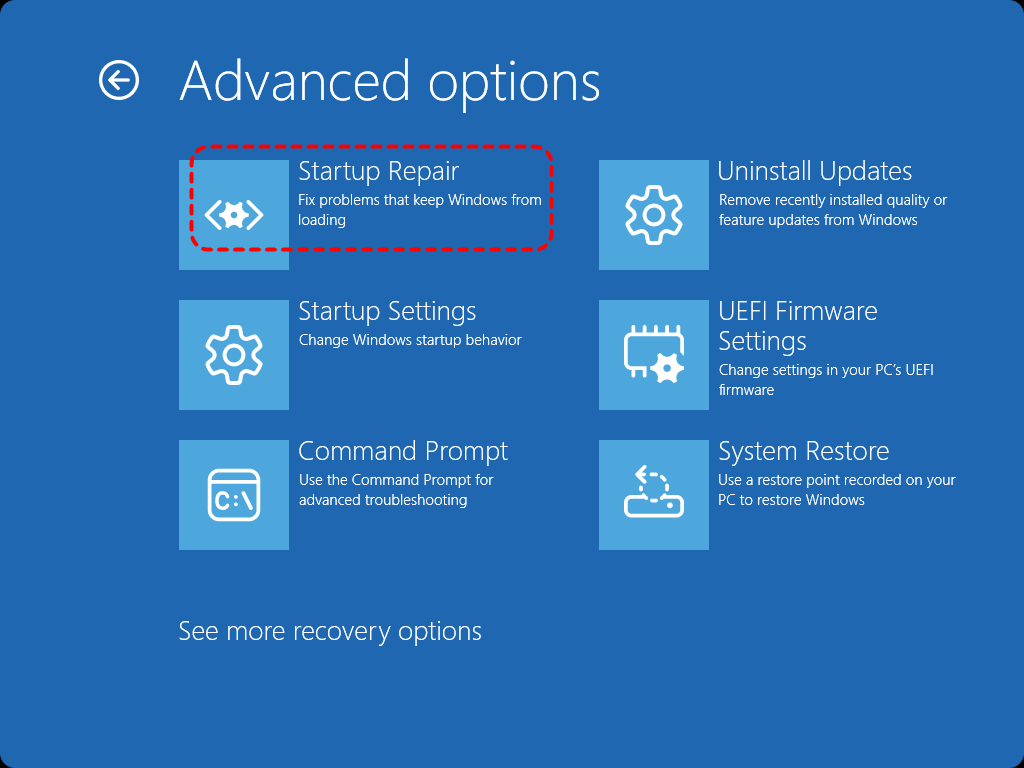
Step 3. Select "Troubleshoot" > "Advanced options" > "Startup Repair". Windows will automatically diagnose and repair boot-related issues.
Run SFC and DISM Command
If Startup Repair fails to resolve your PC’s boot issues, you may need to use the SFC (System File Checker) and DISM commands to scan for and repair system file integrity problems. Here's how:
Step 1. In WinRE, go to "Troubleshoot" > "Advanced options" > "Command Prompt".

Step 2. Type the following command and hit "Enter" key:
DISM /Online /Cleanup-Image /RestoreHealth
sfc /scannow

Once the process is completed, reboot the computer to check if the boot issue has been resolved.
Run System Restore Again
If your computer can now start up normally, you can try running System Restore again to revert your PC to your desired state. Even if the boot issue persists, WinRE still allows you to perform a System Restore.
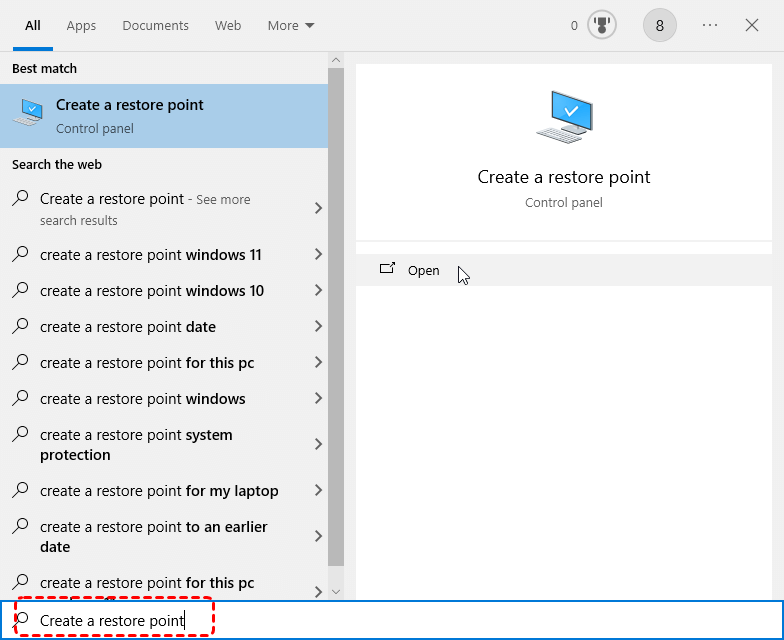
Step 1. If you can access the Windows Desktop normally, type "Create a restore point" in the Start menu and open it.
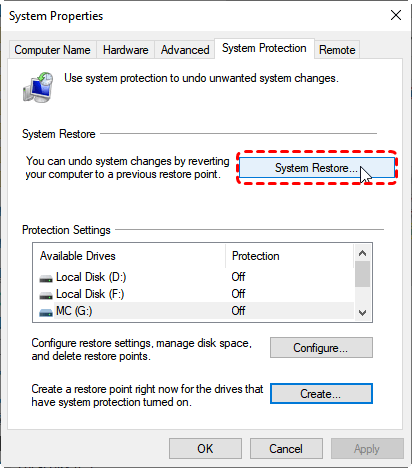
Step 2. Under the "System Protection" tab, select your system drive and click "System Restore".
- Notes:✎...
-
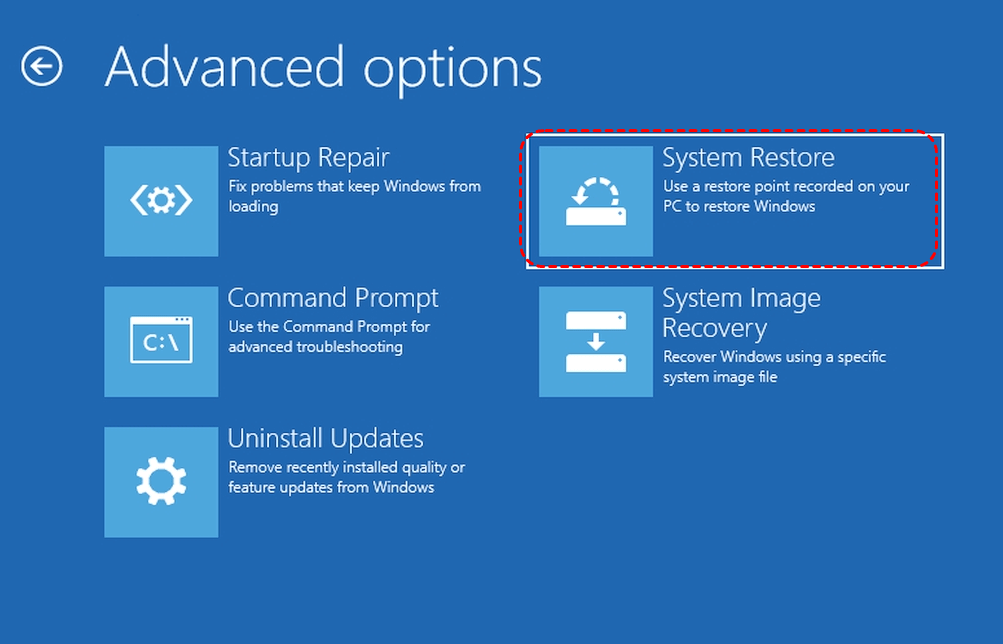
In WinRE:
Select "Troubleshoot" > "Advanced options" > "System Restore".
-

Step 3. Choose a created restore point to restore (you'd better try a different restore point if available) and click "Next".
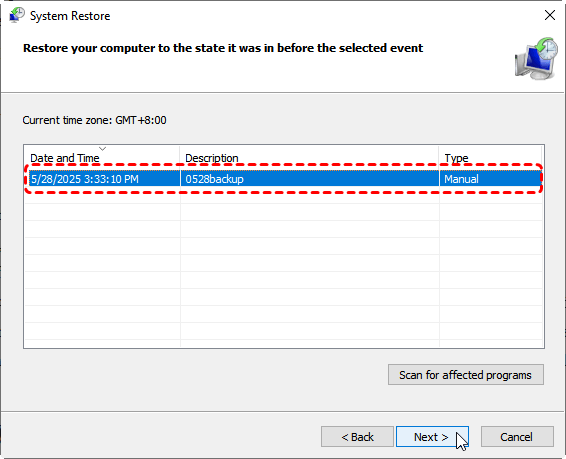
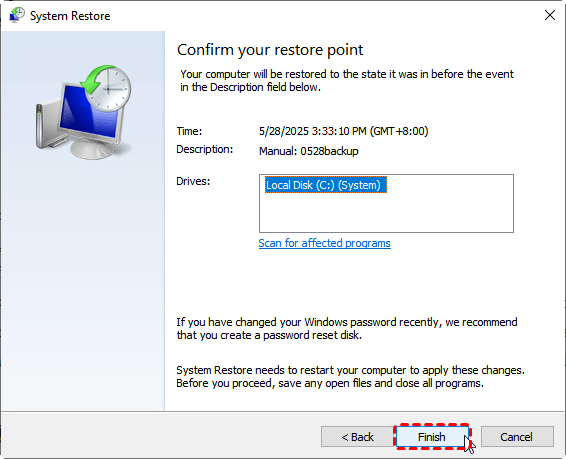
Step 4. You can check the affected programs by clicking on "Scan for affected programs". Then, click "Finish" to start the process.
What If Windows 10 Won’t Boot After System Restore Fails?
In the worst-cases scenario, interrupting System Restore can leave Windows unable to boot. When built-in recovery options no longer work, protecting your data becomes the top priority.
Recover Data Using MyRecover
A powerful data recovery software like MyRecover can save your data even in such desperate situations. It provides Windows users with an easy click-based and fast hard drive data recovery experience with an unparalleled recovery success rate of 99%.
It adopts AI-embedded file recognition and recovery technology, ensuring that not a single file is missed, even when Windows fails to start entirely. The recovery process is completed locally on your storage device, eliminating the risk of data leakage during transmission.

 MyRecover
- Recover Without Backup: Restore lost files even if no Windows backup exists.
- Wide File Support (1000+): Recover photos, documents, videos, audio, archives, and more.
- Supports Multiple Devices (500+): Works on HDDs, SSDs, USB drives, SD cards, cameras, and other storage devices.
- Covers 500+ Data Loss Scenarios: Handles accidental deletion, formatting, system crashes, virus attacks, emptied Recycle Bin, partition loss, and more.
 100% Secure
Step 1. Download and install MyRecover on a working computer from Microsoft Store. Prepare a blank USB drive for bootable media.
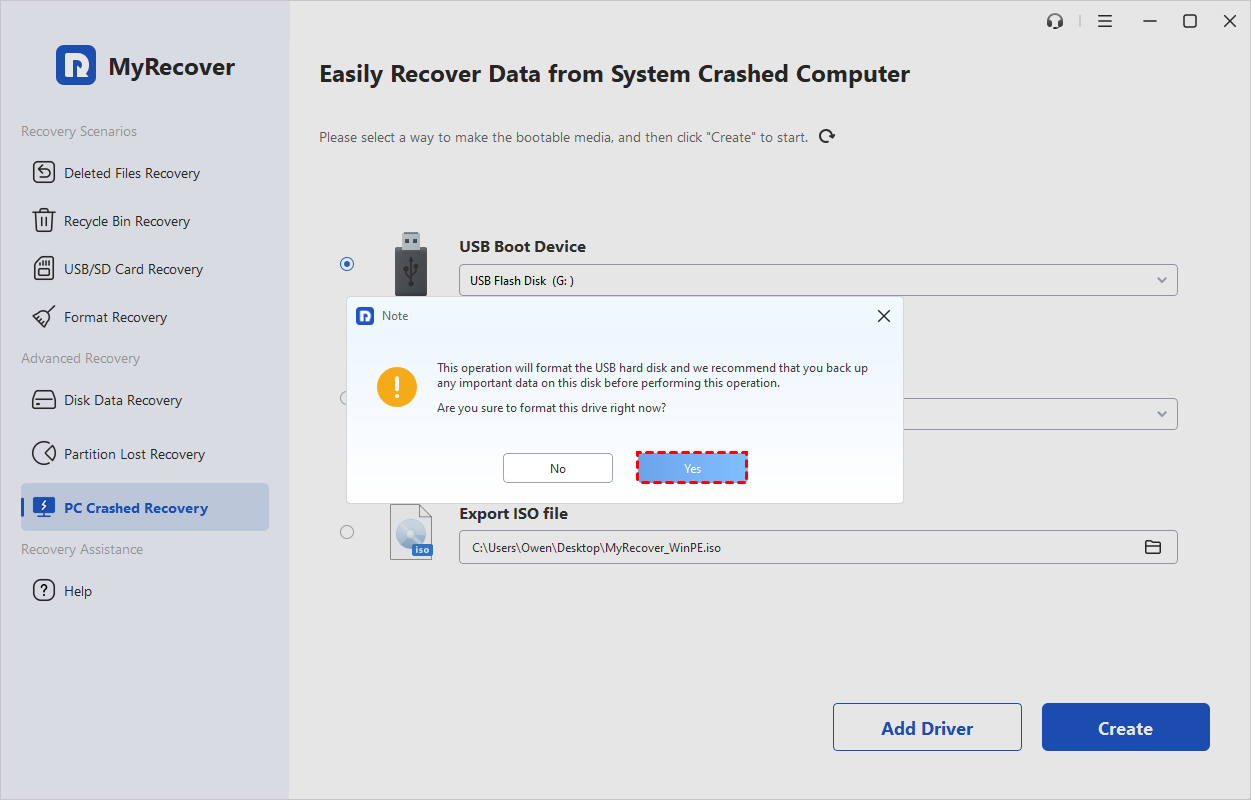
Step 2. Run the app and go to "PC Crashed Recovery", click "USB Boot Device" and "Create".

Step 3. A pop-up window will prompt you that the USB drive will be formatted. If there is any data stored on it, remember to back it up in advance. Click "Yes" to start creating the USB bootable drive.
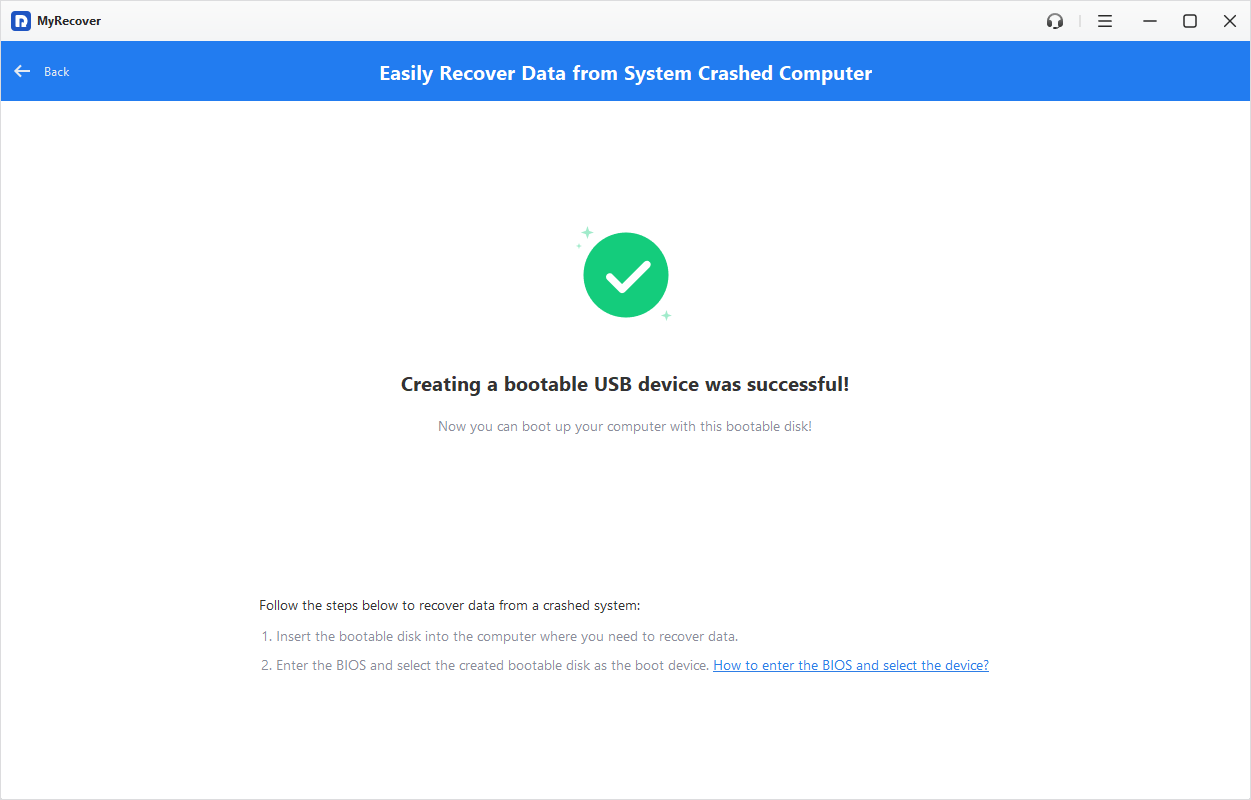
Step 4. Wait a few minutes until the USB bootable drive is created successfully. Insert the USB bootable drive into the unbootable computer and boot it with the USB drive.
Step 5. After that, your PC will automatically enter the interface of MyRecover. Select the drive with lost files and click "Scan".

Step 6. Preview and choose the files you wish to recover from the recoverable lists and click "Recover".

Step 7. Save the recovered files to a safe location (preferably an external hard drive).

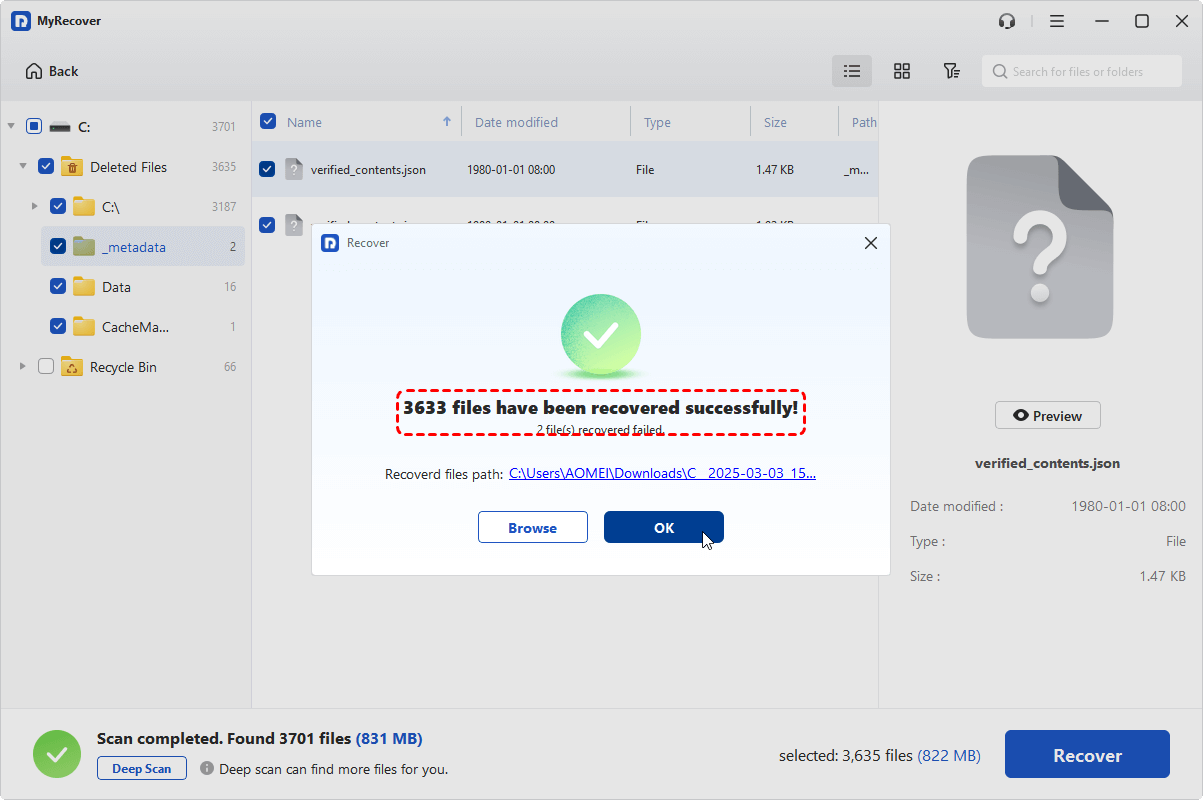
When the process is done, you'll see the message "Files have been recovered successfully". Then, you can view the recovered files by clicking on the "Browse" button.
Final Thoughts
Interrupting System Restore is risky, but it does not always mean permanent damage. If it must be stopped, rely on built-in recovery tools first and secure your data before taking irreversible steps. With the right approach and the support of professional tools like MyRecover, you can recover your files without turning a temporary issue into a permanent loss.
For both enterprise and home users, the Technician Edition of MyRecover allows you to use it on multiple devices with just one license, making it be a superior choice for business and MSPs.

Stay Updated With Our
Latest Tips
Add us as a preferred source on Google to never miss helpful guides.
 Add as preferred source >>