 MyRecover



What Is Windows.old Folder? Everything You Need to Know
The Windows.old folder is a system folder that holds files from the previous version of Windows after an upgrade. This article provides an in-depth explanation of what the Windows.old folder is, how to manage its contents, and whether it’s safe to delete it. We also offer guidance on how to recover files from the folder if needed.

By Aria / Updated on January 21, 2026


What Is the Windows.old Folder?
If you've recently performed a major Windows upgrade (update Windows 10 to Windows 11) or a custom installation, you may have noticed a folder called Windows.old taking up significant space on your hard drive. But what is Windows.old folder exactly, and why does it appear?
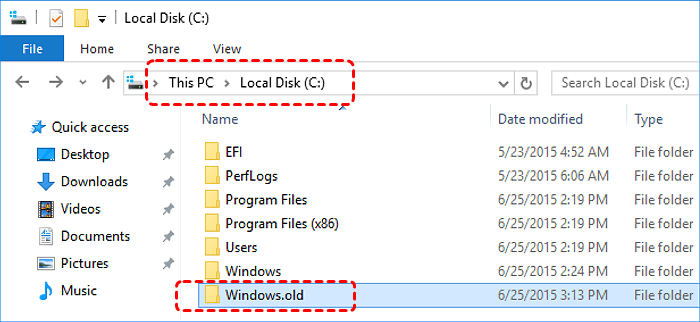
Windows.old is a hidden system folder that Windows automatically creates during upgrades. It holds the previous version of your operating system, including system files, user data, installed programs, and settings. Essentially, Windows.old serves as a backup for the old operating system, allowing you to roll back to the previous version if something goes wrong with the upgrade.
Why Does Windows Create the Windows.old Folder?
Windows creates the Windows.old folder during system upgrades (e.g., upgrading from Windows 7 or 8 to Windows 10). Its purpose is to preserve a backup of your previous operating system, so you have the option to restore it if the new operating system encounters issues, such as instability or compatibility problems. This folder is particularly helpful during the initial stages after an upgrade (about 10 days), as it gives you a safety net to revert back to your previous version if things don't go as planned.
What Does Windows Old Contain
The Windows.old folder is essentially a snapshot of your old operating system. It stores system files, user profiles, documents, pictures, and other personal data from the old system. Open the folder, you'll find the following these directories:
✅Windows: This folder includes Windows system files needed to run your previous version of Windows, such as drivers, program files, and system configurations.
✅Program Files or Program Files (x86): The old versions of installed applications that were transferred over during the upgrade.
✅Users: The folder contains user accounts, documents, pictures, other personal files from your old system, and configuration settings from your previous operating system.
✅Program Data: Program data installed before the system upgrade.
Is it Safe to Delete Windows.old Folder?
Windows.old can take up significant space on your hard drive (often several gigabytes), depending on how much data is stored. This raises a common question: can I delete the Windows.old folder? Is it safe to delete Windows.old folder?
Although deleting Windows.old folder won’t affect your current new system in any way, there are two key factors you need to consider before deleting it. Because deleting Windows.old removes your ability to easily revert to the previous version of Windows if something goes wrong with your current installation.
Revert Back to Previous Version:
Windows gives you a 10-day window to roll back to your old system. Be sure to decide whether you want to roll back to your previous system within these 10 days. If you really don’t need to, you can delete it.
Space Considerations:
While deleting this folder can free up a lot of space, you shouldn’t remove it right after an upgrade. Wait at least 10 days before deleting it, this is because the upgraded system might still have some bugs or compatibility issues.
How to Safely Delete the Windows.old Folder
Since this folder is protected by advanced system security and has strict special permissions, you can’t delete it directly in File Explorer. Besides waiting for the system to delete it automatically, Windows also offers several methods for manual deletion.
Delete Windows.old Folder Using Disk Cleanup
Disk Cleanup is a built-in Windows tool that helps you delete unnecessary files including the Windows.old folder. Follow these steps to delete Windows.old folder:
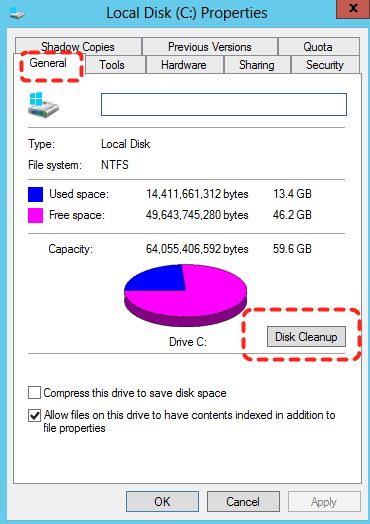
Step 1. Locate your system drive in File Explorer and right click on it, then choose "Properties".
Step 2. Click "Disk Cleanup" and "Clean up System Files".
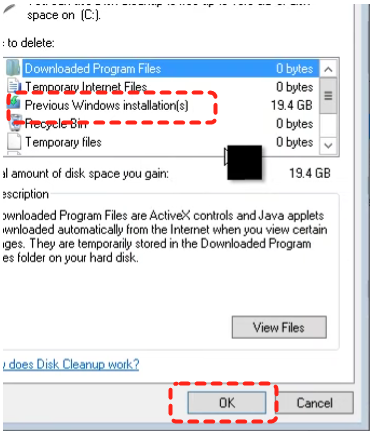
Step 3. Check the box next to "Previous Windows Installation(s)," which is the Windows.old folder and click "OK" to delete it.
Delete Windows.old Folder in Settings
Additionally, you can also remove the Windows.old folder by accessing your system drive settings in Windows Settings. Here's how:
Step 1. Go to "Settings" > "System" > "Storage" > "This PC" > "Temporary files".
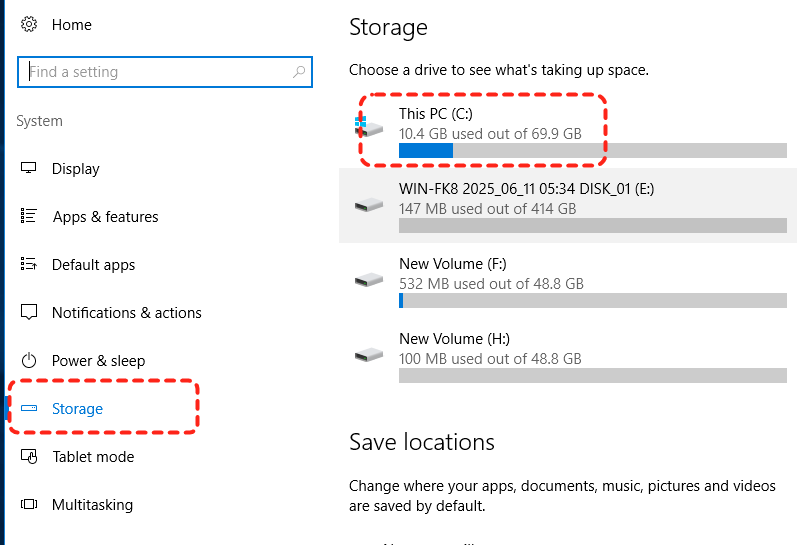
Step 2. Select "Previous Windows installation(s)" and click "Remove files" to get rid of the folder.

How to Recover Files from Windows.old Folder
Deleting Windows.old folder is permanent, as the deleted files won’t go to the Recycle Bin. If you want to recover data from Windows.old folder, a professional data recovery tool like MyRecover will be your best choice. It specializes in recovering lost files from system drive, even after accidental deletion, disk errors, or crashes. It scans deeply into the disk to find and restore your lost files, ensuring your data is safe and intact.

 MyRecover
- Compatible with all storage devices: USB drives, HDDs, SSDs, SD cards, etc.
- Dual scan modes: Quick Scan for speed, Deep Scan for thorough recovery.
- Support NTFS, FAT32, exFAT, ReFS in Windows 11/10/8/7 & Windows Server.
 100% Secure
Step 1. Download and install MyRecover on your computer from Microsoft Store or its official site, avoid installing it on the system drive.
Step 2. Launch the program and select the C drive to scan for lost files, the click "Scan" to start the process. You can also click "Deep Scan" to perform a more thorough scan which can find more file fragements.

Step 3. After the scan is completed, choose the files you attempt to recover from the recoverable lists and click "Recover".
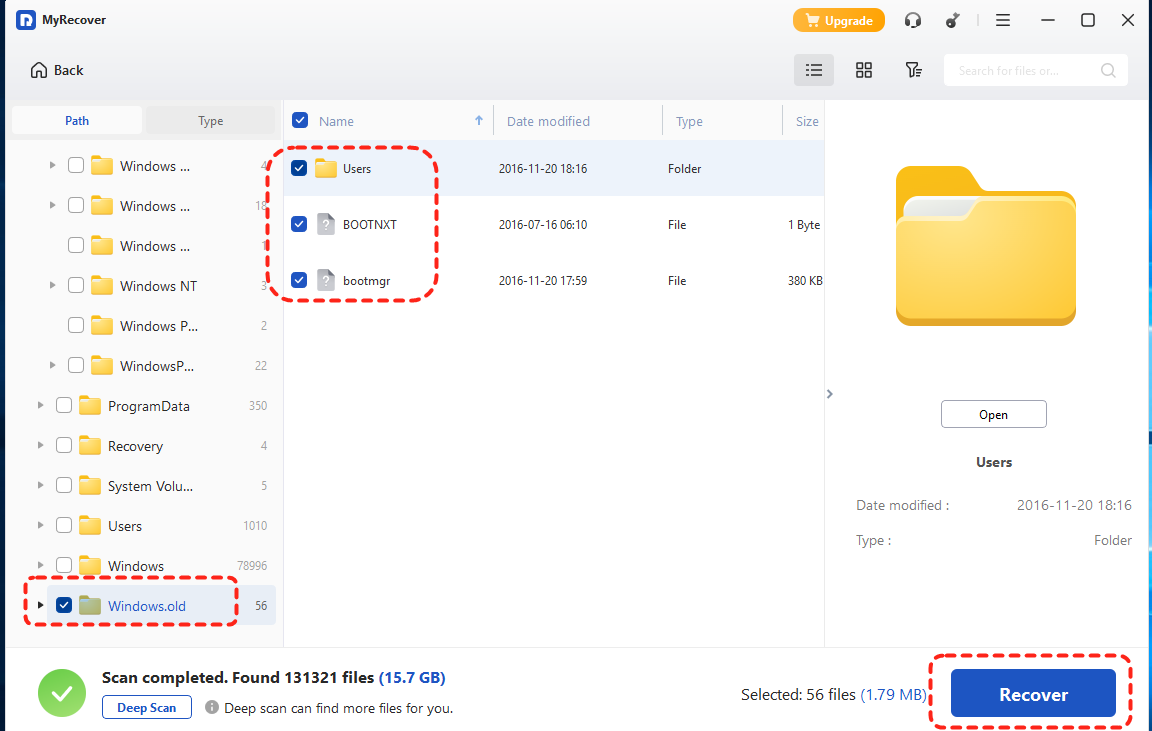
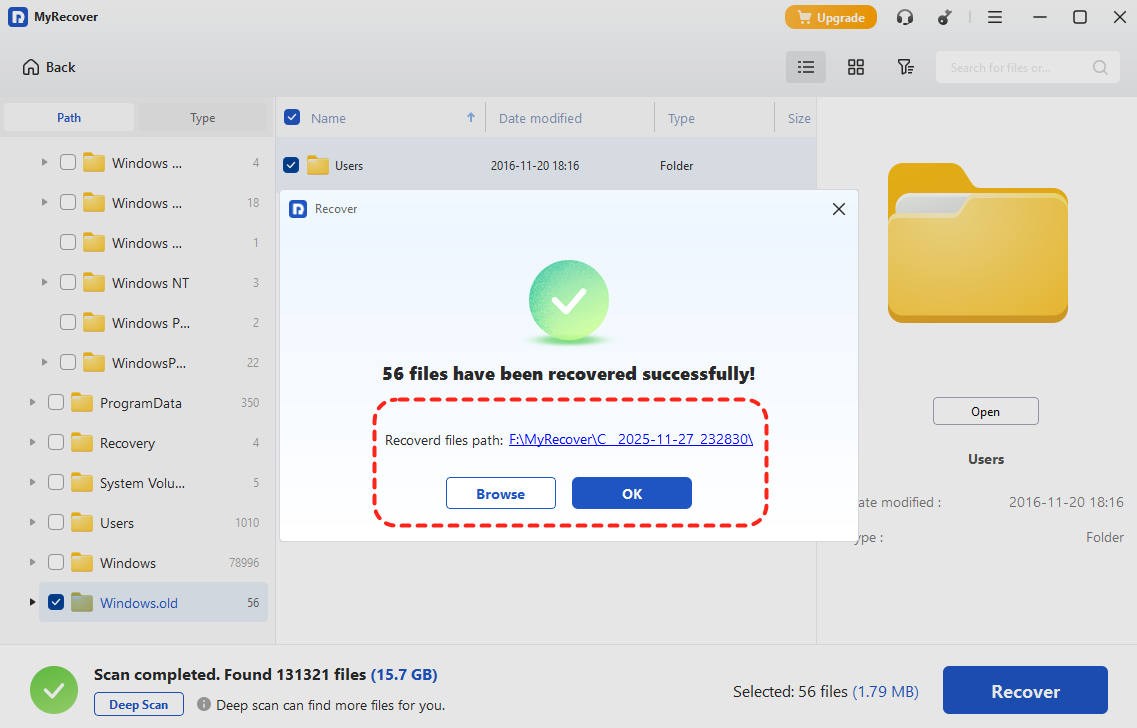
Step 4. Select a safe location to save the recovered files (not the original system drive).

Once the process is done, you can verify the recovered files in the destination folder by clicking on the "Browse" button.
Conclusion
The Windows.old folder is an essential part of Windows upgrades, providing a safety net in case your upgrade goes wrong. It contains system files, personal data, and settings from your old operating system. It’s safe to delete once you’re confident that the upgrade was successful.
If you want to recover deleted Windows.old folder, with MyRecover, you can easily restore lost data from the Windows.old folder. Upgrading to its Professional edition, you can enjoy data recovery from unbootable system.

Stay Updated With Our
Latest Tips
Add us as a preferred source on Google to never miss helpful guides.
 Add as preferred source >>