 MyRecover



How to Delete Windows.old Folder on Server 2012 [Full Guide]
After upgrading or reinstalling Windows Server 2012, the Windows.old folder can accumulate, consuming valuable disk space. This guide walks you through the safe and effective methods to delete the Windows.old folder without compromising system integrity. By following this guide, you’ll be able to recover significant storage space on your Server while avoiding potential risks associated with deleting critical files.

By Aria / Updated on March 16, 2026


Introduction
The Windows.old folder is created when you upgrade or reinstall Windows on your PC or server. This folder contains old system files, programs, and settings from your previous installation of Windows. While this folder can be useful for restoring files or settings from the previous OS, it can also consume a significant amount of storage space over time.
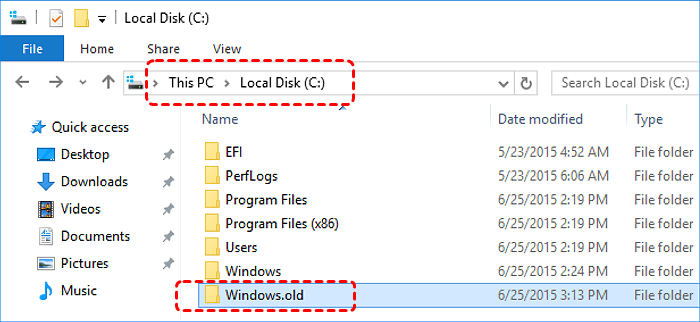
If you are running low on disk space or want to free up space on your Windows Server 2012, you might want to delete the Windows.old folder. However, it's important to note that deleting this folder will remove any ability to revert to the previous version of Windows, so make sure you no longer need to recover any files from it before proceeding.
When You Need to Delete Windows.old Folder
If your system has been running stably for a period of time after a successful upgrade, you may no longer need the Windows.old folder. You might want to delete it for the following reasons:
✅Freeing Up Disk Space: The Windows.old folder can take up several gigabytes of storage. If you're low on disk space, removing this folder can help recover precious storage, especially if you’re working with limited space on a server.
✅Post-Upgrade: After upgrading your Windows Server from an earlier version to Windows Server 2012, the Windows.old folder may contain unnecessary files. Once you're sure the upgrade is successful and you no longer need to roll back, deleting it is a good idea.
✅After System Reinstallation: If you've recently reinstalled Windows Server 2012 and no longer need the backup files from your previous installation, it's safe to remove the Windows.old folder.
✅System Performance: Removing unnecessary files such as the Windows.old folder can potentially improve system performance, particularly when your server is operating on minimal resources.
The Risks You Must Know
Before proceeding with the deletion of the Windows.old folder, it's essential to understand the potential risks involved, especially if you don't have a proper backup of important data. Here are the key risks to consider:
⭕Loss of Data: If you delete this folder without ensuring that all important files have been backed up or transferred, you may lose valuable documents, app data, or other system configurations that you might need to restore.
⭕Inability to Rollback: The Windows.old folder allows you to roll back to a previous version of Windows. Once deleted, you cannot revert to an earlier version of the operating system.
How to Delete Windows.old Folder on Server 2012
If you attempt to delete the Windows.old folder directly using the "Delete" key, Windows will prompt you that "You need permission to perform this operation". However, this does not mean that you cannot delete the folder on Windows Server 2012. With appropriate methods and important preparatory work, you can bypass this pop-up to delete the Windows.old folder.
Before Deletion
Since the interface of Windows Server 2012 is not exactly modern, you might need to add a Desktop Experience before the deletion. Follow these steps to delete the folder:
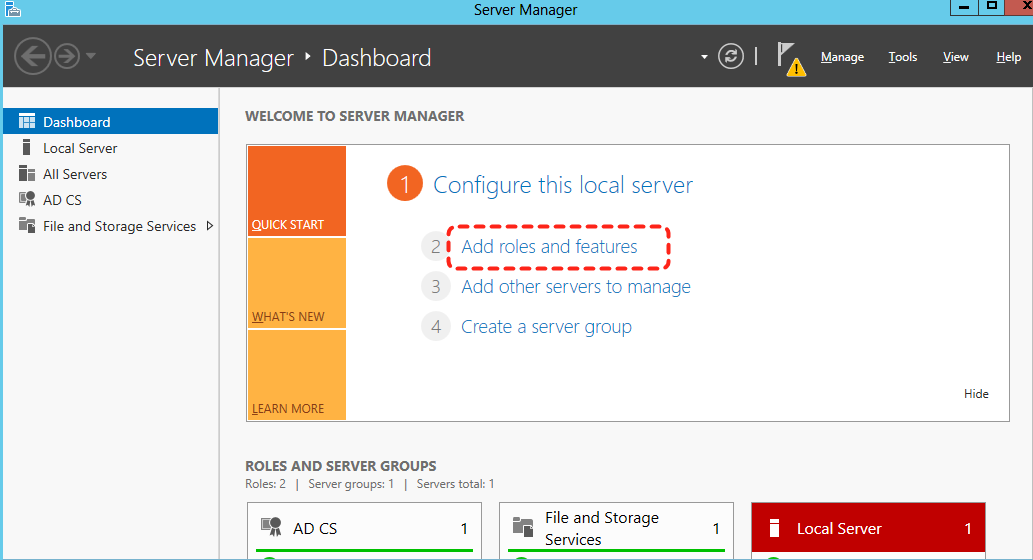
Step 1. Open Server Manager and click "Add roles and features".
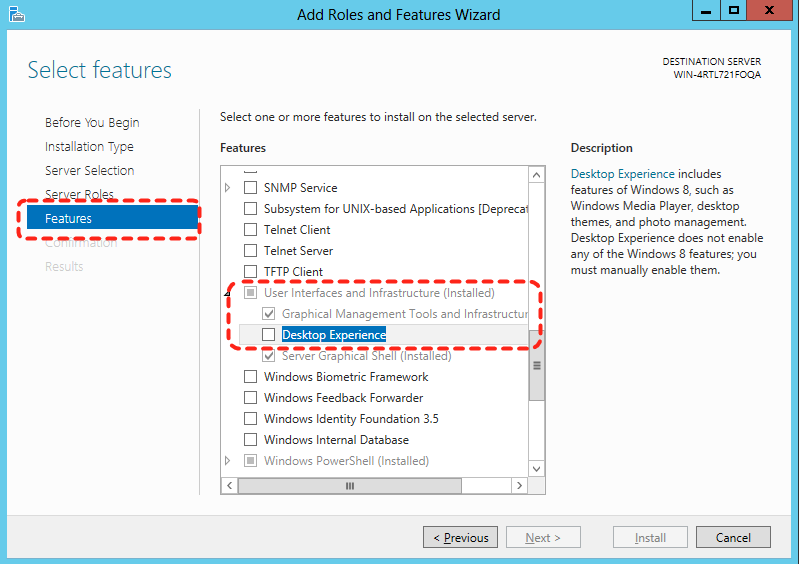
Step 2. Select the Desktop Experience under the "User interface and infrustructure" section and click "Add features" to install it.
Step3. Check the "Restart the destination server automatically if required" option and click "Install" to start the process.
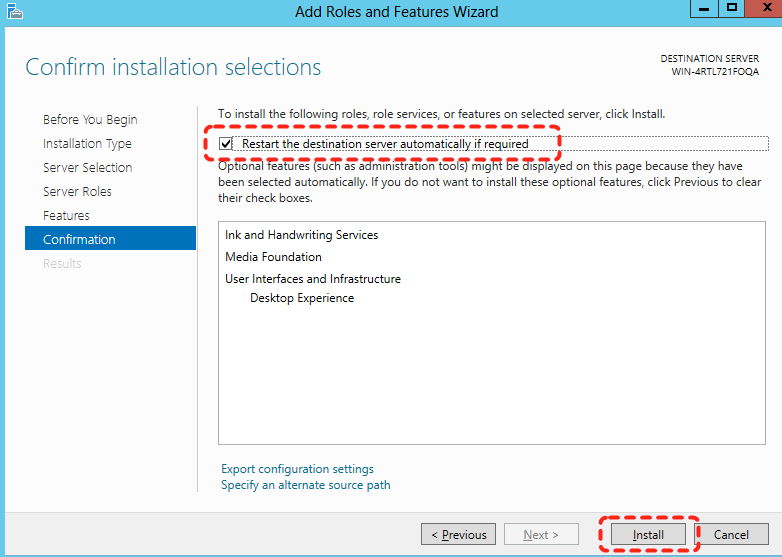
Step 4. Wait for this process to complete, restart your Windows Server 2012.

Using Disk Cleanup
Disk Cleanup is a built-in tool in Windows that can help you delete unnecessary files, including the Windows.old folder. It is an effective and safe method to remove the Windows.old folder without affecting other important system files.
Step 1. Right click on the C drive in File Explorer and choose "Properties" from the context menu. You may notice that a "Disk Cleanup" feature has been added here under the "General" tab.
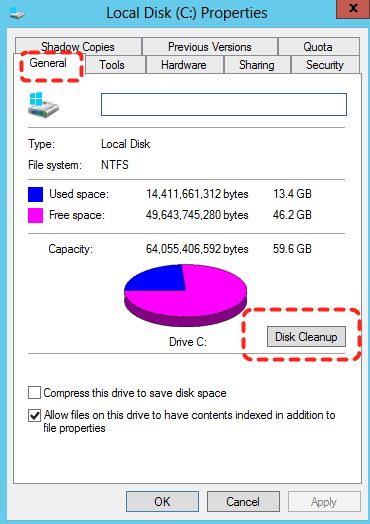
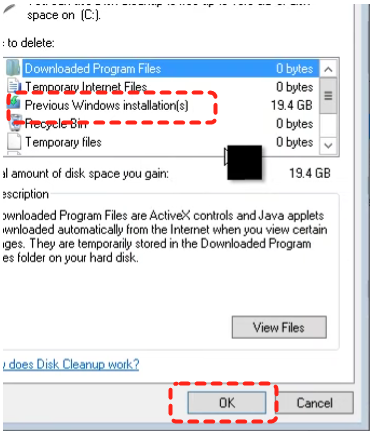
Step 5. Click "Disk Cleanup" and "Cleanup system files".
Step 6. Scroll down and check the "Previous Windows Installation(s)", then click "OK" to delete the folder.
Using Command Prompt
If you prefer using the command line or need a more direct approach, you can delete the Windows.old folder through the Command Prompt. It works well even when Windows runs into issues and fails to load the desktop, it can still help you delete the folder without any additional tools.
Step 1. Press "Win" + "R" and Type "cmd" in Run dialog, then press "Ctrl"+ "Shift" + "Enter" to run Command Prompt as administrator.
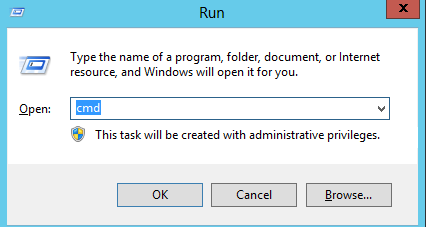
Step 2. Type the following command and press "Enter" after each one:
takeown /F "C:\Windows.old" /A /R /D Y: take ownership of the files.
icacls "C:\Windows.old" /grant *S-1-5-32-544:F /T /C /Q: grant full control permission for the folder.
RD /S /Q "C:\Windows.old: to permanently delete the Windows.old folder.
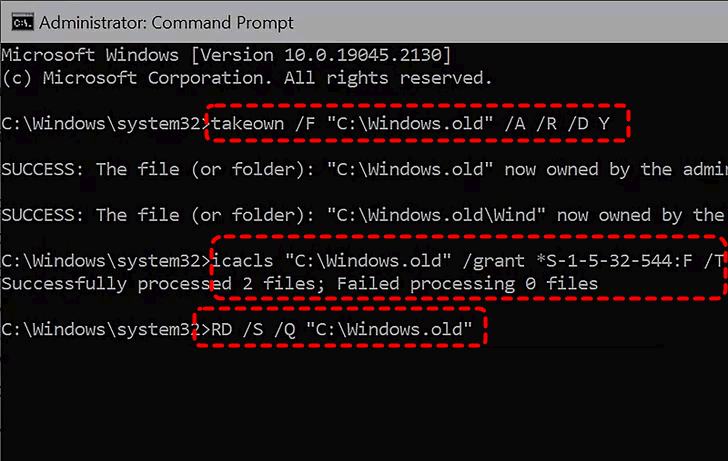
Replace "C:" with the appropriate drive letter if your Windows.old folder is located on a different drive.
Additional Methods to Delete Windows.old Folder on Windows 10/11
Compared with Server 2012, Windows 10 and 11 feature a more modern user interface. If you want to delete the Windows.old folder on Windows 10 or 11, besides the two methods mentioned above, we also provide two additional effective solutions here.
Using Storage Settings
For the purpose of disk space management, the Windows built-in storage settings allow you to delete the Windows.old folder in a simple way. This is the simplest and quickest way to remove the folder if the option is available in your system settings.
Step 1. Go to "Settings" > "System" > "Storage" > "This PC" > "Temporary files".
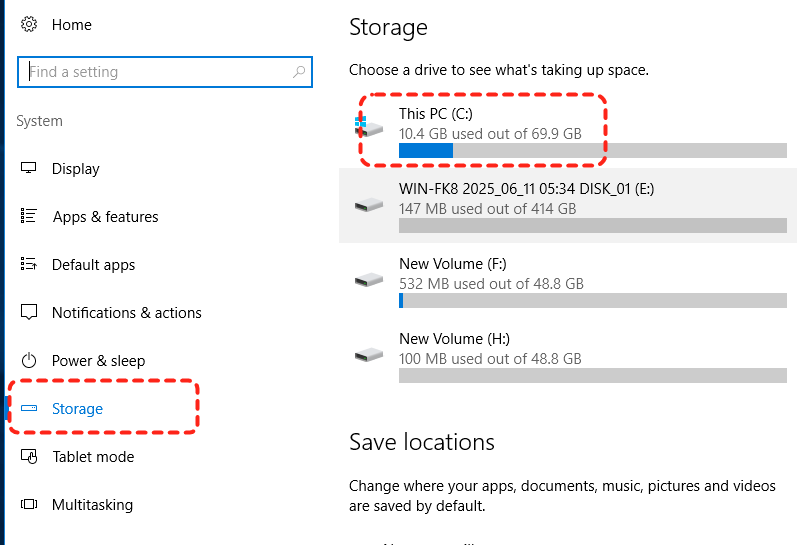
Step 2. Select the "Previous Windows Installation(s)" and click "Remove files" to delete the Windows.old folder.

Using Storage Sense
Storage Sense is a built-in feature of Windows 10 that automatically reclaims disk space by clearing unnecessary files, such as temporary files and Recycle Bin contents.
Step 1. Locate "Settings" > "System" > "Storage".
Step 2. Click "Configure Storage Sense or run it now" under "Storage".
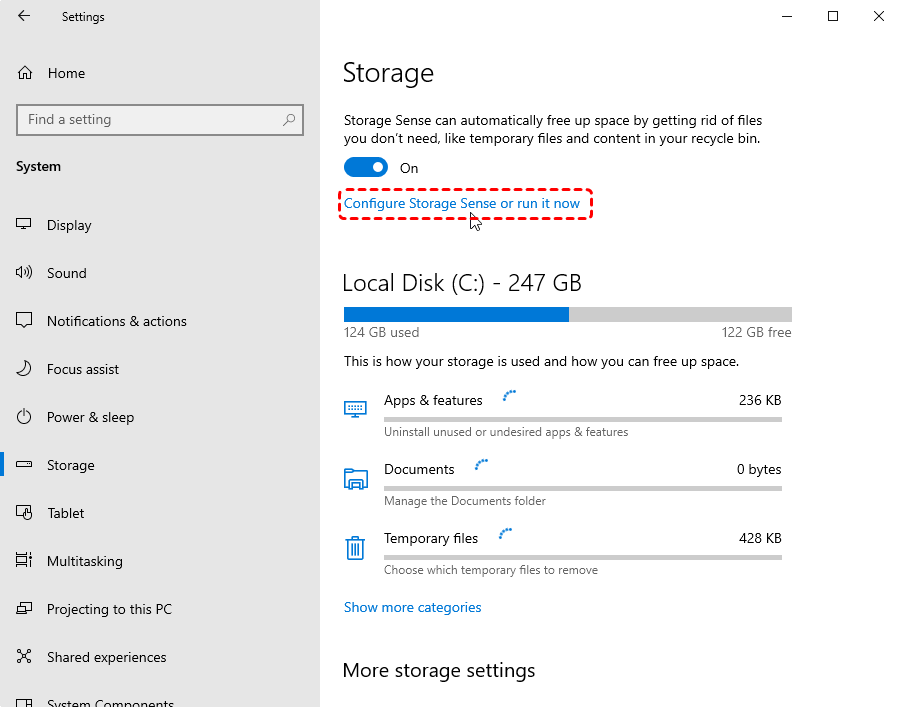
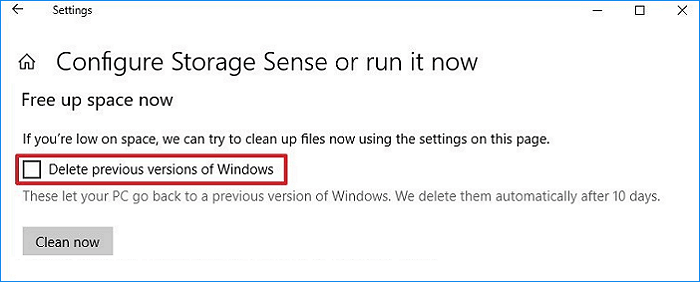
Step 3. Scroll down and check the "Delete the previous versions of windows", then click "Clear now".
How to Restore Files from Deleted Windows.old Folder
Once you delete the Windows.old folder, recovering files from it can be tricky. But this is not impossible. In case the folder is permanently deleted, you can use data recovery software like MyRecover to scan your hard drive and restore files that were deleted from the Windows.old folder. It supports a wide range of file types, including documents, photos, videos, and system files, and can recover data even from a corrupted or formatted drive.

 MyRecover
- No Tech Skills Needed: User-friendly interface designed for beginners and non-tech-savvy users.
- Supports Over 1000 File Types: Recover photos, videos, documents, emails, ZIP files, and more.
- Supports Multiple Storage Devices: Works seamlessly with internal and external HDD, SSD drives, USB flash drives, SD/memory cards, digital cameras, and more.
- Safe & Read-Only Process: Your original data remains untouched during the scan and recovery process.
 100% Secure
Step 1. Download and install MyRecover on your computer from Microsoft Store, avoid installing it on the system drive where the Windows.old folder was stored on it.
Step 2. Launch the program and select the system drive to scan for lost files, then click "Scan".

Step 3. Choose the files you attempt to recover from the recoverable lists and click "Recover".
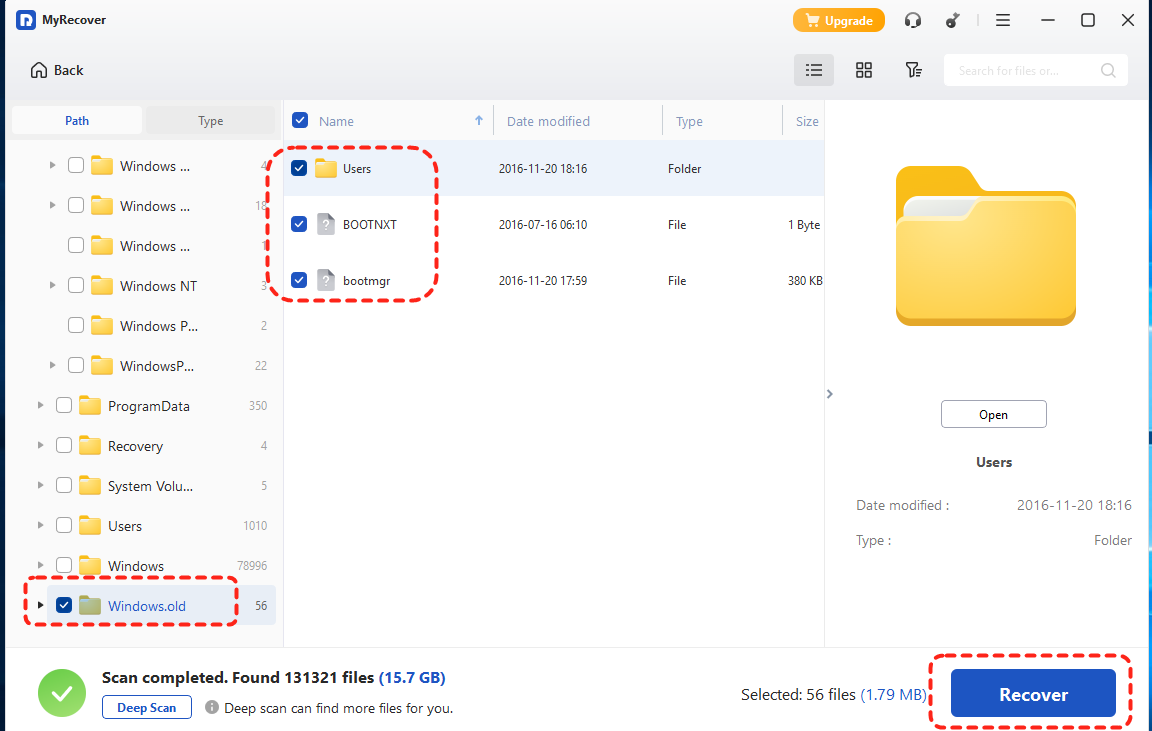
Step 4. Save the recovered files to a safe location (not the original system drive).

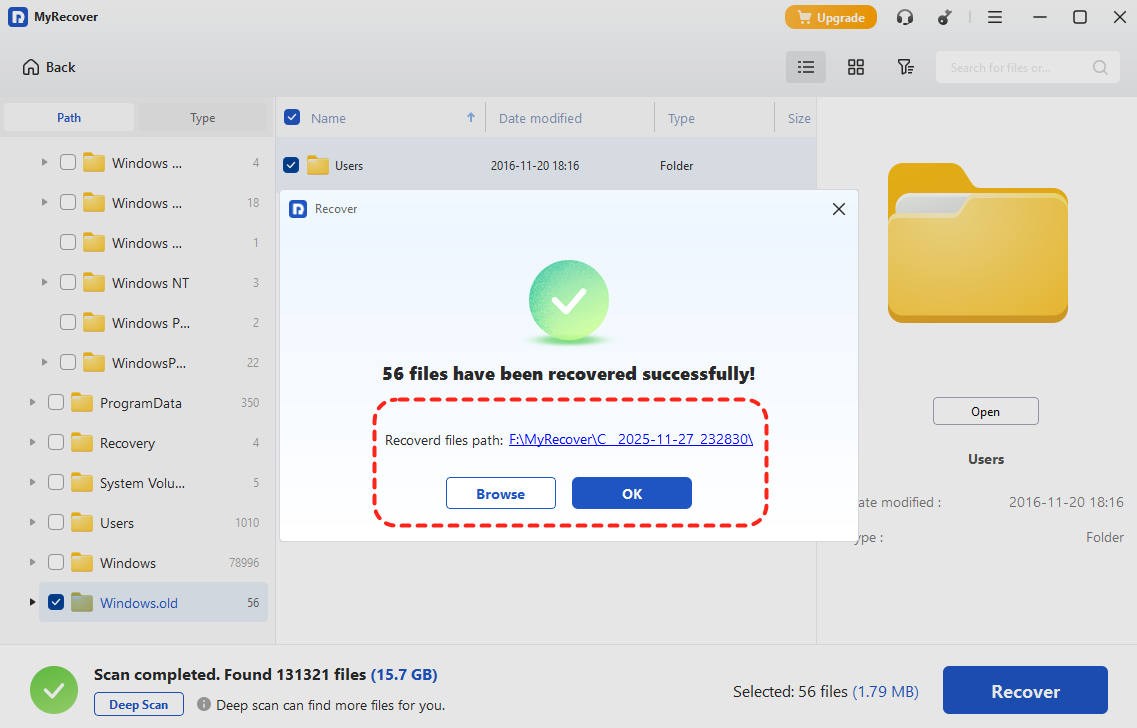
When the process is completed, you'll see the message "Files have been recovered successfully". Then, you can access the recovered files by clicking on the destination folder path or "Browse" button.
Conclusion
How to delete the Windows.old folder is a common task after upgrading or reinstalling Windows Server 2012. It's an easy process that can be done through several methods mentioned above. However, before deleting the folder, ensure that you no longer need any files from it.
If you accidentally delete the Windows.old folder and need to recover files, MyRecover is a powerful tool that can help you retrieve lost data from the folder, even after it’s been deleted. Whether you’ve lost files due to accidental deletion or corruption, MyRecover can provide an efficient recovery solution.

Stay Updated With Our
Latest Tips
Add us as a preferred source on Google to never miss helpful guides.
 Add as preferred source >>