 MyRecover



How to Fix Windows 10 File History No Usable Drives Found Error
Seeing the File History Windows 10 no usable drives found message can stop your backups from running. In this guide, you’ll learn why the issue occurs, how to configure a compatible backup drive, and the most effective methods to fix File History errors in Windows 10.

By Vera / Updated on May 7, 2026


Understanding Windows 10 File History: Your Data Safety Net

What Is File History?
File History is a built-in backup utility in Windows 10 and 11 designed for personal data protection. Unlike a full system image, it focuses on your user profile folders—Documents, Pictures, Videos, Music, and Desktop. By creating incremental snapshots of your files, it allows you to "travel back in time" to restore a specific version of a document from hours or days ago.
How File History Works
Once enabled, File History monitors your selected folders for changes. The system utilizes the NTFS Change Journal to track modifications. When a change is detected, Windows copies the updated file to an external drive or network location.
- ★This provides a multi-layered defense strategy:
- Point-in-time Recovery: Restore versions of files before they were corrupted or accidentally saved over.
- Automated Workflow: No need to remember to click "Backup"; the system handles it in the background.
- Simple Interface: Users can browse through a timeline of their folders to find missing items.
However, File History is strictly dependent on an accessible destination. When the communication between Windows and your storage device breaks down, you encounter the Windows 10 backup no usable drives found error, effectively leaving your data unprotected.
What the "No Usable Drives Found" Error Means
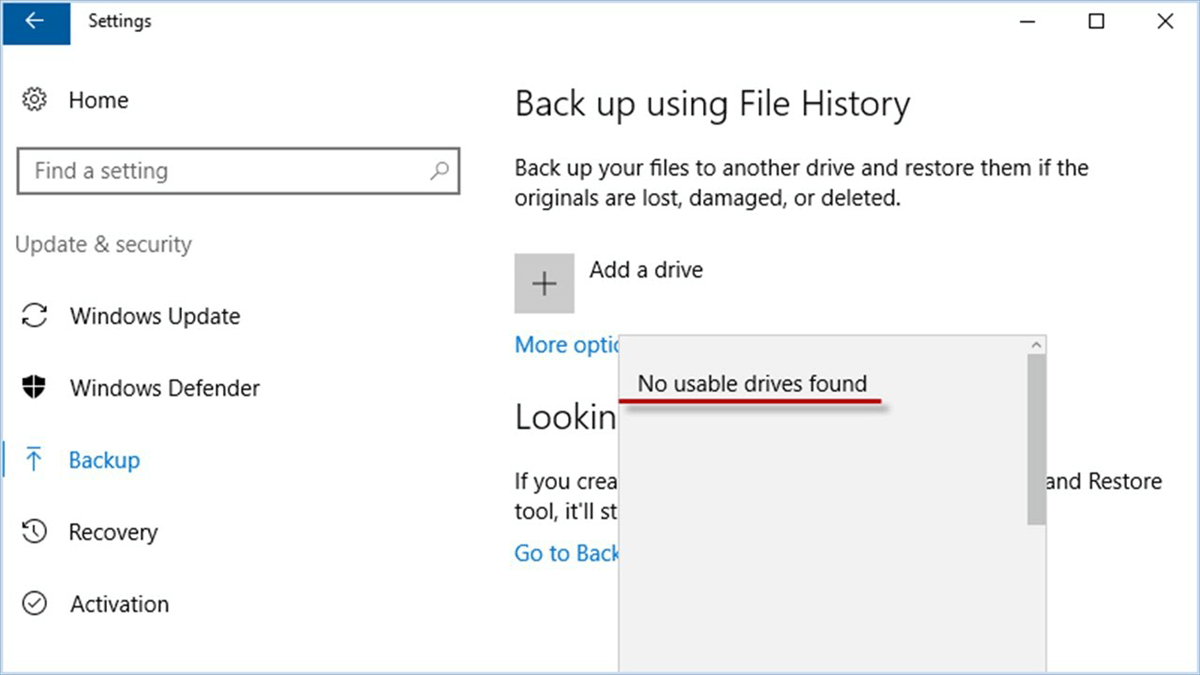
Definition of the Error
The message no usable drives found Windows 10 indicates a "handshake failure" between the service and the storage hardware. For File History to function, Windows must verify that the destination is writable, has sufficient space, and uses a compatible file system (preferably NTFS). If any of these checks fail, the service stops.
Common Causes of the Error
Understanding the root cause is the first step toward a permanent fix. This error usually stems from:
- ⭕Connection Instability: A faulty USB cable or an underpowered USB port can cause the drive to "ghost"—appearing in File Explorer but being invisible to system services.
- ⭕File System Mismatch: If a drive is formatted as FAT32, it has a 4GB file size limit, which often conflicts with large backup archives. Windows may reject these as "unusable."
- ⭕Permissions & BitLocker: If a drive is encrypted or has restricted NTFS permissions, File History may be blocked from creating the FileHistory folder.
- ⭕Service Corruption: The internal database that keeps track of your backup history may become indexed incorrectly or corrupted.
6 Methods to Solve "Windows 10 File History No Usable Drives Found"
While hardware issues are common, software configurations often play a hidden role. If you are currently seeing the prompt "no usable drives found Windows 10," we will move from basic physical checks to deeper system reconfigurations.
Method 1: Reconnect and Power-Cycle the External Drive
This method addresses physical connection "hangups." Sometimes the USB controller enters a low-power state and fails to wake up, or the drive’s partition table isn't read correctly upon the first plug-in.
1. Safely eject the external storage device.
2. Disconnect the cable and wait 10–15 seconds to allow the capacitors in the drive to discharge.
3. Open Settings. Navigate to Update & Security. Select Files backup.
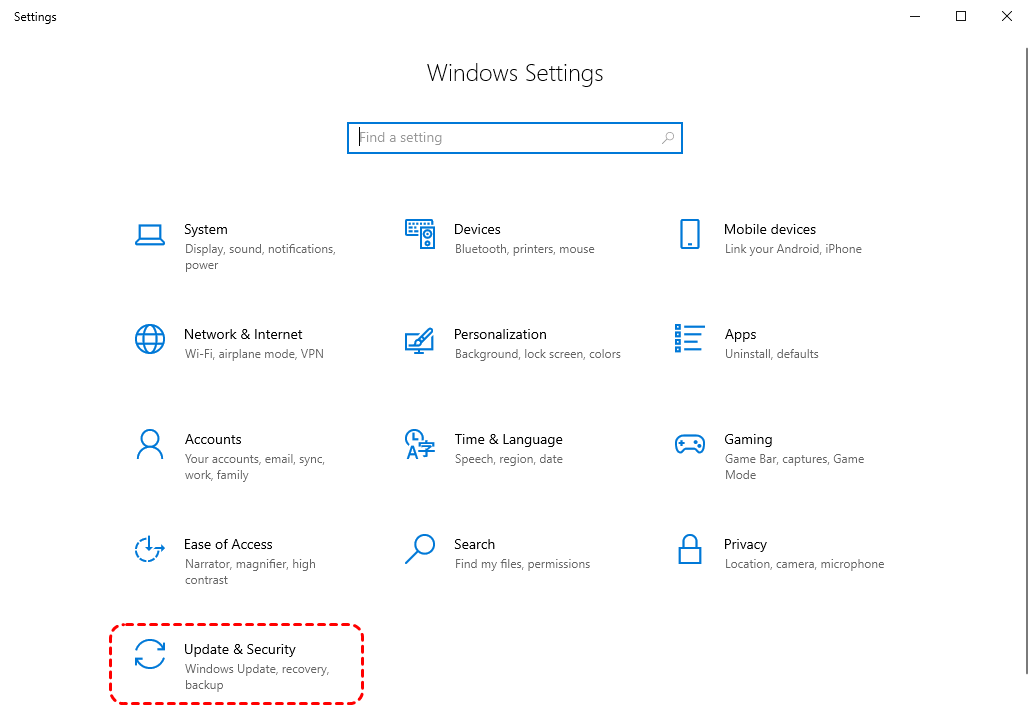
4. Check if the "Add a drive" option now detects your device.
Method 2: Restart the File History Service
The File History Service (fhsvc) can occasionally hang or crash due to resource conflicts. Restarting it forces the service to re-scan the system’s hardware bus for compatible storage devices.
1. Press Windows + R to open the Run dialog.
2. Type services.msc and press Enter.
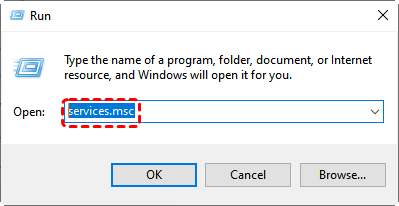
3. Locate File History Service in the list. Right-click it and select Restart. If it is not running, select Start.
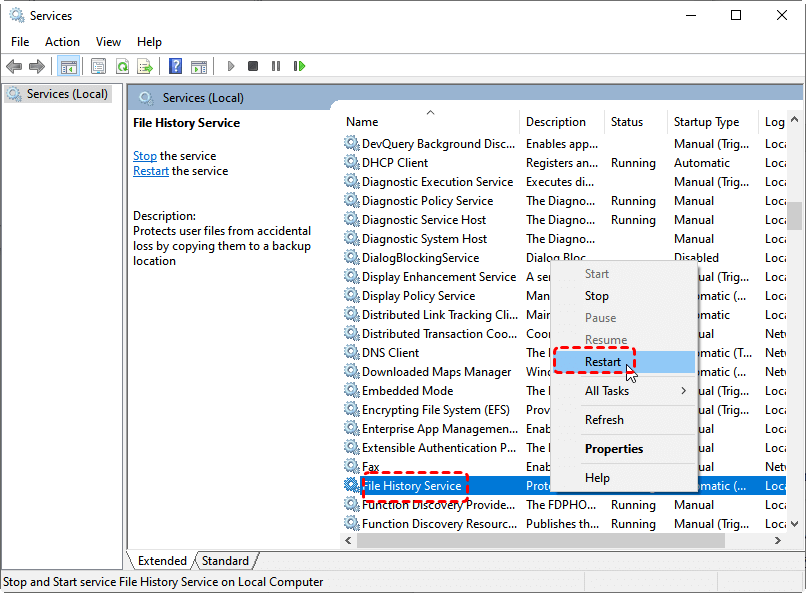
4. Double-click the service and ensure the Startup type is set to Automatic (Delayed Start) to prevent it from failing during a busy system boot-up.
5. Reopen the Backup settings page and verify whether the error persists.
Method 3: Manually Re-select the Backup Drive
If you recently changed your drive's letter (e.g., from E: to F:), File History will look for the old path and report that no drive is found. Manually re-pointing the service fixes this path mismatch and is a common fix for the Windows 10 backup no usable drives found issue.
1. Open Settings. Select Update & Security. Click Files backup.
2. If a drive was previously selected, click More options > See advanced settings (this opens the Control Panel interface).
3. Click Select drive on the left-hand menu.
4. Choose your drive from the list and click OK.
Method 4: Clear the File History Configuration Cache
Windows stores configuration scripts in a protected folder. If these scripts become corrupted, File History will ignore even a perfectly healthy drive. Resetting this cache "tricks" Windows into thinking it’s setting up File History for the first time.
1. Stop the File History Service (as shown in Method 2).
2. Go to C:\Users\[Username]\AppData\Local\Microsoft\Windows\FileHistory\Configuration.
(Note: You may need to enable "Hidden items" in View settings).
3. Delete all files in this folder.
4. Restart the File History Service and attempt to set up the drive again.
Method 5: Format the Drive to NTFS
Many external drives come pre-formatted as exFAT for Mac compatibility. However, File History works most reliably with NTFS due to its support for "Shadow Copies" and "Change Journals."
1. Open This PC, right-click your backup drive, and select Format.
2. Set the File System to NTFS.
3. Ensure "Quick Format" is checked and click Start.
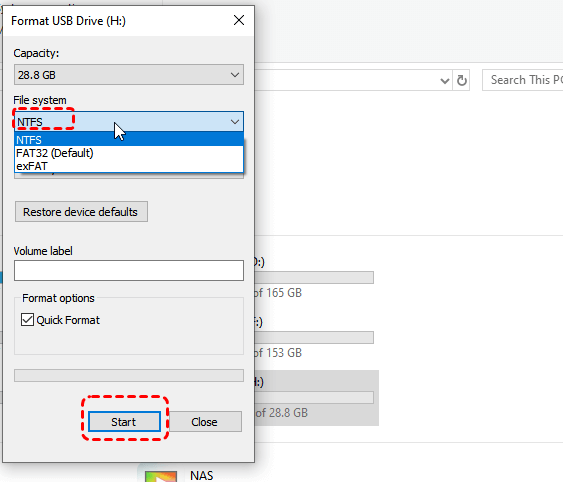
5. Confirm the formatting process.
6. After formatting, reconnect the drive and enable File History.
Method 6: Map a Network Drive (Alternative Destination)
If your local USB ports are failing or you cannot resolve the no usable drives found Windows 10 error with a physical disk, using a Network Attached Storage (NAS) or a shared folder on another PC is a robust workaround.
1. In the File History Control Panel, click Select drive > Add network location.
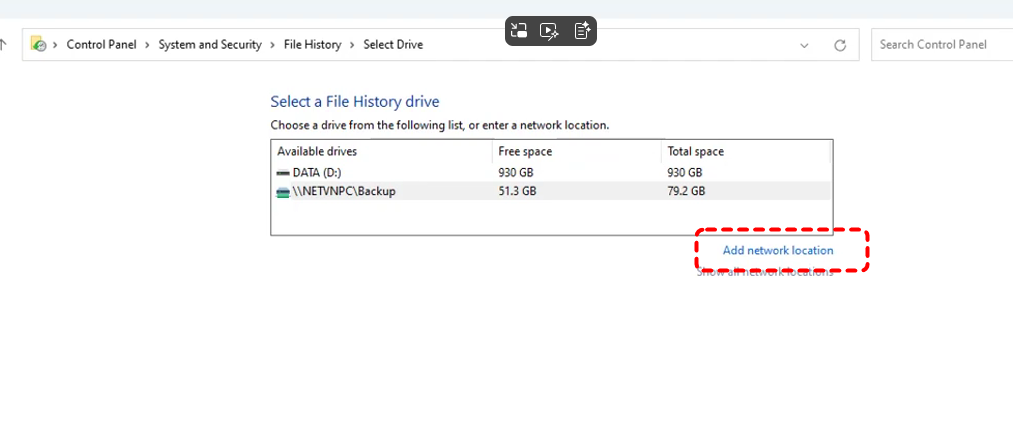
2. Enter the network path (e.g., \\ServerName\BackupFolder).
3. Ensure your PC has "Discovery" turned on so it can maintain a constant handshake with the network drive.
Essential Data Recovery: What to Do If Fixing the Error Causes Data Loss
While troubleshooting "Windows 10 backup no usable drives found," many users accidentally format the wrong partition or lose files during a configuration reset. This is where professional intervention becomes necessary.
If you have lost data while trying to fix your File History settings—or if your backup drive was corrupted before you could fix the error—a professional data recovery tool, MyRecover, provides a specialized solution. Unlike generic tools, MyRecover is optimized for the NTFS file systems that Windows File History relies on.
Why MyRecover is the right tool for this specific issue:

 MyRecover
- 👉Post-Format Recovery: If you followed Method 5 (Formatting) and realized you lost important files, MyRecover’s Deep Scan can reconstruct file headers that the Windows format process ignored.
- 👉Fixes "Drive Not Accessible": Even if Windows says a drive is "unusable" or "RAW," MyRecover can often bypass the OS file system to extract your raw data.
- 👉Maintains Directory Structure: It doesn't just give you a pile of files; it attempts to recover your original folder names and paths, making it easy to rebuild your libraries.
- 👉High Success Rate: It utilizes an advanced algorithm to recover over 1000+ file types (PDF, JPG, DOCX, etc.) even from "unusable" backup drives.
 100% Secure
1. Simply download MyRecover, select the drive that was giving you the "no usable drives" error, and click Scan.
2. You can preview files before deciding to recover them.
Alternative Backup Options in Windows 10
If File History continues to cause problems, other solutions exist.
1. Backup and Restore (Windows 7)
Windows 10 includes the legacy Backup and Restore utility, which allows users to create full system images and scheduled backups.
This method offers greater control over backup locations and scheduling.
2. Third-Party Backup Software
Many users choose dedicated backup tools that provide features such as:
- Automatic incremental backups
- Disk cloning
- Cloud backup integration
- Advanced scheduling options
These tools often provide more reliability than the built-in File History feature.
Conclusion
The error "Windows 10 File History no usable drives found" occurs when Windows cannot detect or access a valid backup location. Although the issue may initially appear concerning, it is typically caused by simple factors such as disconnected drives, incorrect formatting, or configuration errors.
By reconnecting storage devices, restarting services, resetting File History, or formatting backup drives, users can usually restore the backup system quickly.
However, when backups fail or files are lost unexpectedly, tools like MyRecover provide an additional layer of protection by allowing users to recover deleted or missing files from storage devices. Combining reliable backup practices with effective recovery solutions ensures that valuable data remains safe even in unexpected situations.
Frequently Asked Questions (FAQ)
1. Why does File History say "No usable drives found" even when my USB is plugged in?
This usually occurs because the drive is not using the NTFS file system or the "File History Service" has lost track of the drive's unique hardware ID. Try Method 3 (Re-selecting the drive) to refresh the link.
2. Can I use an SD card or a small USB flash drive for File History?
Technically yes, but it is not recommended. File History creates many versions of files, which will quickly fill a small flash drive. Additionally, flash drives have lower "write endurance," meaning they may fail sooner under the constant activity of File History.
3. Does File History back up my Windows Operating System and Apps?
No. File History only backs up personal files in your user libraries. To back up your entire OS and programs, you should use the "System Image" feature found in the "Backup and Restore (Windows 7)" menu.
4. I accidentally formatted my backup drive to NTFS to fix this error, but I had old photos on it. Are they gone?
Not necessarily. When you perform a "Quick Format," the data is still there, but the "index" is deleted. You can use MyRecover to perform a Deep Scan of the formatted drive. As long as you haven't saved new files over the old ones, MyRecover can usually retrieve the "invisible" data.
5. What if my drive is physically clicking or not appearing in Disk Management?
This indicates a hardware failure. If the drive won't spin up, software fixes won't work. However, if the drive is recognized but the data is corrupted, MyRecover is your best chance to extract files before the drive fails completely. Always prioritize recovering your most important files first during the scan process.
6. How to prevent future backup failures?
There are 3 best practices to prevent future backup failures.
- ✔️Use a Dedicated Drive: Do not use your backup drive for daily file transfers. Frequent plugging/unplugging increases the risk of file system corruption.
- ✔️Monitor Drive Health: Use tools like CrystalDiskInfo to check the S.M.A.R.T. status of your backup drive. "No usable drives" is often the first symptom of a physically dying hard drive.
- ✔️Check for Windows Updates: Microsoft frequently releases patches for the "File History" engine. Ensure you are on the latest build of Windows 10/11.

Stay Updated With Our
Latest Tips
Add us as a preferred source on Google to never miss helpful guides.
 Add as preferred source >>