 MyRecover



Fixed: Windows Cannot Determine Which Resources Are Required for This Device (Code 33)
The error 'Windows cannot determine which resources are required for this device (code 33)' is a Device Manager issue that prevents Windows from properly allocating system resources to a hardware device. This guide walks through practical step-by-step solutions to help you identify the root cause and restore normal device operation.

By Aria / Updated on March 10, 2026


Overview
When a hardware device fails to function correctly in Windows, the problem is often related to a driver or resource allocation issue. One such problem in Device Manager is "Windows cannot determine which resources are required for this device (Code 33)". This error indicates that Windows is unable to assign the necessary system resources, such as memory ranges, I/O addresses, or interrupt requests to a specific device, preventing it from operating properly.
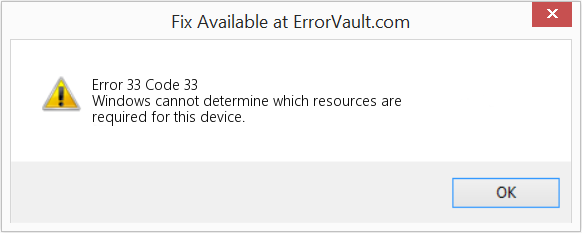
The error code 33 typically suggests that the device driver cannot correctly identify or request the resources it needs, or that the system configuration is preventing Windows from allocating them. As a result, the affected device may stop working, fail to initialize, or even appear with a warning icon in Device Manager. It can affect various types of hardware, including graphics cards, network adapters, sound devices, storage controllers, and other internal or external peripherals.
Common Causes of Code 33 Error in Windows
In most cases, the issue is related to driver configuration problems, incorrect system settings, or conflicts that prevent Windows from assigning the necessary hardware resources. Below are several common causes that may trigger this error in Device Manager.
💽Outdated or Corrupted Device Drivers
Device drivers act as the communication bridge between Windows and hardware devices. If a driver becomes outdated, corrupted, or incompatible with the current Windows version, it may fail to correctly request the resources required for the device, resulting in Code 33.
⚙️Incorrect BIOS or Firmware Settings
System BIOS or firmware controls how hardware resources are distributed before Windows loads. If certain hardware features are disabled or misconfigured in BIOS, Windows may not be able to detect or allocate resources properly for the device.
💻Hardware Resource Conflicts
Some devices require specific system resources such as IRQs or memory ranges. When multiple devices attempt to use the same resources, Windows may fail to determine which resources should be assigned, leading to the Code 33 error.
🔌Faulty or Incompatible Hardware
In certain cases, the issue may originate from the hardware itself. A malfunctioning device or a component that is not fully compatible with the system can prevent Windows from detecting the resources needed for normal operation.
🔌Registry Configuration Issues
Incorrect or corrupted registry entries related to hardware configuration can interfere with how Windows identifies device requirements. When these entries become inconsistent, the system may fail to properly initialize the device.
How to Fix "Windows Cannot Determine Which Resources Are Required for This Device (Code 33)"
Now, you can apply practical solutions to restore proper device detection and resource allocation. The following methods are arranged from simple to more advanced troubleshooting steps, allowing you to identify and fix the issue efficiently.
Fix 1. Restart Your Computer
If the Code 33 error is caused by a temporary driver failure or system resource conflict, restarting the computer may clear the issue and restore normal device functionality. A simple system restart can sometimes resolve temporary configuration issues that prevent Windows from assigning hardware resources correctly. During startup, Windows reinitializes drivers, reloads system services, and re-detects connected hardware devices.
Step 1. Click the "Start" menu and select the "Power" icon.
Step 2. Choose "Restart" from the options.
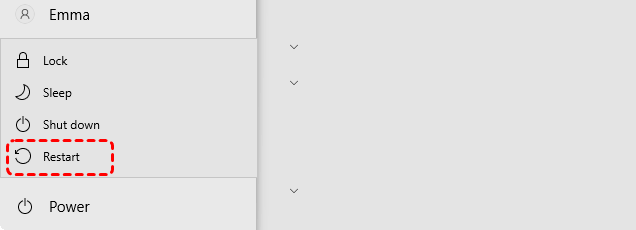
After the system restarts, open Device Manager and check whether the device is functioning normally.
Fix 2. Update the Device Driver
Outdated or incompatible drivers are one of the most common reasons for Device Manager errors. Updating the driver ensures that the hardware device has the latest instructions required to communicate properly with the operating system. A newer driver version may also correct bugs or compatibility problems that prevent Windows from identifying the device’s required resources.
Step 1. Press "Windows" + "X" and select "Device Manager" to open it.

Step 2. Locate the device showing the Code 33 warning icon.
Step 3. Right-click the device and select "Update driver".

Step 4. Choose "Search automatically for updated driver software" to complete the update.
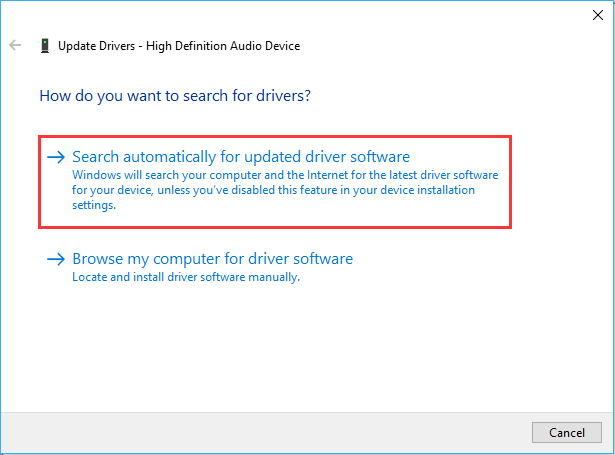
Restart the computer after the update is installed to check if the code error 33 is resolved. If there is no update, you can also try to download the latest official driver from the product manufacturer’s official website.
Fix 3. Uninstall and Reinstall the Device Driver
If updating the driver does not solve the problem, reinstalling the driver can help remove corrupted driver files or incorrect configurations. This process forces Windows to completely remove the current driver and reinstall a fresh version, allowing the system to properly detect the device and assign its required resources again.
Step 1. Open "Device Manager" by pressing "Win" + "X" and selecting it from the menu.
Step 2. Find the device displaying the Code 33 error.
Step 3. Right-click the device and select "Uninstall device".

Step 4. Confirm the removal and restart your computer.
After restarting, Windows will automatically reinstall the device driver.
Fix 4. Check for Windows Updates
Windows updates often include driver improvements, bug fixes, and hardware compatibility updates. Installing the latest system updates can help resolve underlying system issues that may cause resource allocation errors in Device Manager. Keeping the operating system updated also ensures better compatibility with newer hardware devices.
Step 1. Go to "Settings" > "Update & Security" > "Windows Update".
Step 2. Click "Check for updates".
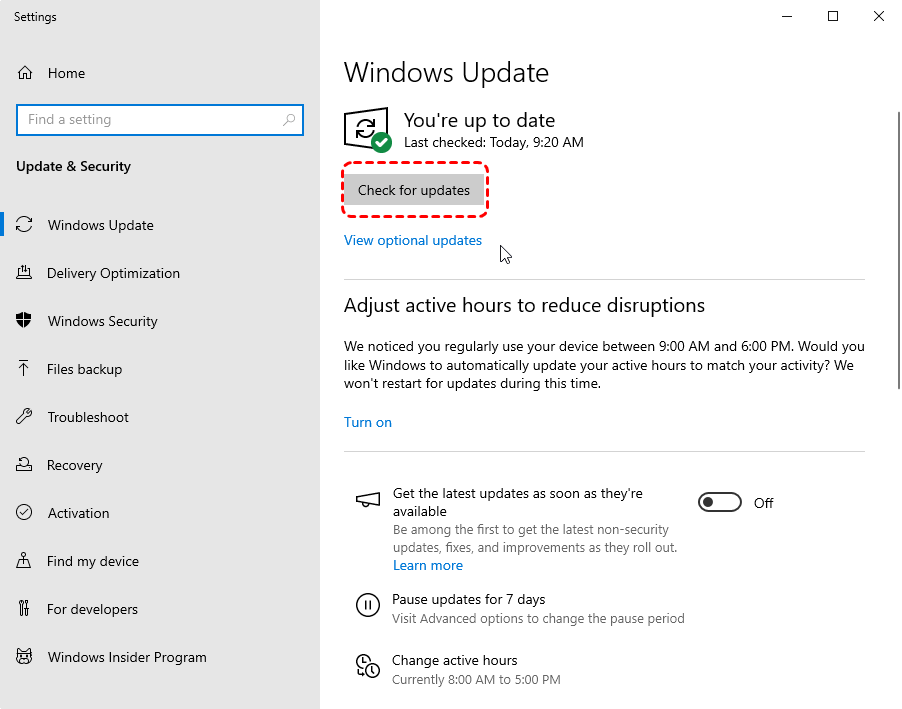
Step 3. Download and install any available updates. Then, restart the computer to apply the updates.
Fix 5. Update BIOS or Firmware
The BIOS or system firmware manages hardware initialization and resource allocation before the operating system loads. If the BIOS version is outdated, it may not properly support certain hardware devices, leading to errors such as Code 33. Updating the BIOS or firmware can fix the error.
Step 1. Identify your motherboard or laptop model.
Step 2. Visit the manufacturer’s official website and locate the BIOS or firmware update section.
Step 3. Download the latest BIOS update compatible with your system.
Step 4. Follow the manufacturer’s instructions to install the update.
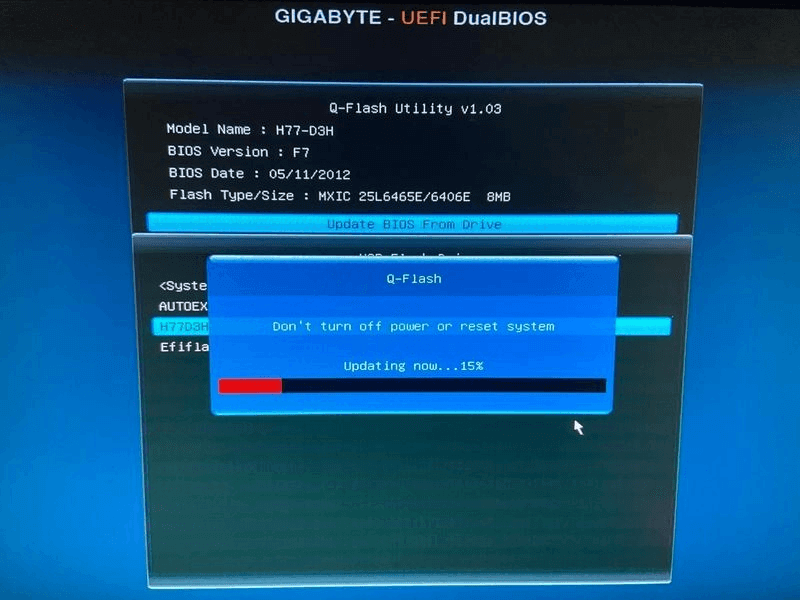
Step 5. Restart the computer after the update is complete.
Fix 6. Run Windows Hardware and Devices Troubleshooter
Windows includes built-in troubleshooting tools that can automatically detect and repair hardware-related problems. It scans the system for configuration issues, driver problems, or hardware conflicts and attempts to resolve them automatically.
Step 1. Press "Win" + "X" and choose "Windows PowerShell (Admin)" to open it.
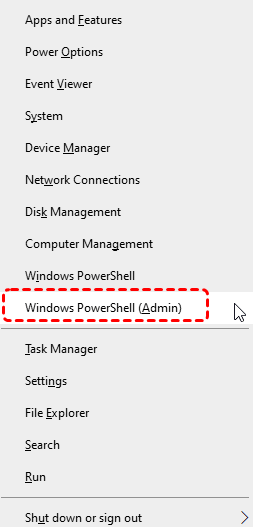
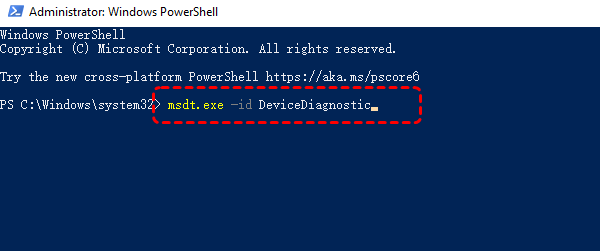
Step 2. Type the command "msdt.exe -id DeviceDiagnostic" and press "Enter". This will open the "Hardware and Devices" window.
Step 3. Click "Advanced" and check the "Apply repairs automatically" option, then click "Next" to start the troubleshooting process.

Fix 7. Check Hardware Connections
If the code error 33 persists, the device itself or its physical connection may be the source of the problem. Loose cables, improperly seated expansion cards, or faulty hardware components can prevent the system from detecting the device correctly. Checking the physical connections ensures that the device is properly installed and functioning.
Step 1. Turn off your computer completely and disconnect the power supply.
Step 2. Open the computer case or access the device compartment if applicable.
Step 3. Check that the hardware device is securely connected or properly seated in its slot.
Step 4. Reconnect any cables or reinstall the device if necessary.
Power on the computer and verify whether the Code 33 error has been resolved.
How to Recover Data If Hardware Issues Cause Data Loss
After resolving the "Windows cannot determine which resources are required for this device (code 33)" error, immediately check whether your personal files and data have been lost during the repair process. Especially when the affected hardware involves storage devices, controllers, or external drives, you may temporarily lose access to important files.
If files lost or become inaccessible after hardware or driver issues, using a reliable data recovery tool like MyRecover can help safely scan the device and retrieve lost files. It helps recover files lost due to system errors, hardware problems, accidental deletion, or disk formatting. It can scan storage devices deeply and locate recoverable data even when the system cannot access the files through normal methods.

 MyRecover
- Recover deleted & lost files from HDD, SSD, USB, SD card, camera as you need.
- Support 1000+ formats of photos, videos, docs, archives, emails, compressed files, etc.
- Reliable rescue for deletion, formatted disk, emptied Recycle Bin, system crashes and more.
 100% Secure
Step 1. Download and install MyRecover on your computer from Microsoft Store or its official website.
Step 2. Launch the program and select the affected drive or partition where your files were originally stored, then click "Scan" to start the scanning process.

Step 3. Choose the files you wish to recover from the recoverable lists and preview the file content, then click "Recover".

Step 4. Save the files to a different drive to avoid overwriting existing data.

Once the process is done, the message "Files have been recovered successfully" will pop up. Then, you can access the recovered files in the destination folder path or the "Browse" button.
Conclusion
Although the "Windows cannot determine which resources are required for this device (code 33)" error may seem serious, you can effectively identify and resolve the issue using the methods mentioned above. Additionally, if the error affects storage devices and results in inaccessible or lost files, using a reliable recovery tool like MyRecover can help restore your important data.
For IT admins, professionals, or businesses, MyRecover also offers a Technician Edition, a comprehensive business data recovery solution that supports unlimited devices with just one license. This makes it perfect not just for personal recovery but also for MSPs and enterprises needing a reliable tool.

Stay Updated With Our
Latest Tips
Add us as a preferred source on Google to never miss helpful guides.
 Add as preferred source >>