 MyRecover



Windows is Uninstalling This Device Code 21: Complete Fix Guide
Encountering 'code 21 windows is uninstalling this device'? Our detailed guide explains why this error occurs and provides effective methods to fix it, ensuring your devices function properly without interruptions.

By Vera / Updated on February 11, 2026


What Is Device Manager Error Code 21?
Device Manager error code 21 appears when Windows has disabled a device because it believes it’s not functioning correctly. This could be a USB drive, printer, graphics card, network adapter, or almost any hardware connected to your system. Essentially, Windows is saying: “I can’t trust this device right now, so I’m taking it offline”.
How Windows Reports This Error
You’ll usually encounter code 21 when you check the properties of a device in Device Manager. The Device Status box might read:
"Windows is uninstalling this device. (Code 21)"
While the message is clear that something is wrong, it doesn’t explain the root cause. That’s where troubleshooting comes in.
Common Devices Affected by Code 21
Some devices are more likely to trigger this error, including:
- USB drives and external hard drives
- Network adapters
- Sound and graphics cards
- Printers and scanners
If Windows detects a problem or conflict with any of these devices, code 21 may appear.
Why "Windows is Uninstalling This Device Code 21" Happens
Understanding why this error appears helps you fix it more efficiently. Common causes include:
Driver Conflicts
Sometimes multiple drivers try to control the same device, which confuses Windows. When the system detects a conflict, it may disable the device automatically.
Outdated or Corrupted Drivers
Drivers that are outdated, corrupted, or incompatible with a Windows update can make devices unstable, triggering code 21. Keeping drivers up to date is crucial.
Hardware Issues
Faulty hardware can also cause Windows to uninstall a device. Examples include damaged USB ports, malfunctioning RAM, or failing graphics cards.
System Glitches and Windows Updates
Occasionally, a Windows update (such as Windows 10 to 11) or system glitch changes device settings, leading to code 21. Windows may uninstall devices to prevent potential crashes.
How to Check If You Have a Code 21 Error
Before fixing the problem, confirm that code 21 is indeed the issue.
1. Using Device Manager
1. Press Win + X and select Device Manager.
2. Locate the device in question.
3. Right-click the device and select Properties.
4. Check the Device Status box.
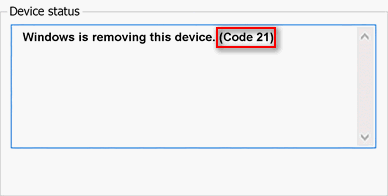
If you see “Windows is removing this device. (Code 21)”, you’ve confirmed the error.
2. Interpreting Device Status Messages
Device Status messages often provide clues. If the message mentions a driver problem, focus on reinstalling or updating the driver. If it hints at hardware issues, check the physical connections or test the device on another PC.
Step-by-Step Fixes for "Windows is Uninstalling This Device Code 21"
Here’s a standardized, complete approach to resolving the issue. Follow these steps in order for the best results.
Fix 1. Restart Your Computer
Sometimes, a simple reboot resolves temporary glitches. Restarting allows Windows to reload drivers and system services, which may automatically fix the issue.
Fix 2. Reinstall or Update Drivers
Drivers are often the culprit behind code 21. Fix them by:
Option 1. Manual Driver Update
1. Open Device Manager.
2. Right-click the device and select Update driver.
3. Choose Search automatically for updated driver software.
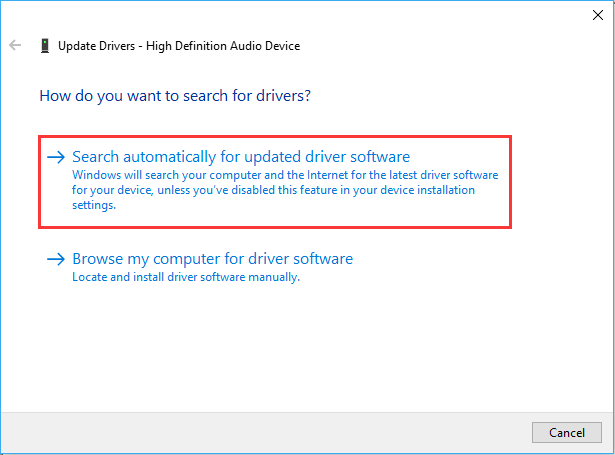
4. If a driver is found, follow the prompts to install it.
Option 2. Using Third-Party Tools
If Windows can’t fix the device, you can use a tool like MyRecover to recover lost files and support troubleshooting.
 100% Secure
Follow these easy steps:
1. Download and install MyRecover on your PC.
2. Open MyRecover and select the affected drive or device.
3. Click "Scan" to find lost or inaccessible files.

4. Preview and select files you want to recover.
5. Click "Recover" and save the files to a safe location.

After your files are safe, you can continue fixing the device without worrying about losing important data.
Fix 3. Roll Back Recent Updates
If code 21 appeared after a driver or Windows update, rolling back might help:
1. Right-click the device in Device Manager.
2. Select Properties → Driver tab → Roll Back Driver.
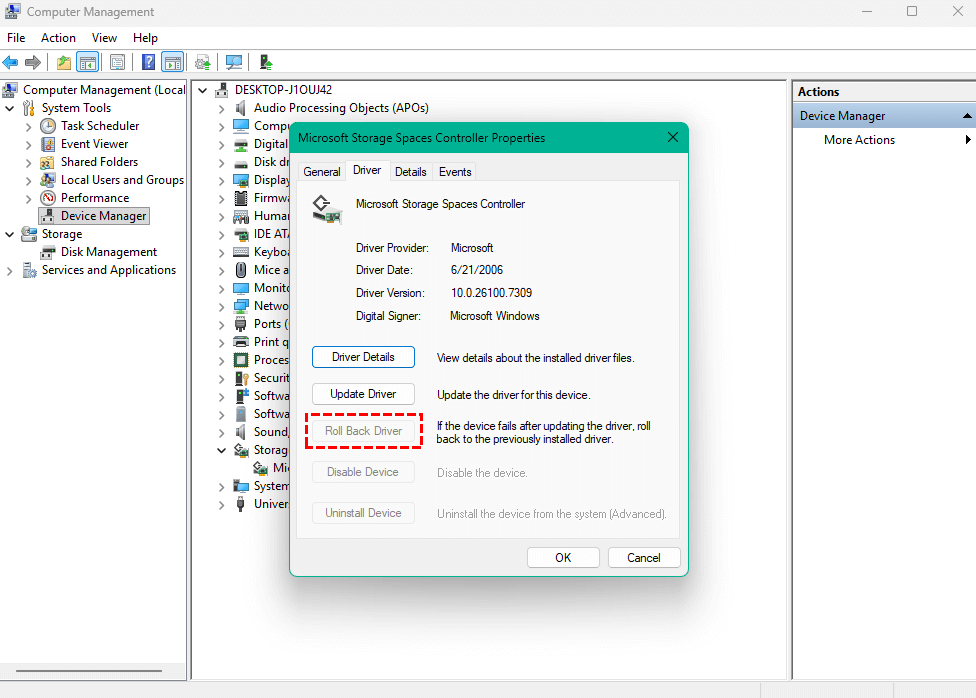
3. Follow the prompts to revert to the previous version.
Fix 4. Check Hardware Connections
Loose or faulty connections often cause this error. Make sure:
- USB cables are securely plugged in.
- Cards and RAM are properly seated.
- Devices work on another PC to rule out hardware failure.
Fix 5. Use System Restore
If all else fails, restoring your system to a previous point can undo changes that caused code 21:
1. Search for System Restore in the Windows search bar.
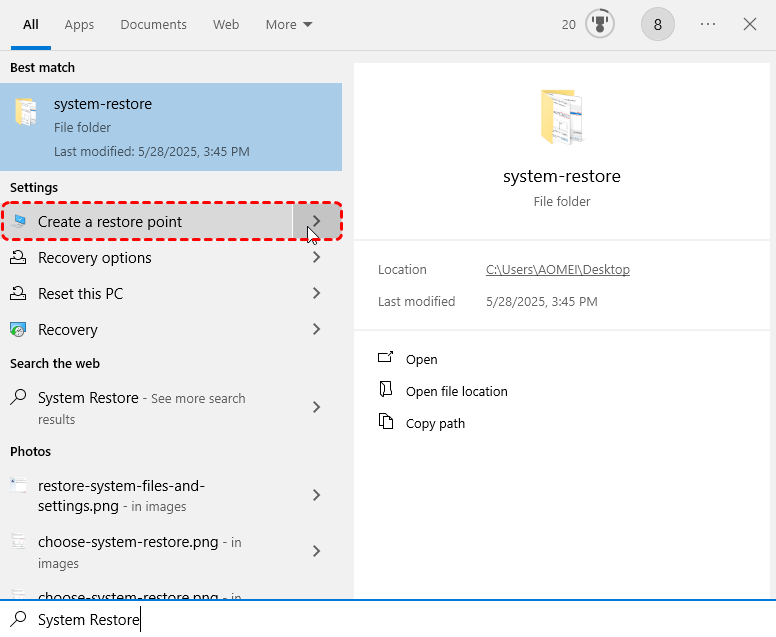
2. Open it and follow the prompts.
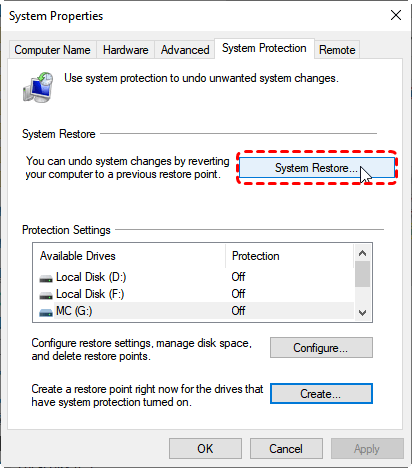
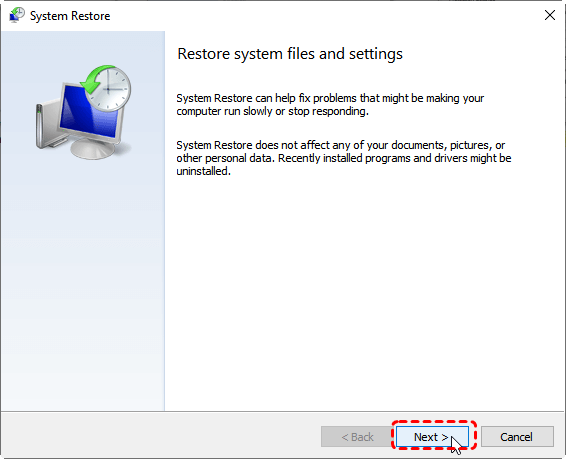
3. Select a restore point before the error appeared.
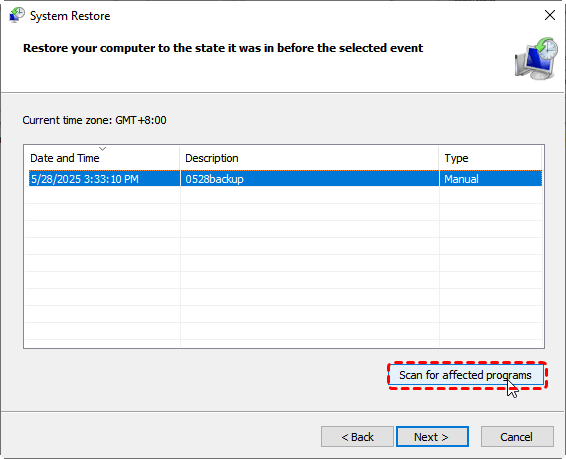
4. Complete the restore and restart your PC.
Advanced Fixes for "Windows is Uninstalling This Device Code 21"
If the basic steps don’t work, try these more technical solutions.
Fix 1. Editing the Registry (Careful!)
1. Press Win + R, type regedit, and press Enter.
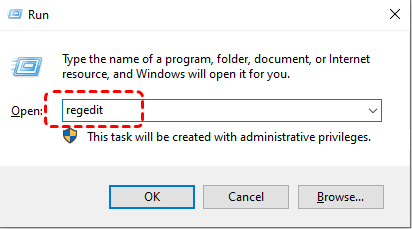
2. Navigate to the device key (back up your registry first).
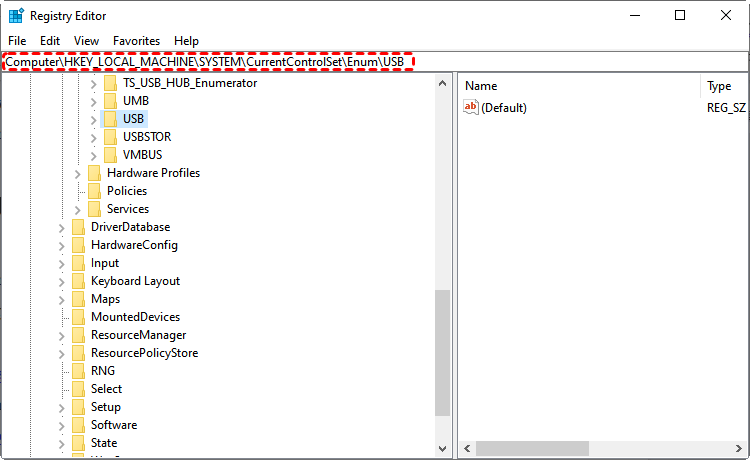
3. Check for incorrect entries related to the device and correct them.
Fix 2. Running Windows Troubleshooter
1. Go to Settings → Update & Security → Troubleshoot → Additional troubleshooters.
2. Select Hardware and Devices and run the troubleshooter.
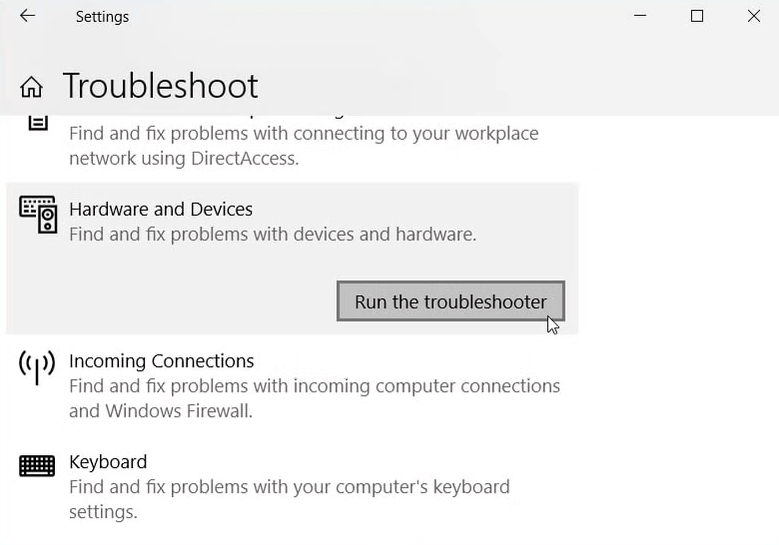
3. Follow the on-screen instructions to fix detected issues.
Fix 3. Checking for Malware or System Corruption
1. Run Command Prompt as an administrator.

2. Type sfc /scannow and press Enter to check for system corruption.

3. Use Windows Defender or a trusted antivirus to scan for malware.
Preventing Code 21 Errors in the Future
Once you’ve fixed code 21, take steps to avoid it in the future:
1. Regular Driver Maintenance
Update drivers regularly using official sources or trusted tools. Avoid beta versions unless necessary.
2. Proper Shutdown and Device Handling
Always safely remove USBs or external devices. Abrupt removal can corrupt device data, leading to errors.
3. Keeping Windows Updated
Regular updates patch bugs and improve compatibility, preventing errors like code 21.
Conclusion
"Windows is uninstalling this device code 21" can be alarming, but it’s usually a driver or hardware issue that’s fixable. By restarting your computer, updating or rolling back drivers, checking hardware, and using tools like MyRecover for data recovery, you can restore your device quickly. Prevention is key: maintain drivers, handle devices properly, and keep Windows updated.

Stay Updated With Our
Latest Tips
Add us as a preferred source on Google to never miss helpful guides.
 Add as preferred source >>