 MyRecover



Accidentally Emptied Recycle Bin? Try These Proven Methods
Accidentally emptied Recycle Bin and lost important files? This guide explains reliable methods to recover deleted files from Recycle Bin after empty. Act quickly to maximize your recovery success.

By Aria / Updated on March 3, 2026


I Emptied My Recycle Bin by Mistake!
I recently encountered a problem where I accidentally emptied my Recycle Bin on my Windows 11 PC, and lost several important files that I hadn't intended to delete. I understand that once the Recycle Bin is emptied, the files aren't easily recoverable, but I’m hoping there might still be a way to get them back. Has anyone else experienced this issue and successfully recover deleted files after emptying the Recycle Bin?
- Question from Suttonchu
Accidentally emptying the Recycle Bin is a common but stressful mistake, especially when you realize important files were inside. Normally, when you press "Delete", the system simply moves the file to the Recycle Bin, where it can be restored instantly with one click. However, when you choose "Empty Recycle Bin", Windows removes the file’s index entry and marks its storage space as available, making the files invisible to the system and much harder to recover.

Many users end up in this situation during routine computer maintenance. For example, you might quickly empty the bin while freeing up disk space, use Disk Cleanup or Storage Sense that clears it automatically or simply mis-click the "Empty Recycle Bin" option.
Can You Recover Deleted Files After Emptying the Recycle Bin?
Yes, in many cases, files can still be recovered after the Recycle Bin is emptied, but the success rate depends largely on how quickly you act and whether the original data has been overwritten.
When the Recycle Bin is cleared, Windows does not immediately erase the actual file data from the disk. Instead, it removes the file’s directory reference and marks the occupied sectors as free space. Until new data overwrites those sectors, the original file content often remains physically intact and recoverable using proper methods.
However, if significant new data has been written to the disk, the deleted files may be partially or permanently overwritten, making recovery difficult or impossible. If you accidentally emptied your Recycle Bin, do not panic. But remember that avoid saving new data to the affected drive and act quickly to maximize the chances of successful recovery.
How to Recover Deleted Files from Recycle Bin After Empty
If the Recycle Bin has already been emptied, recovery is still possible through backups, built-in Windows tools, or professional data recovery software. Try the following methods to restore your lost files while minimizing the risk of overwriting.
Method 1. Restore from File History
File History is one of the most reliable ways to recover deleted files if it was enabled before data loss. It automatically keeps versioned copies of files in protected folders, allowing you to roll back to an earlier state without scanning the disk. This method is fast, safe, and preserves original file integrity.
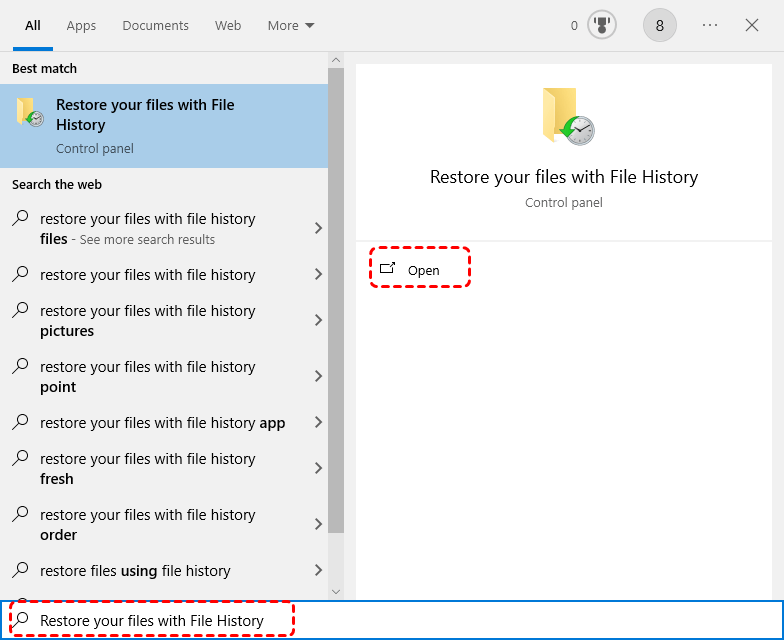
Step 1. Type "Restore your files with File History" in the Windows search box and open it.
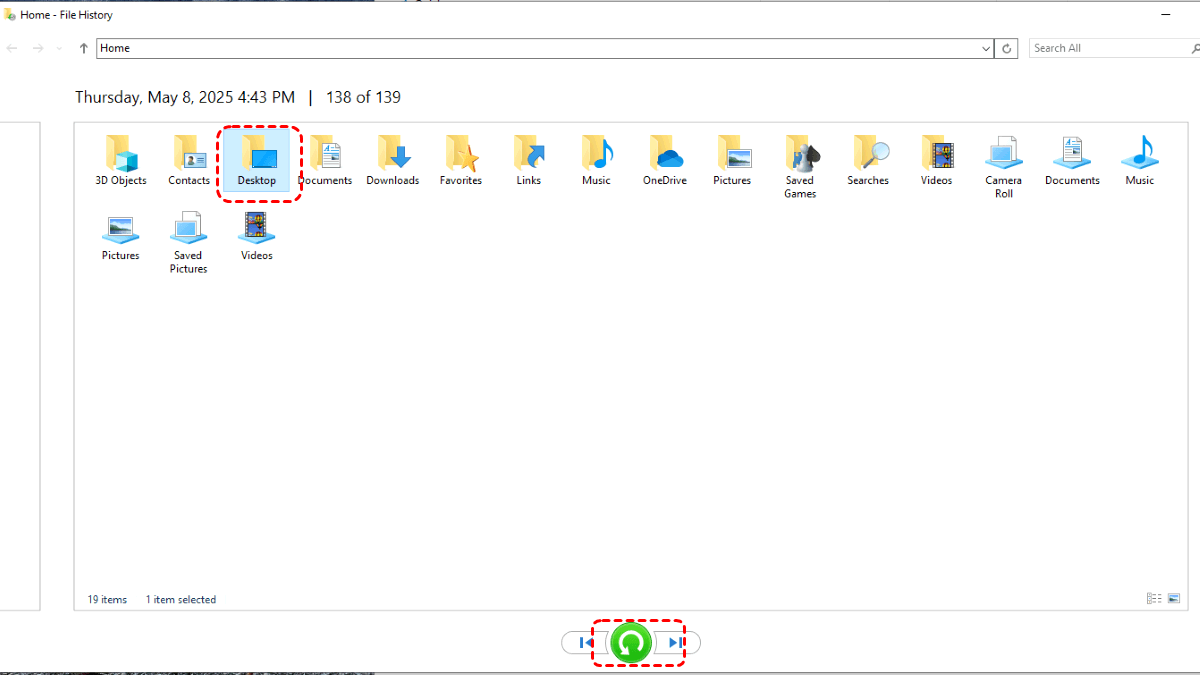
Step 2. Navigate to the folder that previously contained the deleted files.
Step 3. Select the desired version based on the backup date and click the green "Restore" button.
Method 2. Recover via Backup and Restore (Windows 7)
If you created system backups using the legacy Backup and Restore (Windows 7) feature, you can retrieve deleted files from backup images. This approach is especially useful for users who maintain scheduled backups and want a clean recovery without disk scanning. Similar to File History, it only works properly if a backup was created before the files were deleted.
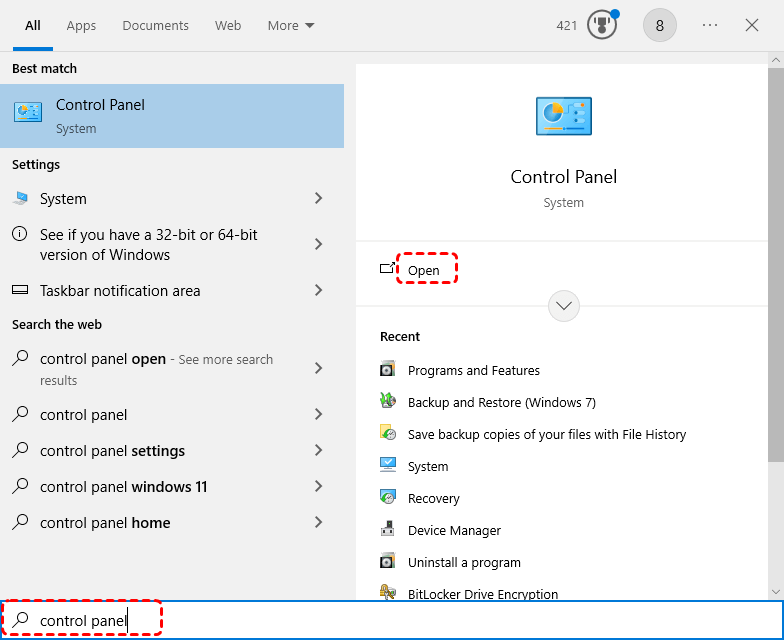
Step 1. Input "Control Panel" in the Windows search box and open it.
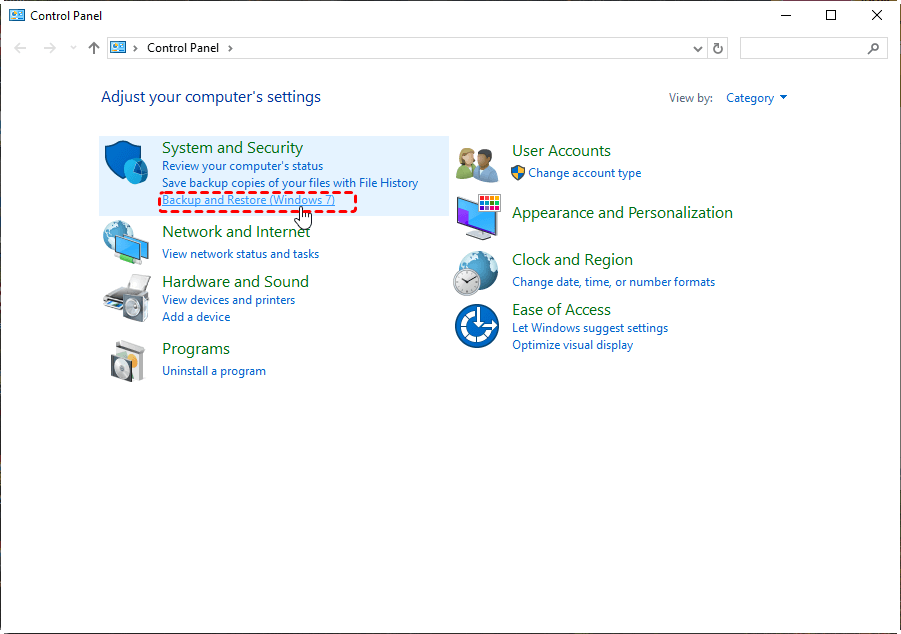
Step 2. Under the "System and Security", click "Backup and Restore (Windows 7)".
Step 3. Click "Restore my files". The system restores files from the latest backup by default. You can also select any backup point from the time you want by clicking on "Choose a different date".
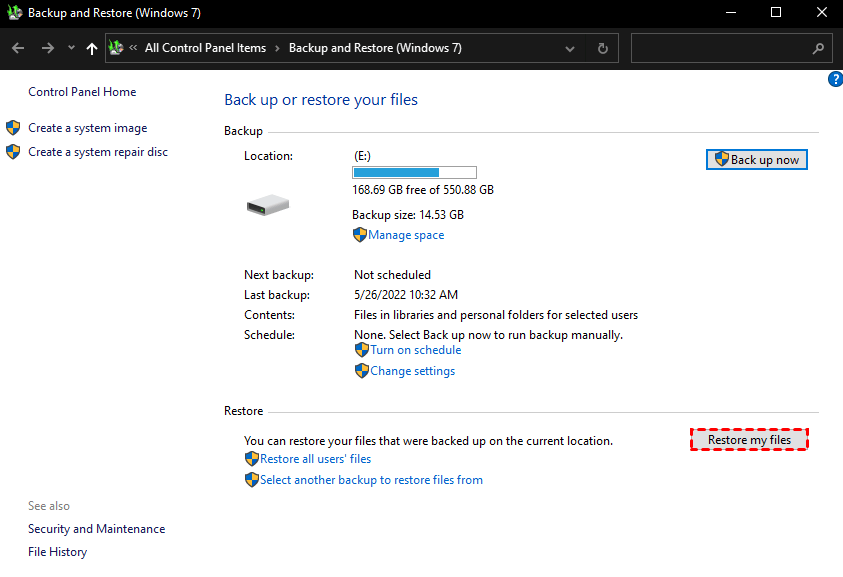
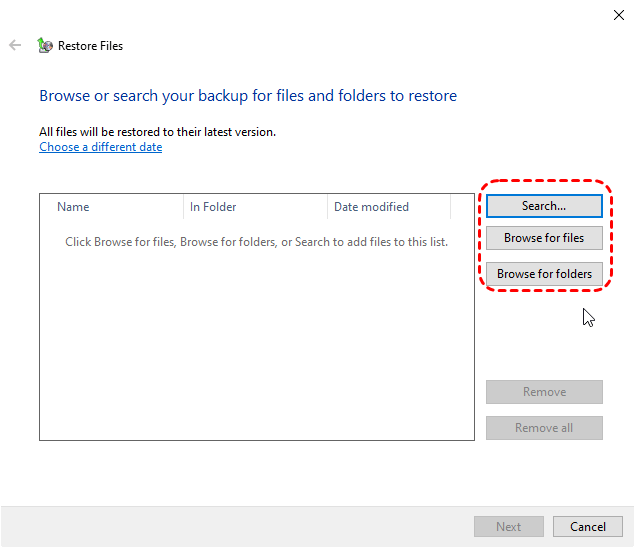
Step 4. Click "Browse for files/folders" to choose the files you wish to recover.
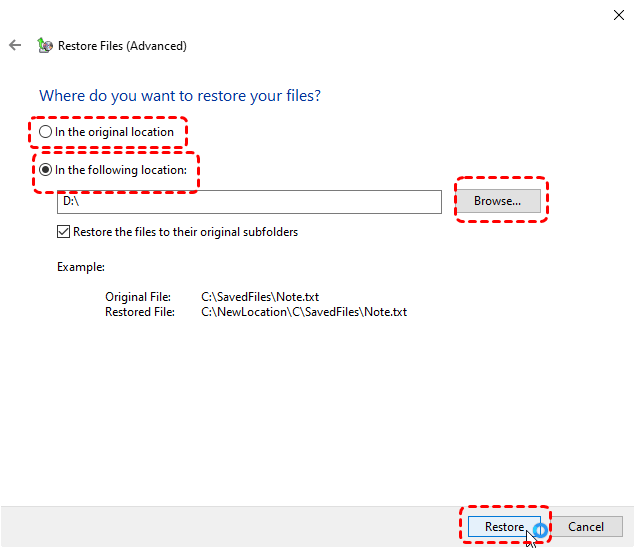
Step 5. Choose a desired restore location to save the recovered files and click "Restore" to begin the process.
Method 3. Restore from OneDrive Recycle Bin
When files were stored in a OneDrive-synced folder, a cloud copy may still exist even after the local Recycle Bin was emptied. After you delete files from the local Recycle Bin, OneDrive’s online Recycle bin will keep them for 30 days, allowing you to restore them directly. For business users, the retention period is longer.
Step 1. Sign in to your OneDrive account in a web browser or on the app.
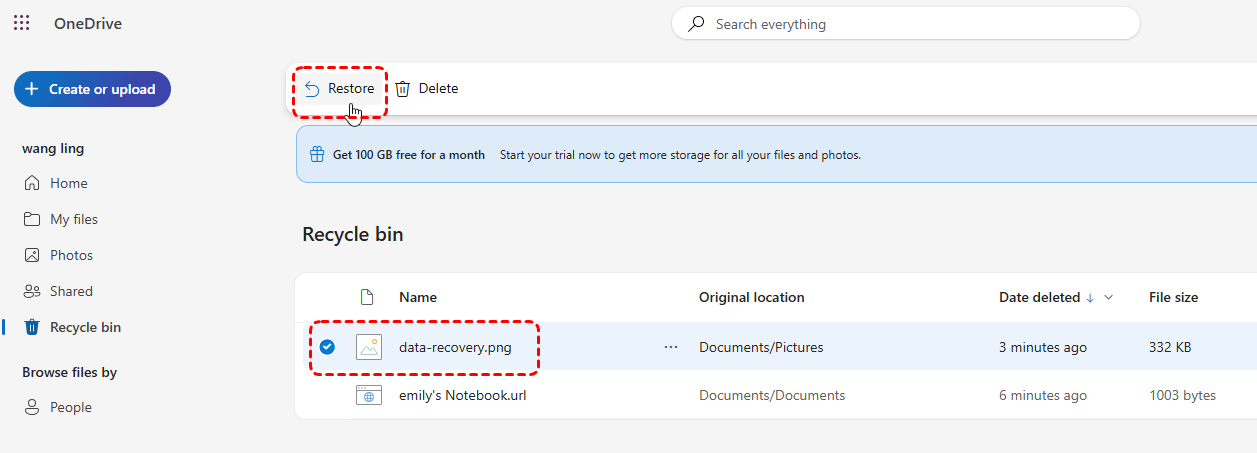
Step 2. Locate the Recycle bin on the left panel, look for the files you want to restore.
Step 3. Select the files you need and click "Restore" in the left upper corner.
Method 4. Use Windows File Recovery
Windows File Recovery is a command-line utility from Microsoft designed to recover permanently deleted files. It can scan your hard disk like USB drives, SD cards, HDDs, etc., making it suitable when no backups are available. It requires you to have some basic knowledge of the command line and only runs on Windows 10 and 11.
Step 1. Download and install Windows File Recovery on your computer from Microsoft Store.
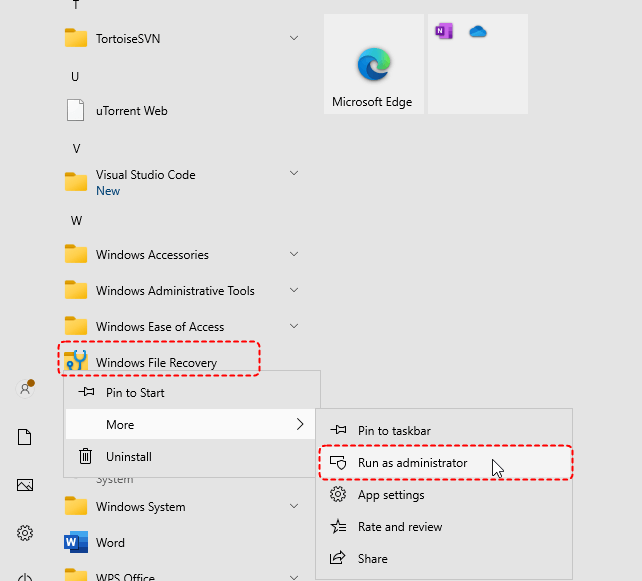
Step 2. Locate Windows File Recovery in the Start menu and right click on it, then choose "Run as administrator".
Step 3. Enter the following command to recover deleted files from D drive and save the recovered files in E drive: winfr D: E: /extensive. Replace the drive letter "D" and "E" with your actual drive letter.
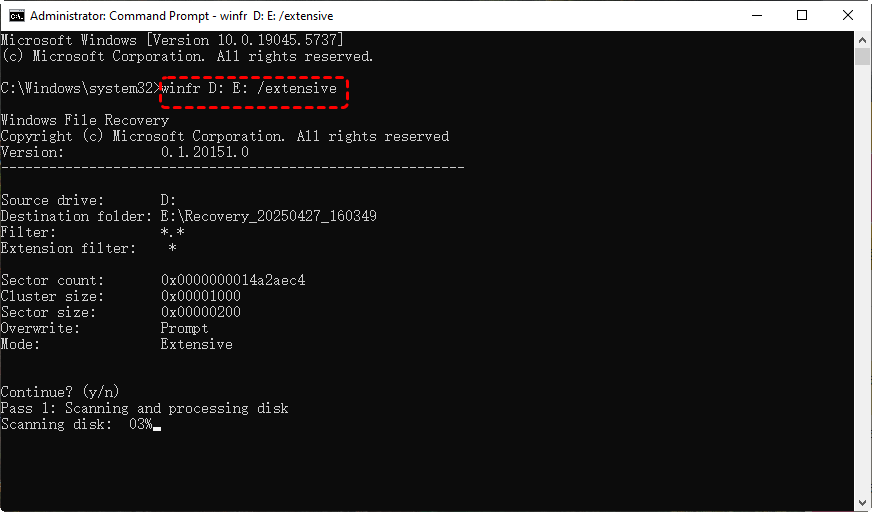
Step 4. Wait for the scan to complete and press "y" to check the recovered folder.
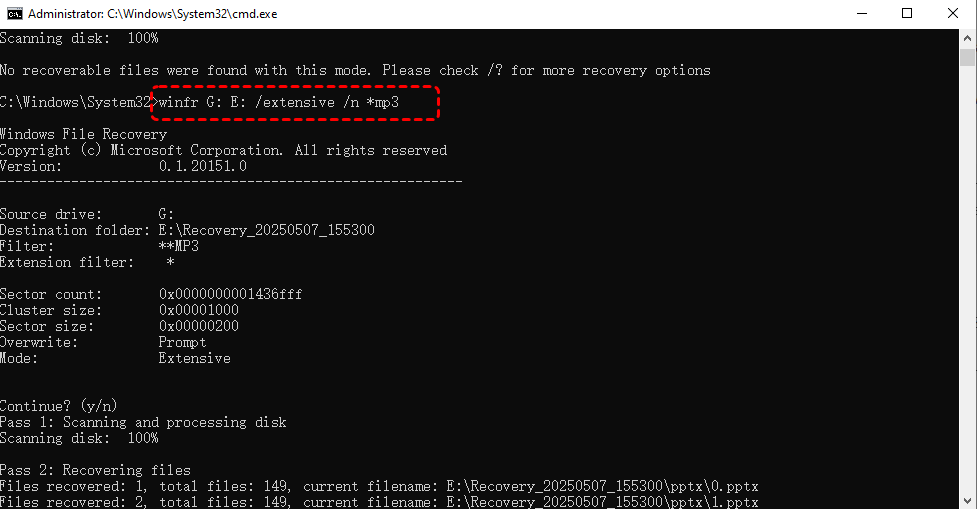
In addition, you can use Windows File Recovery command to recover your desired files, folders or file types. For example, you can recover deleted MP3 files with the following command: winfr G: E: /extensive /n *mp3.
Method 5. Recover with Professional Data Recovery Tool: MyRecover
Although Windows File Recovery is an effective file recovery tool, its advanced command-line operations can make recovery more difficult for average computer users. If you are not comfortable with command-line tools, the professional data recovery software MyRecover is perfectly designed for you.
It uses "Quick Scan" and "Deep Scan" technologies to locate residual file data even accidentally emptied Recycle Bin, making it ideal for severe data loss scenarios. In addition, its user-friendly interface allows you to complete data recovery with just a few clicks.

 MyRecover
- No complex steps—just scan, preview, and recover.
- Easily recover documents, photos, videos, audio files, emails, compressed files, and morebeyond.
- Quickly filter file types during scanning for faster and more accurate recovery.
- Preview files before recovery to ensure you restore exactly what you need.
 100% Secure
Step 1. Download and install MyRecover on a different drive than the one where files were lost.
Step 2. Launch the program, and select the affected partition, then click "Scan" to search for recoverable files.

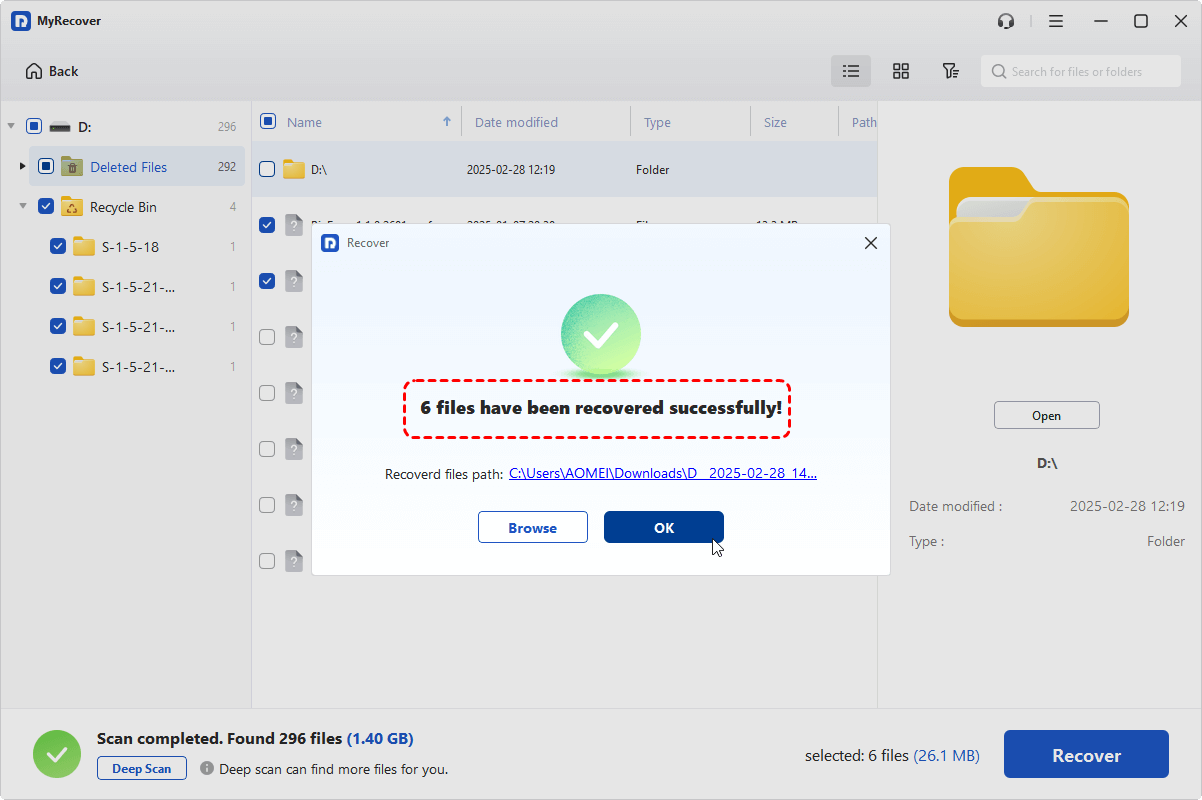
Step 3. Choose the files you wish to recover from the recoverable lists and preview the file content in the right panel, then click "Recover".

Step 4. Select a safe location to save the recovered files.

After the recovery process is done, you can access the recovered files in the destination folder by clicking on the "Browse" button.
Conclusion
Accidentally emptying the Recycle Bin does not always mean your files are permanently lost. As long as the data has not been overwritten, recovery remains possible using backups, Windows built-in utilities, or professional recovery software like MyRecover. Acting quickly and avoiding new writes to the affected drive are the key factors that determine recovery success.
For IT admins, professionals, or businesses, MyRecover also offers a Technician Edition, a comprehensive business data recovery solution that supports unlimited devices with just one license. This makes it perfect not just for personal recovery but also for MSPs and enterprises needing a reliable tool.

Stay Updated With Our
Latest Tips
Add us as a preferred source on Google to never miss helpful guides.
 Add as preferred source >>