 MyRecover



Windows Cannot Install Required Files? Fix Windows 10/11 Setup
Windows installation can stop while copying or preparing files and show the error "Windows cannot install required files", leaving you unsure whether the USB, memory, or destination drive is responsible. This guide explains which checks to try first, when cleaning the target drive is appropriate, and how to recover a lost partition or important files before further diagnosis.

By Aria / Updated on October 30, 2026


What Does "Windows Cannot Install Required Files" Mean?
"Windows cannot install required files" means Windows Setup could not read, unpack, or write files needed to continue installation. You may see it during copying Windows files or getting files ready for installation, even after the USB boots and the installation begins normally.
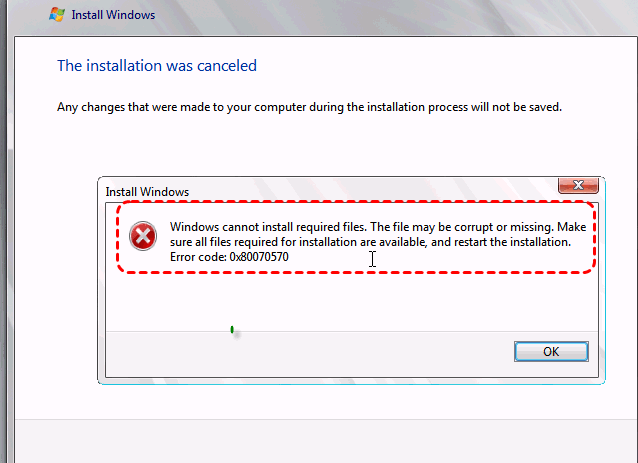
The problem can involve an incomplete installation image, a faulty USB connection, unstable memory, or the destination drive. Codes such as 0x80070570 and 0x8007025D provide clues, but neither identifies a single failed component. The message alone does not prove that your SSD needs replacing.
Check Your Installation Situation Before Trying Again
Photograph the complete message and note the installation stage and percentage. Then choose the starting point that matches your computer:
|
Your situation |
What to do next |
|---|---|
|
Installing on a new drive with no files to preserve |
Start with the installation USB checks. |
|
Reinstalling on a drive that still contains personal files |
Back up accessible files before changing its partitions. |
|
A partition or important files disappeared during setup |
Stop installation and use the recovery section below before further writes. |
|
Starting an upgrade from a working Windows desktop |
Check the existing system's free space and updates; use USB checks only if USB media is involved. |
An upgrade and a clean installation follow different paths. The methods below focus mainly on USB installation, with separate instructions where a working Windows desktop is needed. Start with the relevant checks and stop once installation succeeds.
How to Fix "Windows Cannot Install Required Files" on Windows 10/11
1. Check the Installation USB Connection
If setup starts from a USB but fails when it begins reading installation files, check the connection before changing anything on the internal drive. A loose port, unreliable hub, or external adapter can interrupt the transfer even though the computer initially recognizes the USB. Connecting the installer directly gives you a simpler path to test.
Step 1: Reconnect the installer. Exit setup and shut down the computer, then connect the installation USB directly to another built-in USB port instead of a hub or docking station.
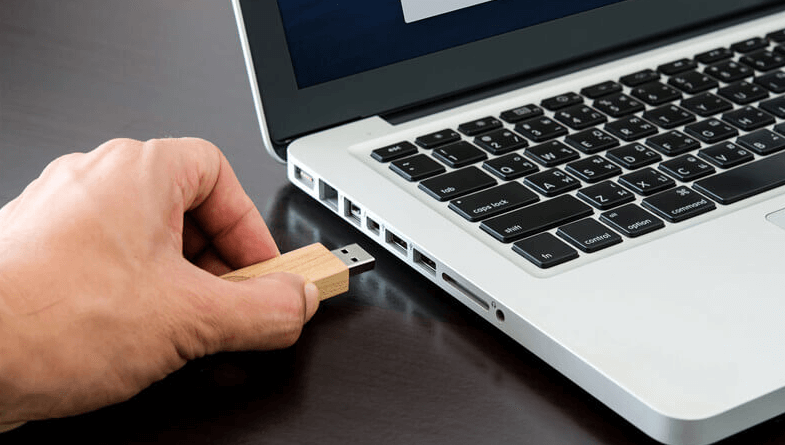
Step 2: Remove unnecessary devices. Disconnect nonessential external storage and accessories, leaving the installation USB, keyboard, mouse, display, and power connected as needed.
Step 3: Retry setup. Boot from the installation USB again and observe whether the same error returns. If it does, recreate the media before making changes to the internal disk.
2. Recreate the Windows Installation USB
If changing the connection makes no difference, replace the installation source. A USB can boot successfully while still containing an incomplete or damaged Windows image, so reaching the setup screen does not establish that every installation file is readable. Microsoft's Media Creation Tool downloads the files and builds the installer for you. Recreating it on a different, reliable flash drive also helps test whether the original USB is responsible. Use a fresh official download rather than copying the same suspect files onto another drive.
Step 1: Download the Microsoft Media Creation Tool. On a working Windows PC, follow Microsoft's installation media instructions for the Windows version you intend to install.
Step 2: Prepare the USB. Connect a spare flash drive with at least 8 GB of capacity and copy any files you need from it elsewhere. Media creation erases the selected USB, so back up the device before continuing.
Step 3: Create new installation media. Run the tool and select "Create installation media (USB flash drive, DVD, or ISO file) for another PC".
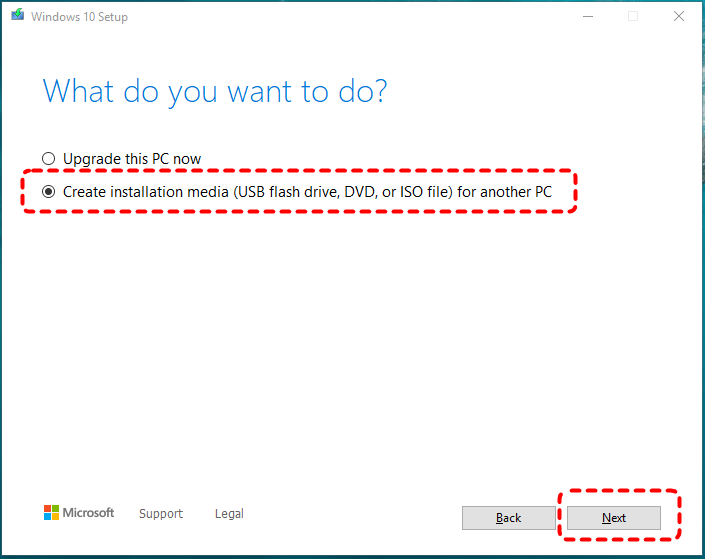
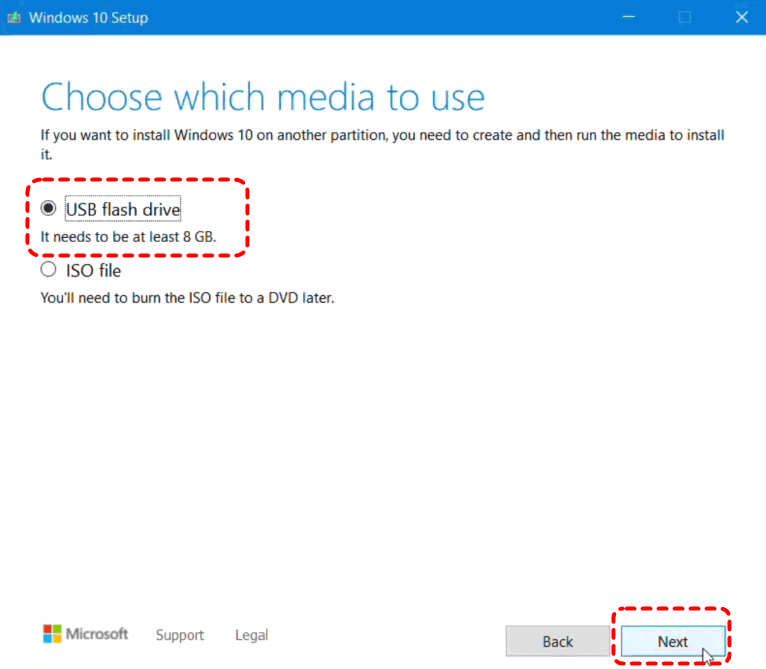
Then, select the appropriate language and Windows edition, choose "USB flash drive", and select the prepared device. Let creation finish before safely removing it.
Step 4: Test the new installer. Connect the new installation media to the affected PC, boot from it, and retry installation without deleting partitions that still contain needed data.
- ★Tips:
- If you use an ISO instead, Microsoft's Windows 11 download page provides a verification section. Where a matching value is available, compare the ISO's SHA-256 hash using Get-FileHash with the value for that exact release and language; this verifies the downloaded file, not the health of the USB it is later written to.
3. Check the Target Drive and Available Space
When you install Windows, confirm where it is being installed. A computer may have several disks or partitions, and the selected destination may not be the one you intended. Available space matters too, particularly when upgrading an existing installation that needs room for temporary files. Checking the destination helps you avoid changing the wrong disk and shows whether space is actually the issue.
Step 1: Identify the destination. At the screen asking where to install Windows, compare disk capacities and partition sizes with your intended system drive. Keep partitions containing needed files unchanged.
Step 2: Check the space. Review the selected partition's free-space figure and any space warning shown by setup. For an upgrade started inside Windows, check the system drive under Settings > System > Storage instead.
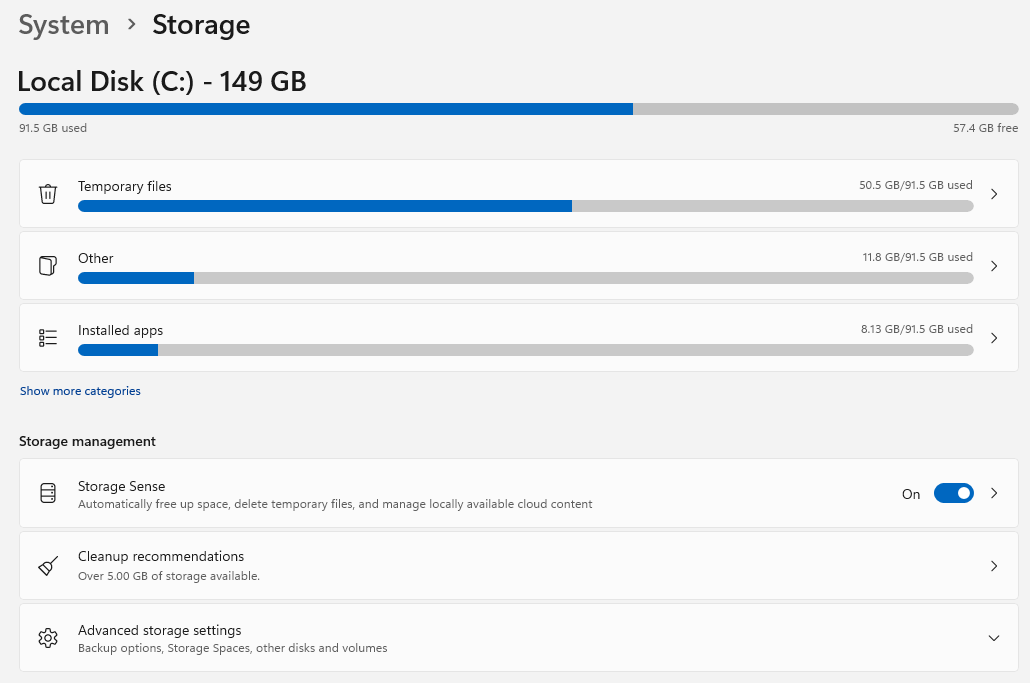
Step 3: Free space only where needed. If the old Windows installation still starts and space is insufficient, back up or move reviewed personal files to another physical drive and use Storage settings to remove reviewed temporary files. Return to setup after checking the available space again.
- ★Tips:
- If the target drive is missing entirely, check the PC manufacturer's storage-driver instructions for Windows Setup. Randomly switching storage-controller modes or cleaning a different visible disk will not solve a missing-driver problem.
4. Test the Computer RAM
When installation still fails with a newly created installer, memory deserves a check. Setup uses RAM while unpacking and processing Windows files; unreliable memory can interrupt that work and produce the "windows cannot install required files" message that appears to blame the files. A memory diagnostic gives you evidence before you start replacing components or repeatedly wiping the drive. Choose the test you can access: Windows Memory Diagnostic if the existing system still runs, or the manufacturer's preboot memory test if you cannot reach a Windows desktop.
Step 1: Open an available memory test. In a working Windows installation, save your work, press Win + R, enter mdsched.exe, and select "Restart now and check for problems". If Windows cannot start, open your model's built-in diagnostics from its startup menu and select a memory test, where available.
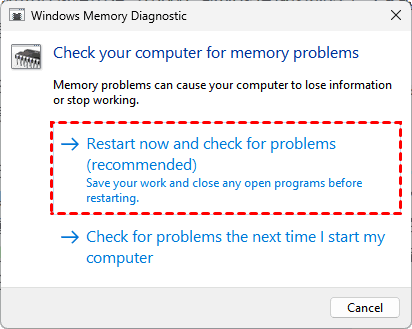
Step 2: Record the result. Once the test finished, note any reported errors; for Windows Memory Diagnostic, check the result notification after signing in or search Event Viewer's System log for MemoryDiagnostics-Results.
Step 3: Act on detected errors. If the test reports a memory problem, follow the manufacturer's service guidance before another installation attempt. A passed test reduces suspicion but does not rule out every intermittent memory problem.
5. Check the Target Drive for Hardware Problems
If reliable installation media and memory checks have not explained the failure, test the destination drive itself. Repeated read errors, a drive that disappears from firmware, or unusual mechanical noises make this especially relevant. The computer or drive manufacturer's diagnostic tool can report storage faults that reinstalling Windows cannot repair. When the drive is unstable and holds the only copy of important files, obtaining recovery advice takes priority over repeated tests.
Step 1: Open the manufacturer's diagnostics. Follow your model's startup instructions; for example, supported Dell computers offer preboot Diagnostics from the F12 one-time boot menu. Other brands use different keys and tools.
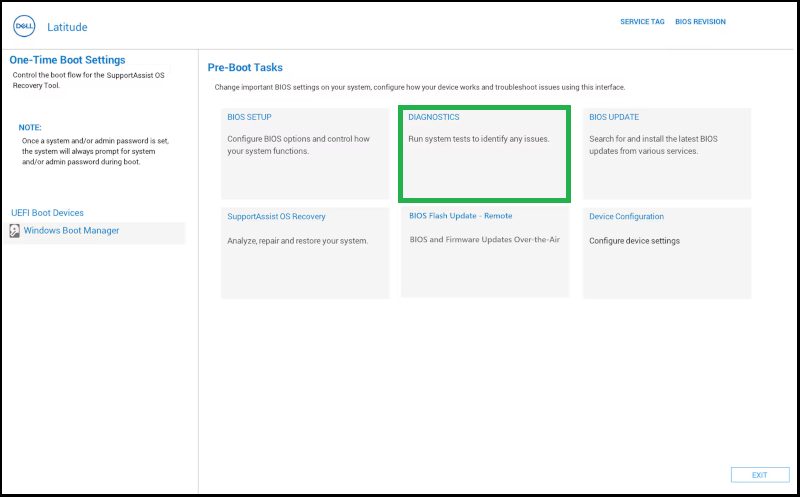
Step 2: Run a short storage test. Select the intended internal drive if the tool allows it, then record the result and any error or validation code.
Step 3: Follow the result. Arrange hardware service if the drive fails testing or repeatedly disconnects, and discuss preserving its data before replacement. If no fault is found, consider the clean-install option below only after protecting existing files.
6. Clean the Target Drive Before a Fresh Installation
Cleaning the target drive can help when an existing partition layout or disk configuration prevents a fresh installation and you have already checked the installer and hardware. DiskPart's clean command removes partition information from the selected disk, giving setup unallocated space on which to create a new layout. It will not fix bad RAM or a faulty USB, and it is appropriate only when the disk's existing contents are no longer needed or are safely backed up.
Clean affects every partition on the selected disk, not just the Windows partition. If files are missing or inaccessible and you still need them, stop here and use the recovery section before cleaning or reinstalling; verify recovered copies on another physical drive first.
Step 1: Open Command Prompt. At Windows Setup, press Shift + F10 to open it; some keyboards also require the Fn key.
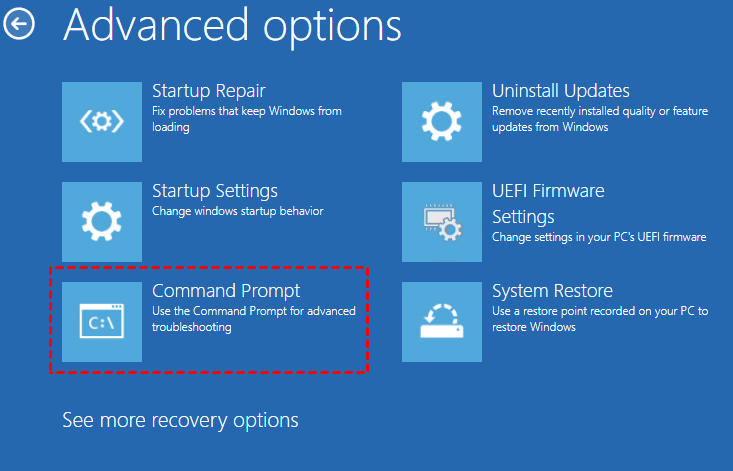
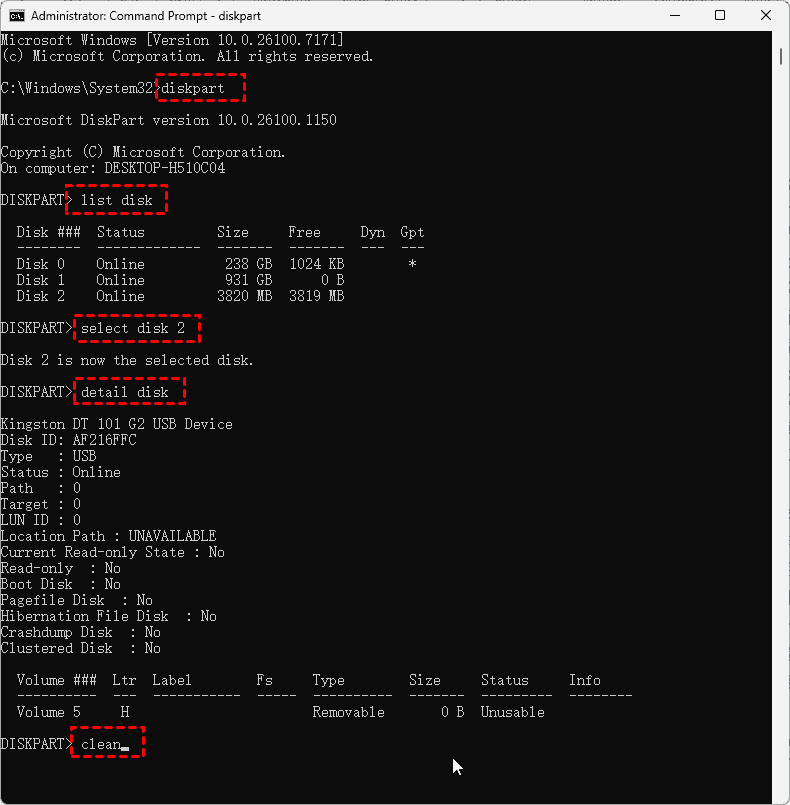
Step 2: List the disks. Enter the following commands one at a time and identify the intended internal disk by its capacity.
- diskpart
- list disk
Step 3: Verify the selected disk. Replace N with that disk's actual number, then run the commands below and check its model, size, and listed volumes. Do not assume the correct disk is Disk 0 or select the installation USB.
- select disk N
- detail disk
Step 4: Clean only the verified target. Once you have confirmed both its identity and that its files are protected, enter clean and wait for DiskPart's success message.
- ★Tips:
- Do not use clean all as an alternative. It zeroes out every sector on the drive, completely overwriting the original data with zeros and making it unrecoverable by any data recovery software.
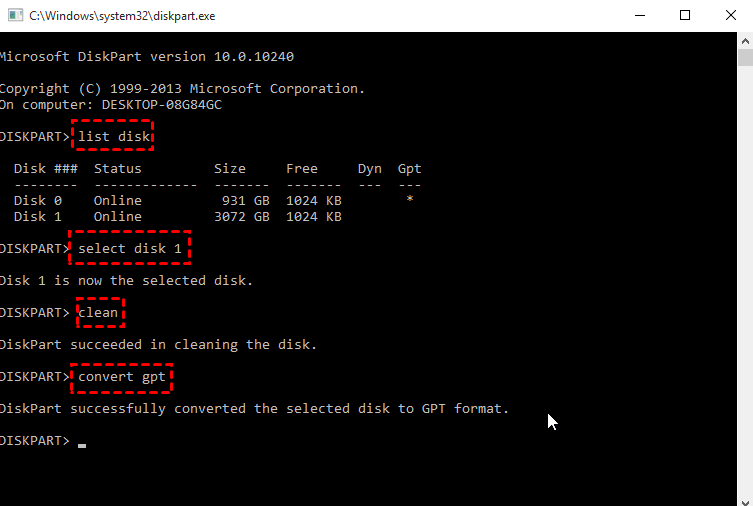
Step 5: Return to setup. For a UEFI installation that needs a GPT layout, enter convert gpt after cleaning, then enter exit to leave DiskPart and exit again to close Command Prompt. Refresh the destination list, select the intended disk's unallocated space, and continue installation.
If the same file error returns after this, do not keep cleaning the disk. Record what you have tested and seek model-specific support with the error details.
Recover Lost Partitions or Files Before Continuing Windows Setup
If setup has already removed a partition or files you need, pause installation rather than creating more partitions or writing a new Windows system over the same space. Check existing backups first. If those do not contain what you need, MyRecover Professional provides recovery options for readable drives; it does not fix the installation error itself.
Choose Partition Recovery when you want to restore an identifiable deleted partition with its recoverable contents. Choose Deleted Files Recovery when your priority is particular documents, photos, or folders, especially if the disk layout has since changed. These are alternatives, not two required passes through the same recovery task.

 MyRecover
- Recover deleted & lost files from HDD, SSD, USB, SD card, camera as you need.
- Support 1000+ formats of photos, videos, docs, archives, emails, compressed files, etc.
- Reliable rescue for deletion, formatted disk, emptied Recycle Bin, system crashes and more.
 100% Secure
If Windows no longer starts, prepare access with a recovery USB first:
Step 1: Prepare MyRecover on a working PC. Download and install MyRecover on that computer, and connect a spare USB whose contents you have already saved elsewhere.
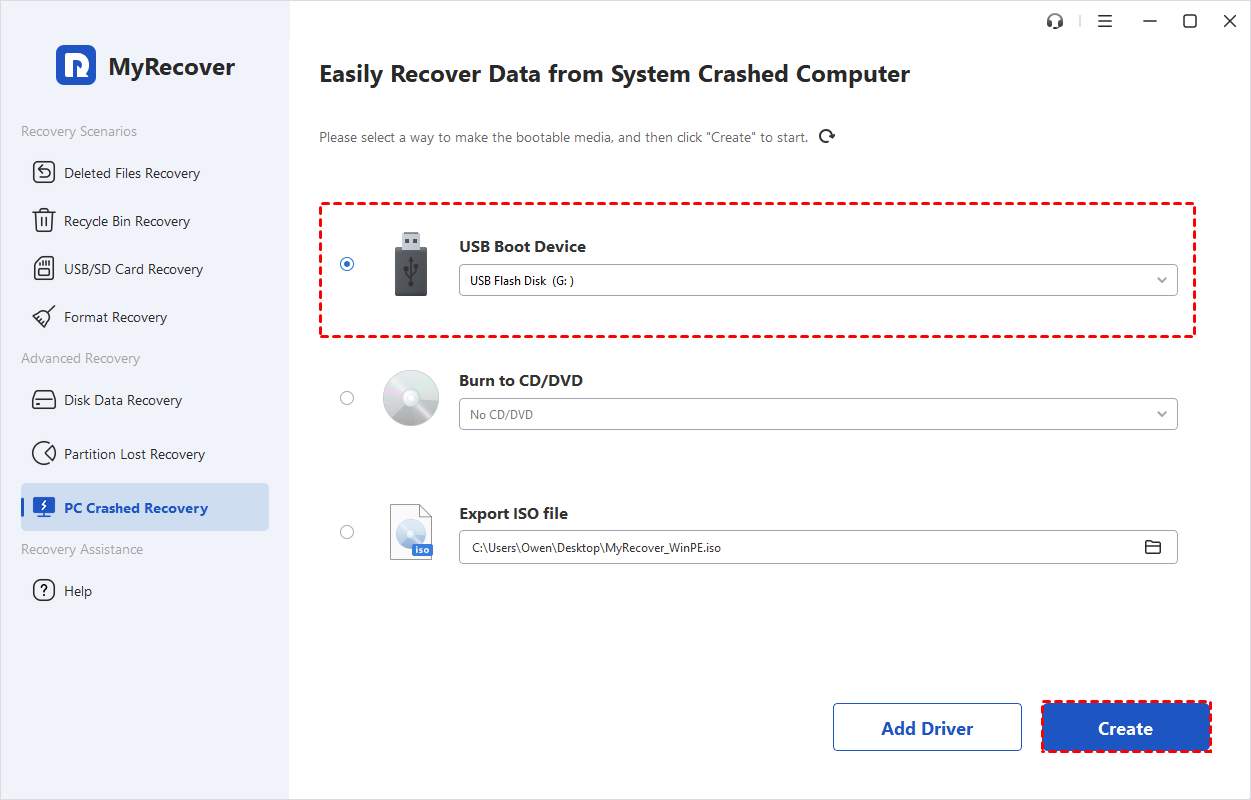
Step 2: Create the recovery USB. Open PC Crashed Recovery, choose USB Boot Device, verify the selected flash drive, and click Create. Confirm the erasure warning and wait for media creation to finish.
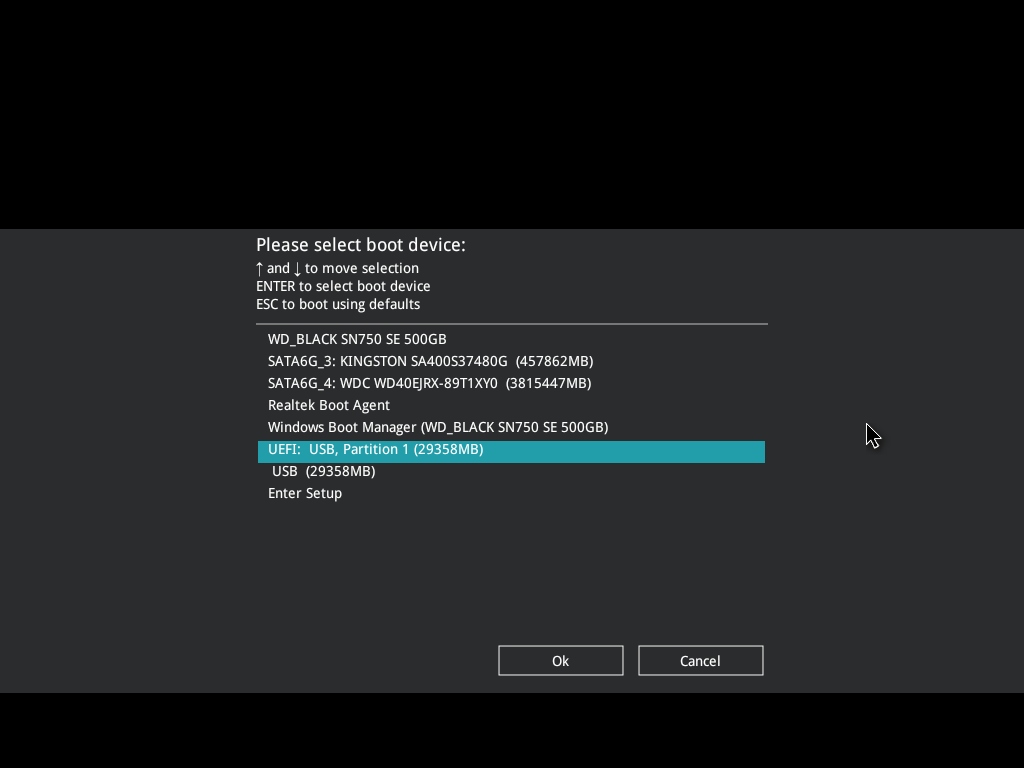
Step 3: Start the affected computer from it. Move the completed USB to that PC, open its one-time boot menu, and select the appropriate USB entry to boot the computer and load MyRecover. Connect a separate destination drive for your recovered files.
- ★Tips:
- If the original Windows system still runs, you can open MyRecover installed on a different physical drive and use the relevant recovery method below without creating boot media. Minimize further use of Windows if it runs from the disk containing the lost data.
Restore a Deleted Partition with MyRecover
If you deleted an original partition in Windows Setup and its space has not been reused extensively, Partition Recovery can search for the records that identify where it was. Recovering an identifiable partition can make its recoverable files and folders accessible together, rather than requiring you to collect them individually. This route fits a missing partition that you can recognize by its former size and location. Once it is accessible, copy the files you need elsewhere before returning to any installation step that will erase that disk.
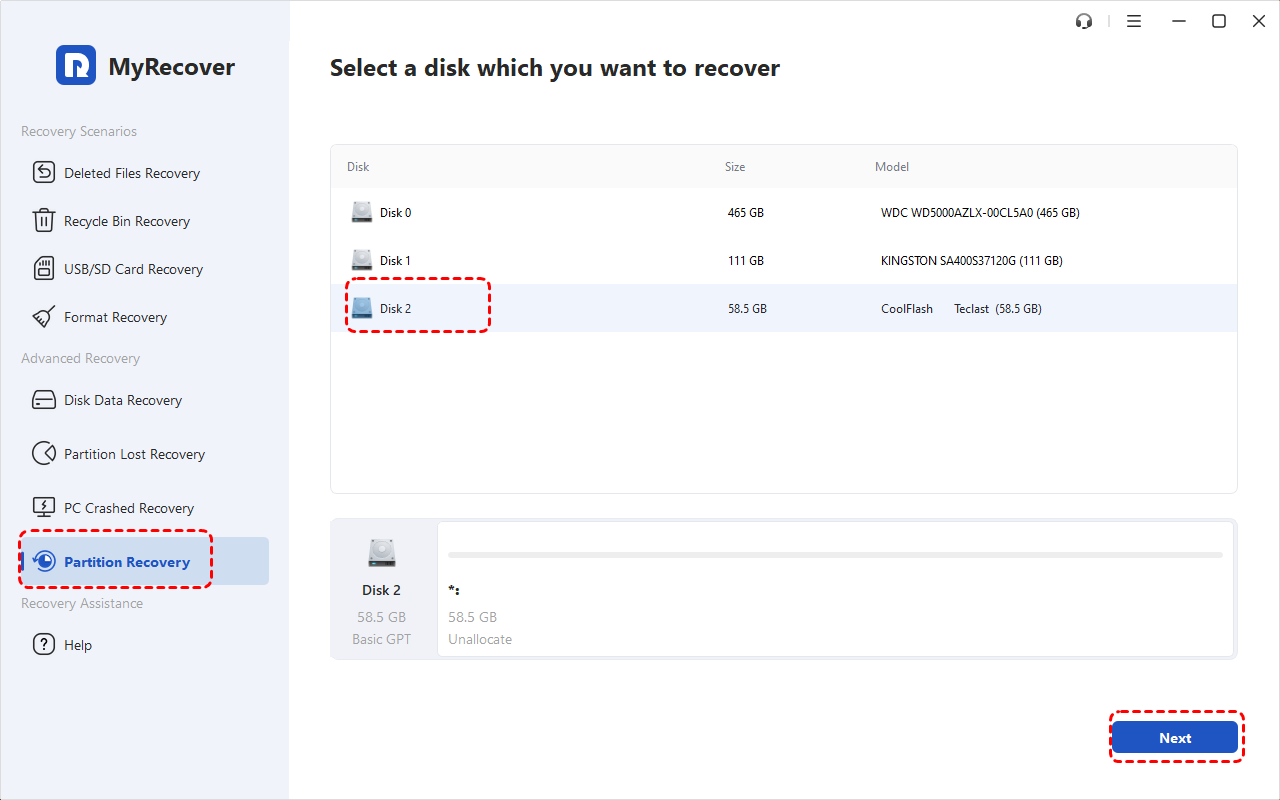
Step 1: Select the original disk. Open Partition Recovery, identify the affected disk by model and capacity, and click Next. Drive letters may differ in the recovery environment.
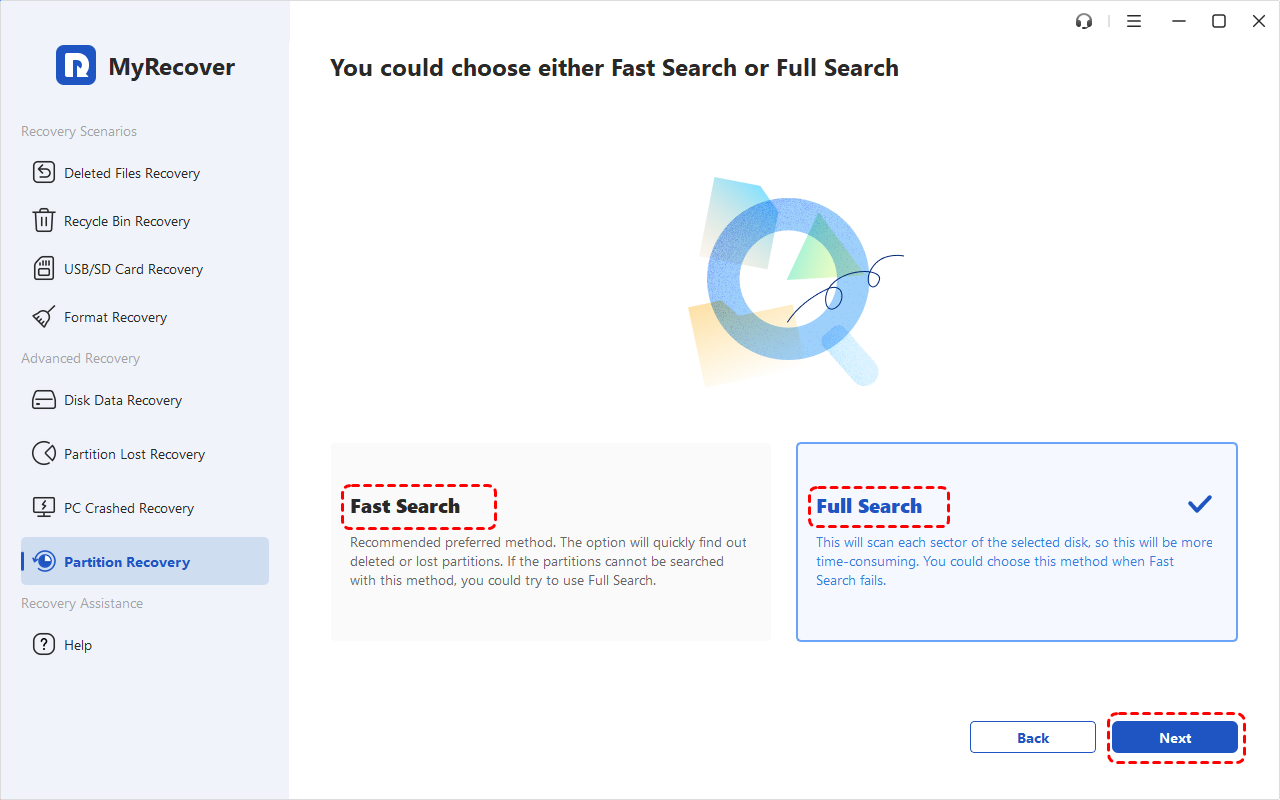
Step 2: Search for the partition. Choose Fast Search and click Next; if it does not locate the required partition, try Full Search.
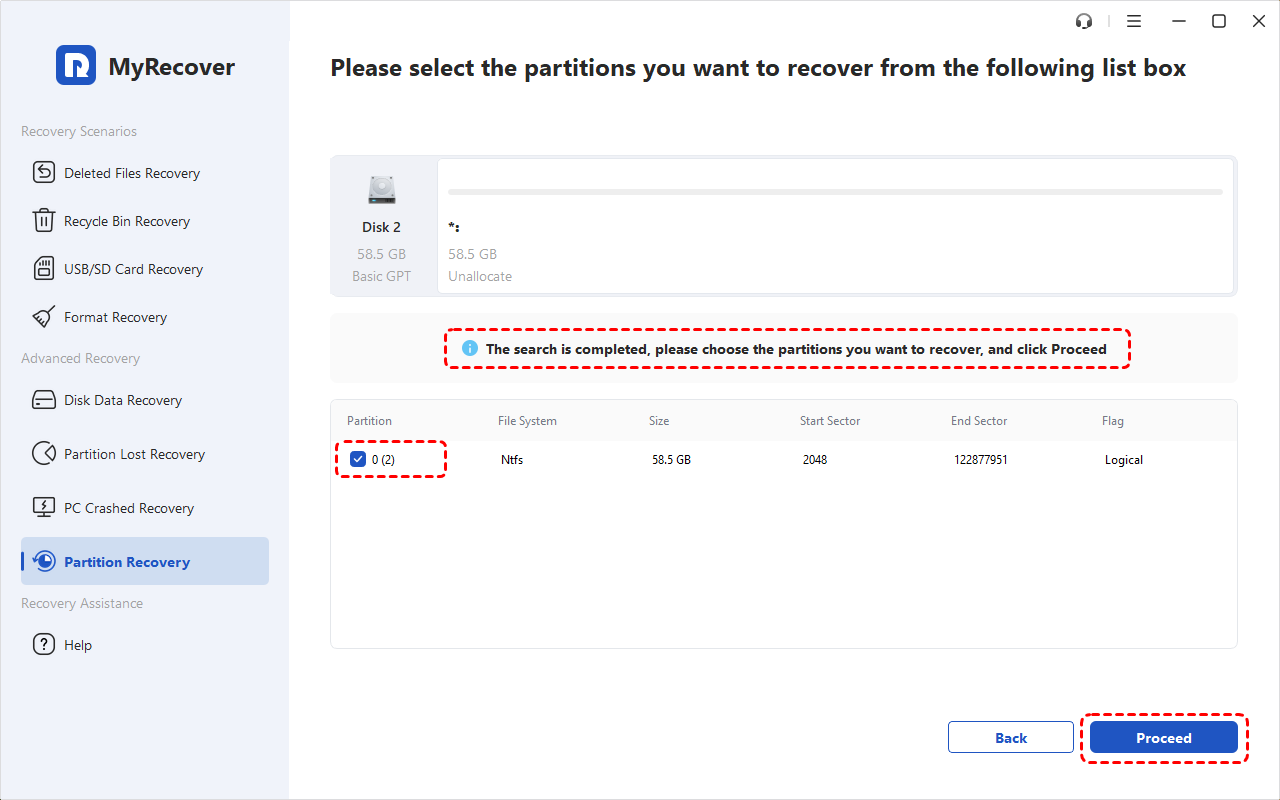
Step 3: Verify the found partition. Compare its size, file system, and position with the partition you lost, then select the matching result.
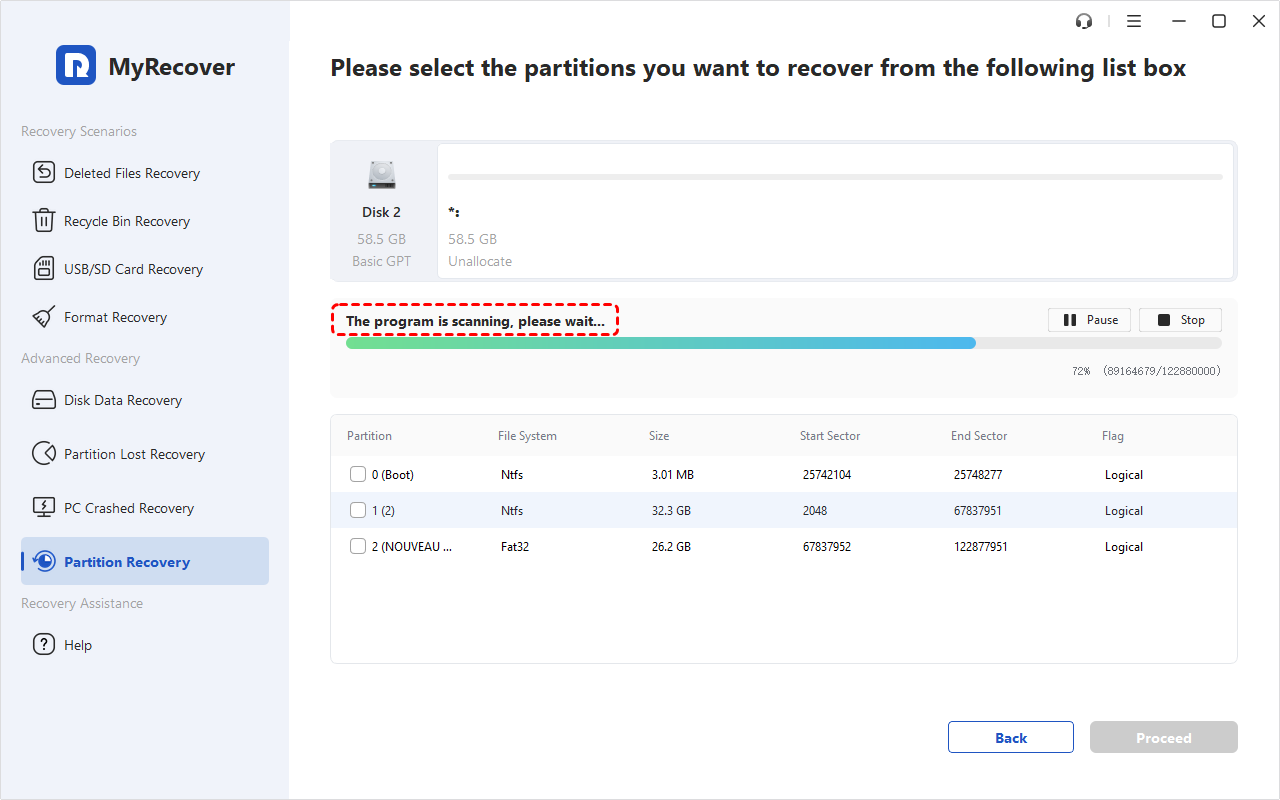
Step 4: Complete recovery and protect the files. Click Proceed, wait for completion, and select Finish. Once accessible, check important files and copy them to your separate backup drive before cleaning the source or retrying installation.
Recover Lost Files with MyRecover
If you need specific files, or setup has already changed the old partition layout, Deleted Files Recovery offers another approach. MyRecover searches the readable disk for recoverable contents, letting you narrow the results and preview supported files before saving them elsewhere. This is useful when retrieving work documents or family photos matters more than restoring the original volume. Some names or folders may be missing if their records were damaged, so examine the contents you find rather than relying only on familiar filenames in the results.
Step 1: Choose the source disk. Open Deleted Files Recovery, select the original internal disk rather than either USB drive, and start its scan. Use the displayed model and capacity to confirm the source.
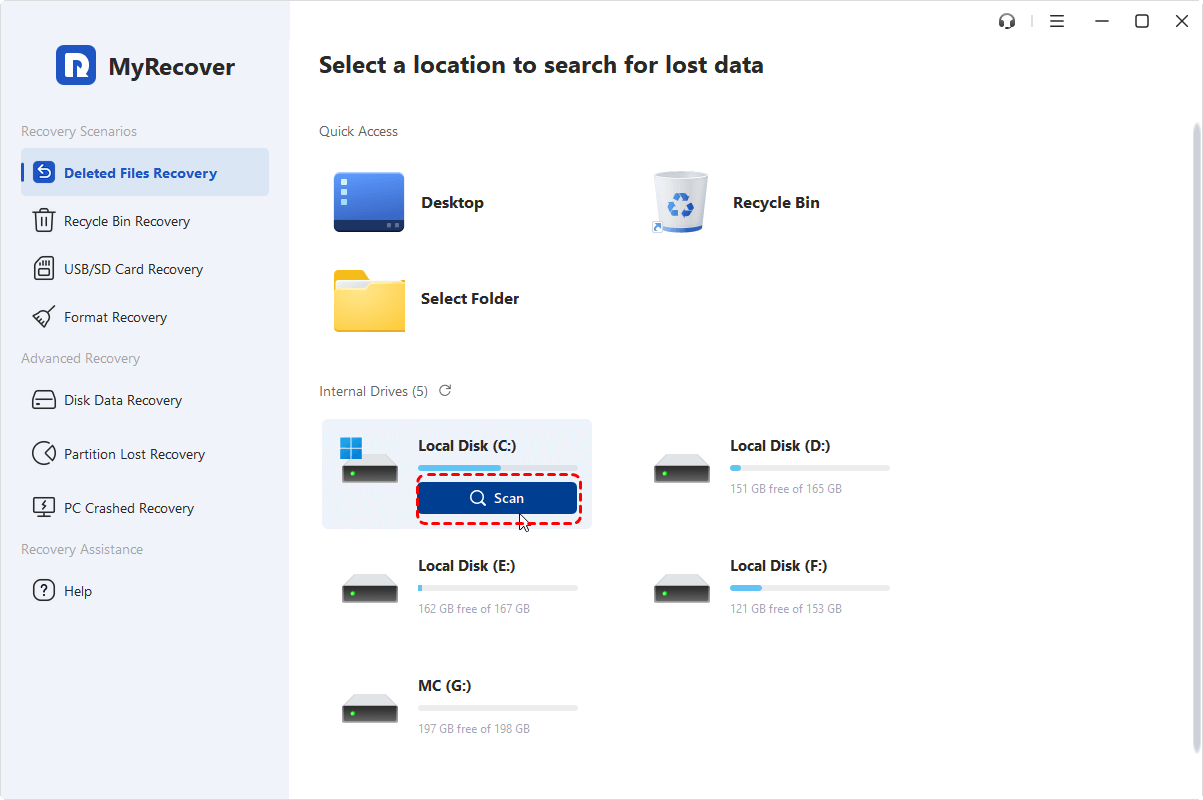
Step 2: Let the scan find recoverable files. Allow it to progress without disconnecting the source, and use a Deep Scan when the initial results are insufficient.
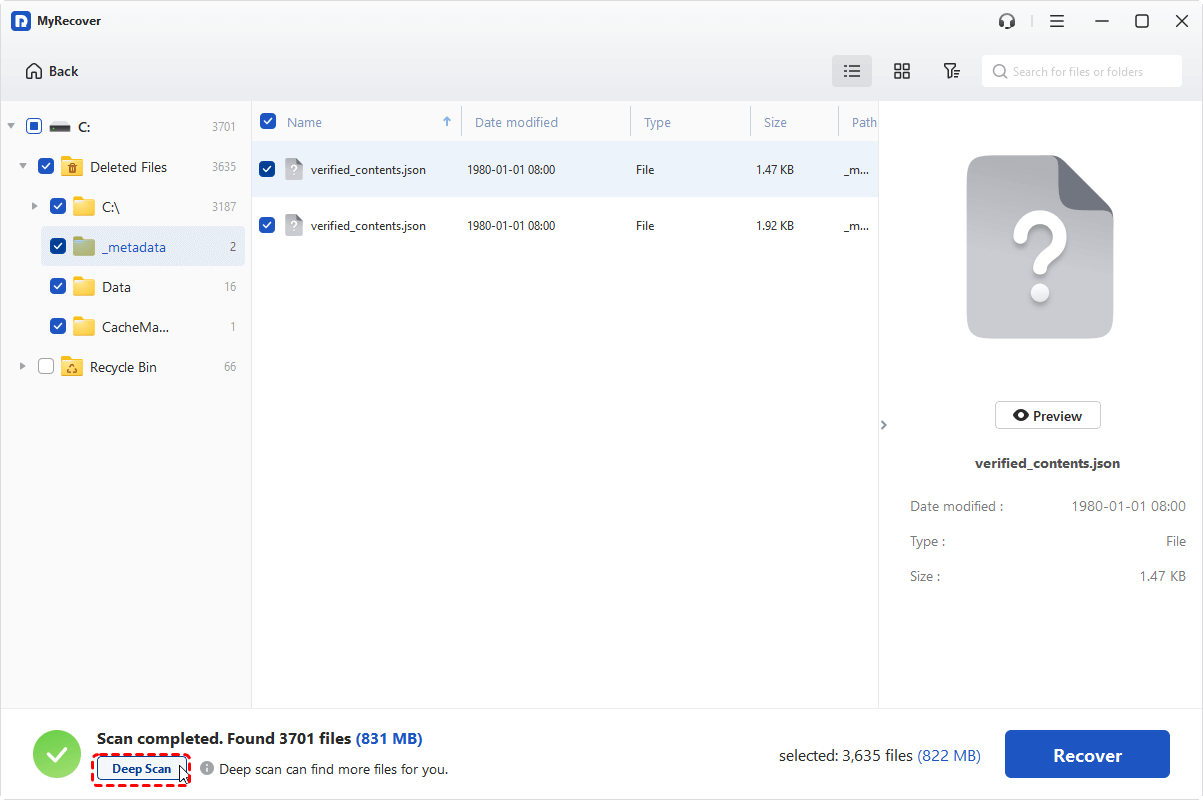
Step 3: Select the files you need. Search known names or use the available type, size, and date filters, then double-click supported files to preview them. Select the relevant items for recovery.
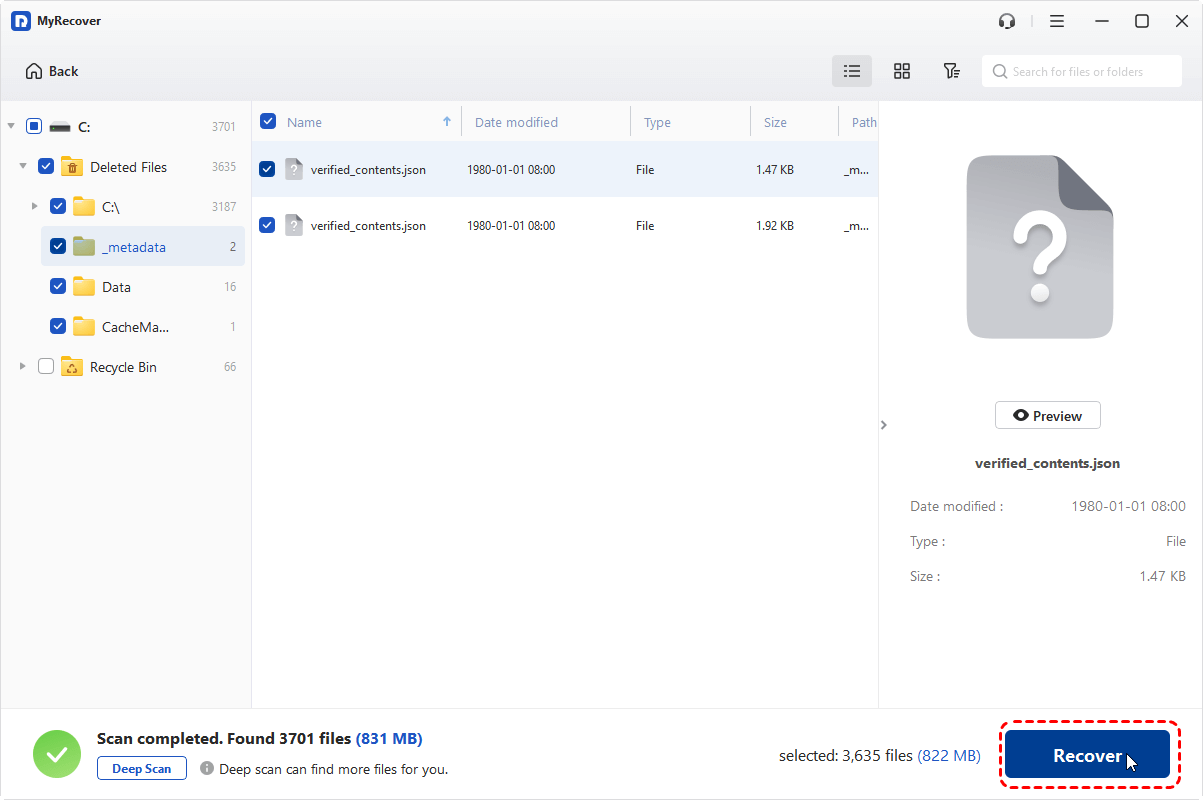
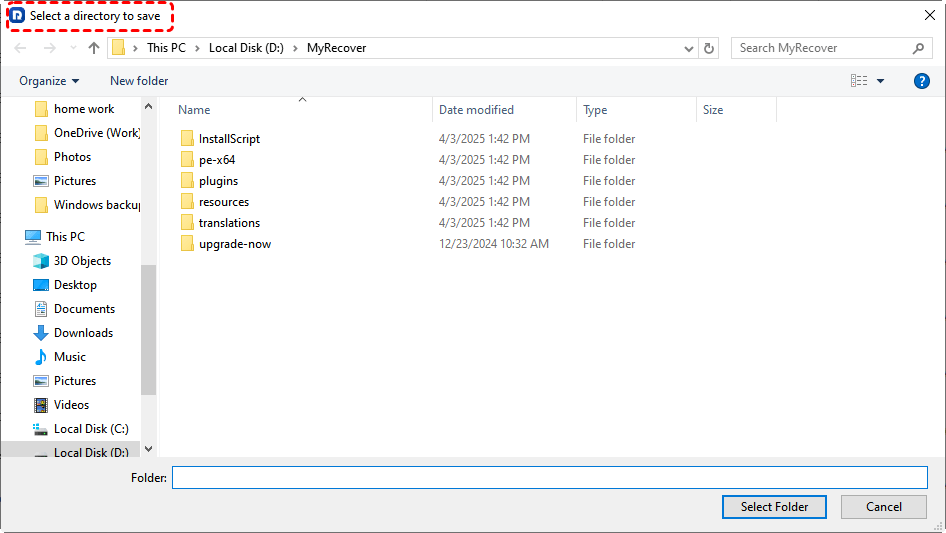
Step 4: Save to another physical drive. Click Recover, choose a folder on the separate destination drive, and confirm the location. Open the saved files to check their contents before you resume installation.
Neither recovery route can guarantee every file, especially after installation has overwritten the old space. Keep the verified recovered copies separate while you address the original setup failure.
Conclusion
When Windows cannot install required files, check the USB connection and recreate the installer before making destructive disk changes. Confirm the destination and space, then test memory or storage when the failure persists. Clean the target drive only when you are ready for a fresh installation and have protected its contents.
If partitions or files were lost during setup, recover what you need before continuing. For IT teams handling recovery across company computers, MyRecover Technician supports unlimited deployment and use within one organization.
Frequently Asked Questions
Does this error mean my SSD is failing?
No, this error alone does not establish that your SSD is failing. Damaged installation media, USB transfer problems, and unstable RAM can produce similar failures. Suspect the drive more strongly if it disappears, reports read errors, or fails the manufacturer's storage diagnostics.
Why does Windows installation fail at the same percentage?
Repeated failure at the same percentage can mean setup reaches the same unreadable or damaged portion of its installation source. It is a clue, not a diagnosis. Recreate the installer first; if a reliable replacement fails too, investigate memory and the destination drive.
Should I delete all partitions to fix this error?
No, deleting all partitions is not a necessary first response to this error. It removes access to existing data and cannot repair faulty installation media or RAM. Consider a clean disk layout only after checking those causes and verifying backups of everything you need.
Can faulty RAM cause “Windows cannot install required files”?
Yes, faulty or unstable RAM can cause this error because setup uses memory while processing installation data. A message about corrupt files does not identify where corruption began. Run an available memory diagnostic and follow the hardware manufacturer's guidance if it reports errors.
Can I recover files after running DiskPart Clean?
Possibly, files may remain recoverable after ordinary DiskPart Clean if their data has not been overwritten and the drive is readable. Stop further installation writes and assess recovery first. Clean All, subsequent formatting, installation activity, and SSD data reclamation can greatly reduce or eliminate recovery prospects.
Will CHKDSK or SFC fix this installation error?
Not necessarily; neither tool is a general fix for this installation error. SFC checks an existing Windows installation, while CHKDSK examines a volume's file system. They do not rebuild a defective installation USB or correct faulty RAM, and repair commands should match the diagnosed problem.
Can I fix this error without losing my files?
Yes, some causes can be resolved without erasing existing files, such as by replacing the installer or correcting a USB connection. That does not make every retry harmless. Back up accessible files first, and avoid formatting, cleaning, or deleting partitions that contain data you need.

Stay Updated With Our
Latest Tips
Add us as a preferred source on Google to never miss helpful guides.
 Add as preferred source >>