 MyRecover



Fixes: Windows Explorer 'USB Device Not Recognized' When Plugged In
When a USB device is plugged into a computer, Windows Explorer may continuously display the ‘USB Device Not Recognized’ error, preventing USB flash drives, external hard drives, mice, or keyboards from functioning properly. This article systematically introduces the common causes and provides multiple verified solutions to help users quickly resolve issues.

By Emma / Updated on March 12, 2026


Main Symptoms of "USB Device Not RecognizedWindows Explorer"
When you plug a USB device into your computer, but receive an error message or notification in the system tray stating: "USB Device Not Recognized: The last USB device you connected to this computer malfunctioned, and Windows does not recognize it", you typically experience one or more of the following issues in Windows File Explorer:
- The USB drive does not appear at all in "This PC" or "Computer," despite being physically connected.
- The drive appears with an unusual or generic name, such as "Unknown Device," "USB Device," or just its drive letter (e.g., Local Disk (F:)) without its proper label.
- The drive is visible but shows incorrect or zero capacity. For example, it might show "0 bytes used / 0 bytes free."

- Access blocked by an error prompt saying: "Location is not available. F:\ is not accessible. The device is not ready." or "You need to format the disk in drive F: before you can use it".
What Causes "USB Device Not RecognizedWindows Explorer"?
The error "USB Device Not Recognized" is a symptom of a communication breakdown between your Windows operating system and the connected USB device. This failure can stem from issues at various levels of your system's hardware and software. Based on common diagnostic findings, the primary causes can be categorized as follows:
1. Driver Issues
🔴Unstable or corrupt drivers for the USB device or host controller.
🔴Outdated motherboard/chipset drivers affecting USB host controllers.
2. System & Software Conflicts
🔴Incomplete or conflicting Windows updates.
🔴Power management settings putting USB devices into an unrecoverable suspend state.
3. Hardware & Power Problems
🔴Unstable or corrupt USB controller firmware/registry settings.
🔴Insufficient power supply to unpowered external drives.
🔴Damaged cables, loose ports, or faulty device hardware.
4. Drive-Specific Failures
🔴File system corruption, bad sectors, or improper ejection causing logical errors.
🔴Physical hardware failure of the storage device.
Effective Fixes for "USB Device Not Recognized Windows Explorer"
To resolve the "USB Device Not Recognized" error, we can begin with basic hardware checks before moving to software and system-level solutions.
Part 1: Basic Checks & Quick Fixes
These steps address the most common transient glitches and physical connection issues.
Reconnect & Inspect Physical Hardware
- This eliminates temporary poor contact, port failures, or insufficient power—the simplest and most frequent causes.
- Unplug the USB device and wait 10 seconds.
- Try a different USB port on your computer, preferably one directly on the motherboard (back of a desktop).
- Use a different USB cable if possible.
- Plug the device back in. Listen for the connection sound.
Restart Your Computer
A restart clears temporary system glitches, resets the USB driver stack, and can resolve conflicts caused by software or pending updates.
Save your work and close open applications. Perform a complete "restart" of your computer. After restarting, reconnect the USB device.

Part 2: Software & Driver Solutions
If the error "USB Device Not Recognized: The last USB device you connected to this computer malfunctioned, and Windows does not recognize it" still pops out after basic steps, the issue likely lies with drivers or system settings. Under this situation, try the following methods instead:
Update or Reinstall USB Drivers
Corrupted, outdated, or conflicting drivers are a primary cause. This process forces Windows to reload fresh driver software.
- Press "Win+X" and select "Device Manager".
- Expand "Universal Serial Bus controllers". Right-click on the entry with an error icon (like "Unknown Device") or generic names (e.g., *USB Mass Storage Device*), and select "Update driver" > "Search automatically for drivers".
- If that doesn't work, right-click again and choose "Uninstall device". And then click "Uninstall".
Restart your computer. Windows will automatically reinstall the driver upon reboot.
Install Your Motherboard's Latest Chipset Drivers
You can also visit your PC manufacturer's website to download and install the latest "Chipset Drivers". The chipset acts as the central nervous system of your motherboard, managing communication between the CPU, memory, and critical components like USB controllers. Outdated, missing, or corrupt chipset drivers can directly cause USB ports and devices to malfunction.
- Find Model: Open "System Information"(Press Win+R, input "msinfo32" and hit on Enter) and check "BaseBoard Product" or look for a sticker on your PC/motherboard.
- Get Driver: Go to your PC or motherboard maker's website (e.g., Dell, ASUS). Enter your model in the Support/Downloads section, select your OS, and download the Chipset Driver.
- Install: Run the downloaded .exe file and restart your computer.
Install the Latest Windows Updates
An outdated Windows operating system can have bugs, missing drivers, or compatibility issues that prevent Windows Explorer from correctly communicating with and enumerating USB hardware. Installing the latest updates ensures your system has all current fixes, security patches, and an updated driver library, which can directly resolve "Windows Explorer USBdevice not recognized" error.
- Press the "Windows key + I" to open Settings.
- Navigate to "Update & Security".
- Click the "Check for updates" button.
Windows will search for Quality Updates (fixes and security patches) and Feature Updates (major version upgrades). Allow it to download and install any available updates.
If the "USB Device Not Recognized" error appears after a recent Windows update, there are chances the update contains bugs or compatibility issues that break USB functionality. If so, you can uninstall the update.
Disable USB Selective Suspend
This power-saving feature can sometimes prevent a USB device from waking up properly, causing it to disappear.
- Press "Win+X" and go to "Power Options".
- Click "Additional power setting".
- Click "Change plan settings"> "Change advanced power settings".
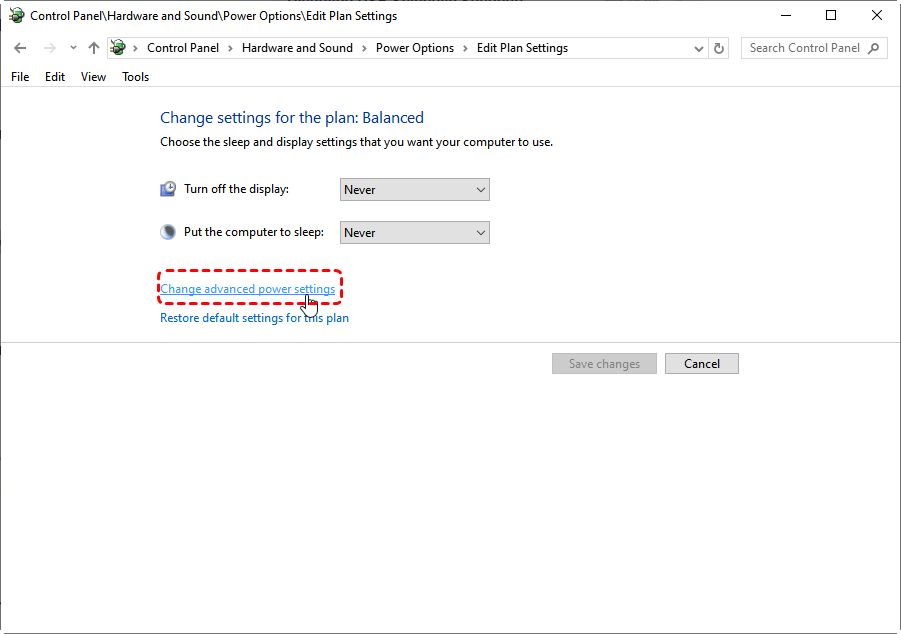
- In the Power Options dialog, expand "USB settings", then "USB selective suspend setting". Set to "Disabled".
- Click "Apply" and "OK", then restart your PC.
Part 3: Advanced System Troubleshooting
These methods address deeper system configurations and hardware conflicts.
Use the Windows Hardware & Devices Troubleshooter
This built-in tool can automatically detect and fix common hardware-related problems, including USB recognition issues.
- Go to "Settings"> "Update & Security"> "Troubleshoot".
- Select "Hardware and Devices" and click "Run the troubleshooter".
- Follow the on-screen prompts and apply any recommended fixes.
Clear Hidden USB Device History
Windows retains a registry of previously connected USB devices. Corrupted entries here can cause conflicts with current connections.
- In "Device Manager", click "View" and select "Show hidden devices".
- Expand "Universal Serial Bus controllers". You will see many grayed-out (ghosted) entries.
Carefully right-click and "Uninstall device" on every grayed-out entry, especially those labeled "USB Mass Storage Device" or "Unknown Device." Do not uninstall non-grayed-out, active controllers.
Part 4: Drive& Hardware Diagnostics
When software and driver fixes fail, the problem may lie with the storage device itself. This part is involves using built-in Windows tools to diagnose and repair logical errors on the drive.
Check and Repair File System Errors
File system corruption (where the drive's internal "table of contents" becomes damaged) is a common reason a USB drive is detected but shows as "RAW," prompts for formatting, or becomes inaccessible in Windows Explorer. The CHKDSK (Check Disk) utility scans the drive for these logical errors, and attempts to repair them, potentially restoring access to your data without requiring formatting.
- 🔎Check also: does CHKDSK deleted files?
- Press "Win+X" and Select "Command Prompt (Admin)".
- In the Command Prompt window, type the following command and press Enter:
chkdsk X: /f /r (Replace X: with the actual drive letter assigned to your problematic USB drive).
/f : Tells CHKDSK to fix any errors found.
/r : Locates bad sectors and recovers readable information (implies /f).
Reformat The USB Device
Reformatting should be considered the last resort when all other logical repairs (like CHKDSK) have failed. This method erases everything on the drive and creates a fresh, clean file system. It is the definitive solution for "USBdevice not recognized Windows explorer".
🏷️Crucial Warning: Data Loss
- Press "Win + X", choose "Disk Management". This opens the Windows Disk Management utility.
- In the lower panel, find your USB drive. It will likely be listed with a black bar showing "Unallocated" or with a blue bar but a corrupted file system like "RAW".
- Right-click it and select "Format"....
- 🔎Check also: What’s the Difference between quick format and full format?
- Click OK, and confirm any warnings.
After formatting completes, the drive should appear as a healthy volume with the correct capacity in Windows Explorer. You can now use it to store files again.
Although formatting will erase all data on the USB device, you can use FREE MyRecover to recover data from the formatted drive. As a powerful data recovery solution, this tool can retrieve over 1,000 different file formats from more than 500 types of storage media—including HDDs, SSDs, USB drives, SD cards, and cameras—covering over 500 distinct data loss scenarios.

 MyRecover
- ✅ Deep Scan Technology: Ensure successful recovery of the hardest-to-recover files.
- ✅ AI Empowered Recovery: AI-embedded file recognition & recovery algorithm makes easy use and 0 file omission.
- ✅ Safe: Read-only process protects original data.
- ✅ Cross-Platform Compatibility: Works on Windows 11/10/8.1/7 and Server 2025/2022/2019/2016/2012.
- ✅ High Success Rate: Industry-leading 98% recovery rate for deleted/lost files
 100% Secure
Closing Thoughts
As this guide has detailed, the root causeof "USB Device Not Recognized" error in Windows Explorer typically stems from a communication failure within the software drivers, system settings, or the hardware itself. By systematically progressing through these stages, you will efficiently isolate and resolve the specific issue, restoring seamless access to your USB devices and data.
If the last resort (reformatting) fails, either, this is a strong indicator of irreparable physical damage to the USB drive's storage components. At this point, the drive should be replaced for reliable storage. Before the replacement, you can also use MyRecover to recover data from this inaccessible drive.

Stay Updated With Our
Latest Tips
Add us as a preferred source on Google to never miss helpful guides.
 Add as preferred source >>