-
How to recover deleted Word documents?
Check the Recycle Bin first and restore the file if it is still there. If not, use File History
or a previous version backup in Windows. You can also use data recovery software to scan your
drive and restore deleted Word documents before they are overwritten.
-
How do I retrieve permanently deleted files?
Check if you have File History, OneDrive, or system backups enabled, then restore from there. If
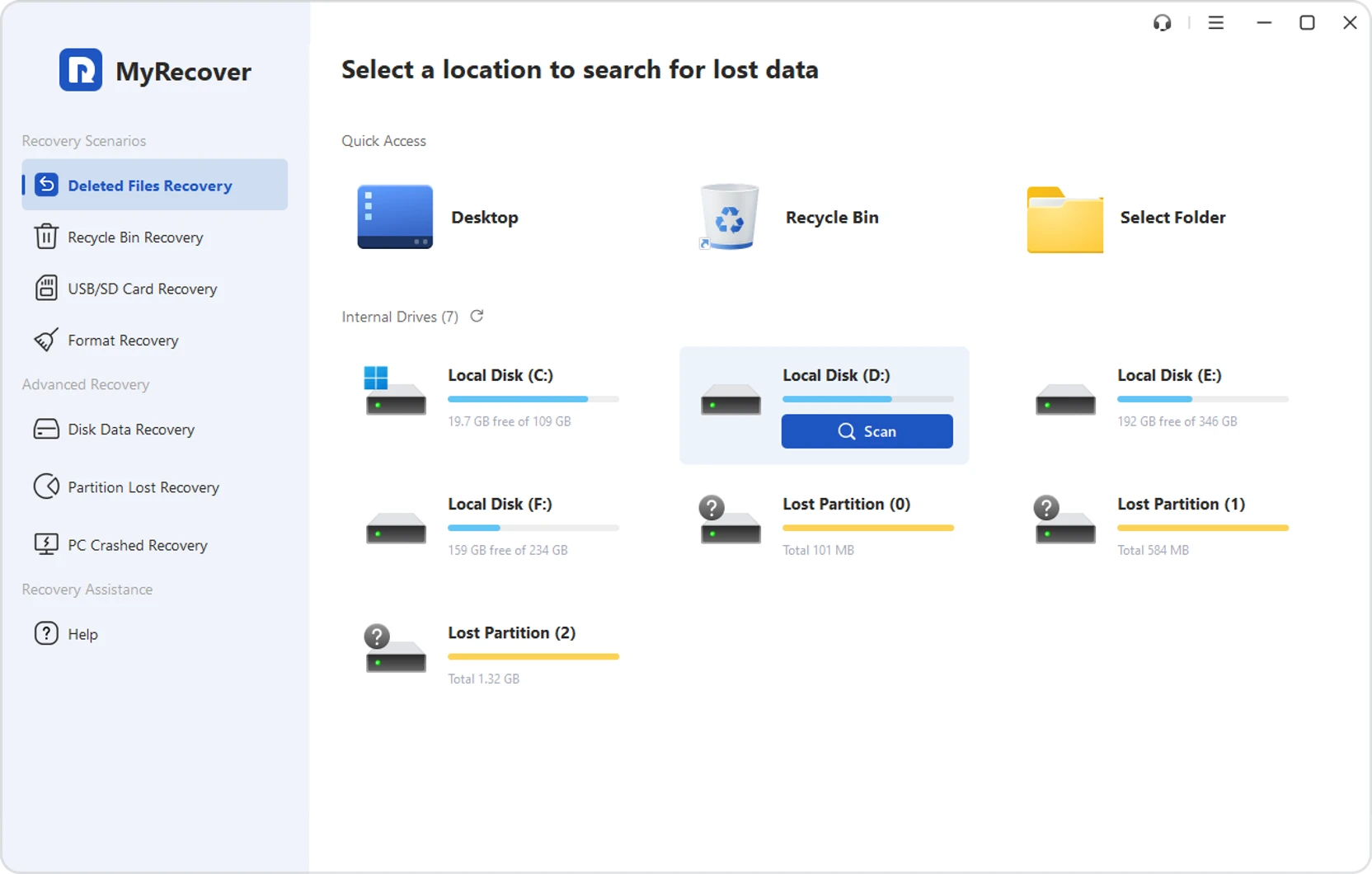
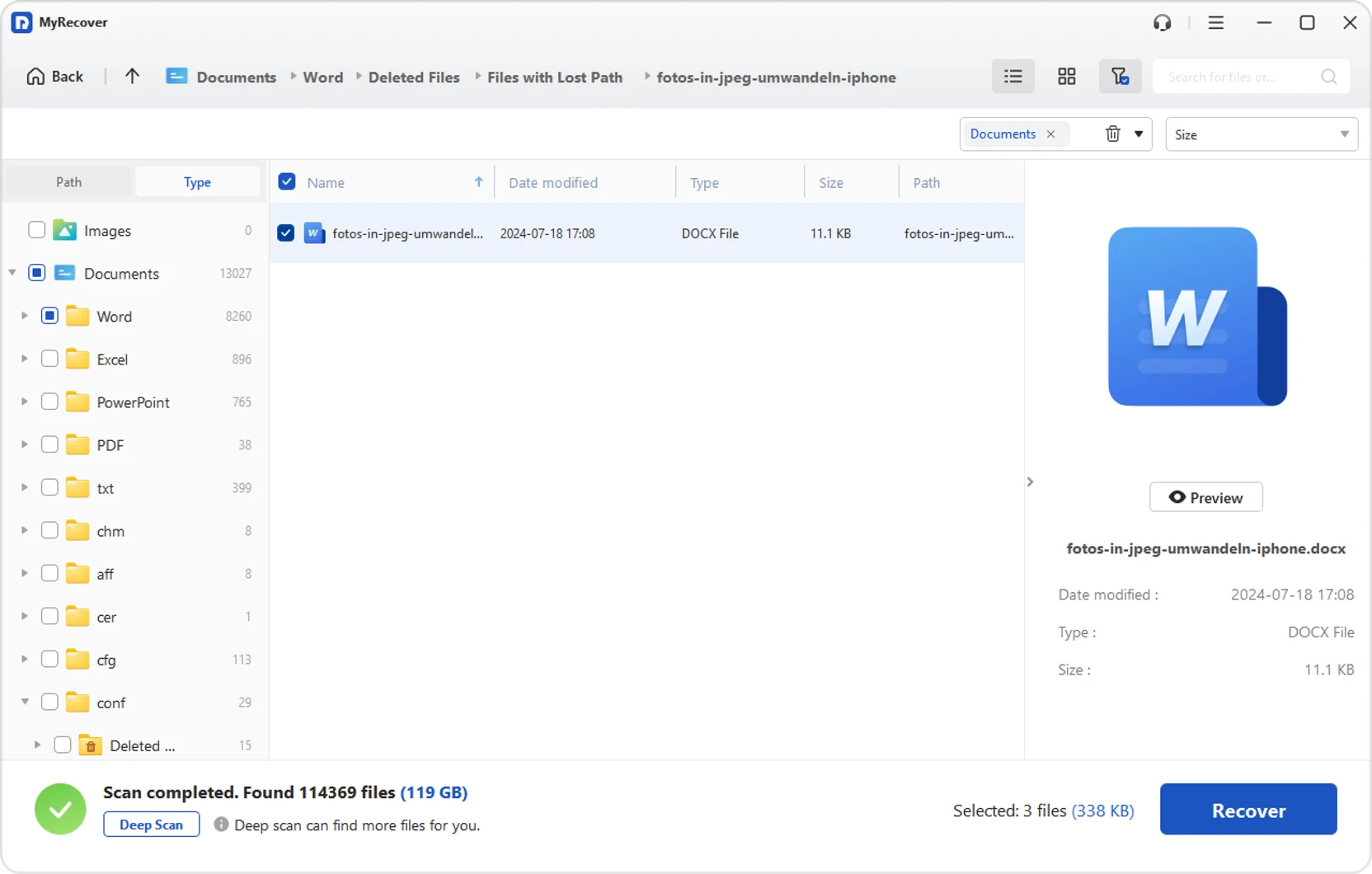
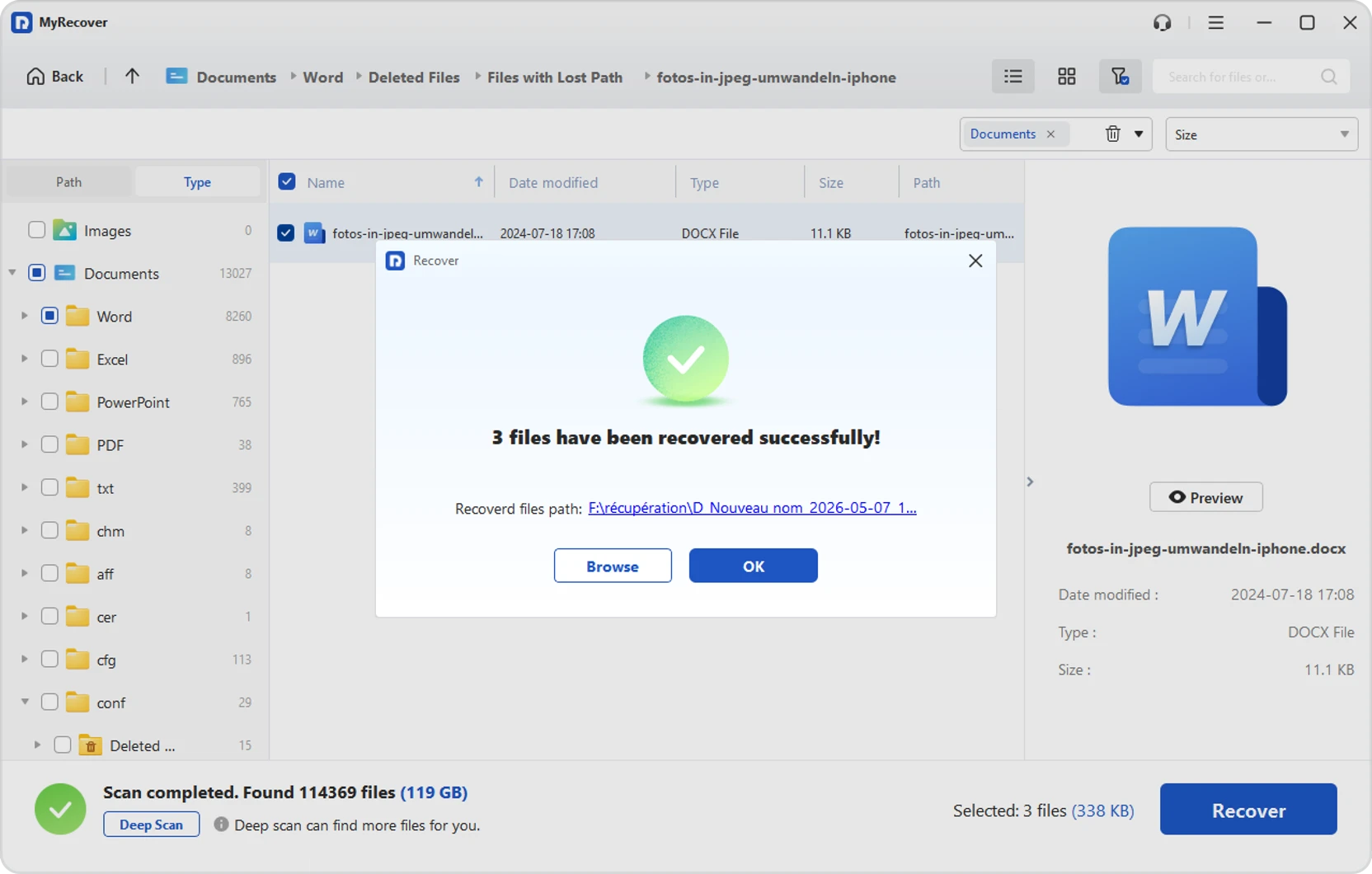
no backup is available, use data recovery software like MyRecover to scan the original drive.
Stop using the device immediately to avoid overwriting data and improve recovery chances.
-
How do I recover deleted documents from my computer?
Start by checking the Recycle Bin and restoring missing files. If the documents are permanently
deleted, try Windows backup options or run a recovery tool to scan your system drive. Tools like
MyRecover can help locate and restore deleted documents from local or external storage quickly.
-
How to recover deleted files if not in Recycle Bin?
If files are not in the Recycle Bin, they may be permanently deleted. Try restoring from File
History or previous versions. If unavailable, use a recovery tool like MyRecover to scan your
drive and locate deleted files from hidden or overwritten areas.
-
How to recover deleted Word documents Windows 10/11?
First check the Recycle Bin and restore the Word file if it is still available. If not, use File
History or Previous Versions in Windows 10/11 to recover earlier copies. You can also check
OneDrive if syncing is enabled. If no backup exists, use data recovery software to scan your
drive.
-
Can Ctrl+Z restore deleted files?
Yes, Ctrl + Z can undo a recent deletion if the action was just performed in File Explorer or on
the desktop. However, it only works immediately after deletion. Once the action is closed or
time has passed, you will need backup or recovery tools.
-
How to recover permanently deleted files without backup?
Without backup, your best option is data recovery software. Tools like MyRecover can deeply scan
HDDs, SSDs, or external drives to find permanently deleted files. Recover them quickly and save
to another location to prevent overwriting existing recoverable data.