 MyRecover



[Solved] A Driver (Service) for This Device Has Been Disabled (Code 32)
The error 'A driver (service) for this device has been disabled. (code 32)' indicates that a required driver service has been disabled, causing Windows to block the associated device from functioning. This article examines why the error occurs and outlines structured troubleshooting steps to resolve it. By following the methods described, you can ensure stable hardware operation on Windows systems.

By Aria / Updated on January 27, 2026


A Driver (Service) for This Device Has Been Disabled. (Code 32)
The error message "a driver (service) for this device has been disabled. An alternate driver may be providing this functionality. (Code 32)" is a Device Manager error that appears when Windows cannot load the required driver service for a specific hardware device. In practical terms, Windows error code 32 means that the affected device, such as a USB drive, CD/DVD drive, keyboard, or storage controller may stop working entirely or function inconsistently.
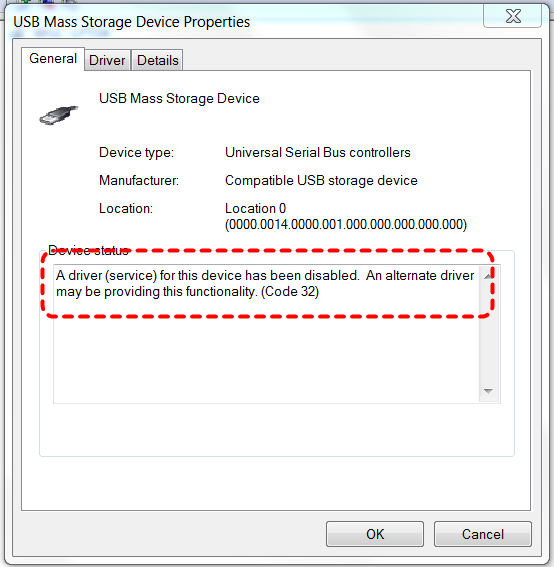
If this happens, you’ll see a yellow exclamation mark next to the device when you open Device Manager. This error will not only render the device unusable, but may also cause system malfunctions and data access issues. It is especially necessary to apply the correct fixes when the error is related to storage or controller drivers.
The Main Reasons Behind Windows Error Code 32
To fix code 32 error effectively, you first need to understand its root causes. In most cases, the error is not caused by hardware failure but by driver or configuration issues. Common reasons include:
- The start type for this driver is set to disabled in the registry,
- Corrupted, outdated, or incompatible device drivers,
- Incorrect registry entries, especially UpperFilters and LowerFilters,
- Driver services being disabled by third-party software,
- Incomplete Windows updates or failed driver installations,
- Conflicts between multiple drivers attempting to control the same device.
Important: Protect Your Data Before Fixing Code 32
Before applying any fixes, it is strongly recommended to secure your data. Some fixes, such as registry edits, driver reinstallation, or system restore can unintentionally affect file accessibility or even lead to accidental data loss, especially if the error involves storage devices. This is where MyRecover becomes essential.
It allows you to recover critical files from inaccessible drive, corrupted USB, deleted partitions without modifying the original data on the disk. Moreover, it is able to recover 1000+ file formats like images, videos, audios, design files, compressed files, etc.

 MyRecover
- 500+ Devices Supported | SSD, HDD, USB Flash Drive, SD Sard, etc.
- 1000+ File Formats Supported | PNG, MP4, MP3, TXT, ZIP, MSG, etc.
- 500+ Data Loss Scenarios | Deletion, Format, System Crash, Virus Attack, etc.
 100% Secure
Step 1. Download and install MyRecover on your computer from Microsoft Store, avoid installing it on the drive with code 32 error.
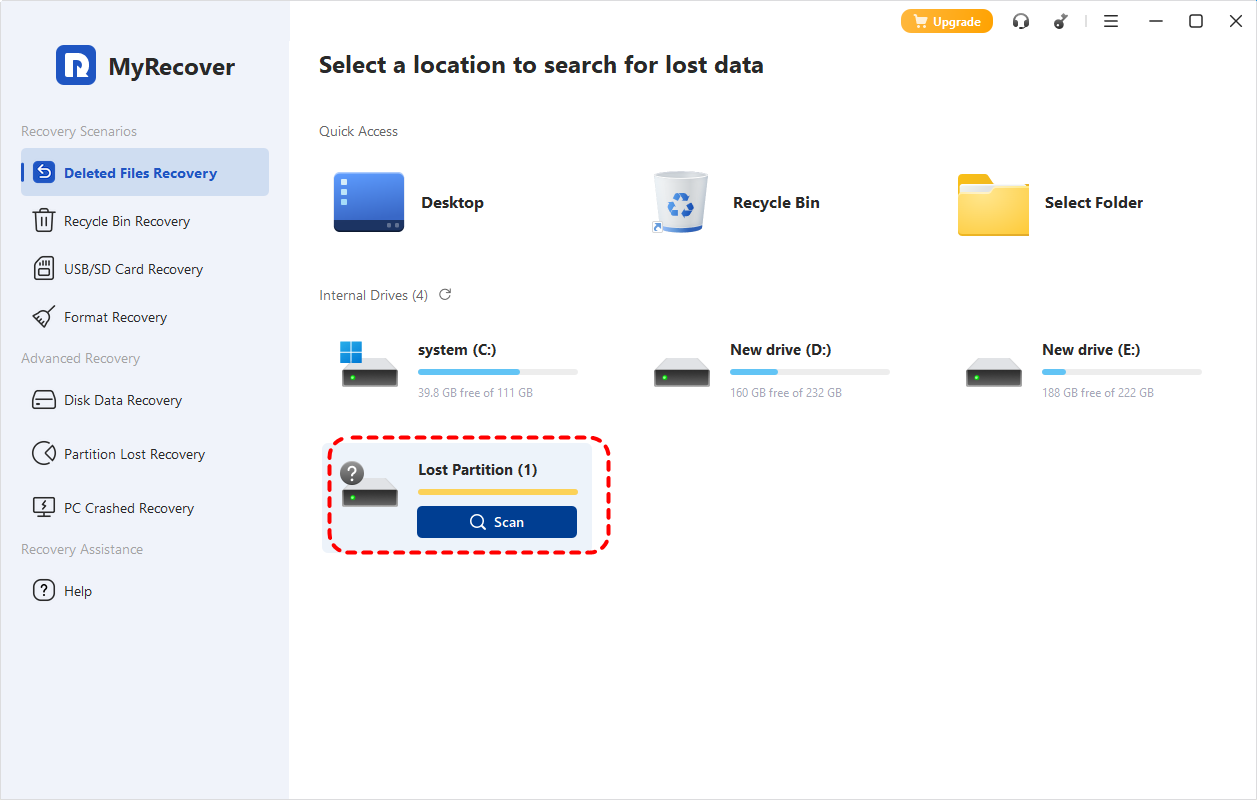
Step 2. Run the program and select the drive with code 32 error, then click "Scan" to search for recoverable files.

- Notes:✎...
- If you can’t locate the drive you’re looking for, it may be marked as a "Lost Partition" by MyRecover. You can identify the affected drive by checking its storage capacity.
-

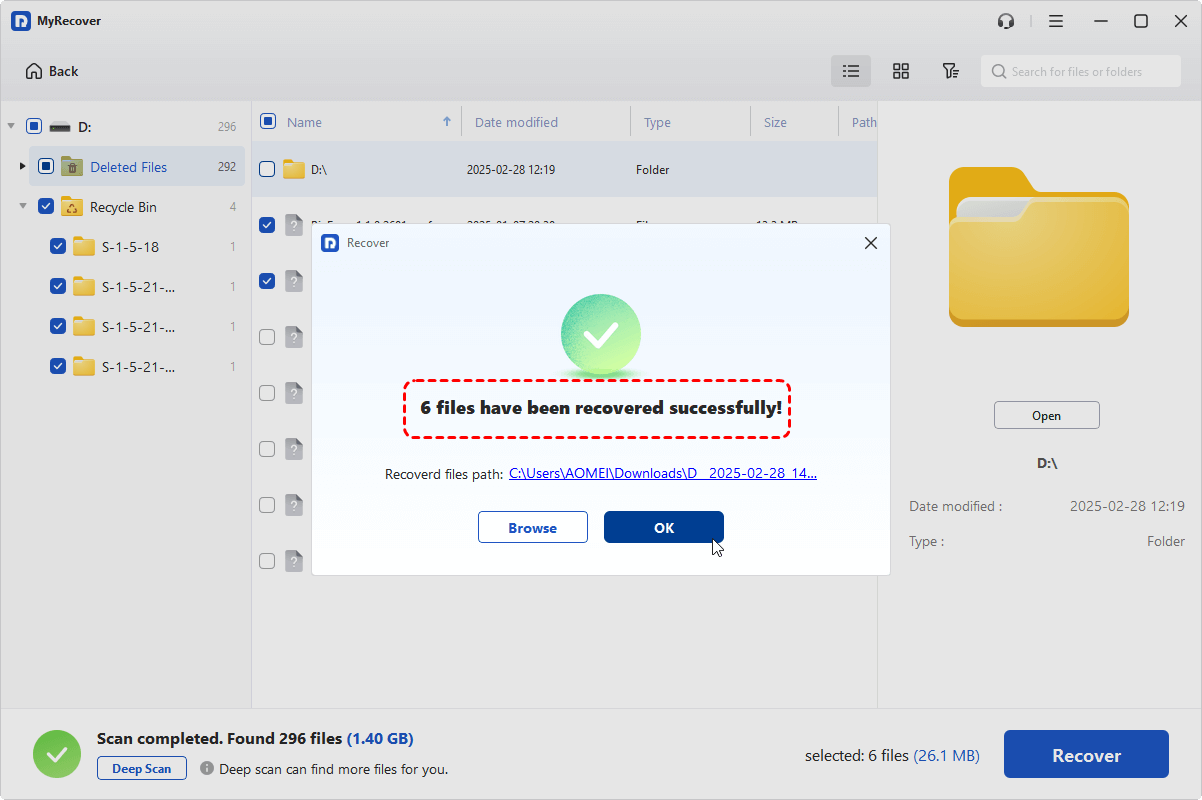
Step 3. After the scan is finished, choose the files you intend to recover from the recoverable lists and click "Recover". If you want to extract all files from this hard drive, simply select the "Existing Files" folders.

Step 4. Choose a safe location (not the original affected drive) to save the recovered files.

Once the process is done, you can access the recovered files by clicking on the destination folder path or the "Browse" button.
How to Fix the "A Driver (Service) for This Device Has Been Disabled (Code 32)" Error
Once the data security in the drive is guaranteed, the next priority is fixing the "a drive (service) for this device has been disabled (code 32)" error. This section outlines several effective methods to solve the issue. Let's explore them one by one.
Restart Your Computer
If this problem has never occurred before, the Code 32 error may simply be caused by a temporary hardware malfunction. A system restart may seem basic, but it can clear temporary driver conflicts and reload disabled services. Follow these steps to refresh your computer:
Step 1. Save all your open work and program.
Step 2. Click "Start" > "Power" > "Restart".

Step 3. After reboot, open Device Manager to check whether the device still shows Windows error code 32. If the error persists, move on to next fixes.
Update the Device Driver
Outdated or incompatible drivers are one of the most common triggers of Windows error Code 32. To rule out this possibility, you can try updating the device driver.
Step 1. Press "Win" + "X" and choose "Device Manager" to open it.

Step 2. Expand "Disk drives" or "Portable devices" and right click on the problematic drive, then choose "Update driver".

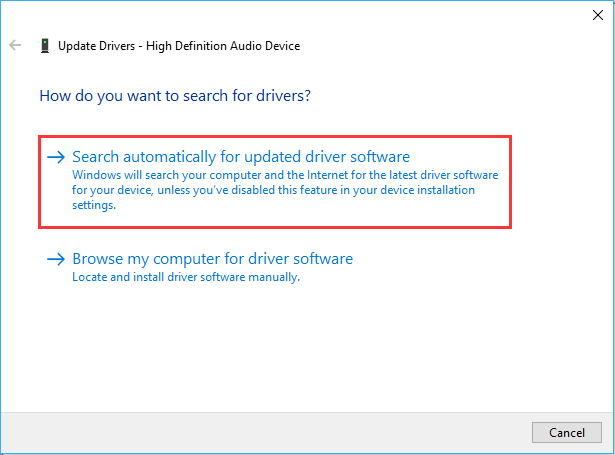
Step 3. Click "Search automatically for updated driver software" to continue the process.
Reinstall the Device
If the faulty removable drive is a USB drive, reinstalling the USB device will properly reset its start type in the registry. This method is especially effective for USB drive.
Step 1. Open Device Manager like described above.
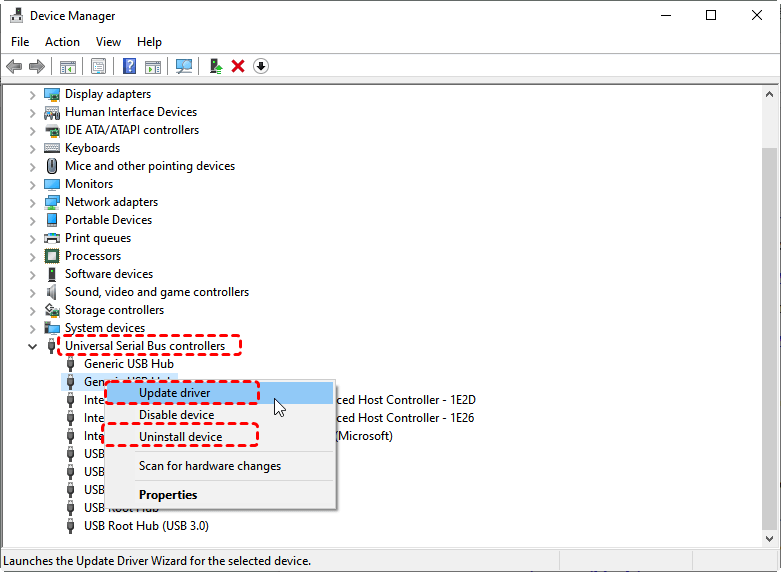
Step 2. Expand "Disk drives" and locate the faulty USB, then right click on it and choose "Uninstall device".

Step 3. Restart your computer and Windows will automatically reinstall the USB drive.
If the problem is still here, uninstall each device under the "Universal Serial Bus controller" using the same method.
Roll Back the Driver
If the error appeared after a recent driver update, rolling back to a previous driver version can restore stability, then check if the Windows error code 32 disappears.
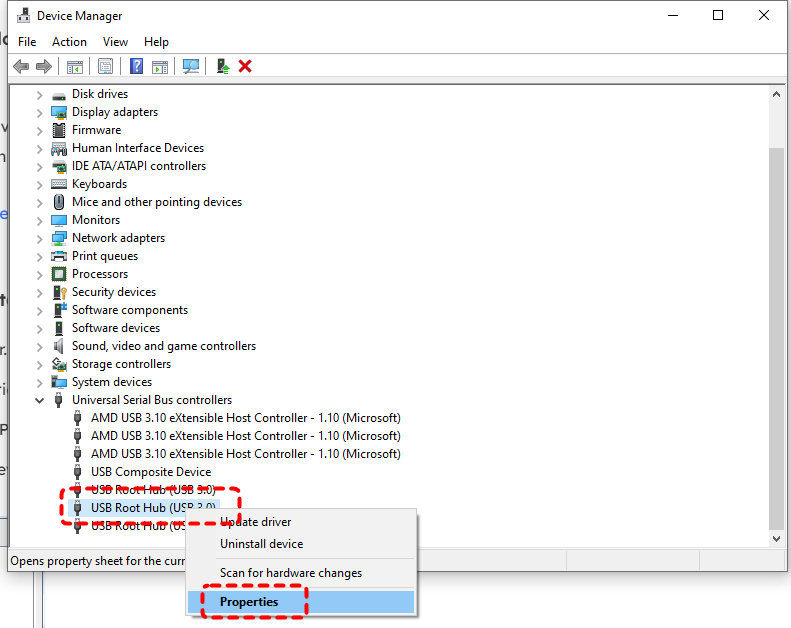
Step 1. Open Device Manager and located the affected drive, then right click on it and choose "Properties".
Step 2. Under the "Driver" tab, click "Roll Back Driver".
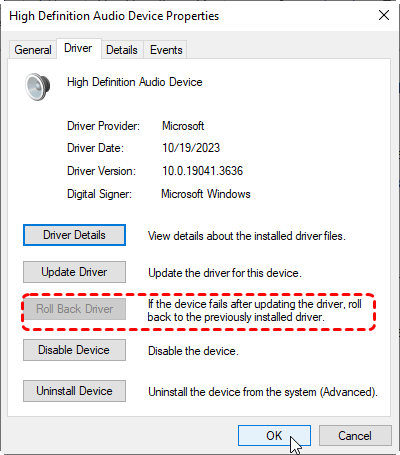
Step 3. Select why you need to roll back the device driver and click "OK" to start the process.
Delete the UpperFilters and LowerFilters Registry Keys
Corrupted filter drivers in the registry frequently cause Code 32 errors, particularly with storage and optical drives. Deleting the corrupted driver stack of the affected drive may resolve this Windows error code 32.
Step 1. Open Device Manager and locate the faulty drive, then right click on it and choose "Properties".
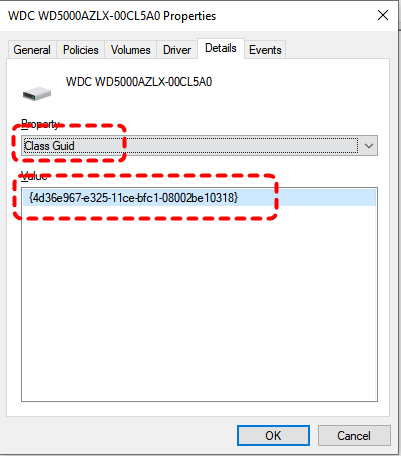
Step 2. Under the "Details" tab, choose "Class GUID" in the drop-menu and note its GUID key.
Step 3. Press "Win" + "R" and enter "regedit" in the Run dialog, then press "Enter".
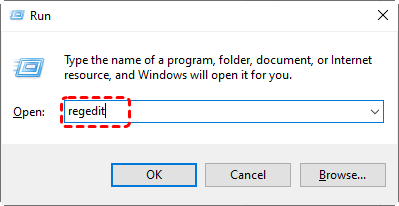
Step 4. Navigate to the following path:
HKEY_LOCAL_MACHINE\SYSTEM\CurrentControlSet\Control\Class.
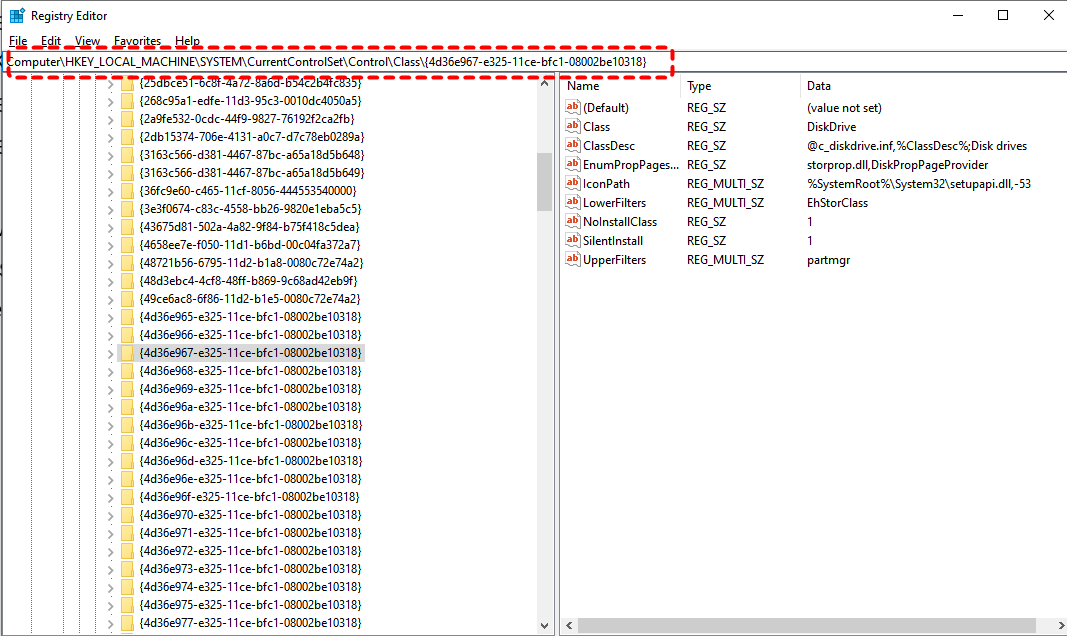
Step 5. Locate the correct driver GUID key and double click on it.
Step 6. In the left panel, right click on the "LowerFilters" and "UpperFilters" and click "Delete" to delete both entries.
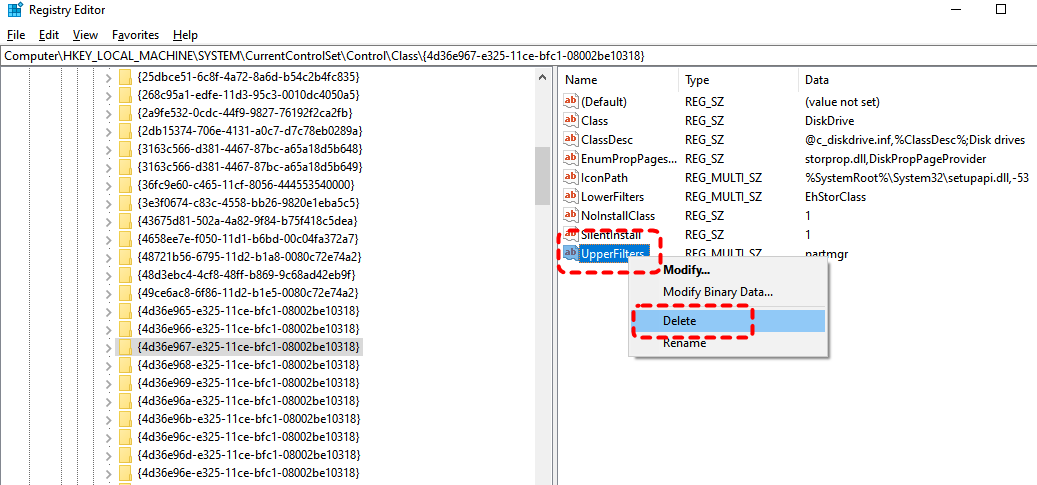
Then, restart your computer to check if the "a driver (service) for this device has been disabled (code 32)" error continues.
Change Start Value Data
In some cases, a device driver or related service fails to load because its startup configuration is incorrectly set in the Windows registry. By adjusting its value for the corresponding service, you can re-enable disabled drivers and resolve issues such as Code 32.
Step 1. Press "Win" + "R" and input "regedit" in the Run dialog, then click "OK".
Step 2. Go to the following path:
HKEY_LOCAL_MACHINE\SYSTEM\CurrentControlSet\Services\USBSTOR.
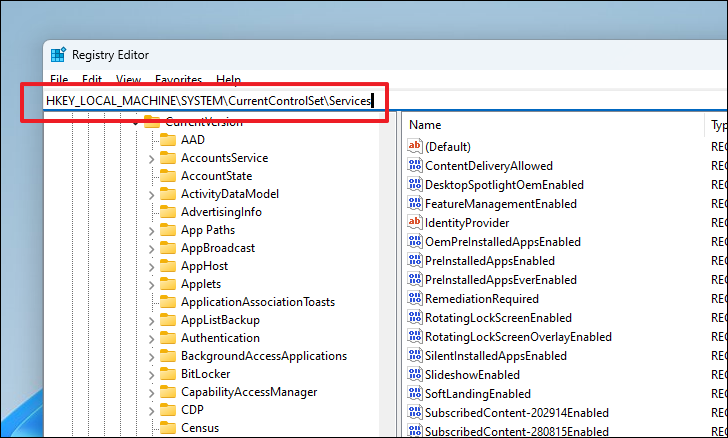
Step 3. Double click "Start" entry in the right panel.
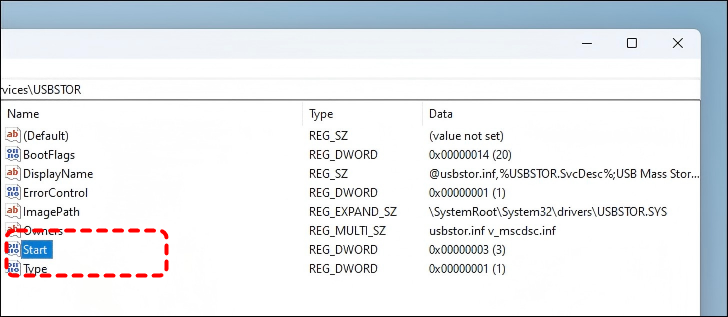
Step 4. Change the value data to "3" and click "OK".
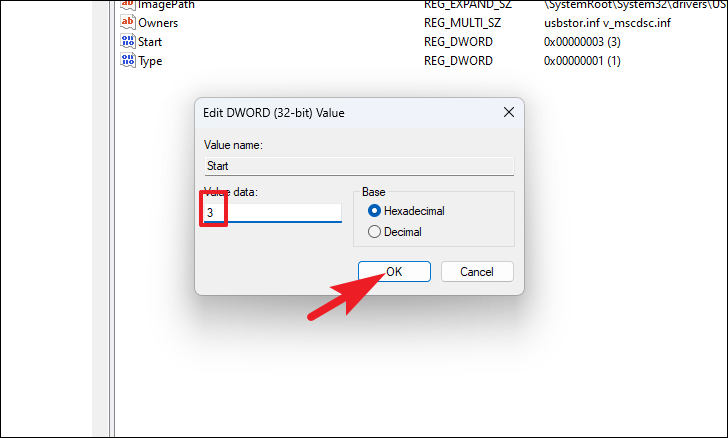
Close Registry Editor and restart your computer to see if the error code 32 is still here.
Perform System Restore
If this error emerged recently, you can use System Restore to revert your computer to its previous working state, provided you created a restore point beforehand. This method won’t affect any of your personal files, but programs installed after the restore point was created will be removed.
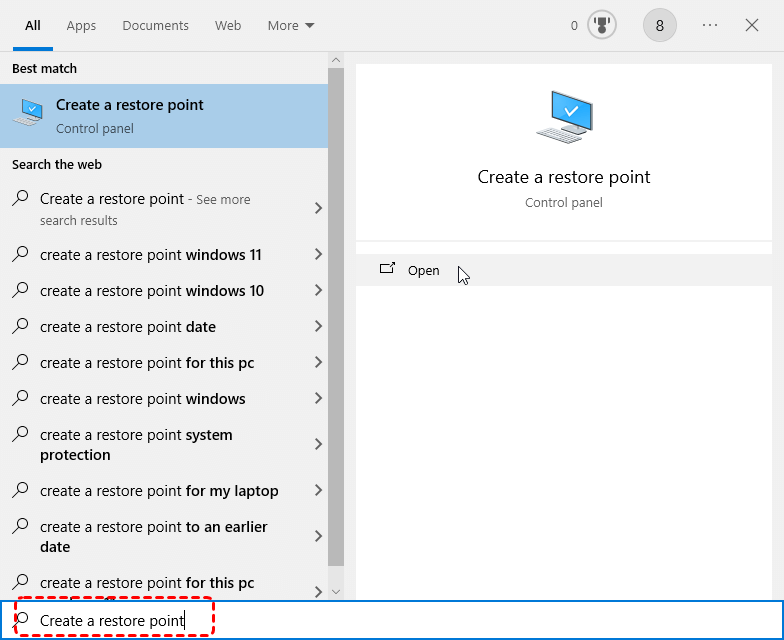
Step 1. Type "Create a restore point" in the Start menu and open it.
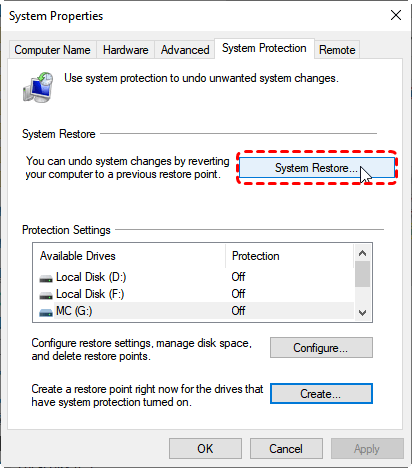
Step 2. Click "System Restore" under the "System Protection".
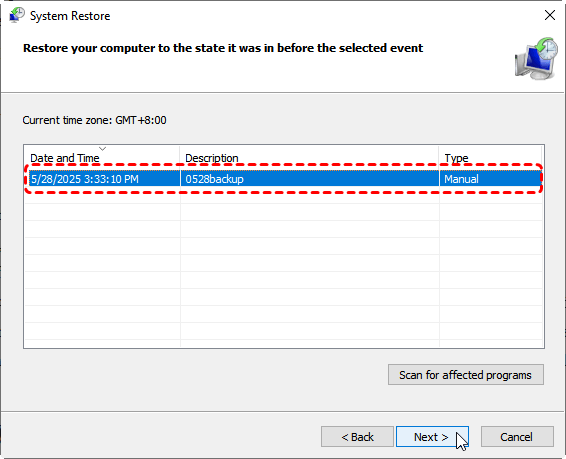
Step 3. Choose a desired restore point and click "Next". You can check the affected programs by clicking on "Scan for affected programs".
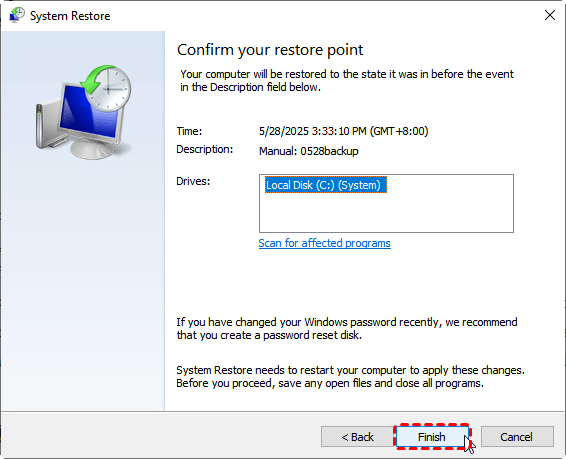
Step 4. Confirm your restore point and click "Finish" to start the process. During this process, ensure a stable power connection to prevent interrupting the System Restore procedure.
Replace the Failed Device
If none of the above methods resolve the Windows error code 32 and the same problem occurs on other devices, it may be due to physical damage to the drive. In this case, you might need to replace it with a brand-new hard drive.
Summary
The error "a driver (service) for this device has been disabled. (code 32)" can disrupt hardware functionality and prevent devices from working correctly. By securing your files first and then following the troubleshooting process, you can safely resolve Windows error code 32.
When data protection or recovery is needed, MyRecover provides a dependable safeguard, ensuring that even complex hardware-related errors do not result in permanent data loss. Upgrade to MyRecover Professional edition, and you can enjoy unlimited data recovery capacity and file content preview before restoration. It even allows data recovery from dead laptop.

Stay Updated With Our
Latest Tips
Add us as a preferred source on Google to never miss helpful guides.
 Add as preferred source >>