 MyRecover



Fix: Files Saved to Desktop Not Visible on Windows 10/11
Are files saved to desktop not showing up after a restart or update? This guide explains why desktop files disappear, from hidden settings to sync conflicts, and walks you through clear, practical steps to locate, restore, and prevent missing files easily.

By Vera / Updated on April 27, 2026


Understanding the "Files Saved to Desktop Not Visible" Issue
Files saved to desktop not showing.
Hey everyone, since a few days different types of files (mostly 3mf and stl) don't show when saved to the desktop. When I open a folder and go into desktop, all files are there, but not visible on screen.
My workaround since then is to move them from the desktop folder into another folder, but this is stating to get pretty annoying.
- Question from Reddit
Whether you are encountering files saved to desktop not visible on Windows 11 or a previous version, the panic is the same. When desktop files don’t appear, it usually means Windows is failing to display them—not that they’ve vanished forever. Think of your desktop like a bookshelf. The books are still there, but someone rearranged the lighting. This issue can appear suddenly after Windows updates (such as updating Windows 10 to 11), OneDrive changes, or even a simple misclick.
Why This Problem Happens So Often
Modern Windows systems rely on multiple background services such as Windows Explorer, user profiles, and cloud sync tools. When one part changes or fails, desktop visibility can break without warning.
This problem commonly affects:
- Users who store many files on the desktop.
- PCs with OneDrive Desktop sync enabled.
- Systems with multiple user accounts.
- Devices that recently updated Windows.
Common Reasons Files Saved to Desktop Are Not Visible
Understanding the root cause helps you fix the issue faster.
- Desktop Icons Are Hidden: Windows has a setting to hide all desktop icons. If disabled, your files exist on the drive but are visually hidden.
- Conflicting Desktop Paths: Windows often juggles multiple desktop locations (Local, OneDrive, or Temporary profiles). You may be saving to one while viewing another.
- Display Refresh Lag: Windows Explorer sometimes fails to update the desktop view immediately after a file is saved or downloaded.
- Windows Explorer Errors: If the Explorer process crashes or stops responding, desktop icons may disappear until the process is restarted.
- OneDrive Sync Issues: OneDrive may move files to "cloud-only" status, pause syncing, or redirect the file path, making local files appear missing.
- Corrupted User Profile: A damaged Windows user profile can prevent the desktop environment from loading your files and shortcuts correctly.
- Accidental Relocation: Files are frequently moved into nearby folders or deleted by mistake through accidental dragging or sorting.
How to Fix Files Saved to Desktop Not Visible (Step-by-Step)
If you can see your files in File Explorer but they refuse to appear on your actual wallpaper, follow these methods. We start with visual settings and move toward deeper system configurations.
Fix 1: Re-enable"Show Desktop Icons"
Windows has a "Master Switch" for the desktop UI. Sometimes, a software glitch or an accidental click in the right-click menu can toggle this off. This method doesn't move files; it simply instructs Windows to start rendering the "Desktop Layer" again.
1. Right-click any empty area on your desktop.
2. Hover over View.
3. Ensure Show desktop icons has a checkmark next to it. If not, click it.
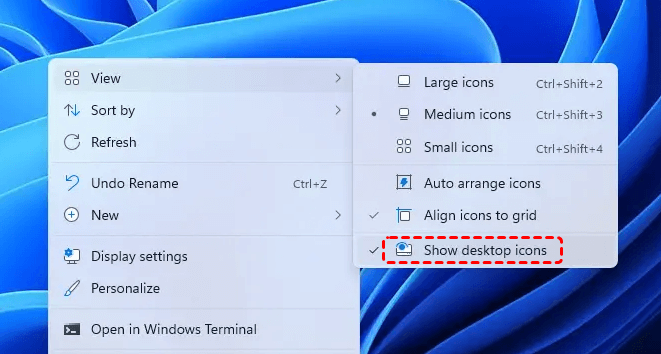
4. Check whether your files reappear.
It refreshes the shell’s visibility attribute, instantly bringing back all hidden shortcuts and files. If they do, the issue is resolved—no further steps needed.
Fix 2: Force-Refresh the Desktop Interface
Windows uses a "Notify" system—when a file is added to a folder, the folder tells the UI to update. If this notification fails, the file exists but the icon isn't drawn. Manually refreshing forces the system to re-scan the folder's contents.
1. Right-click on an empty space on the desktop.
2. Click Refresh.
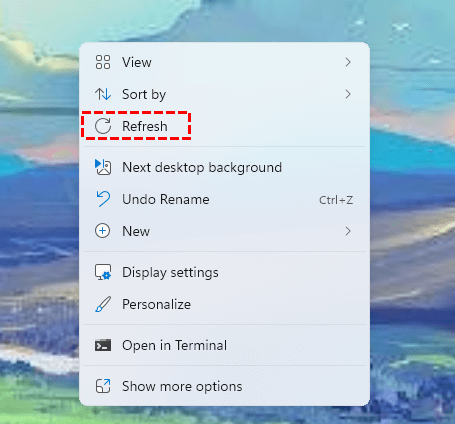
3. Wait a few seconds
This forces the Windows Shell to re-synchronize the visual display with the actual contents of the C:\Users\Username\Desktop directory.
Fix 3: Restart the Windows Explorer Process
Explorer.exe is the process that manages the Taskbar, Start Menu, and Desktop. If it becomes "stale" or hits a memory error, it stops updating the desktop. Instead of a full reboot, restarting just this process can solve the problem of files saved to desktop not visible on Windows 11 or Windows 10.
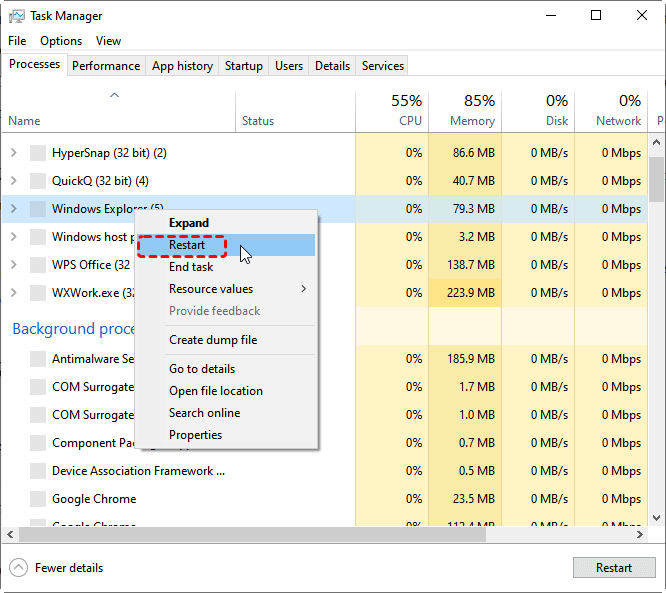
1. Press Ctrl + Shift + Esc to open Task Manager.
2. Click More details (if necessary) and find Windows Explorer in the list.
3. Right-click it and select Restart.
Fix 4: Search and Verify File Location
Sometimes files aren't "invisible"—they are simply in a different place than you think. This method uses the Windows Indexing service to find the physical path of the missing file to see if it’s being saved to a "hidden" desktop folder created by a different user profile.
1. Press the Windows Key and type the name of the missing file.
2. In the search results, select Open file location.
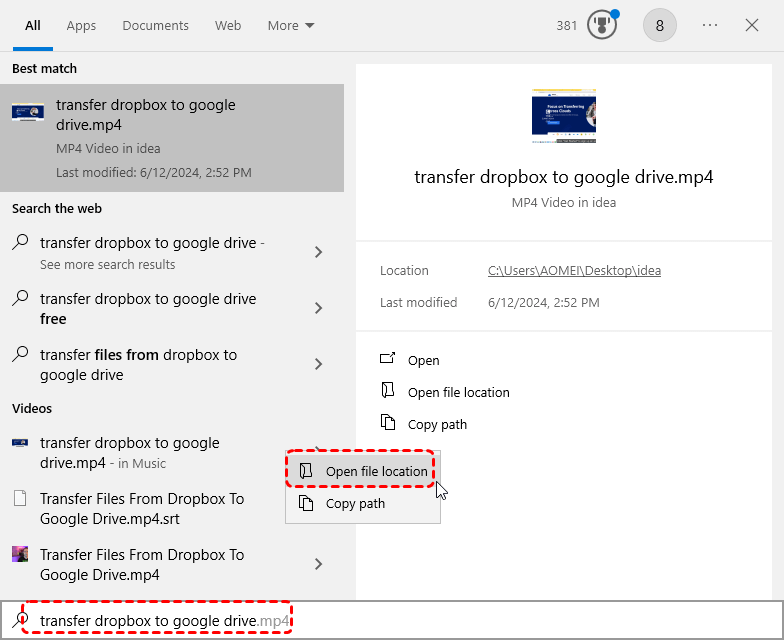
3. Check the address bar in File Explorer. Is it C:\Users\YourName\Desktop or a OneDrive path?
4. If the path is different, your browser/app is saving to a different directory than the one displayed on your screen.
Fix 5: Align OneDrive Sync Settings
OneDrive often "hijacks" the Desktop folder to provide cloud backups. If OneDrive encounters a sync error or if "Files On-Demand" is enabled, the file may exist in the cloud but the local "placeholder" icon may fail to appear on your desktop. This is a primary cause for files saved to desktop not visible on Windows 10/11 users who use Microsoft accounts.
1. Click the OneDrive (Cloud) icon in your system tray (near the clock).
2. Click the Gear icon > Settings.
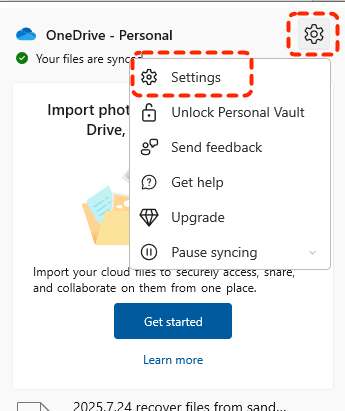
3. Go to Sync and backup > Manage backup.
4. Check if "Desktop" is toggled On. If files are missing, try toggling it Off to see if they reappear in your local (non-cloud) desktop folder.
This often reveals sync-related conflicts instantly.
Fix 6: Show Hidden Files and Folders
Some applications or system glitches may apply a "Hidden" attribute to your files. If Windows is set to hide these items, they will be invisible on the desktop even though they technically exist there.
👉How to fix it (Windows 11):
1. Open any folder or File Explorer.
2. Click View in the top toolbar.
3. Select Show > Hidden items.

👉How to fix it (Windows 10):
1. Open File Explorer.
2. Click the View tab at the top.
3. Check the box for Hidden items.
If your files appear with a "faded" look, right-click them, select Properties, and uncheck the Hidden box under the General tab to make them permanently visible. If you encounter the error "show hidden files and folders not working in Windows 10/11", you'll have to try other solutions.
Fix 7: Check if You Are in a "Temporary Profile"
If you restarted your computer and suddenly everything is gone—your wallpaper, your files, and your browser icons—you might be logged into a Temporary Profile. This happens when Windows encounters an error loading your actual user account.
1. Go to Settings > Accounts > Sync your settings.
2. If you see a message saying "You are logged on with a temporary profile," restart your computer immediately.
3. Sometimes it takes 2-3 restarts for Windows to successfully load your real profile. Once back in your real profile, your desktop files should return.
Fix 8: Rebuild the Windows Icon Cache
If you can see the file name but the icon is a blank white sheet, or if the file simply refuses to render, your Icon Cache might be corrupted. Windows stores these tiny images to speed up loading, but they can break after a system update or crash.
How to fix it (Using Command Prompt):
1. Type cmd in the Start search bar and select Run as Administrator.
2. Type the following commands one by one, pressing Enter after each:
-
cd /d %userprofile%\AppData\Local\Microsoft\Windows\Explorer
-
attrib –h iconcache_*.db
-
del iconcache*
-
start explorer
3. Your desktop will reload, and the cache will be rebuilt from scratch.
Fix 9: Run the System File Checker (SFC)
If files are consistently not appearing, there may be a corruption in the Windows system files responsible for managing the shell (the user interface).
How to fix it:
1. Open Command Prompt as an Administrator.
2. Type sfc /scannow and press Enter.
3. Windows will scan for corrupted files and attempt to repair them. This process can take 5–10 minutes. Once finished, restart your computer.
Fix 10: Check Your Antivirus Quarantine
In rare cases, an overzealous Antivirus (AV) program might mistake a newly saved file for a threat and "quarantine" it immediately upon saving. Because the file is moved to a secure vault, it disappears from the desktop.
How to fix it:
1. Open your Antivirus software (e.g., Windows Defender, Norton, Bitdefender).
2. Look for a tab labeled Protection History, Quarantine, or Threats.
3. If you see your file listed there, and you know it is safe, select Restore or Exclude.
How to Recover Desktop Files If They Are Truly Missing
If you’ve checked the folders manually and the files are not in the Desktop folder or the OneDrive folder, they may have been deleted due to a system crash, a "Clean Up" utility, or an accidental drag-and-drop.
1. Check the Recycle Bin First
Before using software, check if the files were accidentally deleted.
1. Open the Recycle Bin.
2. Locate the missing files.
3. Right-click and select Restore.
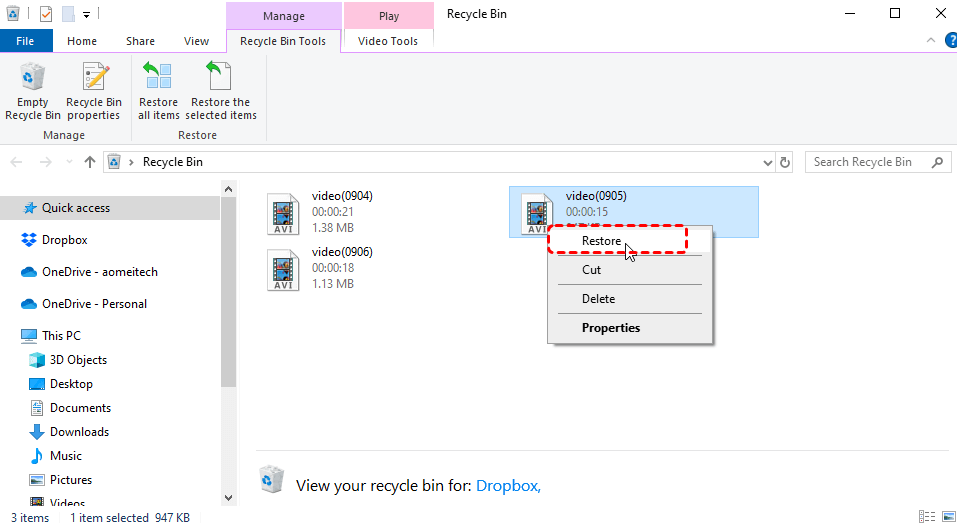
Files return to their original desktop location.
2. Restore Using File History (If Available)
If File History was enabled beforehand, recovery is straightforward.
1. Open Control Panel.
2. Go to File History.
3. Select Restore personal files.
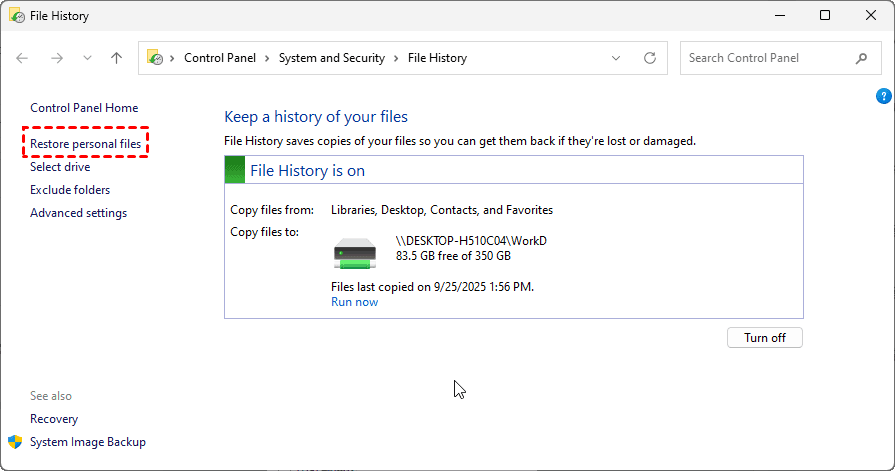
4. Navigate to the Desktop folder.
5. Restore the required files.
3. Use MyRecover to Recover Deleted Desktop Files
If the files are not in the Recycle Bin, they may have been "permanently" deleted or lost during a Windows Update profile migration. In these cases, the file's entry in the Master File Table (MFT) is gone, but the data still sits on the disk.
- Whether you are dealing with files saved to desktop not visible on Windows 11 after a crash or files saved to desktop not visible on Windows 10 after an update, MyRecover is designed to bridge the gap:
- 💙Path Reconstruction: It can identify the original C:\Users\Desktop path, helping you recover files to their exact original location.
- 💙Comprehensive Scanning: It bypasses the visual glitches of Windows Explorer to scan the storage sectors directly.
- 💙Format Versatility: It recovers 1000+ file types, ensuring specialized files (like the 3mf and stl files mentioned by the Reddit user) are retrieved with their original names.
 100% Secure
To use MyRecover effectively:
1. Install MyRecover on a drive different from the one where files were lost.
2. Scan the system drive containing the Desktop folder.

3. Preview recoverable files.
4. Restore them to a safe location.

This makes MyRecover a reliable last-resort solution when standard recovery options fail.
Conclusion
When files saved to desktop are not visible on Windows 10 or 11, it feels alarming—but most of the time, the files are still there. Whether the cause is hidden icons, syncing confusion, or a system glitch, the steps in this guide help you identify and fix the issue methodically.
And if the files are truly gone, Windows data recovery software like MyRecover provide a reliable last line of defense. With the right approach, a "missing file" panic can turn into a quick fix.
FAQs
1. Why do my files show in File Explorer but not on the desktop?
This is usually a refresh issue or a view setting. If you can see the files at C:\Users\YourName\Desktop inside File Explorer but not on the actual screen, try Right-click > View > Show Desktop Icons. If that's already on, your Icon Cache likely needs to be rebuilt (see Solution 8).
2. I saved a file and it disappeared after a restart. Where is it?
This is a classic sign of a Temporary Profile. If Windows couldn't load your user account, it created a temporary one. Any files saved to that "fake" desktop are purged once you log out. Check C:\Users\ for your original username folder to find your permanent data.
3. Can Windows updates hide my desktop files?
Updates don't usually hide files, but they frequently reset display settings or re-enable OneDrive backup. If you just updated, check your OneDrive settings first, as the update may have redirected your desktop to the cloud.
4. What should I do if my desktop files are permanently deleted?
If you have checked the Recycle Bin and hidden folders but still cannot find your data, the files may have been permanently deleted from the disk. In these scenarios, using a specialized tool like MyRecover is highly recommended. It can perform a deep scan of your drive to locate and restore deleted files that are no longer accessible through Windows.
5. Can a drive failure or partition error cause my desktop to go missing?
Yes. If your desktop was stored on a secondary drive or if your system partition is corrupted, Windows may fail to load the files. If you suspect partition loss or accidental formatting, MyRecover can help you scan the specific partition to retrieve lost folders and maintain the original file names and paths.
6. How to prevent desktop files from disappearing again?
To prevent this from happening in the future:
- Avoid overfilling your desktop: A desktop with hundreds of files is more prone to refresh glitches.
- Decide on OneDrive: Either fully commit to OneDrive Desktop sync or disable it entirely to avoid "split" folder paths.
- Regular Restarts: Don't just use "Sleep" mode; restarting helps Windows clear out shell glitches that lead to display errors.

Stay Updated With Our
Latest Tips
Add us as a preferred source on Google to never miss helpful guides.
 Add as preferred source >>