 MyRecover



The Best Windows 10 Boot Repair Tool
This article explores the best Windows 10 boot repair tool to fix common booting issues and get your system back up and running. It provides step-by-step solutions, software recommendations, and answers to frequently asked questions related to boot repair.

By NeneAly / Updated on January 19, 2026


Common Booting Errors and Symptoms in Windows 10
When Windows 10 fails to start properly, users may encounter a range of boot issues, each signaling different underlying problems. Prior to finding out an effective Windows 10 boot repair tool, we can take a look at some common Windows 10 boot problems:
1. Blue Screen of Death (BSOD) on Startup
The system begins to load but halts and displays a blue screen with a stop code before reaching the login screen. Common boot-related codes include:
- INACCESSIBLE_BOOT_DEVICE: The OS cannot read from the drive containing the boot files.
- CRITICAL_PROCESS_DIED: A vital system process failed.
- SYSTEM_THREAD_EXCEPTION_NOT_HANDLED: Often related to driver incompatibility.
2. Startup Repair Loop
The computer automatically launches the Windows Recovery Environment (WinRE) and runs Startup Repair, but fails to fix the problem. It then restarts and repeats this cycle indefinitely, never booting into Windows.
3. Black Screen with Cursor
After the manufacturer's logo (like the Dell or HP screen), the display goes completely black. Only a movable mouse cursor is visible, and the desktop never loads.
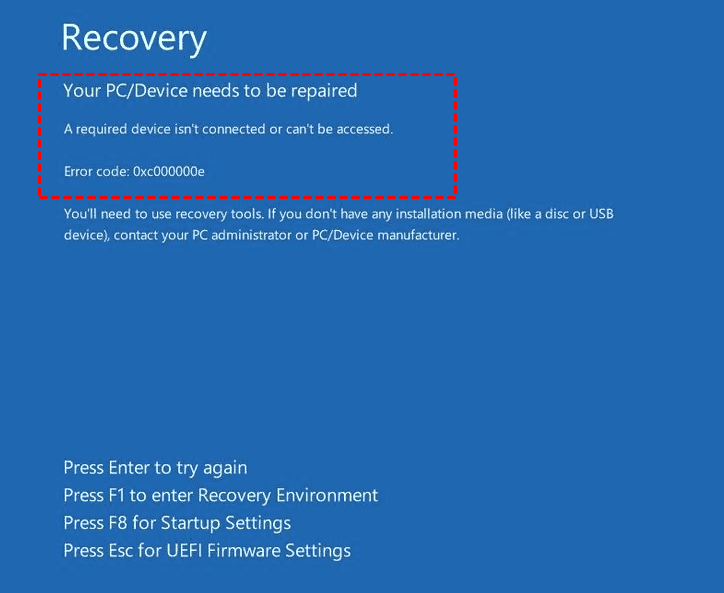
4. "Your PC needs to be repaired" / "Boot Configuration Data (BCD) is missing or corrupt"
A black or blue screen appears with straightforward error text, such as:"Your PC needs to be repaired. A required device isn't connected or can't be accessed", "Error code: 0xc000000f" or "0xc000000e"or "The Boot Configuration Data for your PC is missing or contains errors".
5. System Hangs on the Boot Logo
The Windows 10 spinning dots or static logo appears but freezes indefinitely, with no disk activity light blinking.
6. Automatic Repair Couldn't Repair Your PC
After a failed boot attempt, you see a blue screen with the message: "Automatic Repair couldn't repair your PC." This is often followed by advanced troubleshooting options.

7. Disk-Related Errors in BIOS/UEFI
The computer's firmware (BIOS/UEFI) does not list your primary hard drive as a boot option, or reports "No bootable device found." This points to a hardware connection failure, drive detection issue, or severe drive failure.
Possible Causes of Windows 10 Boot Issues
These boot failures are rarely random and are typically caused by:
- Corrupt System Files or Boot Configuration Data (BCD): Often due to incomplete updates, sudden power loss, or software conflicts.
- Faulty or Incompatible Drivers: Especially after a recent hardware or software installation.
- Hard Disk Drive (HDD) or Solid State Drive (SSD) Errors: Including bad sectors (as seen with reallocated sector warnings), connection issues, or physical failure.
- Malware Infection: Malicious software can corrupt critical boot files.
- Incorrect BIOS/UEFI Settings: A changed boot order or legacy/UEFI mode mismatch.
- Failed Windows Update or Feature Upgrade.
Identifying which symptom you're facing will directly guide you to the most appropriate Windows 10 boot repair tool and procedure. For instance, a BCD error requires a different command-line fix than a system stuck on the boot logo.
Windows 10 Boot Repair Tools You Can Try
When your Windows 10 PC refuses to start, you're not out of luck. Windows provides a powerful suite of built-in repair tools to help you fix the problem. Let's walk through them one by one now.
Preparation: Access to The Windows Recovery Environment (WinRE)
Before diving into boot repair methods, you must first access the recovery tools. If Windows fails to boot normally three times in a row, it should automatically launch into the "Windows Recovery Environment (WinRE)". If it doesn't, you can interrupt the boot process by holding the power button down as soon as the Windows logo appears during startup, repeating this 2-3 times.
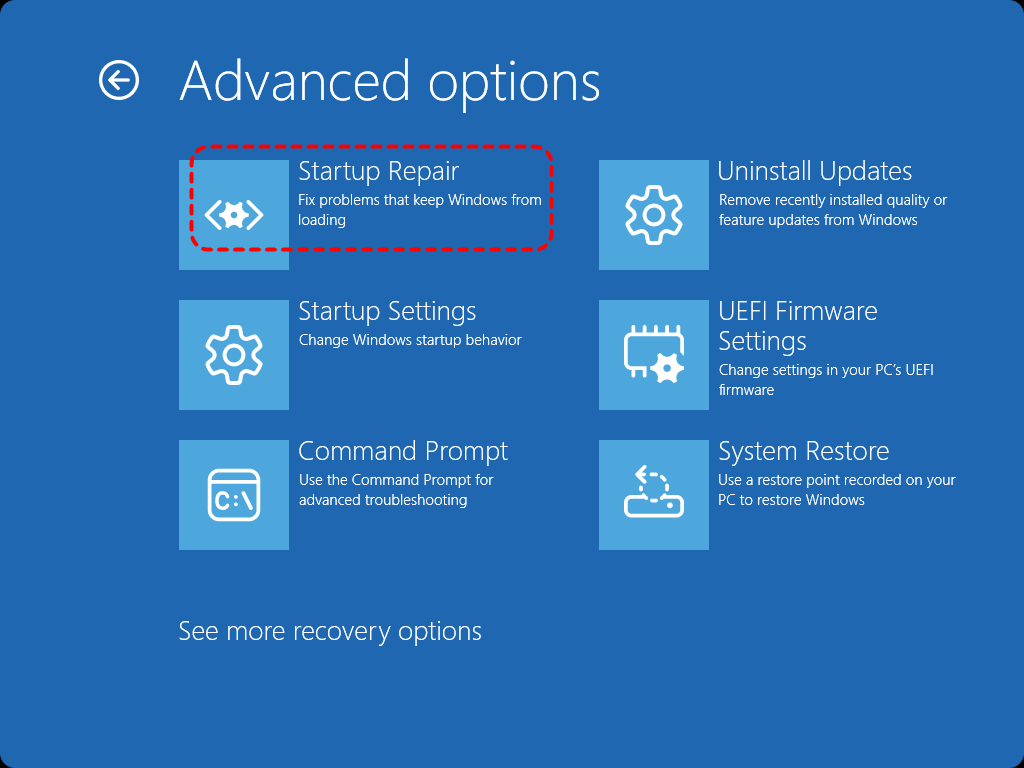
Once in the blue WinRE screen, navigate to "Troubleshoot > Advanced options".

1: Run Automated Startup Repair
From the Advanced options menu, your first and simplest attempt should be "Startup Repair". This automated tool scans your PC for common boot problems and tries to fix them automatically. It's designed to repair issues like missing or damaged system files, boot sector problems, and boot configuration data errors. So try it first in general boot failures.
2: Use Command-Line Tools from WinRE
If Startup Repair can't fix the issue, return to "Advanced options" and select "Command Prompt".

Here, you can use more precise tools. It's best to use them in this order:
Check Disk Integrity (CHKDSK)
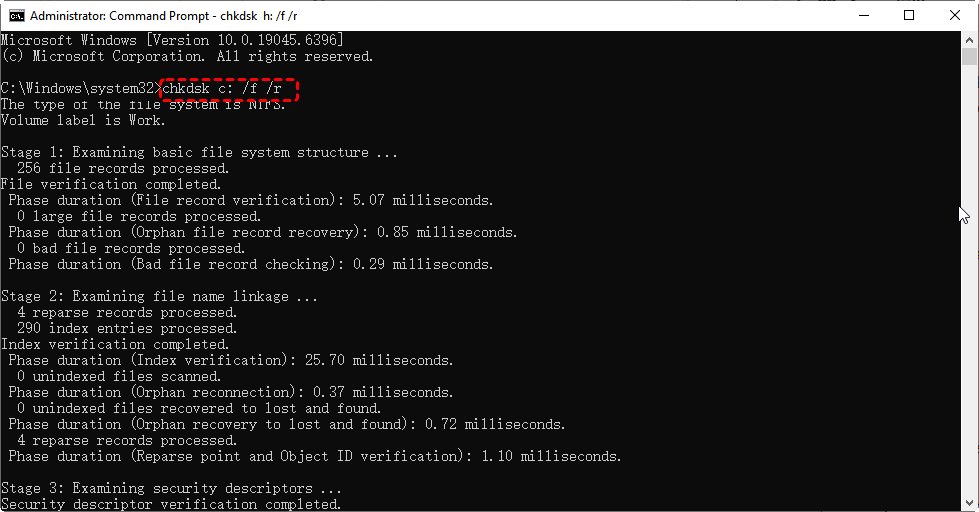
A failing hard drive can cause boot problems. The "CHKDSK"command checks your disk for file system errors and bad sectors.
Command: chkdsk C: /f /r (Replace "C:"with your Windows drive letter if different).
The "/f"parameter fixes errors, and "/r"locates bad sectors and recovers readable information.
Repair System Files (SFC)
Corrupted Windows system files can prevent booting. The System File Checker scans and restores them.
sfc /scannow /offbootdir=C:\ /offwindir=C:\Windows (remember, use the correct drive letter).
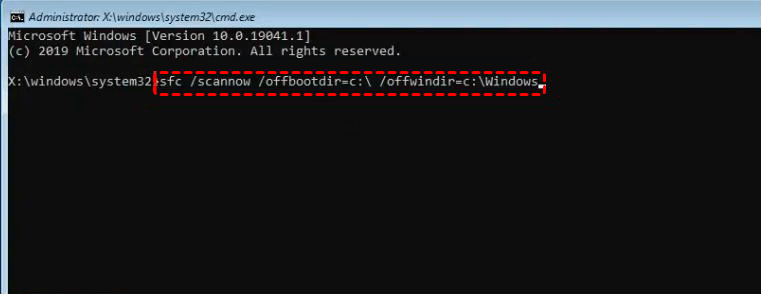
It scans all protected system files and replaces incorrect versions with correct Microsoft versions.
Repair the Windows Image (DISM)
If "SFC" fails or cannot get the correct files, the underlying Windows image might be damaged. DISM can repair this source.
Command (in WinRE): DISM /Online /Cleanup-Image /RestoreHealth
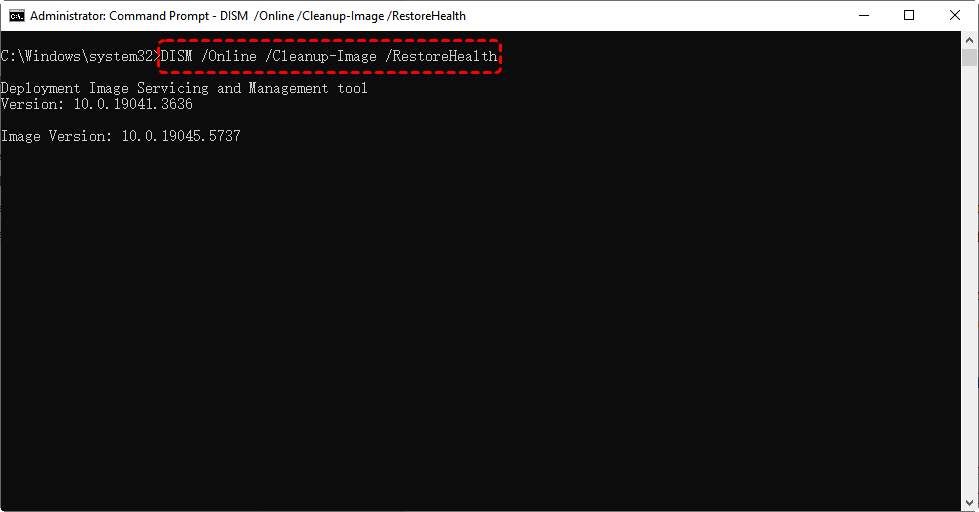
It repairs the Windows system image, which "SFC"relies on to get healthy files.
- Related topic: DISM Restore Health Stuck At 62.3% Windows 11 & 10
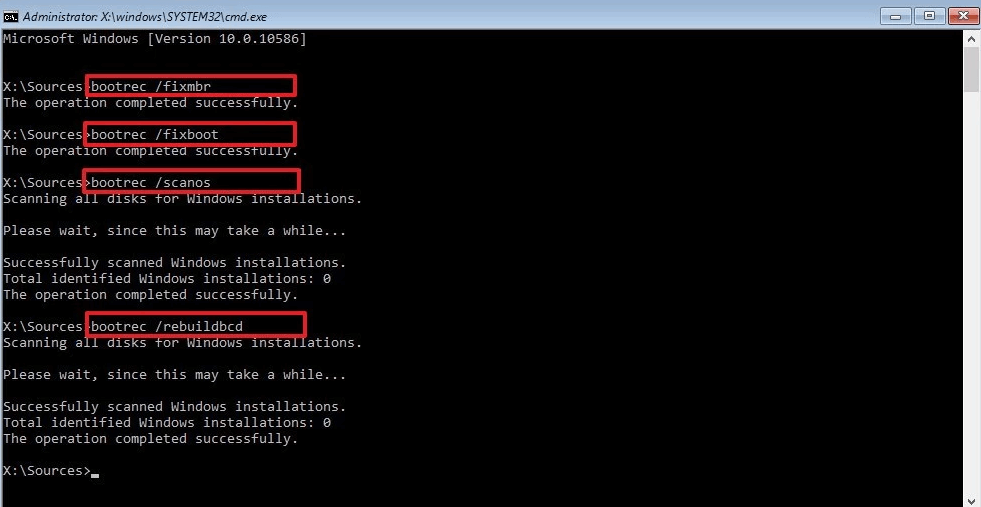
Repair the Bootloader (Bootrec)
This is a crucial tool for fixing boot record and configuration issues. Run these commands in sequence:
bootrec /fixmbr: Repairs the Master Boot Record (useful for older BIOS systems).
bootrec /fixboot: Writes a new boot sector to the system partition.
bootrec /scanos: Scans all disks for Windows installations not listed in the boot configuration.
bootrec /rebuildbcd: Rebuilds the Boot Configuration Data store, which controls how your PC starts. If this fails, you may need to back up and delete the old BCD store before rebuilding.
3: Perform System Restore
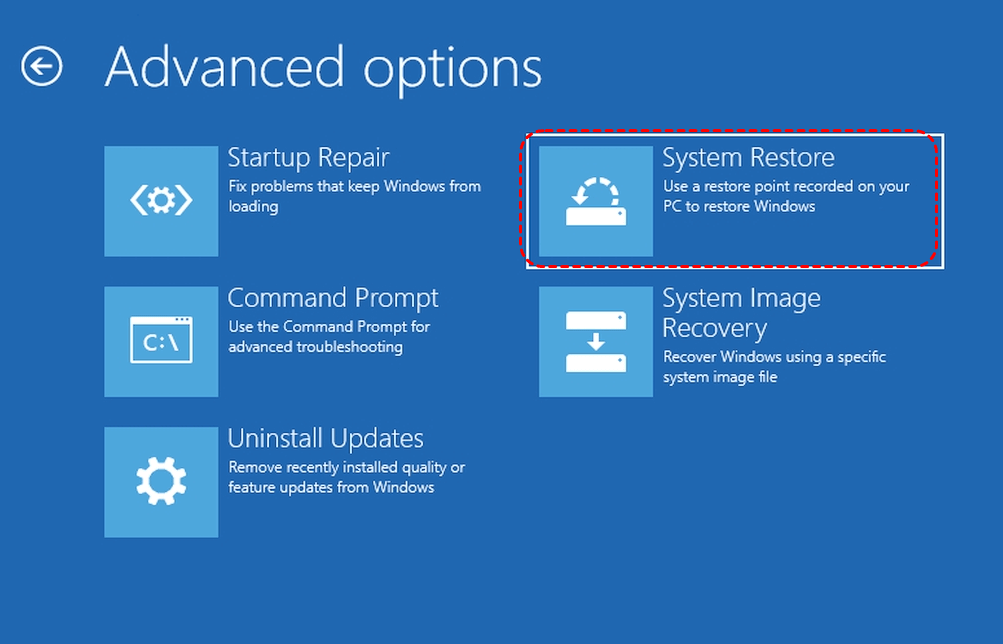
If the above technical command-line tools cannot repair the boot issues, another powerful and user-friendly option is System Restore.This feature acts as a time machine for your Windows system files and settings. If your boot problem started after a recent change(a driver update, a new software installation, or a Windows update), you can use System Restore to revert your computer's state back to a point in time when it was working perfectly.
This does not affect your personal files, like documents or photos, but it will uninstall any programs or drivers installed after the restore point was created.Just select "System Restore" in the "Advanced options" screen.
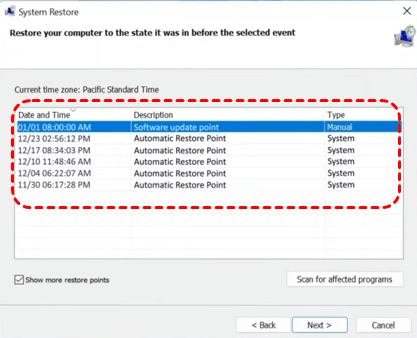
Windows will show you a list of available restore points, along with their dates and descriptions. Choose a proper system restore point to rescue your computer. Confirm your choice and let the process run. Your PC will restart.
Can't Access WinRE? Try Windows Media Creation Tool!
If your PC is so damaged and it can't even launch WinRE, you can create bootable media on another working computer via Windows 10 Media Creation Tool.
Step 1. On a working PC, download the official "Media Creation Tool"from Microsoft's website.

Step 2. Run the tool and select "Create installation media for another PC."
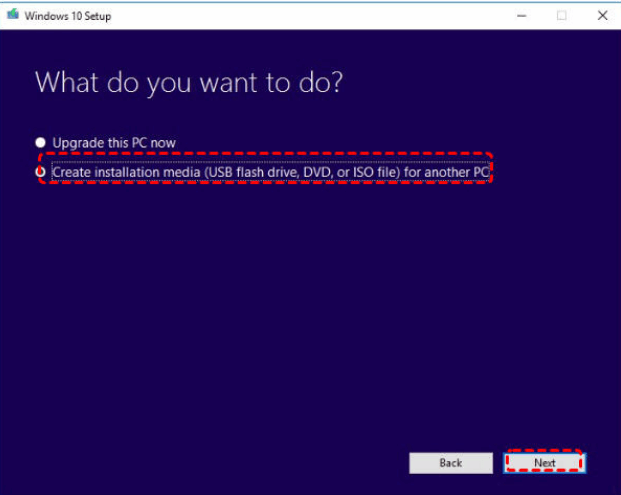
Step 3. Choose your language and Windows 10 edition.Select "USB flash drive" (you'll need one with at least 8GB of space).
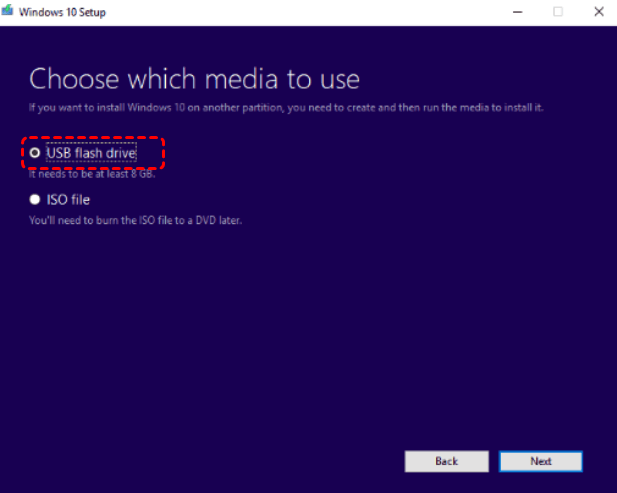
Step 4. The tool will download Windows and make the USB drive bootable. Insert the USB drive into your problem PC, boot from it (you may need to press a key like F12 for the boot menu), and select your language.
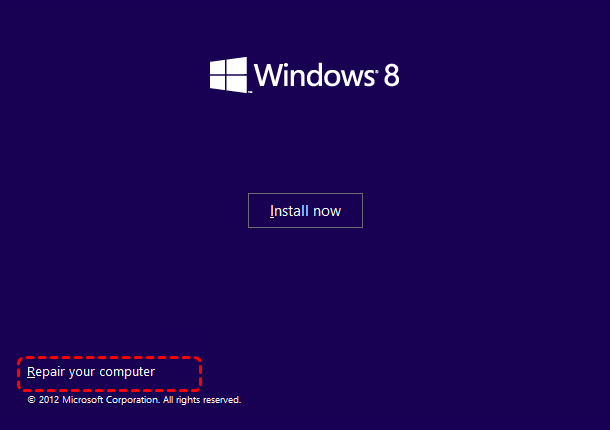
Step 5. Instead of "Install now," click "Repair your computer" in the lower-left corner to enter WinRE.Then try the above Windows 10 boot repair tools to fix startup problems.
Clean Re-installation [Last Resort]
What if you're stuck in the worst-case scenario: no system restore point was created before the boot issue began, and none of the methods above have worked? This situation, while frustrating, leads to the final and most definitive solution: a Clean Reinstallation of Windows.
A clean installation completely erases the Windows installation drive (typically the C: drive) and installs a fresh copy of the operating system. It will delete all programs, settings, and personal files on the drive where you install Windows. So, do not proceed until you have already backed up all your important files, or recovered data from the failing PC.
🌟To recover data directly from the crashed system, you can use professional recovery software like MyRecover, allowing you to create a bootable USB and recover data from unbootable PC.
 MyRecover
Restore your data in 3 steps with 99% success & AI empowered recovery technology.
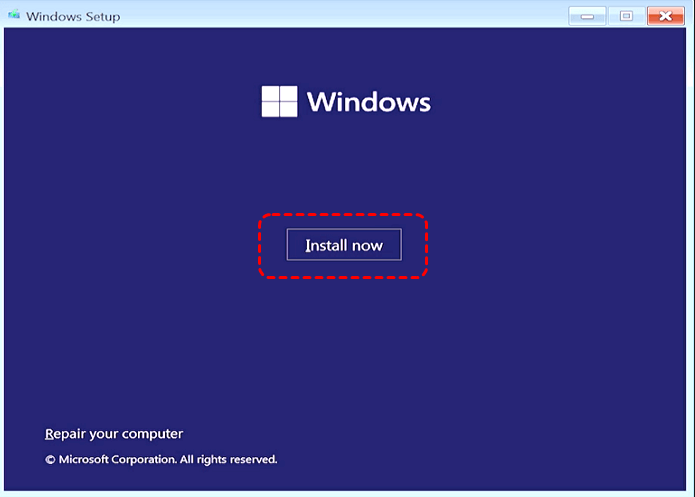
To clean install OS, you can directly use the Windows installation media (in the last section). Select "Install now"and follow the on-screen instructions to complete the proces.
Conclude
The best Windows 10 boot repair tool can help you fix common booting issues and get your system up and running again. To simplify future recovery and avoid complex repair steps, we strongly recommend regularly creating system restore points as a preventive measure for quick restoration when system errors occur.

Stay Updated With Our
Latest Tips
Add us as a preferred source on Google to never miss helpful guides.
 Add as preferred source >>