 MyRecover



[9 Solutions] DISM Restore Health Stuck At 62.3% Windows 11 & 10
When the DISM /RestoreHealth process freezes at 62.3% on Windows 11, it can look like the system has stopped working. This page shows what causes the 62.3% stall and how to safely get DISM moving again without risking system damage.

By Emma / Updated on March 19, 2026


About the Command: DISM RestoreHealth
"DISM RestoreHealth"is a built-in Windows command used to scan and repair corruption in the Windows system image. It checks the component store ("WinSxS") for damaged or missing files and restores them using "Windows Update"or a "specified repair source".
The most commonly used command is: DISM /Online /Cleanup-Image /RestoreHealth
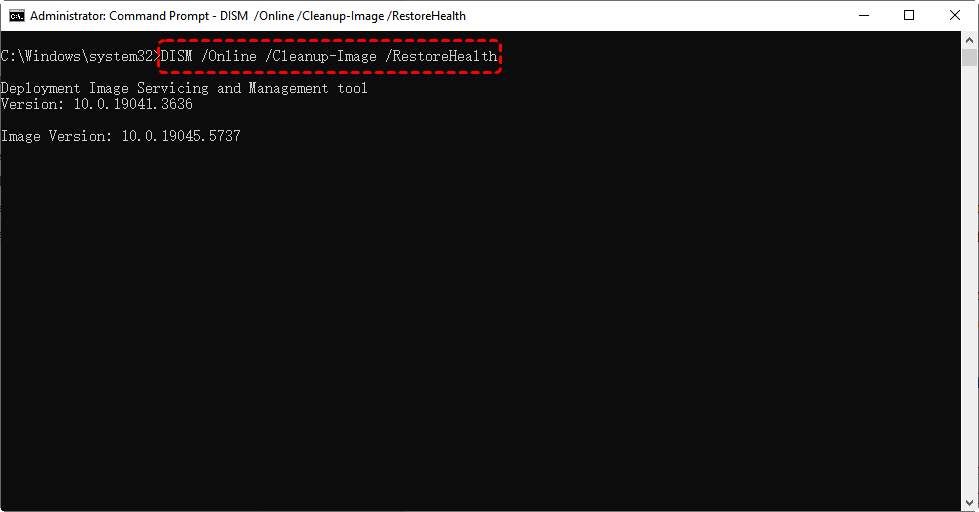
This command works on the currently running Windows installation and attempts to automatically download clean system files if corruption is detected. It is typically used when Windows Update fails, system files become corrupted, SFC cannot complete successfully, or the system experiences stability issues with diverse startup errors like "Non-system disk or disk", or abnormal behavior after updates or power interruptions.
Why DISM RestoreHealth Stuck At 62.3%?
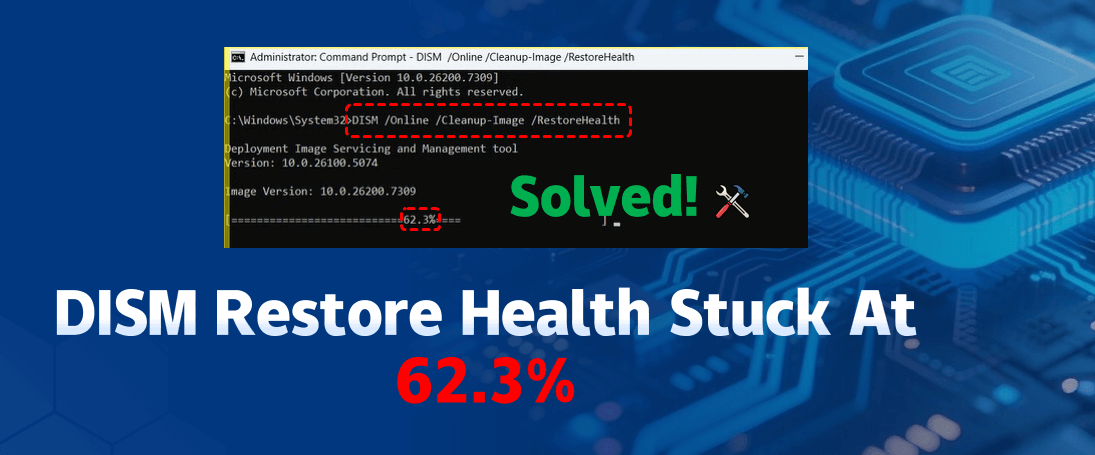
When "runningDISM /Online /Cleanup-Image /RestoreHealth", it’s common for the process to appear stuck at 62.3%. Here are the main reasons why this happens:
1. Component Store (WinSxS) Verification
Around 62.3%, DISM is usually checking and repairing the Windows component store. This step involves deep file analysis and can take a long time, making the progress percentage look stalled.
2. Downloading Repair Files in the Background
If Windows Update is used as the repair source, DISM may silently download required files. Network speed or update service delays can cause the progress to pause at the same percentage for an extended period.
3. High Disk or CPU Usage
DISM relies heavily on disk access. On systems with HDDs, limited free space, or high background activity, progress may slow down significantly at certain stages.
4. Large or Complex Corruption
If the system image has multiple or severe inconsistencies, DISM needs more time to process them. The 62.3% mark is a common point where this extra work occurs.
5. Limited Feedback by Design
DISM does not update progress in real time. Even when it appears stuck, the command may still be working in the background.
How to Solve "DISM Restore Health Stuck At 62.3%"?
In many cases, waiting longer—sometimes up to an hour or more—is enough. However, if there is no disk or CPU activity for a long period, the process may truly be stalled. Thus, it’s time to try the following alternative repair methods.
1. Reboot PC and Retry the DISM Command
Restarting clears temporary files, releases locked system resources, and resolves minor software conflicts that may prevent DISM from progressing.
Save all work and close applications. Restart your computer. Open "Command Prompt as Administrator" and run: DISM /Online /Cleanup-Image /RestoreHealth

Check if the progress moves past 62.3%. Often, a simple reboot can resolve temporary stalls before trying more advanced solutions.
2. USe CBS. log to Check DISM Real-Time Status
DISM logs its activity in "CBS.log", so even if the progress bar seems frozen at 62.3%, you can verify if it is still working.
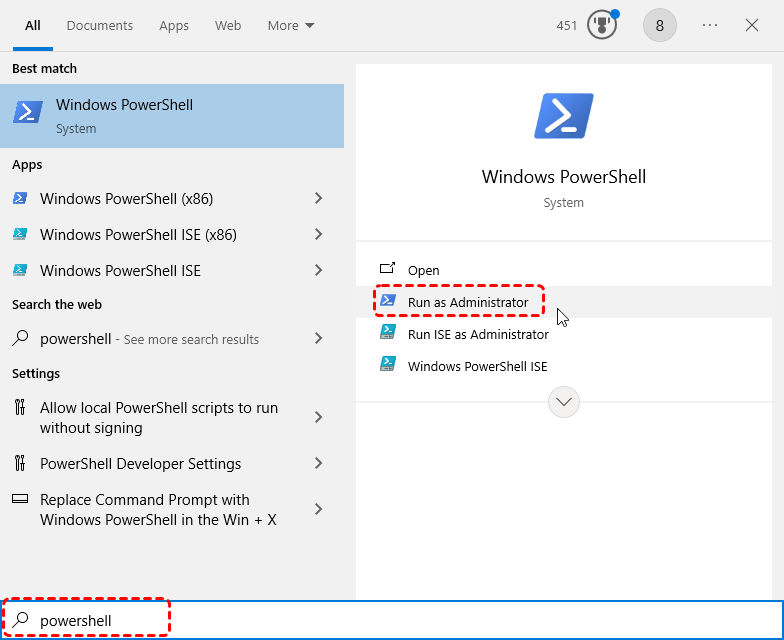
Step 1. Press "Win+S", search "Powershell", and choose "Run as Administrator".
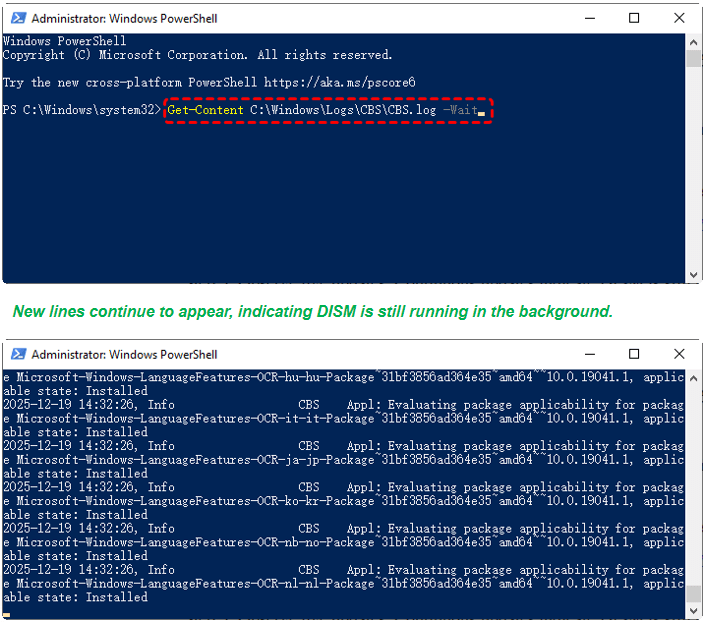
Step 2. Run:"Get-Content C:\Windows\Logs\CBS\CBS.log -Wait" and hit on Enter.

Step 3. Observe live updates. Continuous updates indicate DISM is still processing.
If logs indicate specific file issues, cleaning up the component store is the next logical step.
3. Clean Up the Component Store Before DISMCommand
Residual or temporary files in the component store ("WinSxS") may slow down DISM at 62.3%. Cleaning it reduces overhead.
Step 1. Open "Command Prompt (Admin)".
Step 2. Run: Dism /Online /Cleanup-Image /StartComponentCleanup

Step 3. After completion, retry: DISM /Online /Cleanup-Image /RestoreHealth
4. Use Safe Mode to Avoid Conflicts
Some background services or drivers can interfere with DISM. Safe Mode loads only essential system components.
Step 1. Press "Win + R", type "msconfig" and hit on Enter to open "System Configuration" window.
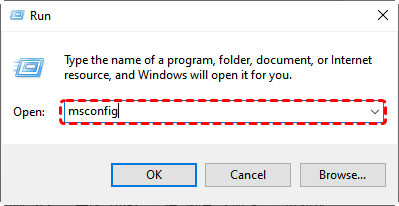
Step 2.Go to "Boot > Safe Boot", click on "Apply" and restartyour computer.
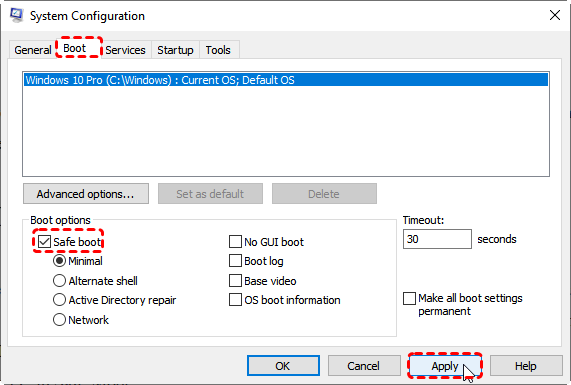
Step 3. In Safe Mode, open "Command Prompt (Admin)" and run "DISM /Online /Cleanup-Image /RestoreHealth"
After repair, exit Safe Mode to boot normally.
5. Run the CHKDSK Command
Disk errors or bad sectors can prevent DISM from accessing necessary files, causing it to stall at 62.3%.
Step 1. Open "Command Prompt (Admin)".
Step 2. Run: chkdsk c: /f /r
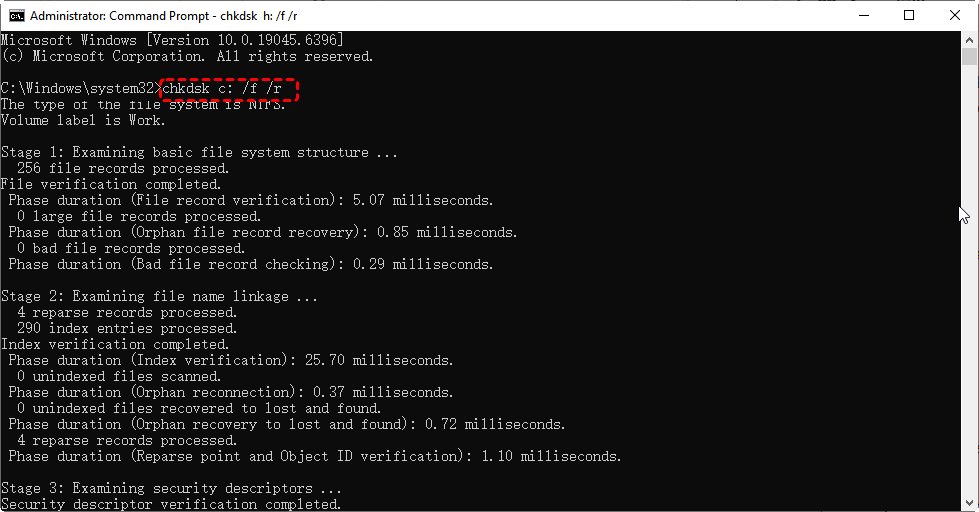
Step 3. Restart if prompted. Retry DISM after disk repair.
6. Use SFC (System File Checker)
Before attempting DISM again, it's highly recommended to run the System File Checker (SFC). This is a foundational repair tool that scans for and restores corrupted or missing protected Windows system files. These small, localized file corruptions can be the very reason DISM is stuck at 62.3% or fails to complete.
Open "Command Prompt (Admin)" and run "sfc /scannow" command. After completion, run: DISM /Online /Cleanup-Image /RestoreHealth

7. Uninstall Recent Updates
A common reason DISM stalls at 62.3% is a faulty Windows update. Although designed to improve the system, cumulative or quality updates can sometimes install incorrectly or conflict with existing files, corrupting the Windows Component Store that DISM needs to run. Uninstalling recent updates is often an effective way to clear this blockage so DISM can complete successfully.
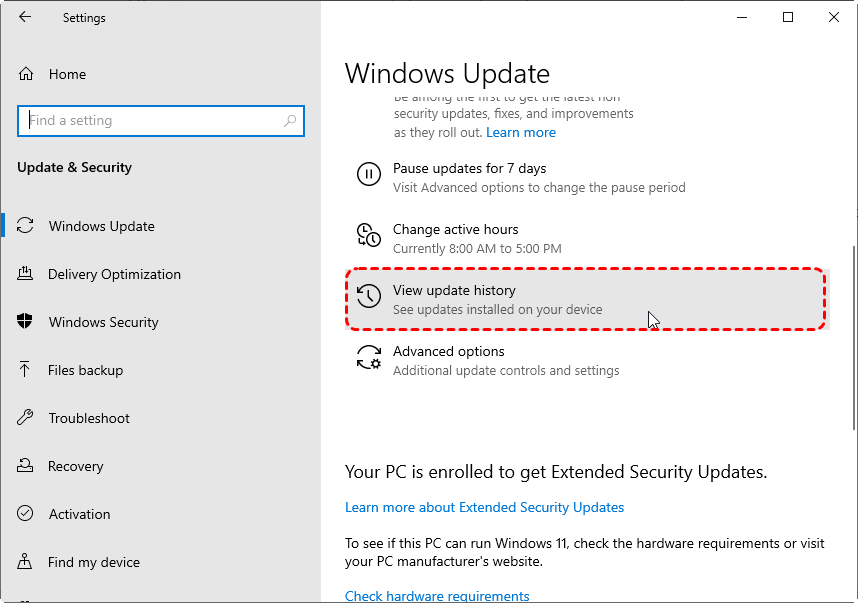
Step 1. Go to "Settings > Update & Security".
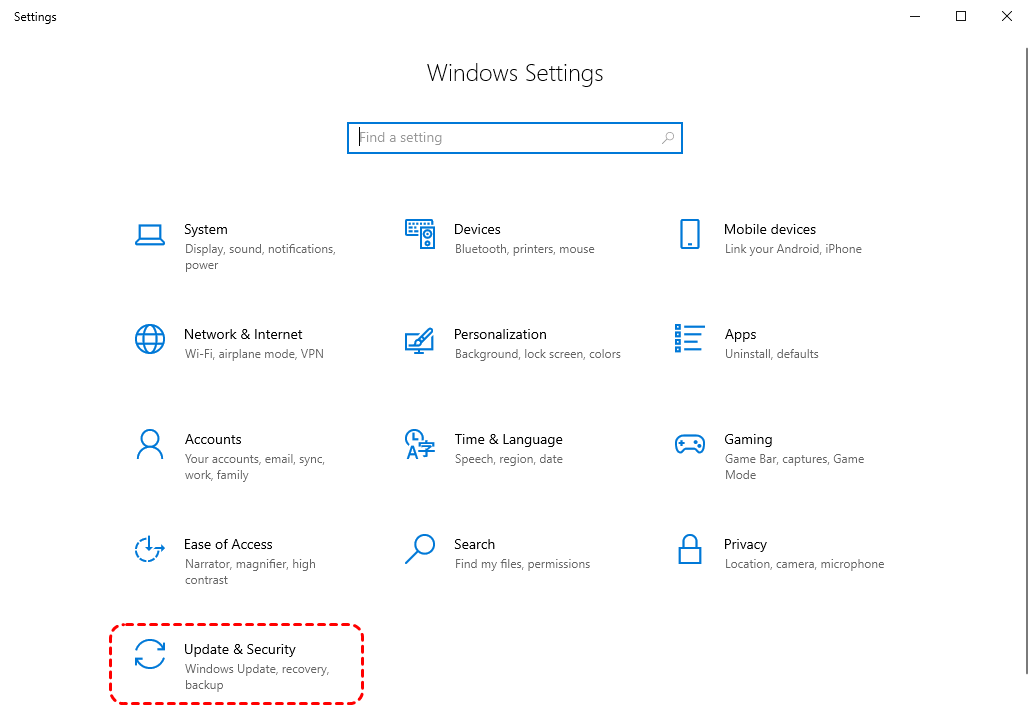
Step 2. Click on "Windows Update > View update history",
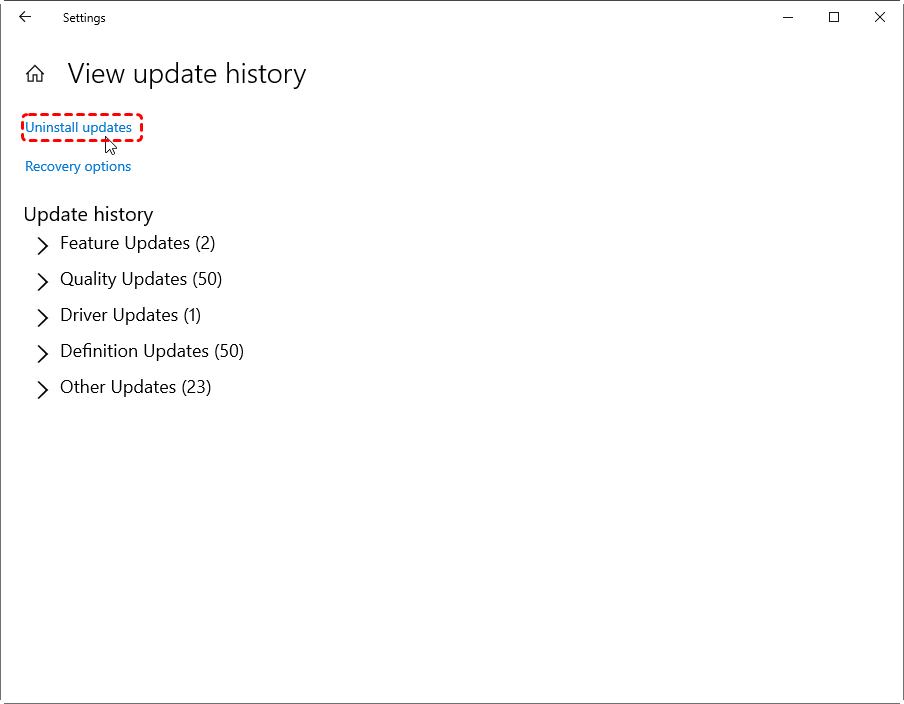
Step 3. Select "Uninstall updates".
Step 4. Find and uninstall recent cumulative or quality updates.
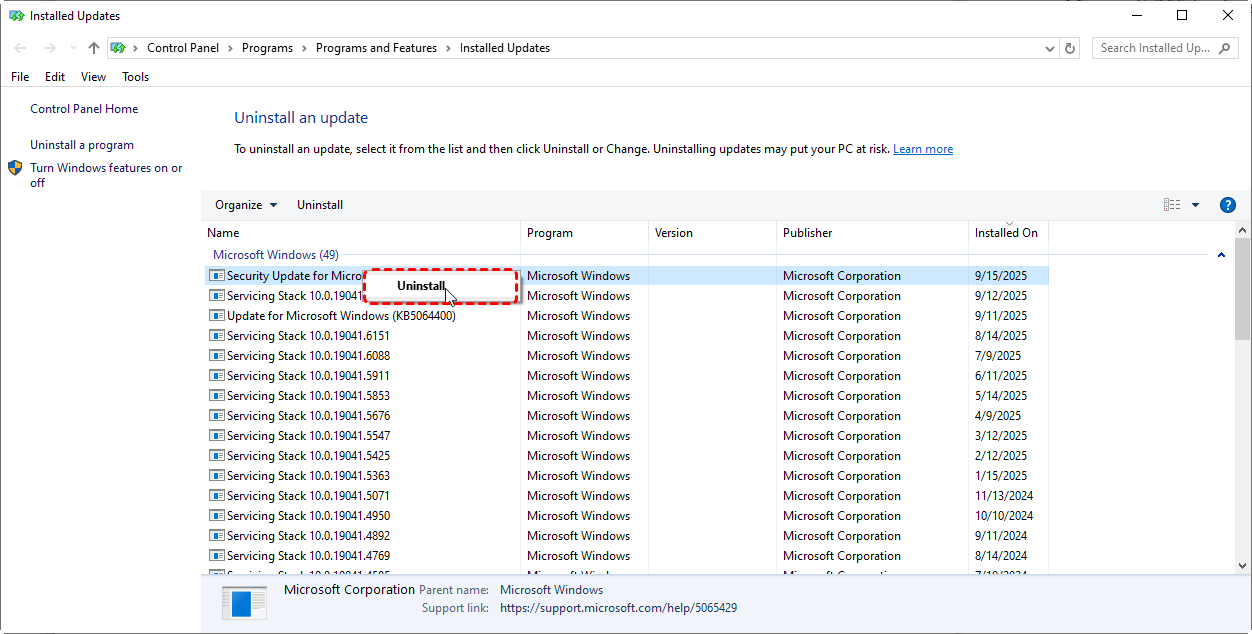
Restart the system and retry DISM.
8. Run DISM in Windows Recovery Environment (WinRE)
Running DISM in WinRE avoids file locks and service interference in a live Windows environment. It directly accesses the system partition and uses an external image (like install.wim) to scan and repair corrupted or missing files.
Step 1. Restart your computer and enter "WinRE"(Force restart your PC 2-3 times during the boot sequence (e.g., hold the power button when the Windows logo appears. After several failed boot attempts, Windows will automatically launch Automatic Repair, which enters WinRE.)
Step 2. Choose "Troubleshoot > Advanced Options > Command Prompt".

Step 3. Run: DISM /Image:C:\ /Cleanup-Image /RestoreHealth /Source:wim: D:\Sources\install.wim /LimitAccess
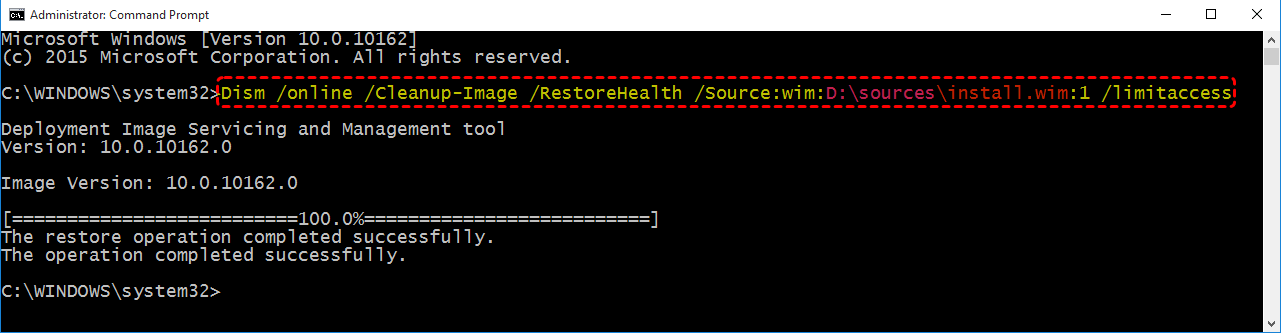
- About the command:
- /Source:wim:D:\Sources\install.wim: Uses an external image file as the repair source instead of relying on local cache or Windows Update.
- /LimitAccess: Ensures the repair uses only the local source without accessing Windows Update.
Step 4. Restart after completion.
9. Clean Install Windows
If you have tried all above methods, but the "DISM Restore Health Stuck At 62.3%" error still persists, the only remaining solution might be a clean reinstallation of Windows.
🤗Before reinstalling, back up all important data (File History or Windows 7 Backup and Restore is recommended), as formatting the system drive will erase everything.
Step 1. Download the official Windows ISO and create a bootable USB using Media Creation Tool.
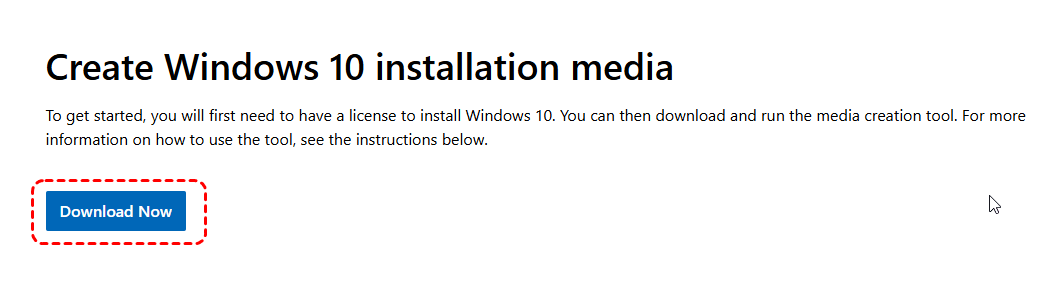
Step 2. Insert the USB into the target PC, restart, and select the USB as the boot device from the Boot Menu.
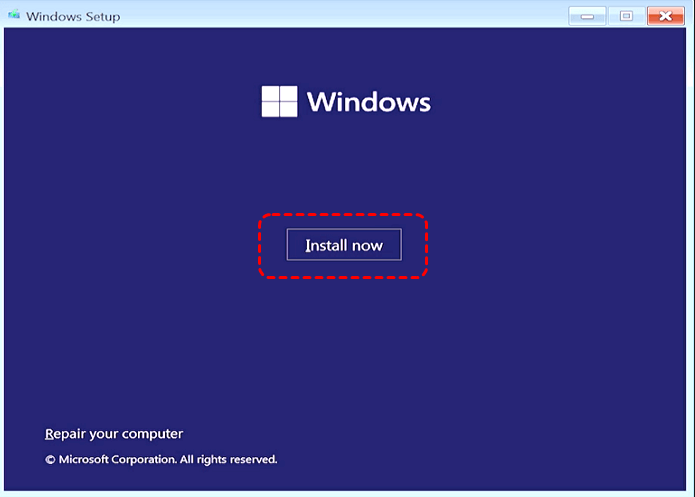
Step 3. Choose language and region settings, click Install Now, and enter your product key or skip if using digital license.
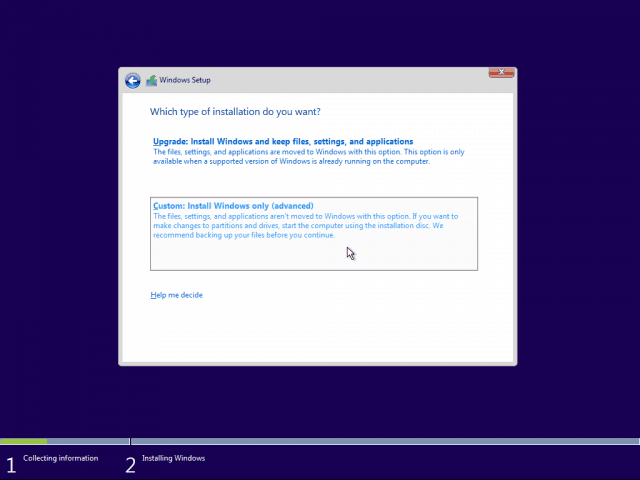
Step 4. Select Custom: Install Windows only, choose the system drive (usually C:), format it, and click Next to start installation.
Step 5. After Windows installs, copy back your personal files and reinstall your applications. Then run Windows Update to ensure system is up to date.
Just in case: Recover Lost Personal Data After Reinstalling
If you performed a clean Windows installation to fix the "DISM RestoreHealth Stuck at 62.3%" issue, you may find that some personal files were accidentally lost during the process. To safely recover lost files after reinstalling Windows, we recommend using MyRecover. It can quickly scan your system drive and restore deleted documents, photos, videos, and other important files without requiring backup.

- ✨500+ Devices Supported | SSD, HDD, USB Flash Drive, SD Sard, etc.
- ✨1000+ File Formats Supported | PNG, MP4, MP3, TXT, ZIP, MSG, etc.
- ✨500+ Data Loss Scenarios | Deletion, Format, System Crash, Virus Attack, etc.
 100% Secure
Step 1. Install MyRecover on a different drive (not the one you formatted) to avoid further data loss.
Step 2. Launch the software, click "Scan" button after selecting the C drive.

Step 3. After the scan, search and selectively restore the files you need.
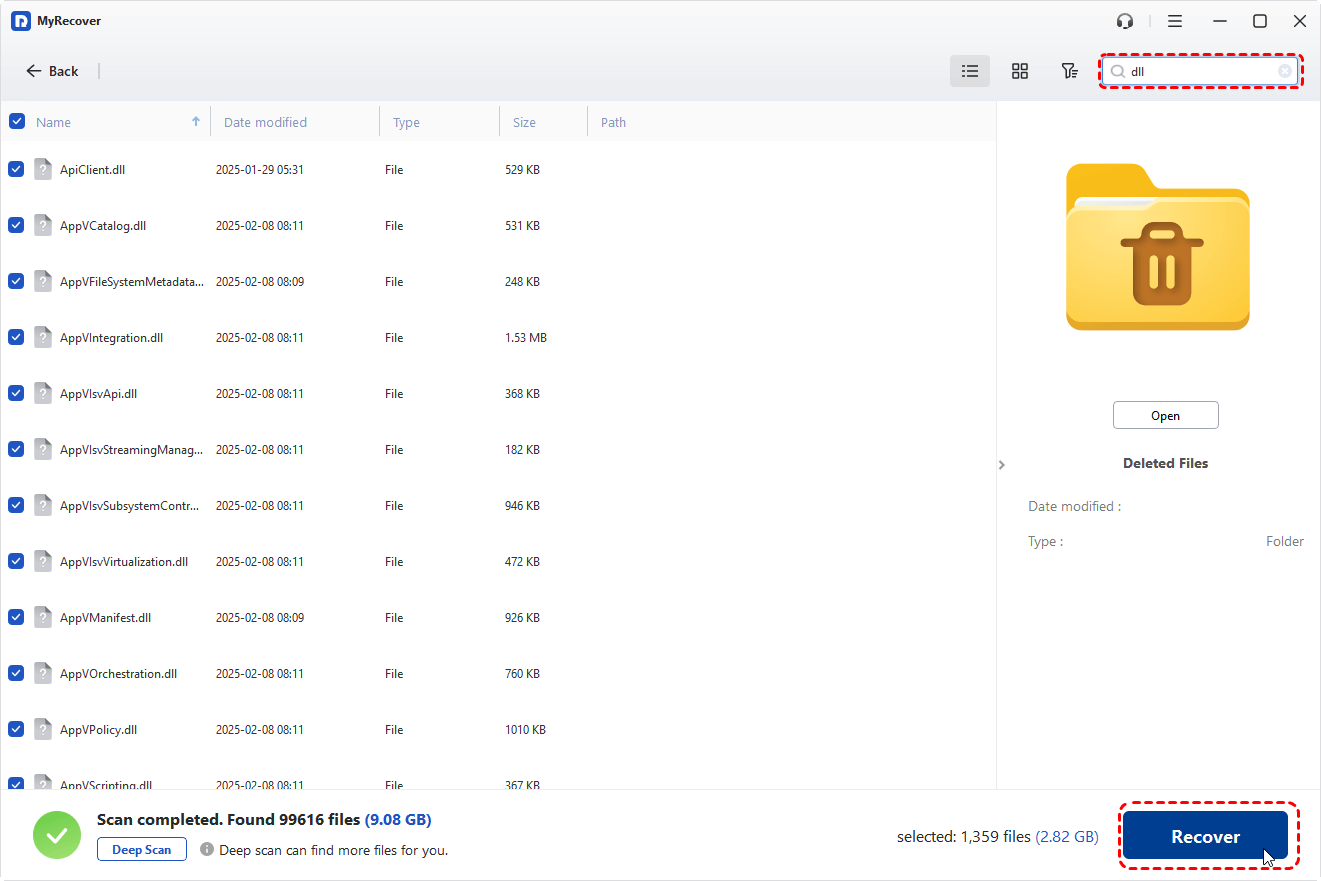
By following these steps, you can safely retrieve your important data and resume work without worrying about permanent loss.
Summary
By following the steps in this guide, you can effectively address the "DISM RestoreHealth Stuck at 62.3%" issue while keeping your data secure. From checking system logs and cleaning the component store to running DISM in WinRE or performing a clean Windows installation, each method provides a clear path toward restoring system stability.
Even if a full reinstall becomes necessary, tools like MyRecover ensure that your important files can be recovered after clean installation, letting you resume work with confidence and peace of mind.

Stay Updated With Our
Latest Tips
Add us as a preferred source on Google to never miss helpful guides.
 Add as preferred source >>