 MyRecover



How to Fix C Drive is RAW and Recover Your Data Effectively
When your C drive became raw, Windows can’t access your files. This guide explains common causes and proven methods on how to fix raw C drive safely without losing data. Learn to restore your system and recover important files step by step.

By Vera / Updated on May 20, 2026


Understanding the "RAW" File System Issue
C: Drive became RAW out of the blue. - from Microsoft
My main hard drive (the one C:\ is on) is showing as raw. - from Superuser
If you’ve suddenly found your C drive labeled as RAW, you’re likely facing a critical system error. Under normal circumstances, Windows uses file systems like NTFS to organize and read data. When a drive becomes "RAW", it means the operating system can no longer recognize the file system's internal structure.
Think of your hard drive as a library. Usually, there is a catalog (the file system) that tells you where every book is. When the drive goes RAW, the catalog is destroyed. The books (your data) are still on the shelves, but Windows no longer knows how to find or read them. Because the C drive is your primary system partition, this issue often results in boot failures or severe system instability.
What Does RAW Mean in Windows?
In simple terms, RAW means the drive doesn’t have a recognizable file system like NTFS or FAT32. Windows can’t interpret it, so it treats it as an unformatted drive — even if you’ve got tons of data inside.
Why Your C Drive Might Become RAW

The C drive is the heart of your computer, housing the Windows operating system and vital boot files. It becomes RAW when the "Master File Table" (MFT) or the partition table is damaged. Common catalysts include:
- 💥Corrupted File System: Improper shutdowns, software errors, or incomplete updates can damage your NTFS file system, turning it into RAW.
- 💥Bad Sectors on the Disk: If parts of your hard drive’s physical disk get damaged, Windows may be unable to read its file system correctly.
- 💥Sudden Power Failures or Forced Shutdowns: Yanking the power cord or forced restarts can leave your file system in limbo, leading to corruption.
- 💥Malware or Virus Infection: Certain malware attacks target the boot sector or file system directly, rendering your drive unreadable.
Common Symptoms of a RAW C Drive
Recognizing these symptoms early can prevent you from making mistakes that lead to permanent data loss:
1️⃣"Invalid Media Type" Errors: When attempting to access the drive via Command Prompt.
2️⃣Windows Boot Loops: The PC fails to start, often showing a "Blue Screen of Death" (BSOD) because it cannot find the OS files.
3️⃣Format Prompts: A persistent popup stating, "You need to format the disk in drive C: before you can use it." (Warning: Do not click format yet!)
4️⃣File System listed as RAW: In Disk Management, the C drive capacity may show as "Healthy," but the file system type is explicitly listed as RAW.
First Steps When You See "C Drive is RAW"
When a C drive goes RAW, the internal data is extremely vulnerable. Before attempting any repairs, you must adhere to two rules:
-
Rule 1: Don't Format Immediately. Formatting creates a new file system, which wipes the directory pathing of your old files, making recovery significantly harder.
-
Rule 2: Minimize "Write" Operations. If you can still boot into Windows (perhaps from a second drive), stop installing new software or downloading files. Every new bit of data could overwrite the "lost" data sitting on the RAW sectors.
How to Fix a RAW C Drive (Step by Step)
Fixing a RAW drive follows a specific logic: Recover Data -> Repair Logic -> Restore Structure. We start with data recovery because repair attempts like CHKDSK can sometimes write to the disk and overwrite "lost" files.
Step 1: Recover Data Using MyRecover (The Safest Priority)
Why use this first? Repairing a RAW C drive involves modifying the disk structure, which carries a risk of permanent data loss. The most logical approach is to extract your files first.
MyRecover is specifically engineered for "Logical Failure" scenarios like RAW drives. Unlike standard tools, MyRecover features an advanced scanning algorithm that bypasses the corrupted file system to read data directly from the disk sectors. Since the C drive is often the boot drive, MyRecover’s ability to work within a WinPE (Preinstallation Environment) is a lifesaver, allowing you to recover data even if your Windows won't start.
- ★ Key Advantages for RAW C Drives:
- High Recovery Rate: Handles NTFS-to-RAW transitions with ease.
- Deep Scan Tech: Finds files that have lost their original pathing due to MFT corruption.
- Bootable Media Support: You can create a recovery disk on a working PC to rescue data from a non-booting C drive.
 100% Secure
Here’s a step-by-step guide to recover data via MyRecover:
1. Download & Install: Install MyRecover on a working computer. If your C drive is RAW and won't boot, use MyRecover to "Create Bootable Media" on a USB flash drive.
2. Select the Source: Boot your PC from the MyRecover USB (or open the app if you can still boot). Select the RAW C Drive and click Start Scan.
3. Comprehensive Scanning: MyRecover will run Quick Scan immediately. Or, you can choose Deep Scan to find all recoverable data.
4. Filter & Select: Use the filter sidebar to find specific file types (Photos, Documents, Videos). You can preview files to ensure they are recoverable.
5. Secure Recovery: Select your files and click Recover. (Crucial: Save these files to an external hard drive or a different physical disk—never back to the RAW C drive.)
Step 2: Run CHKDSK (The Logical Repair)
If the RAW issue is caused by minor directory errors or bad sectors, the Windows "Check Disk" tool can sometimes "re-map" the damage and restore the NTFS signature.
CHKDSK scans the file system integrity and attempts to fix logical errors. However, use caution: if the drive has physical damage, CHKDSK may stress the drive further.
Steps:
1. Press Win + S and type cmd. Right-click and Run as Administrator.
2. Type chkdsk C: /f and press Enter.
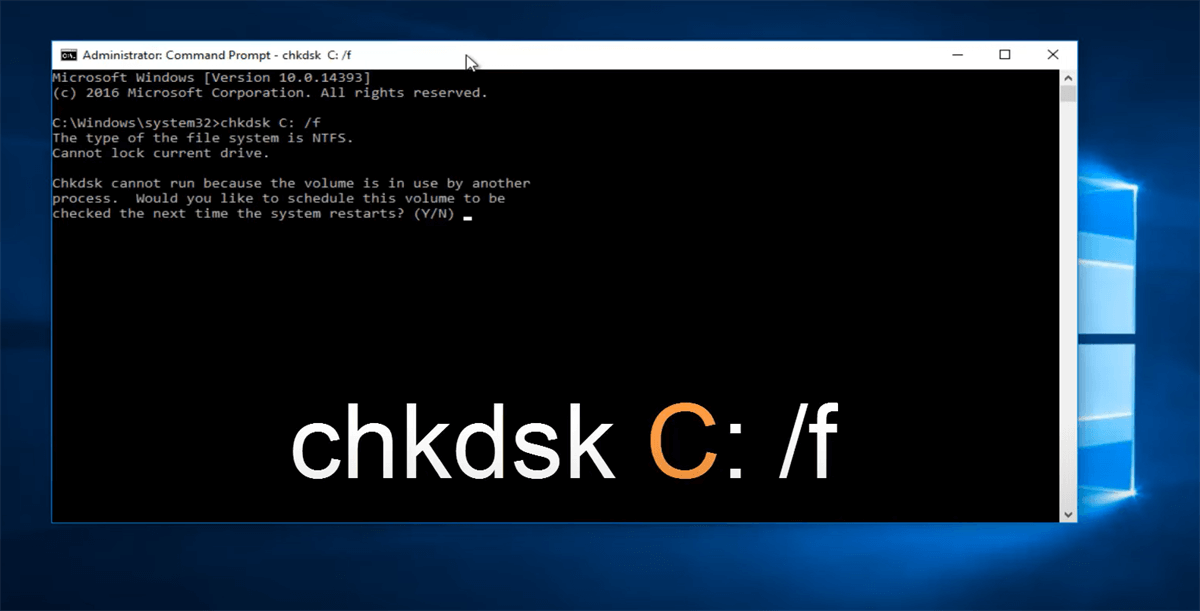
3. Note: Since C is a system drive, it will ask to run at the next restart. Type Y and reboot your computer.
4. If it returns the error "CHKDSK is not available for RAW drives," proceed to the next method.
Step 3: Use Disk Management to Inspect Volume Status
Before performing a "Nuclear Option" (like formatting), you need to see if the partition is still recognized as a "Primary Partition" or if it has become "Unallocated." This method helps determine if the issue is a simple drive letter conflict or a complete partition table collapse.
Steps:
1. Right-click the Start button and select Disk Management.
2. Locate your C Drive. If it shows as "RAW" but says "Healthy," the partition table is intact, but the boot sector is corrupted.
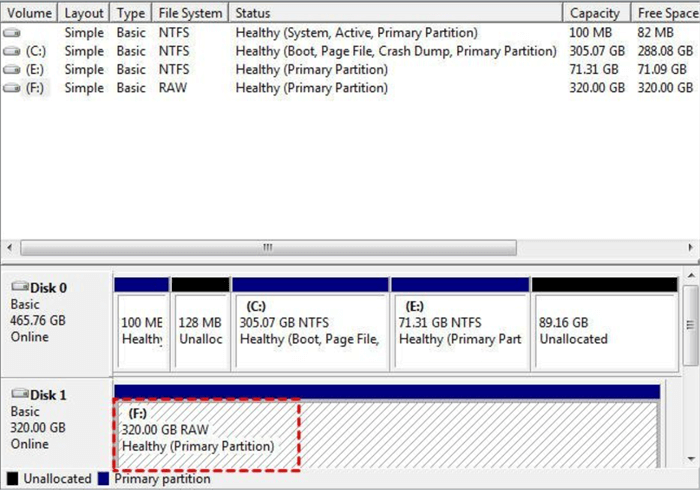
3. If the drive has no drive letter, right-click it and select Change Drive Letter and Paths to re-assign "C."
Step 4: Rebuild the MBR or Reinstall Windows
If the C drive is RAW, the Master Boot Record (MBR) is often the culprit. Rebuilding it "re-teaches" the BIOS how to find the operating system. You can try this way to fix the "handshake" between your hardware and your software.
Steps:
1. Boot from a Windows Installation Media (USB or DVD).
2. Select Repair your computer > Troubleshoot > Advanced options > Command Prompt.
3. Enter the following commands one by one:
bootrec /fixmbr
bootrec /fixboot
bootrec /rebuildbcd
4. Restart your PC to see if the C drive is recognized.
Step 5: Format and Reinstall (The "Clean Slate" Logic)
If the file system damage is too severe for CHKDSK or MBR repairs, the only way to make the drive usable again is to create a brand-new file system. This wipes the corrupted NTFS structure and writes a fresh one. Only do this after using MyRecover to save your files.
1. Insert your Windows Installation Media (USB).
2. Follow the prompts to install Windows. When the installer asks "Which type of installation do you want?", click Custom: Install Windows only (advanced).
3. When you reach the partition selection screen, select the RAW C: partition. You will see a list of partitions. Look for "Disk 0" (usually your main drive). A RAW C drive often appears as a "Primary" partition with your old drive's capacity, but the "Free Space" and "Total Size" might look identical or show an error.
4. Click Format or Delete, then recreate the partition and proceed with a fresh installation of Windows.
Preventing the C Drive from Turning RAW Again
Once you have restored your system, implement these safeguards to prevent a recurrence:
-
Enable S.M.A.R.T. Monitoring: Use tools to monitor disk temperature and health. If "Reallocated Sectors Count" increases, replace the drive immediately.
-
Invest in a UPS: An Uninterruptible Power Supply (UPS) prevents RAW corruption caused by sudden power cuts.
-
Proactive Backups: Always keep a system image backup. A RAW drive is significantly less stressful when you have a 1-to-1 copy of your data stored safely elsewhere.
Conclusion
A RAW C drive can feel like a nightmare, but it’s usually a solvable logical error. The key is the order of operations: Stop, Recover, then Repair. By using MyRecover to secure your files first, you remove the stress of potential data loss, allowing you to use tools like CHKDSK or Disk Management with confidence. With a solid backup plan and health monitoring, you can ensure your C drive stays healthy and recognizable for years to come.
Frequently Asked Questions (FAQ)
1. Why does CHKDSK say "The type of the file system is RAW. CHKDSK is not available for RAW drives"?
This happens when the file system's "Magic Number" (a specific identifier in the boot sector) is corrupted. CHKDSK requires a basic level of file system recognition to run. If the damage is too deep, CHKDSK cannot find the starting point of the directory structure. In this case, your best bet is to use MyRecover to extract data first, then reformat the partition.
2. Is it possible to convert RAW to NTFS without losing data?
Technically, "conversion" (like using the convert command) only works from FAT32 to NTFS. To fix a RAW drive, you usually have to repair the partition table or reformat. Since "repairing" isn't 100% guaranteed, the only "safe" way to avoid data loss is to use recovery software like MyRecover to clone/extract your files before the drive is wiped or repaired.
3. Can a virus really turn my C drive into RAW?
Yes. Certain types of malware target the Master Boot Record (MBR) or the GUID Partition Table (GPT). By overwriting these sectors with junk code, the virus makes Windows believe the drive has no valid file system. Always run a boot-time virus scan if you suspect this.
4. How does MyRecover handle a RAW drive differently than Windows File Explorer?
Windows File Explorer relies on the "Index" of the drive to show you files. If the index is RAW, Explorer sees nothing. MyRecover scans the physical sectors of the drive for "File Signatures" (e.g., the specific code that starts a JPEG or a Word doc). This allows it to find files even if the "Index" is completely destroyed.
5. Should I try to "Initialize" the disk if Disk Management asks?
No! If your C drive appears as "Not Initialized," initializing it will write a new partition style (MBR or GPT), which can further overwrite the metadata needed for data recovery. Always prioritize data recovery with MyRecover before clicking "Yes" to any initialization or formatting prompts.
6. Can I fix a RAW C drive if I can't boot into Windows?
Yes. You can either remove the hard drive and connect it to another working computer as an external drive, or you can create a WinPE bootable disk. Many users prefer connecting the RAW drive to a second PC where they have MyRecover installed, as this provides a stable environment for a thorough scan.

Stay Updated With Our
Latest Tips
Add us as a preferred source on Google to never miss helpful guides.
 Add as preferred source >>