 MyRecover



How to Undo Empty Recycle Bin: 4 Proven Ways
Accidentally deleted everything? If you're asking "can I undo empty recycle bin?", the answer might be yes. This guide shows recovery options on Windows, using built-in tools and third-party software to help get your deleted files back.

By Vera / Updated on May 13, 2026


Introduction

Oops! You just emptied your Recycle Bin, and now you're panicking because a super important file was in there. We've all been there. Whether it was a critical work document, a treasured photo gallery, or a folder you thought you didn't need, that sinking feeling hits hard. If you are searching for how to undo empty recycle bin actions, you’ve come to the right place.
Many users assume that "Emptying the Recycle Bin" is a permanent, irreversible action. In reality, Windows doesn't immediately "shred" your data. Instead, it marks the space occupied by those files as "available" for new data. Until that space is overwritten by a new download or a system update (e.g., Windows 10 to 11), your original data is still physically present on the drive—it's just invisible to the operating system. This guide will walk you through the logic of data retrieval and provide the most effective ways to reverse the "empty" command.
Can You Really Undo an Emptied Recycle Bin?
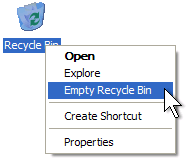
Can I recover deleted files after emptying the recycle bin?
- Question from Microsoft Community
Yes! But it’s a race against the clock. The faster you act, the higher the chances of successful recovery. If your system hasn't saved new data over the deleted file's location, it might still be fully recoverable. To ensure a successful recovery, you must understand the two biggest factors at play:
- Time Is Crucial: Data recovery is a race against the clock. The more you use your computer, the more "background noise" (temp files, cache, system logs) your PC creates, which can overwrite the very sectors where your deleted files live.
- Disk Usage After Deletion: If you continue to install new software or download large files, you risk "overwriting." Once a file is overwritten, it is gone forever. To maximize your chances, stop using the affected drive immediately until you begin the recovery process.
4 Best Methods to Recover Files from an Emptied Recycle Bin
Alright, let's dive into the actual methods that can help you undo the recycle bin delete.
Method 1: Use a Professional Data Recovery Tool – MyRecover
Recovering deleted files from Recycle bin
Hi, I'm trying to recover a deleted folder from the Recycle bin. I can see it in my File History (from Sept 19 2023), but I can't recover it anymore because I deleted that recovery backup as well. I tried using Windows File Recovery and it can "find" the deleted files but it's not giving me the right results (it's recovering weird files that I've never seen before..)
The deleted folder was originally in My Documents\My Games files for Terraria and has .plr, .bak, .map, and other folders.
How can I fix this? What trusted recovery softwares do you recommend? Thank you for any advice/recommendation!
- Question from Reddit
If you are looking for the fastest way for how to undo recycle bin delete errors without relying on complex manual backups, professional software is the most reliable path. This method works by bypassing the operating system's file directory and scanning the raw sectors of your hard drive to reconstruct the missing file headers.
Why MyRecover is the best choice for Recycle Bin recovery:
Unlike generic tools, MyRecover features specialized logic designed for Windows environments. It is specifically optimized to navigate the hidden $Recycle.Bin directory structures, allowing it to recover files with their original names and folder paths intact—a feature crucial for those who have deleted entire folder structures. Whether you are dealing with an HDD or an SSD, MyRecover’s deep scan algorithm can identify over 1000+ file types, from simple PDFs to complex game save files.

 MyRecover
- ✨Works on different devices – Hard drives, USBs, SD cards, SSDs.
- ✨Fast scan option – Quickly finds recently deleted files.
- ✨High success rate – Good chance of getting files back.
 100% Secure
Step 1. Download and Install MyRecover
Head to the official site and grab the installer. It’s lightweight and installs fast.
Step 2. Launch the Program and Select Your Drive
Select "Recycle Bin Recovery". Then choose the drive where the deleted files originally lived.
Step 3. Start Scanning
Hit the Scan button. MyRecover will perform a quick scan automatically.
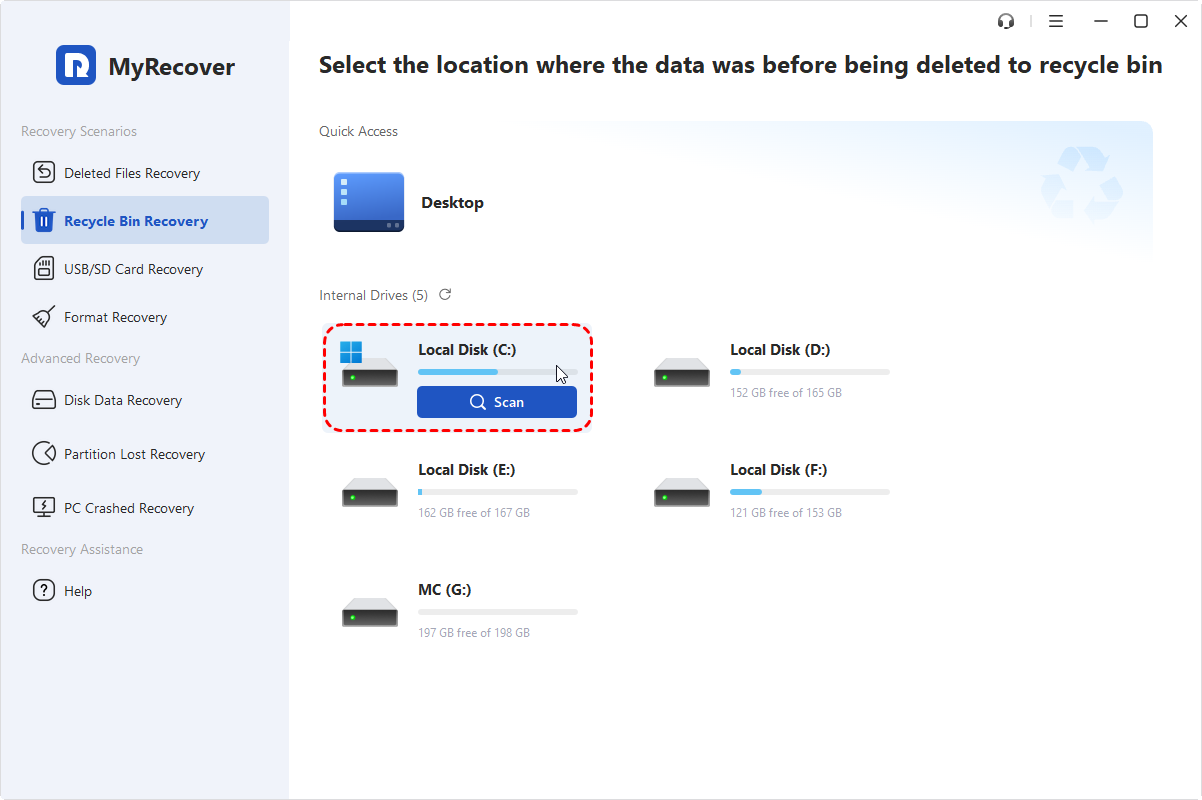
Step 4. Preview and Recover
Once the scan finishes, browse the results. Found your file? Select it and hit Recover.
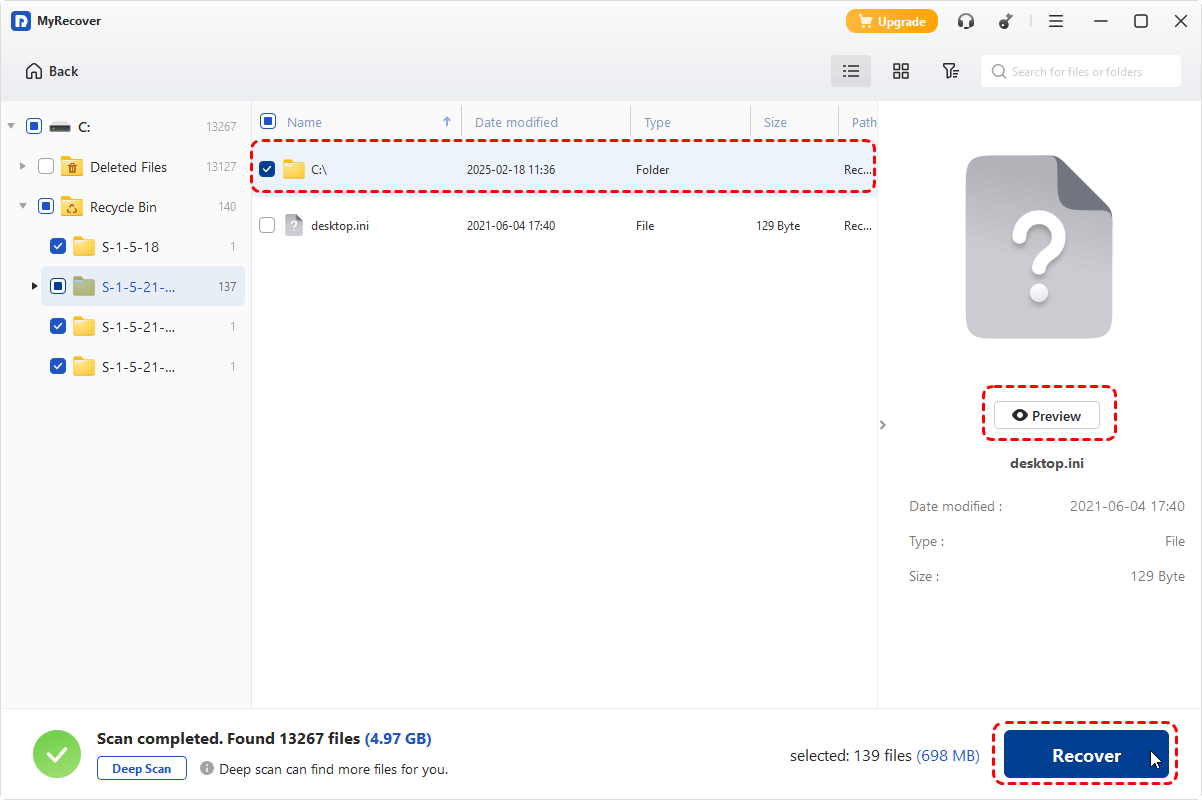
Step 5. Save It to a Different Location
Important: save it to a different drive to avoid overwriting other lost files.
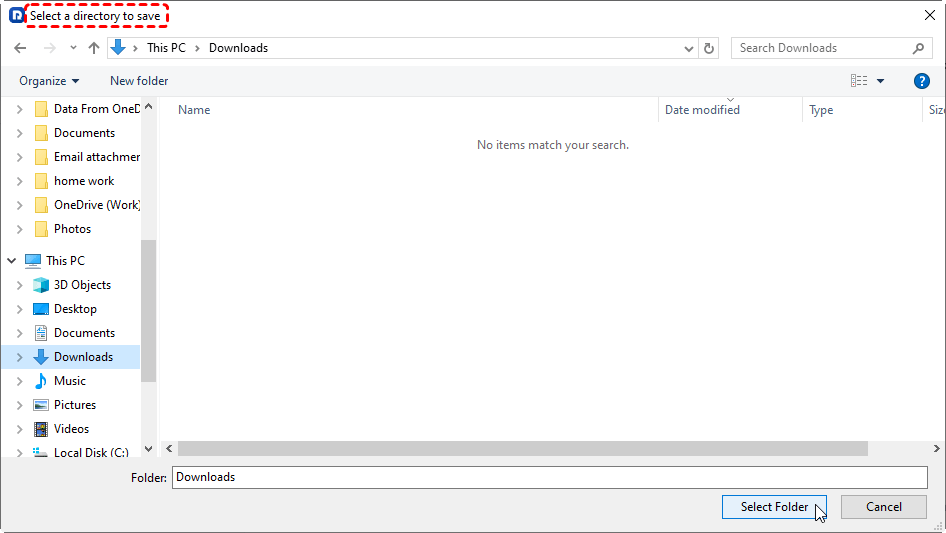
Boom. That’s it. Simple, right? You can also use MyRecover to restore important data after Windows crashes.
While MyRecover is a powerful "safety net" for when files are already gone, Windows does include several "shadow" features that might have captured a copy of your files before the bin was emptied.
Method 2: Restore Previous Versions (Shadow Copies)
This method is essentially a "time machine" for specific folders. Windows creates "Shadow Copies" as part of a restore point. This is highly effective if you know exactly which folder the deleted file was in before it was moved to the Recycle Bin.
1. Navigate to the folder that previously contained your deleted file.
2. Right-click the folder and select Restore Previous Versions.
3. A list of available versions with different dates will appear. Select a version from before you deleted the file.
4. Click Restore to overwrite the current folder, or Open to copy just the specific file you need.
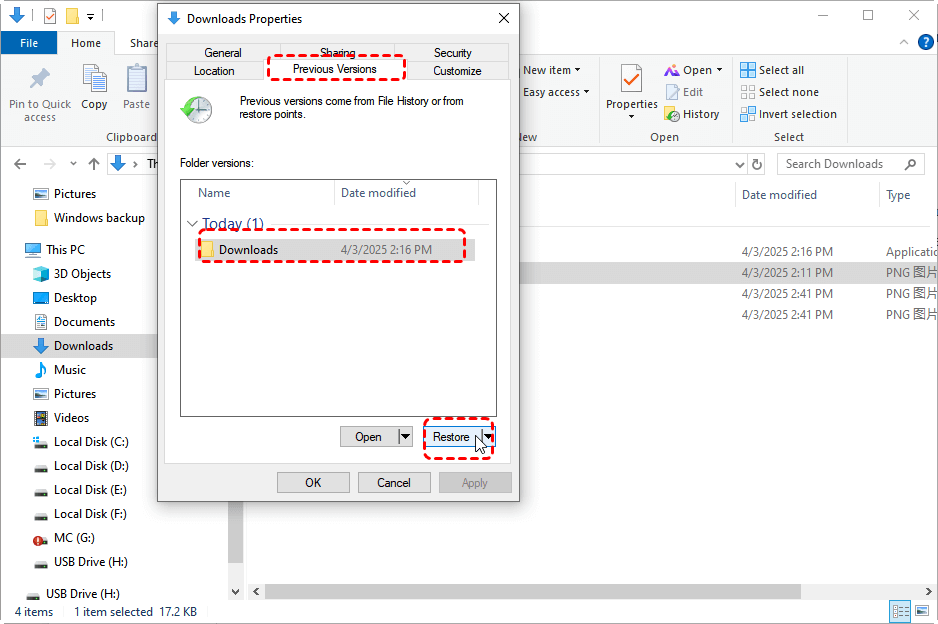
If you don't see any "Previous Versions" available, it likely means System Protection was turned off. However, Windows has a separate, more robust backup engine called File History that may have saved your data to an external drive.
Method 3: Use File History (Windows Backup Feature)
File History is a modern Windows feature that periodically snapshots files in your Libraries (Documents, Music, Pictures, Videos, and Desktop). Unlike Previous Versions, this usually requires an external hard drive or a network location to have been connected previously.
1. Open the Start Menu, type "Restore your files with File History," and press Enter.
2. Use the left and right arrows at the bottom to browse different versions of your data backups.
3. Locate the specific files that were accidentally emptied from the bin.
4. Select the files and click the green Restore icon to put them back in their original location.
If individual file backups weren't configured, you might try a more drastic system-wide approach, though it is often considered a last resort for personal data.
Method 4: System Restore (Indirect Method)
System Restore is designed to protect your operating environment (drivers, registry, system files). While it doesn't always track personal files, if your "missing" files were actually part of an app installation or system configuration that vanished, this can roll the system back to a safer time.
1. Search for Create a restore point in the Windows taskbar and open it.
2. Click the System Restore button.
3. Choose a restore point that predates your Recycle Bin being emptied.
4. Confirm the restore and allow your PC to restart.
What NOT to Do After Emptying the Recycle Bin
To keep your data "recoverable," avoid these common mistakes:
- ❌Don't Restart Your PC Repeatedly: Every boot cycle writes temporary system files to the drive, which could land on your deleted data.
- ❌Avoid "Disk Cleanup": Running tools like CCleaner or Windows Disk Cleanup will specifically target the sectors where your "deleted" data is waiting to be recovered.
- ❌Don't Install Recovery Software on the Same Drive: Always use a portable version or install the software on a secondary drive to protect the "lost" data sectors.
Conclusion
Knowing how to undo empty recycle bin errors is a vital skill for any computer user. Whether you rely on the advanced scanning power of MyRecover or the built-in "time travel" features of Windows File History, the key is to act before your computer overwrites your history.
For the future, remember the "3-2-1 Backup Rule": Keep 3 copies of your data, on 2 different media types, with 1 copy stored off-site (like in the cloud). Act fast, stay calm, and your files can be saved!
Frequently Asked Questions (FAQ)
1. How to undo empty recycle bin actions if I don't have a backup?
If no internal Windows backups (like File History) were active, your best option is to use a data recovery tool like MyRecover. It scans the "unallocated" space on your hard drive to find data that the operating system no longer sees but is still physically present on the disk.
2. Can i undo empty recycle bin on an SSD?
It is much harder on an SSD due to the TRIM command, which clears deleted data blocks to maintain drive speed. However, if you act immediately and shut down the computer or run MyRecover right away, you may be able to intercept the files before the TRIM command fully executes.
3. Does "Shift + Delete" make recovery impossible?
No. "Shift + Delete" simply bypasses the Recycle Bin. The recovery logic is the same: the file's index is removed, but the data remains until overwritten. You can use the same methods mentioned in this guide to recover "permanently" deleted items.
4. Can I recover files from an emptied Bin using Command Prompt (CMD)?
CMD (specifically the attrib command) is generally used to unhide files hidden by viruses. It cannot "reconstruct" data that has been removed from the file allocation table. For true "emptied bin" recovery, specialized software is required.
5. How to undo recycle bin delete if the files were on a USB drive?
USB flash drives do not have a Recycle Bin; files deleted from them are deleted "permanently" immediately. To recover these, you must use a tool like MyRecover to scan the USB drive's partitions directly.
6. Are there ways to avoid losing important files in the future?
Yes, there are a few options:
- Enable File History: File History is your computer’s time machine. Just turn it on and let Windows automatically save versions of your files.
- Use Cloud Backup Services: Think Google Drive, OneDrive, Dropbox. Cloud services offer automatic syncing and version history — your best safety net.
- Regularly Back Up Important Data: Invest in an external hard drive or use tools like Windows Backup or third-party solutions. Schedule weekly or monthly backups — your future self will thank you.

Stay Updated With Our
Latest Tips
Add us as a preferred source on Google to never miss helpful guides.
 Add as preferred source >>