 MyRecover



How to Fix Can’t Read iXpand Mini on iPhone, iPad and Windows
Having trouble accessing your SanDisk iXpand Mini when it is connected to your iPhone, iPad, or Windows? This guide explains how to fix the "can't read iXpand Mini" problem and restore normal access to your files. You will learn why the iXpand Mini may not appear, fail to connect, or stop responding, along with effective troubleshooting methods.

By Aria / Updated on July 27, 2026


Introduction
The SanDisk iXpand Mini is a compact flash drive designed to help iPhone and iPad users easily transfer, store, and access photos, videos, and other files. With a Lightning connector for iOS devices and a USB connector for computers, it provides a convenient way to move data between mobile devices and Windows PCs.
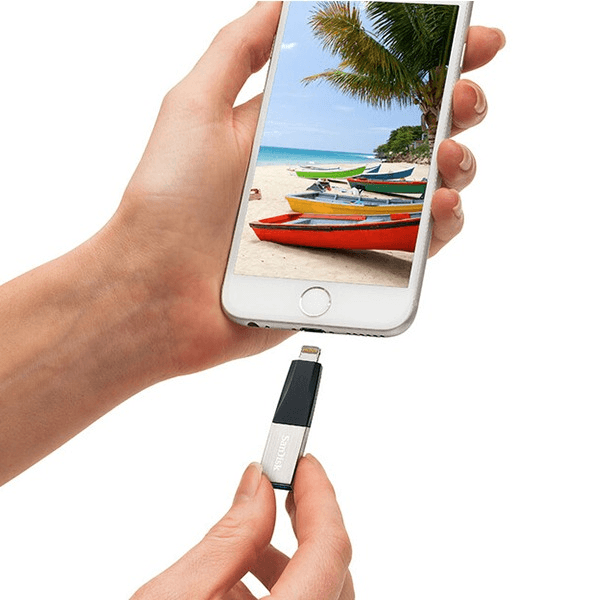
However, many users recently report that sometimes the iXpand Mini cannot be read, detected, or accessed after connecting it to iPhone, iPad, or Windows computer. So, you may be unable to access important photos, videos, and documents stored on the drive. This guide explains the possible causes and how to fix an unreadable iXpand Mini on iOS, iPadOS, and Windows. Follow the appropriate solutions below to restore device recognition and regain access to your files safely.
Why Can't My iXpand Mini Be Read?
There are a wide range of reasons why your SanDisk iXpand Mini drive cannot be recognized. Identifying the exact cause can help you choose the right troubleshooting method and avoid unnecessary data loss. Common reasons why your iXpand Mini is not recognized include:
Loose or unstable connection: A damaged Lightning connector, USB port, or adapter may prevent the device from being detected properly.
Outdated iXpand Drive app or system software: The iXpand Mini may fail to work correctly if the required app or iOS/iPadOS version is outdated.
Unsupported file system or corrupted drive: Windows or iOS devices may not recognize the drive if its file system is incompatible or the storage structure is damaged.
Insufficient permissions or settings issues: Incorrect app permissions or device settings can block access to files on the iXpand Mini.
Hardware problems: Physical damage or flash drive failures may cause the device to stop responding or appear unreadable.
How to Fix Can't Read iXpand Mini on iPhone/iPad
In most cases, the problem can be resolved by some basic solutions. Follow the methods below in order to restore communication between your iPhone/iPad and iXpand Mini.
Method 1. Reconnect iXpand Mini Properly
A poor connection is one of the most common reasons why your iXpand Mini cannot be read on an iPhone or iPad. Before trying advanced fixes, make sure the drive is connected securely and detected correctly. Remove the drive, clean dust and debris off the connectors and ports, then reconnect it properly.
Step 1. Disconnect the iXpand Mini from your iPhone or iPad.
Step 2. Check the Lightning connector and iPhone/iPad port for dust, dirt, or visible damage.
Step 3. Clean the port carefully with a soft, dry tool if necessary.
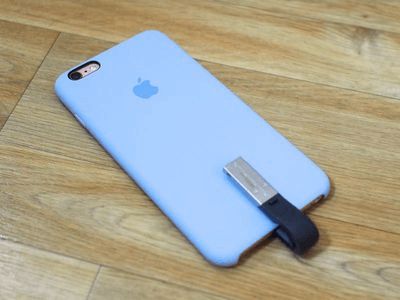
Step 4. Reconnect the iXpand Mini firmly and wait for the iXpand Drive app to detect the device.
Step 5. Open the iXpand Drive app and check whether your files are accessible.
Method 2. Update iXpand Drive App
The iXpand Mini relies on the iXpand Drive app to manage file transfers and access stored data on iPhone and iPad. If the app version is outdated or has compatibility issues with your current iOS/iPadOS version, the drive may not be recognized properly. Updating the app ensures that it includes the latest bug fixes and improvements for device compatibility.
Step 1. Open the "App Store" on your iPhone or iPad.
Step 2. Tap your profile icon in the top-right corner.
Step 3. Scroll down to find available app updates.
Step 4. Locate the iXpand Drive app and tap "Update" if a new version is available.
Step 5. Reconnect your iXpand Mini and check whether it works normally.
- ☞Tips:
- Support for the iXpand Drive App ended on April 30, 2025, and the app has been taken down completely. SanDisk advises using the latest SANDISK App as its replacement.
Method 3. Check iPhone/iPad Compatibility
Not all iPhone and iPad models support every external storage device or connection method. If your device is running an incompatible iOS/iPadOS version or does not properly support external drives, the iXpand Mini may fail to appear. Especially for the latest SANDISK APP, it only runs on iOS 15+ and Android 8+, with no compatibility for HarmonyOS.
Step 1. Check your iPhone or iPad model and iOS/iPadOS version.
Step 2. Make sure your device supports external storage accessories.
Step 3. Update your iPhone/iPad to the latest available system version.
Step 4. Restart the device after completing the update.
Step 5. Connect the iXpand Mini again and test whether it is detected.
Method 4. Restart iPhone/iPad
Temporary system errors or background processes may prevent your iPhone or iPad from recognizing the iXpand Mini correctly. Restarting the device refreshes system services and can resolve minor software glitches affecting external storage detection. This is one of the quickest methods to resolve the "can't read iXpand Mini" error
Step 1. Disconnect the iXpand Mini from your iPhone or iPad.
Step 2. Restart your device according to your iPhone/iPad model.
Step 3. Wait until the system fully loads and connect the iXpand Mini again.
Step 4. Open the iXpand Drive app and check if the drive is recognized.
Method 5. Update the Firmware on Windows/macOS
Firmware updates can improve compatibility, stability, and performance between the iXpand Mini and connected devices. If the drive firmware is outdated, it may cause recognition problems or connection failures, especially after iOS/iPadOS updates. You can try updating the firmware on Windows or macOS with these steps:
Step 1. Connect the iXpand Mini to your Windows or Mac computer. Make sure it can be recognized in File Explorer or Finder.
Step 2. Download and install the SANDISK App.
Step 3. Select your iXpand Mini USB drive and click the three-dots button > "Device Settings" > "Firmware" to check whether a firmware update notification appears.
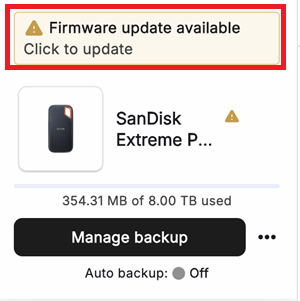
Step 4. Click "Update" to start the process.
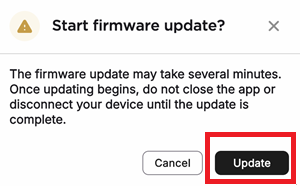
Step 5. After finishing the update, safely eject the flash drive, reconnect it to your computer for verification, then plug it into your iPhone or iPad to check if the device can be detected and read normally.
How to Fix Can't Read iXpand Mini on Windows
Similar to mobile devices, if your iXpand Mini is not recognized on Windows, the issue is usually related to the USB connection, drive detection, system drivers, or storage errors. Windows provides more built-in tools to check whether the drive appears correctly and identify the cause.
Method 1. Check USB Connection
Problems with the USB port, cable connection, or adapter may prevent the computer from communicating with the drive. A faulty USB connection is one of the first things to check when Windows cannot detect your iXpand Mini. Since SanDisl iXpand Mini drive can be accessed directly on Windows, you can plug it into different ports to determine whether the issue stems from the connection port or the drive itself.
Step 1. Disconnect the iXpand Mini from your Windows computer.
Step 2. Check the USB connector and port for dust, damage, or loose connections.
Step 3. Connect the iXpand Mini to another USB port on your computer. Avoid using USB hubs or extension adapters and connect the drive directly to the computer.
Step 4. Open File Explorer and check whether the iXpand Mini appears.
Method 2. Check Disk Management
If the iXpand Mini does not appear in File Explorer but is still connected to Windows, Disk Management can help identify whether the system detects the drive. It displays all connected storage devices, including drives without a drive letter or those with partition issues. Checking disk statue in Disk Management to determine whether the problem is related to drive assignment, partition status, or recognition failure.
Press "Win" + "X" and select "Disk Management" to open it.
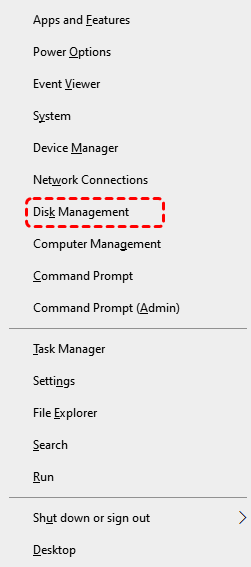
👉 For Missing Drive Letter:
Step 1. Find the iXpand Mini from the list of connected drives.
Step 2. Right-click it and select "Change Drive Letter and Paths".
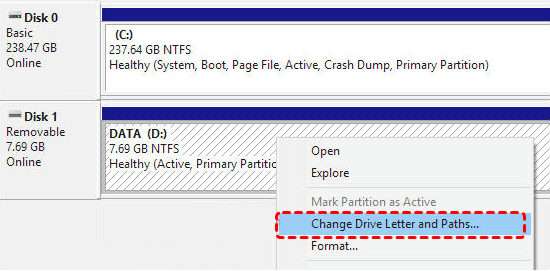
Step 3. Click "Add" and assign a new drive letter.
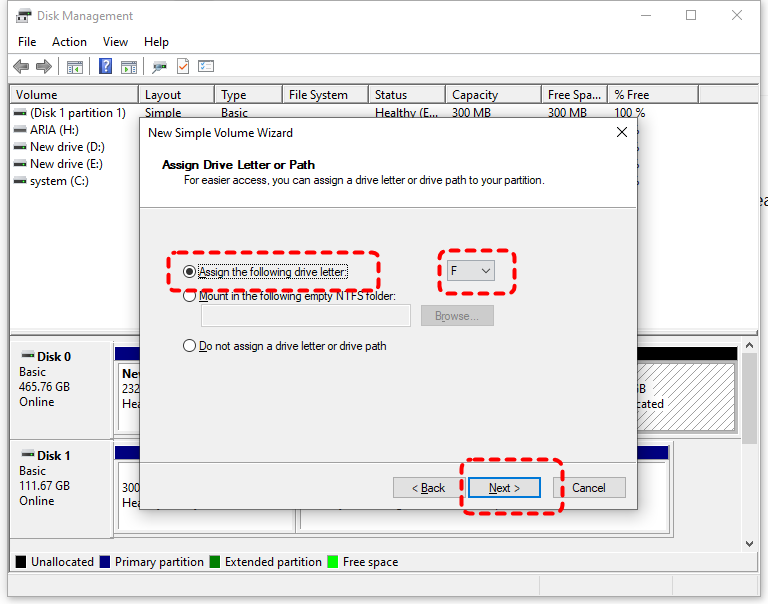
Step 4. Open File Explorer to check whether you can access the drive.
👉 For Unallocated Space:
Step 1. Right click on the unallocated space and select "New Simple Volume".
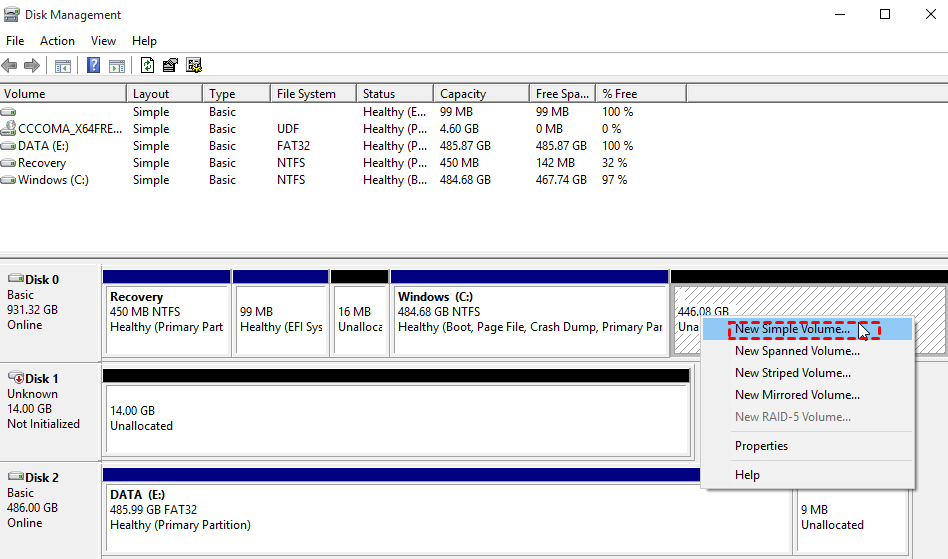
Step 2. Assign a new drive letter for the drive and click "Next".
Step 3. Choose if you want to format the drive. But you can use drive only when you format it.
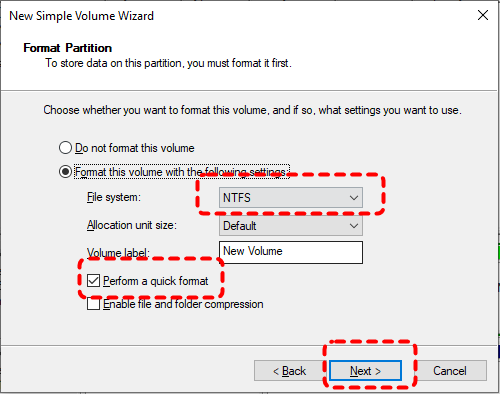
👉 For Uninitialized/Unknown Disk:
Step 1. Select the uninitialized disk and right click on it, then choose "Initialize Disk".
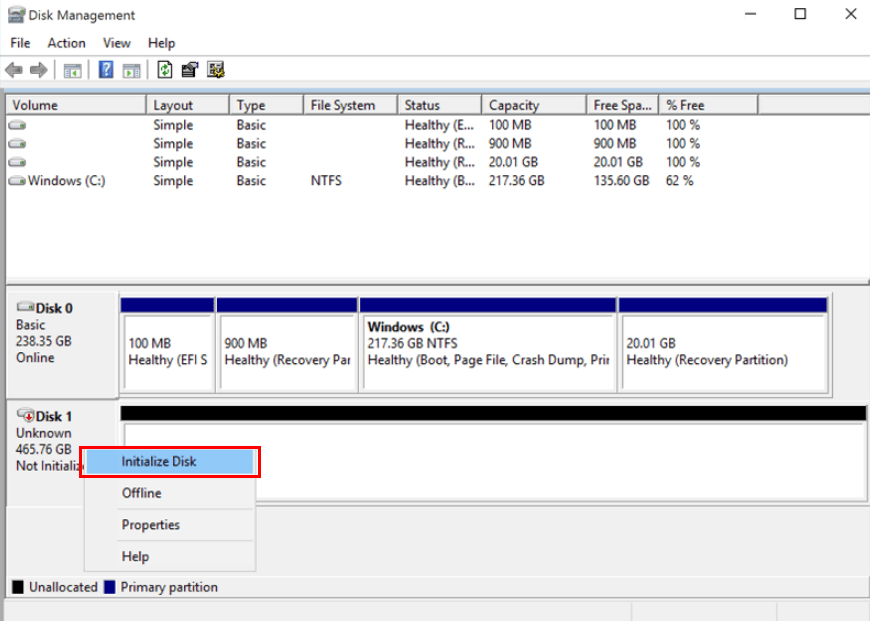
Step 2. Choose a partition style (MBR or GPT) based on your needs.
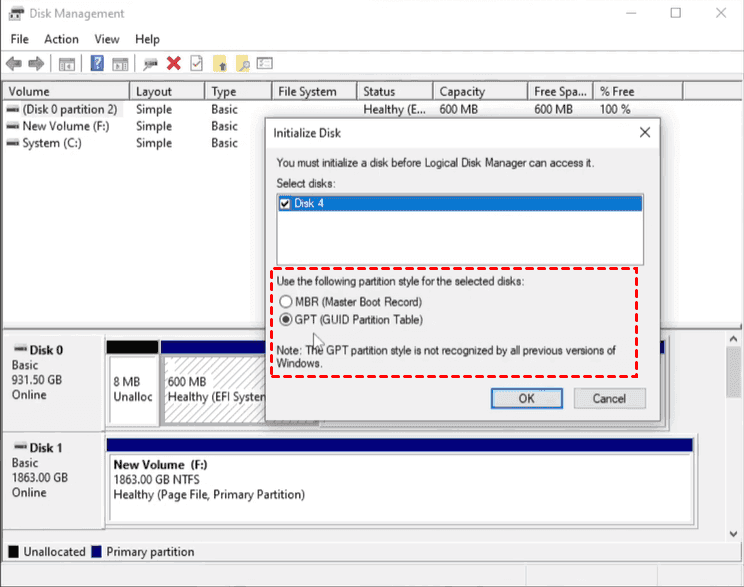
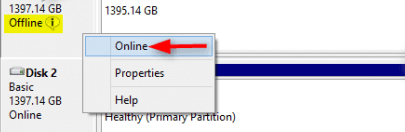
👉 For Offline Drive:
Right click the offline disk and select "Online" to mount it.
Method 3. Update USB Drivers
Outdated or corrupted USB drivers can prevent Windows from correctly communicating with external storage devices like the iXpand Mini. Updating the drivers refreshes the connection between the operating system and USB hardware and helps resolve detection problems caused by driver conflicts or system updates.
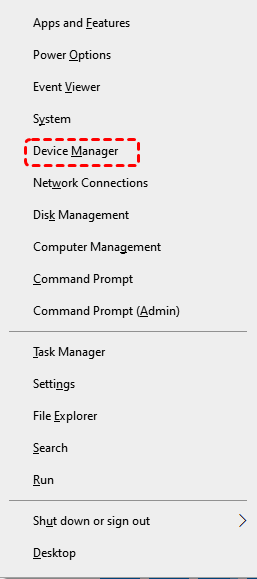
Step 1. Press "Win" + "X" and select "Device Manager" to open it.
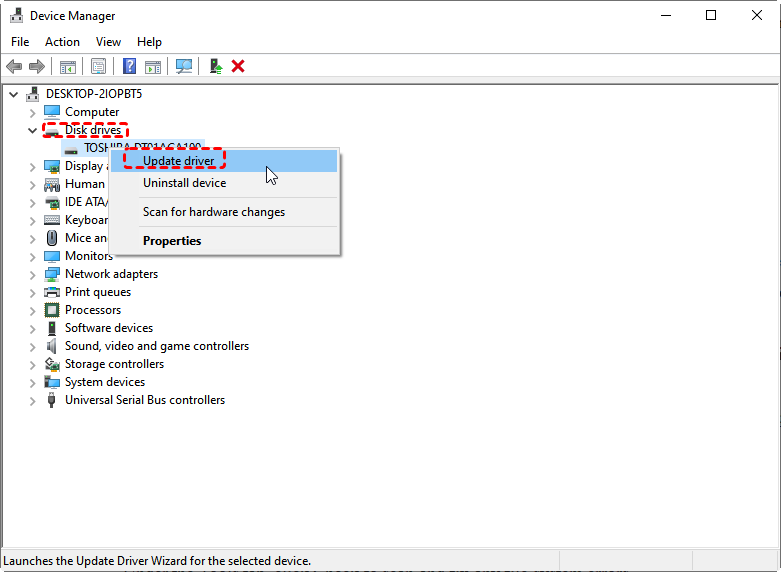
Step 2. Expand the "Disk drivers" section and find the USB device related to the iXpand Mini.
Step 3. Right-click the device and select "Update driver".
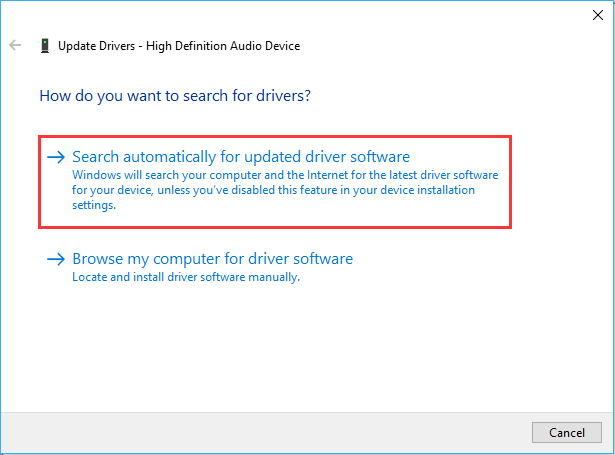
Step 4. Choose "Search automatically for updated driver software" and complete the update process.
Step 5. Restart your computer and reconnect the iXpand Mini.
Method 5. Format the iXpand Mini Drive
If the iXpand Mini is detected by Windows but cannot be read due to file system errors or corruption, formatting the drive may restore normal functionality. But formatting will erase all files stored on the drive.
Step 1. Connect the iXpand Mini to your Windows computer.
Step 2. Open File Explorer, right-click the iXpand Mini drive, and select "Format".
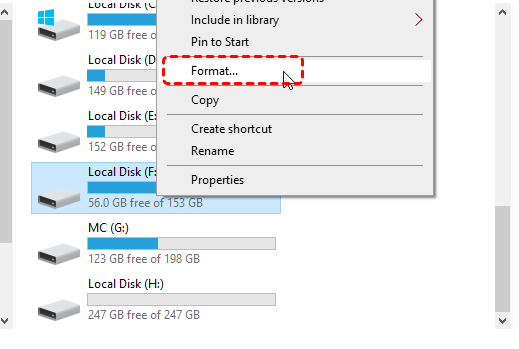
Step 3. Choose a compatible file system, such as exFAT, depending on your usage requirements.
Step 4. Check the "Quick Format" options and click "Start".
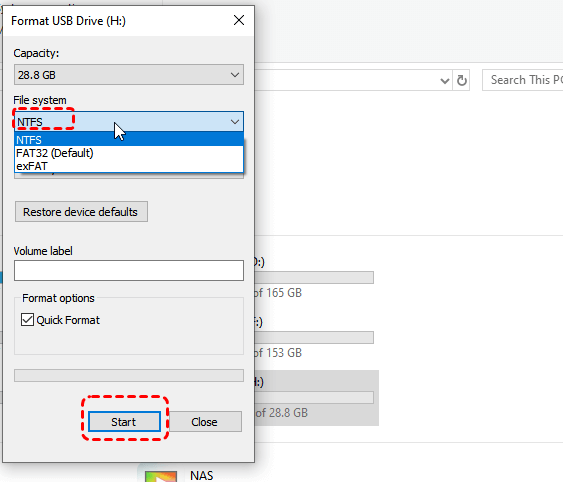
Step 5. Wait until the formatting process is completed.
Step 6. Reconnect the iXpand Mini and check whether Windows can read the drive normally.
How to Recover Data from the iXpand Mini on Windows
If your iXpand Mini is still unreadable after trying the above solutions or you lost any files during the process, you can try to retrieve files from the USB flash drive using a professional data recovery — MyRecover.
It is designed to recover lost or inaccessible data from various storage devices, including USB flash drives, external drives, and memory cards. It can help locate files that are no longer accessible due to deletion, formatting, corruption, or other drive issues while keeping the original folder structure unchanged.
- Key Features of MyRecover:
- Recover Data from Various Storage Devices: Restore lost or inaccessible files from USB flash drives, external hard drives, SD cards, and other storage devices connected to Windows.
- Support Multiple Data Loss Scenarios: Recover files affected by accidental deletion, formatting, system errors, drive corruption, or other unexpected issues.
- Preview Before Recovery: Preview found files during the scan process to verify whether the required data can be recovered.
- Fast & Deep Scan Technology: Quickly locate recently deleted files and perform a deeper scan to find more inaccessible data.
- Safe Read-Only Recovery: Scan and recover files without writing new data to the original iXpand Mini, reducing the risk of further data loss.
Step 1. Connect the iXpand Mini to your Windows computer and make sure it is detected.
Step 2. Download and install MyRecover on your computer.
Step 3. Launch MyRecover, select the iXpand Mini drive, and click "Scan" to start searching for lost files.
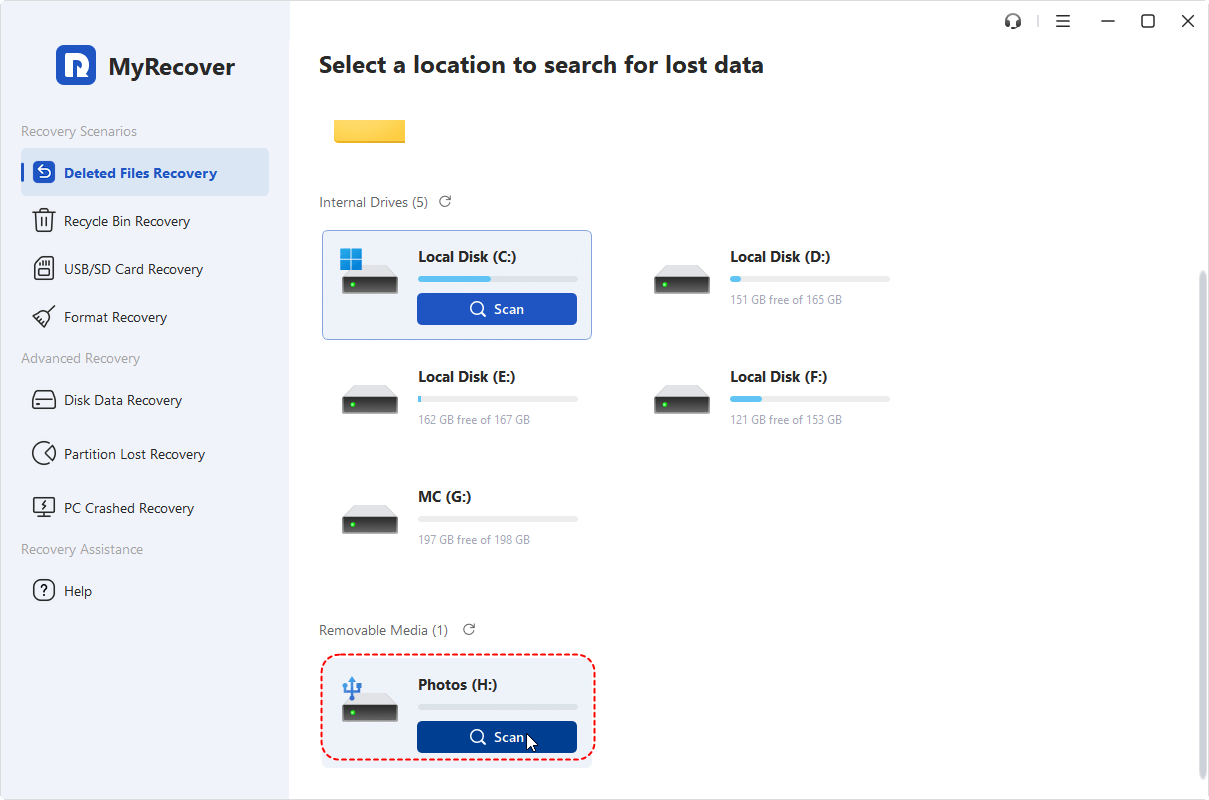
Step 4. Wait for the scanning process to complete. You can preview found files and use filters to quickly locate the data you need. Select the files you want to recover and click "Recover".
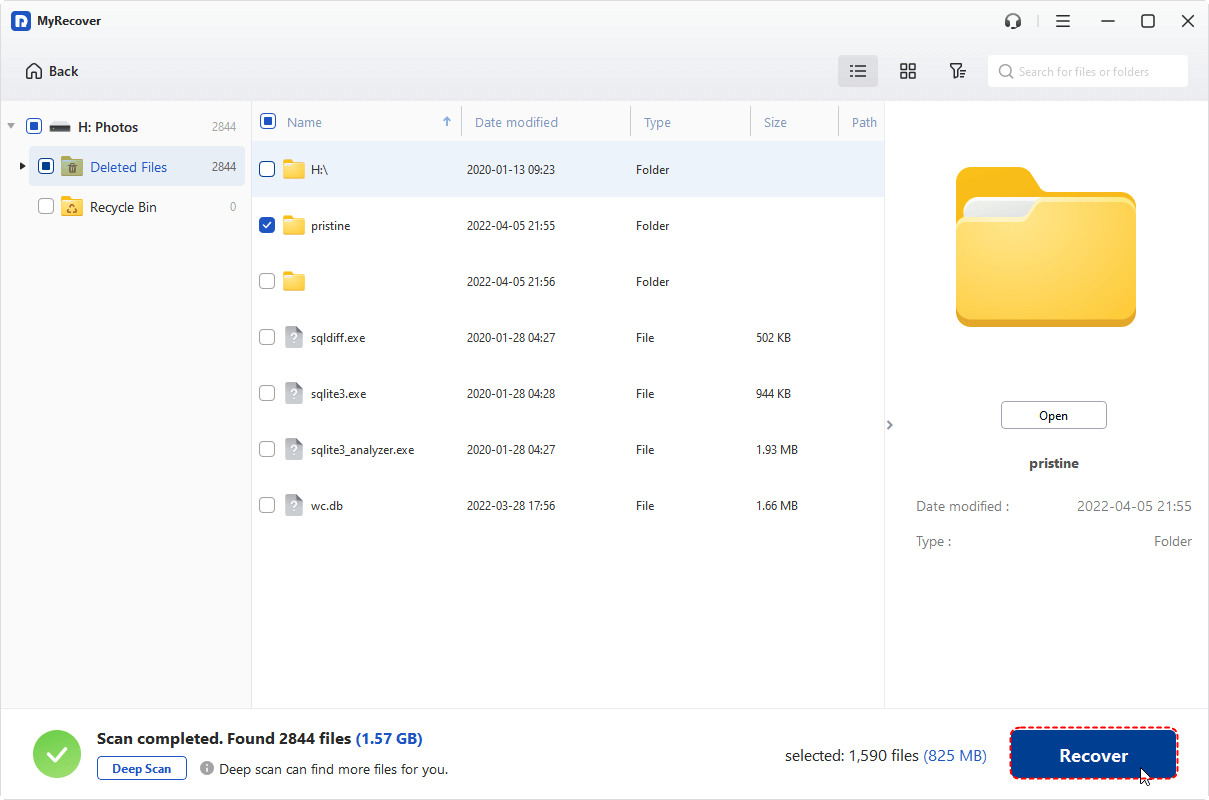
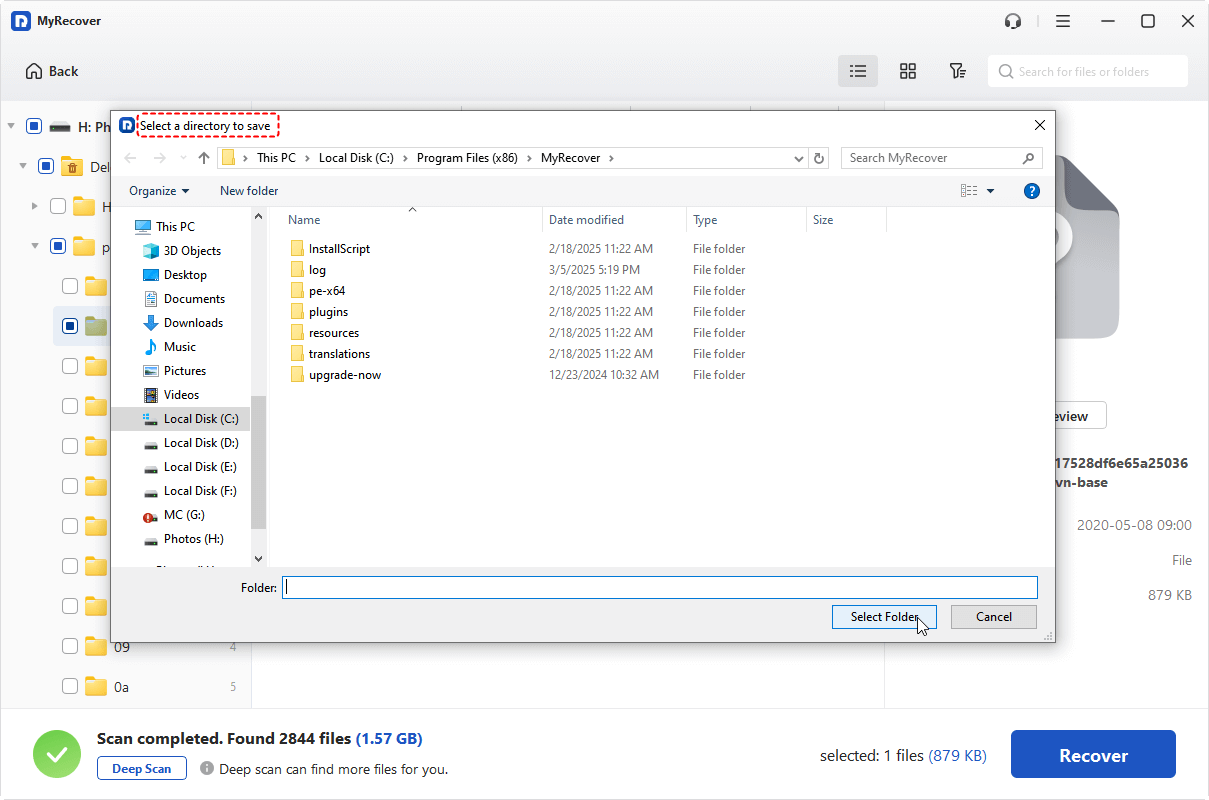
Step 5. Save the recovered files to another location instead of the iXpand Mini to avoid overwriting existing data.
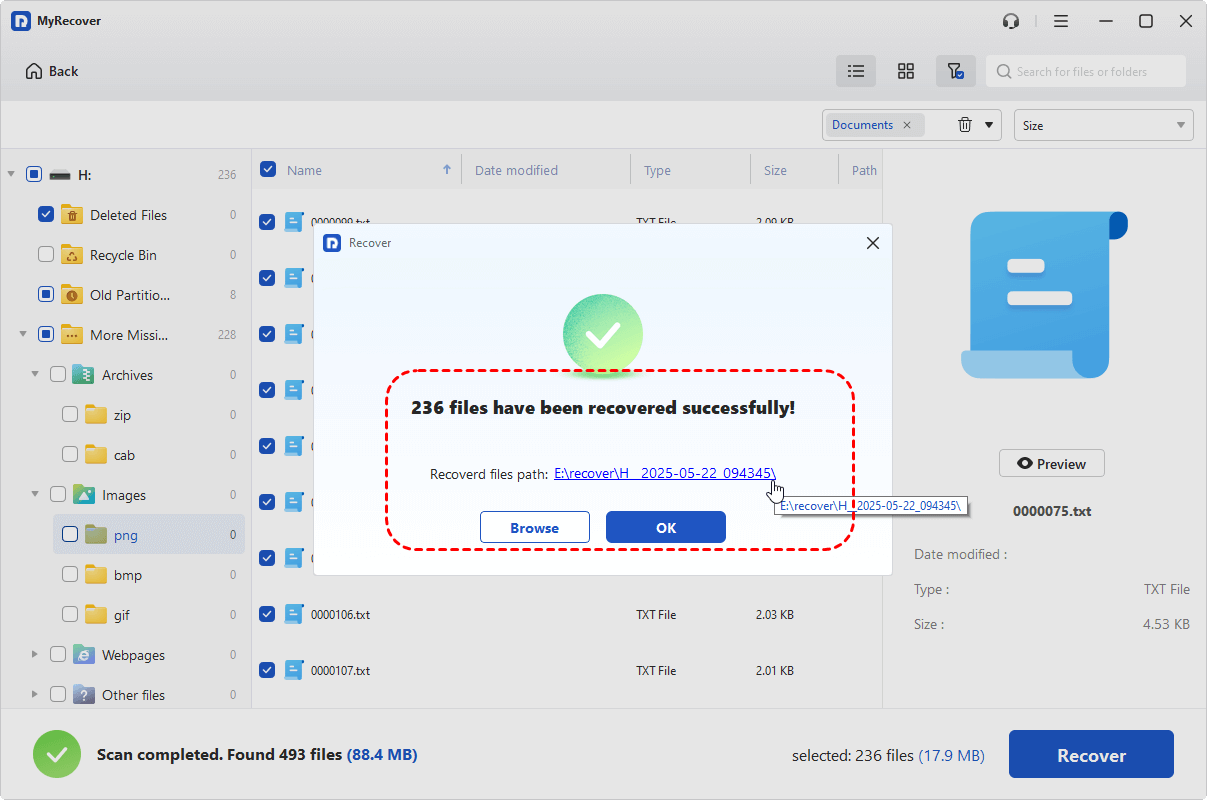
Once the process is done, you can access the recovered files by clicking on the "Browse" button or destination folder path.
The Bottom Line
The "Can’t Read iXpand Mini" issue can happen on both iPhone/iPad and Windows due to various reasons. By following the troubleshooting methods in this guide, you can check the device connection, update necessary software, fix recognition problems, and restore access to your iXpand Mini in most cases.
However, if the drive remains unreadable or you cannot access important files stored on it, avoid formatting the device immediately, as this may permanently remove your data. Instead, use a professional recovery tool like MyRecover to scan the iXpand Mini and recover inaccessible photos, videos, documents, and other files before attempting further repairs.
FAQs
Q1: Can I use SanDisk iXpand without the app?
Yes, you can use the iXpand Mini on Windows without the app because it works as a regular USB flash drive. However, on iPhone or iPad, you usually need the SanDisk app to manage, transfer, and access files stored on the drive.
Q2: Why is my SanDisk USB not being recognized?
A SanDisk USB drive may not be recognized due to connection problems, outdated drivers, file system errors, missing drive letters, or hardware issues. Try reconnecting the drive, checking Disk Management, updating USB drivers, or testing another USB port.
Q3: Why won't my Sandisk flash drive work on my iPhone?
Your SanDisk flash drive may not work on iPhone because of compatibility issues, an outdated SanDisk app, insufficient power, connection problems, or iOS limitations. Make sure the app and iOS version are updated and the drive is properly connected.
Q4: How do I recover files from unreadable iXpand Mini?
To recover files from an unreadable iXpand Mini, connect it to a Windows computer and use a professional data recovery tool like MyRecover. Scan the drive, preview recoverable files, and save recovered data to another location.
Q5: What to do if iXpand Mini is not supported?
If your iXpand Mini is not supported, check whether your iPhone/iPad model and operating system meet compatibility requirements. Update the SanDisk app or system software, try another device, or connect the drive to Windows for further troubleshooting.
Q6: How to repair corrupted iXpand Mini USB flash drive?
To repair a corrupted iXpand Mini, first recover important files to avoid data loss. Then check the drive using Windows tools like Disk Management or format the drive with a compatible file system to restore normal functionality.

Stay Updated With Our
Latest Tips
Add us as a preferred source on Google to never miss helpful guides.
 Add as preferred source >>