 MyRecover



Apacer External Hard Drive Not Recognized on Windows: Easy Solutions
An Apacer external hard drive not being recognized on Windows can prevent you from accessing important data. This article offers practical, step-by-step solutions to fix the issue. With these simple solutions, you can quickly resolve the problem and restore full access to your Apacer external hard drive.

By Aria / Updated on March 16, 2026


Overview
Apacer external hard drives are widely used for storing important files, backups, and media. However, it's not uncommon for users to encounter an issue where their Apacer external hard drive is not recognized by their Windows PC. When your Apacer external hard drive is not recognized, it can be frustrating, especially if you need access to critical data.
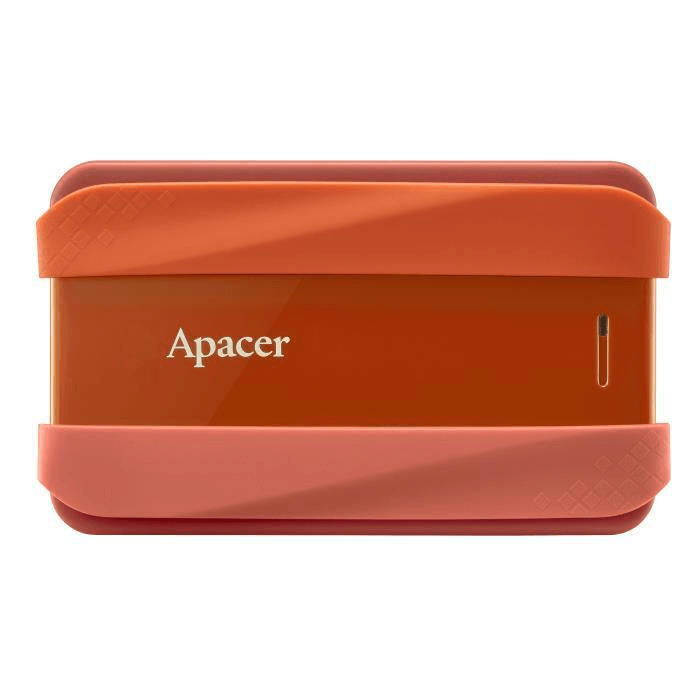
In this guide, we'll explore common reasons why an Apacer external hard drive may not be recognized and how to fix the issue. Additionally, we'll discuss how to recover your data if the drive is not detected by your system.
The Common Reasons Apacer External Hard Drive is Not Recognized
This can happen for a variety of reasons, ranging from simple connection issues to more complex problems related to the drive's software or hardware configuration. There are detailed reasons why your Apacer external hard drive might not be recognized by your Windows PC:
🧿Connection Issues: The most straightforward reason for the drive not being recognized is a poor connection. This could be due to a faulty USB cable, a loose connection, or issues with the USB port itself.
💾Device Driver Problems: Outdated or corrupt device drivers can prevent your computer from recognizing external hard drives. You can try to repair the Apacer hard drive using repair tools.
🔋Power Supply Issues: If your Apacer external drive requires more power than your USB port can supply, it may not be detected by your computer. This can happen when using an unpowered USB hub or when the drive's internal power supply is malfunctioning.
🔔Drive Letter Conflicts: In some cases, the drive is detected by the system but is not assigned a drive letter, making it invisible in File Explorer.
📂Corrupted File System: If the file system on your Apacer external hard drive is corrupted, the drive might not be recognized by your computer, and accessing the data could be problematic.
🔌USB Port Issues: A malfunctioning or outdated USB port can also prevent your Apacer external hard drive from being detected.
🛠️External Hard Drive Errors: If the external hard drive itself has suffered physical damage or internal failures, it may not be recognized.
How to Recover Data from the Unrecognized Apacer External Hard Drive
Before troubleshooting, recovering data from this unrecognized Apacer external hard drive is the top priority. Data loss may occur during the troubleshooting process. MyRecover is a reliable data recovery tool that can help you retrieve lost or inaccessible files from external hard drives, even when the drive isn't showing up in File Explorer. It supports a wide range of file formats, so you can recover documents, photos, videos, and more from various external hard drive.

 MyRecover
- Fast and Easy – Simple interface makes recovery quick, even for beginners.
- Deep Scan Technology – Finds deleted, lost, or corrupted files effectively.
- Safe Recovery – Prevents overwriting existing files while restoring lost data.
- Supports Multiple File Types – Works for documents, photos, videos, and more.
 100% Secure
Step 1. Download and install MyRecover on your computer from Microsoft Store. Connect the Apacer external hard drive to the computer with a correct port or cable.
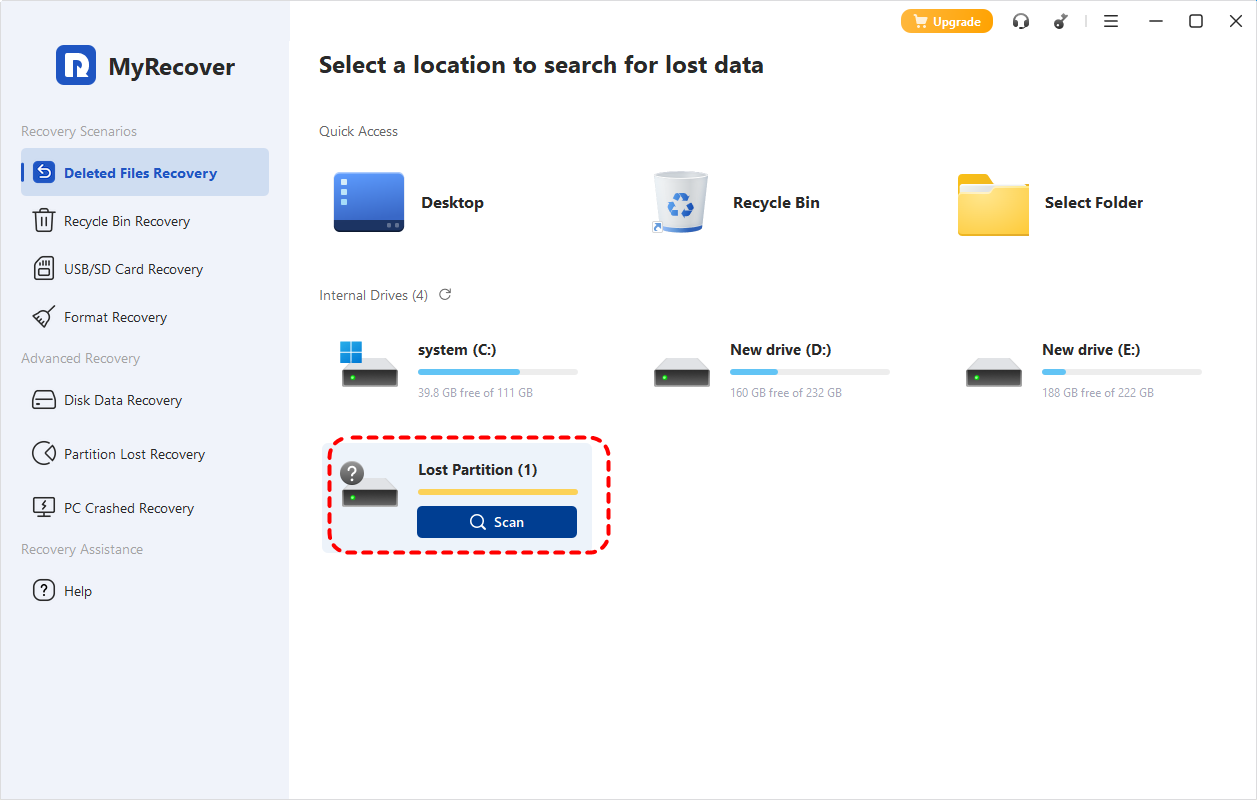
Strep 2. Launch MyRecover and select the Apacer external hard drive to scan for lost files, then click "Scan".

- Notes:✎...
- If you cannot find your Apacer external hard drive in the listed drives, this may be because it is displayed as a "Lost Partition" in MyRecover. You can locate it by its storage capacity.
-

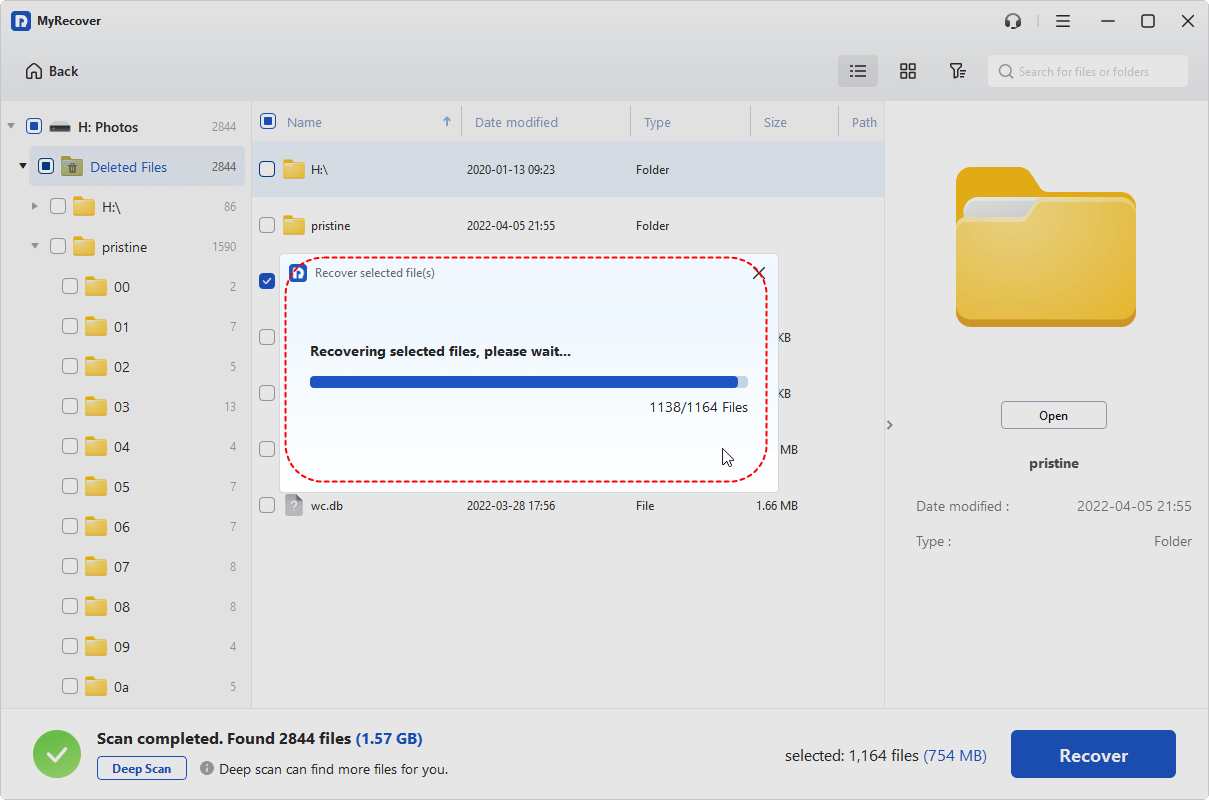
Step 3. Once the scan is completed, select the files you wish to recover from the recoverable lists under the "Path" or "Type" tab and click "Recover".

If you have no deleted data to recover, select the "Existing Files" folder under the "Path" tab and click "Recover" to extract all data from it.
Step 4. Save them to a different location to avoid overwriting the lost data on the drive.

When the process is done, you'll see the message "Files have been recovered successfully". Then, you can access the recovered files in the destination folder by clicking on the "Browse" button.
How to Fix the "Apacer External Hard Drive Not Recognized" Issue
Once you've ensured that no data is lost, it's time to tackle the issue of your Apacer external hard drive not being recognized. This section provides effective solutions based on the causes of the problem, and you can choose the appropriate method according to your actual situation.
Solution 1. Check the Connection
Start by ensuring that the Apacer external hard drive is securely connected to your computer. Try using a different USB port, a different USB cable, or another computer to eliminate connection issues. Sometimes, a faulty cable or port is the culprit. If the external hard drive can be recognized on another computer, please proceed with other solutions below.
Solution 2. Assign a New Drive Letter
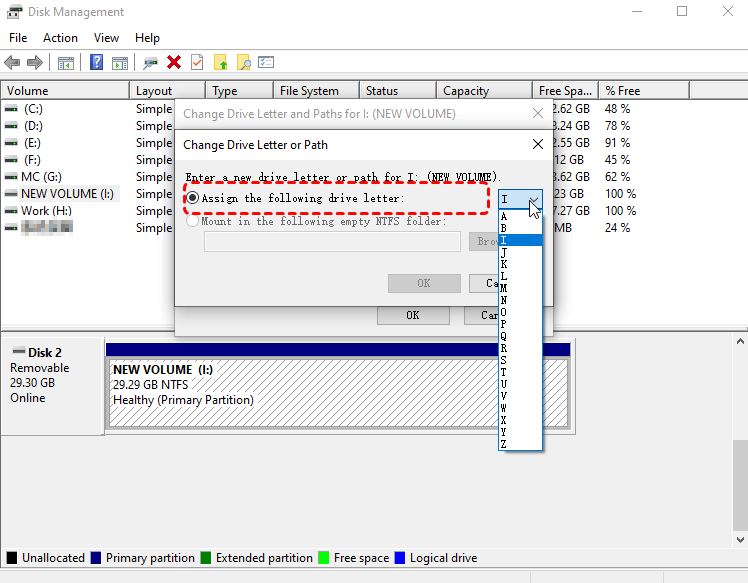
If the drive is detected but lacks a drive letter, it will be hidden in File Explorer and you can't use it properly as before. Assign a new drive letter for the external hard drive might solve the Apscer external hard drive not recognized on Windows issue.
Step 1. Press "Win" + "X" and choose "Disk Management" to open it.

Step 2. Locate the Apacer hard drive and right click on it, then select "Change Drive Letter and Paths".
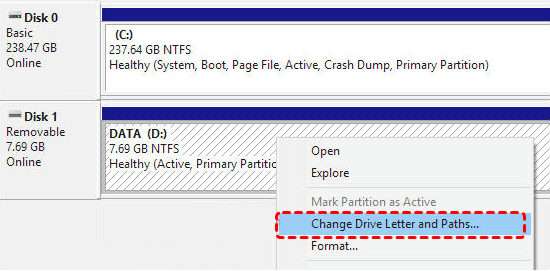
Step 3. Choose a new drive letter and click "OK" to save the changes.
Solution 3. Show Hidden Devices
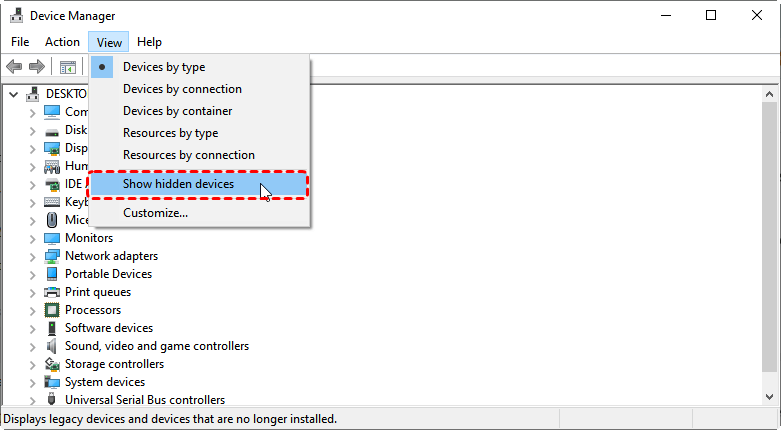
Sometimes, if the drive is in an error state, Device Manager may hide it, which makes it invisible in File Explorer and creates the false impression that the hard drive is not detected. You can check for hidden devices in Device Manager.
Step 1. Press "Win" + "X" and choose "Device Manager" to open it.

Step 2. Click "View" on the top menu and check the "Show hidden devices".
Solution 4. Reinstall or Update Device Driver
Outdated or faulty USB drivers are a common cause of device detection issues. Uninstall or Reinstall device driver can make the drive be recognized correctly.
Step 1. Open Device Manager and expand the "Disk drives".
Step 2. Right click on your Apacer external hard drive and choose "Update driver".

Step 3. Click "Search automatically for updated driver software" to continue the process.
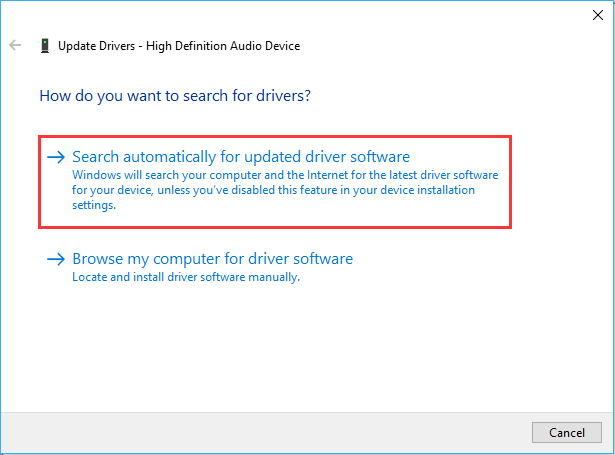
If there are no updates, you can choose "Uninstall device". Restart your computer. When you connect the Apacer drive to the computer again next time, Windows will automatically reinstall it.
Solution 5. Update USB Controller Driver
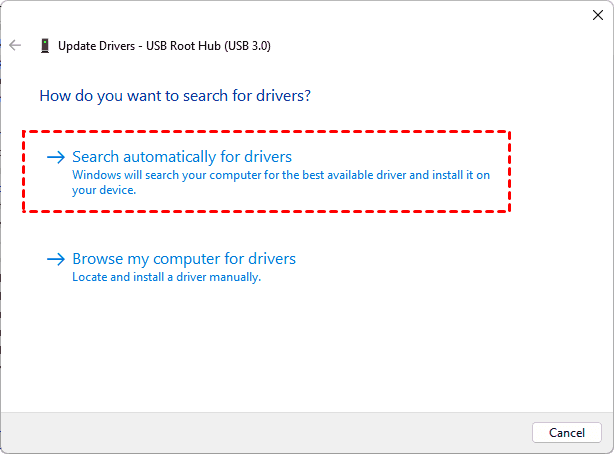
If you use a USB hub to connect the drive, corrupted or outdated USB controller devices may prevent your Apacer external hard drive from being recognized by Windows. Update USB controller can fix the issue.
Step 1. Open Device Manager and expand "Universal Serial Bus Controllers".
Step 2. Right click on each hub or controller and select "Update driver".
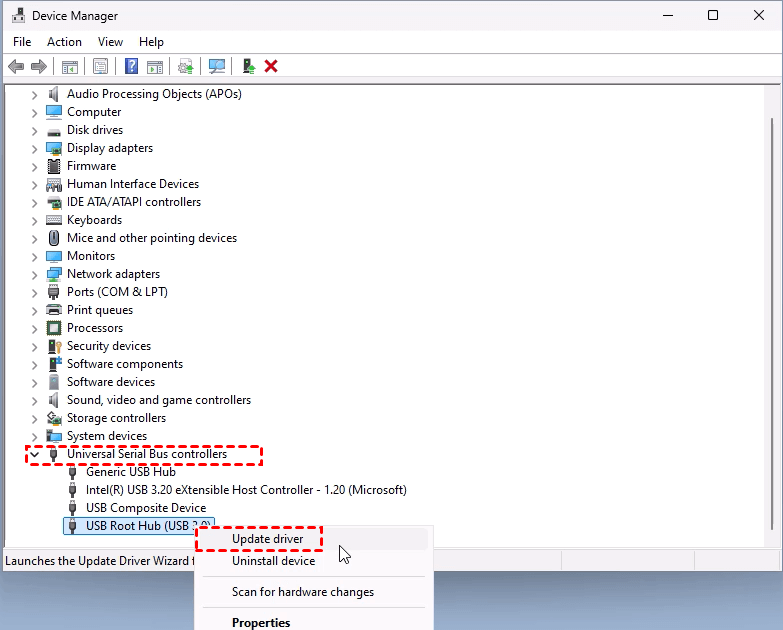
Step 3. Choose "Search automatically for drivers" to begin the process.
Solution 6. Check Drive Status in Disk Management
If the external hard drive does not appear in File Explorer, you can also check Disk Management to see if there is an issue with the drive’s status. If the drive is listed as unallocated space, RAW, or uninitialized, a few simple steps will be sufficient to make it recognizable by Windows.
👉For RAW Drive
Step 1. Open Disk Management and right click on the Apacer external hard drive, then choose "Format".
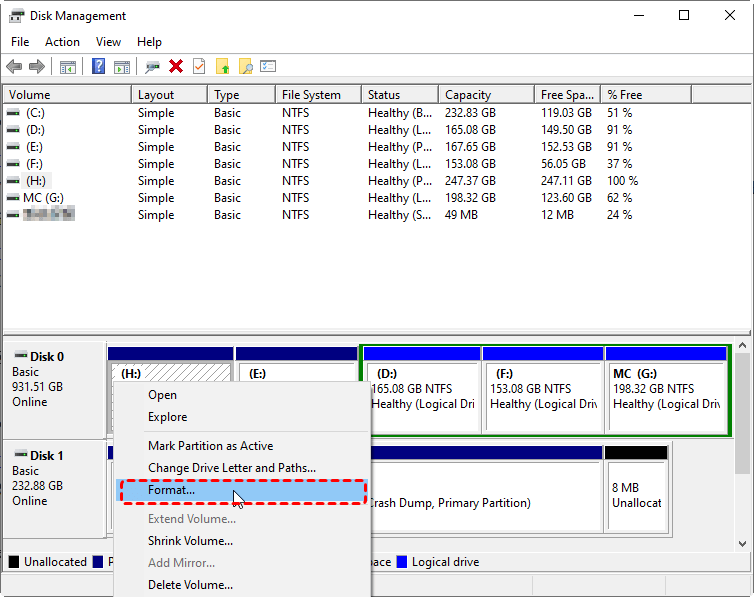
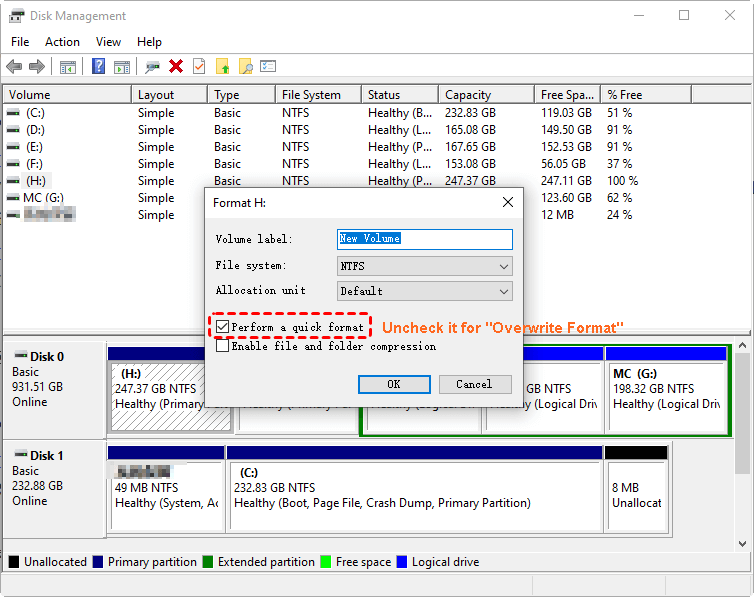
Step 2. Select an appropriate file system like NTFS for the drive and click "Next" > "Finish" to start the process. If there is still important data on the drive, check the box to "Perform a quick format"; otherwise, the original data will be overwritten.
👉For Uninitialized or Unallocated Disk
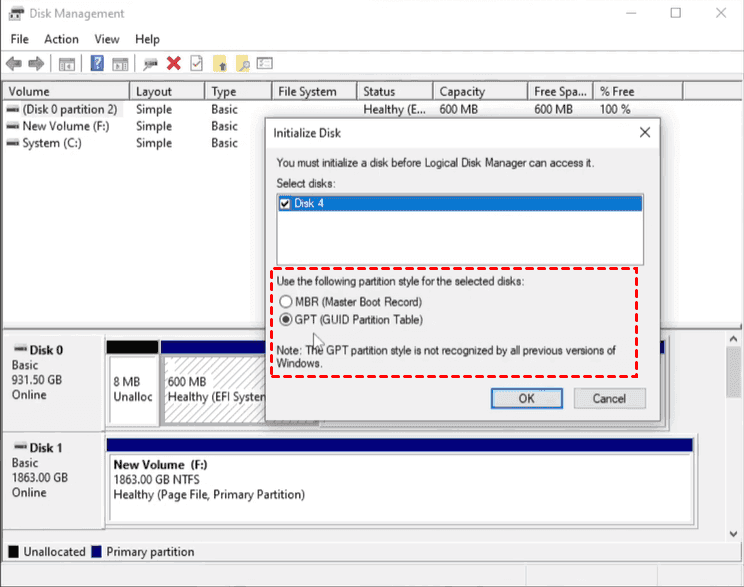
Step 1. Open Disk Management and right click on the disk, then select "Initialize disk".
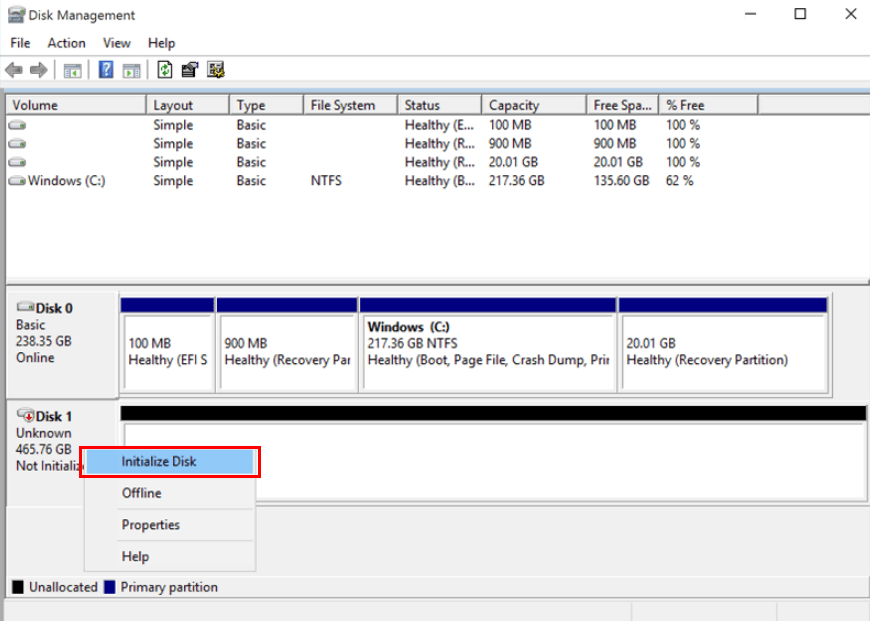
step 2. Choose a partition style based on your needs (MBR or GPT).
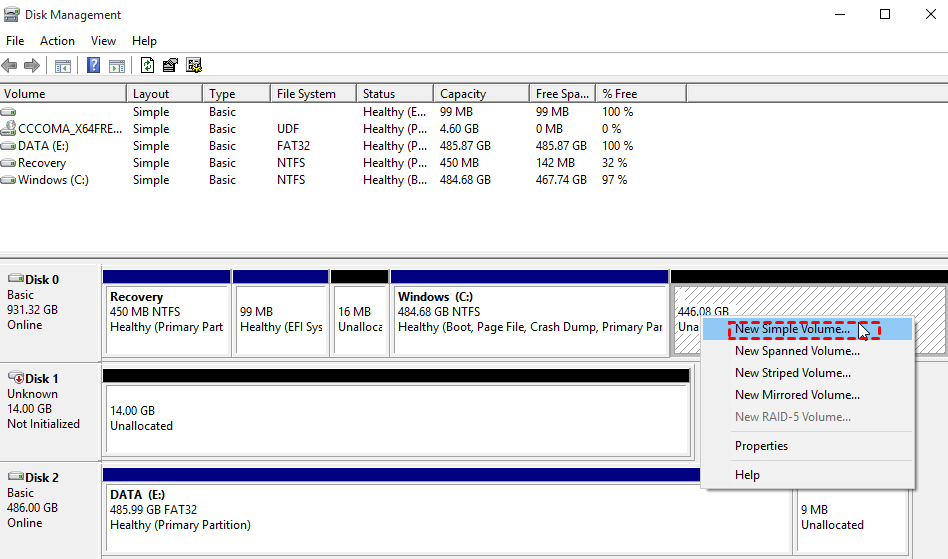
Step 2. Then the drive will be displayed as "Unallocated". Right click on the unallocated drive and choose "New Simple Volume".
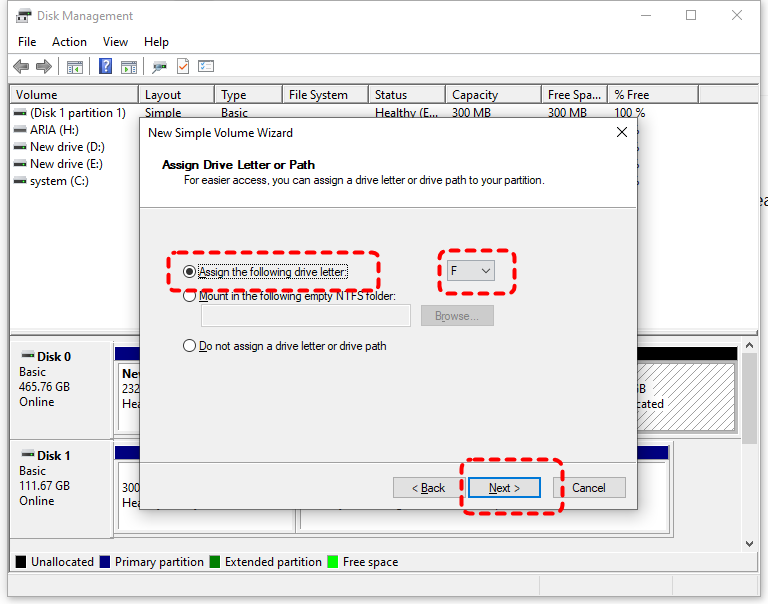
Step 3. Assign a new drive letter and click "Next".
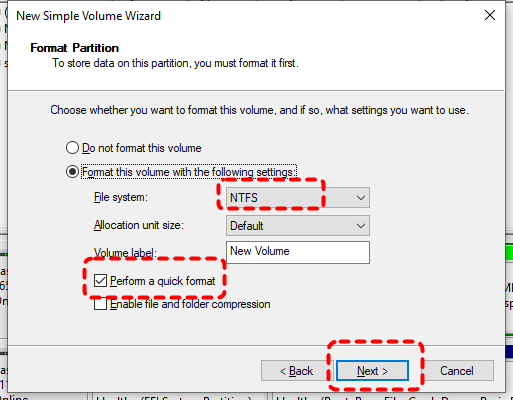
Step 4. Choose a file system and check the "Perform a quick format" option to format the drive.
Then, you can open File Explorer to check if the drive is recognized.
Solution 7. Disable USB Selective Suspend Setting
The USB Selective Suspend setting can automatically disable USB devices to conserve energy. This will cause external devices not to be recognized on Windows. Disabling this feature will prevent the system from putting your USB drive into a suspended state.
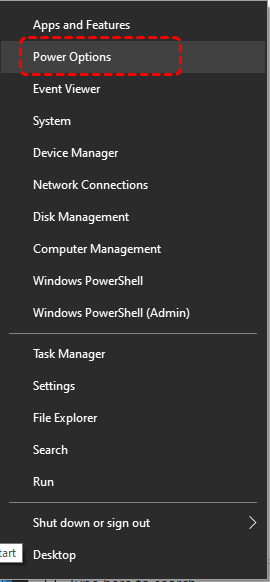
Step 1. Press "Win" + "X" and choose "Power Options".
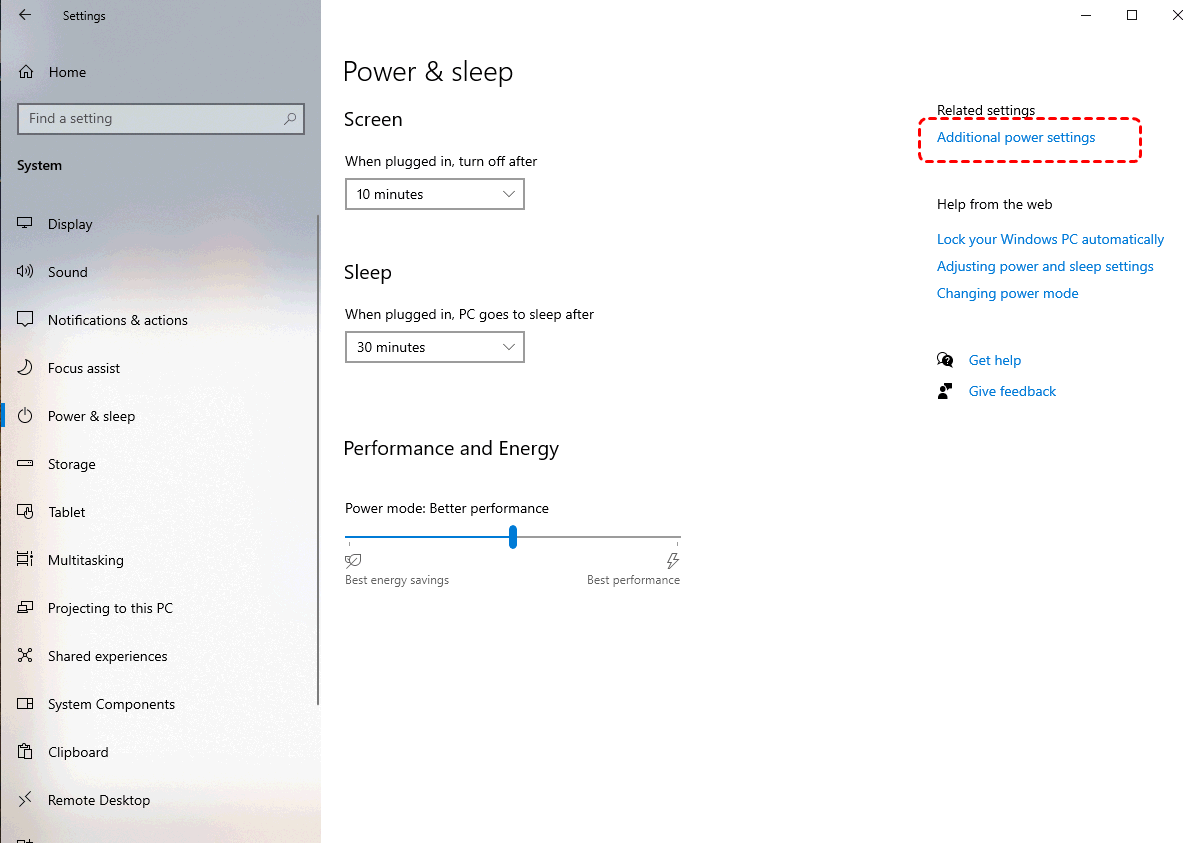
Step 2. In the opened "Power & sleep" window, click "Additional power settings".
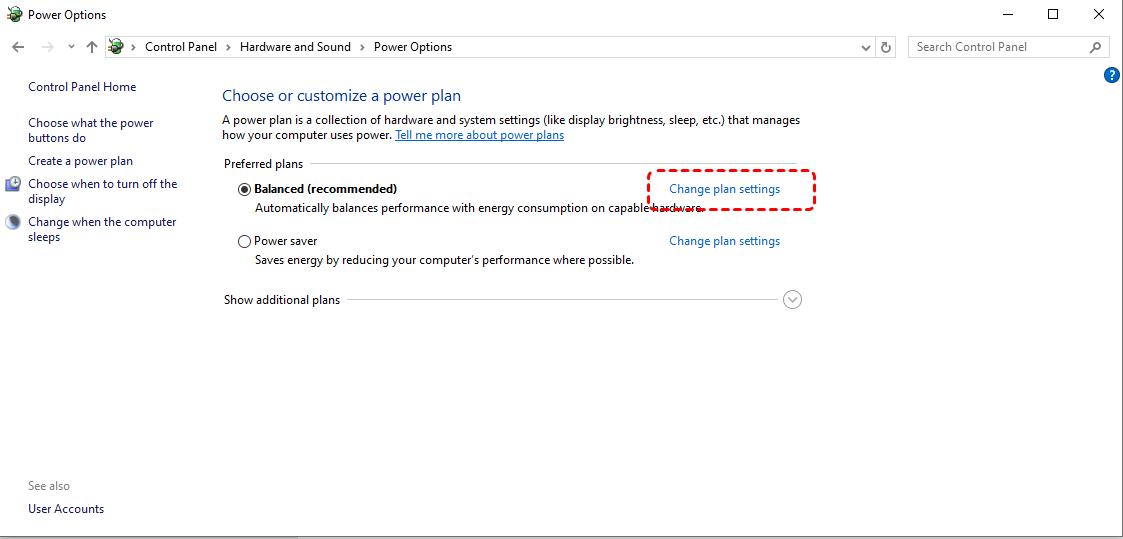
Step 3. Then click on "Change plan settings" and "Change advanced power settings".
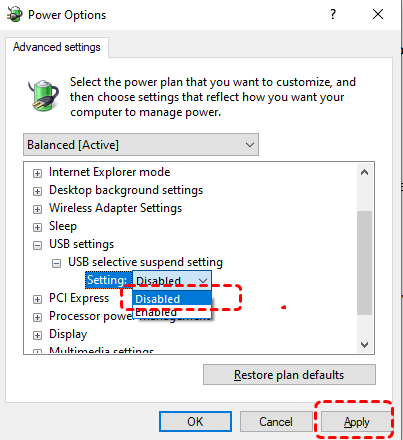
Step 4. Expand "USB settings" > "USB selective suspend setting", select "Disabled" and click "Apply".
Solution 8. Run Hardware Troubleshooter command
Windows includes a built-in hardware troubleshooter that can help resolve issues with devices that aren’t being recognized. Here's how:
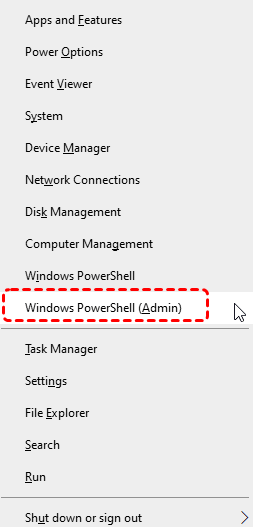
Step 1. Press "Win" + "X" and choose "Windows PowerShell (Admin)" to open it.
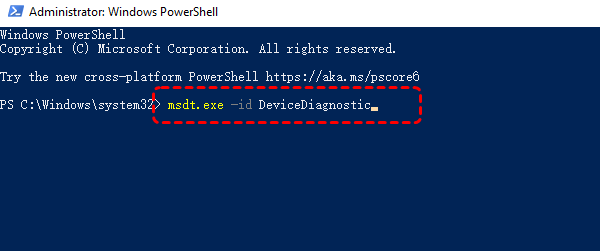
Step 2. Input the following command "msdt.exe - id DeviceDiagnostic" and press "Enter" key.
Step 3. In the opened "Hardware and Devices" window, click "Advanced" and check the "Apply repairs automatically", then click "Next" to detect the hardware issues.

Summary
If your Apacer external hard drive is not recognized, don’t panic. By following the troubleshooting methods above, you can resolve the issue and make your external hard drive accessible again. If you’ve lost important data during the process, MyRecover offers a reliable solution for recovering lost files from unrecognized or inaccessible drives.
For professional-level assistance and advanced recovery feature like recovery from dead laptop, MyRecover Professioanl edition provides a seamless experience, ensuring you can retrieve your files safely and efficiently.

Stay Updated With Our
Latest Tips
Add us as a preferred source on Google to never miss helpful guides.
 Add as preferred source >>