 MyRecover



CHKDSK Stuck? How to Fix the Issues Easily
Is your Windows PC showing CHKDSK stuck at stage 4 or other stages? This guide explains why it happens, how to safely fix it, and tips to prevent future disk errors, ensuring your system runs smoothly without data loss.

By Vera / Updated on March 12, 2026


What Is CHKDSK and Why Is It Important?
CHKDSK, short for "Check Disk", is a built-in Windows utility that scans your hard drive for errors and attempts to repair them. Think of it as a doctor for your disk—identifying problems in your PC’s storage system and fixing them before they cause bigger issues.
Understanding Disk Errors
Hard drives aren’t perfect. Over time, files can get corrupted, sectors can go bad, or the system can struggle to locate data. These problems can lead to crashes, slowdowns, or even data loss. CHKDSK helps identify and fix these errors automatically, keeping your system healthy.
How CHKDSK Works in Windows
When you run CHKDSK, Windows scans your disk in multiple stages:
Stage 1: Checks the integrity of file system metadata.
Stage 2: Verifies file name links.
Stage 3: Examines security descriptors.
Stage 4: Scans actual data sectors for errors—this is the stage where CHKDSK often gets stuck.
Stage 5: Checks free space and finalizes repairs.
Stage 4 is the most time-consuming because it digs into every sector of your drive. That’s why you’ll often see CHKDSK stuck at stage 4.
Common Reasons Why CHKDSK Gets Stuck
Understanding why CHKDSK freezes is half the battle. The most common causes include:
1. Hardware Problems: Bad Sectors and Disk Failures
Imagine your hard drive as a road. Some parts are smooth, others full of potholes. Bad sectors are like these potholes—CHKDSK slows down or stops completely when encountering them. In severe cases, the drive may be failing altogether.
2. Software Conflicts and System Interruptions
Sometimes CHKDSK isn’t the problem—it’s the environment it runs in. Antivirus programs, background apps, or corrupted system files can interfere with the scan, causing it to freeze.
3. Large Volumes or File Systems
The bigger the drive, the longer the scan. A 2TB HDD packed with files will take much longer to process than a small 128GB SSD. Stage 4, which reads actual file data, naturally takes the longest.
Signs That CHKDSK Is Stuck
Not every long pause is a true "stuck" scenario. But there are clear signs:
Stage-Specific Hang: Stage 4 Focus
If CHKDSK freezes specifically at stage 4, it usually indicates bad sectors or file corruption. Stage 4 is where the program does the heavy lifting, checking data integrity across every sector.
Symptoms and Misconceptions
Many users panic when CHKDSK seems to hang for hours. Patience can sometimes pay off, especially with large or fragmented drives. However, if the process hasn’t moved for 24+ hours, it’s time for intervention.
Step-by-Step Fixes for CHKDSK Stuck Issues
Here are the most effective ways to fix CHKDSK stuck problems, step by step.
Method 1: Wait It Out
Sometimes the best approach is patience. If your disk is large or heavily fragmented, stage 4 can take hours. Keep your PC powered on, plugged in, and connected to a stable power source. Avoid restarting mid-process.
Method 2: Run CHKDSK in Safe Mode
Safe Mode disables most background processes, reducing interference.
Steps:
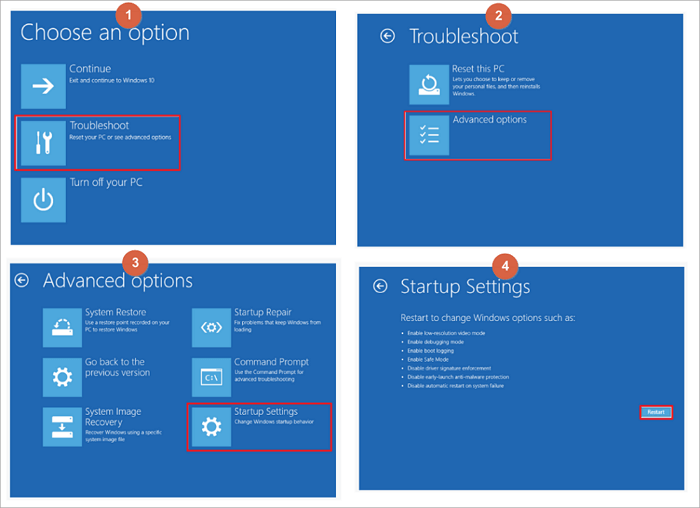
1. Press Shift + Restart on your PC.
2. Navigate to Troubleshoot > Advanced Options > Startup Settings > Safe Mode.
3. Once in Safe Mode, open Command Prompt as Administrator.
4. Run: chkdsk C: /f /r. Replace C: with your drive letter if different.
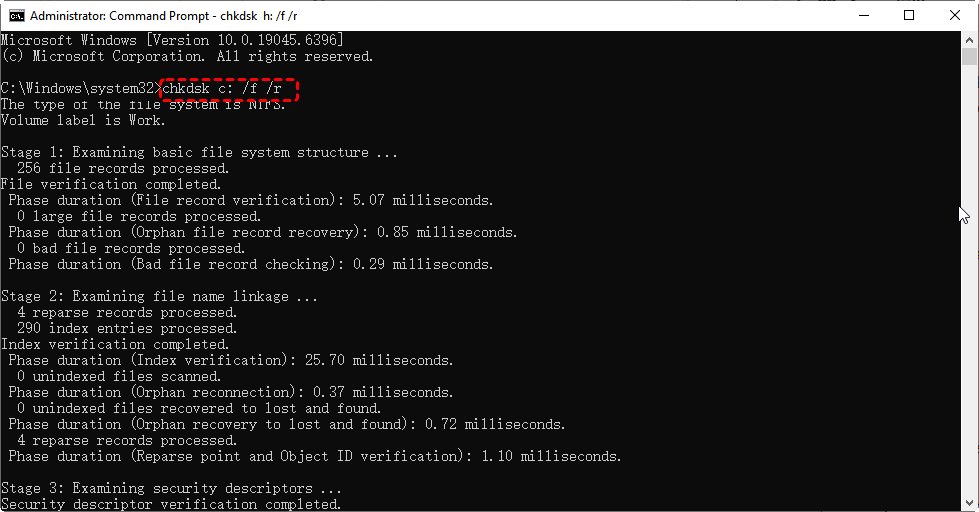
5. Allow CHKDSK to complete the scan.
Method 3: Check Disk Health With Third-Party Tools
Before running CHKDSK again, it’s smart to check your drive’s health. Tools like CrystalDiskInfo or HD Tune can scan for bad sectors and overall drive health. This gives you a clear picture of whether your disk is failing.
Method 4: Repair Corrupted System Files
Sometimes CHKDSK freezes because of corrupted Windows files. Use the following commands in Command Prompt (Admin):
System File Checker: sfc /scannow. This scans and repairs corrupted system files.

Deployment Image Servicing and Management (DISM): DISM /Online /Cleanup-Image /RestoreHealth. This repairs the Windows system image.
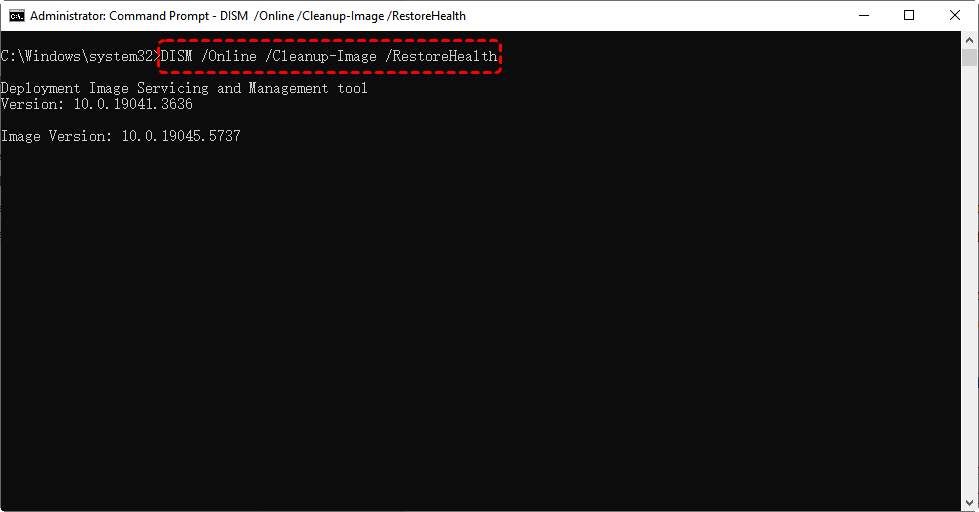
After these repairs, run CHKDSK again in Safe Mode.
Method 5: Recover Lost Data Using MyRecover
If your drive is failing or CHKDSK cannot complete, you risk losing important files. This is where MyRecover, a reliable data recovery tool, comes in handy. It allows you to safely recover deleted or inaccessible files from drives before attempting further repairs or replacements.
 100% Secure
Steps to use MyRecover:
1. Download and install MyRecover on a different drive than the one experiencing issues.
2. Launch the program and select the problematic drive.
3. Click Scan to detect recoverable files.

4. Preview and recover your important data to a safe location.

Using MyRecover ensures that even if CHKDSK fails or hardware issues persist, your data remains safe.
Method 6: Replace or Repair Faulty Hardware
If you continue to see CHKDSK stuck at stage 4, your hard drive may be failing.
Steps:
1. Backup important files.
2. Consider replacing the HDD or SSD.
3. For external drives, try connecting them to a different PC to verify the issue.
Preventing Future CHKDSK Stuck Problems
Once your drive is healthy, prevention is key.
Regular Disk Maintenance Tips
- Run disk checks periodically.
- Clean temporary files and unnecessary data.
- Defragment HDDs if necessary.
Best Practices for System Health
- Keep Windows updated (such as updating Windows 10 to 11).
- Install reliable antivirus software.
- Avoid abrupt shutdowns.
- Monitor disk health regularly.
These steps reduce the chance of encountering a stuck CHKDSK scan in the future. If none of the methods work, or your PC shows signs of severe hardware failure, it’s time to consult a professional. Experts can safely recover your data and replace failing drives without causing further damage.
Conclusion
A CHKDSK stuck situation can be nerve-wracking, but most cases have a solution. Whether it’s waiting patiently, running in Safe Mode, repairing system files, using MyRecover to safeguard your data, or replacing faulty hardware, you now have a clear roadmap to rescue your PC. Keep your drives healthy, follow best practices, and stage 4 freezes will become a rare occurrence.

Stay Updated With Our
Latest Tips
Add us as a preferred source on Google to never miss helpful guides.
 Add as preferred source >>