 MyRecover



Configuring Update for Windows 10 Stuck at 0? Try These Tricks
When 'Configuring update for Windows 10' remains stuck at 0%, it can leave your system unusable and cause concern about update failures. This article explores the common reasons behind this issue and presents effective solutions to move the update process forward. By following the methods outlined, you can resolve update stalls safely and ensure Windows updates install successfully without repeated interruptions.

By Aria / Updated on January 22, 2026


Overview
Configuring Update for Windows 10" stuck at 0%
I went to the settings on the desktop computer and started an update restart as it said i needed to. The dot loading ribg is still spinning and it is stuck at 0% saying 'Configuring Update for Windows 10. Do not turn off your computer'. I'm not sure what to do. It has not moved forward in progression in 4 hours.
- Question from CrustyMonk
Windows updates are designed to improve system security and stability, but sometimes the update process itself becomes a problem. When your Windows PC restarts and begins the update process, the screen displays "Configuring update for Windows 10", but the process gets stuck at 0% for hours with absolutely no progress. The system becomes unresponsive, leaving you feeling completely at a loss.
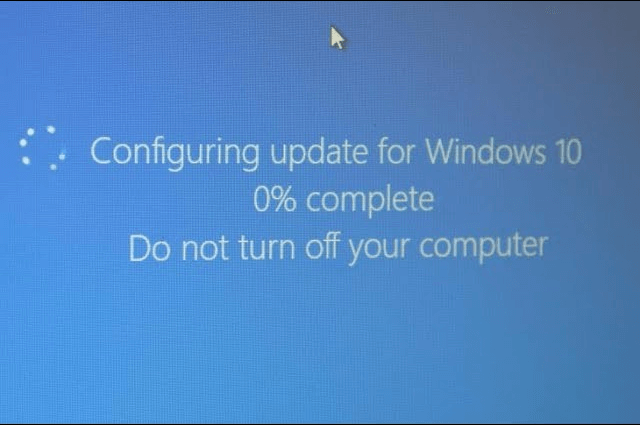
It’s obvious that the Windows update has gotten stuck. In this case, forcing a shutdown directly could very likely corrupt system files or even worse, render your PC unable to boot at all. Before dive into the detailed steps, understanding what causes this problem is equally important. It can help you carry out the fixes more smoothly and prevent the same error from happening again in the future.
This issue usually occurs due to several underlying factors, including:
- Interrupted or unstable internet connections during update download,
- Corrupted Windows Update cache or components,
- Conflicts caused by antivirus software or firewall settings,
- Insufficient disk space for update installation,
- Damaged system files or disk errors,
- Background third-party programs interfering with update services.
How to Fix "Configuring Update for Windows 10" Stuck at 0
Once you confirm that the Windows update is genuinely stuck and not just slow, it’s time to begin troubleshooting. Applying the following solutions one by one to fix the "Configuring update for Windows 10" stuck at 0%.
Restart Your PC and Try Again
When you're sure the Windows update is indeed stuck, you need to restart your PC to break the current freeze before trying the fixes below. Before restarting, wait patiently for a while to see if the process will resume. If it doesn’t, check if the hard drive indicator is still blinking and if the case fans are still running. If neither is active, you can press the power button to restart your PC now.
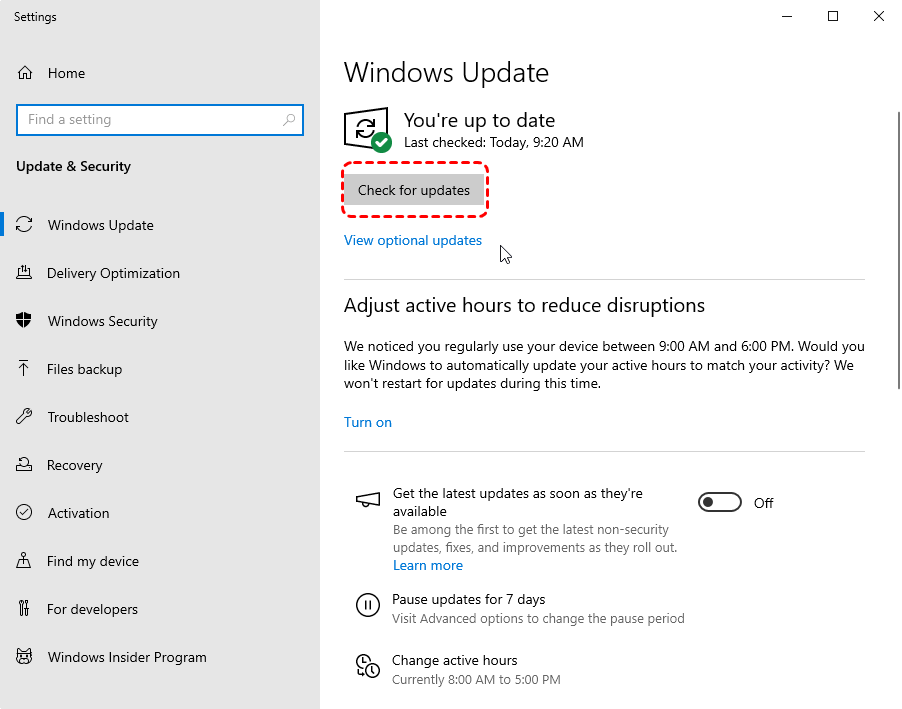
After rebooting, go to "Settings" > "Update & Security" > "Windows Update" > "Check for updates" to try again.
Run Startup Repair in WinRE
Startup Repair, a built-in Windows tool, can fix critical issues that prevent your system from booting normally. After you restart Windows, it may detect the update failure and trigger Startup Repair automatically.
Step 1. If your computer automatically enters WinRE after a failed update, select "Troubleshoot" > "Advanced options" > "Startup Repair".
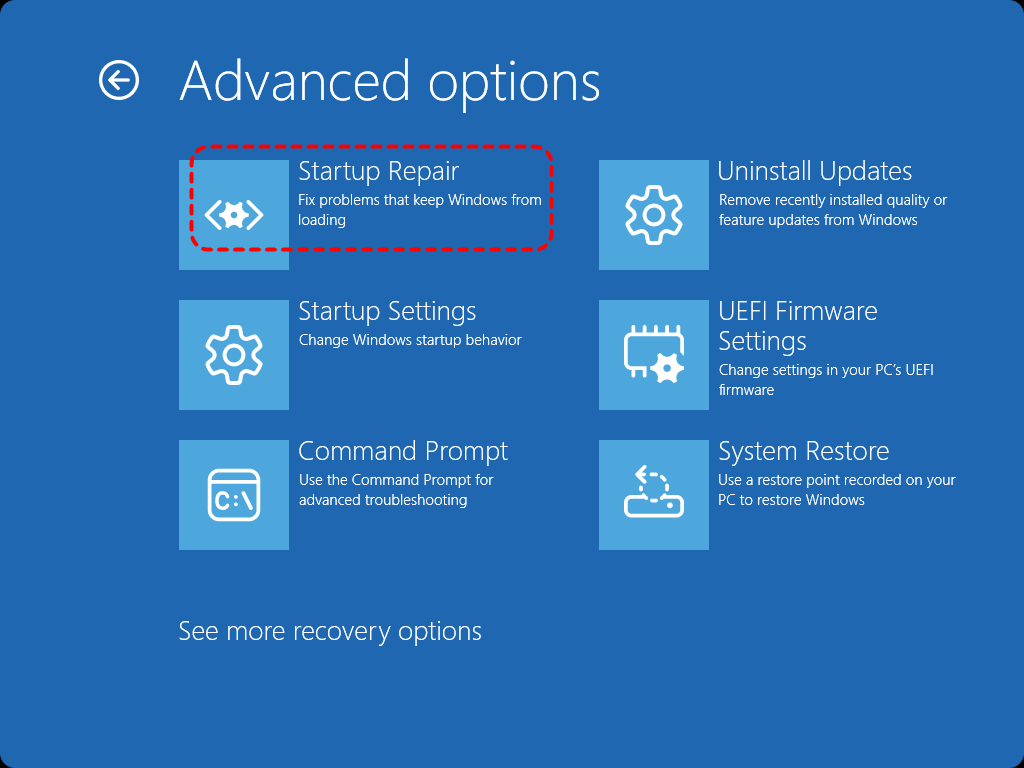
Step 2. Wait for this process to finish, then restart your PC and try the update again.
- Notes:✎...
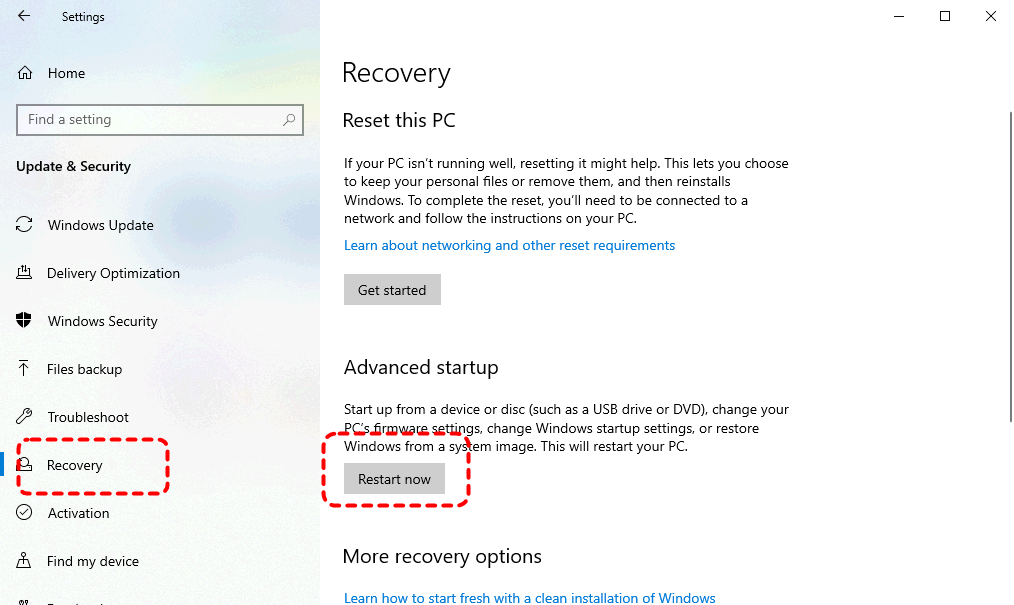
- If your PC boots to the Windows desktop normally after the restart, this is how you can access WinRE:
- Go to "Settings" > "Update & Security" > "Recovery", then click "Restart now" under the "Advanced Startup" section.
-

Clear the Windows Update Cache
Windows Update has a built-in fail-safe mechanism. After you restart your PC, Windows will detect any unfinished updates. If it can’t resume the update process, it will automatically revert to the last bootable state. A damaged update cache is a frequent cause of configuring update for Windows 10 stuck at 0 percent.
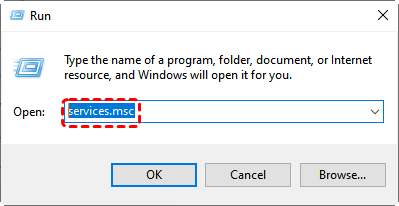
Step 1. Press "Win" + "R" and type "services.msc" in the Run dialog to open Service window.
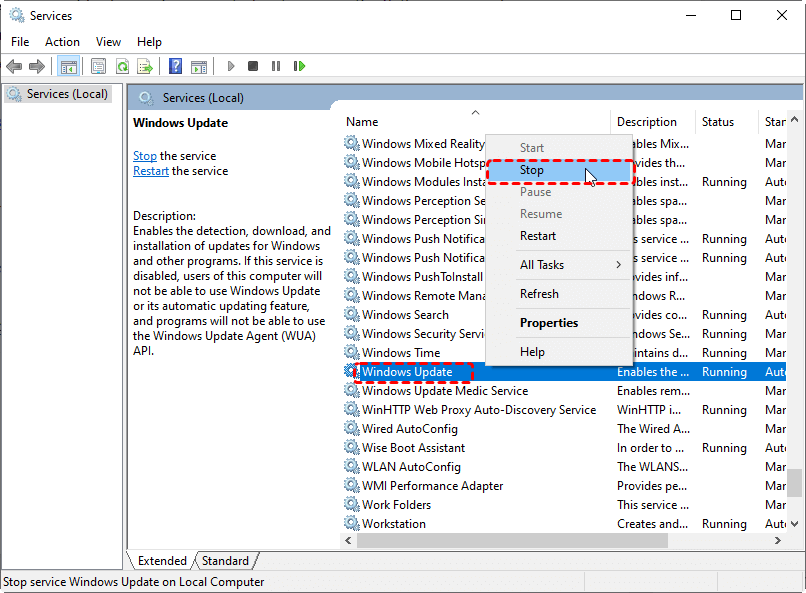
Step 2. Locate "Windows Update" from the lists and right click on it, then choose "Stop".
Step 3. Navigate to the following path in File Explorer:
C:\Windows\SoftwareDistribution\Download
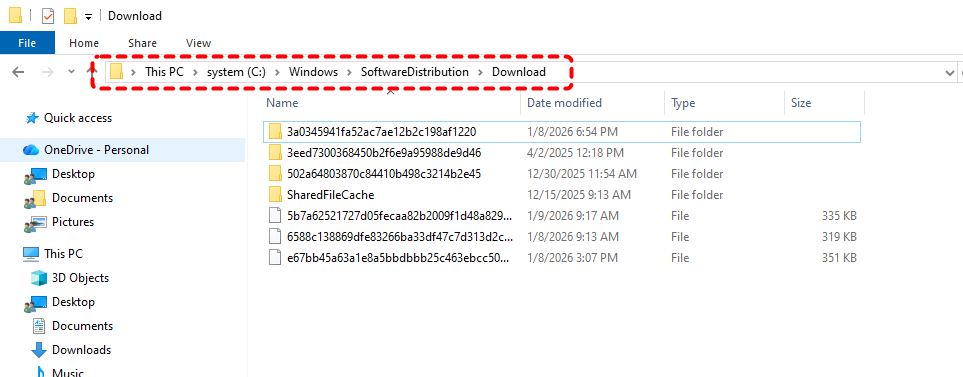
Step 4. Delete all the content in the Download folder.
Step 5. Restart the PC and try the stopped Windows update once again.
Free up Disk Space
Even without corrupted Windows update cache, insufficient free space can still cause update failures. Having at least 20GB of free space on your system drive is a critical requirement to ensure Windows updates complete smoothly. If the update process gets stuck while configuring Windows 10 due to insufficient space, it can easily lead to system corruption.
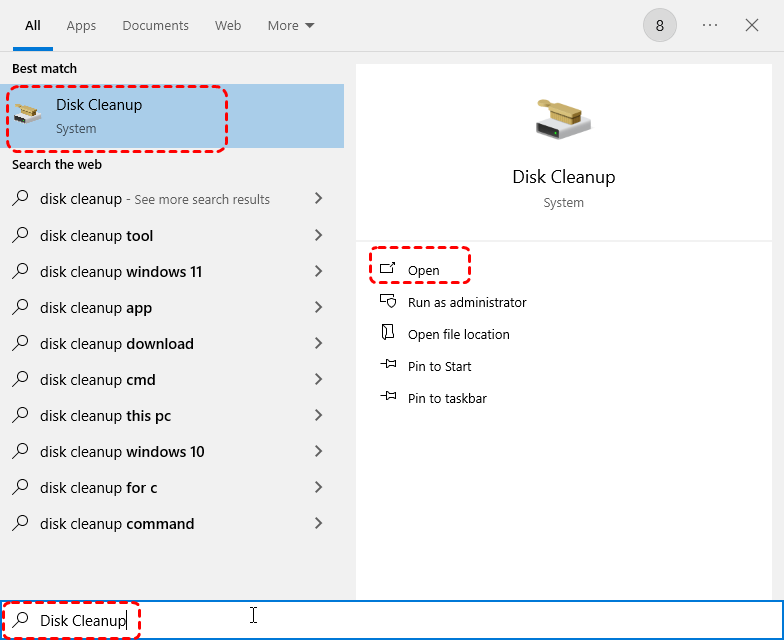
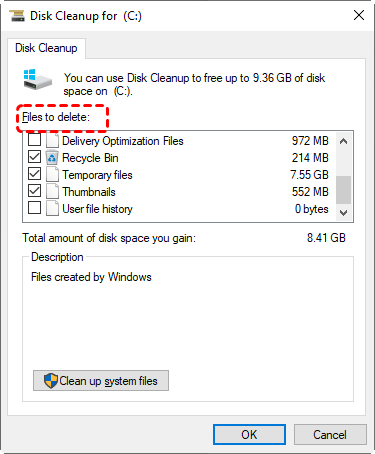
Step 1. Type "Disk Cleanup" in the Search box and open it.
Step 2. Select your system drive to free up disk space.
Step 3. Choose the files you want to delete like Recycle Bin, Temporary files, etc. and click "OK" to remove them.
Run System File Checker
Corrupted component store or system files can prevent Windows Update from entering the configuration phase, which is why "Configuring Windows 10 updates” gets stuck at 0% indefinitely. Running the DISM and SFC commands can help restore the integrity of your system files.
Step 1. Open Command Prompt in the Start menu and run it as administrator.

Step 2. Enter the below command one by one:
DISM /Online /Cleanup-Image /RestoreHealth
sfc /scannow

Step 3. Restart the system after the scan completes.
Run the Windows Update Troubleshooter
Windows comes with a built-in tool to automatically detect and repair common update errors that may prevent "Configuring update for Windows 10" from properly loading.
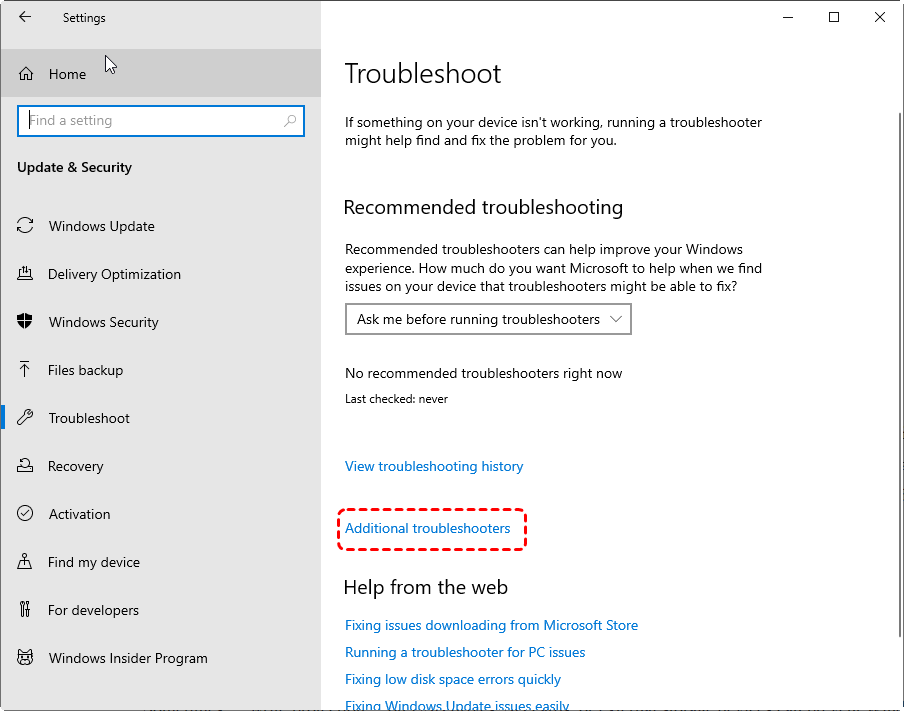
Step 1. Go to "Settings" > "Update & Security" > "Troubleshoot", then click "Additional troubleshooters".
Step 2. Select "Windows Update" and click "Run the troubleshooter".
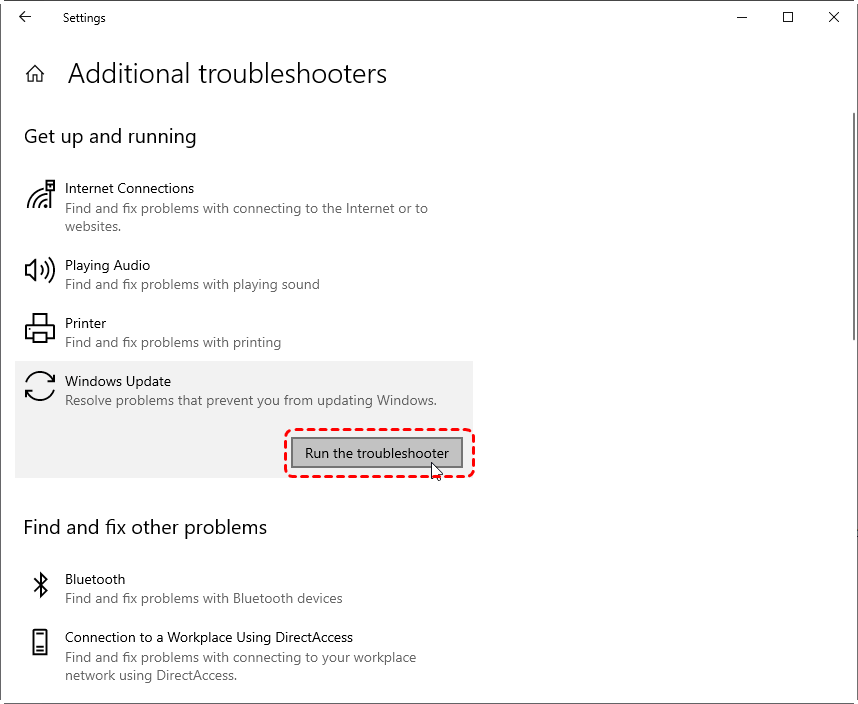
Step 3. Apply any recommended fixes and restart the system.
Reset Windows Update Components
Resetting Windows update components restores all update-related services to default settings which can remove or replace crashed or corrupted components caused by unexpected interruptions, software conflicts, and other such issues.
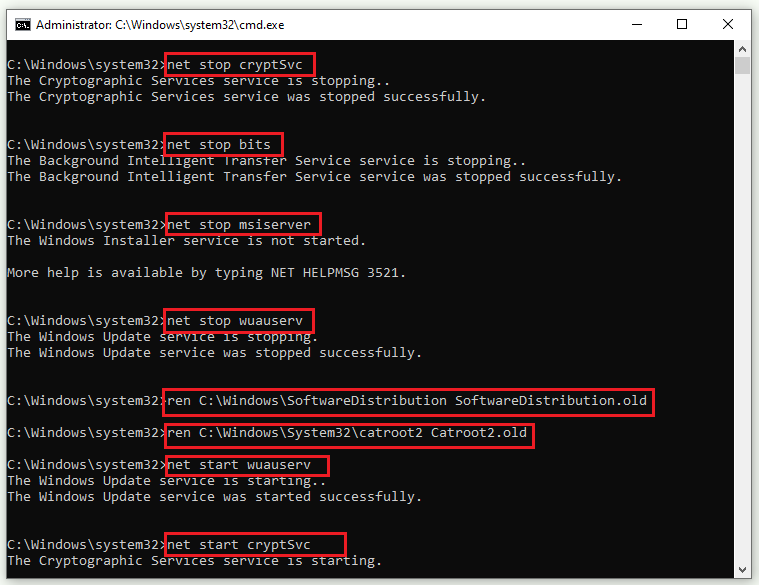
Step 1. Open Command Prompt and run it as administrator.
Step 2. Enter the following command and press "Enter" after each one:
- net stop cryptSvc
- net stop bits
- net stop msiserver
- net stop wuauserv
- ren C:\Windows\SoftwareDistribution SoftwareDistribution.old
- ren C:\Windows\System32\catroot2 Catroot2.old
- net start wuauserv
- net start cryptSvc
- net start bits
- net start msiserver
Disable All Non-Microsoft Programs
A clean boot disables non-essential services and startup programs, these are the very items that might interfere with Windows updates process and trigger the "Configuring update for Windows 10" stuck at 0%.
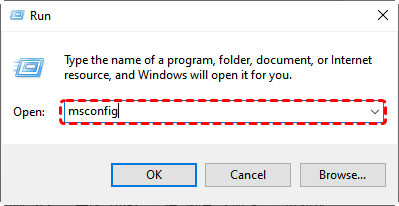
Step 1. Press "Win" + "R" and input "msconfig" in the Run dialog, then press "Enter" to open System Configuration window.
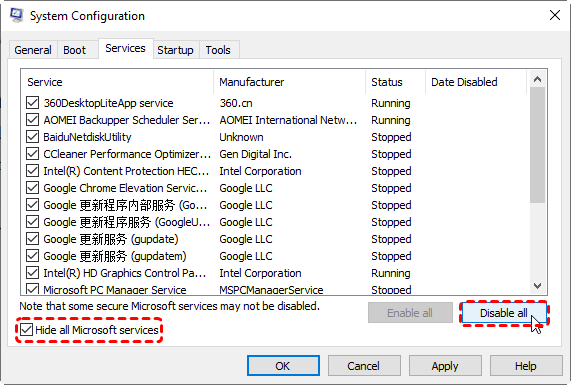
Step 2. Under the "Services" tab, check the "Hide All Microsoft services" and click "Disable all".
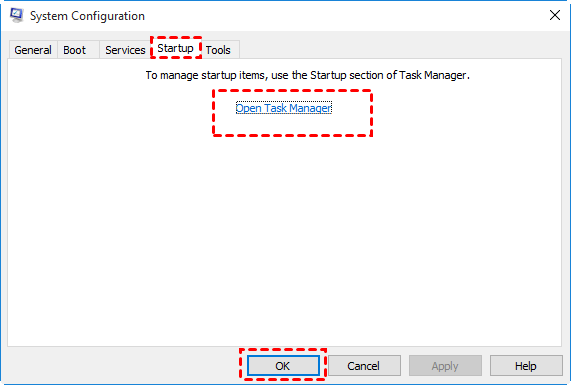
Step 3. Then, click "Open Task Manager" to disable all startup programs.
Restart the PC and try the update again.
Manually Download and Install Updates
If "Configuring update for Windows 10" still stuck at 0%, bypass the default updater and opt for a manual update to get the correct package directly from Microsoft’s official source. Here's how:
Step 1. Go to "Settings" > "Update & Security" > "Windows Update". Click "View update history" to check the KB number of the failed update.
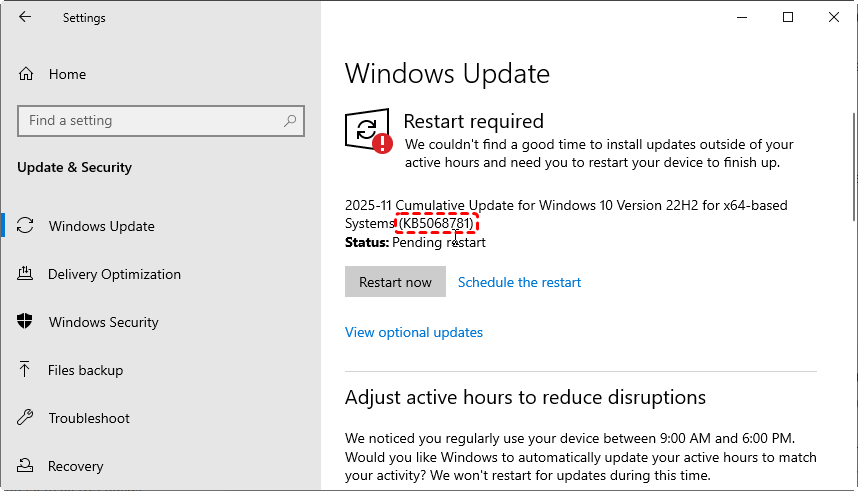
Step 2. Visit the Microsoft Update Catalog website and search for the KB number.
Step 3. Select an appropriate version that matches your system and clcik "Download".
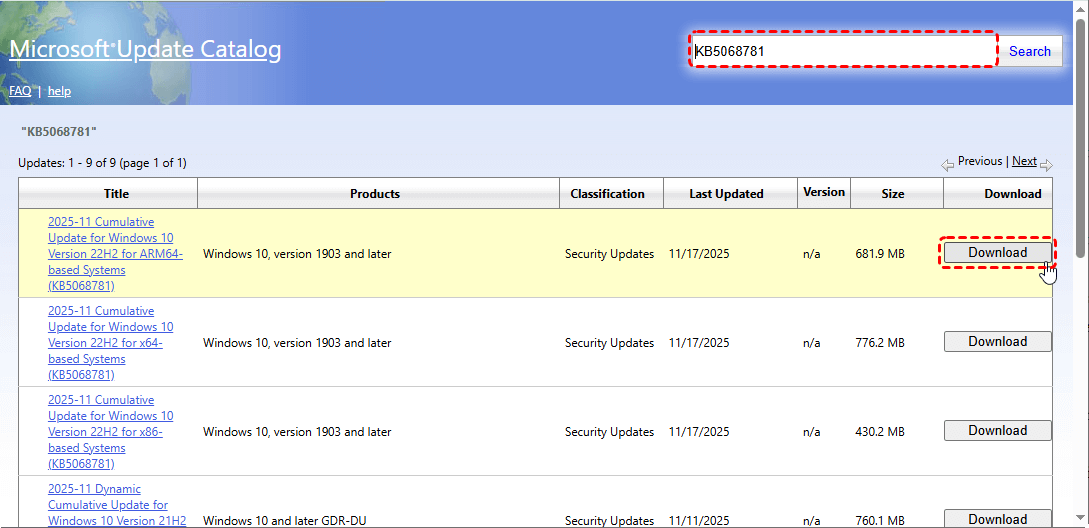
Step 4. Locate the ".msu" or ".cab" file in the Downloads folder and double-click to run it.
How to Recover Lost Files After Fixing
Sometimes, forced restarts or repair operations may lead to missing files after resolving configuring update for Windows 10 stuck at 0%. If files become inaccessible or deleted, immediate recovery improves success rates. MyRecover is designed to recover files lost due to failed updates, system restore interruptions, or disk-level issues. Its advanced scanning capabilities can locate recoverable data even after system changes, making it a reliable option to retrieve lost files whether run into different data loss challenges.

 MyRecover
- 500+ Devices Supported | SSD, HDD, USB Flash Drive, SD Sard, etc.
- 1000+ File Formats Supported | PNG, MP4, MP3, TXT, ZIP, MSG, etc.
- 500+ Data Loss Scenarios | Deletion, Format, System Crash, Virus Attack, etc.
 100% Secure
Step 1. Download and install MyRecover on your computer from Microsoft Store, avoid installing it on the drive with lost files.
Step 2. Run the app and select the drive to scan for lost files, then click "Scan" to search for recoverable files.

Step 3. After the scan completes, choose the files you wish to recover from the recoverable lists and click "Recover".

Step 4. Select a safe location to save the recovered files.

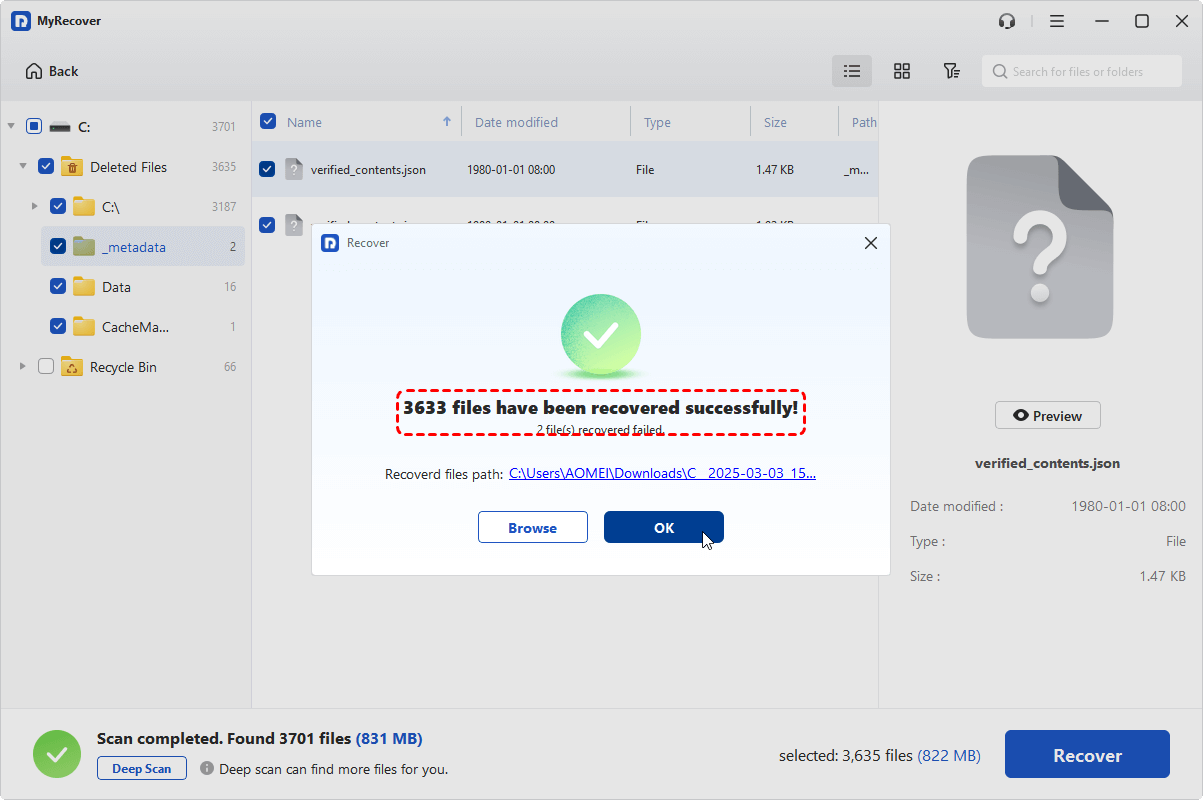
When the process is finished, the message "Files have been recovered successfully" will pop up. Then, you can view the recovered files in the destination folder by clicking on the "Browse" button.
The end
While configuring update for Windows 10 stuck at 0 can appear alarming, it is usually the result of software conflicts, corrupted update components, or system resource limitations. By applying these troubleshooting methods and addressing the root cause, most systems can complete updates successfully. And if data loss occurs along the way, a professional recovery solution such as MyRecover ensures that system stability is restored without sacrificing important files.
If you want more advanced features like unlimited recovery capacity and file content preview before restoration, the MyRecover Professional edition can be a worthwhile investment.

Stay Updated With Our
Latest Tips
Add us as a preferred source on Google to never miss helpful guides.
 Add as preferred source >>