 MyRecover



Fix Windows Update Error 0x800f0983 on Windows 10/11 | 7 Working Fixes
Windows update error 0x800f0983 can interrupt system updates and leave Windows 10/11 unable to install critical patches. This article explains the typical causes behind this error and outlines seven effective troubleshooting methods to resolve it. By applying the solutions in this guide, you can restore normal update functionality and reduce the likelihood of encountering the same error in future updates.

By Aria / Updated on January 16, 2026


Introduction
Сan't install KB5048667 error: 0x800f0983
There is a problem with installing the update 'Update kb5048667'- Error 0x800f0983.
sfc /scannow and Dism do not help. A separately downloaded update also fails to install with the same error. Unfortunately, I haven't found a single effective method yet. Do not suggest reinstalling the OS and buying a new PC.
- Question from David
Windows Update is critical for system security, stability, and feature improvements. Keeping Windows Update enabled and installing updates in a timely manner is one of the key habits for maintaining your PC’s security and stability. However, many users encounter update failures accompanied by error messages like Windows update error 0x800f0983.
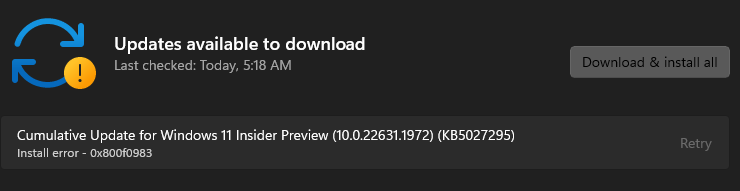
This issue can appear on both Windows 10 and Windows 11, often during cumulative updates or feature updates. Before applying advanced fixes, it is helpful to look at these underlying causes behind the error that helps to fix it.
This error typically occurs due to one or more of the following reasons:
- Corrupted or missing system files required for updates,
- Incomplete or pending Windows updates stuck in the queue,
- Damaged Windows Update cache or components,
- Network instability or interrupted downloads,
- Conflicts caused by previous failed updates or system modifications.
How to Fix Windows Update Error 0x800f0983 on Windows 10/11
If you’re encountering this error while trying to update Windows 10 to Windows 11 or performing other Windows updates, this page is well worth your time. This section will provide 7 effortless fixes to resolve Windows Update error 0x800f0983. Even if you’re a complete beginner, you can follow these detailed steps to successfully finish the update.
Fix 1. Try Updating Again After a Restart
Sometimes the error is caused by a temporary system lock or background service conflict. You can try to restart your computer to remove the temporary glitch and retry failed update.
Step 1. Press the power button to shut down your computer and start it again.
Step 2. Go to "Settings" > "Update & Security" > "Windows Update".
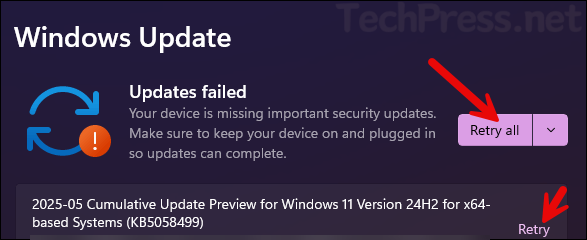
Step 3. Click on "Try All" button or "Retry" next to the failed update.
Fix 2. Clear Windows Update Cache
Corrupted or incomplete update files in the cache can also trigger Windows update error 0x800f0983. To solve this error, clear Windows update cache and check for update again.
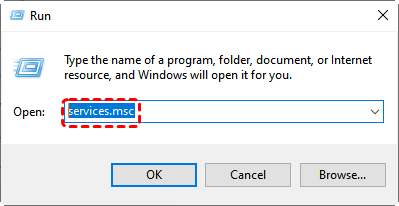
Step 1. Press "Win" + "R" and type "services.msc" in the Run dialog, then press "Enter" to open the Services window.
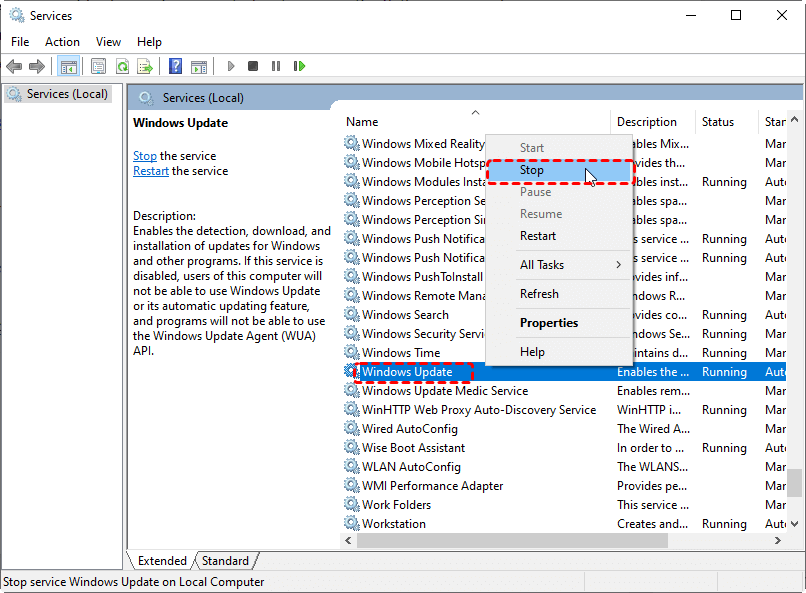
Step 2. Locate "Windows Update" from the lists and right click on it, then choose "Stop".
Step 3. Navigate to the following path:
C:\Windows\SoftwareDistribution\Download.
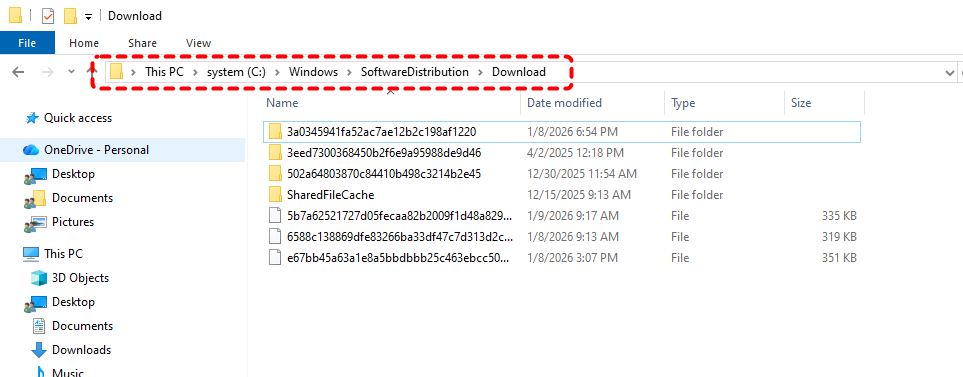
Step 4. Delete all the files in the Download folder, then go back to the Service window, right click on "Windows Update" and select "Start".
Step 5. Retry the update by following the steps in Fix 1.
Fix 3. Run Windows Update Troubleshooter
If you're not sure what's causing the error, running a dedicated Windows update troubleshooter can automatically detect and repair update-related issues. The tool is designed to solved the common problems that prevent the update from installing.
Step 1. Go to "Settings" > "Update & Security" > "Troubleshoot", then click "Additional troubleshooters".
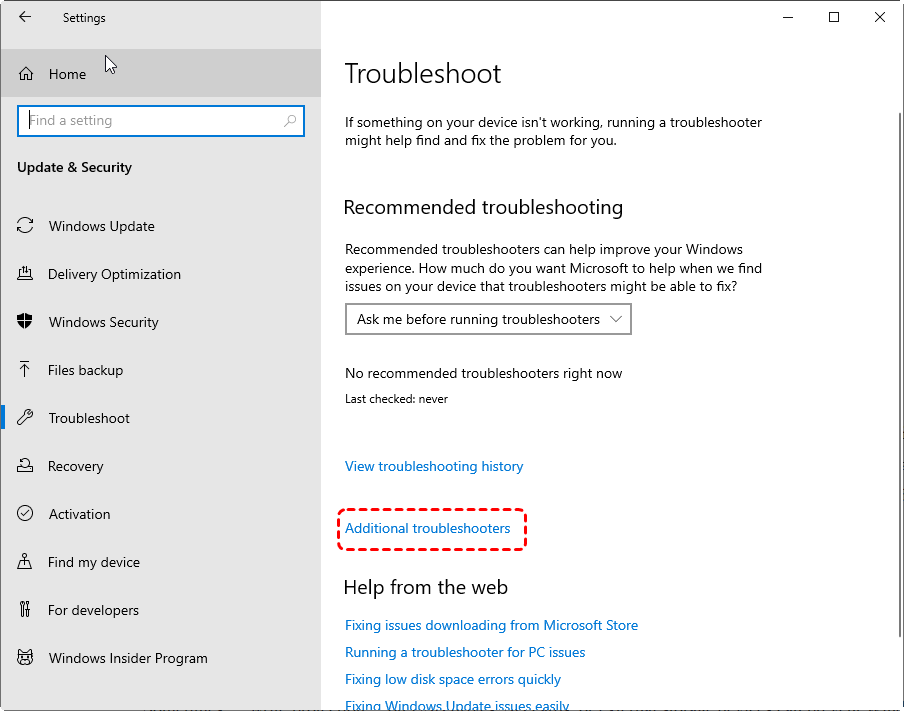
Step 2. Select "Windows Update" and click on "Run the troubleshooter".
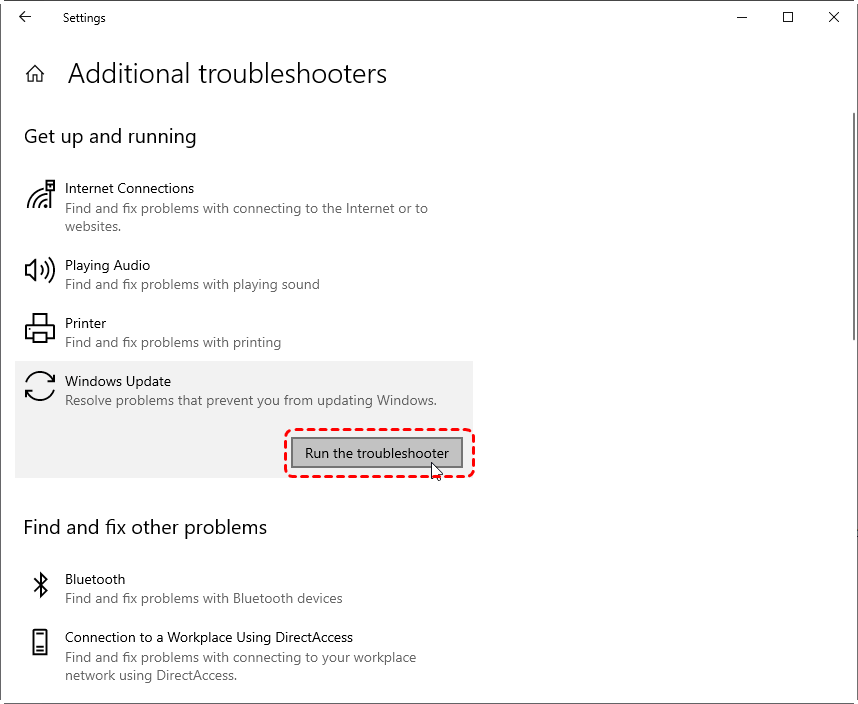
Wait for the process to complete, then install the updates again to check if the error 0x800f0983 persists.
Fix 4. Repair Corrupted System Files
Corrupted or missing system files are one of the direct causes of the update installation error 0x800f0983. If damaged system files are indeed the root issue, running DISM and SFC scan before trying the update again will usually fix the problem in no time.
Step 1. Locate Command Prompt in the Start menu and right click on it, then choose "Run as administrator".

Step 2. Enter the following command:
DISM /Online /Cleanup-Image /RestoreHealth
sfc /scannow

step 3. Wait for the scan to complete and restart your computer, then try updating Windows again.
Fix 5. Reset Windows Update Components
The corrupted update background service can also trigger the 0x800f0983 error. Resetting update components restores all related services to their default state which might solve the error.
Step 1. Open Command Prompt and run it as administrator.
Step 2. Enter the following command one by one and press "Enter" after each command:
- net stop cryptSvc
- net stop bits
- net stop msiserver
- net stop wuauserv
- ren C:\Windows\SoftwareDistribution SoftwareDistribution.old
- ren C:\Windows\System32\catroot2 Catroot2.old
- net start wuauserv
- net start cryptSvc
- net start bits
- net start msiserver
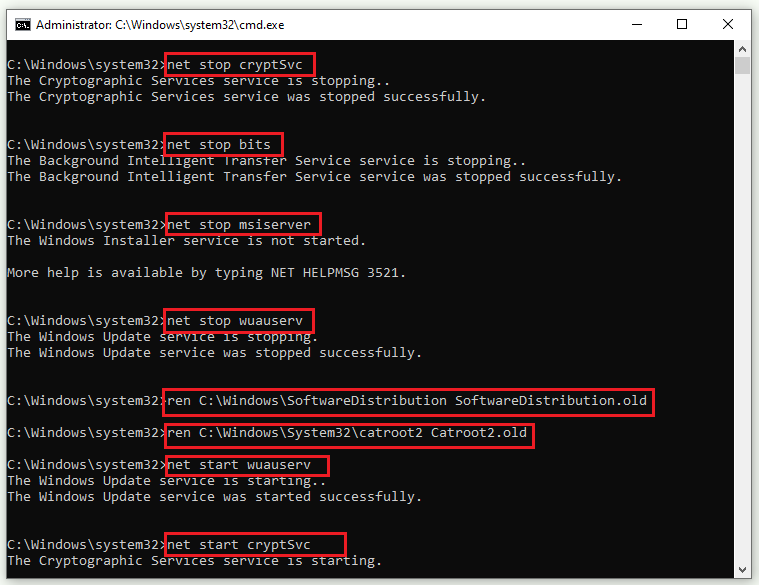
Step 3. Close Command Prompt and restart your PC. Check Windows Update again to verify if the error continues.
Fix 6. Verify Your Connection to the Internet
Internet connectivity issues can prevent Windows updates from installing successfully, and they’re also a common culprit behind the 0x800f0983 error. If you're using WIFI, switch to a wired connection if possible. After stabilizing the connection, retry the update process.
Fix 7. Manually Reinstall Windows Update
If none of the above methods work and Windows Update keeps throwing the error 0x800f0983, try manually reinstalling the update to bypass download and installation conflicts. In this way, you can get the correct update package straight from Microsoft.
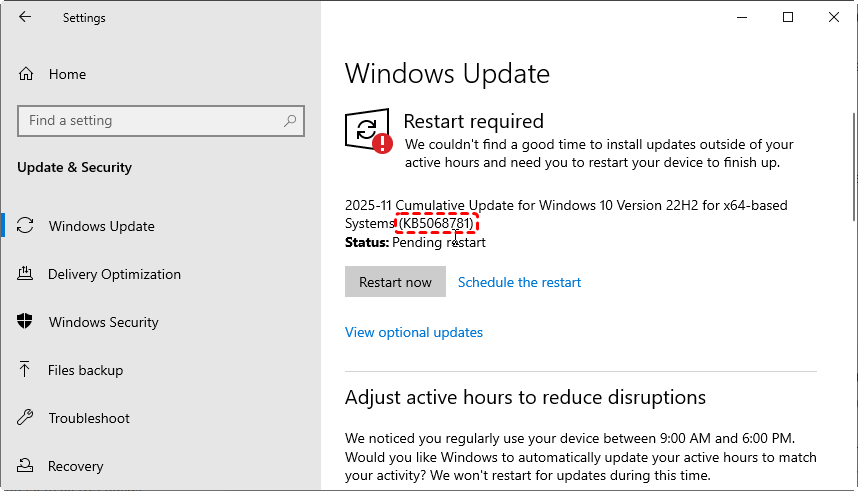
Step 1. Navigate to "Settings" > "Update & Security" > "Windows Update", then click "View update history" to identify the failed update and note its KB number.
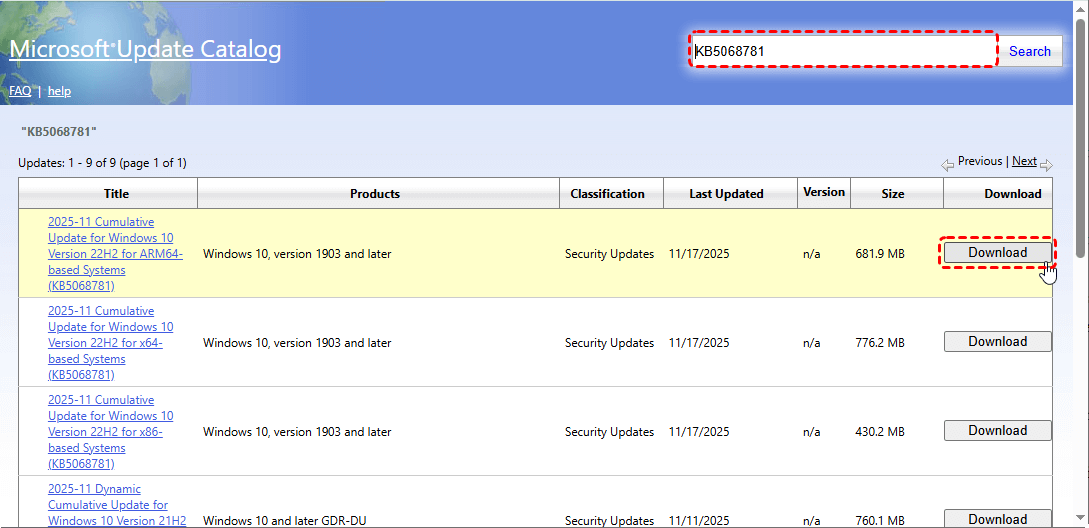
Step 2. Visit Microsoft Update Catalog website and search for the KB number of the failed update.
Step 3. Browse through the version that matches with your system type (32-bit, 64-bit or 86-bit) and click "Download" to reinstall it.
Step 4. Double click the ".msu" or ".cab" file to run it in the Downloads folder.
How to Recover Files After a Failed Windows Update
Sometimes, failed Windows update may delete your files or lead to missing or inaccessible files. If you notice data loss after addressing the update error, immediate recovery is essential. MyRecover is designed to recover files lost due to failed Windows updates, reinstallations, system restore and over 500+ scenarios. It can scan your hard drive and restore the lost files including documents, music, videos, and images, etc.

 MyRecover
- 500+ Devices Supported | SSD, HDD, USB Flash Drive, SD Sard, etc.
- 1000+ File Formats Supported | PNG, MP4, MP3, TXT, ZIP, MSG, etc.
- 500+ Data Loss Scenarios | Deletion, Format, System Crash, Virus Attack, etc.
 100% Secure
Step 1. Download and install MyRecover on your computer from Microsoft Store or its official site, avoid installing it on the drive with lost files.
Step 2. Launch the app and select the drive where the deleted files were stored to scan, then click "Scan".

Step 3. After the scan finishes, you can choose the files you would like to recover from the recoverable lists and click "Recover".

For more advanced features like unlimited recovery, file previews, and the ability to restore data from unbootable systems, MyRecover Professional edition provides the full range of features to handle more complex recovery needs.
Step 4. Select a drive different from the original one to save the recovered files.

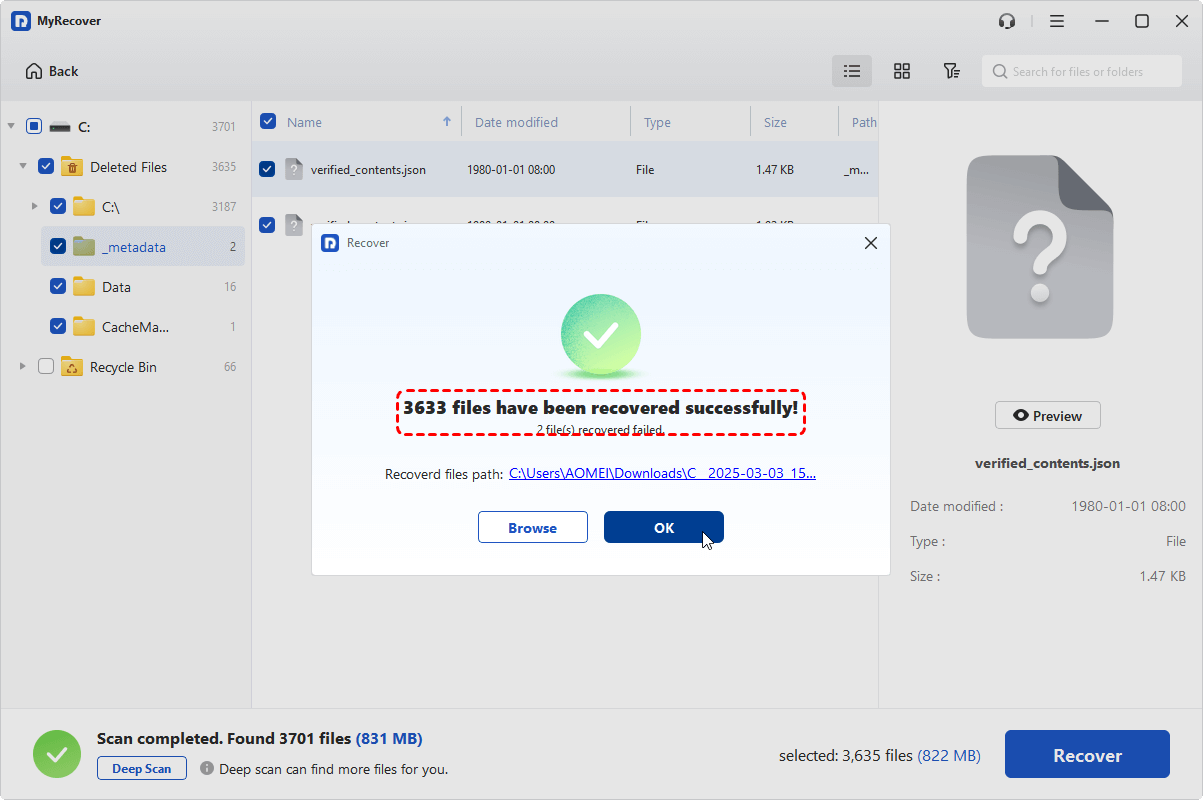
When the recovery process is completed, the message "Files have been recovered successfully" will pop up. You can check the recovered files in the destination folder by clicking on the "Browse" button.
The End
Encountering Windows update error 0x800f0983 can be frustrating, but it is rarely unsolvable. By using the solutions listed above, you can be brought back to a fully up-to-date state. And when unexpected file loss occurs during the process, having a professional recovery solution like MyRecover ensures that resolving update errors does not come at the cost of your important data.

Stay Updated With Our
Latest Tips
Add us as a preferred source on Google to never miss helpful guides.
 Add as preferred source >>