 MyRecover



Device Was Not Migrated: Meaning, Causes, and Step-by-Step Fixes
When Windows shows device was not migrated due to partial or ambiguous match, it usually points to driver conflicts or outdated hardware IDs. This guide explains the cause, symptoms, and step-by-step fixes to reinstall drivers and make the device work normally again.

By Vera / Updated on February 11, 2026


Introduce
Have you ever updated Windows or plugged in a device, only to find it suddenly refusing to work? You open Device Manager, check the details, and see the frustrating message: "Device was not migrated".
Common Scenarios When the Error Appears
- After a Windows Update: This is the most common cause. Feature updates often overwrite or replace drivers.
- After Upgrading Windows (e.g., Windows 10 to Windows 11): Major upgrades change the system core, which can break older or incompatible drivers.
- After Connecting New Hardware: USB drives, printers, headphones, external hard drives, and SSDs frequently trigger this error.
At first glance, it sounds serious—almost scary. But here’s the good news: in most cases, this is a software-related issue, not a hardware failure. And yes, you can fix it.
In this guide, we’ll walk through what "device was not migrated" means, why it happens, and—most importantly—how to fix it step by step, even if you’re not very technical.
What Does "Device Was Not Migrated" Mean?
Simply put, "device was not migrated" means Windows failed to transfer your device’s driver and configuration settings from an old system state to a new one.
Think of it like upgrading your phone and restoring a backup—most apps come back perfectly, but one app refuses to restore its data. That’s exactly what’s happening here, except it’s a hardware driver instead of an app.
Where You Usually See This Error
You normally won’t see a pop-up error on your screen. Instead, the message appears quietly in Device Manager.
1. Press Windows + X. Click Device Manager.

2. Right-click the affected device.
3. Select Properties. Go to the Events tab.
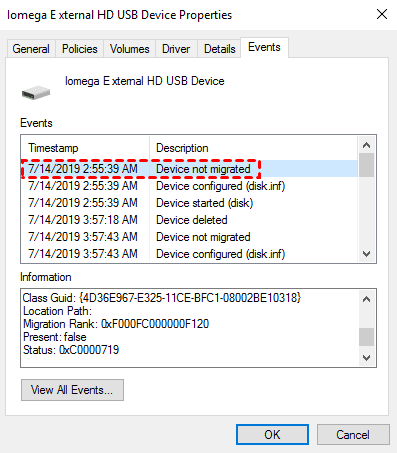
If you see "Device was not migrated", Windows failed to move that device’s settings correctly.
Why Windows Uses Device Migration
Windows uses device migration to:
- Preserve existing drivers during updates.
- Avoid reinstalling hardware from scratch.
- Maintain compatibility after upgrades.
When migration fails, Windows may still recognize the device—but it might not work properly, or at all.
Main Causes of the "Device Was Not Migrated" Error
Outdated or Corrupted Drivers
Old drivers may not be compatible with the new Windows version.
Driver Compatibility Issues
Some devices don’t yet have drivers optimized for newer Windows builds.
Incomplete Driver Installation
Windows sometimes installs a partial driver, causing migration failure.
Unsupported Hardware
Older devices may no longer be supported by the manufacturer.
If core Windows files are damaged, migration processes can fail silently.
Important: What If the Error Causes Data Loss?
When the "device was not migrated" error affects storage devices—such as external hard drives, USB flash drives, or secondary internal disks—you may find that:
- The drive doesn’t show up in File Explorer.
- The drive appears as "unallocated" or inaccessible.
- Files seem to be missing after a Windows update.
In these cases, avoid formatting or reinitializing the drive, as that can permanently erase data.
Instead, this is the right moment to use a reliable data recovery tool like MyRecover. MyRecover is designed to scan inaccessible or unrecognized drives and recover files even when Windows fails to load the device correctly. It’s especially useful when driver or migration issues make data temporarily unreachable rather than truly deleted.
 100% Secure
Using a recovery tool early can mean the difference between full recovery and permanent loss.
How to Fix "Device Was Not Migrated" Error (Step-by-Step)
Follow these solutions in order, starting from the simplest.
Solution 1: Update the Device Driver Manually
Windows Update doesn’t always install the best driver. Manual updates are often more reliable.
1. Press Windows + X → Device Manager.
2. Locate the problematic device.
3. Right-click it → Update driver.
4. Select Search automatically for drivers.
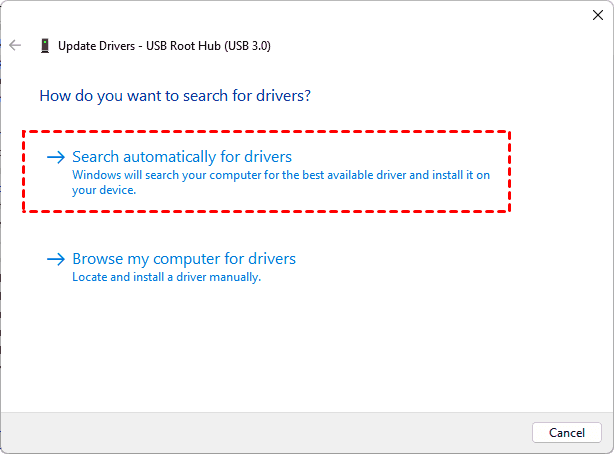
If Windows says the best driver is already installed, don’t stop here—move to the next solution.
Solution 2: Reinstall the Device Driver Completely
This clears corrupted or incomplete driver installations.
1. Open Device Manager.
2. Right-click the affected device.
3. Select Uninstall device.

4. Check Delete the driver software for this device (if available).
5. Click Uninstall.
6. Restart your computer.
After rebooting, Windows will reinstall the driver automatically.
Solution 3: Install the Latest Driver from the Manufacturer
This is one of the most effective fixes, especially for printers, audio devices, GPUs, and storage devices.
1. Visit the device manufacturer’s official website.
2. Search for your exact model.
3. Download the latest driver compatible with your Windows version.
4. Install the driver manually.
5. Restart your PC.
Avoid third-party driver websites—they often cause more problems than they solve.
Solution 4: Run Windows Hardware Troubleshooter
Windows includes built-in tools designed to detect hardware issues.
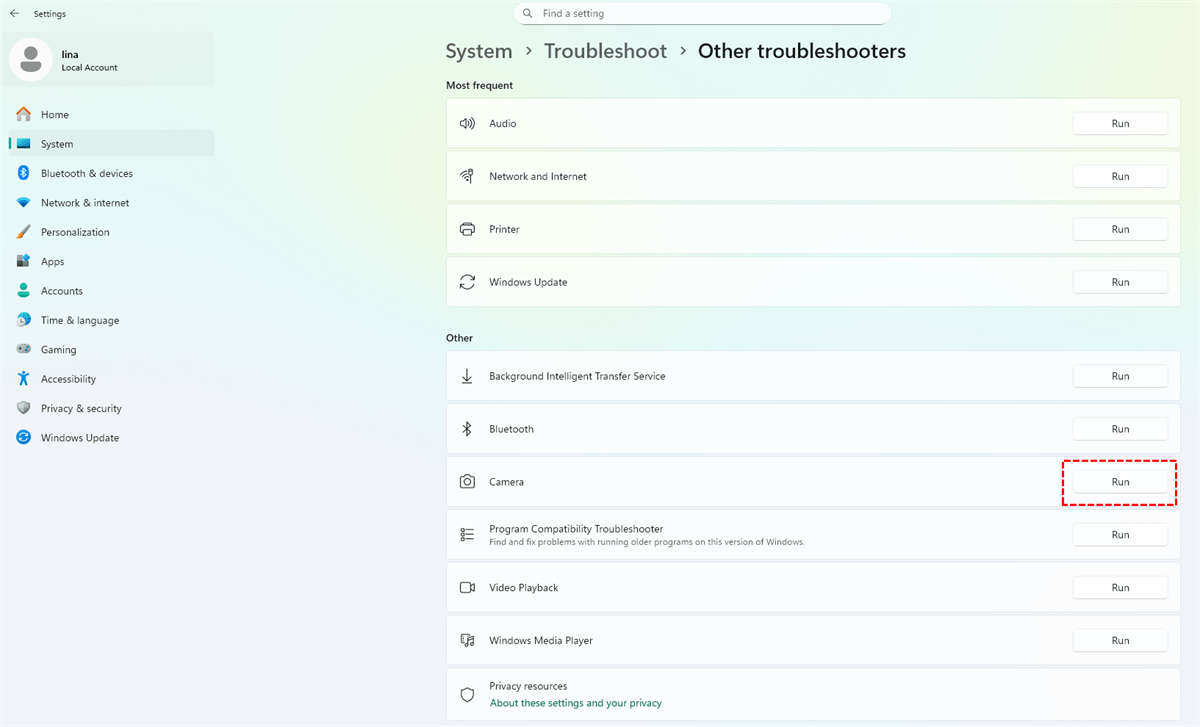
1. Press Windows + I → Settings.
2. Go to System → Troubleshoot.
3. Click Other troubleshooters.
4. Run the troubleshooter related to your device (Audio, USB, Printer, etc.).
Solution 5: Check and Repair System Files (SFC Scan)
Corrupted system files can prevent proper device migration.
1. Press Windows + S. Type cmd.
2. Right-click Command Prompt → Run as administrator.

3. Enter: sfc /scannow.

4. Wait for the scan to finish.
5. Restart your computer.
Solution 6: Repair Windows Image Using DISM
If SFC doesn’t fix the issue, DISM often will.
1. Open Command Prompt as administrator.
2. Enter: DISM /Online /Cleanup-Image /RestoreHealth.
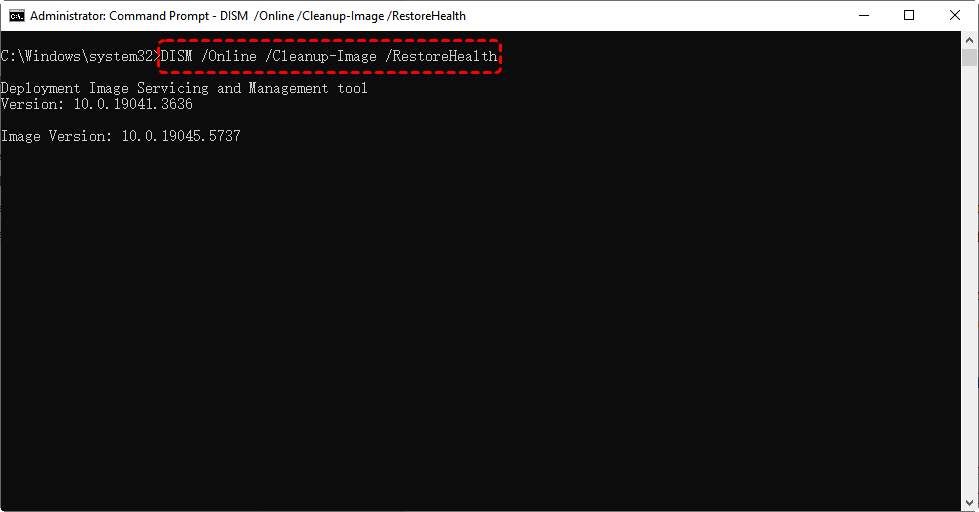
3. Wait until the process completes.
4. Restart your PC.
Conclusion
The "device was not migrated" error is usually caused by driver issues, Windows update conflicts, or system corruption—not hardware failure. In most cases, careful troubleshooting can restore normal functionality.
And when the error affects storage devices and puts your data at risk, data recovery tools like MyRecover provide an extra layer of protection, helping you recover files before taking more drastic steps.
Handle the issue methodically, and you’ll avoid both frustration and data loss.
FAQs
1. How to Prevent "Device Was Not Migrated" in the Future
- Keep drivers updated from official sources.
- Avoid interrupting Windows updates.
- Create restore points before major upgrades.
- Avoid outdated or unsupported hardware.
2. Is "Device Was Not Migrated" a Serious Problem?
Not always.
- If the device works normally → it’s usually safe to ignore.
- If the device doesn’t work → you should fix it immediately.
The error itself isn’t dangerous, but the symptoms can be disruptive.
3. Are There Advanced Fixes for Persistent Migration Errors
Option 1. Perform a Clean Boot
A clean boot helps identify third-party software conflicts.
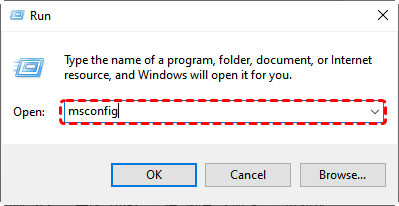
1. Press Windows + R, type msconfig, and press Enter.
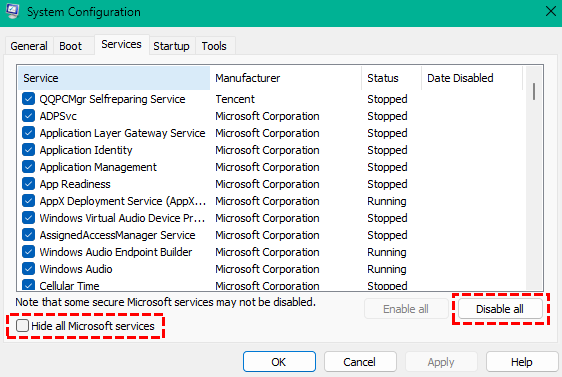
2. Go to the Services tab.
3. Check Hide all Microsoft services.
4. Click Disable all.
5. Restart your computer.
If the device works afterward, a third-party program is causing the issue.
Option 2. Update BIOS and Firmware
Outdated BIOS or firmware can prevent proper device communication.

Stay Updated With Our
Latest Tips
Add us as a preferred source on Google to never miss helpful guides.
 Add as preferred source >>