 MyRecover


DiskPart Recover Partition: Does It Work for Missing or Deleted Partitions
DiskPart partition recovery instructions often confuse restoring access with undoing deletion. This guide explains the recover command, shows how to inspect disks and volumes, and helps you choose between assigning a missing drive letter, bringing a disk online, and using recovery software for deleted partitions or files.

By Aria / Updated on November 3, 2026


Is It Possible to Recover Partitions with DiskPart?
If you accidentally deleted a partition while using Disk Management or DiskPart, you may wonder whether you can use DiskPart commands to bring it back. For example, after deleting a volume, the space may appear as Unallocated in Disk Management, leaving you unable to access the original partition and its files. Can DiskPart recover the deleted partition?
No. DiskPart cannot directly recover deleted or missing partitions. It is a Windows command-line utility for managing disks, partitions, and volumes, not a partition recovery tool. Although it can help restore access to certain existing partitions, it cannot reconstruct a deleted partition's original partition table entry or recover its previous structure.
What Does the DiskPart Recover Command Actually Do?
The DiskPart recover command handles specific problems in dynamic disk groups. Dynamic disks support arrangements such as mirrored volumes across disks; most ordinary Windows data disks instead use basic partitions.
In its intended dynamic-disk context, diskpart recover command can help:
- Refresh the state of disks in a disk group.
- Attempt recovery of disks in an invalid disk group.
- Resynchronize mirrored and RAID-5 volumes whose copies contain stale data.
It does not search for deleted basic partitions, reverse delete partition or clean, or undelete individual files. Microsoft notes that using it with a basic disk can produce no error but take no action, so an apparently successful command is not evidence of recovered data. Dynamic disks are deprecated for most new deployments, and DiskPart recover does not serve as a recovery command for ordinary basic partitions or Storage Spaces.
The separate recover command run directly in Command Prompt works on readable information in a specified file on a damaged disk. It also does not reconstruct deleted partitions. Do not convert a basic disk to dynamic merely to try DiskPart recover.
Check Whether the Partition Still Exists with DiskPart
File Explorer does not show the complete disk layout. Use the following display commands to find out whether the original partition remains; they list information rather than delete or format anything.
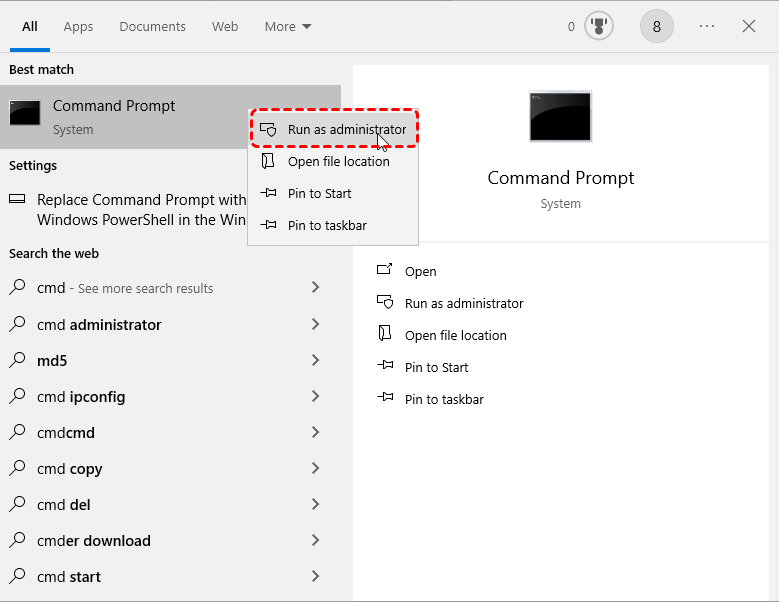
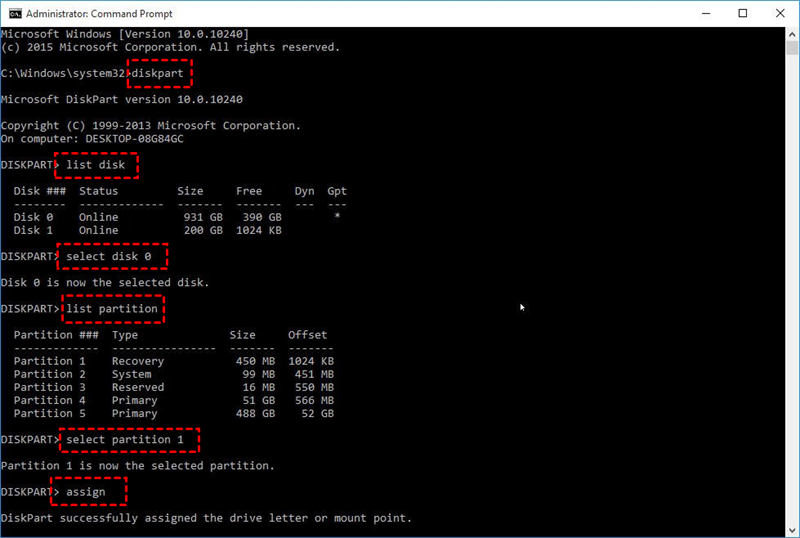
Step 1: Open DiskPart. Search Start for Command Prompt, choose Run as administrator, and enter diskpart.
Step 2: Identify the original disk. Enter list disk and compare the capacities with the affected device. Do not assume the disk you need is Disk 0.
Step 3: Inspect its partitions. Enter these commands individually, replacing N with the verified disk number, and examine the model, volumes, and partition list.
- select disk N
- detail disk
- list partition
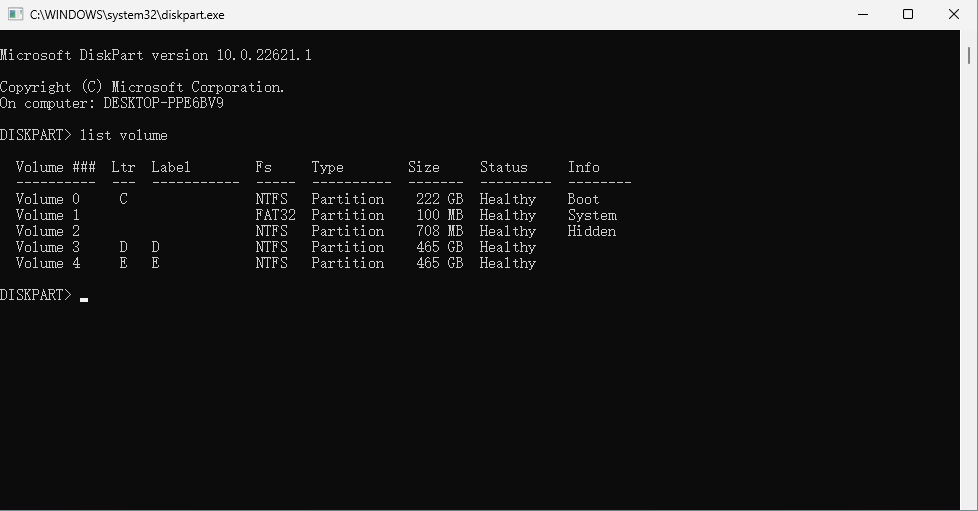
Step 4: Check volumes and letters. Enter list volume to see volume numbers, file systems, status, and letters. This list includes volumes across disks, so correlate it with the selected disk's details instead of treating every entry as part of that disk.
|
What you find |
What to do next |
|---|---|
|
Verified normal data volume without a letter |
Assign an unused letter. |
|
Original disk shows Offline |
Establish why it is offline before bringing it online. |
|
Original partition absent and its area unallocated |
Use partition recovery software. |
|
Existing partition shows RAW |
Recover important contents before formatting or repairs. |
DiskPart's Free column describes unallocated space on a disk, not free space inside a volume. If the layout is unclear, enter exit and inspect Disk Management's graphical view before making changes.
How to Restore Access When the Partition Has Not Been Deleted
Choose the method that matches the checks above. These commands change access to existing disks or volumes; but they do not recover deleted partitions.
Assign a Drive Letter to an Existing Data Volume
If the data volume still exists with its expected capacity and a recognized file system but lacks a letter, assigning one may make it accessible in File Explorer again. DiskPart associates an unused letter with the selected volume; it does not reconstruct file contents or scan for deleted data. EFI, recovery, and other system partitions can intentionally lack letters, so their appearance in the list is not a reason to assign one.
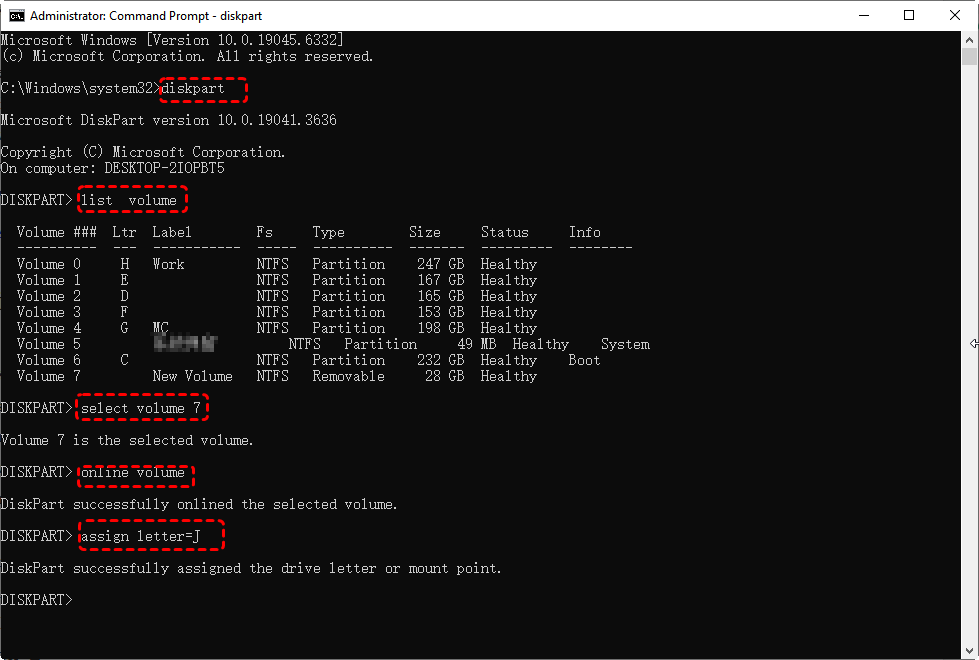
Step 1: Verify the data volume. Run DiskPart, list volume, then select volume N using its actual volume number. Run detail volume to confirm its disk and check that it is the intended existing data volume with no letter.
Step 2: Assign an unused letter. Enter assign letter=X, replacing X with a letter not already in use. Do not apply this to a RAW volume or a system partition merely to bypass its access problem.
Step 3: Check the files. Enter exit, open the new letter in File Explorer, and back up important files if access returns. If Windows asks to format it, cancel and assess file recovery instead.
Bring an Offline Disk Online When Appropriate
An offline disk can retain its partitions while Windows prevents normal access to them. Bringing it online changes that state, rather than searching for a missing partition. This can help with an ordinary local disk that is supposed to be available, but first establish why it was taken offline. A cloned disk's signature conflict, shared storage, or an organization's policy needs its own handling. Do not force a disk online simply because the command exists, and do not change its identifier without understanding the conflict.
Step 1: Check identity and state. Enter list disk, select the affected disk with select disk N, and run detail disk. Confirm its model and Offline status, and check any explanation in Disk Management.
Step 2: Apply only to an appropriate local disk. If it should normally be online and no known collision, shared-storage issue, or management restriction applies, enter online disk. If it fails, record the error instead of converting the disk or removing protections at random.
Step 3: Recheck access. Exit DiskPart and inspect File Explorer. Back up accessible files, or use the relevant recovery route if the original partition is actually missing.
How to Recover a Partition Deleted with DiskPart
If the partition is gone, assigning a letter or bringing the disk online cannot restore it. MyRecover offers graphical controls for selecting disks and recovering lost partitions; TestDisk uses a keyboard-driven text interface for users comfortable checking partition details before writing changes. Choose either approach rather than running both after a successful recovery.
- ★Tips:
- Before recovery: Stop writes to the affected disk. Do not recreate a same-size partition, format it, or install Windows there; those actions can overwrite the records and contents recovery tools need. Have another physical disk ready for your important files.
Recover the Deleted Partition with MyRecover
MyRecover provides Partition Recovery to search for original partition information and recover an identifiable partition together with its recoverable files and folders. This suits a readable disk whose original partition disappeared after deletion or DiskPart Clean. Its graphical interface lets you review candidates before applying recovery, without typing partition-writing commands.
 MyRecover
- Restore recoverable partitions and the data they contain.
- Recover available partition details, including partition table information and drive letter.
- Keep recoverable filenames and folder hierarchy organized.
- Search for lost partitions and recoverable files using available dual scan modes.
 100% Secure
Step 1: Prepare the software. Download MyRecover and install it on a different healthy physical disk. Minimize further Windows use if Windows itself runs from the affected disk.
Step 2: Select the source. Launch the application and open Partition Recovery, identify the original disk by model and capacity, and click Next.
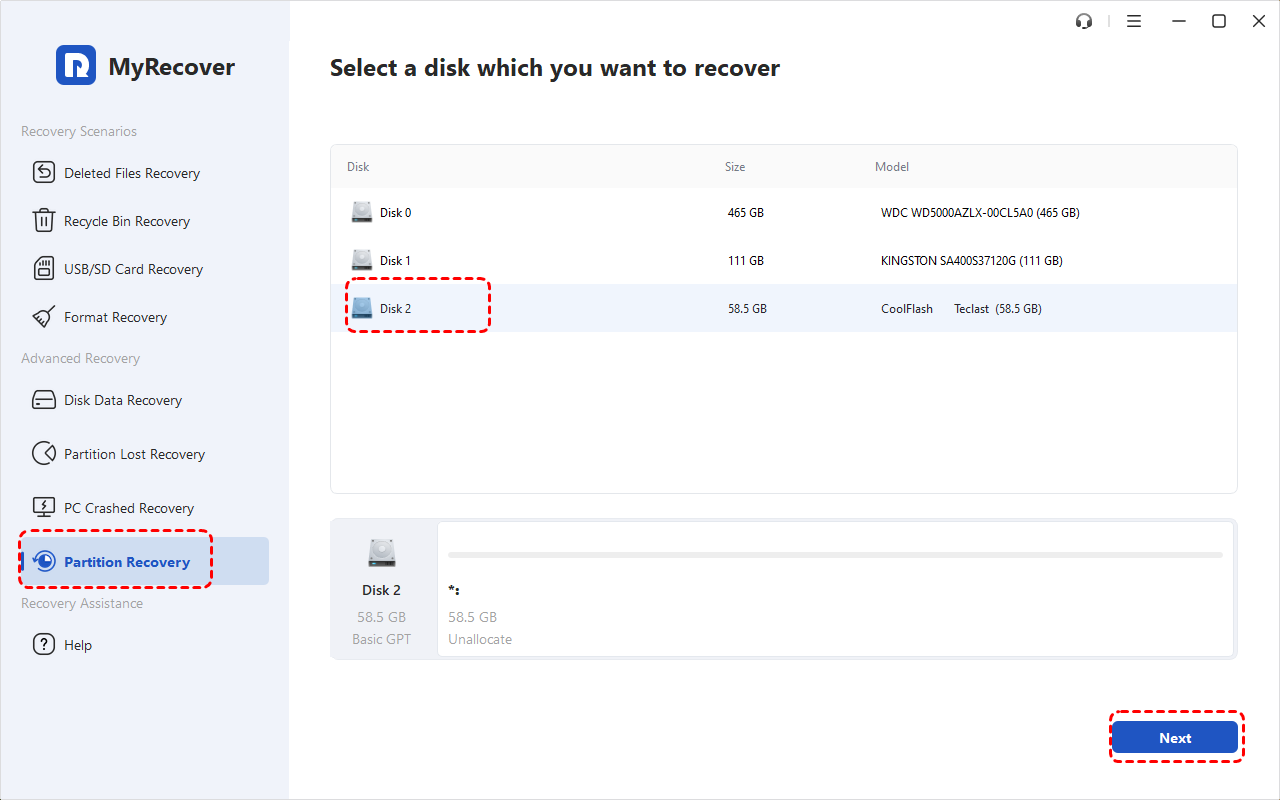
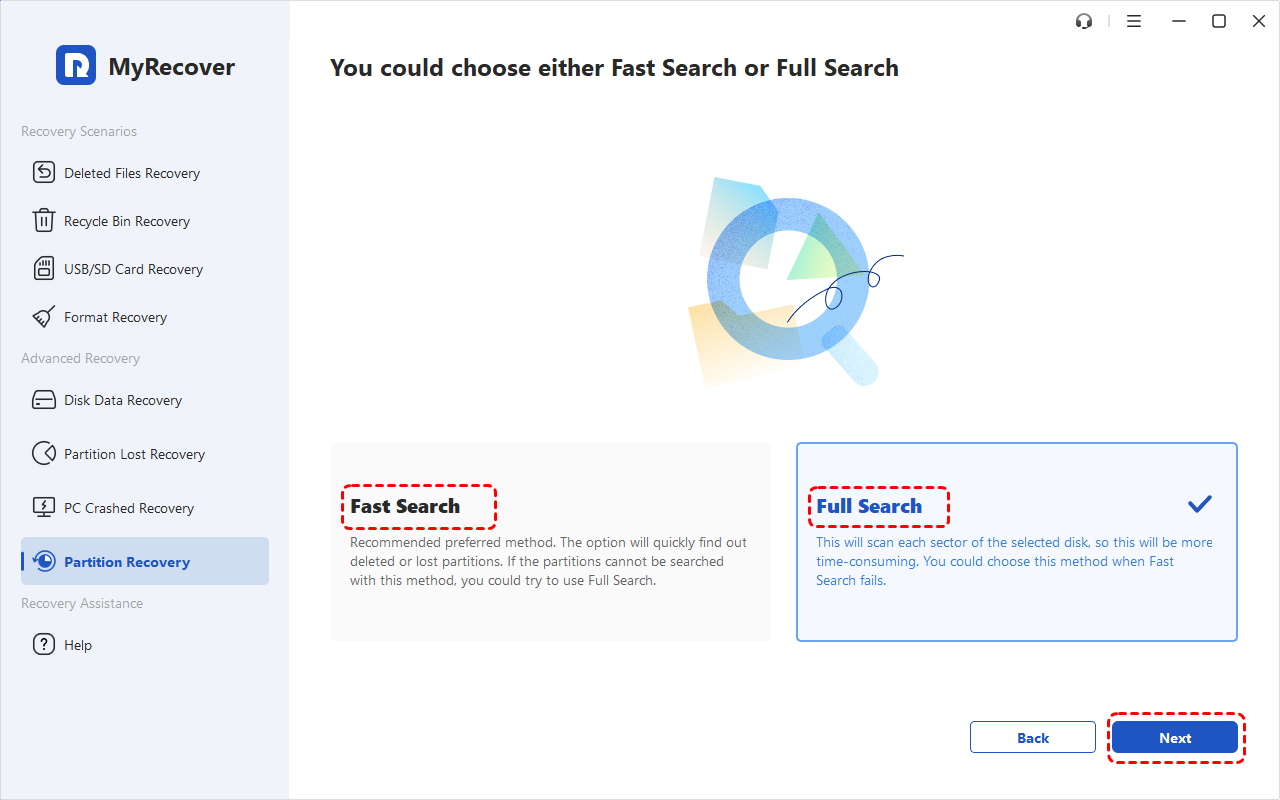
Step 3: Search the disk. Choose Fast Search and click Next; use Full Search if the partition you need is not found.
Step 4: Verify the candidate. Compare its size, file system, and disk position with the lost partition.
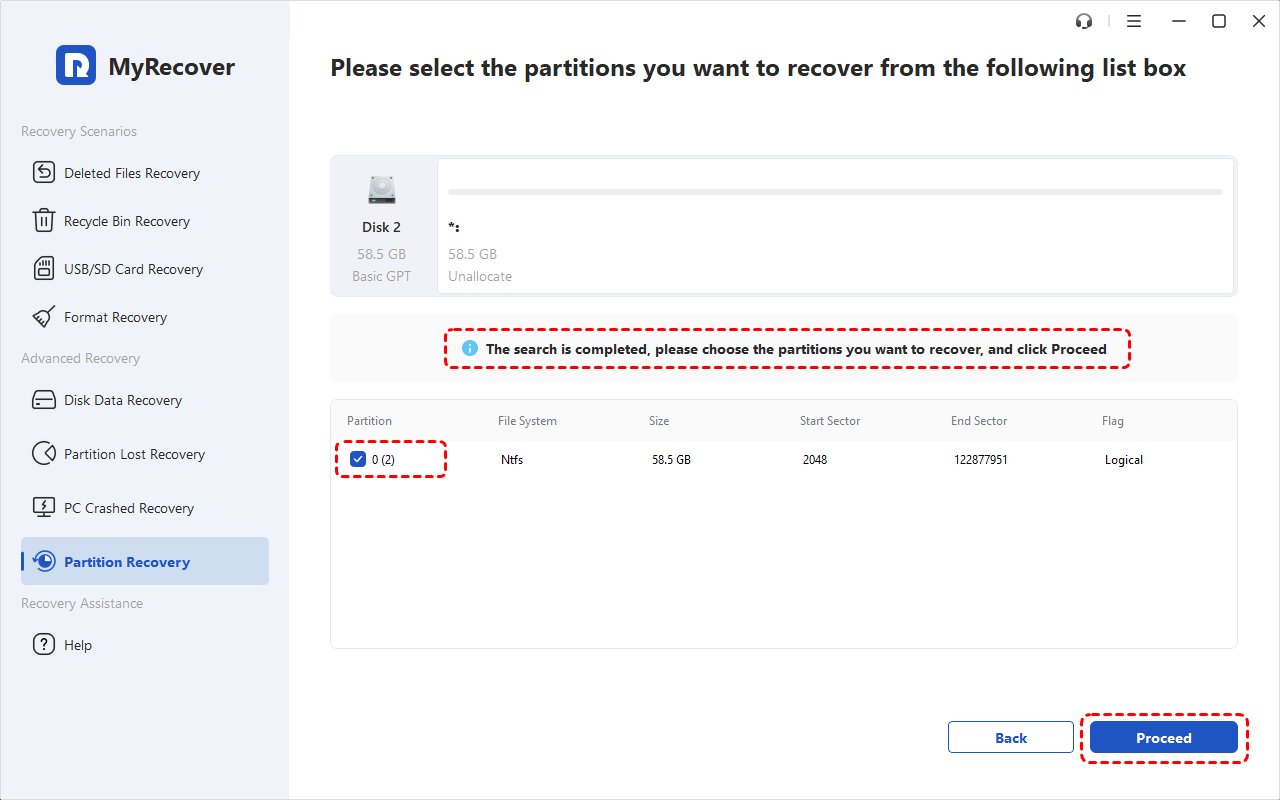
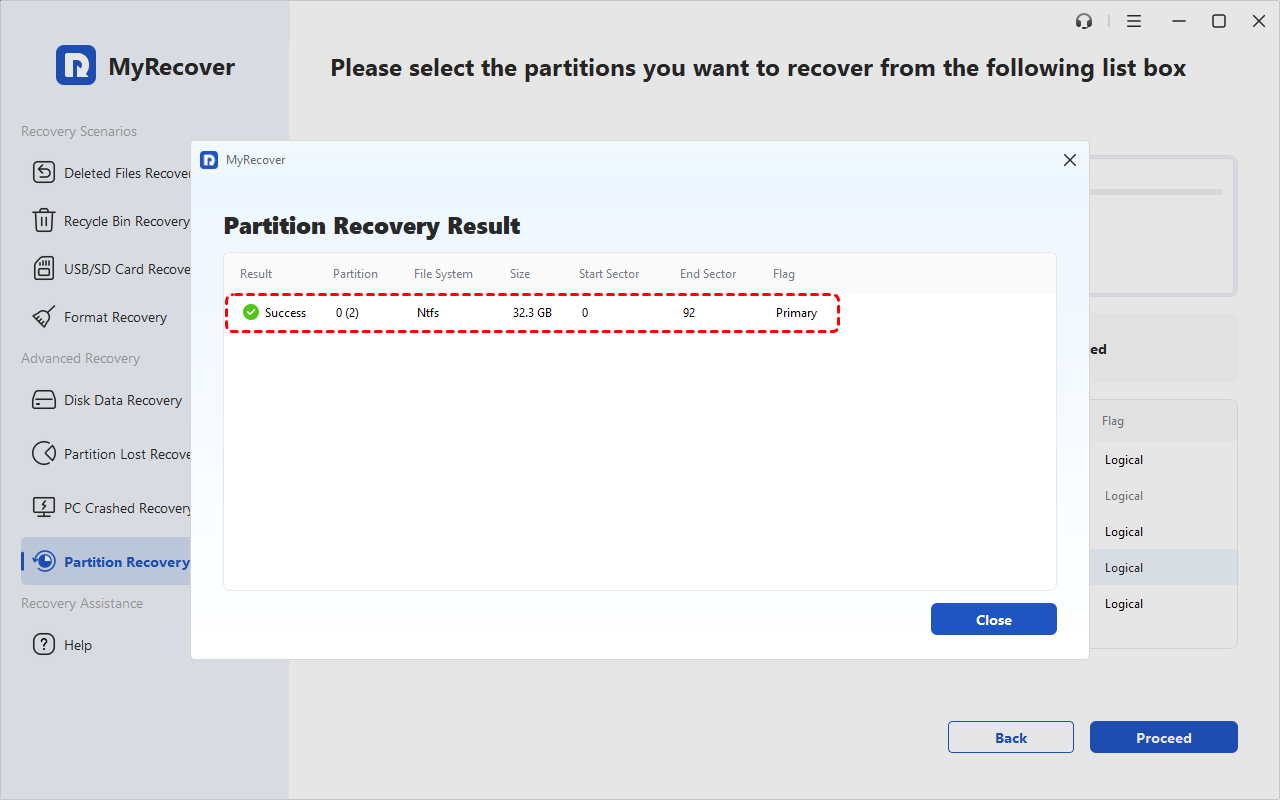
Step 5: Apply recovery. Select the verified result, click Proceed, wait for completion, and select Finish.
Step 6: Check and back up. Once accessible, open important files and copy them to another physical disk. A restored partition does not guarantee every file is intact.
👉 If Windows cannot start: On a working PC, install MyRecover and connect a spare USB with its needed files already saved elsewhere. Open PC Crashed Recovery, choose USB Boot Device, verify it, click Create, and confirm the erasure warning.
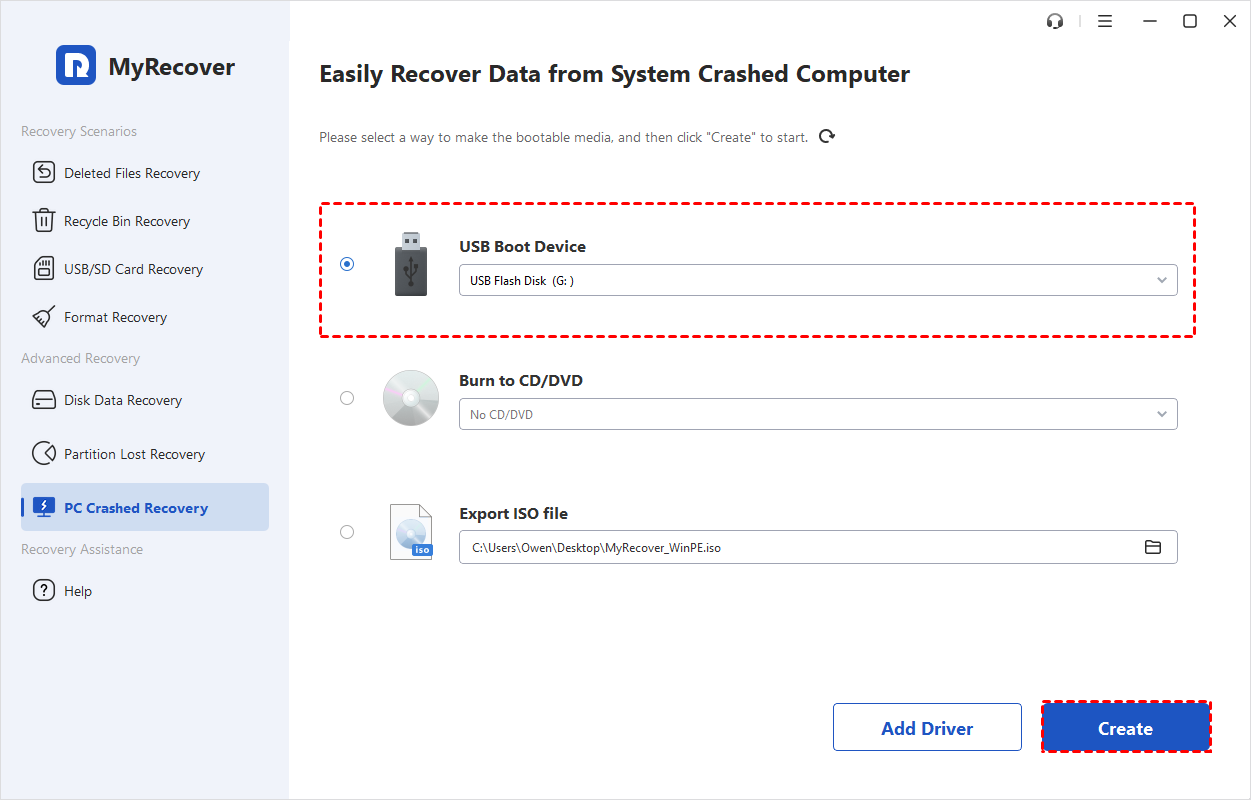
When creation finishes, move the USB to the affected PC and select it from that PC's boot menu. Once MyRecover loads, follow steps above on the connected original disk; preparing media on another PC does not remotely scan the affected computer. The recovery USB does not repair Windows startup.
Restore the Deleted Partition with TestDisk
TestDisk is an alternative when you are comfortable navigating a text interface and checking the complete proposed partition layout. It searches for remaining partition information and can write verified entries back to the disk. Its results may include old or conflicting candidates, so finding a recognizable name is not enough to approve a write. If the evidence is unclear, exit without saving rather than using Write as an experiment to see what happens.
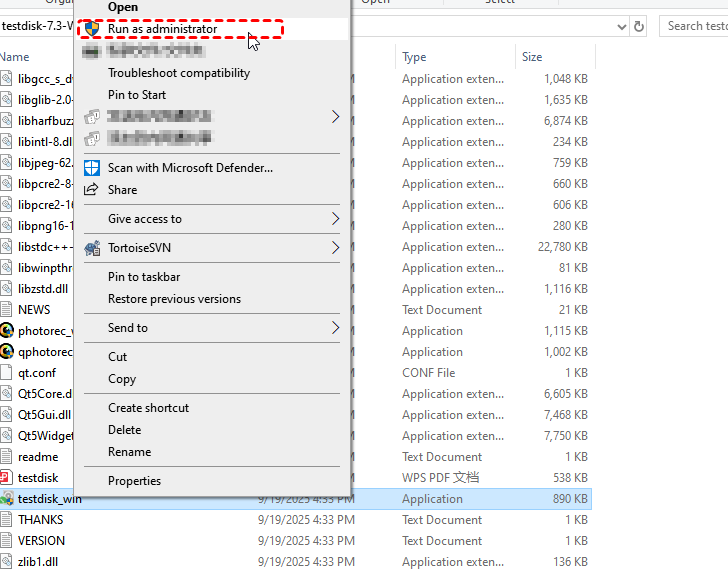
Step 1: Run TestDisk. Download it from CGSecurity onto a healthy drive, extract it, and run testdisk_win.exe as administrator. Create a log if prompted.
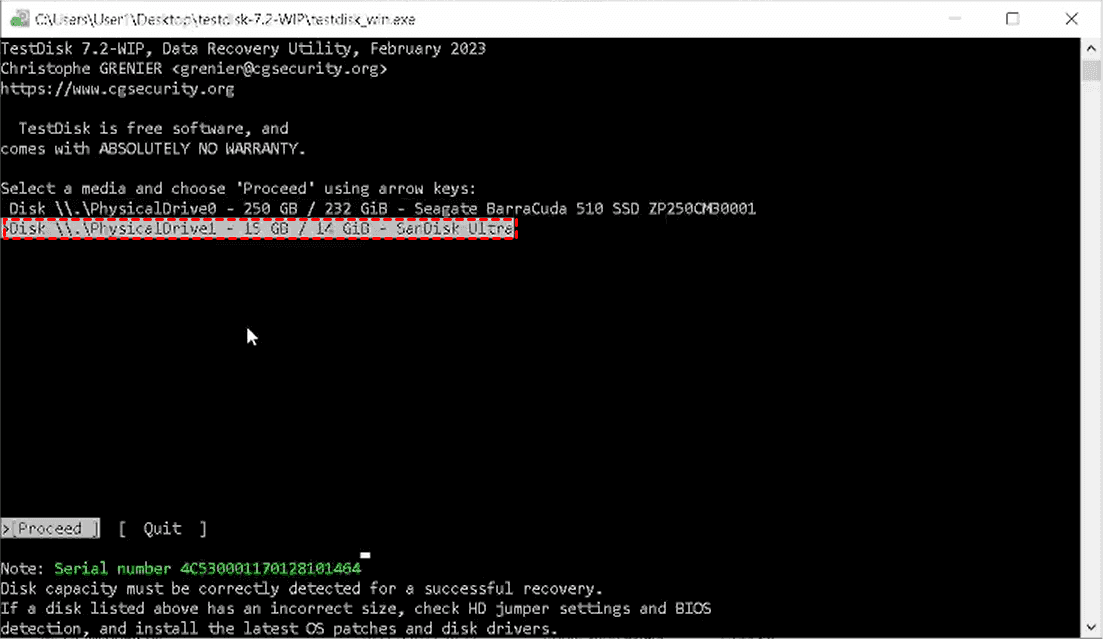
Step 2: Choose the original disk. Confirm its capacity and model, then verify the detected partition-table type. Do not change that type simply because the drive is an SSD.
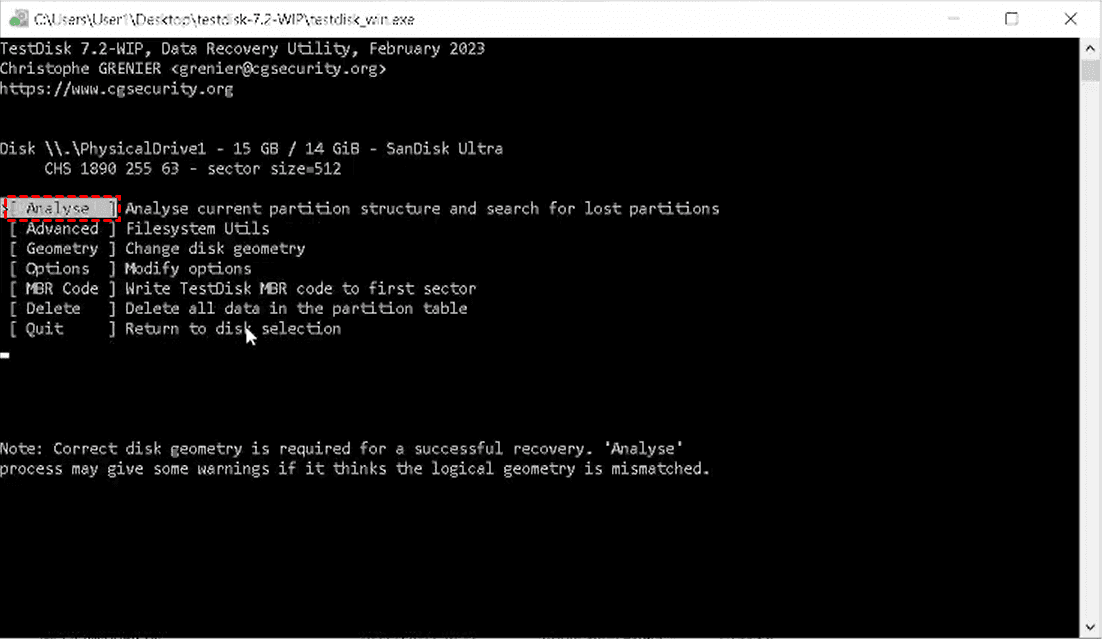
Step 3: Search for partitions. Open Analyse and run Quick Search. Continue to Deeper Search if the required partition is absent.
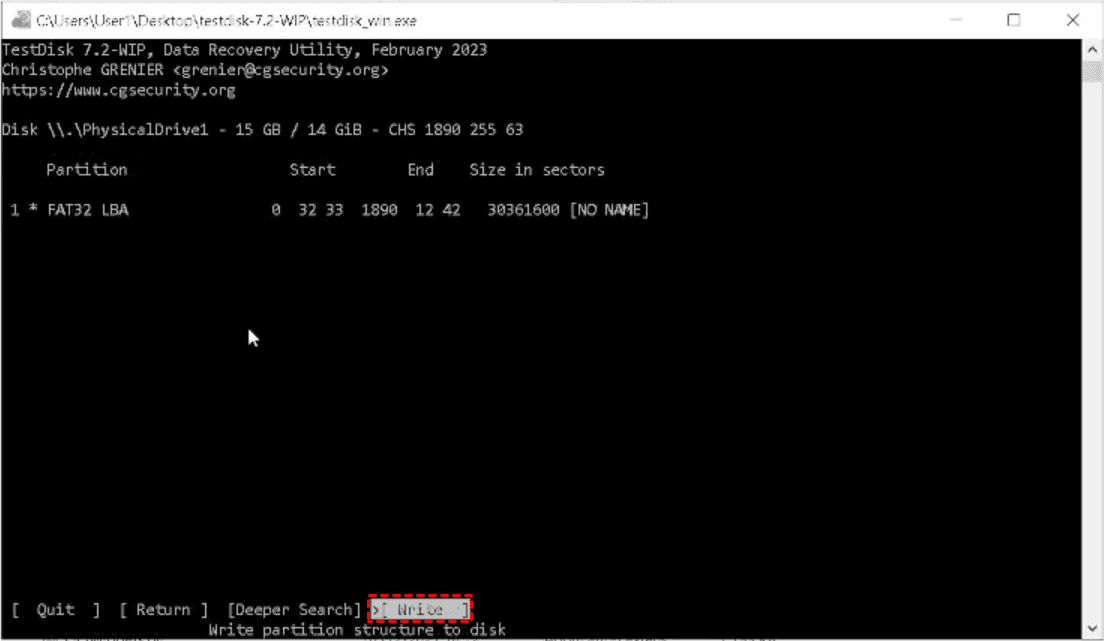
Step 4: Inspect all required entries. Check candidate sizes and boundaries and press P to list files where supported, then Q to return. Confirm the complete layout has no overlaps and retains the partitions you need.
Step 5: Save only a verified layout. Select Write and confirm only when the entries are correct; otherwise quit without writing and obtain assistance.
Step 6: Verify recovery. Restart or reconnect as instructed, check the recovered contents, and save important files to another physical disk.
How to Recover Files Without Restoring the Partition
You may have created a new volume, formatted the disk, or begun installing Windows after deletion. Alternatively, the current disk may contain new data you need to keep, or you may only want a few documents back. A file scan lets you retrieve surviving contents without making restoration of the old partition layout your goal. MyRecover provides searching, filtering, and previews for supported files so you can select what matters and save it elsewhere.
Step 1: Choose the source. Open Deleted Files Recovery in MyRecover and identify the original disk or appropriate data area. Keep the destination on another physical disk.
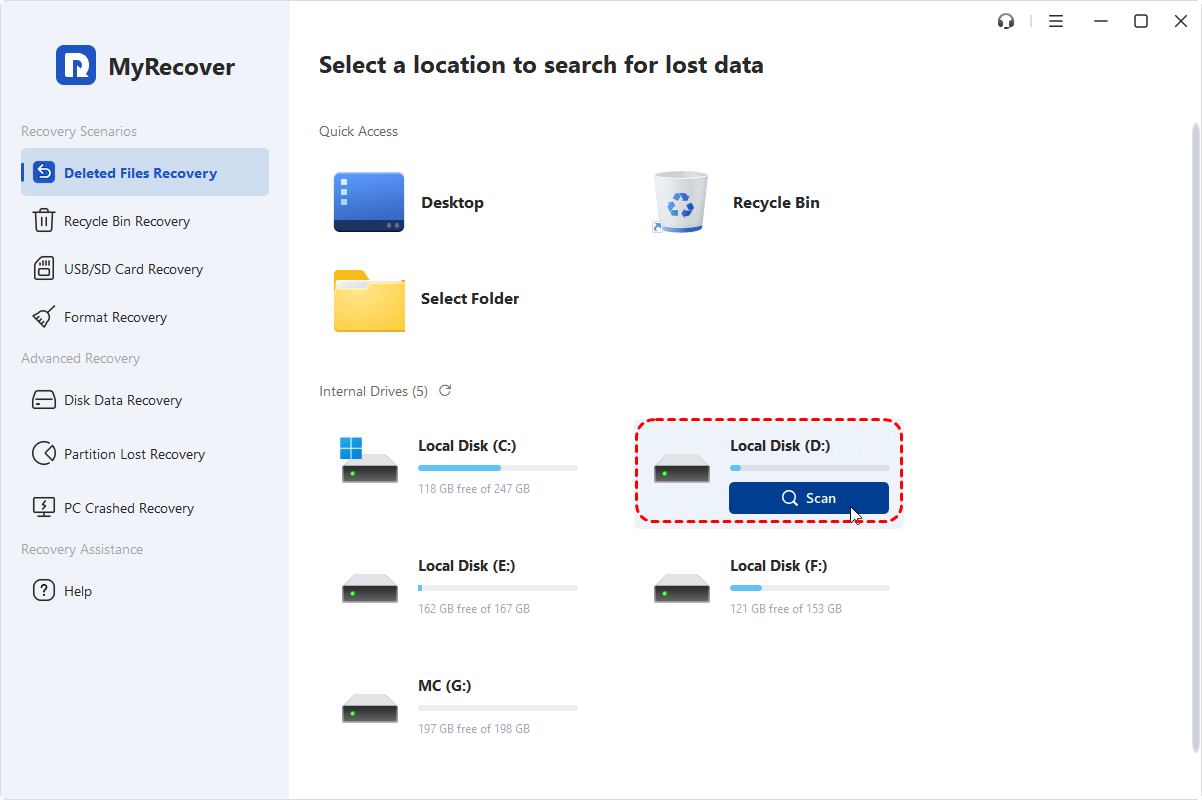
Step 2: Scan for remaining contents. Start scanning and allow results to populate without writing new files to the source.
Step 3: Select needed files. Search names or use available type, size, and date filters. Preview supported files and select the contents you need.
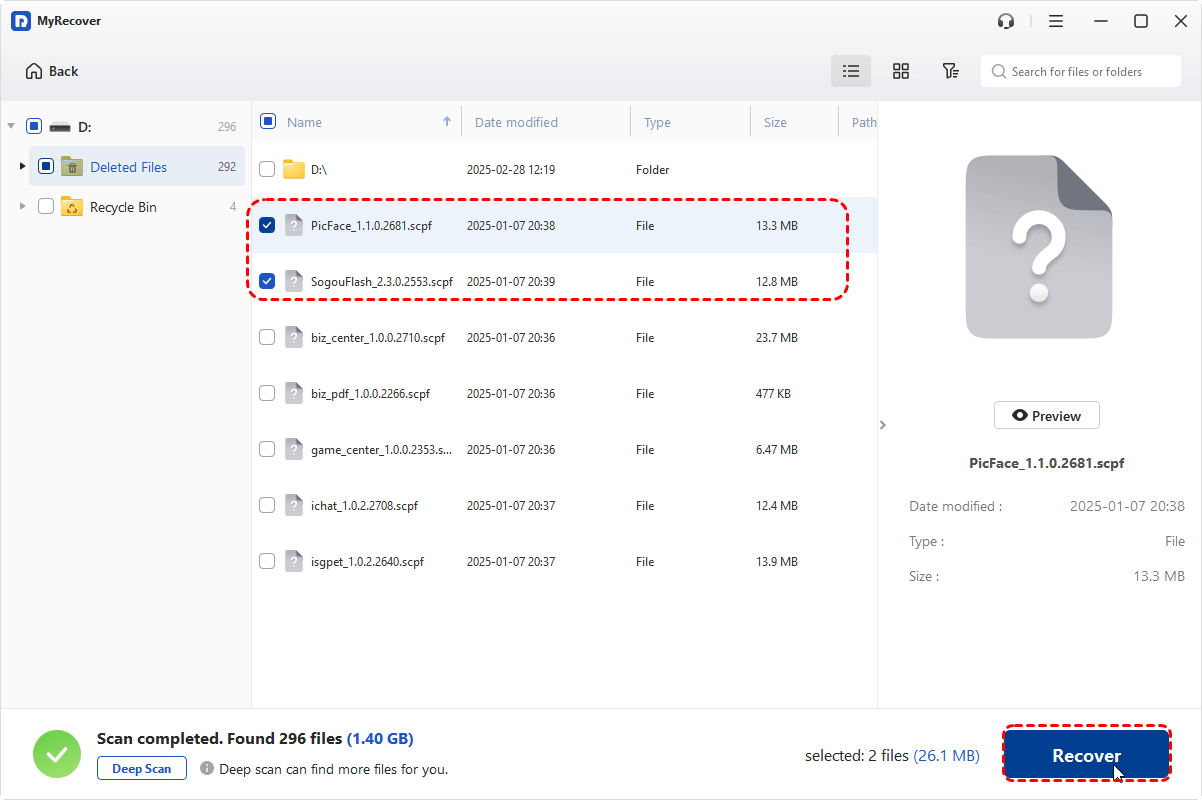
Step 4: Recover elsewhere. Click Recover and choose a folder on the separate destination disk, not the source.
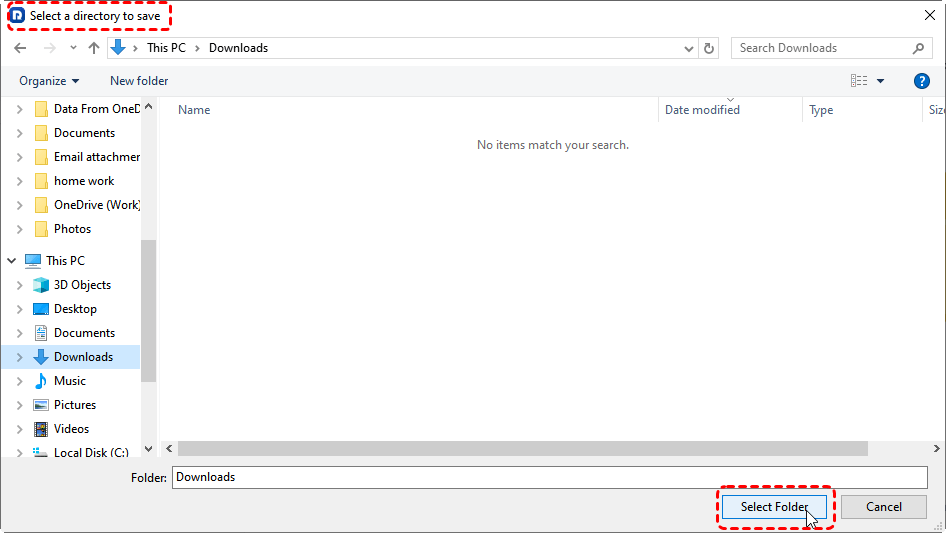
Step 5: Check saved copies. Open important documents, photos, and projects in their usual applications before continuing work on the original disk.
DiskPart Clean removes partition information, while Clean All zeros sectors. Later formatting and installation can overwrite old contents, and SSD data reclamation may further limit recovery. File recovery is not inherently more successful than partition recovery; neither can recover contents no longer available from the device.
Conclusion
DiskPart can show whether partitions remain, assign a missing letter, or bring an appropriate offline disk online. Its recover command does not undo a deleted basic partition. If deletion actually occurred, stop writing and choose partition recovery or file recovery according to what you need to save.
For IT teams handling recovery across company devices, MyRecover Technician supports unlimited deployment and use within one organization.
Frequently Asked Questions
Can DiskPart undo a deleted partition?
No, DiskPart has no undo command that reconstructs a deleted basic partition. Avoid creating or formatting a replacement if you need the old contents. Recovery software may locate surviving partition information, but success depends on overwriting, device condition, and what remains readable on the disk.
Why doesn’t the DiskPart recover command restore my partition?
DiskPart recover targets dynamic disk groups, not deleted basic partitions. It refreshes group state and attempts specific recovery or synchronization operations. On a basic disk it may take no action even without an error, so the command's completion does not demonstrate that your missing partition returned.
Does assigning a drive letter recover deleted files?
No, assigning a letter only creates an access path to an existing volume. It can reveal files that were already present but inaccessible through File Explorer. It does not scan deleted space or reconstruct file contents, and should not be used indiscriminately on system or RAW partitions.
Can creating a partition with the same size restore the old one?
No, matching the old size does not reconstruct its original records or files. Creating a replacement can write new information into space needed for recovery, especially if you format it afterward. Search for the original partition first instead of attempting to recreate it from memory.
Can I recover a partition after DiskPart Clean?
Possibly, DiskPart Clean removes the selected disk’s partition-table information but does not zero every sector. Recovery software like MyRecover may still identify surviving file-system structures and file contents, although the original partition-table entries themselves may no longer remain.
Will partition recovery make Windows boot again?
Not necessarily; recovering a partition does not automatically fix missing startup files or incorrect boot configuration. Verify and protect the recovered data first. If Windows still cannot start, use appropriate Windows recovery tools rather than repeatedly writing partition entries in an attempt to repair every startup problem.
Can CHKDSK restore a deleted partition?
No, CHKDSK examines an existing volume's file system rather than searching for deleted partitions. Its repair options modify file-system information and should follow data protection and a relevant diagnosis. Use partition recovery for a deleted volume instead of creating a replacement just so CHKDSK can run.

Stay Updated With Our
Latest Tips
Add us as a preferred source on Google to never miss helpful guides.
 Add as preferred source >>