 MyRecover



Does Photoshop Autosave? Yes—But Only If You Enable This
Does Photoshop autosave? Does Photoshop have autosave files? This guide answer the questions and cover where they're stored, and how to recover unsaved changes after a crash.

By Delores / Updated on April 9, 2026


Does Photoshop AutoSave Files?
I lost my work in Photoshop. Can I recover it?
Hello, I'm a UX/UI Designer, and I'm learning how to do things in a more artsy way on Photoshop.
There are some annoying things in Photoshop, and I want to know how auto-save works.
I just worked 5 hours and lost everything. Is there a way to recover it? Did it save it somewhere? Do I need to click Ctrl+S all the time?... Thanks!
- Question from reddit.com
Your computer freezes, or worse, the power goes out when you work with Photoshop. Does Photoshop autosave my work, or did I just lose everything? Don't worry, Adobe Photoshop does have a recovery feature, but it doesn't work the way you might hope. Let's find out more details.

Does Photoshop Autosave By Default?
By default, Photoshop does not save your original working file for you. Ever. You will not find an updated ".psd" file appearing on your computer unless you hit Ctrl+S (or Cmd+S on a Mac) yourself.
Photoshop Background Save vs. Recovery Information
However, Photoshop does employ "Background Save" and "Recovery Information" to prevent data loss. By default, Photoshop saves recovery information every 10 minutes to help you restore unsaved changes after an unexpected crash or power failure. It saves the information to a specific scratch disk location instead of the original file location.
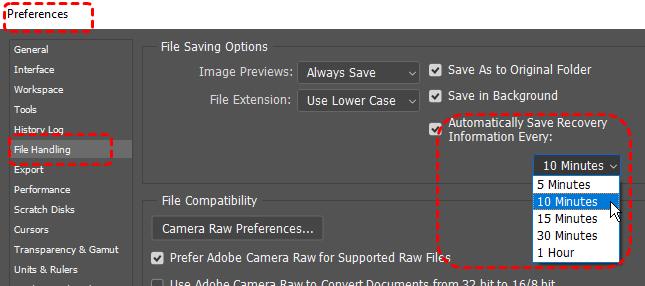
And you can find it in the Preferences panel to adjust the interval from 5 to 60 minutes in the File Handling settings. If Photoshop crashes, the software displays a "Recovered Documents" panel upon restart, allowing you to restore the last autosaved version.
Background Save is a feature enabled by default in Photoshop that allows the software to save your files as a background task when you manually select File > Save or Save As. This means you can continue working on your document while Photoshop handles the saving process in the background, without interrupting your workflow.
If you disable this feature, Photoshop becomes unresponsive during the save operation, forcing you to wait until the save completes before you can continue editing.
What Happens When Photoshop Crashes Without Saving?
When Photoshop crashes, it typically attempts to recover your work upon restart using auto-recovery files created at set intervals. If successful, an "Untitled" or recovered version of your project opens automatically. If not, you may need to manually locate the recovery file in the AutoRecover folder within your user directory.
If a panel appears on the left side of your screen labeled "Recovered Documents" after restarting Photoshop. This is Photoshop's signal that it found an unsaved draft. You can double-click that file, and your work from the last autosave interval returns. Now, save the Photoshop file, or if you close that recovered document without saving it manually, it vanishes permanently.
By the way, check what happens if you accidentally quit Photoshop without saving.
Where Do Photoshop Autosave Files Go?
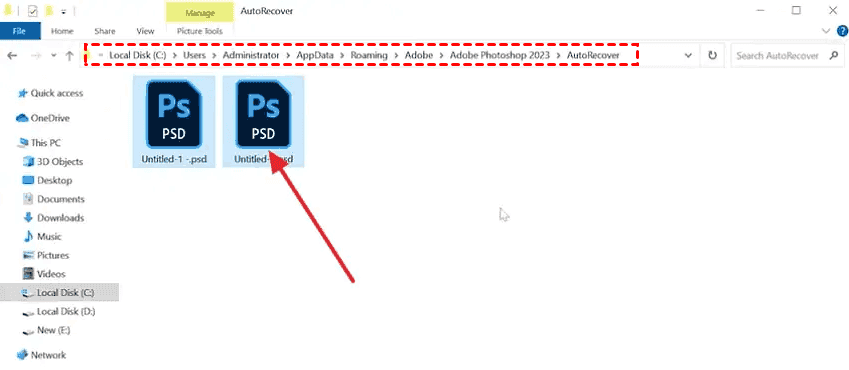
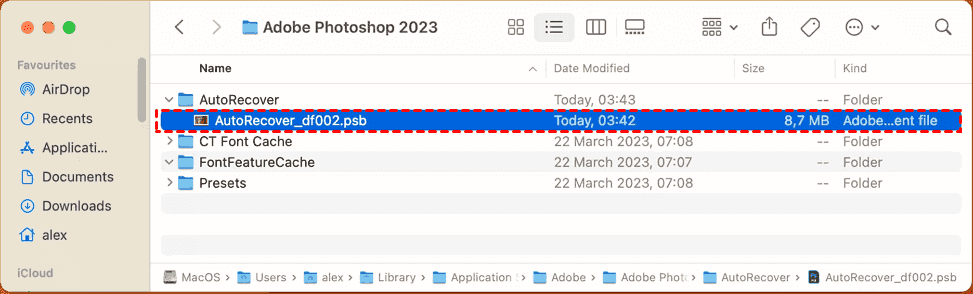
Photoshop autosave files are stored in a hidden AutoRecover folder, typically created within the user's AppData (Windows) or Library (Mac) directory. These files act as temporary backups, often in .PSB format, which Photoshop uses to restore work after a crash or improper shutdown.
Windows Photoshop Autosave Location:
C:\Users\[YourUsername]\AppData\Roaming\Adobe\Adobe Photoshop [Version]\AutoRecover
macOS Photoshop AutoRecover Location:
~/Library/Application Support/Adobe/Adobe Photoshop [Version]/AutoRecover
If you cannot find the folder via the path above, use the Run dialog (Windows key + R) and type %temp%. Look for files with a .psb or weirdly numbered extensions. These are the raw autosave chunks.
On a Mac, hold down the Option key while clicking the "Go" menu in Finder to reveal the Library. Once you are in the Autorecovery folder, you will see files with random names.
Copy them to your desktop immediately. Do not try to open them from the temp folder; Windows tends to lock temp files that are in use.
How to Restore Photoshop Autosave Files After an Unexpected Shutdown
If you lose power or the Blue Screen of Death hits, follow this recovery flow to get back an unsaved Photoshop file:
1. Reopen Photoshop. Look for the "Recovered Documents" panel on the left.
2. Click each file and immediately press Ctrl+S (Save).
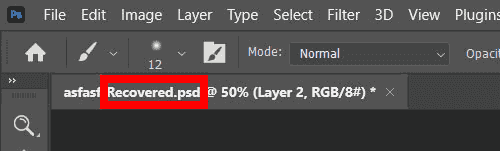
3. If the panel is missing, navigate to the Photoshop autosave location listed above.
4. Look for files with the extension .psb (Photoshop Large Document) or .tmp.
5. Rename the file extension to .psd and double-click it.
6. Once you open the recovered file, you must choose "Save As" and put it into a real folder (Documents, Projects, etc.).
Because a recovered file is not a saved file.
Recover Lost Photoshop Files Using MyRecover
Sometimes, bad happens. Maybe Photoshop crashed, you forgot to turn on Autosave, or you accidentally deleted the temp folder thinking it was junk. Or perhaps you saved over a file by mistake. When the built-in recovery fails, the Windows data recovery software MyRecover comes into play.
Unlike Photoshop's temp files, MyRecover can find .psd files that have been marked as "deleted" by the operating system but are still physically present on the disk. Here is how you use it to recover deleted Photoshop files on a Windows computer:
Important: Stop using your computer immediately. Every second you browse the web or save new files, you risk overwriting your lost Photoshop art.
1. Download and install MyRecover onto a different drive instead of the one you're planning to recover from.
 100% Secure
2. Open MyRecover, tap Deleted Files recovery, hover over the drive, and click Scan. Hit OK when it's done.

3. Preview and choose the Photoshop files and hit Recover.

4. Select a target location and hit Select Folder to keep them safe.


- Notes:✎...
- By default, MyRecover will run a "Quick Scan" first, looking for recently deleted files. If it doesn't find your work, let it run a "Deep Scan". Deep Scan takes longer to find all deleted files.
- Once the scan finishes, use the filter feature. In the search bar, type .psd or Photoshop. You can also sort by "Date Modified" to find the most recent version.
- You can also try to upgrade to MyRecover Technician to enjoy more powerful features, like recovering files from unlimited computers, etc.

 MyRecover
- Recover Deleted Files Easily with Simple Clicks
- 1000+ File Formats Supported
- Support HDD, SSD, External Hard Drive, USB Drive, SD Card, etc.
- Quickly Find Files Using File Types, Name, Size, etc.
- Preview Files Before Recovering
- Recover Unlimited Data
 100% Secure
FAQs About Photoshop Autosave
Q: Does Photoshop autosave if I close without saving?
A: No. If you manually close and click "Don't Save", Photoshop deletes the autosave files immediately. They only survive an unexpected crash or a "Yes" to saving.
Q: Where does Photoshop autosave on Windows 11 if AppData is missing?
A: Enable "Hidden items" in File Explorer, then go to C:\Users\[Username]\AppData\Roaming\Adobe\Adobe Photoshop 2024\AutoRecover. Or type %AppData% in Run. Still missing? Search for *.psb files.
Q: Can Photoshop autosave files open on another computer?
A: Yes, but only if both run the same Photoshop version. Open the file on the original machine first, save as .psd, then transfer. Raw autosave files are version-locked.
Q: Why does the autosave folder keep filling my hard drive?
A: Photoshop creates large recovery snapshots every 5-10 minutes, but sometimes leaves old files behind. Manually delete files older than a week from the autosave location, or increase the interval to 15–30 minutes.
Q: Does Photoshop autosave work with plugins or smart objects?
A: Yes, but recovery becomes unstable. Complex smart objects or third-party plugins (like Topaz) often corrupt autosave files during a crash. Rasterize smart objects before heavy edits and save manually.
Q: Can I set autosave to less than 5 minutes?
A: No, the dropdown stops at 5 minutes. A script could force faster saves, but that slows performance drastically. Enable "Background Save" instead to keep working during autosave.
Q: Does Photoshop autosave by default?
A: The recovery feature is on (every 10 minutes), but saving your actual file is not automatic. You must manually hit "Save As" first. Once named, autosave activates.
Q: What if the Photoshop AutoRecover folder is empty?
A: The file may be lost if never saved or if a clean exit deleted the recovery file. Check the Recycle Bin, search for temp files, or use recovery software.

Stay Updated With Our
Latest Tips
Add us as a preferred source on Google to never miss helpful guides.
 Add as preferred source >>