 MyRecover



PC Keeps Crashing on Startup? 7 Critical Fixes to Try Now
Experiencing PC crashing on startup in Windows 10? A PC keeps crashing on startup due to faulty drivers, corrupted system files, or failing hardware. We'll walk you through safe mode diagnostics, system restore, and advanced tools to permanently resolve the freezing and crashing.

By Delores / Updated on February 12, 2026


Preface
If your PC keeps crashing on startup, you're not just dealing with a minor glitch; it's a digital emergency that halts your productivity and sparks that sinking feeling of potential data loss.
Understanding why this happens is the first critical step to taking back control.
No matter what the reason is, you can find the solutions to fix it. This guide shows the reasons behind the problem and provides the full guide to help you fix it quickly.

Why Does My PC Keep Crashing When I Start It?
A computer that crashes on startup is trying to tell you something went wrong during its initial self-check or while loading the operating system. Common culprits behind startup failures:
- A recent Windows update might not be playing nice with an older driver.
- A malware infection that evaded detection and damaged critical system files.
- A clogged or broken fan can cause the CPU to overheat and trigger a safety shutdown.
- Hardware Issues. Failing components like RAM (causing BSOD errors), a faulty storage drive, or an unstable power supply (PSU). Such as a faulty RAM can prevent Windows from loading correctly, often resulting in the infamous Blue Screen of Death (BSOD) with codes like MEMORY_MANAGEMENT.
- A botched update.
- A newly installed program that conflicts with the system.
- An outdated or corrupted graphics or chipset driver can easily cause a boot loop or freeze.
7 Quick Fixes for Your PC That Keeps Crashing on Startup
If your PC keeps crashing on startup, don’t just keep rebooting and hoping for a different result. You need to break the cycle and get into Windows' repair environment.
Way 1. Boot into Safe Mode and Troubleshoot
First of all, you need to learn to access Windows Advanced Startup Options. Then boot into Safe mode and fix the problem.
1. Interrupt the normal boot process three times in a row: Turn your PC on, and as soon as you see the Windows logo, hold down the power button until it shuts off. Do this three times.
2. On the fourth boot, you should automatically see “Preparing Automatic Repair” and then the “Choose an option” screen.
3. Choose Troubleshoot > Advanced options > Startup Settings and then click Restart.
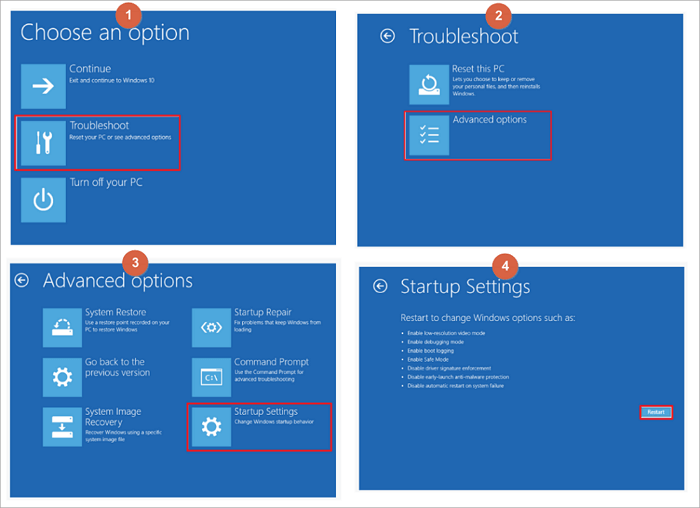
4. After the restart, you’ll see a list; press the 4 or F4 key to enable Safe Mode. Safe Mode loads Windows with only the most basic drivers and services.
5. If your computer starts up fine in Safe Mode, you’ve just confirmed the issue is likely software or driver-related, not a critical hardware failure. It’s a huge clue!
Way 2. Try System Restore to Revert Recent Changes
If your computer keeps freezing at startup after you installed a new program or update, you can try System Restore to get back to the previous state of your Windows to bypass the problem.
1. Please get into the Windows Advanced Startup Options, and choose Troubleshoot > Advanced options > System Restore.
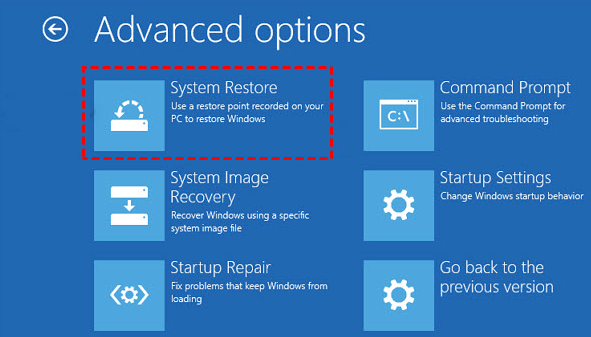
2. Select a restore point from before the problems began, and follow the prompts.
It rolls your system configuration back without touching your personal files, often clearing up the conflict causing the crash.
Way 3. Run the SFC and DISM Scan Commands
Corrupted system files are a classic reason for instability. Windows has two command-line tools designed specifically to find and fix these issues: System File Checker (SFC) and Deployment Image Servicing and Management (DISM).
Here is how to fix corrupted system files:
1. Get into the Windows Advanced Startup Options, then choose Troubleshoot > Advanced Options > Command Prompt.
2. Now, type DISM /Online /Cleanup-Image /RestoreHealth and press Enter. It repairs a corrupted Windows system image (WinSxS folder) by scanning for damage and automatically replacing corrupted files using files downloaded from Windows Update or a local source.
3. Type sfc /scannow and press Enter. This command scans all protected system files and replaces corrupted versions with a cached copy.

These tools work in tandem to repair the underlying Windows image.
Way 4 . Update or Roll Back Faulty Drivers
Drivers are frequent flyers in the crash reports. If you booted successfully into Safe Mode, you can manage your drivers from there.
1. Open Device Manager in Safe Mode. Look for any devices with a yellow exclamation mark—that’s a telltale sign of trouble.
2. You can right-click the device, choose Properties, and check the status.
3. To fix, you can try “Update driver” or, if the problems started after an update, “Roll back driver”.
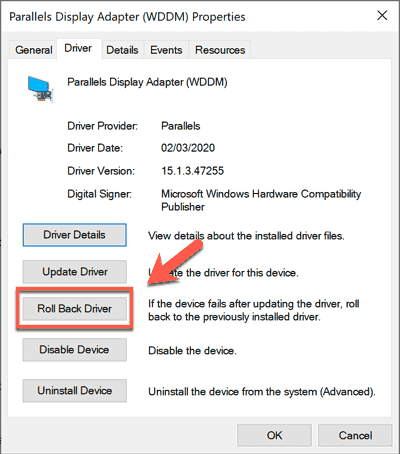
4. If rolling back isn’t available, you can uninstall the device and then restart normally; Windows will attempt to install a generic driver, which may be more stable.
Way 5. Check Your Computer’s Hardware
A persistent crash that happens even in Safe Mode points toward a physical problem.
Listen for unusual sounds like clicking from the hard drive (a sign of failure) and look for excessive heat. And the dust. Use a can of compressed air to carefully clean out dust bunnies from fans, heat sinks, and vents.
Open the case (with the PC off and unplugged) and check for visible issues like bulging capacitors or disconnected cables.
Way 6. Test Your RAM and Hard Drive for Failures
For RAM testing, you can use the Windows Memory Diagnostic tool from the Advanced Startup menu or a more robust tool like MemTest86, which you run from a USB stick.
For your hard drive or SSD, you can often check its health by accessing the BIOS/UEFI settings at startup (look for S.M.A.R.T. status) or by using the manufacturer's diagnostic software from a bootable USB.
Way 7. Clean Malware That Causes Freezing on Startup
Some particularly nasty malware embeds itself so deeply that it interferes with the boot process. If you suspect an infection, you need to scan from outside the corrupted Windows environment.
Windows Security has a feature called “Windows Defender Offline Scan”. You can access this using the following steps:
1. Get into the Windows Advanced Startup Options, choose Troubleshoot > Windows Defender Offline Scan.
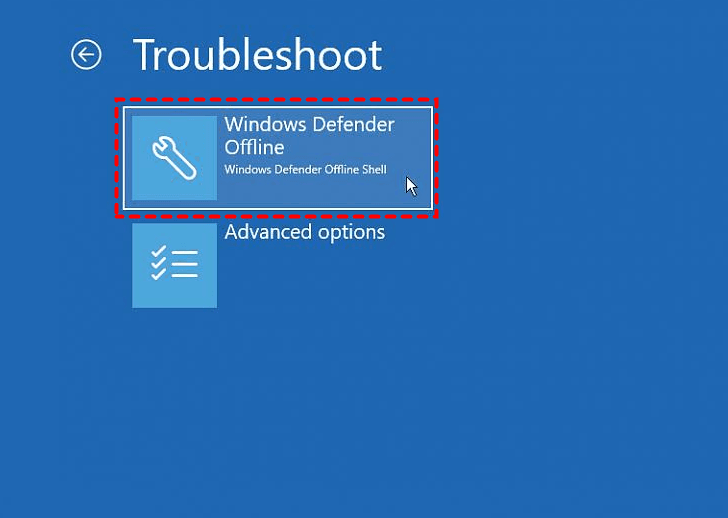
2. This tool boots a minimal, secure version of Windows and runs a deep scan, removing rootkits and other persistent malware that normal scans might miss.
Recover Your Precious Files with MyRecover
If your computer crashes on startup and you can't even get into Safe Mode, your documents, photos, and projects seem locked away. This is where data recovery software becomes your best friend, and a tool like MyRecover is designed for exactly this scenario.
With MyRecover, you can enjoy the following strengths:
- Bootable Media Creator: Creates a recovery USB/DVD on a working PC, allowing you to boot the non-functional computer from this recoverydrive, bypassing the corrupted operating system entirely.
- Deep Scan Technology: Performs a thorough sector-by-sector scan to locate recoverable files, even when file system structures are damaged or missing due to the crash.
- File Preview Function: Allows you to preview found files (documents, photos, etc.) before recovery, confirming their integrity and ensuring you only restore what you need.
- Selective Recovery: Enables you to choose specific files and folders for restoration, rather than forcing a full recovery of all found data, saving time and storage space.
- Broad File System & Type Support: Compatible with common file systems (NTFS, FAT, exFAT) and can recover a wide array of file types, from documents and archives to photos and videos.
Preparations:
- A blank USB drive, at least 32GB, to create a bootable media.
- A working Windows 10\11 computer.
- An external hard drive to save the recovered files.
1. Download and install MyRecover on the working Windows computer, then launch MyRecover. Connect your USB drive to the computer to make sure it can be detected.
 100% Secure
2. Tap PC Crashed Recovery, choose the USB drive, and hit Create. Wait for a moment.

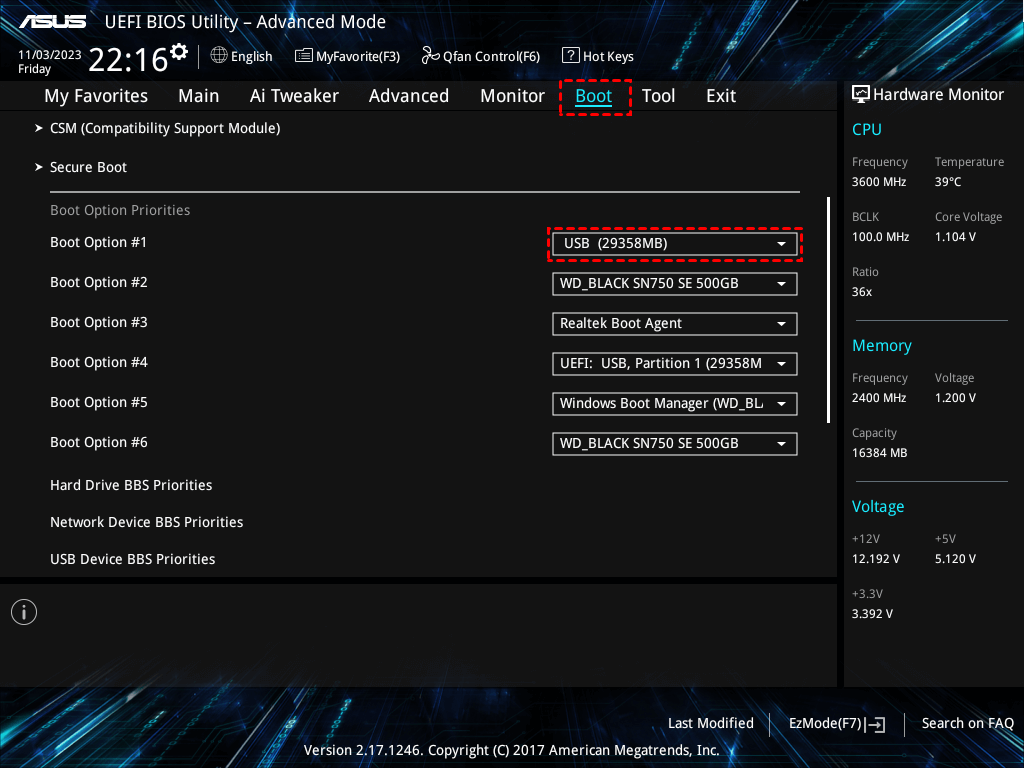
3. Now boot up your computer that keeps crashing from the bootable USB drive by changing the BIOS/UEFI boot order. And your problematic computer will boot up from the drive, and MyRecover will run automatically.
4. Choose Disk Data Recovery, choose the drive you want to scan, and hit Scan. Wait for the process to complete and hit OK.

5. Preview and select the files you need, and hit Recover. Choose a location in the external hard drive to keep them safe.


- Notes:✎...
- MyRecover will meticulously search through the drive’s data structures, finding recoverable files even from corrupted or formatted partitions.
- Once scanned, you can search files by file name, size, and modified date, etc.
- Enjoy MyRecover Technician if you need to recover files from unlimited computers.

 MyRecover
- Recover Deleted Files Easily with Simple Clicks
- 1000+ File Formats Supported
- Support HDD, SSD, External Hard Drive, USB Drive, SD Card, etc.
- Quickly Find Files Using File Types, Name, Size, etc.
- Preview Files Before Recovering
- Recover Unlimited Data
 100% Secure
Prevent Future Computer Startup Crashes
Once you’ve recovered your system and your files, let’s make sure you don’t have to go through this headache again. A little preventative maintenance goes an incredibly long way.
- Be a bit cautious with updates. It's important to stay on top of security updates for Windows. However, consider delaying major feature updates by a week or two after their release. This allows time for any critical bugs to be identified and resolved by early adopters before you install them.
- For drivers, a good practice is to only update them if you’re experiencing a specific issue or need new features; if it ain’t broke, don’t fix it. Use the official websites of your component manufacturers (like NVIDIA, Intel, AMD, or your laptop maker) for drivers.
- Keep an eye on your PC’s vitals. Free tools like CrystalDiskInfo can monitor your hard drive/SSD health, and HWMonitor can track temperatures and voltages. If you notice your CPU or GPU temperatures creeping into dangerously high ranges (consistently above 85-90°C under load), it’s time to clean your fans or reapply thermal paste.
FAQs About PC Keeps Crashing on Startup
Why does my PC keep crashing on startup?
A: Your PC keeps crashing on startup for several common reasons, usually due to a breakdown between hardware and software during boot. Top causes include corrupted system files, faulty Windows updates, incompatible drivers (especially for graphics), failing hardware like RAM or a hard drive, overheating from dust, or malware. Look for patterns—did it start after a new install?—and use Safe Mode to diagnose.
How can I tell if my startup crash is a hardware or software problem?
A: Booting into Windows Safe Mode is your best test. If the PC runs stably in Safe Mode, it's almost certainly a software issue—drivers, recent changes, or corrupted system files. If it crashes before or even in Safe Mode, a hardware problem is likely. Then, focus on testing components like RAM, power supply, motherboard, or CPU cooling.
What should I do first when my computer crashes on startup?
A: First, try to access the Windows Advanced Startup Options menu. Interrupt the boot process three times by forcing a shutdown at the Windows logo. On the fourth start, the recovery environment should launch. From there, try "Startup Repair" and then boot into Safe Mode. Safe Mode lets you diagnose and fix issues without constant crashing.
Can a bad power supply cause my computer to freeze on startup?
A: Yes, a failing or inadequate power supply is a common but overlooked cause. The boot process demands peak power. If the PSU can't deliver stable, sufficient power due to age, faulty parts, or low wattage, the system may freeze during startup or POST. Swapping in a known-good PSU is the definitive test.
How do I recover my files if I can't even boot into Windows?
A: Use data recovery software from bootable media. Create a bootable USB drive (using a tool like MyRecover on another computer), then boot your crashed PC from it. This loads a separate OS that can scan your drive and let you copy files to an external drive, isolating recovery from the corrupted Windows installation.
Will resetting Windows fix a PC crashing on startup?
A: It can, but it's a last resort. A Windows Reset ("Keep my files") may fix deep software corruption, driver issues, or malware. However, it removes all apps and settings, and won't help if the cause is hardware. Always try repairs (sfc /scannow), driver rollbacks, and Safe Mode first, and ensure you have a backup.

Stay Updated With Our
Latest Tips
Add us as a preferred source on Google to never miss helpful guides.
 Add as preferred source >>