 MyRecover



Does Steam Have a Recycle Bin? (Full Guide)
Many users ask, does steam have a recycle bin? This guide explains what happens to deleted games or files, where they’re stored, and whether recovery is possible. Understand Steam’s data handling to keep your files safe and avoid accidental permanent deletions.

By Vera / Updated on May 13, 2026


Introduction
Does Steam have a recycle bin or deleted saves folder to restore game saves?
Just rage quit Elden Ring and deleted my save file in game. Looking to see if there's a way to restore it. Also like an idiot I don't have cloud saves enabled and btw I wish that if you deleted a save file it went to your recycle bin like any other file. I just tried verifying game files and that didn't work so if data recovery will I'm open to suggestions if applicable.
- Question from Reddit
Just like the Reddit user who "rage quit" Elden Ring and accidentally deleted a hundred-hour save file, many gamers face the sudden panic of losing progress. Whether it’s an accidental click, a corrupted update, or a "clean-up" session gone wrong, the loss of game data is a nightmare.
Commonly, PC gamers ask: Does Steam have a recycle bin? In Windows, you can just pull a file back from the trash. In Steam, the logic is different. If you are currently panicking and asking, "Can I recover deleted games on Steam?" or wondering exactly where do Steam deleted files go, you've come to the right place. This guide explores how Steam manages your data and provides a step-by-step roadmap to getting your games and saves back, even if you think they’re permanently deleted.
Understanding Steam’s File Management System

How Steam Stores Game Files
Steam divides your data into two main categories:
- Game Assets (The "Body"): These are the massive files (textures, audio, code) usually found in C:\Program Files (x86)\Steam\steamapps\common.
- User Data (The "Soul"): Your save files, custom keybinds, and screenshots. These are often tucked away in your Documents folder, %AppData%, or the Steam userdata folder.
Why Deleted Files Aren’t Always Gone
When you "delete" a file in Windows, the system often just marks the space as "available" rather than physically erasing the data immediately. This is the logic that allows recovery tools to work. Additionally, Steam’s synchronization features mean a copy of your data might still exist on Valve’s servers, even if your local drive is empty.
Deleting a game from Steam doesn’t necessarily nuke every last file. Some save files, configuration settings, or mods might remain on your PC. Steam does this intentionally to ensure you can restore certain preferences if you reinstall the game later.
Where Do Steam Deleted Files Go?
The Staging Area Myth
So, where do Steam deleted files go when you click uninstall or delete? Unlike the macOS Trash or Windows Recycle Bin, Steam does not have a native, temporary staging area for deleted files. Once you confirm a deletion or uninstallation within the Steam client, the pointers to those files are removed from your file system.
What Happens When You Uninstall a Game on Steam?
Uninstalling removes the core "Game Assets" to free up storage. However, Steam is designed to be "save-game friendly." Developers usually store save files in a separate directory (like C:\Users\[Name]\Saved Games) specifically so that if you uninstall the game to save space, your progress remains intact for a future reinstallation.
Can I Recover Deleted Games on Steam? (Step-by-Step Recovery Guide)
If you’ve realized your files are missing, the exact answer to "can I recover deleted games on Steam" depends on whether you've lost the game’s core installation assets or your personal progress (save files). Let’s start with the easiest built-in solution for missing game data.
Way 1. Using Steam’s "Verify Integrity" Feature
This method is used when a game won't launch or you’ve accidentally deleted files from the game’s installation folder.
Steam compares your local files with the "checksum" of the version on their servers. If it finds a mismatch or a missing file, it re-downloads only those specific components.
1. Open your Steam Library.
2. Right-click the problematic game and select Properties.
3. Navigate to the Installed Files (or Local Files) tab.
4. Click Verify Integrity of Game Files.
.png)
5. Wait for the progress bar. Steam will automatically queue a "download" for any missing pieces.
Verification works great for recovering the game download itself, but it won’t recover a deleted save file because save files are unique to you and not part of the standard game download. If your local save is gone and your Cloud Sync failed, you need a method that targets what is still physically on your hard drive.
Way 2. Restoring Game Files with Third-Party Tools (like MyRecover)
When files are deleted from the disk and aren't in the Windows Recycle Bin, they are in a state where they can be "overwritten" by new data. Try MyRecover if you deleted your Elden Ring save folder, emptied the Windows Recycle Bin, or had a drive crash that wiped your Steam library.
MyRecover scans the deep clusters of your Hard Drive or SSD to find "orphaned" files that haven't been overwritten yet. It is particularly effective for Steam users because it can identify specific game save extensions (like .sl2, .save, .dat) that are often lost.
- ★Pros:
- Works on Any Windows Version – Runs smoothly on most Windows systems and file types.
- Handles Big Games Easily – Recovers large Steam game folders without slowing down.
- Pause and Resume Scans – You can stop a scan halfway and continue later.
- Clear Progress Display – Shows you exactly where your files will be restored and how far along the scan is.
- Privacy-Friendly – Everything happens locally on your PC, so your files stay private.
 100% Secure
Steps with MyRecover might look like this:
1. Download and Install MyRecover
Go to the official MyRecover website and download the software. Install it on a drive that’s different from the one you’re recovering from (this prevents overwriting deleted data).
2. Launch the Software
Open MyRecover and select the drive or folder where your Steam games or files were stored.
3. Scan for Lost Files
Click "Scan". MyRecover will perform a quick scan first. Or, you can choose a deep scan for any files it didn’t catch initially.

4. Preview the Results
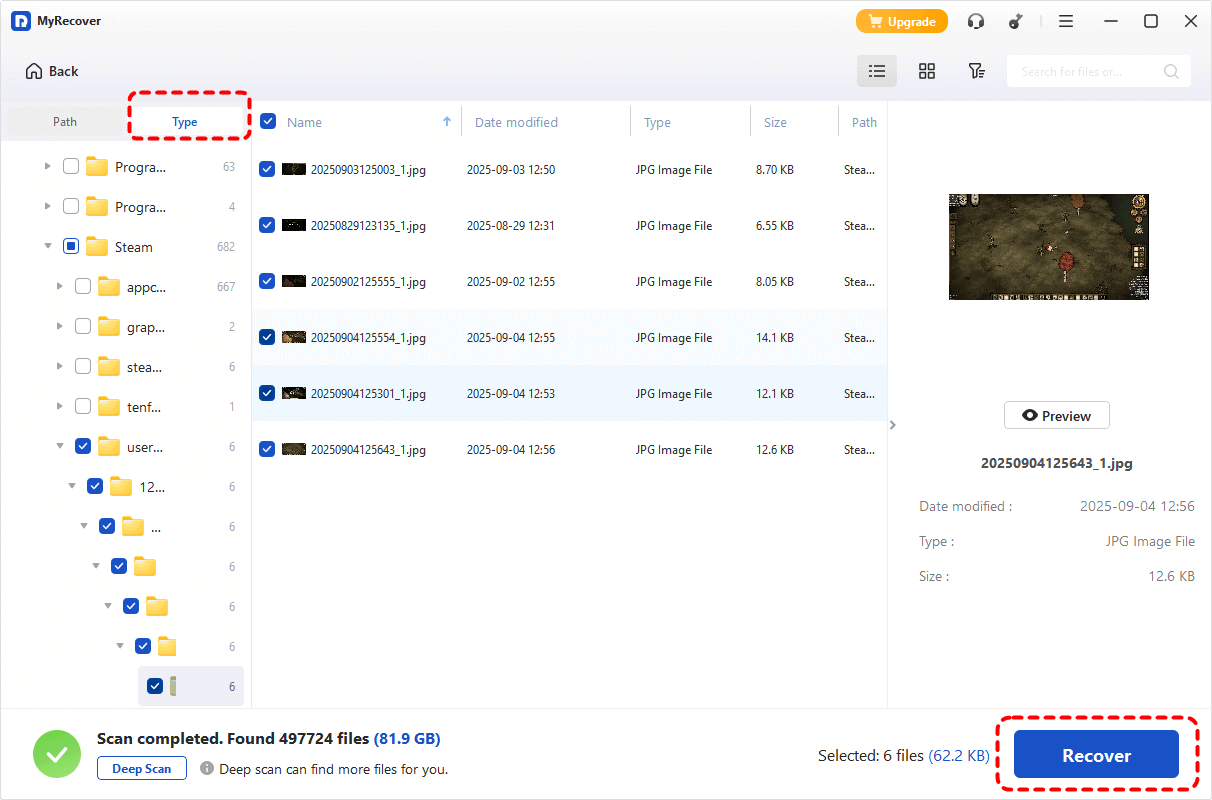
Once the scan finishes, you’ll see a list of recoverable files. Preview them — you can even filter by file type or date to speed up the process.
5. Recover Your Files
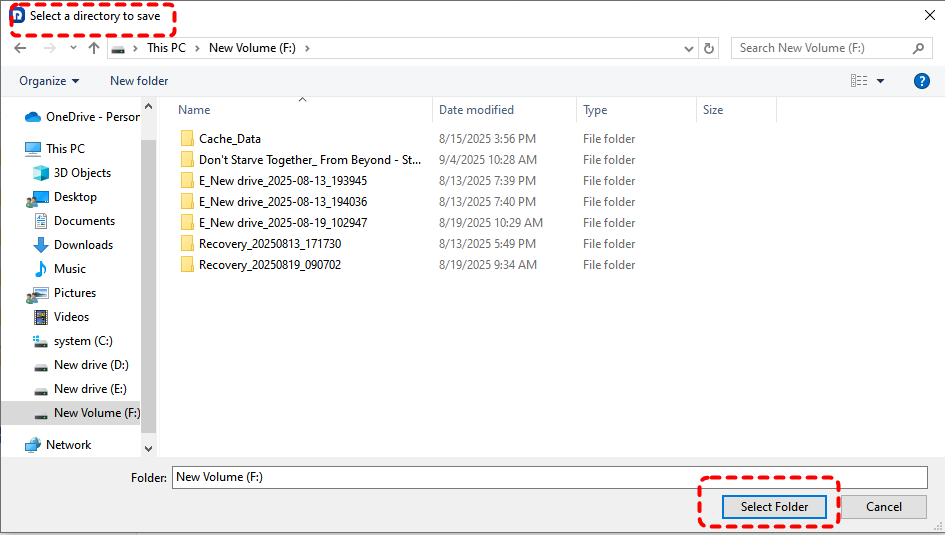
Select the files or folders you want, then click "Recover" to restore them to a safe location.
This approach works best if you act quickly after deletion—before new files overwrite the old data.
Preventing Future Data Loss on Steam
Don't let a "rage quit" or a disk error set you back 50 hours of gameplay again. Implement these safety nets:
1. Enable Steam Cloud (The Mandatory Step): Go to Steam > Settings > Cloud and ensure "Enable Steam Cloud synchronization" is checked. This stores a copy of your progress on Valve's servers every time you exit a game.

2. Manual "Save Game" Backups: For games notorious for save corruption (like Bethesda or FromSoftware titles), occasionally copy your save folder to a cloud drive like Google Drive or OneDrive. You can find most saves by typing %AppData% or %LocalAppData% into your Windows Search bar.
3. Steam’s Internal Backup: Use Steam > Backup and Restore Games to create a compressed file of your entire game library on an external hard drive. This is faster than re-downloading 100GB if you ever have to wipe your PC.
Conclusion
To wrap up: Does Steam have a recycle bin? Not exactly. When you clear out games or lose a save, Steam won't hold it in a temporary trash folder. However, between Steam Cloud, internal verification, and deep data recovery software like MyRecover, you have multiple layers of defense. By acting quickly and practicing regular storage backups, you can easily ensure a "rage quit" never costs you your hard-earned progress again.
FAQ: Everything You Need to Know About Steam Data Recovery
1. Does Steam have a recycle bin?
No. Steam does not have a native "Trash" or "Recycle Bin" feature. Once a file is deleted through the Steam interface, it bypasses the Windows Recycle Bin and is removed from the file system.
2. Where do Steam deleted files go when a game is uninstalled?
When uninstalled, the core game assets are permanently wiped from your storage drive to free up space. However, configuration settings, screenshots, and game saves are usually left untouched in your computer's Documents, %AppData%, or local Saved Games directories.
3. Can I recover deleted games on Steam if I didn't use Steam Cloud?
Yes, but it requires file recovery software. Since the files were once on your hard drive, a professional tool like MyRecover can scan the disk for the deleted sectors where those save files lived and attempt to reconstruct them before they are overwritten by new data.
4. Why did "Verify Integrity of Game Files" not bring back my character?
Because verification only checks for static game files (the ones everyone downloads). Your character and progress are dynamic files created while you play; Steam doesn't keep a "standard" copy of your personal character to verify against.
5. I uninstalled Steam itself. Can I get my games back without downloading everything?
By default, uninstalling the Steam client removes the entire steamapps folder and all downloaded games. To avoid days of downloading, you can use MyRecover to scan your drive for the recently wiped common folder, restore the assets locally, and point your newly installed Steam client to that directory.
6. Can I recover a game I "Permanently Removed" from my account?
Yes. This option doesn't actually delete files; it just hides your game license. Go to Steam Support > Games/Software > [Search Game] > "It's not in my library" > "Restore the previously removed package to my account."

Stay Updated With Our
Latest Tips
Add us as a preferred source on Google to never miss helpful guides.
 Add as preferred source >>