 MyRecover



Edge Favorites Disappeared: How to Restore Them Quickly
If you’re dealing with Edge favorites disappeared, you’re not alone. Losing bookmarks can disrupt your workflow, especially if you rely on them for daily tasks or important resources. This guide provides practical and easy-to-follow solutions to restore missing favorites in Microsoft Edge. Whether your favorites disappeared suddenly or after a system change, these proven methods will help you recover them quickly and efficiently without requiring advanced technical skills.

By Aria / Updated on March 27, 2026


Introduction
Encountering the issue of Edge favorites disappeared can be frustrating, especially when your saved bookmarks suddenly vanish without warning. This often happens after a browser update, a sync error, signing into a different profile, or even after a system restart. In some cases, users may find their favorites bar empty, specific website missing, or all bookmarks completely gone, making it difficult to quickly access frequently used websites.
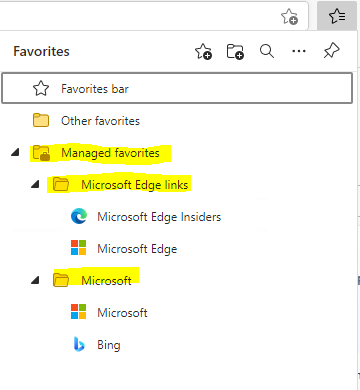
Losing favorites can disrupt daily tasks, particularly if you rely on them for work, research, or regular browsing. Fortunately, this problem is usually not permanent, and your bookmarks can often be restored using built-in features or simple recovery methods. This article will walk you through practical and effective ways to quickly recover disappeared favorites in Microsoft Edge and help ensure they don’t go missing again in the future.
Why Did Edge Favorites Disappear?
To restore your favorites effectively, it’s important to understand what might have caused them to disappear. In most cases, bookmarks are not permanently deleted but become inaccessible due to sync issues, profile changes, or system-related errors. Identifying the root cause can help you choose the right recovery method quickly and avoid similar problems in the future. Several common factors can lead to missing favorites in Microsoft Edge:
🔔Sync issues or disabled synchronization: If sync is turned off or fails to update properly, your favorites may not appear across devices or may seem missing after signing in.
🖥️Signed into a different profile: Edge stores favorites separately for each user profile. Logging into another account can make your original bookmarks appear lost.
📂Browser updates or resets: Updates or resetting Edge settings may temporarily remove or relocate favorites, especially if something goes wrong during the process.
⚙️Corrupted user data or profile files: Damage to Edge’s local data files can prevent favorites from loading correctly, even if they still exist on your system.
✂️Accidental deletion or overwrite: Favorites may be deleted manually or overwritten during sync, particularly when using multiple devices.
🛠️System or disk-related issues: Unexpected shutdowns, disk errors, or cleanup tools can affect stored browser data, leading to missing bookmarks.
How to Restore Disappeared Edge Favorites on Windows
After identifying the possible causes behind missing favorites, the next step is to apply targeted recovery methods. The following methods are arranged from simple checks to deeper recovery techniques, helping you restore your Edge favorites efficiently while minimizing the risk of further data loss.
Method 1. Check Your Account
Before proceeding with more advanced recovery methods, first check whether the logged-in account is the one where you stored your favorites. If Edge is signed into the wrong account, your favorites may seem to disappear. If it is not the same account, switch to the correct one and check if your favorites are still intact.
Method 2. Show the Hidden Favorites Bar
In some cases, favorites are not actually lost but simply hidden due to display settings or interface changes. The favorites bar or specific folders may be hiddden, making it appear as though bookmarks have disappeared. This method focuses on verifying visibility settings within Edge to ensure that all saved favorites are being displayed correctly before attempting more complex recovery steps.
Step 1. Click the Favorites (star icon) and the three-dot menu in the top-right corner.
Step 2. Enable "Show favorites bar" and set it to "Always".
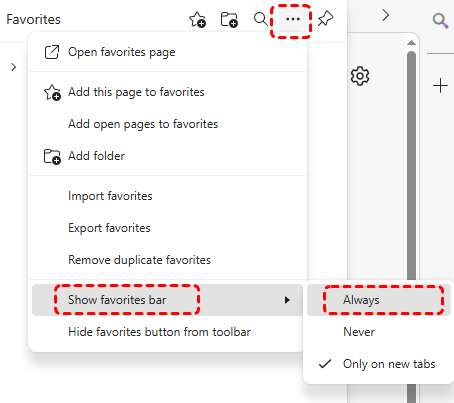
Step 3. Then, open Favorites to check if your bookmarks are listed.
Method 2. Check the Built-in "Recycle Bin"
If favorites were recently deleted, they may still be recoverable through Microsoft Edge buit-in "Restore deleted favorites". This feature can help you recover Edge favorites and folders you’ve accidentally deleted within the past 28 days. Once this period expires, the deleted data will be permanently erased by the system. Therefore, taking action as soon as possible is critical.
- Notes:✎...
- ⚠️ You can only use this feature if you’ve signed into your Microsoft account and enabled favorites sync.
Step 1. Launch Microsoft Edge and open the Favorites window.
Step 2. Click on the three-dot menu and choose "Restore deleted favorites" from the context menu.
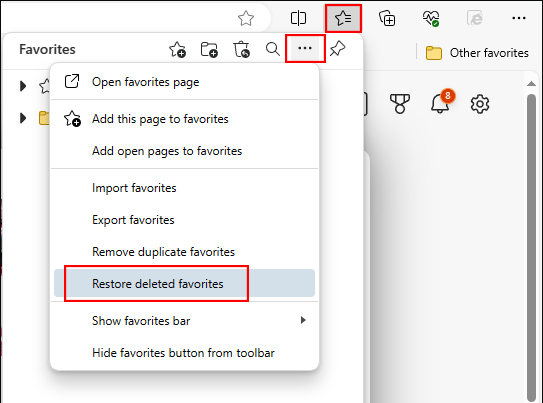
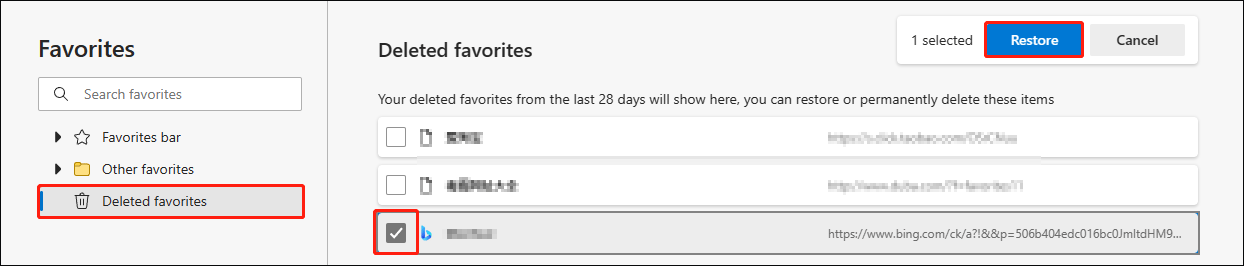
Step 3. Locate the "Deleted favorites" tab, browse through the deleted bookmarks and select the one you want to restore.
Step 4. Click "Restore" in the right upper corner to get it back.
Method 3. Recover Edge Favorites from Local Backup
If you don’t see the "Restore deleted favorites" feature in Microsoft Edge, don’t worry. Each time Edge closes, it automatically creates a local backup file named Bookmarks.bak to store your browser data. You can restore your missing favorites and folders from this local backup file.
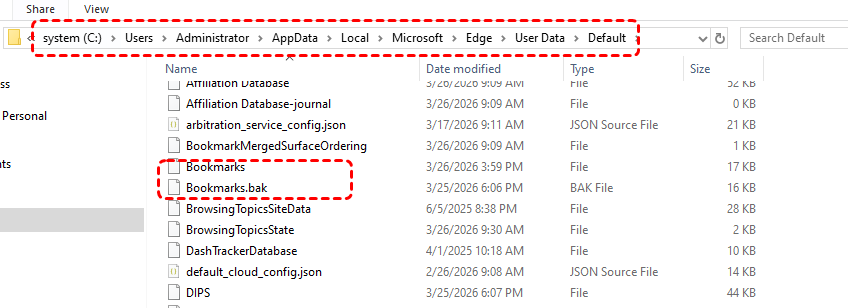
Step 1. Open File Explorer and navigate to the following path:
C:\Users\YourName\AppData\Local\Microsoft\Edge\User Data\Default
Step 2. Scroll down and locate the Bookmarks and Bookmarks.bak files. And you may also occasionally see a file named Bookmarks.msbak.
- ★Tips:
- Bookmarks: This is the active favorites file currently in use. Edge loads this file on startup, and any additions, deletions, or organization of your favorites are written to it in real time.
- Bookmarks.bak: Automatic backup file for Bookmarks. It is a copy automatically generated by the browser during normal shutdown or at regular intervals, and its content is identical to the Bookmarks file from the last session.
- Bookmarks.msbak: An earlier backup file. This is another backup created by the system when Edge is updated or has not been cleaned up for a long time.
Step 3. Cpoy and paste the Bookmarks.bak to a sfae location and open it with Notepad. You will be able to see all your deleted favorites in this notes, including their names and full URLs.
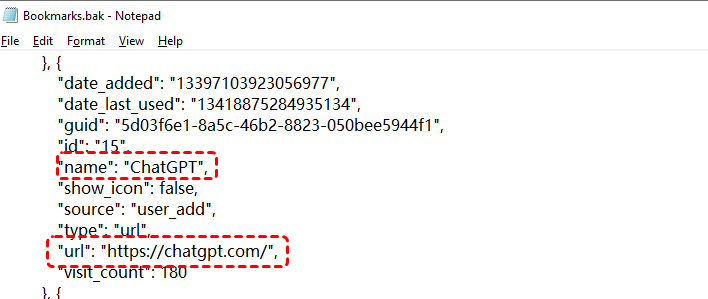
Step 4. Go back to the local backup path and delete the Bookmarks file, then rename the Bookmarks.bak to remove its .bsk extension.
Step 5. Launch Microsoft Edge again and you will find the disappeared Edge favorites are retrieved completely.
Method 4. Restore from Backup Folder Previous Versions
Windows includes a built-in feature Windows File History that allows you to restore earlier versions of files or folders. If your Bookmarks backup is missing or your favorites have been deleted for a long time, you may be able to revert to a previous state where the bookmarks were still intact. This method is effective when system restore points or file history backups are available. This method only works if File History was enabled before the files were lost.
Step 1. Navigate to the Edge user data folder mentioned above.
Step 2. Right-click the Default folder and select "Restore previous versions" from the context menu.
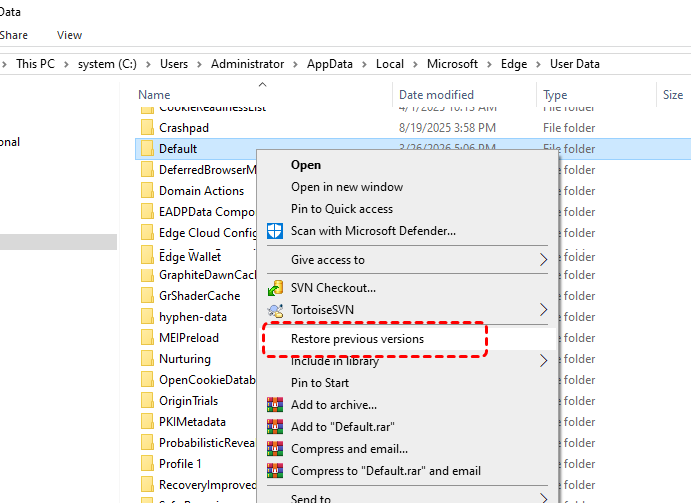
Step 3. Go to the "Previous Versions" tab, select a version from before the issue occurred and click "Restore".
Step 4. Then, you can follow the same steps as mentioned above to restore deleted favorites.
Method 5. Import Favorites from Backup or Other Browser
If you have ever exported your favorites data from Edge, or if you want to migrate favorites from other browsers to Edge, this method is ideal for you. It only adds new content to your favorites without replacing or overwriting your existing ones. Follow these steps to restore your favorites:
👉 Importing from Favorites Backup
Favorites exported from Edge are saved as a completely independent HTML file, making this the safest and most effective recovery method after favorites loss. Even if your browser favorites are cleared, you can fully restore them at any time using this feature.
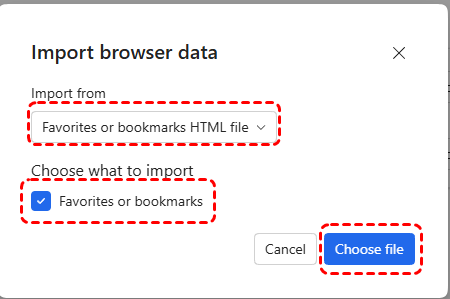
Step 1. Open Edge and go to favorites, then click the three-dot menu and select "Import favorites" to open "Import browser data" window.
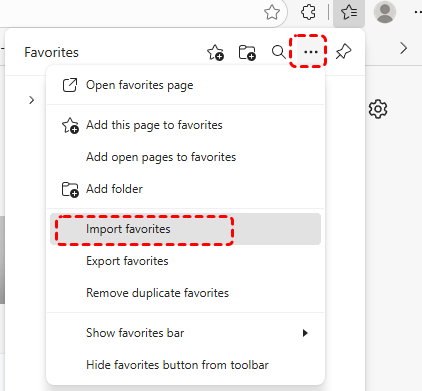
Step 2. Click "Import" and select "Favorites or bookmarks HTML files" from the drop menu under the "Import from".
Step 3. Check the box of "Favorites or bookmarks" under "Choose what to import", then click "Choose files" to select a HTML file.
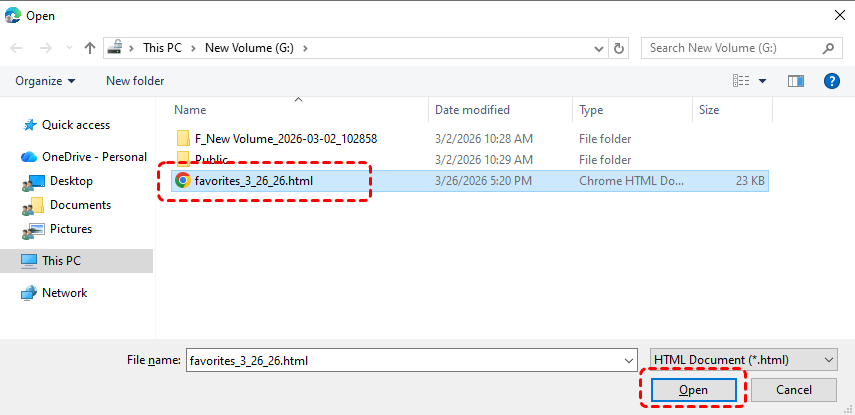
Step 4. Click "Open" to start the process.
👉 Importing from Other Browser
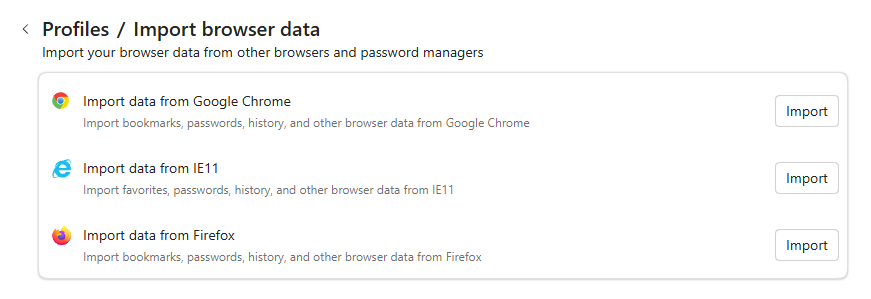
Step 1. Open the "Import browser data" window with same steps described earlier.
Step 2. Choose the browser you want import data from and click "Import".
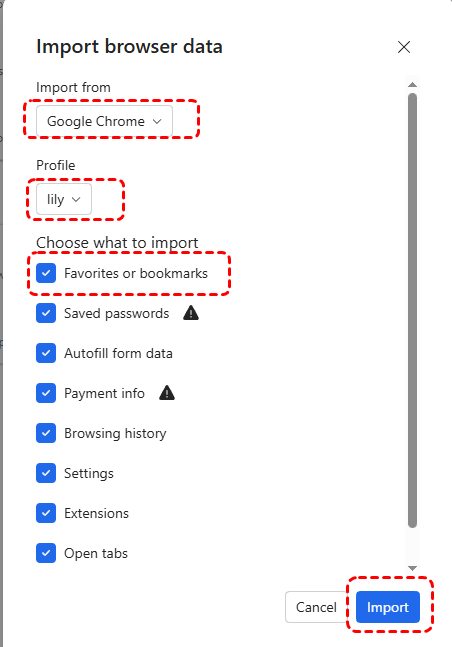
Step 3. Select your correct profile and choose what to import and click "Import".
Method 6. Recover Dissapped Edge Favorites with MyRecover
If none of the above methods restore your favorites, or if the Bookmarks or Bookmarks.bak files automatically backed up or generated by Edge have been accidentally deleted, or if you want an even earlier version, there’s no ready‑made backup left to use. In this case, using a professional data recovery tool like MyRecover can help retrieve lost bookmarks files directly with its folder structure intact from your storage device.
In addition, MyRecover supports recovering your files from various complex data loss scenarios, including deleted browser history, deleted partitions, emptied Recycle Bin, formatted USB drives, and more. Its intuitive user interface allows users of all levels to easily recover lost data with just a few clicks.
Step 1. Download and install MyRecover on your Windows supported computer from Microsoft Store or its official website.

 MyRecover
- Recover deleted & lost files from HDD, SSD, USB, SD card, camera as you need.
- Support 1000+ formats of photos, videos, docs, archives, emails, compressed files, etc.
- Reliable rescue for deletion, formatted disk, emptied Recycle Bin, system crashes and more.
 100% Secure
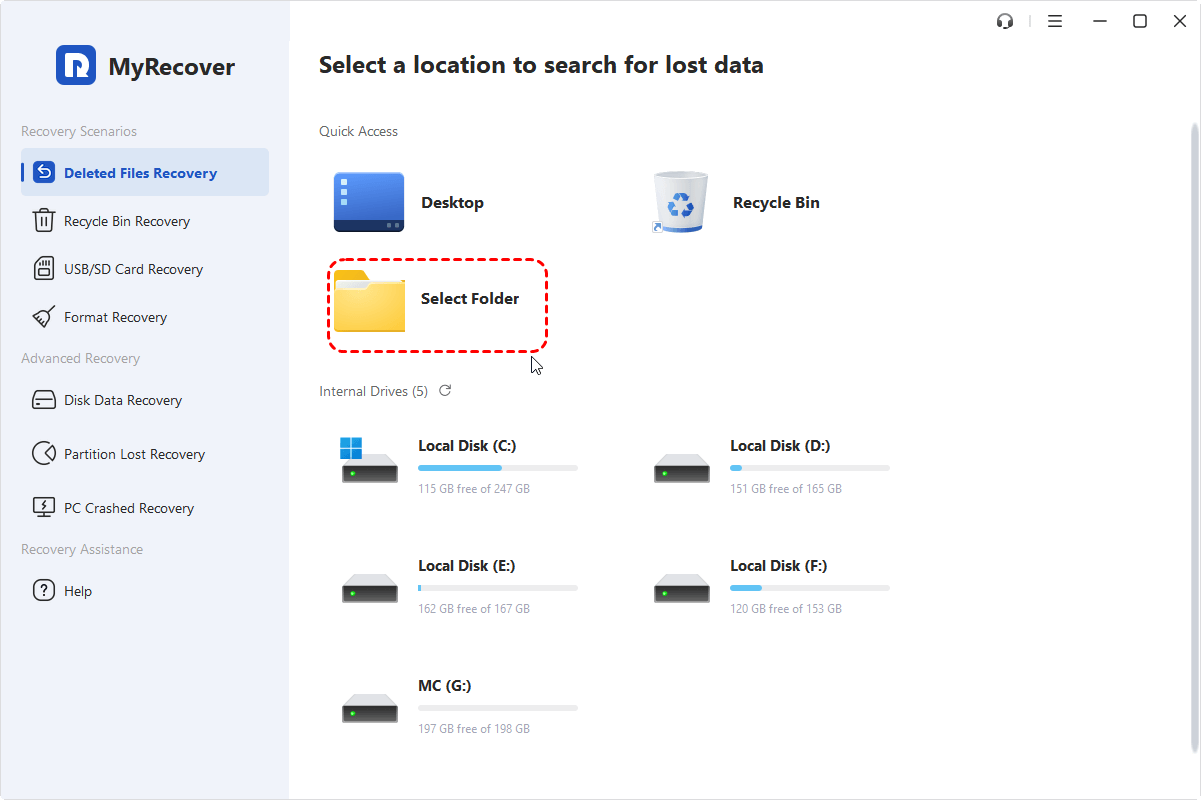
Step 2. Launch the software and select the drive where Edge data was stored (usually C drive), then click "Scan" to search for lost files. Of course, you can also specify the specific Edge user data folder to scan. If necessary, you can click "Deep Scan" after the scan is complete to find more lost versions of your Bookmarks.
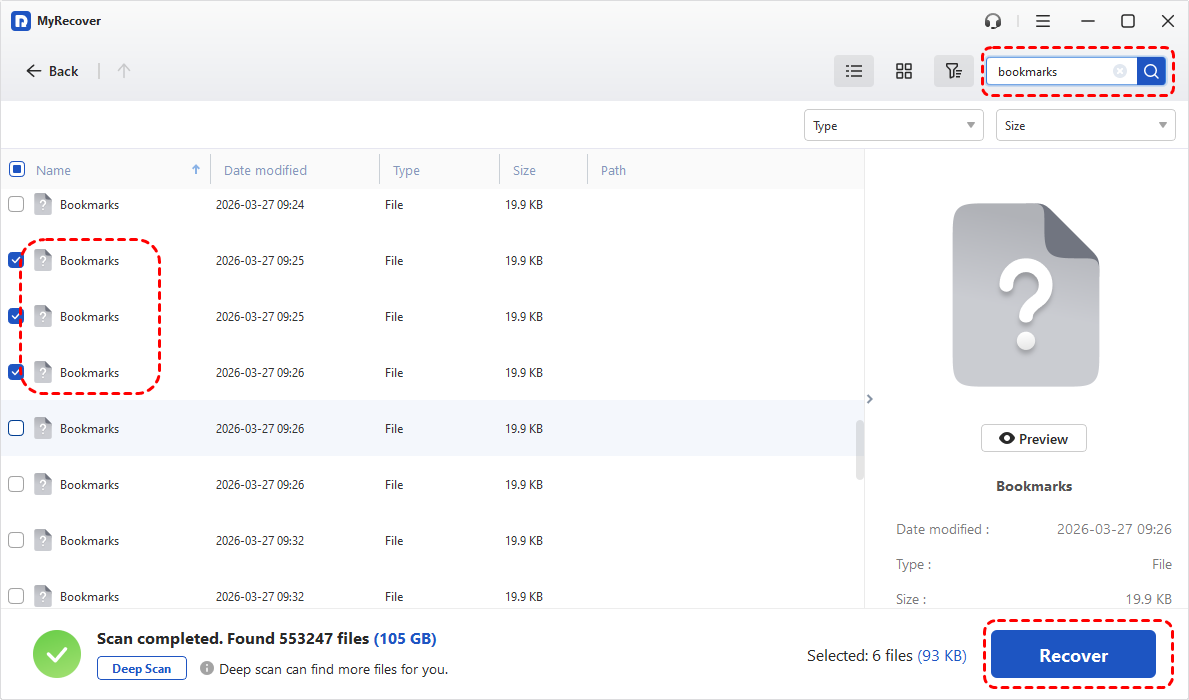
Step 3. After the scanning completed, choose the files you wish to recover from the recoverable lists and click "Recover". You can locate the files you want quickly by using the "Filter" function.
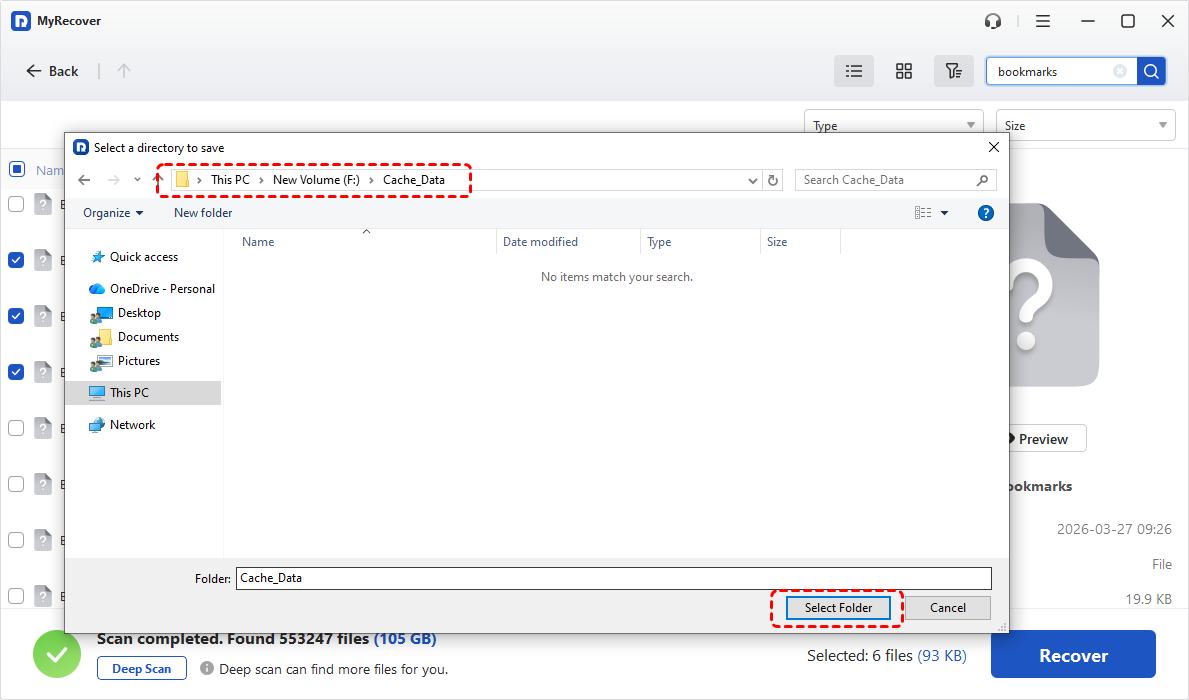
Step 4. Select a safe location to save the recovered files.
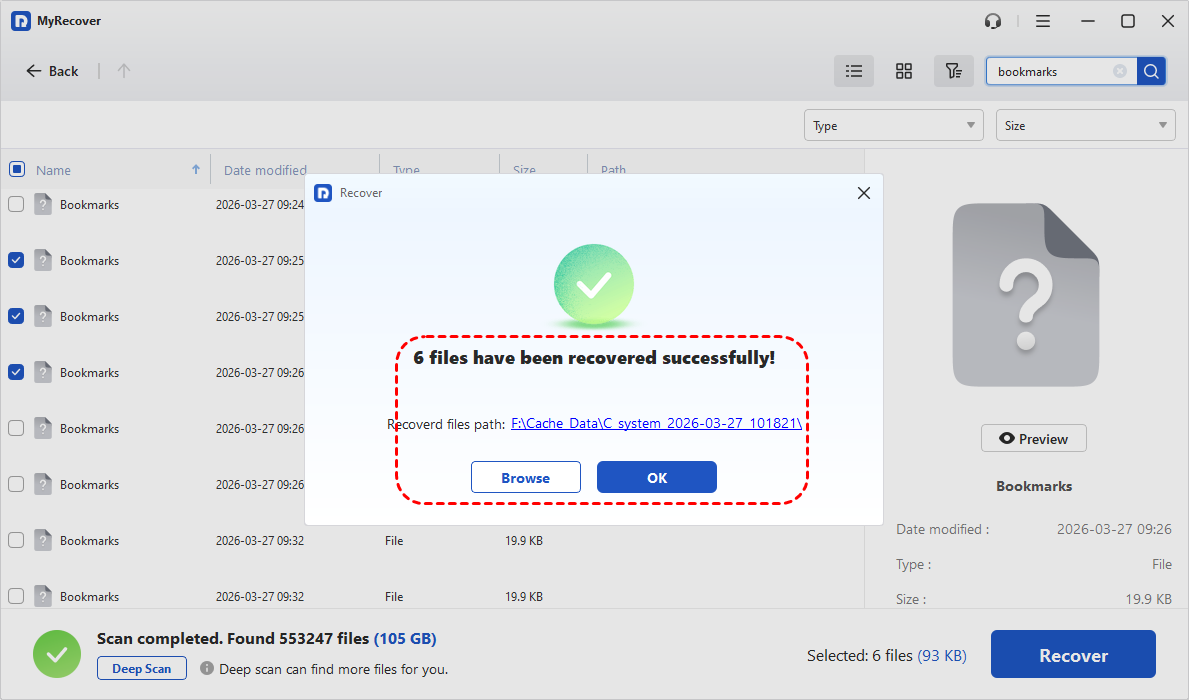
When the recovery process is done, you can check the recovered files in the destination folder by clicking on the "Browse" button. Once the files are recovered, you can place them back into the Edge user data folder to check if it’s the one you want. Then, restart the browser and verify your Edge favorites are restored.
Summary
Edge favorites disappeared can be inconvenient, but in most cases, the data is not permanently lost. As demonstrated above, you can efficiently locate and restore your missing favorites by following these recovery approaches. If built-in methods are not sufficient, using dedicated recovery software like MyRecover provide additional assurance. By applying these solutions, you can not only recover your disappeared Edge favorites but also ensure they remain secure and accessible moving forward.
For users who need advanced features, the MyRecover Professional edition unlocks unlimited recovery capacity and file content preview. It also offers a powerful feature that allows you to recover data from an unbootable PC, ensuring your files remain accessible even when the system fails to start.

Stay Updated With Our
Latest Tips
Add us as a preferred source on Google to never miss helpful guides.
 Add as preferred source >>