 MyRecover



How to Recover Unsaved & Deleted Notepad File (.TXT) on Windows 10/11
If you accidentally closed Notepad without saving the file or lost your notes by mistake, you've come to the right page. This guide provides practical, step-by-step methods to help you recover unsaved and deleted Notepad files and restore your TXT files quickly and safely on Windows 10 and 11.

By Aria / Updated on March 27, 2026


Where are My Notepad Files Saved?
Notepad is a basic text editor built into Windows, widely used for quick note-taking, drafting simple documents, or writing code snippets. It's lightweight and convenient, but lacks AutoSave features, making it easy to lose unsaved work. Have you ever closed Notepad by accident without saving? Or found important notes mysteriously vanished? That's when the panic sets in: Where are my Notepad files saved?

- 📍 Saved Note: It is usually located in the folder you selected when saving (commonly Documents, Desktop, or a custom directory), or in the Quick Access in File Explorer which allows you to quickly reopen it.
- 📍 Unsaved Note: If you close the window directly or experience a power outage, unsaved notes will be permanently lost. In rare cases, such as forced shutdowns or computer crashes, temporary files may be generated, which you can try to locate in the temporary folder.
- 📍 Deleted Note: Deleted notes are generally moved to the Recycle Bin directly, while permanently deleted (pressing "Shift + Delete") notes will bypass the Recycle Bin and vanish.
Whether it's unsaved edits or deleted files, recovering your lost Notepad content is possible—let's dive into the most effective solutions for recovering your Notepad file in various situations. In this guide, we’ll explore different methods to recover unsaved and deleted Notepad files.
Is There an AutoSave for Notepad?
No, the traditional Windows Notepad does not include a built-in AutoSave feature. Unlike applications such as Microsoft Word or Excel, Notepad does not automatically save your work at intervals. This means any unsaved content will be lost if the program is closed unexpectedly due to a crash, system shutdown, or accidental exit.
In short, Notepad offers simplicity but lacks recovery safeguards, so proactive saving is essential. If you have lost your important Notepad files for any reason, you can retrieve your Notepad notes by following these correct methods.
How to Recover Unsaved Notepad File on Windows
Sometimes, you may forget to save your Notepad file, and when you close the app or your computer shuts down unexpectedly, the file seems to be lost. Below are two possible methods that help you retrieve it from temporary locations or system backups.
Check the Roaming Folder
Windows stores temporary files in various locations, and one of them is the AppData\Roaming folder. Here, unsaved files may sometimes be stored, giving you a chance to recover them.
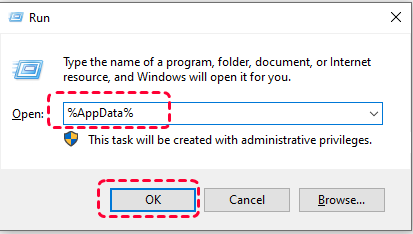
Step 1. Press "Win + R" to open run dialog box.
Step 2. Type "%appdata%" and press "Enter" to locate to the following path:
C:\Users\%USERNAME%\AppData\Roaming
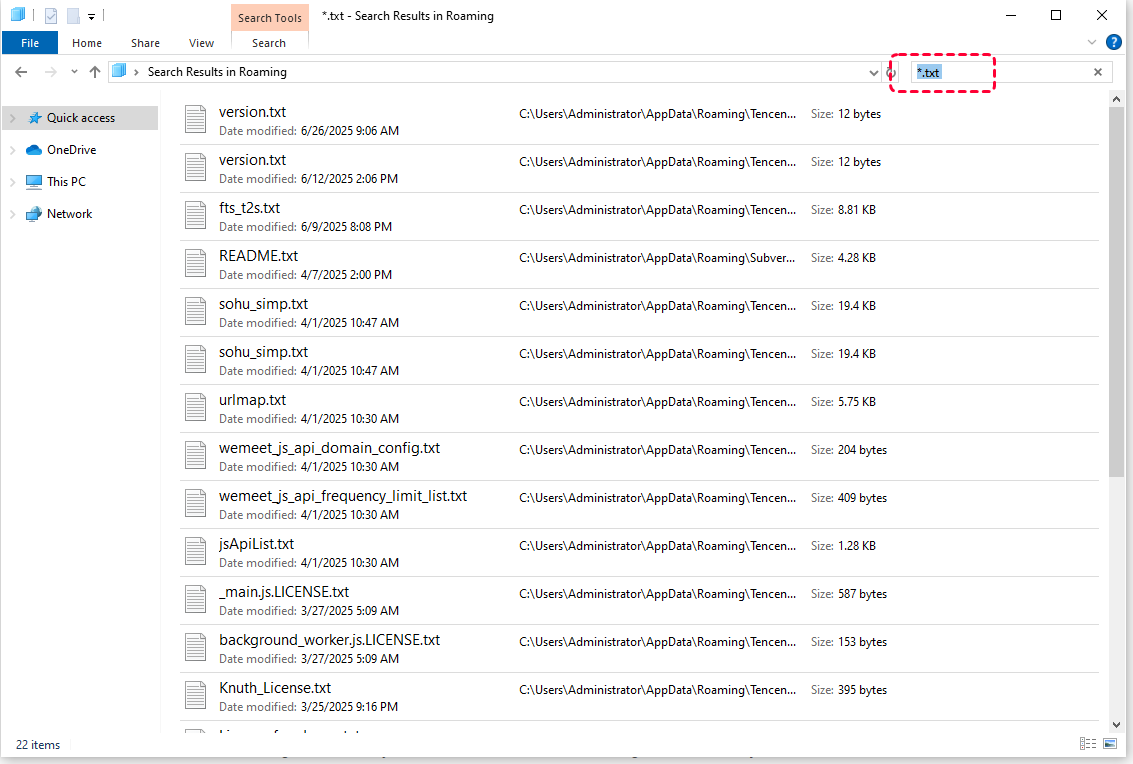
Step 3. Enter "*.txt" in the search box to filter the notes, select the file you want to recover and to save it to a safe location.
Check the Temp Folder
Another place to check is the Temp folder, where Windows keeps temporary files of programs running on your system. Notepad, in some cases, may store temporary files here. When sudden shutdowns or computer crashes occur, the computer may generate temporary files.
Step 1. Press "Win + R" to open run dialog box.
Step 2. Type "%temp%" and press "Enter" to open temporary folder.
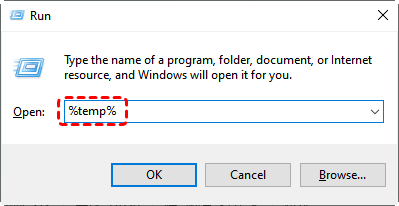
Step 3. Browse through the folder to see if any temporary Notepad files are stored there. They may have a ".txt" extension or a random name. If you find a file, open it and save it to another location.
- ★Tips:
- For Notepad++, Windows enables the "Session snapshot" feature by default. If you restart the program after a crash, a "Session snapshot" panel will usually appear on the left, listing the recoverable unsaved files. You can also manually navigate to the backup folder to look for them: C:\Users\UserName\AppData\Roaming\Notepad++\backup
Recover from Session Restore (Windows 11)
The new Notepad in Windows 11 supports the Session Restore feature, which automatically saves your unfinished work when you close it and restores it exactly as it was the next time you open it. If you have already enabled this feature in advance, you can try this method to recover unsaved Notepad files.
Step 1. Reopen Notepad once computer or Notepad working normaly.
Step 2. The unsaved Notepad file will open automatically, then you save it to a safe location. It even allows you to recover unsaved Notepad files after restart PC.
How to Recover Deleted Notes on Windows
If your Notepad file was accidentally deleted, you still have several chances to recover it, depending on the situation. Whether you have backups or not, or prefer a GUI (Graphical User Interface) or command line, you can find methods suitable for you.
Check the Recycle Bin
The first place you should check when you lose a Notepad file is the Recycle Bin. If you’ve accidentally deleted the file, it may still be in the Recycle Bin. As long as you haven't emptied the Recycle Bin or permanently deleted the note from it, it will remain in the Recycle Bin.
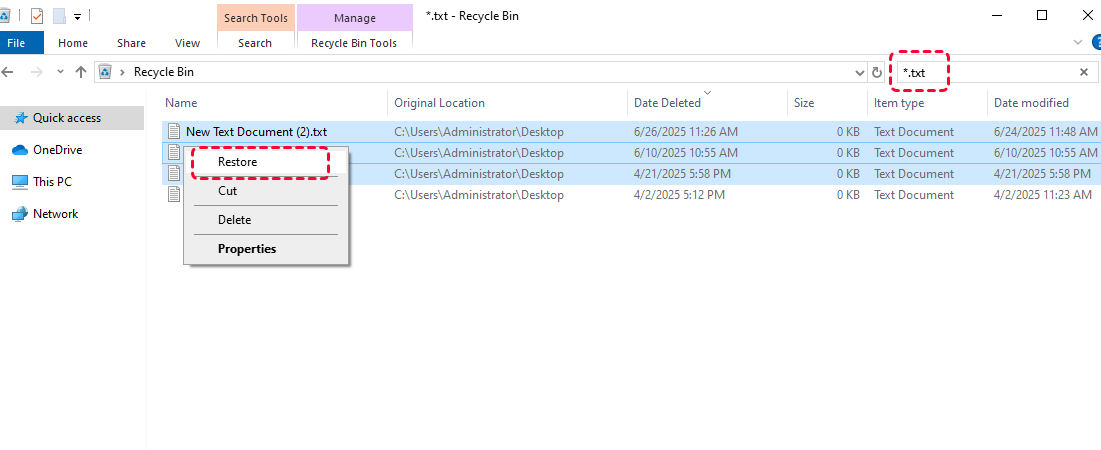
Step 1. Double click the Recycle Bin icon to open it.
Step 2. Browse through and select the files you want to recover, right click it and choose "Restore" to recover it to its original location.
Restore your Files with File History
Windows has a built-in backup feature called File History that periodically backs up your files. If you’ve enabled File History in Windows before file loss, you might be able to restore an earlier version of your Notepad file.
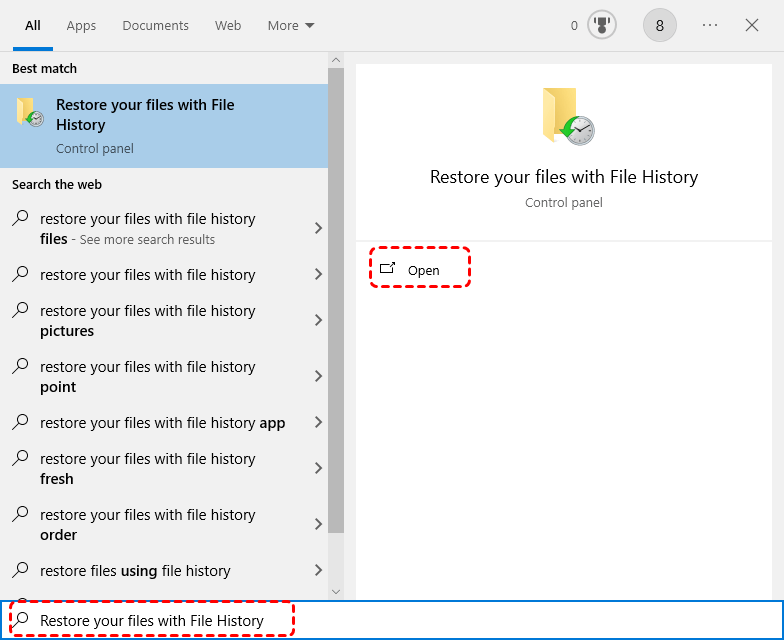
Step 1. Type "Restore your files with File History" in the Start menu and open it.
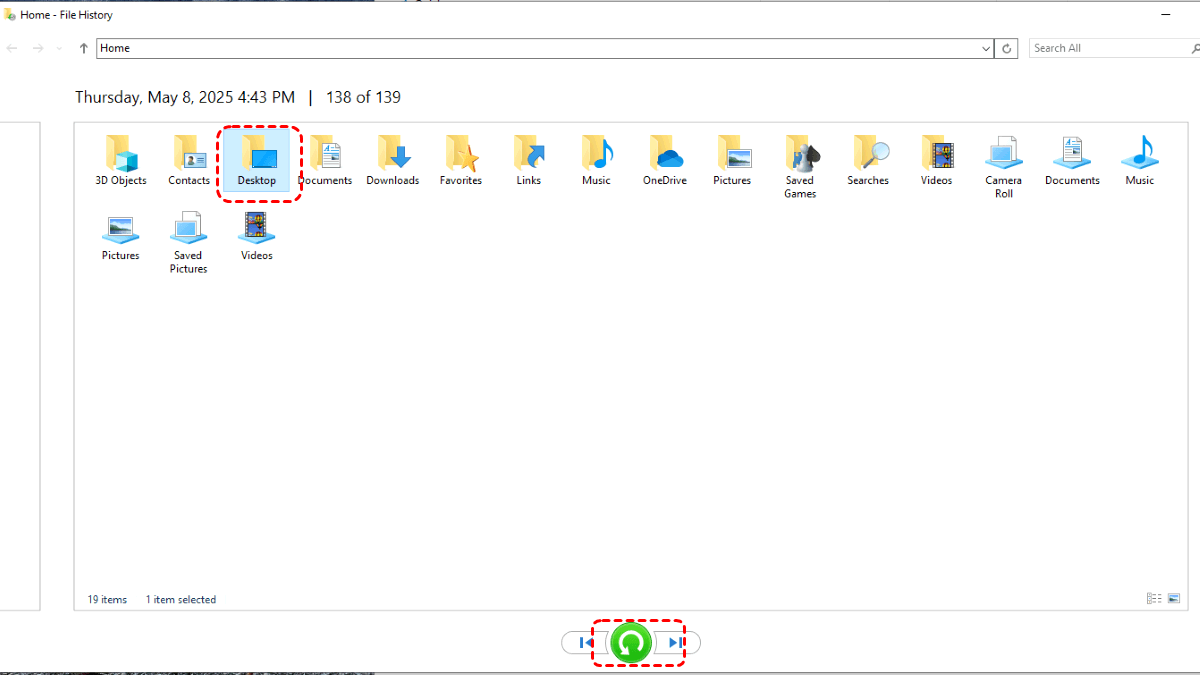
Step 2. Locate to the folder containing the deleted notes and select it.
Step 3. Click on the green "Restore" button to recover the deleted notes to its original location.
Restore with Backup and Restore (Windows 7)
Backup and Restore (Windows 7) is a built-in backup tool in Windows which copies your full system to a secure location, enabling its retrieval in the event of loss caused by deletion, corruption, or hardware failure—thus safeguarding data security and recoverability. If you have backed up the note or the folder containing the note, it can be restored directly from pre-made backup copies.
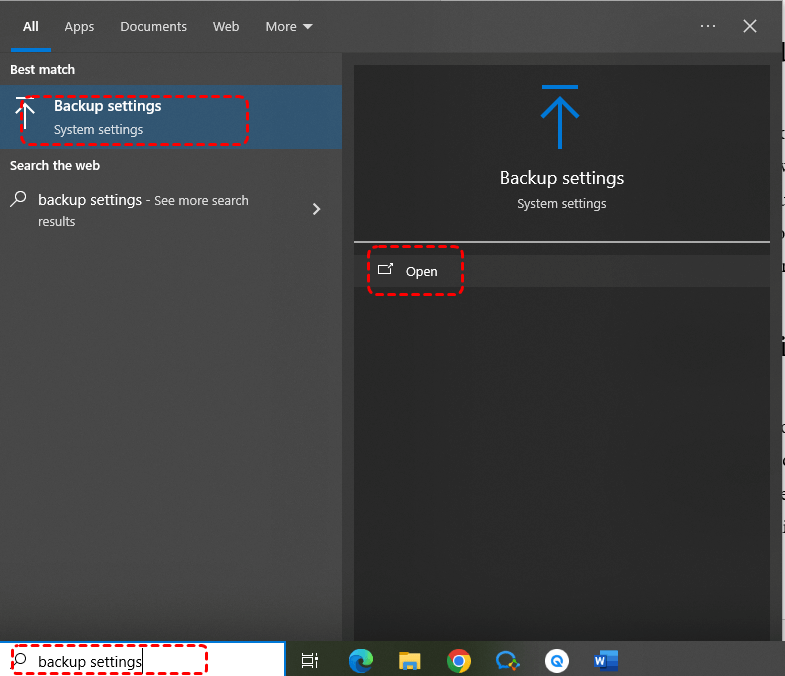
Step 1. Type "backup settings" in the Start menu and open it.
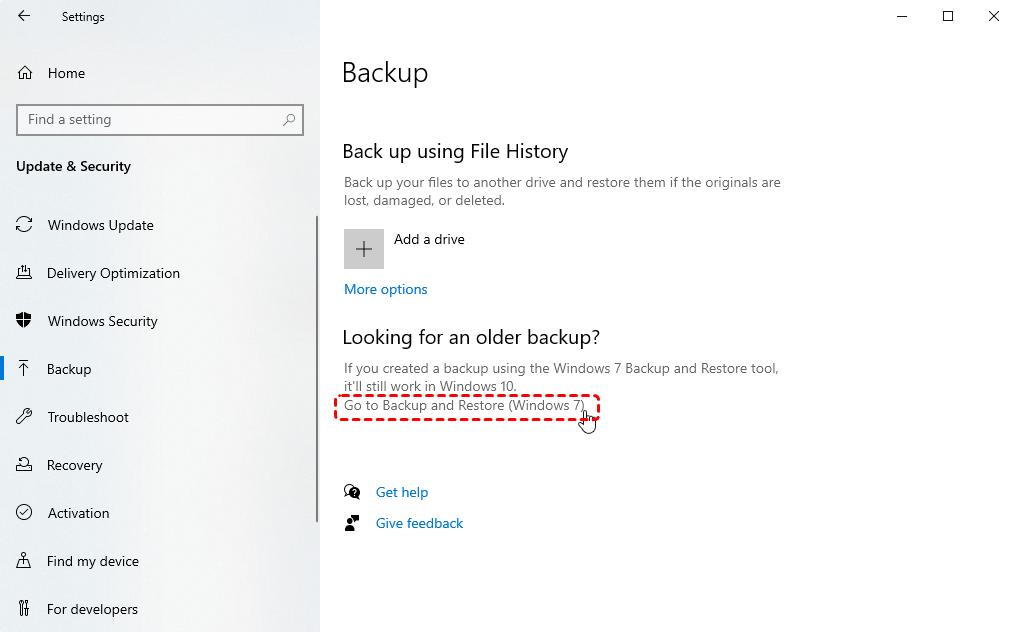
Step 2. Click "Go to Backup and Restore (Windows 7)"and choose "Select another backup to restore files from".
Step 3. Choose a created backup to restore files from and click on "Next".
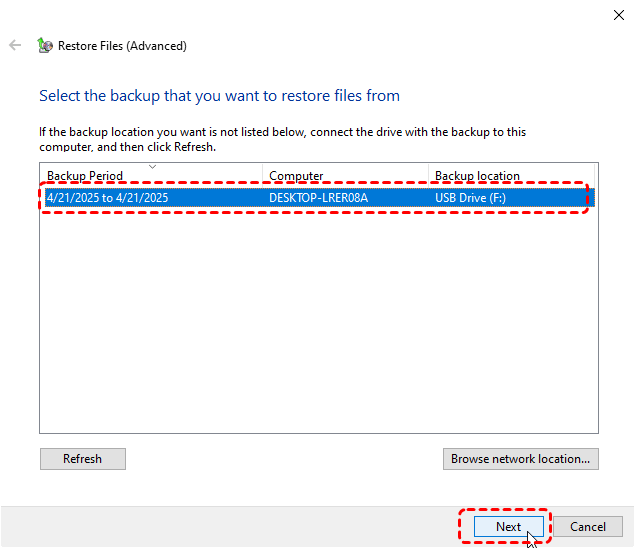
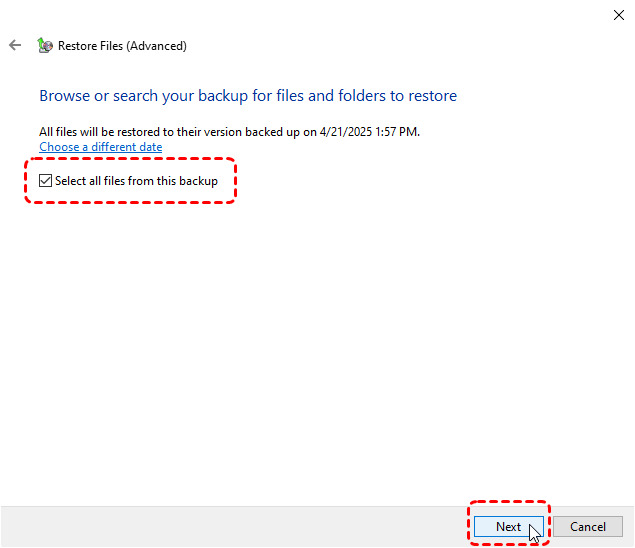
Step 4. Select files you want to recover from the backup. You can click "Browse for files/ folders" to select specific file or folder to recover.
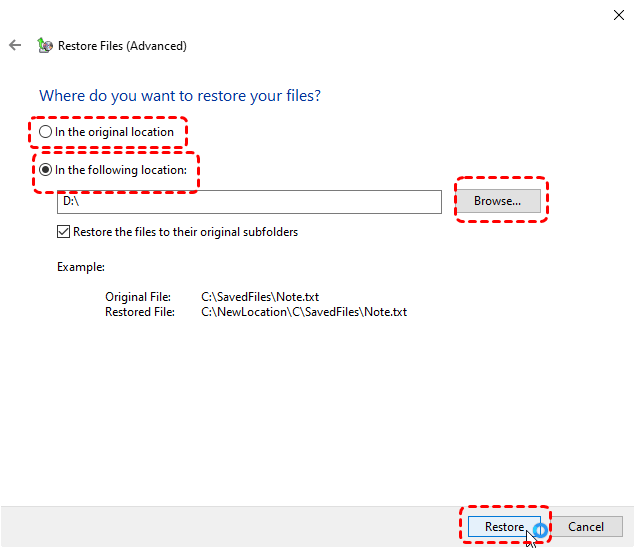
Step 5. Choose a safe location to save the recovered files and click "Restore" to start the process.
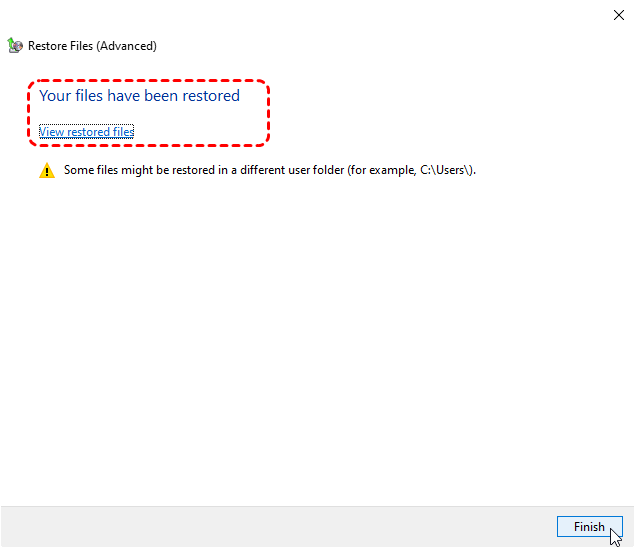
When the process is completed, you can access and check the recovered files by clicking "View restored files".
Run Windows File Recovery Command
If the notes are permanently deleted and cannot be found in the Recycle Bin, what's worse, there are no backups either. You can use Windows File Recovery, a command-line tool provided by Microsoft to recover lost files from hard drives and other storage devices. (If you're not fond of command-line tools, the next one will be more suitable for you.) Follow these steps to recover deleted Notepad files using Windows File Recovery command:
Step 1. Download and install Windows File Recovery on your computer from the official Microsoft channel.

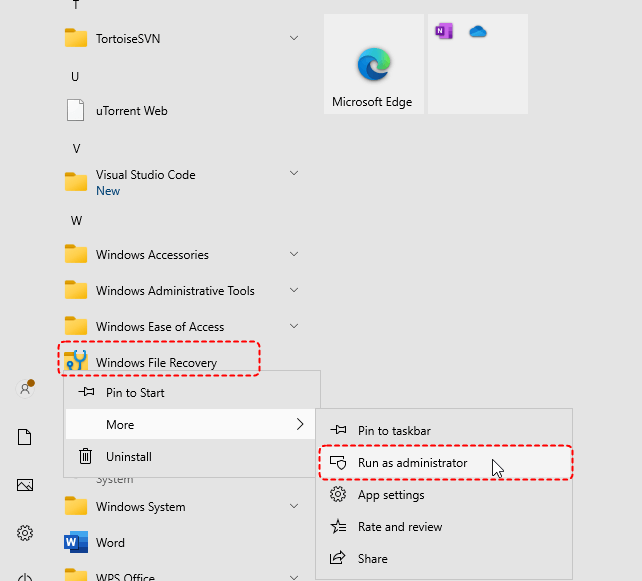
Step 2. Type "Windows File Recovery" in the Start menu and right click it to run it as administrator.
Step 3. Enter the command "winfr H: D: /extensive /n *.txt" and press "Enter". Replace the drive letters "H" and "D" with your actual drive letter.
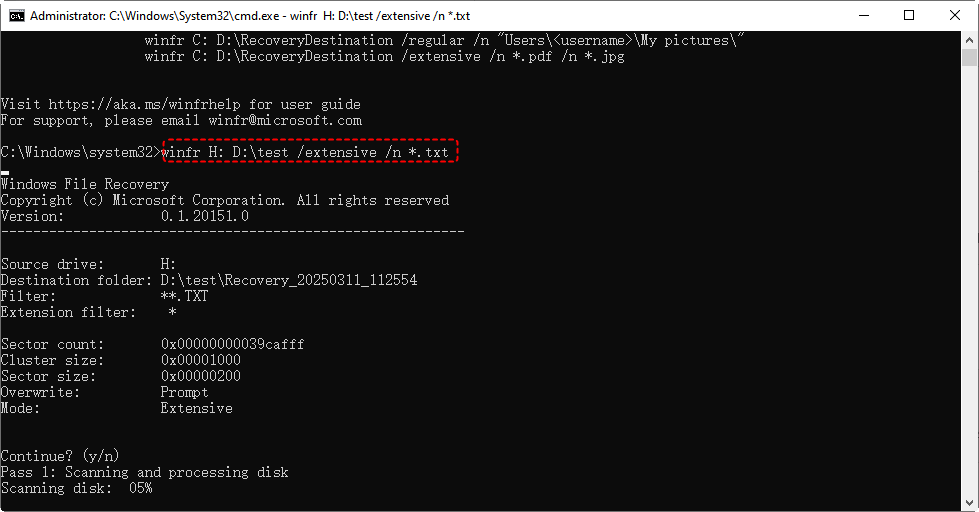
Once the process is finished, you can press "y" to check the recovered files in the destination folder.
- Notes:✎...
- H: The source drive letter.
- D: The destination drive letter.
- Extensive: Performs a deep scan (slower but more thorough). You can switch to "regular" mode (quick scan).
- n *.txt: Filters recovery to only ".txt" files.
- Windows File Recovery only supports running on Windows 10 and 11.
Recover Deleted Notepad Files on Windows via MyRecover
If command-line tools are difficult for you to master, try this professional data recovery tool with a user-friendly GUI—MyRecover. It can scan disks or drives for deleted files, giving you a chance to recover them even if you're a computer novice. MyRecover recovers data without requiring any backups, especially excels in retrieving permanently deleted data, and only takes four steps to restore lost files.

 MyRecover
- No Command Line Needed – Simple GUI (graphical interface) for easy file recovery.
- 500+ Devices Supported – SSD, HDD, USB Flash Drive, SD Sard, etc.
- 1000+ File Formats Supported – PNG, MP4, MP3, TXT, ZIP, MSG, etc.
- 500+ Data Loss Scenarios – Deletion, Format, System Crash, Virus Attack, etc.
 100% Secure
Step 1. Download and install MyRecover on your computer from secure channel.
Step 2. Select the drive with lost files to scan and click "Scan".

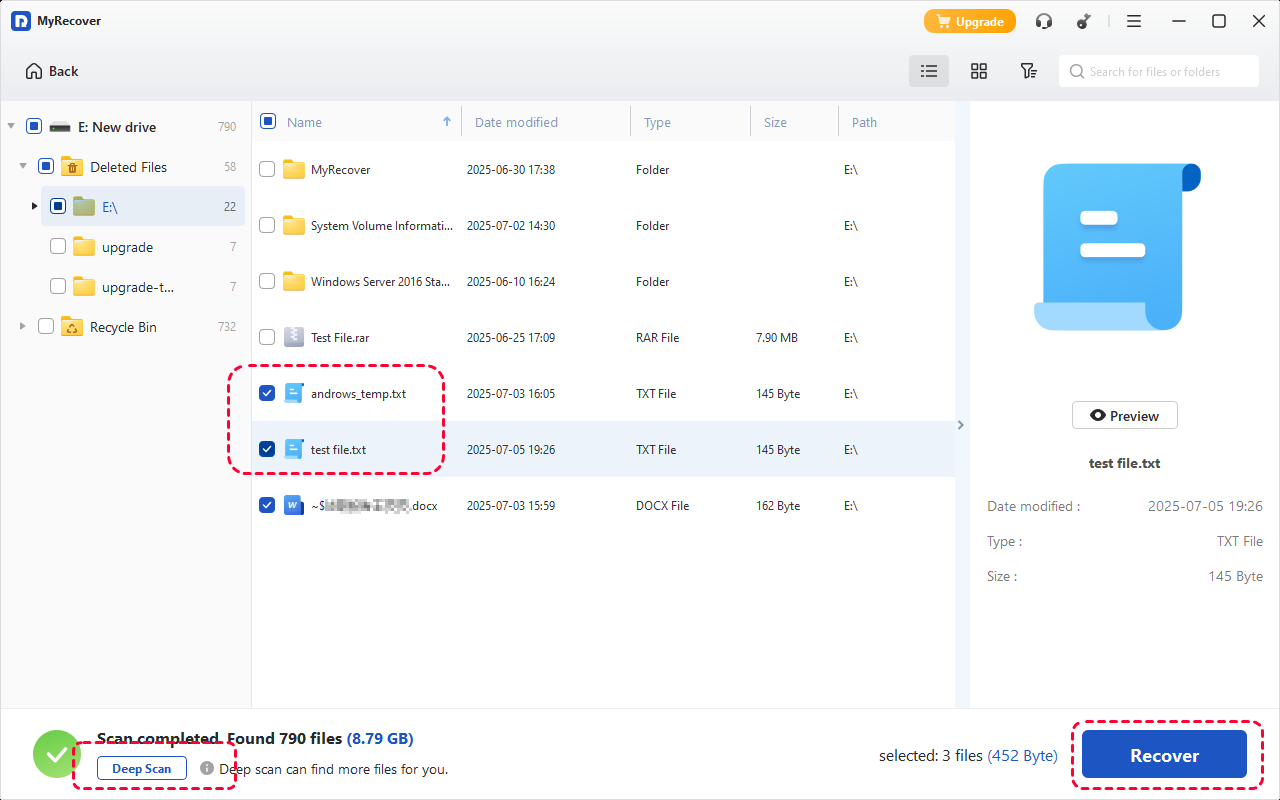
Step 3. Choose files you wish to recover from the recoverable lists and click "Recover". You can perform a "Deep scan" for more fragmented clues.
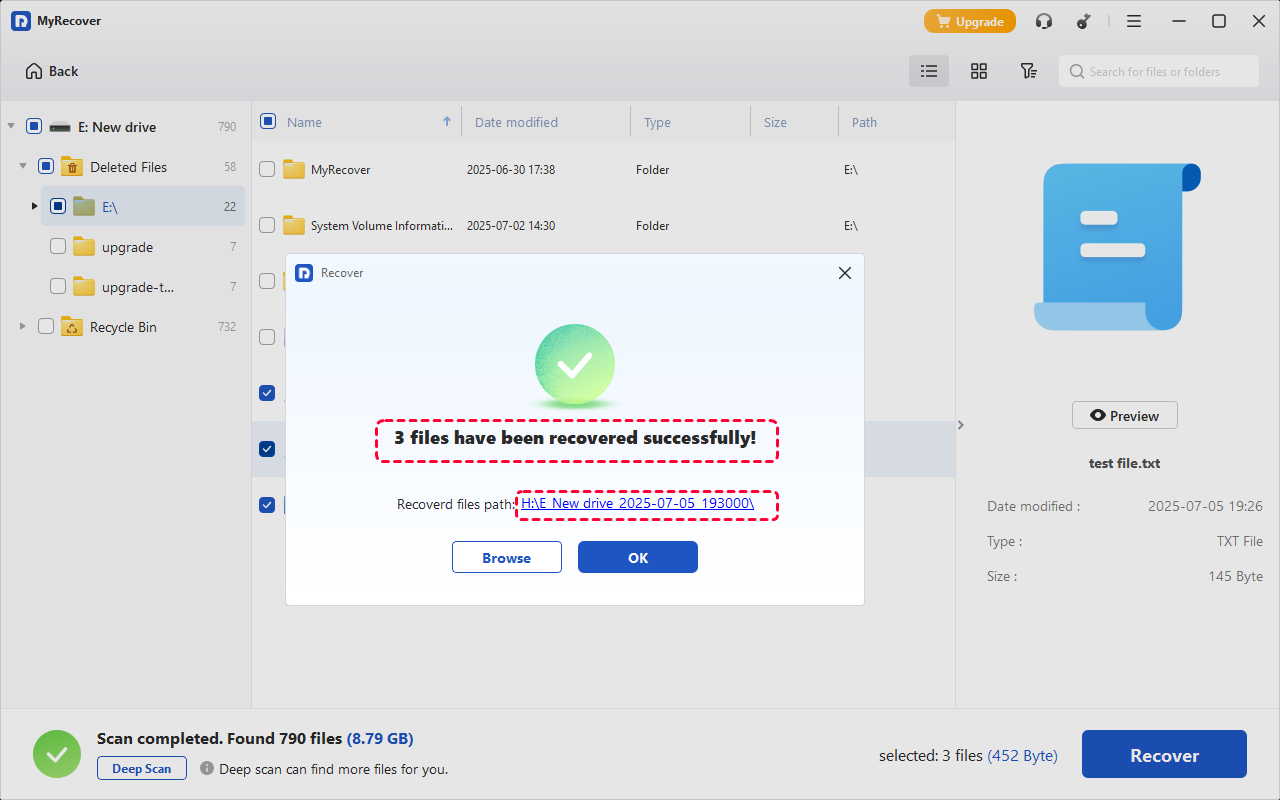
Step 4. Select a safe location (not the original one) to save the recovered files. Upgrading to the Professional edition of MyRecover allows unlimited data restoration. It also provides the ability to preview file content before recovery.

When the recovery process is completed, you can access and check the recovered files by clicking the destination folder.
Summary
Losing a Notepad file can be irritating, but it’s not always the end of the road. Whether you’ve accidentally closed an unsaved Notepad file, or you’ve deleted notes by mistake, these effective methods you can try to recover your lost or unsaved Notepad files. With the right steps, your valuable notes can be brought back in just a few clicks.
If you prefer tools that are novice-friendly, MyRecover is highly recommended. For more professional needs, MyRecover's Professional and Technician editions are better suited—they allow data recovery from crashed systems.
FAQs:
Q1: Where are temporary notepad files stored?
Temporary Notepad data may be stored in the Windows Temp folder, typically located at C:\Users\Username\AppData\Local\Temp. These files are created during editing sessions but are not guaranteed to persist. You can search for ".tmp" files, but recovery depends on whether the data was cached before the program closed.
Q2: Where are unsaved Notepad++ files saved?
Notepad++ can automatically back up unsaved files if its backup feature "Session snapshot" is enabled. These files are usually stored in C:\Users\Username\AppData\Roaming\Notepad++\backup. You can reopen them after a crash or restart, making recovery more reliable than standard Notepad.
Q3: Can I recover notes that I accidentally deleted?
Yes, deleted notes can often be recovered if they haven’t been overwritten. First, check the Recycle Bin. If not found, use backup features like File History or cloud storage. Data recovery tools can also scan your drive for deleted .txt files, increasing the chances of successful recovery.
Q4: How to restore a txt file?
To restore a .txt file, check the Recycle Bin or right-click the file location and select "Restore previous versions". If backups are unavailable, use recovery software like MyRecover or Windows File Recovery to scan for lost files. Always restore files to a different drive to avoid overwriting recoverable data.
Q5: Is it possible to recover texts without backup?
Yes, recovery is possible without backups, but success depends on disk activity. When a file is deleted, its data remains until overwritten. Using professional recovery tools like MyRecover immediately can help retrieve the content. Avoid saving new files to the same drive to maximize recovery chances.
Q6: How to recover notepad files from Android?
On Android, Notepad files are usually stored in internal storage or app-specific folders. Use a file manager to search for .txt files or check cloud backups like Google Drive. If files were deleted, check the "Recently Deleted" folder in Notepad or Android data recovery apps may help recover them, depending on storage access.

Stay Updated With Our
Latest Tips
Add us as a preferred source on Google to never miss helpful guides.
 Add as preferred source >>