 MyRecover



How to Fix Excel Not Responding? Easy Guide
If you’re searching for an excel not responding fix, why is Excel not responding, this guide explains the common causes of Excel freezing and provides practical troubleshooting steps to restore performance and prevent future crashes.

By Vera / Updated on April 24, 2026


Introduction to the Excel Not Responding Problem
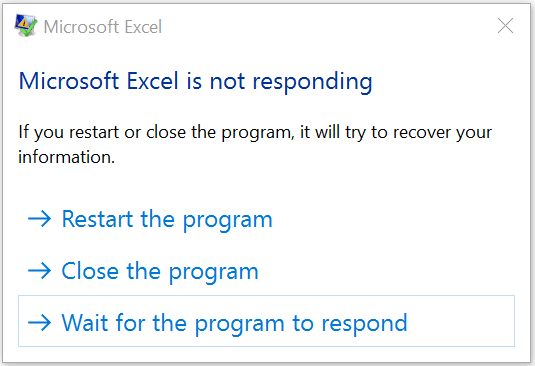
Microsoft Excel is one of the most widely used tools for data analysis, financial modeling, and everyday spreadsheet tasks. However, many users occasionally encounter a frustrating issue: the Excel not responding error. This problem can occur while opening a file, editing data, or performing calculations. When it happens, Excel may freeze, display a loading message, or stop responding to commands entirely.
Imagine working on an important report for hours and suddenly the application becomes unresponsive. It can feel like hitting a brick wall in the middle of a project. Fortunately, most Excel freezing issues are not permanent and can be resolved with the right troubleshooting steps.
In this guide, you will learn why Excel stops responding, how to fix the problem using structured methods, and how to recover lost files using reliable tools such as MyRecover, a professional data recovery solution designed to restore lost or deleted files.
Why is Excel Not Responding?
Understanding the root causes of the problem is the first step toward resolving it. Excel typically stops responding when system resources are overloaded or when internal conflicts occur within the software.
1️⃣Large or Complex Excel Files
Excel files containing thousands of rows, complex formulas, pivot tables, and charts require significant processing power. When the workbook becomes too complex, Excel may temporarily freeze while processing calculations.
2️⃣Too Many Background Applications
Running multiple applications simultaneously can consume system resources such as CPU and RAM. If Excel does not receive enough system resources, it may become slow or unresponsive.
3️⃣Conflicting Add-ins
Excel add-ins extend the functionality of the application, but poorly designed or incompatible add-ins may cause conflicts that lead to freezing or crashes.
4️⃣Outdated Software Versions
Older versions of Excel or Windows may contain bugs or compatibility issues that trigger performance problems.
5️⃣Corrupted Excel Files or Installation
Sometimes the problem originates from a damaged Excel file or a corrupted Microsoft Office installation.
How to Fix Excel Not Responding
Below are standardized methods and procedures you can follow to resolve the problem efficiently.
Method 1: Allow Excel Time to Complete the Task
Excel is often "single-threaded" for complex calculations. The UI pauses while the processor works. If you are looking for how to fix Excel not responding without closing, the first step is simply patience. Clicking repeatedly tells Windows the app is dead, but it might just be busy.
1. Observe the Excel window to determine whether calculations are still in progress.
2. Wait for several minutes before attempting any actions.
3. Avoid clicking repeatedly or forcing the program to close.
4. If Excel resumes normal operation, save the file immediately.
If the application remains frozen after several minutes, it is likely stuck in a deadlock, requiring a more active intervention.
Method 2: Force Restart and Use AutoRecover
When Excel is truly hung, you must terminate the process. Users often ask, "Excel not responding, how to save?" at this stage; unfortunately, you cannot save a frozen file. However, Excel’s "AutoRecover" feature is designed to save a snapshot every few minutes specifically for this scenario.
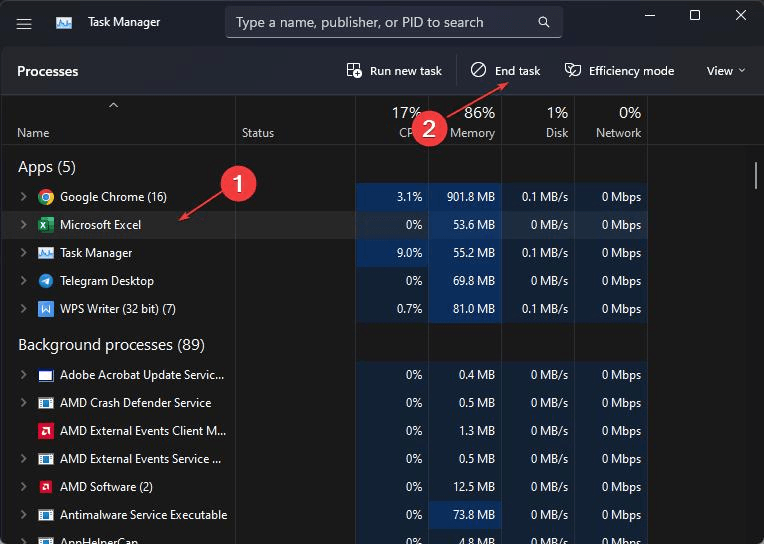
1. Press Ctrl + Shift + Esc to open Task Manager.
2. Locate Microsoft Excel in the list of running processes.
3. Select the process and click End Task.
4. Reopen Excel from the Start menu.
5. Recover the file using the Document Recovery panel if prompted.

If the freeze happens every time you open the app, the conflict likely resides in the system's temporary cache.
Method 3: Restart the Computer
Windows manages resources for multiple apps simultaneously. A system restart flushes the RAM, clears temporary cache files, and stops background "zombie" processes that might be competing with Excel for CPU priority.
1. Save any open documents in other applications.
2. Click the Start Menu.
3. Select Power.
4. Choose Restart.

5. After the system restarts, open Excel and check if the issue persists.
If Excel still freezes immediately after a clean reboot, the issue is likely within the Excel environment itself, such as a faulty add-in.
Method 4: Open Excel in Safe Mode
Safe Mode loads Excel without extensions or custom toolbars. This is a key diagnostic step in how to fix Excel not responding without closing permanently, as it identifies if the core program is healthy while the "extras" are the problem.
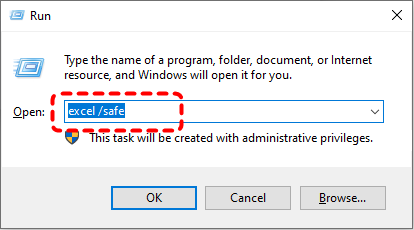
1. Press Windows + R to open the Run dialog box.
2. Type excel /safe.
3. Press Enter.
4. Open the problematic workbook.
5. If Excel works normally, the issue is likely caused by an add-in or configuration.
Once Safe Mode confirms an add-in conflict, you need to identify and remove the specific culprit manually.
Method 5: Disable Excel Add-ins
Many productivity add-ins (like those for PDF conversion or data analysis) load every time Excel starts. If one is outdated, it can cause a crash loop.
1. Open Excel. Click File. Select Options. Choose Add-ins.
2. Locate the Manage section at the bottom of the window.
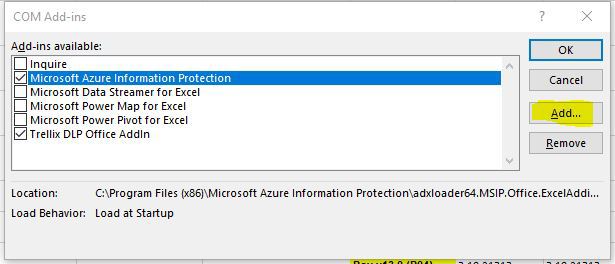
3. Select COM Add-ins and click Go.
4. Uncheck all add-ins. Click OK.
5. Restart Excel and test performance.
If the app freezes even with add-ins disabled, the installation files of Microsoft Office itself may be corrupted.
Method 6: Repair Microsoft Office
Over time, DLL files or registry entries for Office can become corrupted due to power surges or failed updates. The "Repair" function scans and replaces these damaged core files.
1. Open the Control Panel.
2. Click Programs and Features.
3. Locate Microsoft Office in the list.
4. Right-click the program and select Change.
5. Choose Quick Repair or Online Repair.
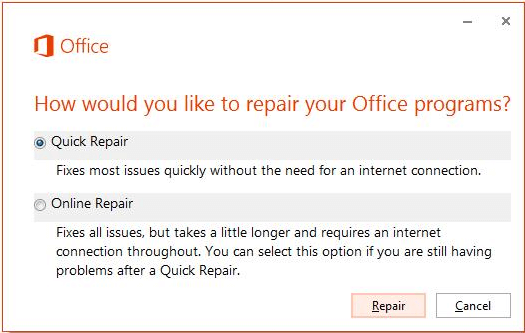
6. Follow the on-screen instructions to complete the repair process.
If the software is healthy but a specific file continues to freeze, the problem lies within the structure of your data.
Method 7: Optimize Workbook Complexity
"Bloated" workbooks contain hidden formatting in empty cells or volatile formulas (like INDIRECT or OFFSET) that recalculate every time you click. Reducing this "weight" prevents the CPU from spiking.
1. Remove unnecessary formatting from unused cells.
2. Delete unused rows and columns.
3. Simplify nested formulas where possible.
4. Replace complex formulas with static values if calculations are no longer needed.
5. Break large workbooks into smaller files when appropriate.
Even an optimized file can fail if Excel is missing the latest stability patches from Microsoft.
Method 8: Install the Latest Updates
Microsoft releases monthly patches specifically targeting performance bugs. If "Excel Not Responding" is a known bug in your current build, an update is the only permanent fix.
1. Open Excel.
2. Click File. Select Account. Click Update Options.
3. Choose Update Now.
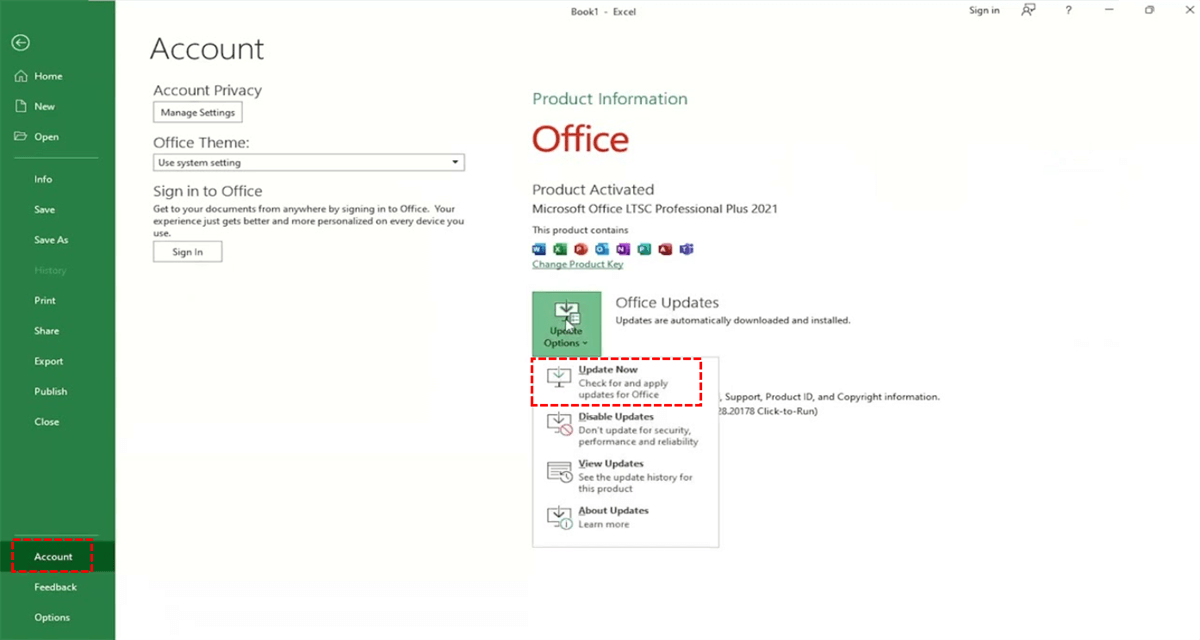
4. Install any available updates.
If software updates don't help, we must look at the hardware limitations of your computer.
Method 9: Check System Resources
Excel is a "memory-hungry" application. If you have 4GB of RAM and are running Chrome with 20 tabs alongside Excel, the OS will "page" memory to the hard drive, causing massive slowdowns.
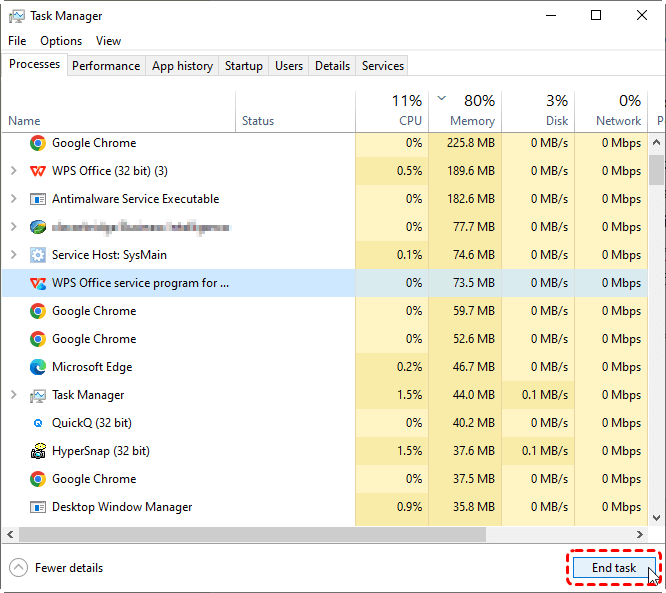
1. Open Task Manager.
2. Check CPU and memory usage.
3. Close unnecessary applications consuming high resources.
4. Consider upgrading RAM if system memory is consistently overloaded.
Finally, if system resources are free but Excel is still erratic, a background security threat might be the cause.
Method 10: Scan the System for Malware
Some malware mimics legitimate processes, or antivirus software may incorrectly flag Excel's "AutoRecover" save action as a suspicious file write, causing the app to hang.
1. Open Windows Security.
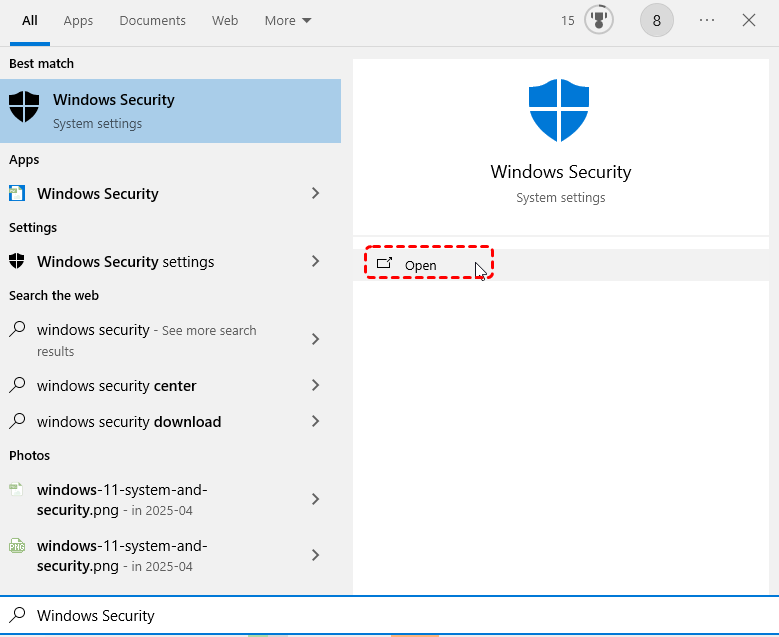
2. Select Virus & Threat Protection.
3. Click Quick Scan.
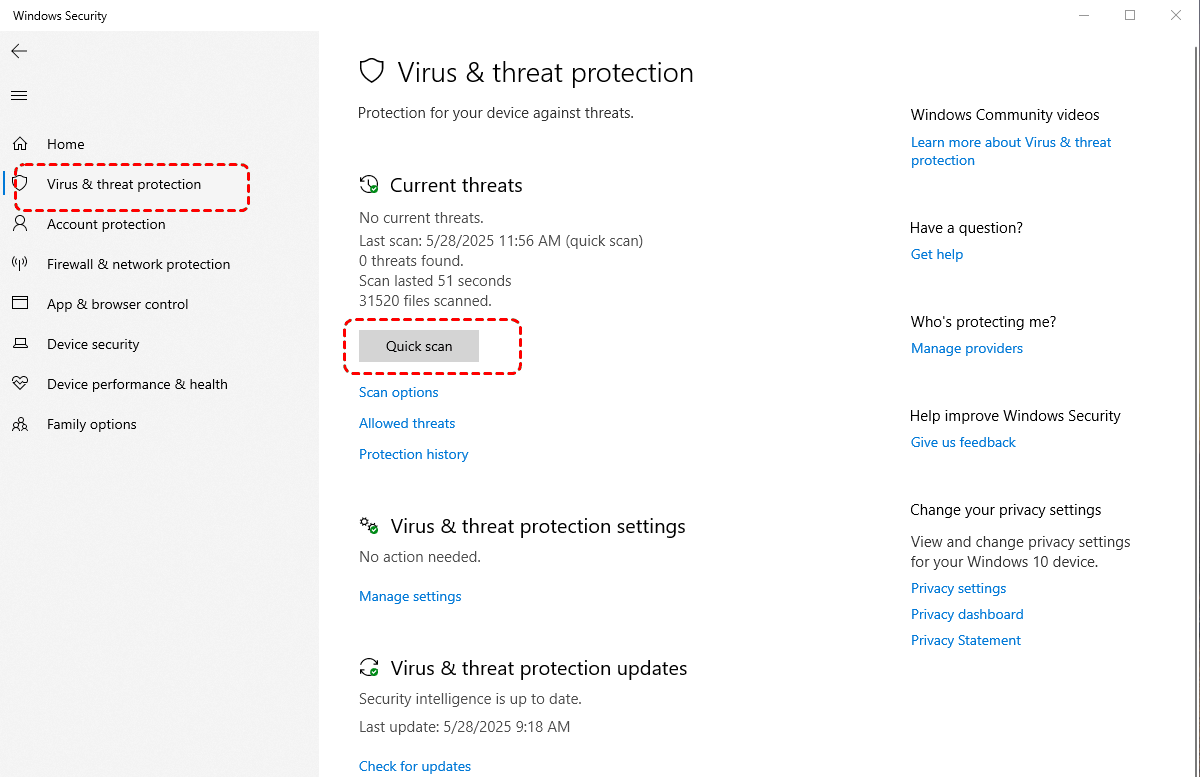
4. Remove detected threats.
5. Restart the computer and reopen Excel.
Recover Lost Excel Files After a Crash
If you were forced to close the program and found that AutoRecover failed, MyRecover is your best solution. When looking for how to fix Excel not responding without closing, the goal is data safety. If that fails, MyRecover steps in.
MyRecover is specifically optimized for Excel recovery. Unlike general tools, it can identify and reconstruct .xlsx and .xls files that were lost during a system freeze or a forced Task Manager shutdown.
Key Features of MyRecover
💙Crash Recovery: Specifically retrieves files lost due to "Not Responding" forced closures.
💙Deep Scan Technology: Finds Excel temp files that Windows "AutoRecover" might have missed.
💙Format Integrity: Ensures that recovered spreadsheets maintain their original formulas and formatting.
💙Universal Support: Works on Windows 11/10/8/7 and supports all Excel versions (2007-2021, Microsoft 365).
 100% Secure
Steps to Recover Excel Files Using MyRecover
1. Install and launch MyRecover on your computer.
2. Select the drive where the Excel file was stored.
3. Click Scan to search for lost files.
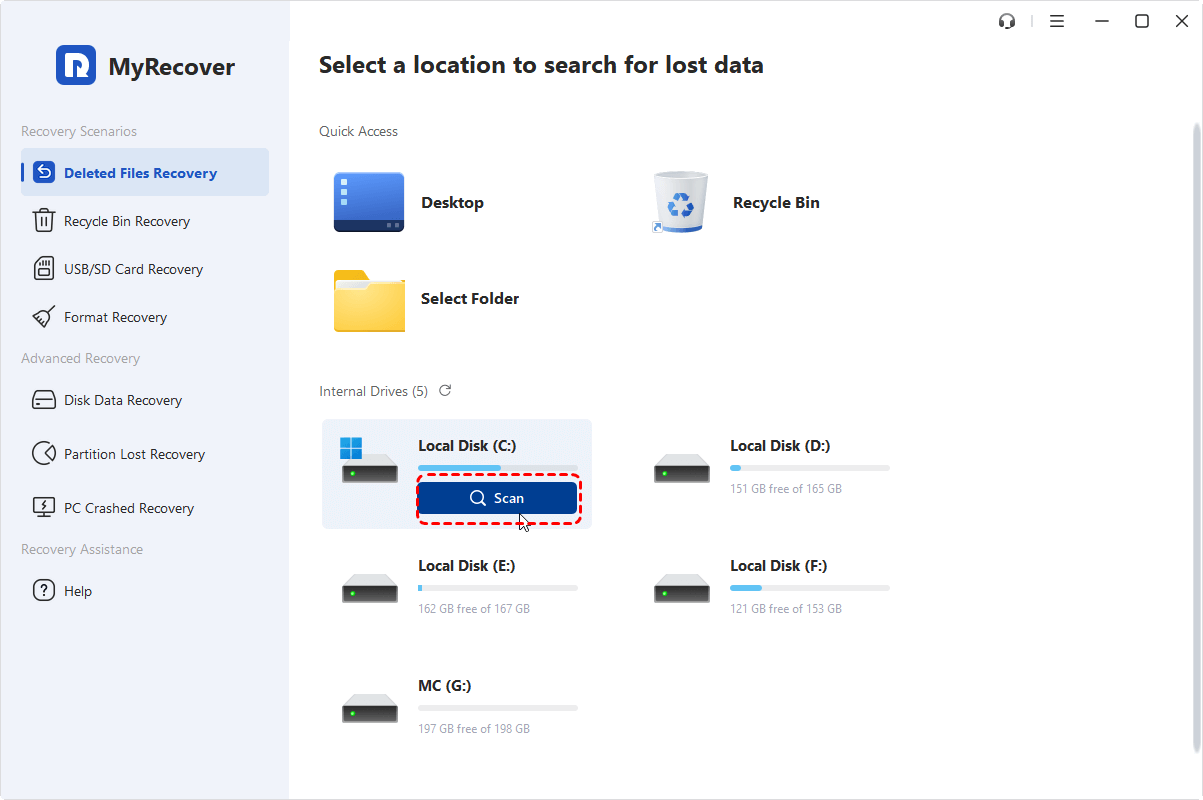
4. Wait for the scan to complete.
5. Locate the Excel file in the results list.
6. Select the file and click Recover.

This process allows you to restore Excel documents that may have been lost due to crashes or accidental deletion.
Conclusion
The Excel not responding problem is a common issue that can disrupt productivity and cause unnecessary stress. It is typically caused by large spreadsheets, system resource limitations, conflicting add-ins, or outdated software.
Fortunately, most Excel freezing problems can be resolved using structured troubleshooting methods such as restarting the application, disabling add-ins, repairing Microsoft Office, and optimizing spreadsheet complexity.
In cases where Excel crashes lead to lost files, professional recovery tools such as MyRecover provide an effective way to retrieve important spreadsheets. By combining proper troubleshooting with reliable recovery solutions, users can minimize disruptions and protect valuable data.
Maintaining good spreadsheet practices and keeping your system optimized will help ensure Excel runs smoothly in the future.
FAQ: Solving Deep Excel Issues
Q1: Why does Excel say "Not Responding" only when I try to print?
A: This is usually due to a communication breakdown between Excel and the Printer Driver. If the printer is offline or the driver is corrupt, Excel will wait indefinitely for a "Ready" signal. Try changing your default printer to "Microsoft Print to PDF" to see if the freeze stops.
Q2: I have plenty of RAM, so why is Excel still freezing on large files?
A: If you are using the 32-bit version of Excel, it can only access a maximum of 2GB to 4GB of RAM, regardless of how much your PC has. For massive datasets, you should install the 64-bit version of Office, which can utilize almost unlimited memory.
Q3: Can "Conditional Formatting" cause Excel to stop responding?
A: Yes. If you copy and paste cells frequently, Conditional Formatting rules can "duplicate" thousands of times. Go to Home > Conditional Formatting > Manage Rules and change the dropdown to "This Worksheet." If you see hundreds of identical rules, delete them to restore speed.
Q4: Is there a way to recover a file if "AutoRecover" was turned off?
A: Yes, but it's difficult manually. When Excel crashes, it often leaves a "fragment" in the Temp folder (%temp%). Tools like MyRecover are designed to scan these system sectors to piece those fragments back together into a functional workbook.
Q5: Are there best practices to prevent Excel from not responding?
A: The following best practices help maintain stable Excel performance.
- ✨Save Files Regularly: Frequent saving reduces the risk of losing work during unexpected freezes.
- ✨Avoid Overly Complex Formulas: Simplify formulas whenever possible to reduce calculation time.
- ✨Use Structured Data: Organize data clearly and avoid unnecessary duplication.
- ✨Split Large Workbooks: Large spreadsheets should be divided into smaller, manageable files.
- ✨Keep Software Updated: Always maintain the latest versions of Excel and your operating system.

Stay Updated With Our
Latest Tips
Add us as a preferred source on Google to never miss helpful guides.
 Add as preferred source >>