 MyRecover



External Hard Drive Spins But Not Detected? 5 Fixes Now
When an external hard drive spins but not detected, the problem often lies in driver conflicts or partition corruption. This guide covers how to recover data using MyRecover, resolve the external hard drive spinning but not detected in Windows 10/11.

By Delores / Updated on May 12, 2026


External Hard Drive Spinning But Not Detected!
You plug in your external hard drive, hear it spinning up, but nothing shows up on your screen. You know the drive has power because it’s moving, but this issue stops you from accessing backups, work documents, or years of family photos.
A spinning drive means your hard drive is physically alive. Usually, the problem is caused by the partition table, driver conflicts, or a missing drive letter. You can still communicate with the drive’s controller and platters, so data recovery tools and command-line fixes have a real shot at working. In most cases, it can be fixed without losing data.
You might encounter the problem in Seagate, Toshiba, and WD external hard drives. Don’t worry, you can find effective solutions to fix it and rescue your files.
Why is My External Hard Drive Spinning But Not Detected?
The causes fall into a few predictable buckets.
- Driver corruption tops the list. Windows might have installed a generic driver that clashes with the drive’s bridge chip.
- A missing or conflicting drive letter. Windows sometimes tries to assign a letter already in use by a network drive or virtual CD-ROM, and the external drive gets left out in the cold.
- File system damage also plays a big role. An improper ejection, a power outage during writing, or a failing USB cable can corrupt the partition table. The drive spins, the platters hold your data, but Windows doesn’t recognize the format and refuses to show the drive. Or it shows up in Disk Management as RAW, unallocated.
Recover Files First Before It’s Too Late
It's wise to recover files before troubleshooting if it shows up in Disk Management; in most cases, your files are still there. So, you have to take advantage of the powerful Windows data recovery software, MyRecover, to recover them all at once.
It's designed for recovering files from any complex situation, like recovering files from a formatted SSD, a corrupted SD card, a write-protected disk, an emptied Recycle Bin, a damaged partition, etc.
With MyRecover, enjoy the following benefits:
- Direct RAW Access – Works on drives without drive letters. If the disk spins but Windows hides it, MyRecover still detects it.
- Dual-Stage Scan – Quick Scan finds recent files, then Deep Scan digs through every sector for corrupted or missing files.
- Broad File System Support – Handles NTFS, FAT32, exFAT, FAT, and ReFS.
- Preview Before Recover – Double‑click any file (images, video, audio, documents) to see if it’s the right one before restoring.
- BitLocker Support – Can scan and recover from encrypted drives as long as you have the BitLocker key.
- High Success Rate – Claims 99% across deletion, formatting, and partition loss scenarios.
Here is how to recover files from the external hard drive spinning but not detected with MyRecover:
1. Please install MyRecover on your computer, then launch it. Connect your external hard drive now.
 100% Secure
2. Tap Disk Data Recovery, hit Scan while pointing at it, and hit OK when it’s done.

3. Preview and select the files you need, and hit Recover.

4. Opt for a location and hit Select Folder to keep them safe.

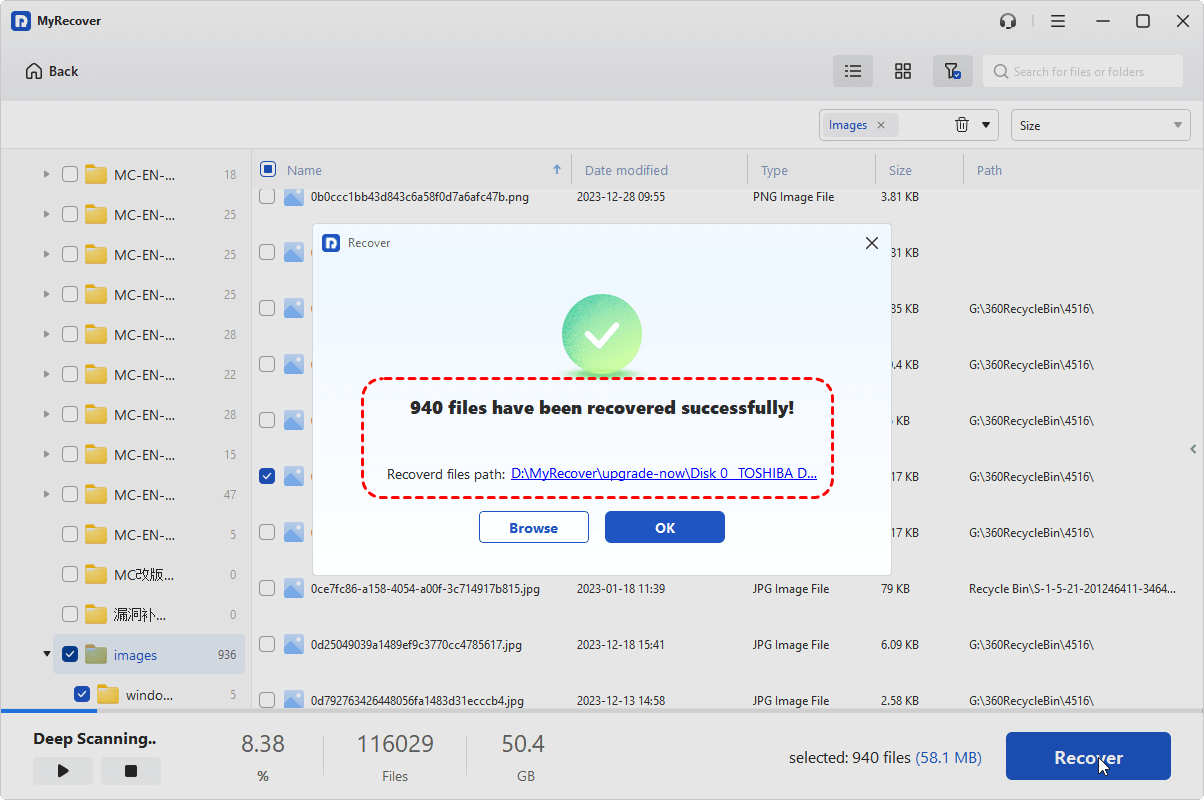
- Notes:✎...
- Once scanning finishes, browse the recoverable files by path, type, or use the search bar for specific filenames.
- If you have plenty of files to recover, upgrading to MyRecover Technician is your best option.
Verify your recovered files open correctly before formatting the original drive.

 MyRecover
 - Recover Deleted Files Easily with Simple Clicks
- 1000+ File Formats Supported
- Support HDD, SSD, External Hard Drive, USB Drive, SD Card, etc.
- Quickly Find Files Using File Types, Name, Size, etc.
- Preview Files Before Recovering
- Recover Unlimited Data
 100% Secure
5 Fixes: External Hard Drive Spins But Is Not Detected
The steps below work for any brand, just try.
Way 1. Uninstall Device and Reconnect
1. Right-click the Start menu, and choose Device Manager.
2. Under Disk Drives, find your external drive. Right-click it, select Uninstall device.

3. Then unplug the drive.
4. Wait ten seconds, plug it back in, and let Windows rediscover the hardware.
Way 2. Try A Different USB Cable
If it’s not working, you can try a different USB cable to check if your external hard drive is detected. Some users reported that it’s working after changing the cable.
For your Seagate external hard drive, connect it to a powered USB hub or use a Y-cable that draws power from two USB ports. Some Seagate models also respond well to a different USB cable entirely. The cable that came with the drive might test fine for power but fail for data transmission. Swap it out before diving into software fixes.
Besides, you can try Drive Detection in SeaTools (a Seagate toolkit) to check whether the firmware responds properly. Run this test when your external hard drive spins but is not detected.
Way 3. Update Driver
Driver issues sneak up on you after a Windows update or when you move the drive to a different computer. The USB controller might work fine for a mouse or keyboard, but choke on a storage device. To check this:
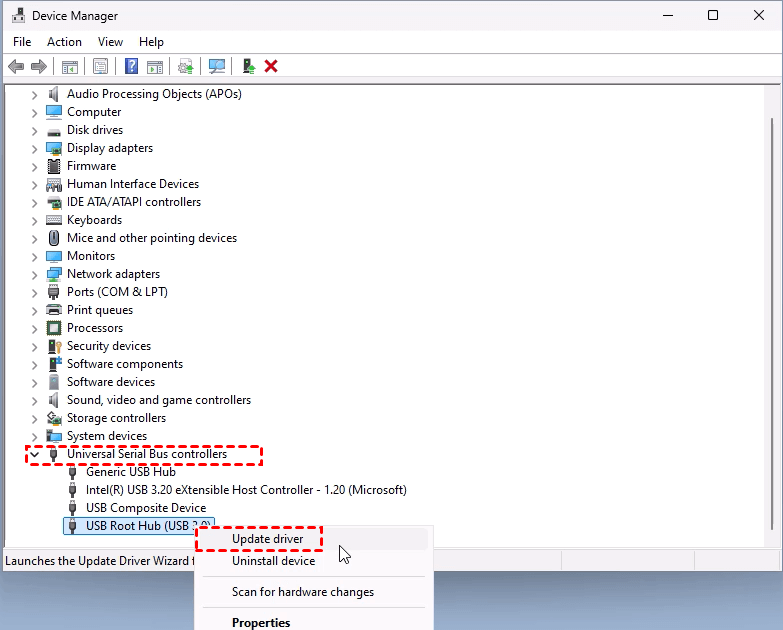
1. Open Device Manager, expand Universal Serial Bus controllers, and look for any yellow warning icons.
2. Right-click each USB Root Hub, select Update driver.
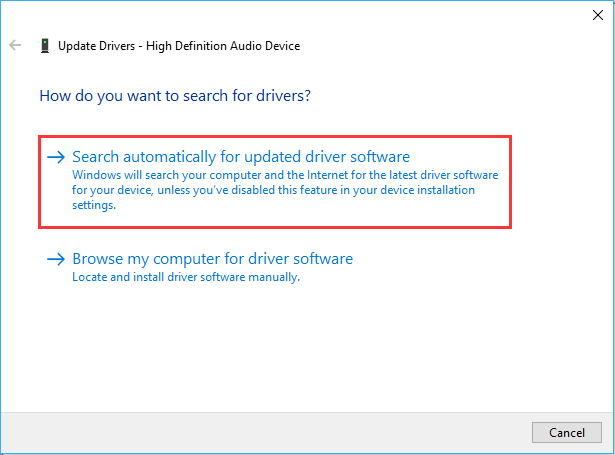
3. Choose Search automatically for updated driver software to let Windows search automatically.
Sometimes you need to go further. Uninstall the driver entirely, unplug the drive, restart your PC, and plug it back in. Windows reinstalls a fresh driver. This simple trick resolves the external hard drive spinning but not detected in Windows 10 headache more often than you’d think.
Way 4. Assign A Drive Letter
If your external hard drive spins but is not detected in Windows File Explorer, and you can see it in Disk Management without a drive letter, you can assign a drive letter in Disk Management by right-clicking or try the diskpart commands.
Here is how to assign a drive letter using DiskPart:
1. Open Command Prompt as an administrator.
2. Type diskpart and press Enter.
3. Then type list disk. Find your external drive by its size.
4. Type select disk X (replace X with the number of your external drive).
5. Type list volume. Look for any volume that lacks a letter.
6. Type select volume Y and then assign letter=Z or assign.
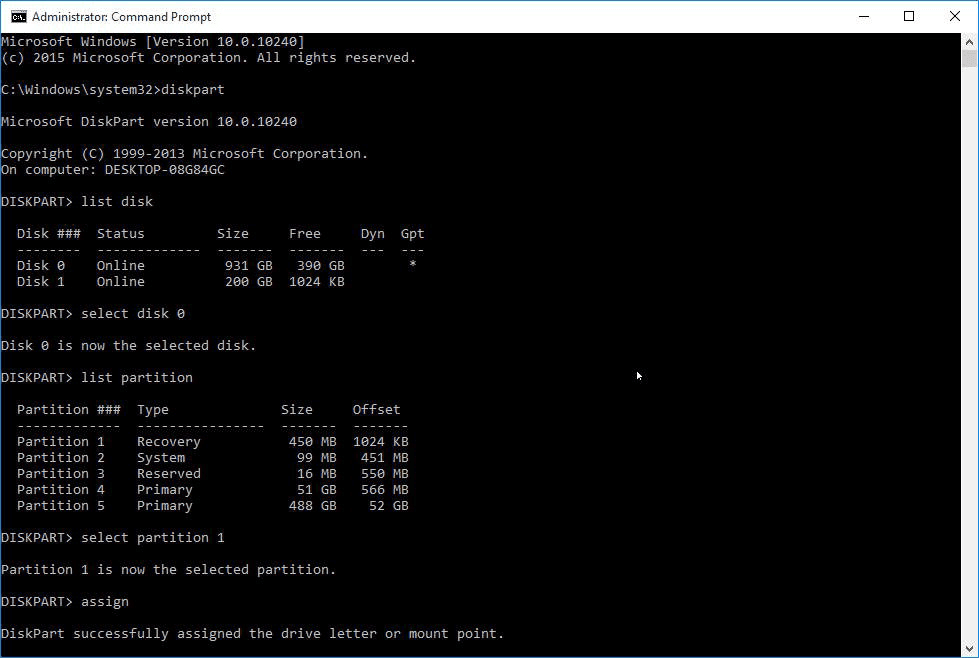
This forces Windows to give the drive a letter.
Way 5. Format The External Hard Drive
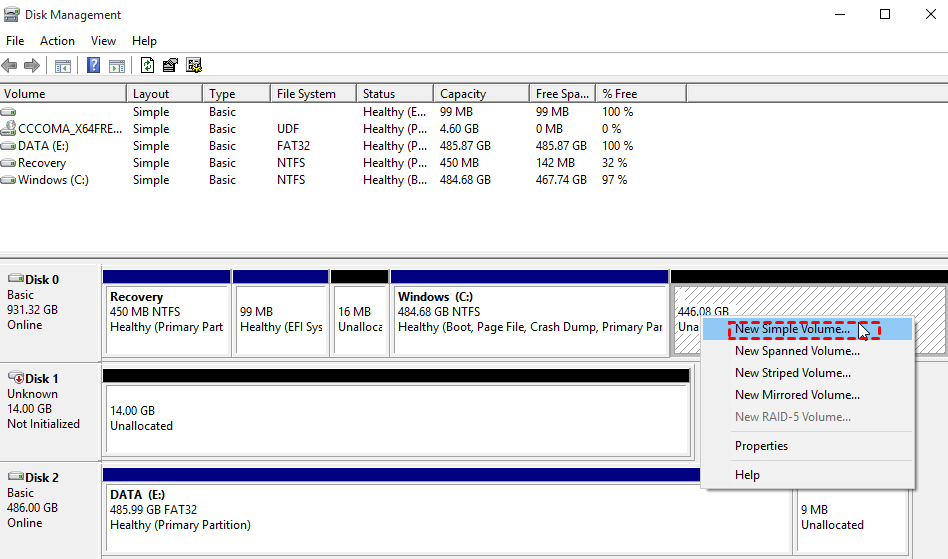
If your external hard drive shows in Disk Management as unallocated or RAW, you have to format it to reuse it. Here is how to format your external hard drive:
1. Hit Windows + R, input the diskmgmt.msc to open Disk Management.
2. Right-click your external hard drive, and hit New Simple Volume.
3. Choose a drive letter, and NTFS as the file system to format.
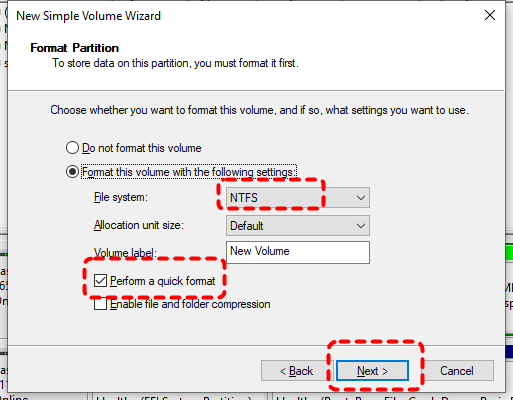
4. Hit Finish to complete the format.
Tip: You might need to know the differences between full format and quick format.
Prevent Future Failures for External Hard Drive Spins But Not Detected
Now let’s make sure you never have to do this again. Prevention costs far less than recovery, both in time and stress.
- Never yank the USB cable. Always use “Safely Remove Hardware” in the system tray.
- Safely Eject Hardware Every Time. That extra five seconds saves hours of recovery work. Or you might get the error “You need to format the disk”.
- Regularly Check S.M.A.R.T Health Status. S.M.A.R.T. data tells you when a drive is about to fail.
FAQs About External Hard Drive Spins But Not Detected
What causes an external hard drive to spin but not show up?
A: Driver conflicts, missing drive letters, partition table damage, or a faulty USB cable. The drive spins because power reaches the motor, but the data connection fails somewhere along the chain.
Can CHKDSK fix an external hard drive that spins but isn't detected?
A: Only if the drive has a drive letter in Disk Management. Running CHKDSK on an undetected drive is impossible because CHKDSK needs a target volume. If you see a drive letter, run “chkdsk X: /f” (replace X with your drive letter).
How do I recover data from an external hard drive that spins but isn't recognized?
A: Use MyRecover. MyRecover scans the raw sectors without writing anything to the failing drive. Never attempt to repair the drive with formatting or partition tools before recovering your data first.
Why does my Seagate external hard drive spin but not show up on any computer?
A: Seagate drives use a specific USB bridge chip that sometimes fails to negotiate a connection with Windows. Try a different USB cable, a powered hub, or update the firmware using SeaTools.
Is an external hard drive that spins but isn't detected as completely dead?
A: Not at all. A spinning motor and platters mean the core mechanics still work. The issue usually lives in the controller, partition table, or driver layer. Most cases resolve without hardware repair.
How do I fix an external hard drive spinning but not detected in Windows 10 without losing data?
A: Start with Disk Management to assign a drive letter. Next, update USB drivers. If those fail, use MyRecover to pull your data off first. Only after securing your files should you attempt to reformat the drive or run repair tools like chkdsk.
The End
Now, your external hard drive spins but is not detected, which might have been fixed. Work through the fixes in order, recover your files with MyRecover before anything else, and build better habits going forward.
Besides, you can use MyRecover to recover files from a camera, SD card, or even a Windows crash.

Stay Updated With Our
Latest Tips
Add us as a preferred source on Google to never miss helpful guides.
 Add as preferred source >>