 MyRecover



Can I Recover Data from Bitlocker Encrypted Drive Without Key?
This guide examines the critical challenge to recover data from Bitlocker encrypted drive without key. We explore professional data recovery scenarios and software options that may help you recover Bitlocker drive without key when all credentials are lost.

By Delores / Updated on March 11, 2026


Can I Recover Data from A BitLocker-Encrypted Drive without the Key?
When you're staring at a BitLocker prompt, and you can't remember your password or can’t find the BitLocker recovery key, you're so upset. You need to recover data from a BitLocker-encrypted drive without the key, and it's impossible.
This guide provides the real, practical possibilities and methods to find your recovery key and help you recover data from a BitLocker-encrypted drive.
About BitLocker Encryption and Access
BitLocker isn't just a simple lock; it's a full-scale, military-grade security system for your data.
BitLocker functions by encrypting every piece of data on a drive using a sophisticated algorithm. Once enabled, it converts all information into an unreadable format. Without the password or the smart card, the data remains inaccessible, appearing as scrambled and meaningless code. This encryption operates continuously in the background, yet its security is total.
The design requires the operating system to provide a valid key during startup to decrypt data for use. If the key is not supplied, access is completely blocked. This foundational principle is what makes attempting to recover a BitLocker drive without the key exceptionally challenging.
About the Password and Recovery Key
The BitLocker system relies on two primary access methods, though only one is required.
The first is a user-defined password or PIN, intended to be memorable. And it is the regular credential for daily access.
The second is a 48-digit numerical recovery key, automatically created by Windows, which is a unique emergency code used only when normal login fails—for example, after hardware changes or a forgotten password. This recovery key serves as a critical backup. Microsoft consistently advises users to store it securely—such as in a Microsoft account, as a printed copy, or in a file.
The possibility of recovery depends entirely on possessing at least one of these two elements.
BitLocker also supports smart card integration, allowing physical or virtual smart cards (such as YubiKeys) to unlock encrypted drives. This adds certificate-based security, stronger than a password, ideal for BitLocker To Go on removable drives. Access requires both the physical smart card and a PIN.
What to Do When Losing BitLocker Access
Situation 1. Forget the BitLocker Password
Maybe you enabled BitLocker on a secondary drive years ago, or perhaps a mandatory update required a fresh password input that has since slipped your mind. In this case, all is not lost because your recovery key is meant to be the rescue here.
How to Recover Data from a BitLocker-Encrypted Drive Without a Password
If you’ve forgotten your password but have your recovery key, the process is straightforward.
On the BitLocker lock screen, click “More options”.
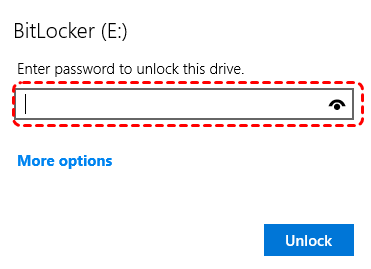
Then “Enter recovery key”. Input that 48-digit key, and voilà—access is restored.
You can then turn off BitLocker, back up your data, and re-enable it with a new password you’ll (hopefully) remember.
This is the officially sanctioned method and is why safeguarding that recovery key is non-negotiable.
Situation 2. Lose Both Password and Recovery Key
This can happen after a major system update, a motherboard change (which alters the TPM chip BitLocker trusts), or simply through poor key management—losing the printed key and being disconnected from the Microsoft account that stored it.
This scenario is what most people truly mean when they desperately search to recover data from a BitLocker-encrypted drive without the key. With neither the password nor the recovery key, you are effectively locked out by design.
BitLocker’s strength is its Achilles’ heel for recovery; its unbreakable encryption means there is no “backdoor”. Microsoft doesn’t hold your key, so they can’t help you.
But you can still have a way to recover data from a BitLocker-encrypted drive without the key, just turn off the BitLocker for the drive if you are an administrator.
Here is how to turn off BitLocker on the drive in Windows File Explorer:
1. Please open Windows File Explorer, and right-click the BitLocker-encrypted drive, choose Manage BitLocker.

2. Click Turn off BitLocker next to the BitLocker-encrypted drive.
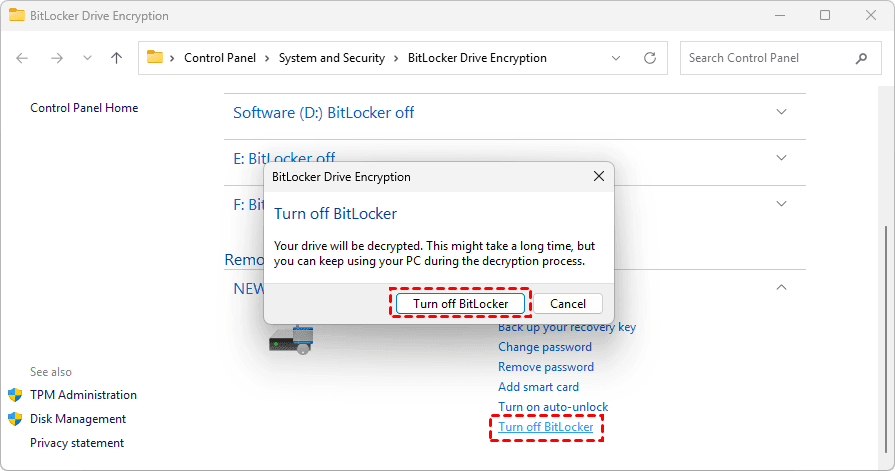
3. Hit Turn off BitLocker to confirm, and wait for the process to complete.
4. Then you can recover files from the BitLocker-encrypted drive without the password or recovery key.
How to Find Your BitLocker Recovery Key?
There are multiple ways to find your BitLocker recovery key: your Microsoft account, a printed file, a USB drive, or a saved document, etc. The way to find your recovery key depends on the choice while activating BitLocker.
Way 1. Find Your BitLocker Recovery Key on Your Microsoft Account
If you saved the recovery key to your Microsoft account, you can find it here.
For a personal Microsoft account:
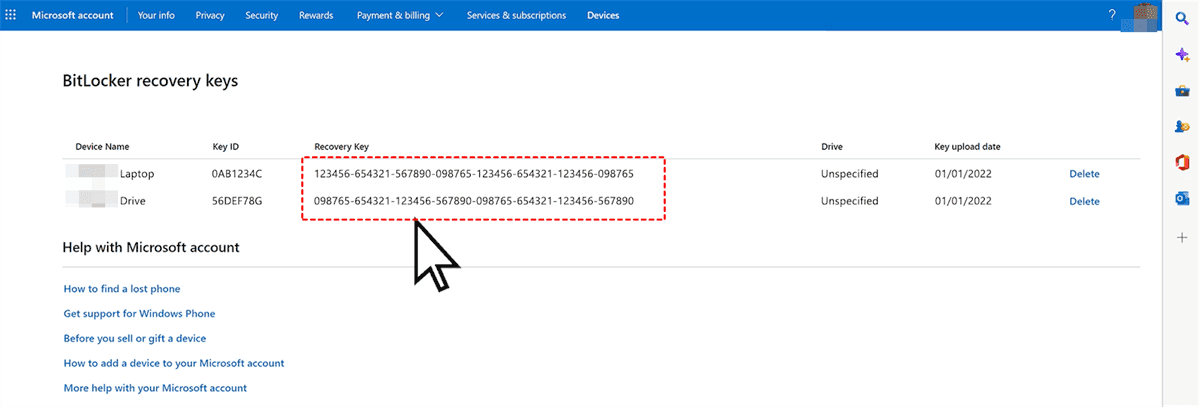
1. Go to the aka.ms/myrecoverykey webpage to find your BitLocker recovery key.
2. Then sign in to your Microsoft account linked to your locked PC, and you will find all your BitLocker recovery keys for your devices.
For a work/school account:
1. Go to the aka.ms/aadrecoverykey webpage.
2. Use your work or school credentials.
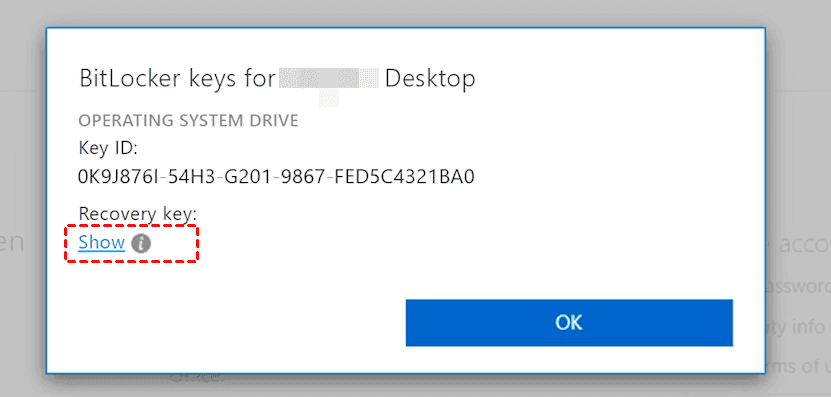
3. Navigate to Devices, select your PC, and click "Get BitLocker Keys".

4. Hit Show to find your recovery key.
Way 2. Check Other Locations
If you have saved the recovery key to a file, USB drive, or local disk, you can find the recovery key in these locations.
- Printout: A physical copy might be with your important documents.
- USB Drive: Saved to a USB flash drive when BitLocker was enabled.
- File: Saved as a .txt or .docx file on another drive or cloud storage.
If you're Still Stuck, try these:
Contact IT: If it's a work/school device, your IT department might have it.
Check Account Hint: Newer Windows versions (like 24H2+) give a hint on the recovery screen about the associated account.
If you find your recovery key, you can recover data from a BitLocker-encrypted drive easily.
Recover Lost Files After Decryption
Sometimes, you might lose files or delete files by accident after BitLocker decryption. You searched the Recycle Bin and the backups, but you can’t find them. What should you do to recover them quickly?
Fortunately, you can try a professional Windows data recovery software like MyRecover. It’s designed to recover files from any complex situation, like recovering files from a crashed computer, an emptied Recycle Bin, a formatted SSD, a corrupted SD card, etc.
Therefore, you can try MyRecover to recover your precious files easily. Here is how it works:
1. Download and install MyRecover on your computer instead of the drive that stores missing files.
 100% Secure
2. Launch MyRecover, choose Disk Data Recovery, choose the drive where your deleted files were located, and hit Scan. Wait for the process to complete and hit OK.

3. Preview and select your missing files, and hit Recover.

4. Select a safe location to keep them now.

- Tips:✎...
- By default, MyRecover lists the found files by file type. You can also find them by file path, file name, file size, and modified date, which is helpful for you to find files quickly.
- Previewing files before recovery helps you ensure they are intact and the right files are being recovered.
- Try MyRecover Technician to enjoy more powerful features, including recovering files from unlimited computers.

 MyRecover
- Recover Deleted Files Easily with Simple Clicks
- 1000+ File Formats Supported
- Support HDD, SSD, External Hard Drive, USB Drive, SD Card, etc.
- Quickly Find Files Using File Types, Name, Size, etc.
- Preview Files Before Recovering
- Recover Unlimited Data
 100% Secure
FAQs About BitLocker Drive Data Recovery
Is it possible to recover data from a BitLocker drive without any key?
A: The possibility is extremely low for a fully encrypted, undamaged drive. BitLocker's security design makes recovery without the password or 48-digit recovery key nearly impossible under normal circumstances. Success would require specific conditions like partial encryption, recoverable unencrypted file fragments, or expensive forensic services. For most users, it is practically impossible.
Can data recovery software bypass BitLocker encryption?
A: No. Software like MyRecover does not decrypt BitLocker. Its potential utility comes from "file carving"—scanning raw disk sectors to reconstruct files from any unencrypted remnants that may exist, such as data deleted before encryption was completed. This bypasses the file system but is not guaranteed and only works in limited scenarios.
I lost my password, but I have the recovery key. What do I do?
A: On the BitLocker lock screen, click "More options" and select "Enter recovery key." Input your 48-digit key. Once unlocked, immediately back up your data and then update your BitLocker settings—either turn off encryption or set a new password, ensuring you securely store the new recovery key.
Will changing my motherboard lock my BitLocker drive?
A: Yes, if BitLocker uses TPM protection (the default). The encryption key is tied to the original motherboard's TPM chip. A new motherboard triggers a lockout, requiring the recovery key. This highlights the critical need to have your recovery key before any hardware changes.
Can a computer repair shop unlock my BitLocker drive?
A: A reputable shop cannot decrypt the drive without a key. They may help you retrieve a key from your Microsoft account or attempt file carving with recovery software. Be highly skeptical of any service claiming to quickly crack or bypass BitLocker without a key, as this is often fraudulent.
How can I find my BitLocker recovery key if I forgot to save it?
A: Check these locations in order: 1) Your Microsoft account online at account.microsoft.com/devices/recoverykey. 2) Other devices for a file named "BitLocker Recovery Key [Drive Label].txt". 3) Any printed documents. 4) Your workplace or school IT department (for managed devices). If the key is not found, only low-probability advanced methods remain.
What is the most reliable way to ensure I never lose access?
A: Implement a multi-layered strategy: 1) Key Management: Save your recovery key to your Microsoft account and keep a printed/physical copy. 2) Regular Backups: Maintain automated backups to a separate, unencrypted drive and a cloud service. 3) Documentation: Store encryption passwords in a secure password manager. This separates drive security from data availability, preventing permanent lockout.

Stay Updated With Our
Latest Tips
Add us as a preferred source on Google to never miss helpful guides.
 Add as preferred source >>