 MyRecover



Fixed: gpedit.msc Not Found in Windows 11/10/8/8.1/7
This guide solves the "gpedit.msc not found" error in Windows 7/8/8.1/10/11. Learn to add Local Group Policy Editor (gpedit.msc) using batch scripts, installers, or manual methods for Home editions without upgrading.

By Delores / Updated on May 28, 2026


gpedit.msc Not Found in Windows 10!
Error fix: gpedit.msc not found - alternatives?
Today, when I typed gpedit.msc in the Windows 10 search box and in the Run window (Win + R), I couldn't run the Group Policy editor.
I'm encountering an annoying error at times when trying to run certain software: "An administrator has blocked this app for your protection." The only account on this laptop is my own. So I am the administrator.
What can I do to resolve this? According to this FreeCodeCamp post, the solution to this error is to toggle a setting in User Account Control using the Group Policy Editor (gpedit).
I'm using Windows 10 Home. My laptop came preinstalled with it.
- Question from reddit.com
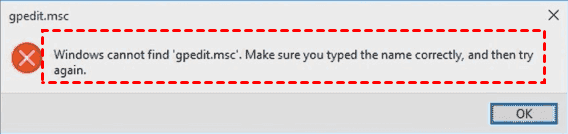
The Group Policy Editor (gpedit.msc) is a powerhouse tool for tweaking Windows settings, locking down security, and controlling user permissions without digging through the registry.
If you encounter the error message: Windows cannot find ‘gpedit.msc’, make sure you have typed the name correctly, and then try again. Don’t worry. This error has a fix. Actually, several fixes. Whether you are on a Home edition or a higher-end version, I will walk you through every possible solution.
Why Your PC Shows the “gpedit.msc Not Found” Error
The gpedit.msc not found problem is more common than you think, and it happens for a few specific reasons.
- Windows Home Editions Lack Group Policy Editor by Default. Microsoft deliberately leaves Group Policy Editor out of Windows Home editions. That means if you are running Windows 10 Home, Windows 11 Home, or any Home version of Windows 7 or 8, you will see the gpedit.msc not found error. It is a feature Microsoft decided to reserve for Pro, Enterprise, and Education editions.
- Corrupted System Files Causing Gpedit.msc Not Found. Even on Pro editions, sometimes the gpedit.msc not found error appears because system files have become corrupted. A bad update, a sudden shutdown, or even malware can damage the Group Policy components.
- Accidental Deletion or Disabled Group Policy Components. Some third-party cleaners or optimization tools have been known to flag Group Policy files as "unnecessary" and remove them. Users also sometimes accidentally delete the GPEDIT folder while cleaning up their C drive.
How to Check Your Windows Version?
Before all of this, you have to check your Windows version, then you can learn how to find your gpedit.msc on your computer.
To check your Windows version in Windows 8/10/11:
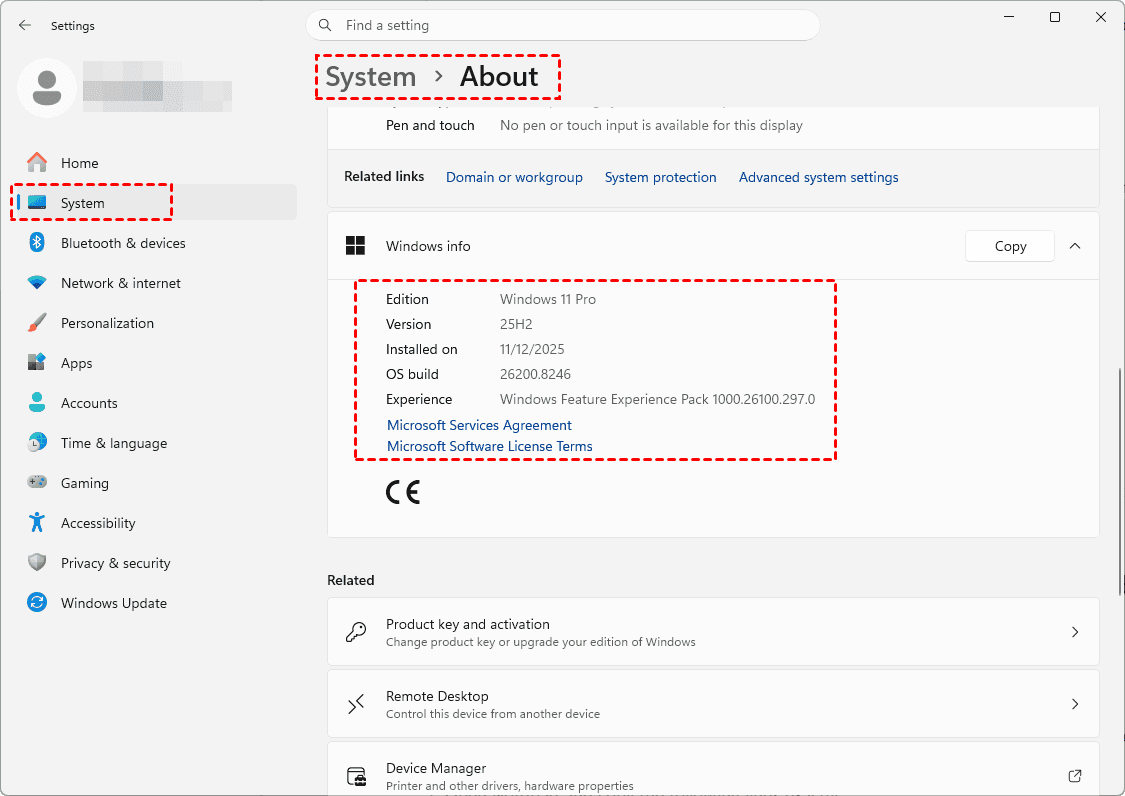
1. Please right-click the Start menu and choose Settings.
2. Tap System > About.
3. Then you can find your Windows Edition in the Windows Info section.
Or you can check your version in Windows 7/8/8.1/10/11:
Press the Windows Key + R on your keyboard to open the Run dialog box.
Type winver and press Enter.
How to Fix Gpedit.msc Not Found on Windows 10& 11
Here is how to get Group Policy Editor back up and running. The method depends entirely on which Windows edition you have.
Way 1. Install Group Policy Editor on Windows Home Edition via a Batch File
If you are facing the gpedit.msc not found error in Windows 11/10 on a Home edition, do not panic. You can actually install it. Microsoft includes the necessary files but hides them. A clever batch script unlocks everything.
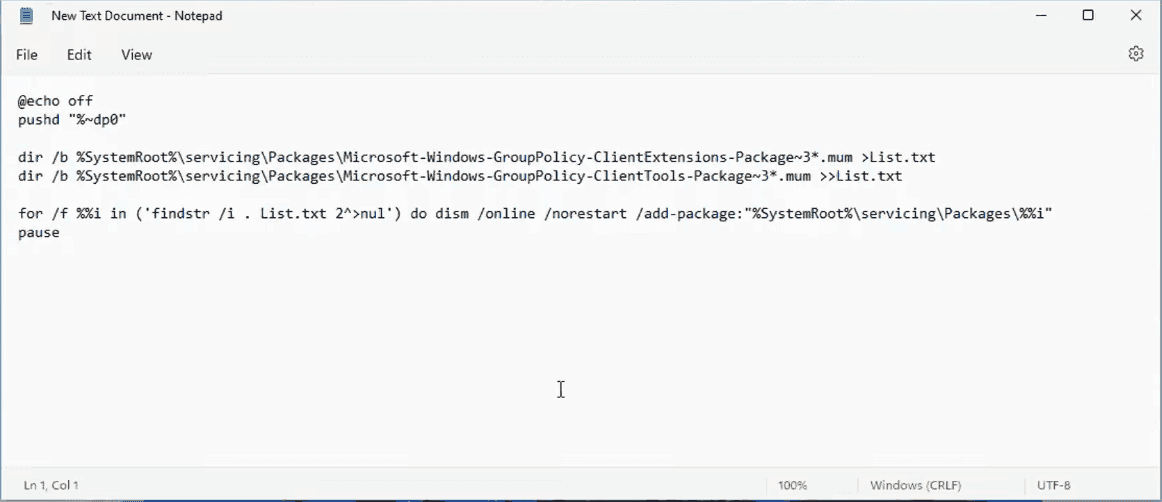
1. Open Notepad and copy the following lines exactly:
@echo off
pushd "%~dp0"
dir /b %SystemRoot%\servicing\Packages\Microsoft-Windows-GroupPolicy-ClientExtensions-Package~3*.mum >List.txt
dir /b %SystemRoot%\servicing\Packages\Microsoft-Windows-GroupPolicy-ClientTools-Package~3*.mum >>List.txt
for /f %%i in ('findstr /i . List.txt 2^>nul') do dism /online /norestart /add-package:"%SystemRoot%\servicing\Packages\%%i"
pause
2. Save the file as gpedit.bat. Make sure the extension is .bat and not .txt.
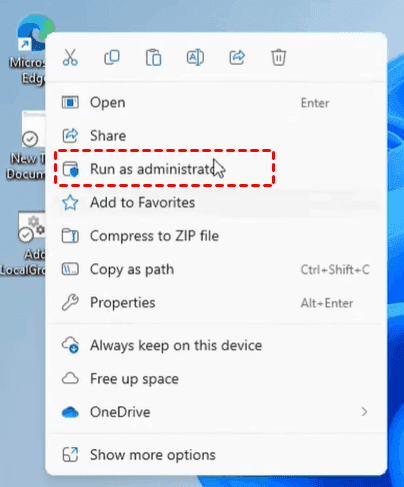
3. Right-click the file and choose "Run as administrator".
4. Let the script do its work – it might take a few minutes.
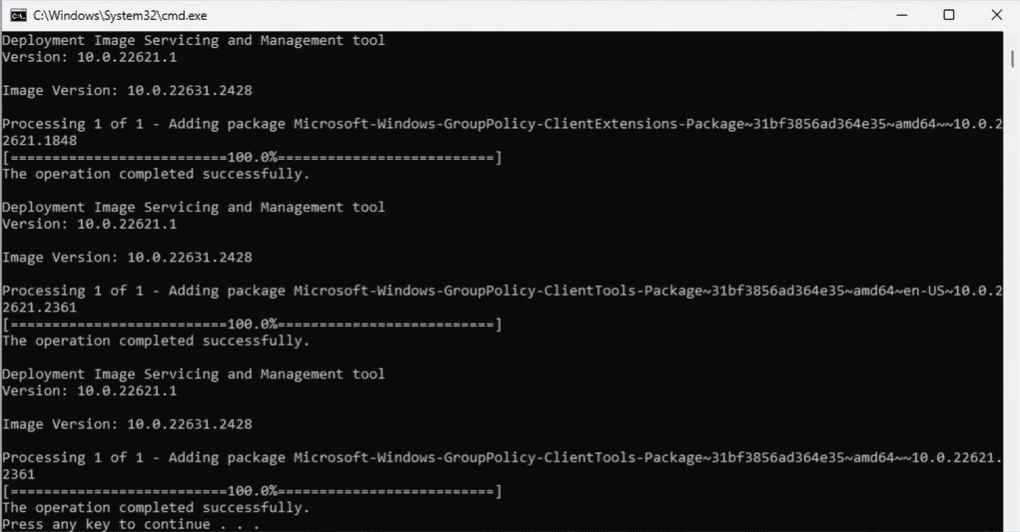
5. Once it finishes, restart your computer. Then press Win + R, type gpedit.msc, and hit Enter.
If the Group Policy Editor opens, congratulations. If not, you might be dealing with a different issue. Some users report needing to run the script twice, especially on newer Windows 11 builds. This method works for gpedit.msc not found in Windows 10 Home as well. The script simply pulls the existing Group Policy files from the Windows component store and installs them properly.
Way 2. Install gpedit.msc via DISM
Besides, if you are using Windows 10/11 Home and missing the editor, you can easily install the missing components using the built-in DISM tool via an administrator command prompt.
Here is how to install the Group Policy Editor in Windows 10/11:
1. Press the Windows Key, type cmd, right-click on Command Prompt, and select Run as administrator.
2. Copy and paste the following command, then press Enter:
FOR %F IN ("%SystemRoot%\servicing\Packages\Microsoft-Windows-GroupPolicy-ClientTools-Package~*.mum") DO ( DISM /Online /NoRestart /Add-Package:"%F" )
3. Once that completes, copy and paste the second command, then press Enter:
FOR %F IN ("%SystemRoot%\servicing\Packages\Microsoft-Windows-GroupPolicy-ClientExtensions-Package~*.mum") DO ( DISM /Online /NoRestart /Add-Package:"%F" )
Wait for the DISM tool to finish installing the packages; the Group Policy Editor will then be fully functional.
Solve Gpedit.msc Not Found in Windows 7/8/8.1
Older operating systems need slightly different treatment. The same Home edition limitation applies, but the installation process varies.
Way 1. Install gpedit.msc Manually
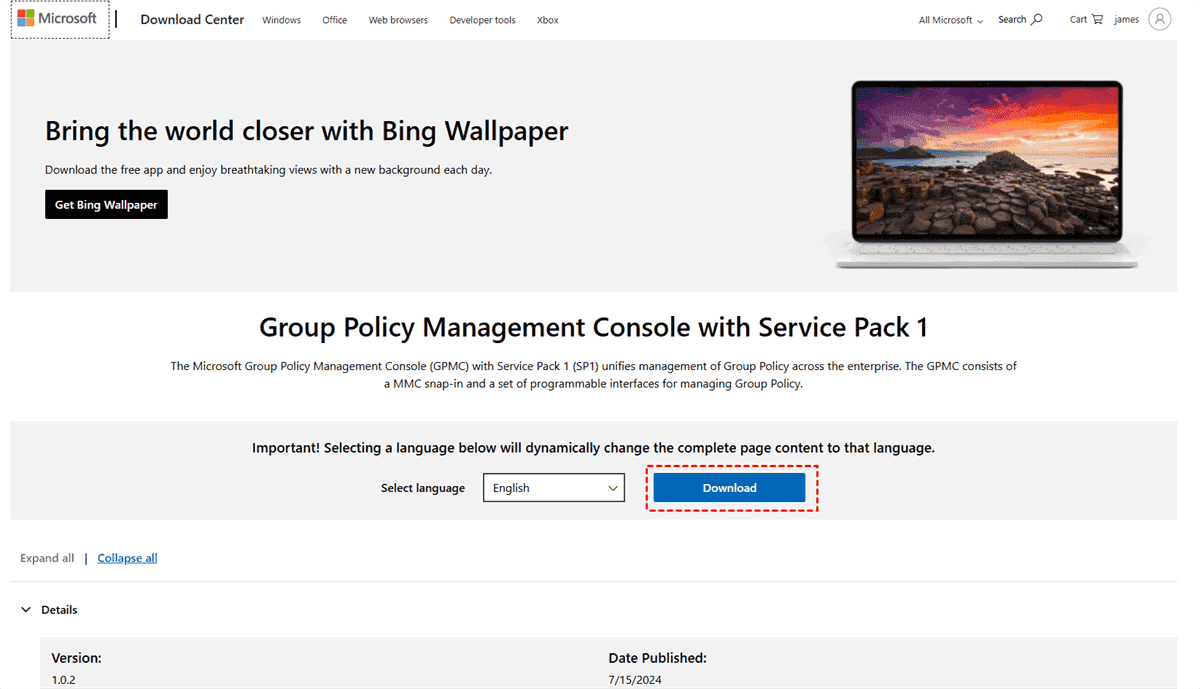
For gpedit.msc not found in Windows 7/8/8.1, you can try downloading the official Group Policy installer from Microsoft.
Look for the "Windows 7 Group Policy Editor installer" on Microsoft's Download Center.
Install it like any other program, then reboot.
Way 2. Use Third-Party Installers
Several trusted third-party tools can add Group Policy to Home editions. One popular option is the "GPEdit Installer" from the MSFN forums. Always download from reputable sources and scan any installer with Windows Defender before running it.
PreventFuture Gpedit.msc Not Found Errors
Once you have Group Policy Editor working, keep it that way. A little maintenance goes a long way.
- Keep Windows Updated to Maintain System Files: Microsoft regularly releases updates that fix system file corruption.
- Create a Backup of the Group Policy Editor Folder: Navigate to C:\Windows\System32\gpedit.msc and copy the entire GroupPolicy folder to an external drive or cloud storage. If the error ever returns, you can simply paste the backup back into place.
FAQs About gpedit.msc Not Found
What exactly causes the gpedit.msc not found error?
A: Three main reasons. Windows Home Edition does not include the Group Policy Editor. System files have become corrupted. The GPEDIT files were accidentally deleted.
Can I install Group Policy Editor on Windows 11 Home?
A: Yes, absolutely. Run the batch script as administrator, then reboot. The script unlocks hidden Microsoft files and installs GPEDIT.
Why does gpedit.msc not found appears even on Windows Pro?
A: If you see this error on a Pro edition, system file corruption is the likely culprit. Run "sfc /scannow" as administrator to scan for and repair corrupted Windows files. Restart, then try again.
How do I check which Windows edition I have?
A: Press Win + I to open Settings. Go to System > About. Look for "Windows edition" – it will say Home, Pro, Enterprise, or Education. If it says Home, you need the batch script method. If it says Pro, you need to repair system files instead.
What should I do if the batch script fails to install GPEDIT?
A: Try running the script twice. Some Windows builds need two passes. If that fails, use the Policy Plus alternative mentioned above. You can also perform a Windows repair install using installation media – this fixes missing components without deleting your files.
How do I backup my files if Windows won't boot properly?
A: Use MyRecover on a bootable USB, then copy files to an external drive. Or remove the hard drive and connect it to another PC via USB adapterto backup files.
Where is gpedit.msc located in Windows 10?
A: The gpedit.msc file is located in the C:\Windows\System32 folder. On 64-bit versions of Windows, you can also find it in C:\Windows\SysWOW64. It’s only available on Pro, Enterprise, and Education editions.
How to open gpedit.msc without the run command?
A: Use Windows Search (type "gpedit.msc"), navigate to C:\Windows\System32 in File Explorer, or type gpedit.msc in Command Prompt or PowerShell.
Recover Lost Files If Required
If you need to recover lost files on your Windows computer without a backup copy, what should you do? Fortunately, the powerful Windows data recovery software, MyRecover, can help you out of the trouble. MyRecover makes file recovery straightforward, even for beginners.
With MyRecover, enjoy the benefits:
- 500+ devices. It helps you retrieve lost or deleted files from HDDs, SSDs, USB drives, SD cards, and other storage devices effectively.
- Recovers 1,000+ file types. You can recover documents, photos, videos, audio, emails, and compressed files, all in their original format.
- Handles multiple data loss scenarios. You can recover files from accidental deletion, formatting, system crashes, virus attacks, lost partitions, etc.
- Preview before recovery. You can check file integrity and avoid recovering unnecessary data.
- Quick and deep scan modes. Quick Scan for recently deleted files, Deep Scan for thoroughly buried data.
Here is how to recover deleted files in Windows 11 with MyRecover:
1. Download and install MyRecover on your computer. And launch it.
 100% Secure
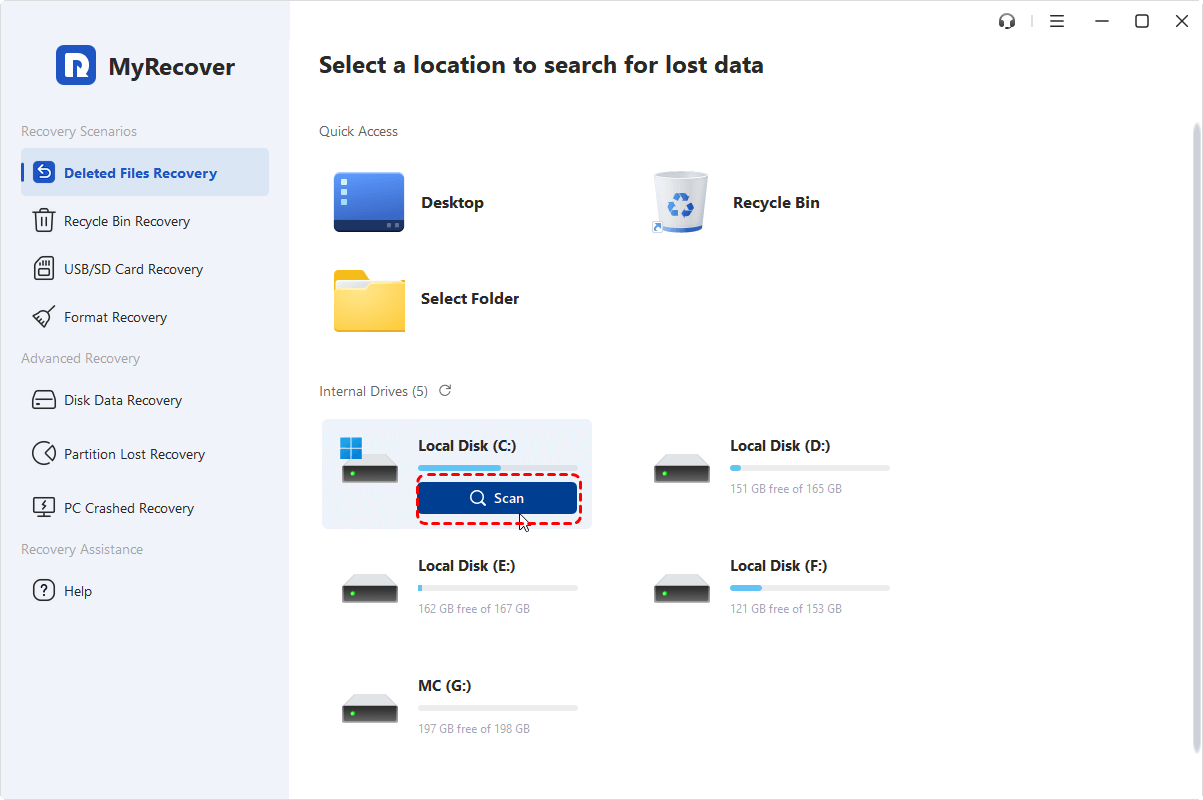
2. Tap Deleted Files Recovery, hover over the drive where the deleted files were located before, and hit Scan.
3. Double-click to preview the files you need, tick them all, and hit Recover.
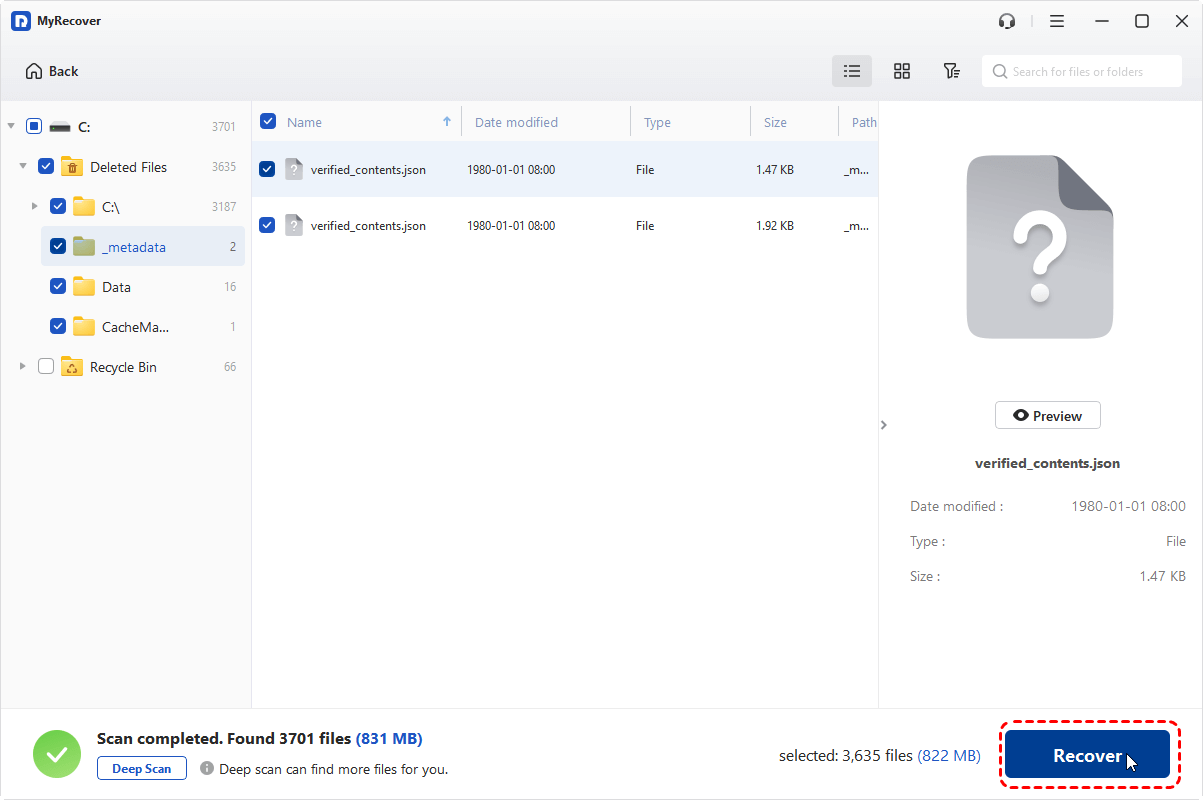
4. Choose a safe location to keep them safe.
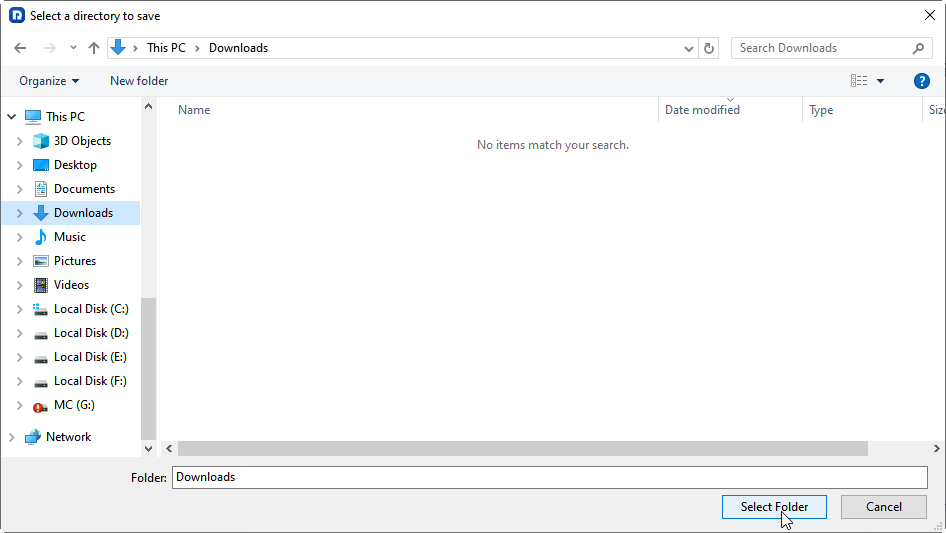
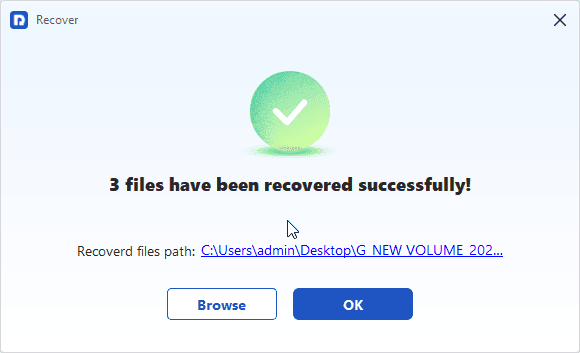
- Notes:✎...
- Once scanned, you can search for specific files by file name, size, and modified date, etc. By default, you can sort files by file type and path.
- If you need to recover unlimited files, upgrading to MyRecover Technician is your best choice.

 MyRecover
- Recover Deleted Files Easily with Simple Clicks
- 1000+ File Formats Supported
- Support HDD, SSD, External Hard Drive, USB Drive, SD Card, etc.
- Quickly Find Files Using File Types, Name, Size, etc.
- Preview Files Before Recovering
- Recover Unlimited Data
 100% Secure

Stay Updated With Our
Latest Tips
Add us as a preferred source on Google to never miss helpful guides.
 Add as preferred source >>