 MyRecover



How to Recover Deleted Clipboard History
Accidentally cleared your clipboard? Many users ask, can you recover deleted clipboard history after it disappears. This guide explains reliable methods to restore clipboard content, including built-in Windows features and recovery tools to retrieve copied text quickly.

By Vera / Updated on March 25, 2026


Understanding How Clipboard History Works
Before attempting recovery, it helps to understand how clipboard history functions.
Traditionally, operating systems stored only one copied item at a time. When you copied something new, the previous item disappeared. Modern systems like Windows 10 and Windows 11 introduced Clipboard History, which can store multiple copied items.
When enabled, clipboard history allows users to:
- Store multiple copied items.
- Access previously copied text or images.
- Pin important clipboard entries.
- Synchronize clipboard data across devices.
However, if clipboard history was disabled or cleared, recovering the data becomes more difficult.
Common Reasons Clipboard History Gets Deleted
Clipboard history may disappear for several reasons. Understanding these causes can help determine whether recovery is possible.
Manual Clearing
Users may clear clipboard history intentionally to protect private information. Once cleared, the stored entries are removed immediately.
System Restart
Because clipboard data is stored in temporary memory, restarting the computer can erase clipboard contents.
Overwriting the Clipboard
Copying new content replaces previous clipboard data if history is not enabled.
Application Conflicts
Some applications or clipboard managers may interfere with clipboard storage, causing data loss.
How to Recover Deleted Clipboard History
Can you recover deleted clipboard history? The answer depends on several factors, including system settings and whether additional tools were used.
If clipboard history was enabled before the data was deleted, recovery is often possible. However, if the system stored only one clipboard entry and it was overwritten, recovery may require checking temporary files or using specialized recovery software.
Fortunately, several methods can help attempt clipboard recovery.
Method 1: Access Windows Clipboard History
The first and easiest solution is to check the built-in clipboard history feature in Windows.
1. Press Windows + V on your keyboard.
2. The Clipboard History panel will appear on the screen.
3. Review the list of stored clipboard items.

4. Select the item you want to paste.
- ★Important Notes:
- Clipboard history must be enabled beforehand.
- Windows typically stores up to 25 clipboard entries.
- You can pin important items to prevent them from being removed.
If clipboard history is disabled, the system will prompt you to enable it.
Method 2: Check Temporary System Files
Some applications store temporary data related to clipboard activity. Searching these temporary folders may help recover recently copied items.
1. Press Windows + R to open the Run dialog box.
2. Type %temp% and press Enter.
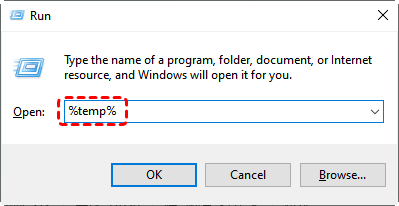
3. Browse the temporary files folder.
4. Look for recently created files related to copied content.
- ★Important Note:
- Temporary files may contain cached images, fragments of copied text, or application-generated data. While not guaranteed, this method occasionally helps recover clipboard-related information.
Method 3: Use Data Recovery Software
When clipboard data comes from files that were deleted or lost, data recovery software can help retrieve the original source files. While clipboard content stored in RAM cannot usually be recovered directly, the documents, images, or files you copied from may still exist on your disk.
One reliable tool for this purpose is MyRecover, a professional Windows data recovery software designed to retrieve deleted or lost files from various storage devices such as hard drives, SSDs, USB drives, and memory cards.
Why Use MyRecover
MyRecover offers several advantages when attempting to restore files associated with lost clipboard data:
- Supports recovery of deleted, formatted, or lost files.
- Works with Windows 11, Windows 10, Windows 8, and Windows 7.
- Provides quick and deep scanning modes.
- Recovers over 1000+ file types, including documents, images, and videos.
- Simple interface suitable for beginners and advanced users.
 100% Secure
For example, if you copied text from a document that was later deleted, MyRecover may help restore the original document so you can retrieve the copied information again.
1. Download and install MyRecover on your computer.
2. Launch the software and select the drive where the original file was stored.
3. Click Scan to start searching for recoverable files. Allow the program to perform a quick scan automatically.

4. Browse the scan results or use the search feature to locate the lost file.
5. Select the files you want to restore and click Recover.
6. Save the recovered files to a different location to prevent overwriting.

- ★Important Notes:
- Avoid writing new data to the affected drive before recovery.
- Perform recovery as soon as possible to increase success rates.
- Always save recovered files to a separate drive.
Using MyRecover can be particularly helpful if clipboard content originated from a deleted file that still exists somewhere on your storage device.
Method 4: Restore the System to a Previous State
System Restore can revert system settings and applications to an earlier point in time. If clipboard-related tools stored data before deletion, restoring the system might recover them.
1. Open Control Panel.
2. Select System and Security.
3. Click System and then System Protection.
4. Choose System Restore.
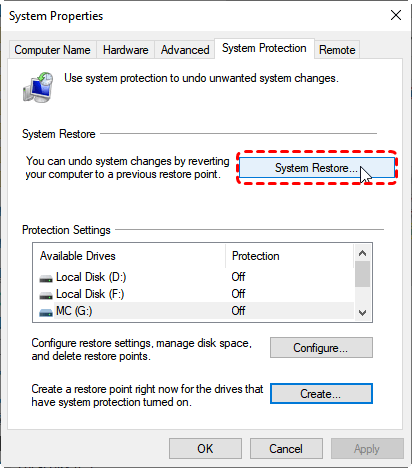
5. Select a restore point created before the clipboard data was lost.
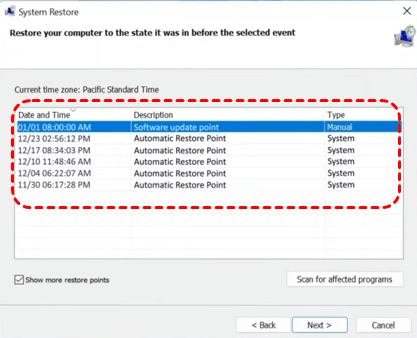
6. Confirm and restart the system.
- ★Important Note:
- System Restore does not directly restore clipboard memory, but it may recover supporting files or software configurations.
Method 5: Check Clipboard Data from Applications
Certain applications maintain their own clipboard history separate from the operating system. Examples include:
- Office applications
- Graphic editing software
- Messaging tools
1. Open the application where the content was originally copied.
2. Navigate to clipboard-related features within the application.
3. Review available history entries.
- ★Important Note:
- Some productivity software includes internal clipboard tracking that may preserve copied items.
Preventing Clipboard History Loss
Recovering clipboard data is not always possible. Therefore, prevention is often the best strategy.
Enable Clipboard History
Activating Windows clipboard history allows multiple copied items to be stored instead of only one.
Use Clipboard Management Software
Clipboard managers automatically record copied items and store them in a searchable database.
Pin Important Clipboard Items
Pinned clipboard items remain saved even after restarting the system.
Create Regular Backups
Backing up important files ensures you can restore copied data from its original source if needed.
Conclusion
Losing copied content can be frustrating, especially when the information is important. Understanding how to recover deleted clipboard history requires knowing how clipboard storage works and what recovery options are available.
Although clipboard data stored in RAM may disappear quickly, several approaches—such as checking Windows clipboard history, reviewing temporary files, using data recovery software like MyRecover, and restoring system settings—can help retrieve related information.
The most reliable strategy, however, is prevention. By enabling clipboard history and using proper file recovery tools when needed, you can ensure that important data is never truly lost.

Stay Updated With Our
Latest Tips
Add us as a preferred source on Google to never miss helpful guides.
 Add as preferred source >>