 MyRecover



System Restore Stuck on Restoring Registry: Causes and Fixes
When System Restore is stuck on restoring the registry, Windows may freeze for hours due to disk errors, drivers, or corrupted files. This guide explains common causes, step-by-step fixes, Safe Mode solutions, and how to protect your data while completing System Restore safely.

By Vera / Updated on January 8, 2026


What Is System Restore?
System Restore is like a time machine for your computer. It allows Windows to roll back system files, registry settings, and installed programs to a previous state. Think of it as hitting the "undo" button when something goes wrong on your PC.
How System Restore Works
When you create a restore point, Windows takes a snapshot of crucial system files, including the registry, drivers, and program settings. During a restore, it replaces the current files with these snapshots to return your system to a stable state.
Why System Restore Is Useful
From a failed software update to a buggy driver installation, System Restore can save you hours of troubleshooting. Instead of reinstalling Windows, you can simply roll back and get your system working again.
Understanding the "Restoring Registry" Stage
During System Restore, you’ll often see stages like "Restoring Registry" or "Restoring Files". This step is critical because the registry contains all the configuration settings for your OS and installed applications.
What Happens During Registry Restoration
Windows replaces corrupted or modified registry entries with the versions stored in the restore point. This ensures programs and system components function properly.
How Long It Usually Takes
Typically, restoring the registry takes a few minutes. However, it can take longer depending on the size of the registry, system performance, and disk health. If it’s stuck for more than an hour, something’s likely wrong.
Common Causes of System Restore Getting Stuck
Several issues can interrupt the restore process. Understanding them helps you troubleshoot effectively.
Corrupted System Files
If crucial Windows files are missing or damaged, the restore can’t complete. This is one of the most common reasons for the process freezing.
Malware or Virus Interference
Malicious software can interfere with System Restore by locking registry files or changing system permissions. Always run a full malware scan before restoring.
Hardware Issues
Failing hard drives, faulty RAM, or loose connections can cause the restore to hang. Even power fluctuations during the restore can disrupt the process.
- >> Look here if you want to recover data from a failed hard drive.
Software Conflicts and Background Processes
Programs running in the background—especially antivirus software—can block access to registry files. Sometimes, a clean boot or safe mode is necessary.
Insufficient Disk Space or Power Issues
System Restore needs free disk space to operate. If your drive is nearly full or your device loses power during restoration, the process can stall.
How to Fix System Restore Stuck on Restoring Registry
Before fixing the issue, a few prep steps can save your data and reduce frustration.
- Back Up Your Data: Even if System Restore is intended to prevent data loss, it’s safer to back up critical files to an external drive or cloud storage.
- Check Hardware Connections: Ensure your hard drive and RAM are properly seated. Loose connections can cause freezes.
Now, let’s learn a step-by-step guide to get things moving again.
Method 1: Restart and Retry System Restore
Sometimes, a simple restart works wonders.
Step-by-Step Instructions:
1. Press and hold the power button to shut down the PC.
2. Wait 10–15 seconds and restart.
3. Retry System Restore from Windows Recovery Environment (WinRE).
Method 2: Boot into Safe Mode
Safe Mode loads Windows with minimal drivers, reducing conflicts.
Step-by-Step Instructions:
1. Restart your PC and press F8 (or Shift + F8).
2. Select "Troubleshoot" > "Advanced Settings" > "Startup Settings" > "Enter Safe Mode with Networking".
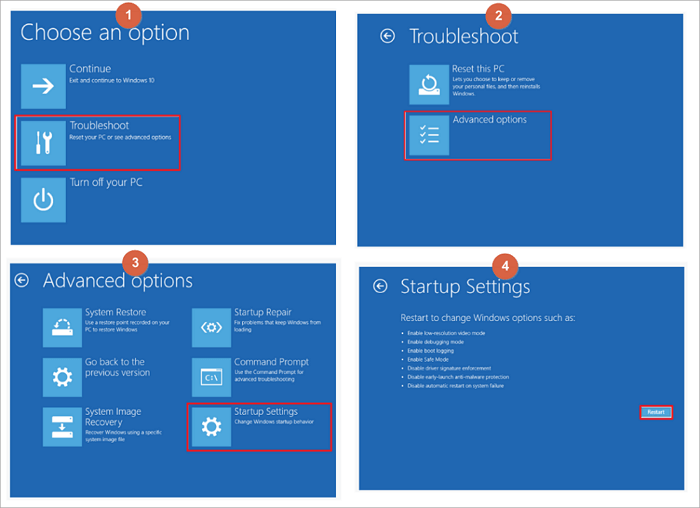
3. Run System Restore again and choose your restore point.
Method 3: Run SFC and DISM Tools
These built-in tools repair corrupted system files that may block restoration.
Step-by-Step Instructions:
1. Boot into Safe Mode or WinRE Command Prompt.
2. Type sfc /scannow and press Enter.

3. After completion, type DISM /Online /Cleanup-Image /RestoreHealth.
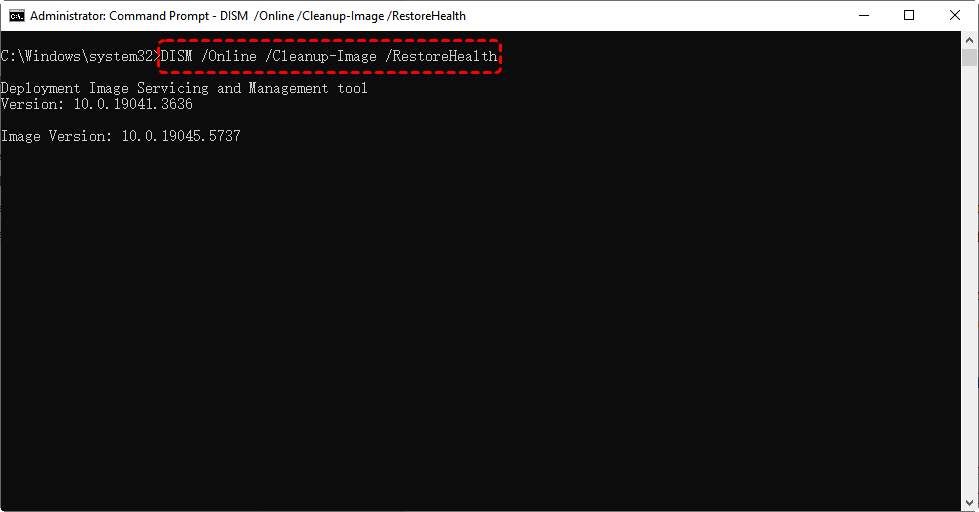
4. Retry System Restore.
Method 4: Use Last Known Good Configuration
This option restores Windows to the last successful boot.
Step-by-Step Instructions:
1. Restart the PC.
2. Press F8 during boot.
3. Select "Last Known Good Configuration" and boot.
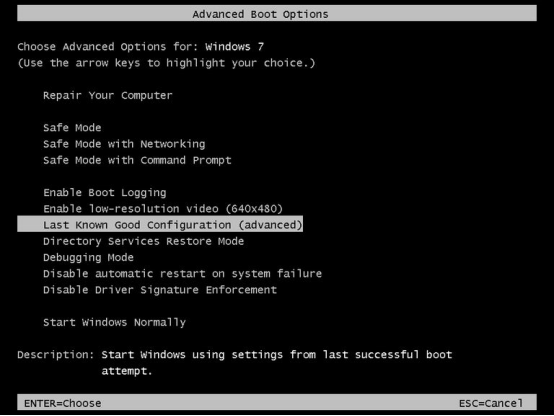
Method 5: Check and Repair Disk Errors
Disk errors can prevent registry restoration.
Step-by-Step Instructions:
1. Boot into the recovery environment (WinRE) by holding Shift + Restart.
2. Then navigate through "Troubleshoot" > "Advanced options" > "Command Prompt".

3. Type chkdsk C: /f /r and press Enter.
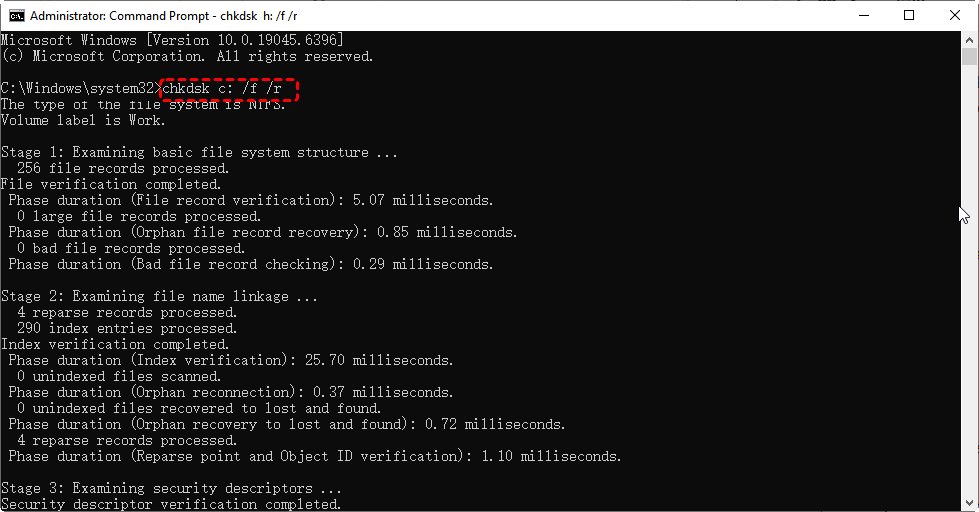
4. Restart and retry System Restore.
If none of these methods work, the problem may be severe corruption or failing hardware. Contact a professional technician to avoid data loss.
How to Recover Lost Data After System Restore Failure – MyRecover
Sometimes, even after all these fixes, you might lose files due to a failed restore. This is where a dedicated recovery tool like MyRecover comes in handy. MyRecover is designed to safely retrieve deleted, lost, or corrupted files from Windows PCs without overwriting existing data.
Steps to Recover Lost Data:
1. Download and Install MyRecover: Get the software from the official website and install it on a separate drive (not the one where data was lost).
2. Select the Drive: Open MyRecover and choose the drive where the lost files were stored.
3. Scan the Drive: Start a scan to let the tool detect all recoverable files. You can pause or stop if you see your files during the scan.

4. Preview and Recover: Preview the files to make sure you’re restoring the right ones, then click Recover and save them to a safe location.

5. Backup Your Data: After recovery, create a backup to prevent future loss.
With MyRecover, even if System Restore fails or corrupts data, you can regain access to your important files quickly and safely.
Preventing Future System Restore Issues
Prevention is better than cure. A few simple habits can keep your restore points reliable.
Keep System Files Healthy
Regularly run SFC and DISM scans to catch file corruption early.
Maintain Regular Backups
Use Windows Backup or cloud solutions to ensure you can restore without relying solely on System Restore.
Avoid Software Conflicts
Limit background programs during restore and uninstall suspicious software to reduce risk.
Conclusion
A System Restore stuck on "Restoring Registry" can be alarming, but it’s usually fixable. By understanding the causes, following step-by-step fixes, and taking preventive measures, you can get your PC back on track without losing data. And if data loss occurs, tools like MyRecover ensure your files are safe. Remember: patience, preparation, and the right tools are your best allies.

Stay Updated With Our
Latest Tips
Add us as a preferred source on Google to never miss helpful guides.
 Add as preferred source >>