 MyRecover



How to Recover Deleted HTML Files in 6 Quick Solutions
This article provides a complete tutorial on how to recover deleted html files from hard drives, SSDs, and backups. We detail manual methods, free recovery software, and professional services to restore lost HTML code. Learn prevention tips for the future.

By Delores / Updated on February 4, 2026


Preface
You might have deleted the HTML files by accident, or maybe your computer crashed, and the important HTML documents are missing or corrupted somehow. Don't worry, this guide will show you how to recover your deleted HTML files and provide step-by-step guides to recover them easily.
Why Your HTML Files Get Lost?
Generally speaking, your HTML files might be missing due to the following reasons:
- Accidental Deletion and Human Error. A simple slip of the mouse, a misapplied filter in your code editor, or an overzealous clean-up session can do it.
- Software Crashes and System Failures. This can interrupt the save process, leaving you with a partially written file.
- Malware Attacks and File Corruption. A virus might encrypt your files for ransom, or a nasty bit of code could scramble their contents.
After getting the main reasons, it’s time to recover your deleted HTML files.
How to Recover DeletedHTML Files?
Important: Stop Using the Drive Immediately. Whether it's your main hard drive or an external SSD, continuing to use it risks overwriting the data you're trying to save.
To recover deleted HTML files, check the following solutions.
Way 1. Check Your Recycle Bin or Trash
If you deleted your HTML files by clicking the Delete option while right-clicking, check your Recycle Bin or Trash first.
Recover Deleted HTML Files on Windows:
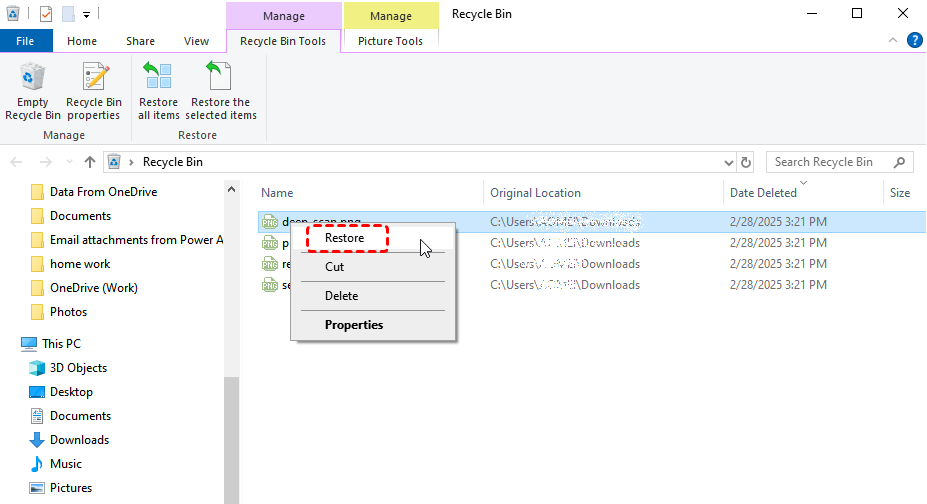
1. Double-click the Recycle Bin icon to open it.
2. It will list all the deleted files. You can click Date Deleted to descend the files, then find your deleted HTML files.
3. If found, choose all the HTML files, and hit Restore from the right-click menu or choose Restore the selected items from the top menu.
Recover Deleted HTML Files on Mac:
1. Open the Trash icon in the Dock.
2. Locate the HTML file, right-click, and select "Put Back".
If you used the Shift+Delete key combination to delete them, they were deleted without going to the Recycle Bin. And you have other ways to restore files.
Way 2. Try Shortcut to Recover HTML Files
You can try the shortcut to recover your deleted HTML files if you just delete them now, and you did nothing after deletion: Ctrl + Z (Windows), or Command + Z (Mac).

It’s the quickest way to recover deleted HTML files.
Way 3. Recover Deleted HTML Files via File History
If you have enabled File History for these HTML files before deletion, please try the following steps to recover the HTML files:
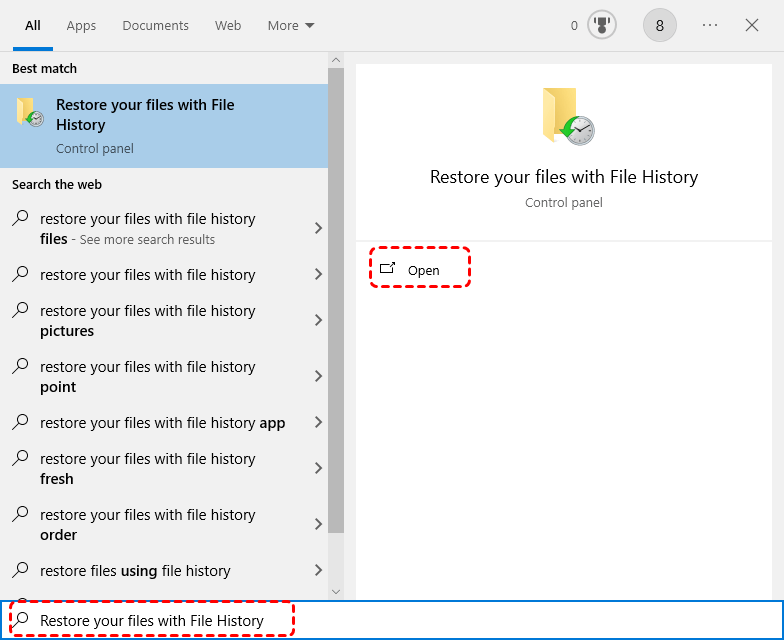
1. Type "File History" into the Windows search bar, and choose Restore your files with File History from the results.
2. The File History window will open, showing your current file view. Go to the location where the HTML files were originally saved.
3. Use the left and right arrow icons at the bottom of the window to browse through different versions of that folder saved by File History.
4. Look for a version before you delete the files.
5. Once you find the correct version of the folder containing the missing HTML files, select the specific file(s) you wish to recover.
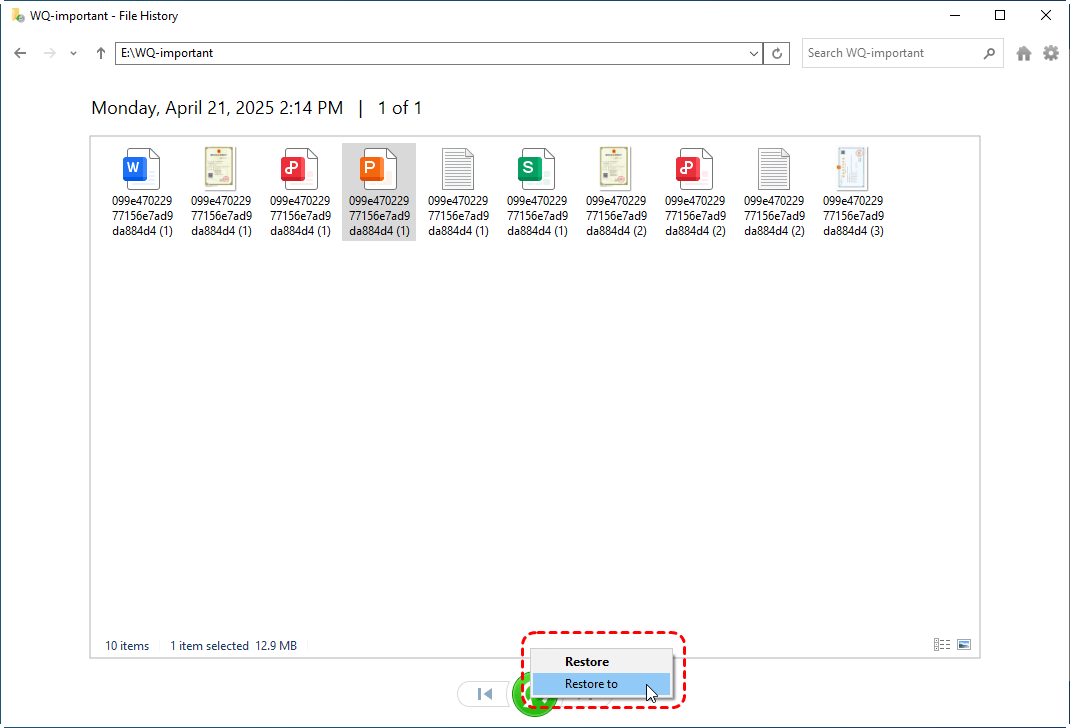
6. Click the green Restore button at the bottomto restore Deleted HTML files.
Navigate to that folder using File Explorer and verify that your HTML files have been recovered.
Or you can simply right-click the folder where your HTML file used to live, select "Restore previous versions", and you'll see a list of past snapshots. Browse through them, find a version containing your file, and restore it.
Way 4. Recover Deleted HTML Files in Visual Studio Code
There are different ways to recover deleted HTML files in Visual Studio Code (VS Code).
If your HTML files are tracked in the Source Control, you can revert the HTML files directly. Here is how:
1. Please go to the Source Control in Visual Studio Code.
2. Find your deleted HTML files in the Changes section, and hit the Revert icon.
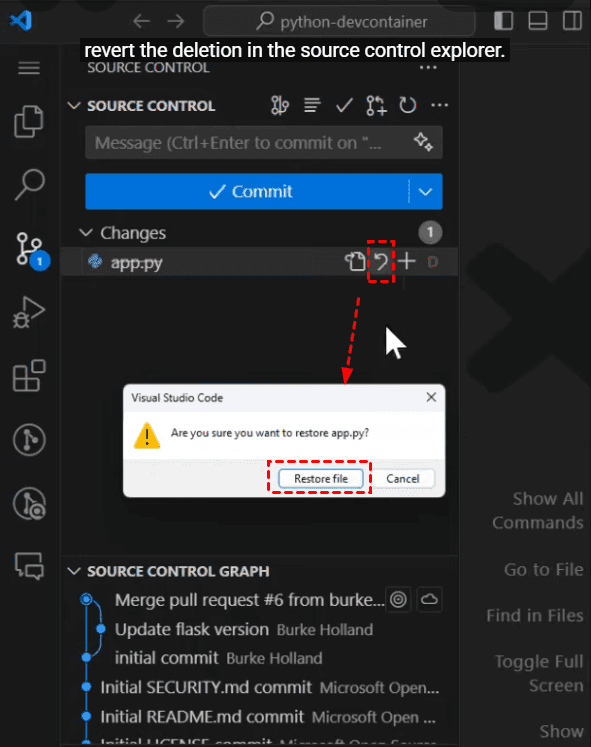
3. Tap Restore file to confirm recovering the deleted HTML file.
If your deleted HTML files are not tracked in the Source Control. You can try the following command in VS Code.
1. Tap the command in the search box: >local history: Find Entry to Restore, and tap it.
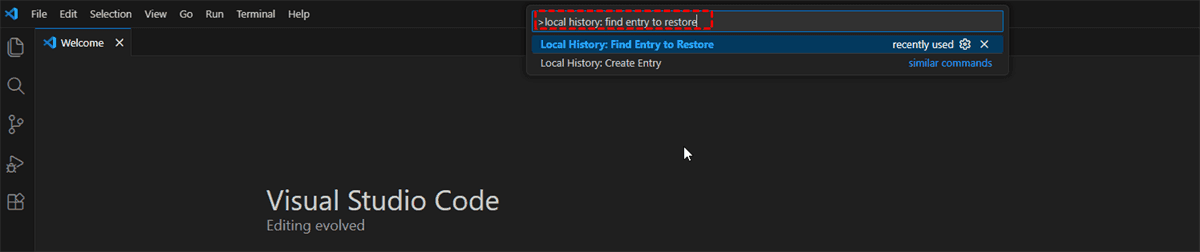
2. It will list all the HTML files you opened, and input the file name.
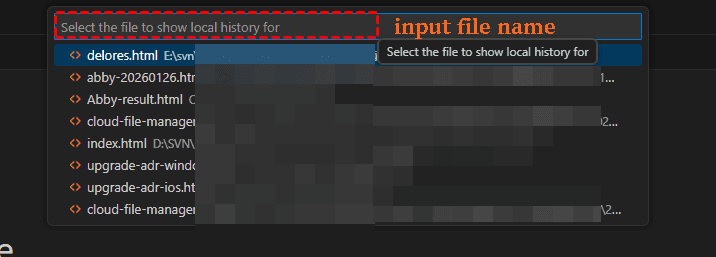
3. All the versions of that file will be listed, and choose the version you need.
4. It will open the version in VS Code, tap the Restore Contents icon > Restore to confirm.

You can also try other HTML editing software to recover the files.
Way 5. Check Web Server and Browser Caches
Besides, you can also check the web server and browser cache for your HTML files if you uploaded them online. The Wayback Machine is one of the tools. Here is how to recover deleted HTML files:
1. Please go to the Wayback Machine website (web.archive.org).
2. Input your HTML path, such as https://www.myrecover.com/windows-recovery-tips/recover-deleted-files-ssd-trim-0044.html, then hit Enter.
3. Tap Collections, and tap the version you need to open it.
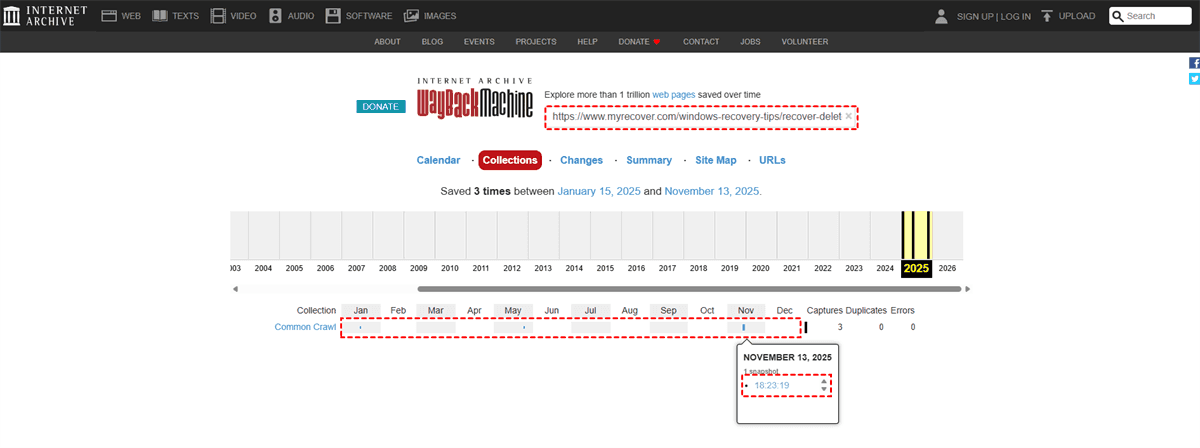
4. Right-click the blank section, and choose Save as.
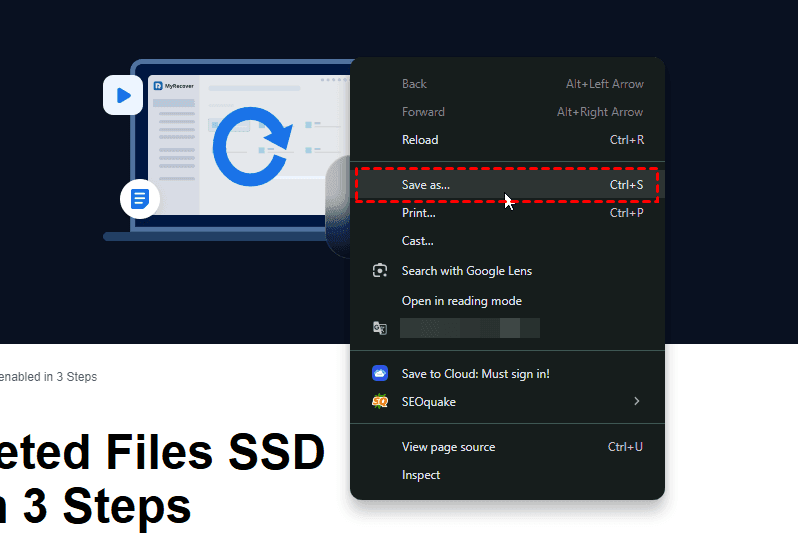
5. All the materials on this page will be downloaded, including the HTML files.

6. Edit the HTML file to delete the unnecessary code to restore the deleted HTML file.
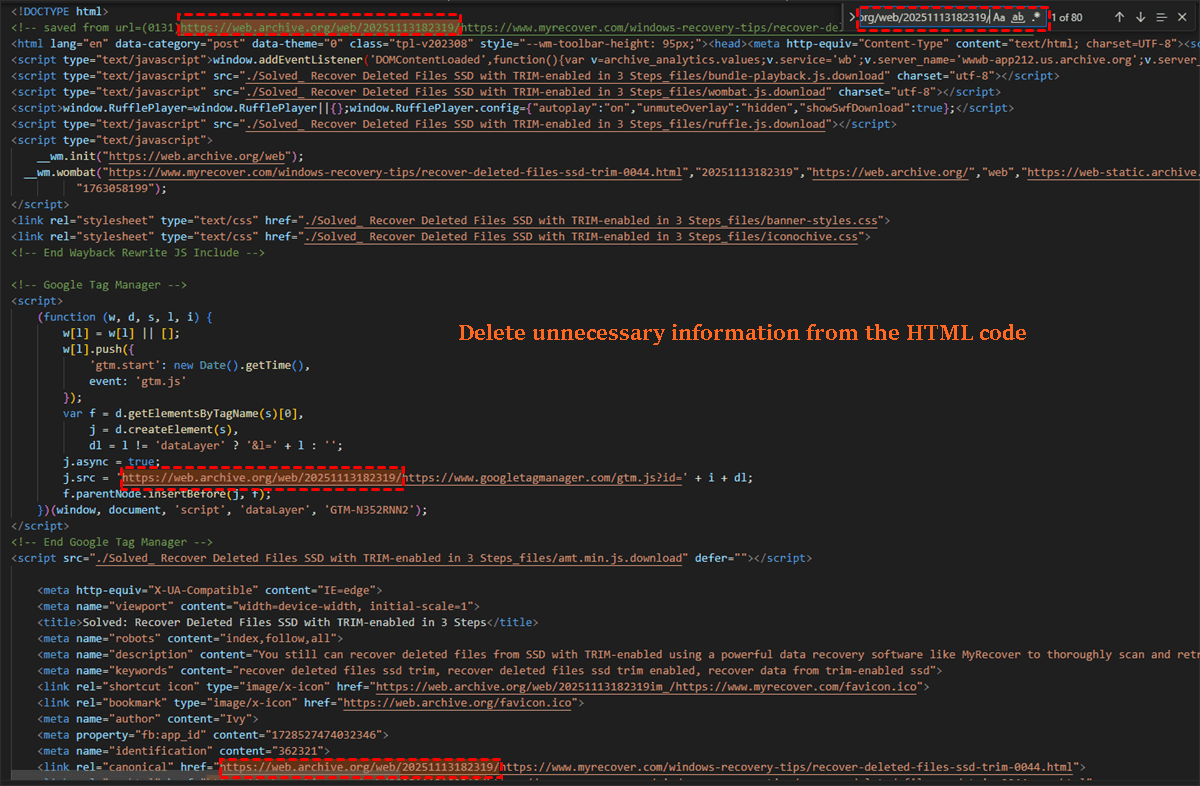
You can do the same for other HTML files, and you need to be patient.
Way 6. Recover Deleted HTML Files Effectively
If the above solutions are not working, it’s time to turn to the powerful Windows data recovery software, MyRecover, for help. With MyRecover, enjoy the following strengths:
- It bypasses the operating system and scans the drive sector-by-sector to find the raw data on your drive.
- It specifically recognizes .html and .htm file structures, and supports 1,000+ file formats.
- You can preview files before recovery; seeing your actual code in a preview pane confirms it's recoverable and intact.
- Unlimited files can be recovered with MyRecover Professional.
- Recover files from any complex situation, including recovering files from a crashed computer, a corrupted SD card, a write-protected disk, a formatted SSD, etc.
- It supports 500+ devices, such as HDD, SSD, SD Card, flash drive, PS4/5, Xbox One, Cemare devices, and many more.
Here is how to recover deleted HTML files with MyRecover in Windows 11/10 computer:
1. Download MyRecover and install it on a different drive than the one you're recovering from.
 100% Secure
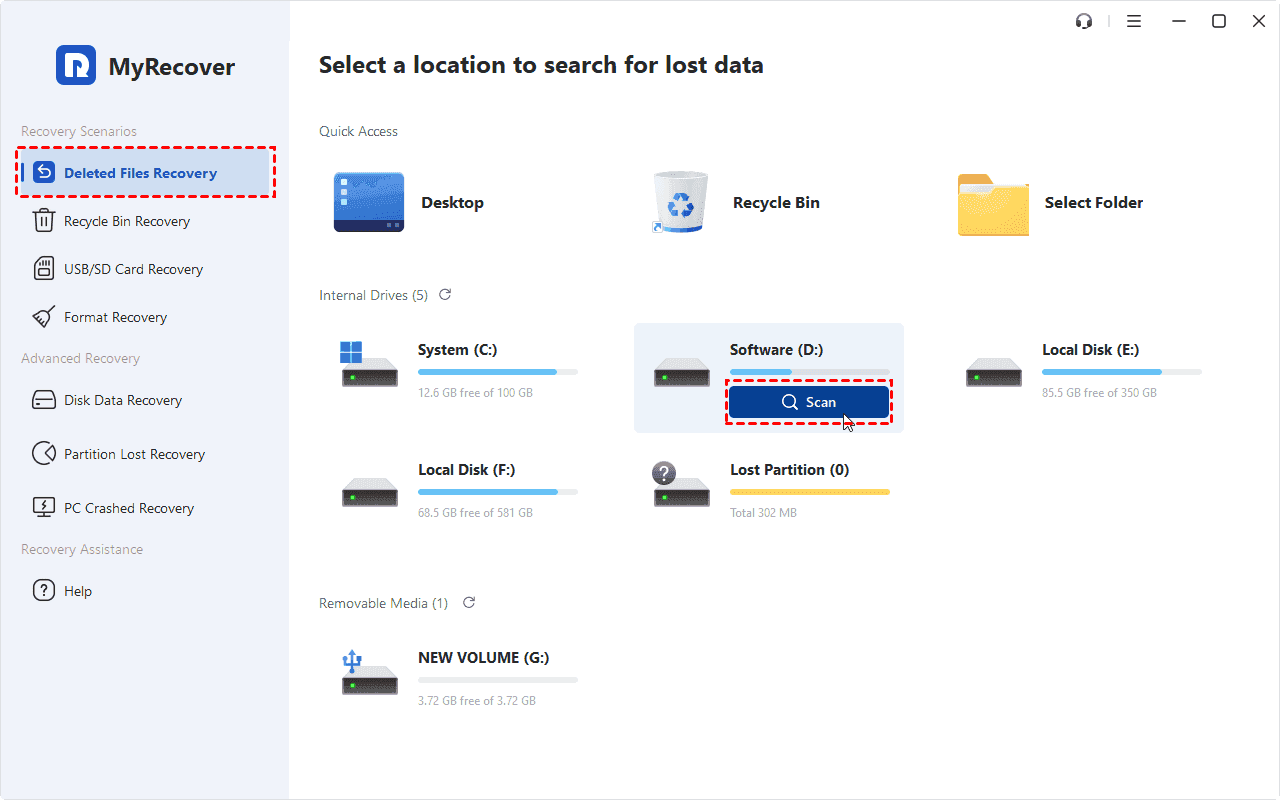
2. Open MyRecover, tap Deleted Files Recovery, choose the drive where your HTML files were located, and hit Scan. Wait for the process to complete and hit OK.
3. Double-click the file to preview or hit Preview to check. After that, tick all the boxes before the files, and hit Recover.

4. Choose a destination for the HTML file recovery.


- Tips:✎...
- By default, MyRecover scans the files to find the recently deleted files. If you can’t find the HTML files in the quick scan mode, you have to use deep scan to find all missing files, and it takes much longer.
- All your missing files will be sorted by file type, and you can tap Path to organize them by file path. Besides, you can use the powerful filter, search HTML files by inputting .html, or .htm to find them all.
- You can upgrade to MyRecover Technician to recover files from unlimited computers if unfortunately.
Now, your deleted HTML files will be recovered all at once. Keep them safe or create a backup for them in case of data loss.

 MyRecover
- Recover Deleted Files Easily with Simple Clicks
- 1000+ File Formats Supported
- Support HDD, SSD, External Hard Drive, USB Drive, SD Card, etc.
- Quickly Find Files Using File Types, Name, Size, etc.
- Preview Files Before Recovering
- Recover Unlimited Data
 100% Secure
How to Fix Corrupted HTML Files?
But what if the file is corrupted and can't be opened? How to Recover a Corrupted HTML File? You have different ways:
Way 1. Manually Repair the HTML File
Sometimes the identifying information of the HTML file is damaged. You can try to manually repair it:
1. Open a text editor like Notepad++.
2. Choose File > Open to choose the corrupted HTML file.
3. Manually fix broken tags or encoding issues.
Way 2. Try Online HTML Validators
For severe corruption, repairing code structure and syntax might involve using online HTML validators or comparing the file to a backup line-by-line to isolate the corrupted section.
Best Practices for Protecting HTML Files in the Future
Use a Reliable Backup Strategy. Try the 3-2-1 rule: keep at least 3 copies of your data, on 2 different types of media (like an external HDD and cloud storage), with 1 copy offsite (like cloud storage).
Using Version Control Systems Like Git is a web developer's superpower. Platforms like GitHub, GitLab, or Bitbucket don't just back up your code; they track every single change. If your HTML files get corrupted, you can roll back to the previous version.
FAQs About Recovering Deleted HTML Files
How can I recover a permanently deleted HTML file for free?
A: Start with built-in tools like Windows File History, macOS Time Machine, or cloud storage version history. For a deeper scan, use free software like Recuva or PhotoRec. Always run the software from a different drive and save recovered files elsewhere to avoid overwriting. Success in recovering deleted HTML files for free depends on speed and proper use of the tool.
Is it possible to recover an overwritten HTML file?
A: Chances are very slim. Overwriting writes new data directly over the old file's space. You might recover fragments if only part was overwritten, but a full recovery is unlikely. This highlights why stopping drive use immediately is critical when you need to retrieve an html file.
What is the best software to recover corrupted HTML files?
A: It depends. For deleted files, use recovery software with previews like MyRecover. For physically corrupted files, try repair tools or manually fix the code in an editor like Notepad++. Learning how to recover a corrupted html file often needs both approaches.
Can I recover HTML files from a formatted USB drive?
A: Yes, with high success if you act fast. Formatting erases the index, not the data. Don't save new files to the USB. Use software like MyRecover to perform a "Deep Scan" on the drive. This is a key method to recover HTML files from formatted media.
How do I get back an HTML file I didn't save in my text editor?
A: Check your editor's auto-recovery feature first. Editors like VS Code or Sublime Text often keep temporary backups. Look for recovery folders or tilde files (e.g., index.html~). If the editor crashed, restart it for a recovery prompt. As a last resort, try recovering from the system's TEMP folder to retrieve an html file.
Are recovered HTML files always fully functional?
A: Not always. Recovery gets the data on the disk; if it was already corrupted or overwritten, the recovered file will be too. Use software previews to check integrity. A file with missing tags or encoding errors needs manual repair, turning the task into how to recover a corrupted html file post-recovery.

Stay Updated With Our
Latest Tips
Add us as a preferred source on Google to never miss helpful guides.
 Add as preferred source >>