 MyRecover



How to Undelete Files in Windows 10: 5 Fast & Effective Methods
Master the process of how to undelete files in Windows 10 with our comprehensive tutorial. Learn proven techniques, including using Windows File Recovery and third-party tools, to understand how to recover deleted files from Windows 10 efficiently.

By Delores / Updated on January 4, 2026


Preface
Whether it's a crucial work document, precious family photos, or that project you’ve been sweating over for weeks, losing files can feel like a minor disaster. Luckily, this comprehensive guide serves as your lifeline, detailing exactly how to undelete files in Windows 10 using every available tool. From the simple tricks you can try in a pinch to the more powerful software solutions, we’ll walk you through the entire recovery process. Let's get those files back.

About File Deletion in Windows 10
When you delete a file by pressing the Delete key or choosing 'Delete' from the right-click menu, Windows typically doesn't remove it. Instead, it moves the file to this special folder, the Recycle Bin. The file’s space on the disk is marked as "available for overwriting", but the actual data sits there, intact and recoverable, until something new needs that space. It’s a temporary holding pen, giving you a chance to consider.
What if you empty the Recycle Bin or use Shift+Delete? This is what we call permanent deletion. In this scenario, Windows removes the file's entry from the master file table. The system now sees that space as free and available. However, and this is the critical part, the raw data of the file still physically exists on the disk platter or memory cells until it is overwritten by new data. This is the fundamental principle that makes file recovery possible. The sooner you act after a permanent deletion, the higher your chances, because you prevent new files from overwriting the old, "deleted" data.
Why Are Your Files Getting Deleted?
Files don't just disappear on their own; there's usually a culprit.
⭕ Disk corruption from a sudden power loss or a system crash can make files inaccessible.
⭕ Malware or virus attacks can hide, encrypt, or delete data.
⭕ Even software bugs during an update or a failed transfer can lead to loss.
Knowing the cause can often point you toward the best recovery method.
How to Undelete Files in Windows 10?
So, the file is gone. Don't panic! Here are the solutions to recover your deleted files in Windows 10.
Way 1. Check the Recycle Bin
1. Simply double-click the Recycle Bin icon on your desktop. Inside, you can sort files by deletion date, original location, or name to find what you’re looking for.
2. Once you find it, right-click the file and select 'Restore'.
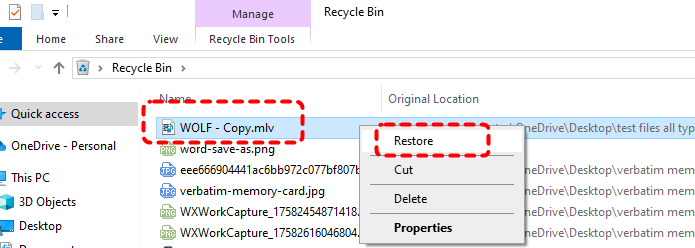
It will magically reappear in its original location. If you have a lot of items, use the search bar at the top-right corner of the Recycle Bin window. This is the simplest answer to how do i undelete files in Windows 10 when you've just deleted something.
Way 2. Use the Undo Keys(Ctrl+Z)
Here's a pro-tip many forget: the universal "undo" command.
If you just deleted a file—and I mean within the last few seconds or minutes—immediately press Ctrl + Z on your keyboard while in File Explorer. This can reverse the deletion action instantly, pulling the file right back from the Recycle Bin or even reversing a permanent delete in some contexts.
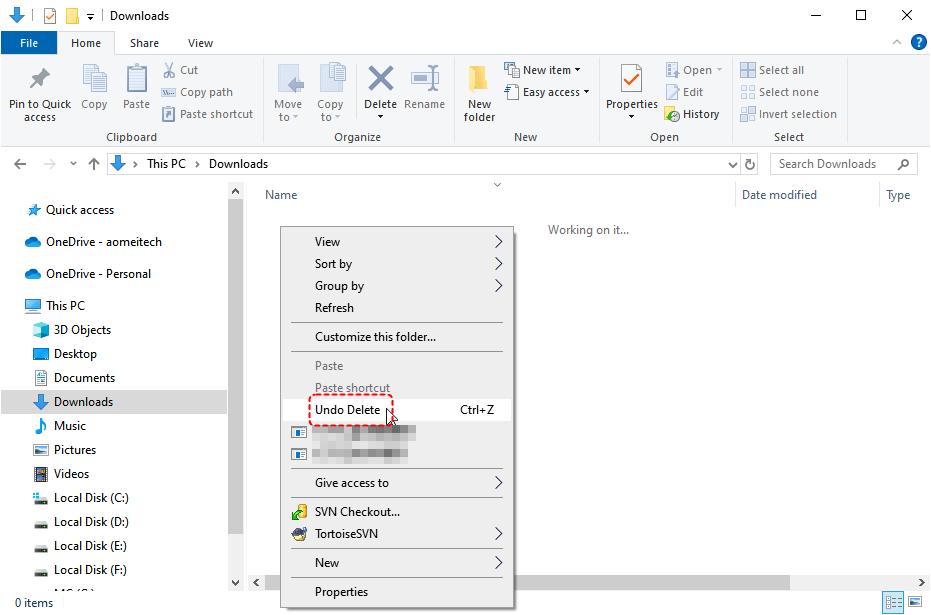
You can also right-click in a blank space within the folder and select "Undo Delete".It’s the quickest fix in the book.
Way 3. Restore from a File History Backup
Now, if the file is nowhere in the Recycle Bin, don't lose hope just yet. If you had set up Windows' built-in File History feature for these deleted files, you're in luck. This tool automatically backs up versions of files in your Libraries, Desktop, Contacts, and Favorites to an external drive or network location.
1. To use it, navigate in File Explorer to the folder where the missing file once lived.
2. Click the "Home" tab on the ribbon, and select "History".
3. You'll be presented with a timeline of saved versions.
4. Browse through the dated backups, preview the files, and click the big green restore button to bring an older version back to life.
It’s a powerful, built-in method for how to retrieve deleted files on Windows 10.
Way 4. Recover Files with Windows File Recovery
Microsoft offers a command-line tool called Windows File Recovery, which you can recover files. It's a command-line tool (no graphical interface), but it’s incredibly powerful.
You can download it from the Microsoft Store. The basic syntax requires you to specify the drive you’re recovering from, the destination for found files, and the mode (like "Regular" for recently deleted files or "Extensive" for formatted drives).
For example, to scan your E: drive for deleted JPEGs and save them to D:\Recovery, you'd use a command like:
winfr E: D:\Recovery /n *.jpg
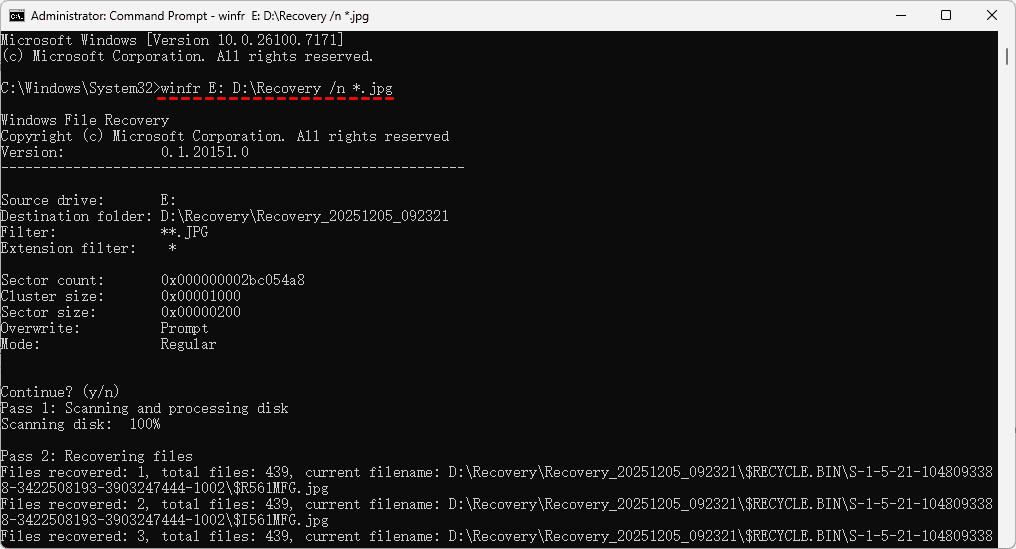
It requires patience and careful reading of the instructions, but it’s a free, official way to tackle tough recovery jobs.
Way 5. Recover Deleted Files from Windows 10 via MyRecover
When nothing works, dedicated data recovery software enters the scene. It's highly recommended to try MyRecover to recover your deleted files, even permanently deleted.
- It's designed to perform a deep scan of your storage media, looking for the signatures of file types and piecing together what's been marked as deleted.
- It provides a user-friendly graphical interface that guides you through the recovery process, making advanced data retrieval accessible to everyone.
- Unlike command-line tools, it lets you preview files before recovery, filter results by type or date, and perform targeted scans on specific folders.
- You can recover deleted files from Windows 10 after a system crash, accidental format, partition loss, corruption, or uninitialization, etc.
- It offers different scan modes. A "Quick Scan" looks at the existing file system tables for recently deleted entries—it's fast and perfect for simple deletions. A "Deep Scan" (Full Scan) meticulously combs through every sector of the drive, searching for known file headers and footers. This is necessary for formatted drives, corrupted partitions, or when the quick scan comes up empty.
Important:
- Stop using the affected drive immediately.
- Recover files to a different physical drive.
- Be patient; deep scans can take hours for large drives.
- Preview is your friend. Use the software's preview function to verify that a file is intact before recovering a large batch. Following these rules significantly increases your chances of getting your files back in usable condition.
To show you how MyRecover works, we will demonstrate the steps of recovering permanently deleted files:
1. Launch MyRecover after installing.
 100% Secure
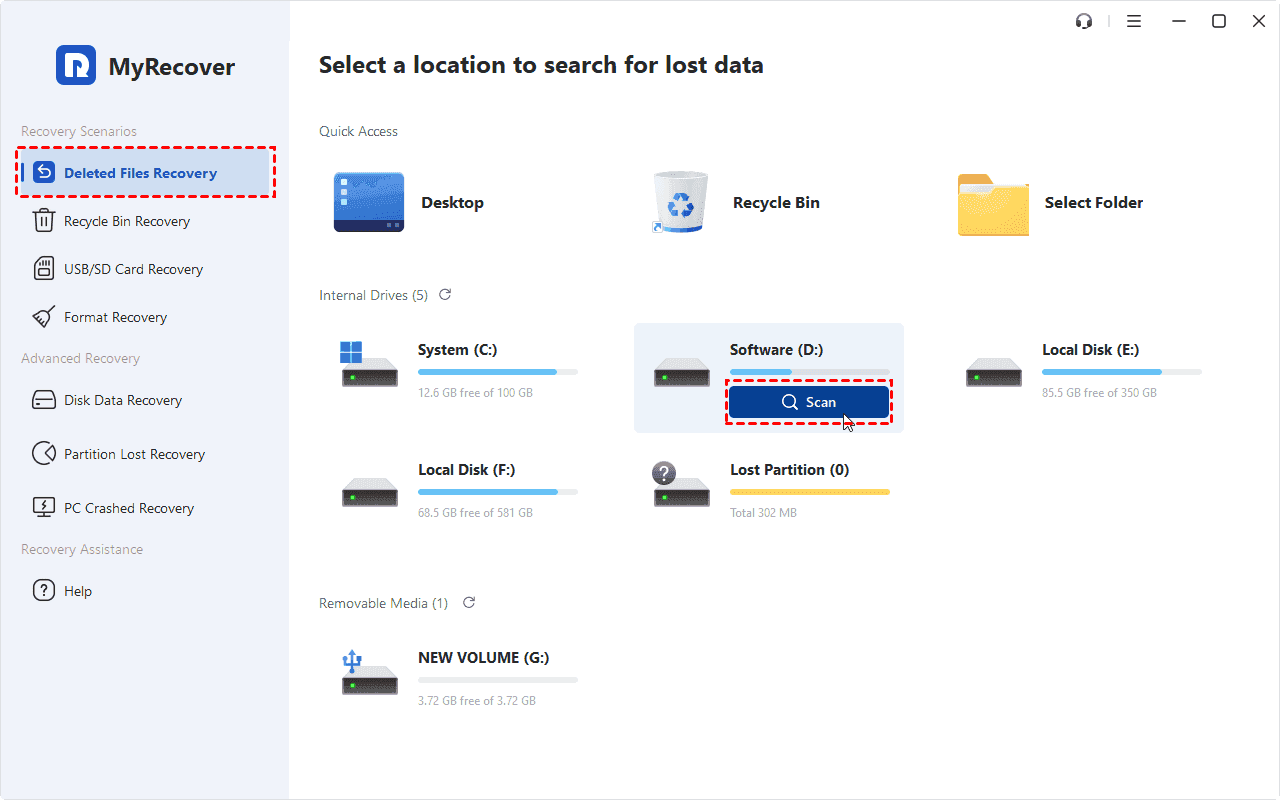
2. Tap Deleted Files Recovery, choose the drive where the files were deleted, and hit Scan.
3. Once the scan is finished, hit OK.
4. Choose the permanently deleted files and preview. Choose Recover if you confirm.

5. Opt for a safe location to keep. Then check the files in the destination folder.


- Notes:✎...
- You can recover unlimited files at once.
- Besides, you can recover files from a crashed computer, corrupted SD card, unformatted hard drive, etc.
- To recover files from unlimited computers after upgrading to MyRecover Technician.

 MyRecover
- Recover Deleted Files Easily with Simple Clicks
- 1000+ File Formats Supported
- Support HDD, SSD, External Hard Drive, USB Drive, SD Card, etc.
- Quickly Find Files Using File Types, Name, Size, etc.
- Preview Files Before Recovering
- Recover Unlimited Data
 100% Secure
FAQs About Undeleting Files in Windows 10
Q: I permanently deleted a file years ago. Can I still get it back?
A: Chances are extremely slim. New data has likely overwritten the space over time. Recovery software only works on un-overwritten data. Act immediately after deletion for best results.
Q: Does recovering files from an SSD work the same as from a regular hard drive?
A: The process is similar but harder on SSDs. SSDs use TRIM technology that often wipes deleted data blocks quickly to improve performance. Recovery is more challenging and sometimes impossible shortly after deletion on SSDs.
Q: Can I recover files after a factory reset of my Windows 10 PC?
A: Recovery after a factory reset is very difficult. The reinstallation overwrites most user data. While powerful software might find fragments if used immediately, expect incomplete results. Always back up before resetting.
Q: Are free data recovery software options safe and effective?
A: Some reputable free versions with data limits (like 2GB) are safe and effective for small recoveries. However, avoid unknown software from unofficial sources, which may contain malware or corrupt data. Research developers and download from official sites.
Q: What's the difference between 'undelete' and 'recover'?
A: Technically, "undelete" often refers to simple reversal (like from the Recycle Bin), while "recover" involves advanced techniques after permanent deletion or formatting. In everyday use, they're interchangeable.
Q: If I find my files with recovery software, does that mean my drive is failing?
A: Not necessarily. Most recovery needs stem from logical errors like accidental deletion. However, if you frequently lose files, hear unusual noises, or experience disk errors, it may indicate a physical failure. After recovery, back up data and consider replacing the drive if problems persist.

Stay Updated With Our
Latest Tips
Add us as a preferred source on Google to never miss helpful guides.
 Add as preferred source >>