 MyRecover



How to Recover Deleted Snapchat Memories on iPhone, Android, Computer
Wondering how to recover deleted Snapchat memories after vanish? This comprehensive guide walks you through reliable ways to restore your lost Snapchat photos and videos across iPhone, Android, and computer. With these methods, you can significantly increase your chances of recovering deleted Snapchat memories successfully.

By Aria / Updated on March 19, 2026


Introduction
Social media platforms play a central role in how people capture and share daily moments, and Snapchat is one of the most popular apps for this purpose. Known for its "disappearing messages" feature, Snapchat automatically removes snaps after they are viewed, which makes it unique compared to other platforms. However, the Memories feature allows users to save important photos and videos within the app for long-term access.

Despite this, Snapchat Memories can still be lost due to accidental deletion, app glitches, device changes, or cache clearing. Since Snapchat emphasizes temporary content, many users assume that once Memories are deleted, they are gone forever. In reality, deleted Snapchat Memories are not always permanently erased immediately. Depending on how the data was stored or how quickly you act, there are still several methods you can try to recover them.
Can Deleted Snapchat Memories be Recovered?
Yes, in many cases, deleted Snapchat Memories can still be recovered, but the success largely depends on how and where the data was stored before deletion and whether it has been overwritten. Snapchat Memories are typically saved either in the app’s cloud servers or locally on your device. If the data still exists in one of these locations, recovery is possible through different approaches:
☘️Snapchat Servers: If Memories were backed up to Snapchat’s cloud servers, you may be able to retrieve them by logging into your account or requesting your data from Snapchat.
☘️Device Cache or Storage (Android): Some temporary files may remain on the device even after deletion, offering a chance for recovery.
☘️Backups (iPhone/Android): If you have enabled iCloud, Google Photos, or other backup services, deleted Memories might still be restored from a previous backup.
☘️Computer or External Storage: If you exported or synced files earlier, checking local folders or cloud drives may help recover them.
How to Recover Deleted Snapchat Memories on iPhone or Android
Once you understand that recovery is possible, the next step is choosing the right method based on where your data might still exist. The following methods can help you progressively improve your chances of restoring deleted Snapchat Memories.
Method 1. Check Camera Roll in Photos/Gallery
If you previously enabled the option to save snaps to Memories & Camera Roll, even if the Snaps in Memories are deleted, they may still be saved in your Camera Roll. This is one of the quickest ways to recover photos or videos without relying on backups or external tools.
Step 1. Open the Photos app (iPhone) or Gallery (Android) on your device.
Step 2. Navigate to albums like "Camera Roll", "Snapchat", or "Recent Photos".

Step 3. Search for the deleted Memories manually or by date.
Step 4. If you find the photos or videos you want, restore or re-save the files to a safe location.
Method 2. Request Snapchat "My Data" Download
Snapchat allows users to request account data, which may include stored Memories or related media. After you submit the request, Snapchat will send a file containing your Memories and other related media to your email. You can download it directly. This method works because Snapchat Memories are mainly stored on Snapchat's cloud servers. As long as you act quickly, there is a good chance you can recover your lost Memories.
Step 1. Go to Snapchat Accounts website and log in. Tap on your Snapchat profile and the "Settings" icon,
Step 2. Scroll down and click "My Data" from the account dashboard.
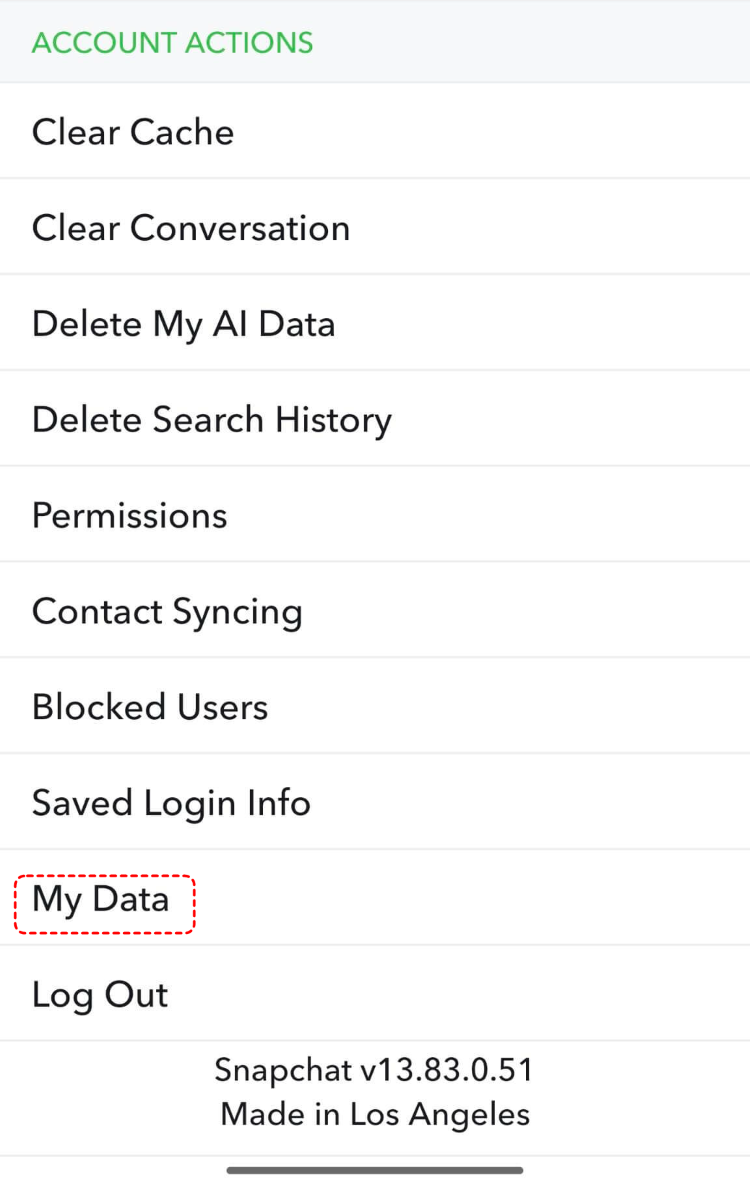
Step 3. Check the "Export your Memories" and "Other Media", then click "Next".

Step 4. Choose the date range to export Memories from a specific time period and click "Submit".

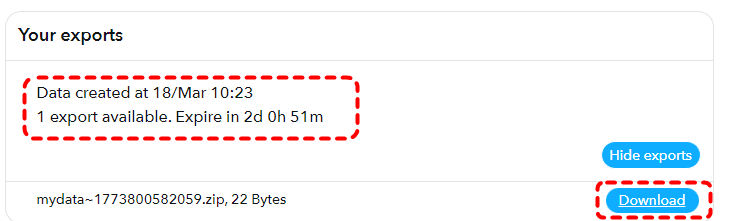
Step 5. Wait for Snapchat to send a download link via email. Download and check the archive for recoverable Memories.
Method 3. Check Device Cache (Android Only)
On Android devices, Snapchat may temporarily store cached data that isn’t immediately removed. These cache files allow Snapchat to load your account information faster and provide a better user experience. Accessing cache files can sometimes help retrieve recently deleted content.
Step 1. Open "File Manager" on your Android device.
Step 2. Navigate to "Android" > "data" > "com.snapchat.android".
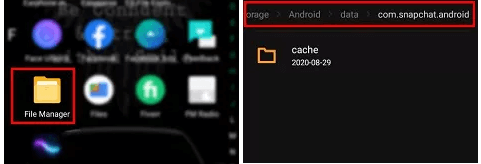
Step 3. Check the cache folder and browse for your saved snaps. If found, move them to a safe location and verify that they are the ones you need.
Method 4. Check The Recently Deleted/Trash Folder
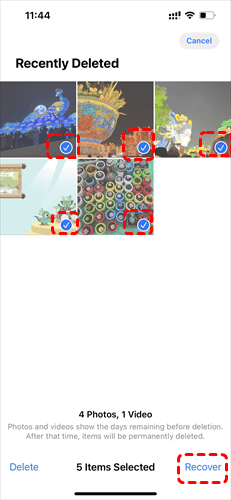
Both iOS and Android devices have a folder for storing recently deleted photos and videos. Normally, these deleted files are kept for about 30 days before being permanently erased. Unfortunately, if the Snapchat photos and videos saved to your Camera Roll have also been deleted, checking the Recently Deleted/Trash folder may help you recover the lost memories you want.
Step 1. Open "Photos" (iPhone) or "Gallery" (Android).
Step 2. Scroll down and go to the "Recently Deleted" or "Trash" folder.
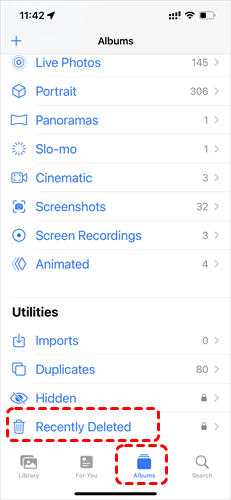
Step 3. Browse for the deleted Snapchat photos or videos, select the files you want and tap "Restore".
Method 5. Recover from Backup Tool (iCloud / Google Drive)
If you regularly export and back up your Memories data to cloud storage tools such as iCloud, Google Drive, etc., even if your local Memories are deleted, these cloud backups will still retain a copy, allowing you to recover your deleted Snapchat Memories whenever you need. Restoring from backup can bring back lost data along with other files. Here takes iCloud (iPhone) as an example:
-
Cloud backup tools cannot automatically back up Snapchat Memories directly; you can only back them up after manually exporting the data.
-
In addition, even if you have enabled Snapchat's "Smart Backup" feature, this is not your personal cloud storage. Snapchat officially states clearly that when you delete a Snap from Memories, the server will erase it as soon as possible.
Step 1. Go to "Settings" > "Apple ID" > "iCloud" > "Manage Storage" > "Backups". Check if there is a recent backup created before the Memories deletion exists in iCloud.
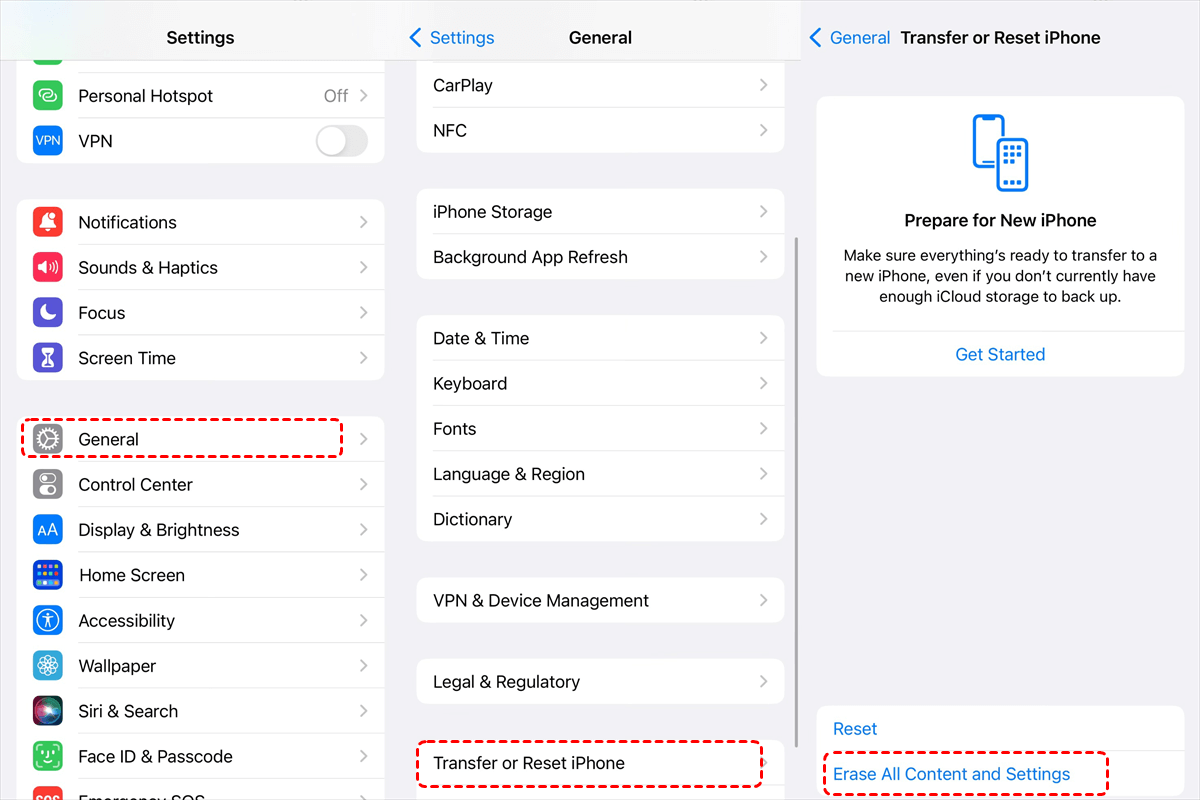
Step 2. Navigate to iPhone "Settings" > "General" > "Transfer or Reset iPhone" > "Erase All Content and Settings" to reset your device. This method will erase all data on your phone and restore it to your desired state by overwriting the current version with your previous backup.
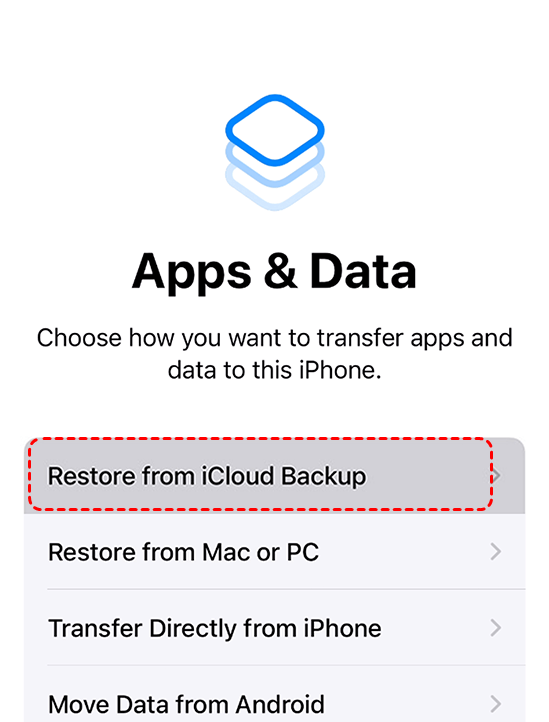
Step 3. After that, select "Restore from iCloud Backup" and log in the same iCloud account including your backups.
Step 4. Tap on "Choose Backup" and choose a backup created before the snap loss occurred.
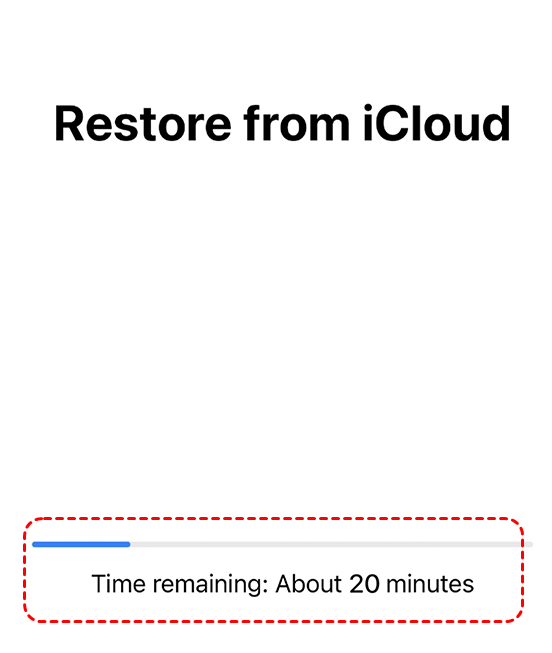
Step 5. Complete the restoration process and check your files.
Method 6. Use Third-Party Data Recovery Tools
When no backups or built-in options work, professional data recovery software may be the last resort. These tools can scan your device storage to find recoverable files that are not yet overwritten. DiskDigger is an excellent choice for Android device. It supports data recovery without root, although rooting your device can significantly enhance the success rate of recovering more photos and files.
For iPhone users, using a specialized recovery tool is often more effective because iOS restricts direct access to system files. In such cases, a professional solution like MyRecover for iOS can help scan the device at a deeper level and locate deleted Snapchat photos or videos that are not visible through standard methods. It is designed to scan iOS devices and retrieve deleted app-related data, including WeChat history, call history, Snapchat Memories.
Step 1. Download and install MyRecover for iOS on your Windows supported computer.
Step 2. Connect your iPhone to the computer with a correct cable and trust the computer on your iPhone.
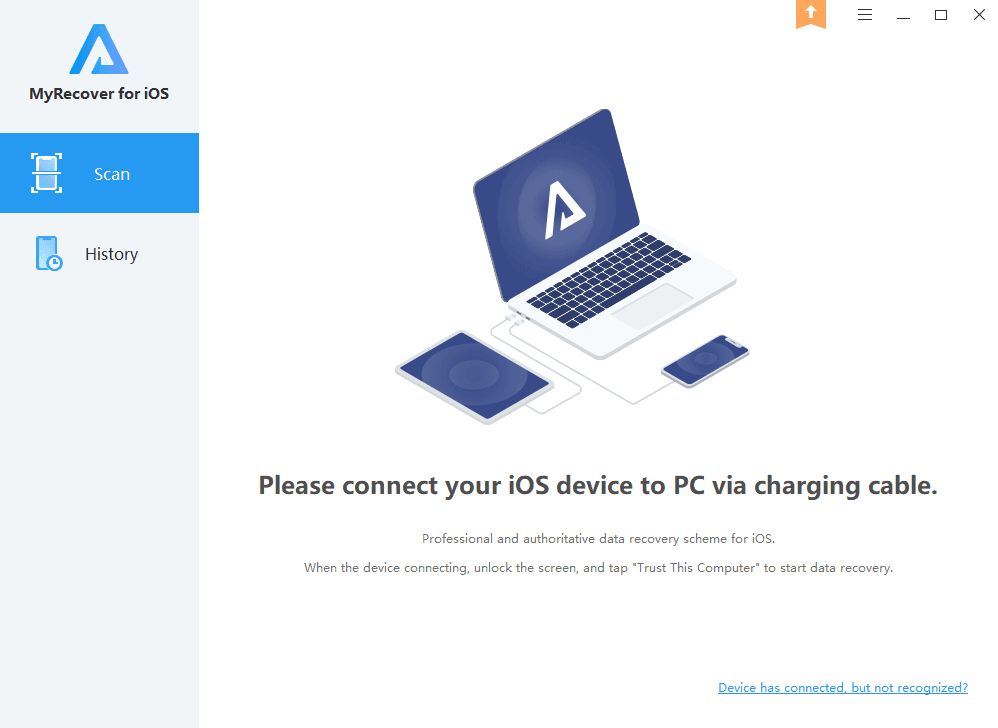
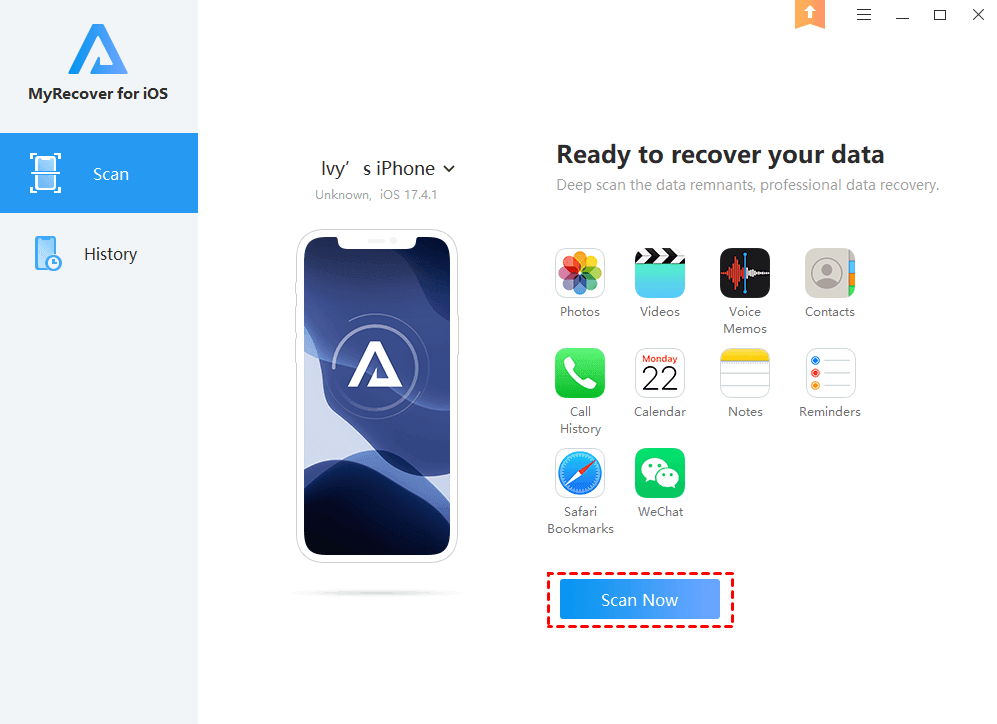
Step 3. Launch the app and click "Scan Now" to start scanning.
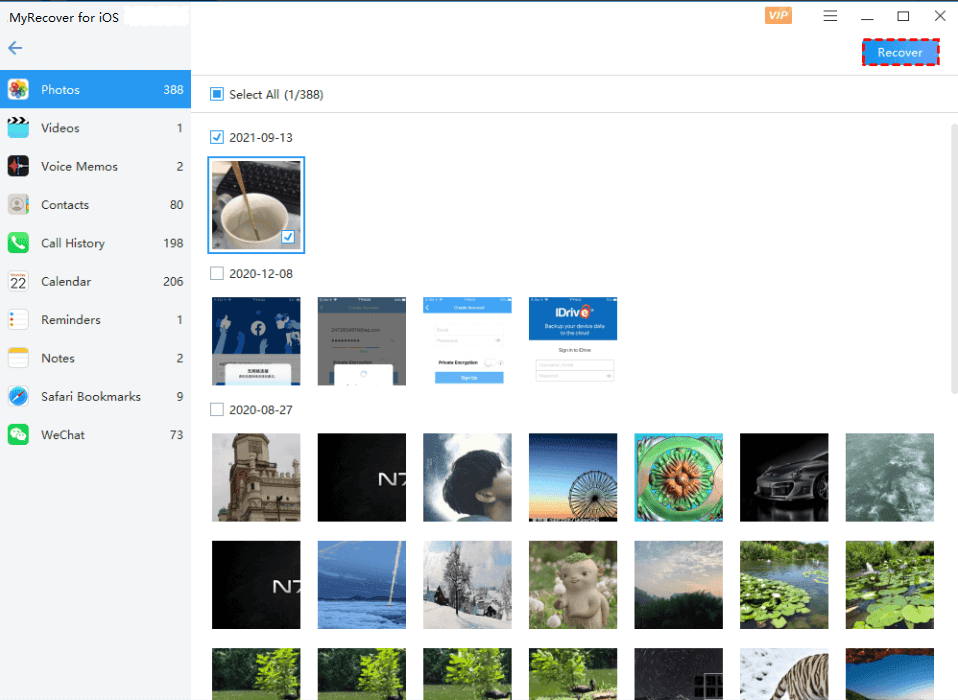
Step 4. Preview the detected files, including Snapchat-related photos.
Step 5. Select the files and click "Recover" to save them safely.
How to Recover Deleted Snapchat Memories from Computer
While Snapchat itself does not store Memories as directly accessible files on a computer, the situation is different if you’ve ever exported or transferred your snaps outside the app. For example, many users choose to save important photos or videos from Memories to their camera roll and then move them to a computer, USB drive, or external hard disk for backup. In these cases, Snapchat photos and videos exist as standard media files, which means they can still be recoverable even after deletion.
If such files were accidentally deleted, lost during transfer, or removed due to formatting, you can treat them like any other deleted files and attempt recovery from the storage device itself. At this point, using a dedicated data recovery tool like MyRecover becomes a practical and effective solution. It supports recovering photos and videos in various file formats, including PNG, JPG, MP4, MOV, and more. MyRecover’s unlimited data recovery and deep scan technology allow you to recover any files you want without missing anything.

 MyRecover
- Recover deleted & lost files from HDD, SSD, USB, SD card, camera as you need.
- Support 1000+ formats of photos, videos, docs, archives, emails, compressed files, etc.
- Reliable rescue for deletion, formatted disk, emptied Recycle Bin, system crashes and more.
 100% Secure
Step 1. Download and install MyRecover on your computer from Microsoft Store or its official website.
Step 2. Run the app and select the drive where the snaps were stored, then click "Scan" to search for recoverable files.

Step 3. After the scanning is completed, choose the files you attempt to recover from the recoverable lists and click "Recover". You can preview the files to check if it's the one you want in the right panel.

Step 4. Select a safe location to save the recovered files to avoid overwriting original data.

Once the process is done, you can access the recovered files by clicking on the destination folder path or the "Browse" button.
Bonus Tips: How to Avoid Losing Snapchat Memories Again
After going through multiple recovery methods, it’s clear that restoring deleted Snapchat Memories can be time-consuming and not always guaranteed. To minimize future data loss, it’s more effective to take a few preventive measures and ensure your important snaps security in multiple locations.
Enable "Save to Camera Roll"
Set Snapchat to automatically save snaps to both Memories and your device storage. This creates an extra local copy that remains accessible even if content is deleted from the app.
Regularly Export Important Memories
Periodically export valuable photos and videos from Snapchat to your phone or computer. This reduces reliance on Snapchat’s internal storage and gives you more control over your data.
Use Cloud Backup Services
Upload exported files to services like iCloud or Google Photos. While Snapchat Memories aren’t backed up automatically, manually saved files can be securely stored and easily restored when needed.
Avoid Frequent Cache Clearing (Android)
Clearing cache may remove temporary files that could otherwise help with recovery. Only perform this action when necessary.
Keep a Secondary Backup on Computer or External Drive
Storing copies on a PC, USB drive, or external hard disk adds another layer of protection, especially for important or irreplaceable Memories.
Conclusion
Losing Snapchat Memories can be frustrating, especially given the platform’s focus on temporary content. However, as outlined above, deleted Memories are not completely unrecoverable. Depending on where the data was stored, whether in Snapchat’s servers, device storage, backups, or external drives, there are multiple practical methods you can use to recover the deleted Snapchat Memories.
At the same time, prevention remains essential. By combining the right recovery approach with proactive data management, you can better protect your Snapchat content and avoid permanent loss in the future.

Stay Updated With Our
Latest Tips
Add us as a preferred source on Google to never miss helpful guides.
 Add as preferred source >>